Design an SSRS RDL report using a table in Bold Reports®
To design an SSRS RDL report that lists records in a table format, add a table report item in the Bold Reports® Web Report Designer and assign data fields. You can then set expressions and header text and resize rows and columns.
Add a table to the report
You add a table in the Bold Reports® Web Report Designer by dragging it from the Data Regions category of the item panel.
- Find the table report item in the item panel under the
Data Regionscategory.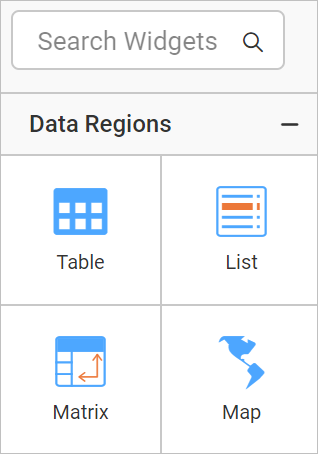
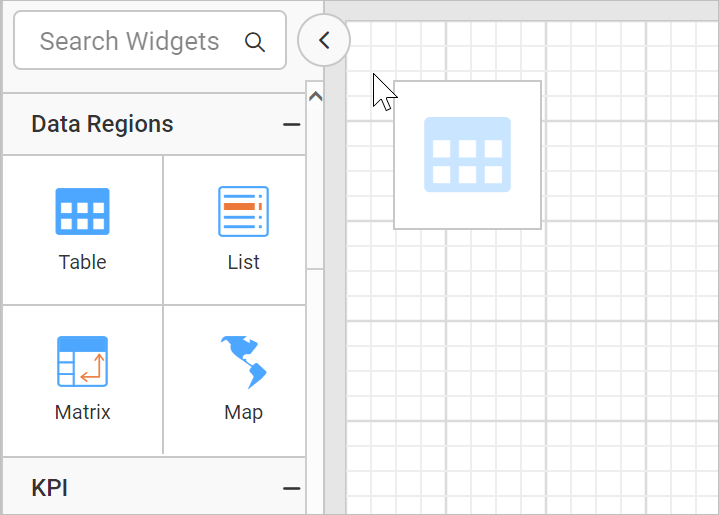
- Drag and drop the table report item into the design area from the item panel.
- Review the table properties, which are listed in the properties panel.
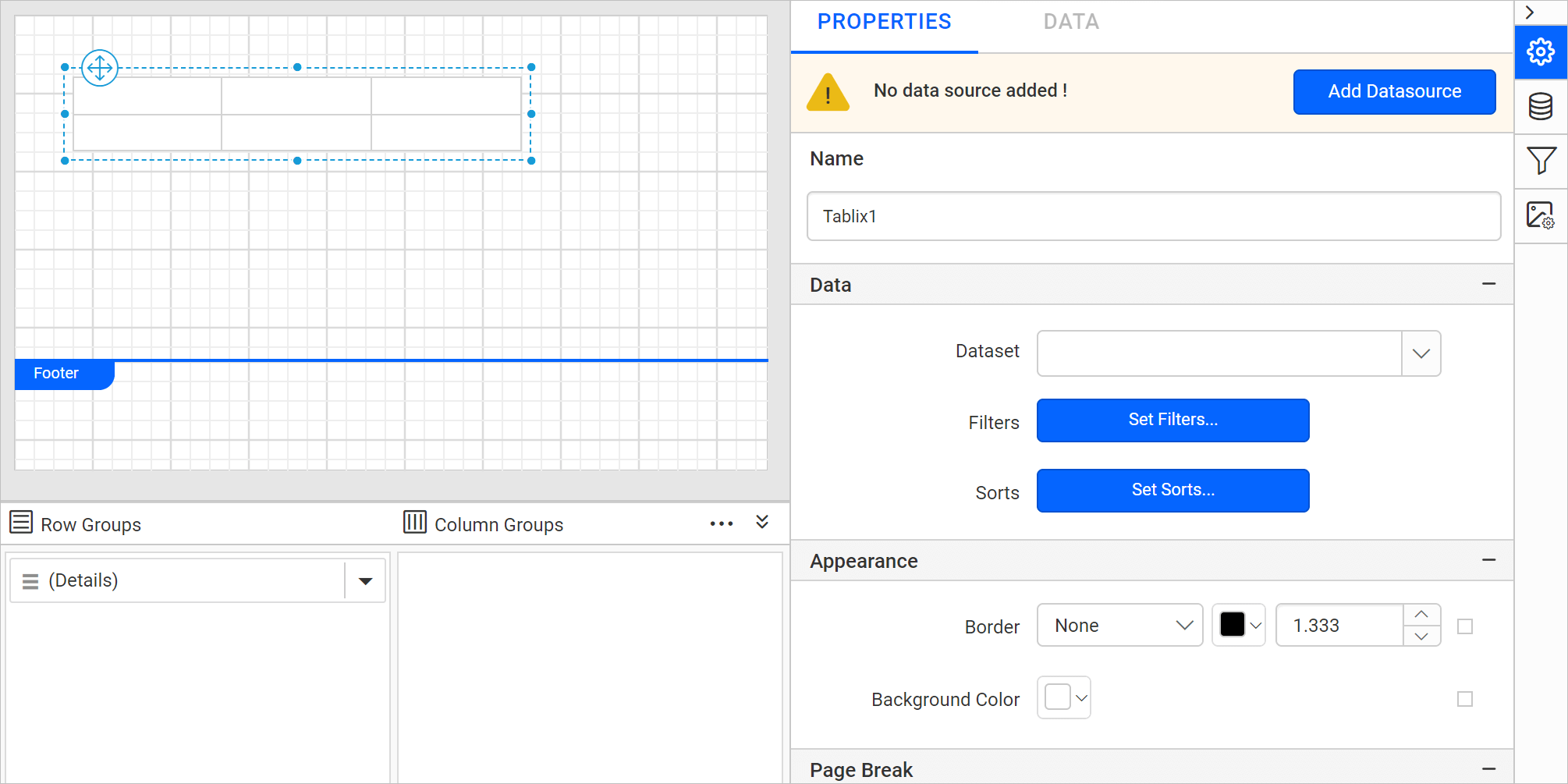
What does the initial table design look like?
A new Table in the Bold Reports® Web Report Designer renders with two rows and three columns in the design area after you drop it.
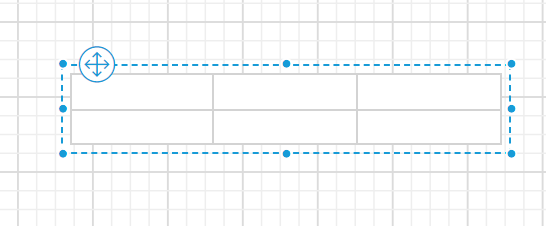
Each cell in the table is a simple textbox. The cell in a list contains a rectangle. You can replace a default report item with a different report item.
How do I assign data fields to the table?
You assign fields to a table in the Bold Reports® Web Report Designer in a few different ways:
- Drag and drop data fields from the
DATApanel. - Select the field from the data assign menu provided in each cell.
- Set expression using Multi-Text Run Editor Dialog.
How do I drag and drop data fields?
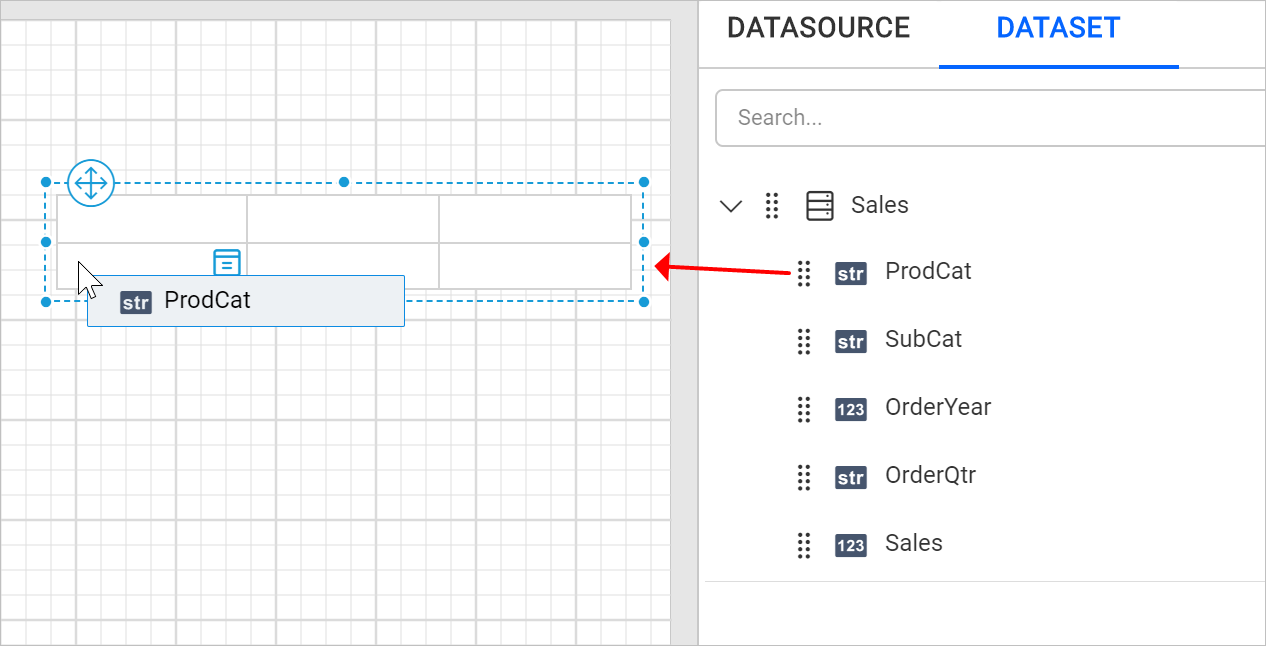
You drag fields into table cells from the DATA panel of the Web Report Designer.
- Open the
DATApanel and expand the required dataset.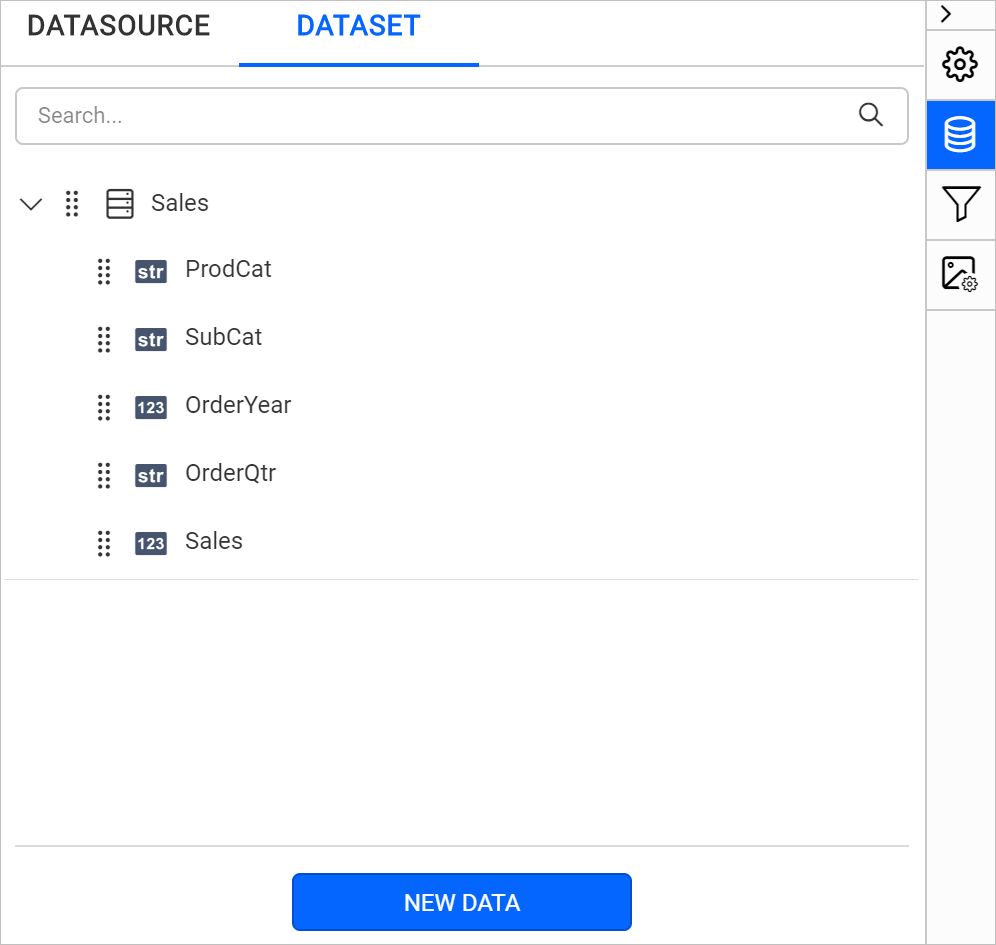
- Drag a field from the list and drop it into the required cell.
How do I assign fields using the data assign menu?
You assign a field from the data assign menu that each table cell provides in the Web Report Designer.
-
Select the table cell and click the
Data assignmenu icon to open the data assign menu.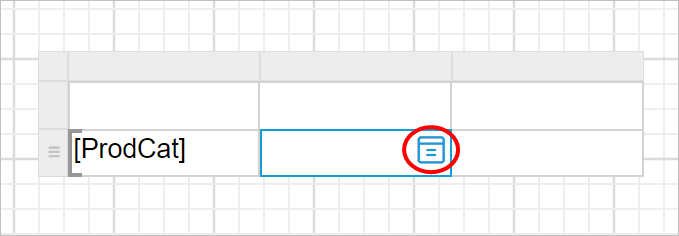
-
Click the required data field name in the menu.
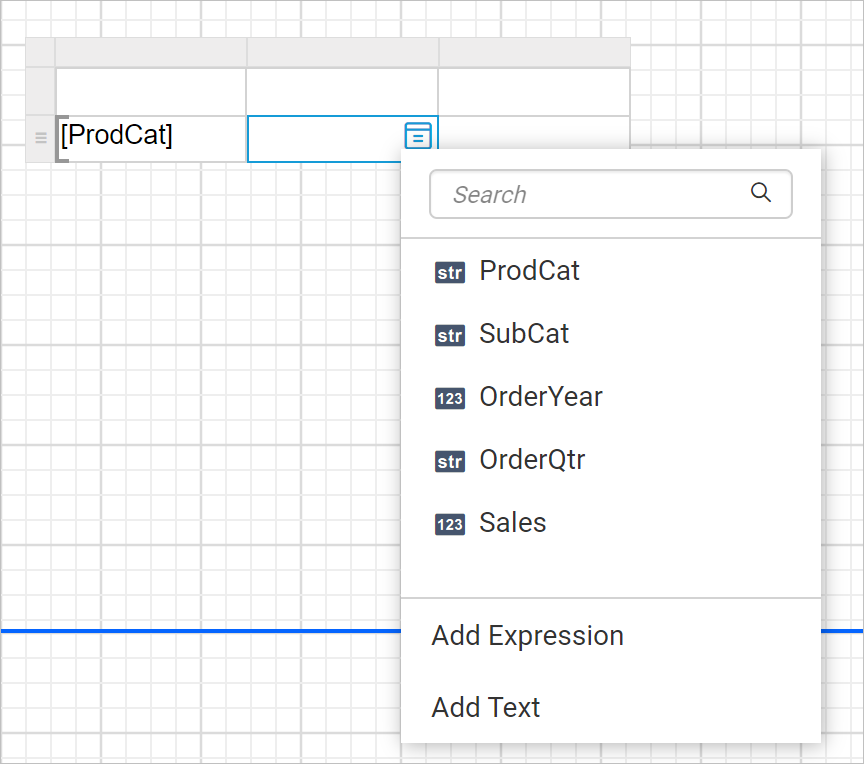
The fields of the dataset assigned to the
Datasetproperty of the table are listed in the menu. -
Check that the field is assigned to the respective cell, as shown in the following image.
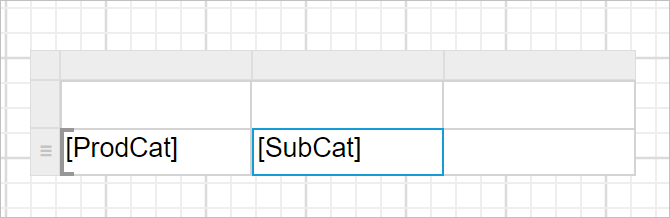
Set expression using data assign menu
You set an expression in a table cell with the Add Expression option of the Web Report Designer data assign menu.
- Select the table cell and click the
Data assignmenu icon to open the data assign menu.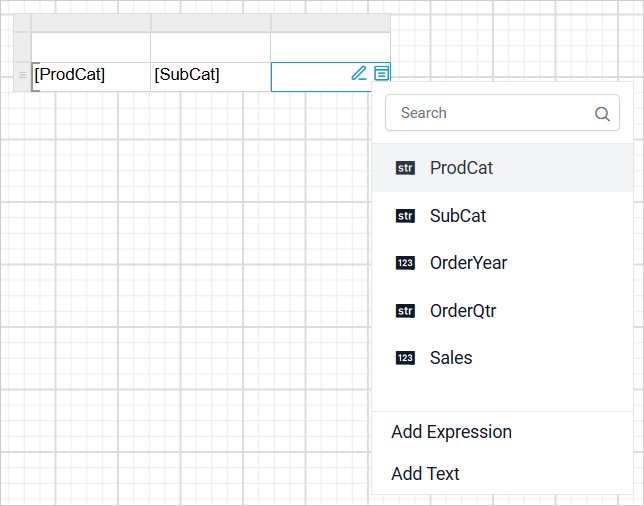
- Click the
Add Expressionoption from the menu. TheExpression Editordialog opens.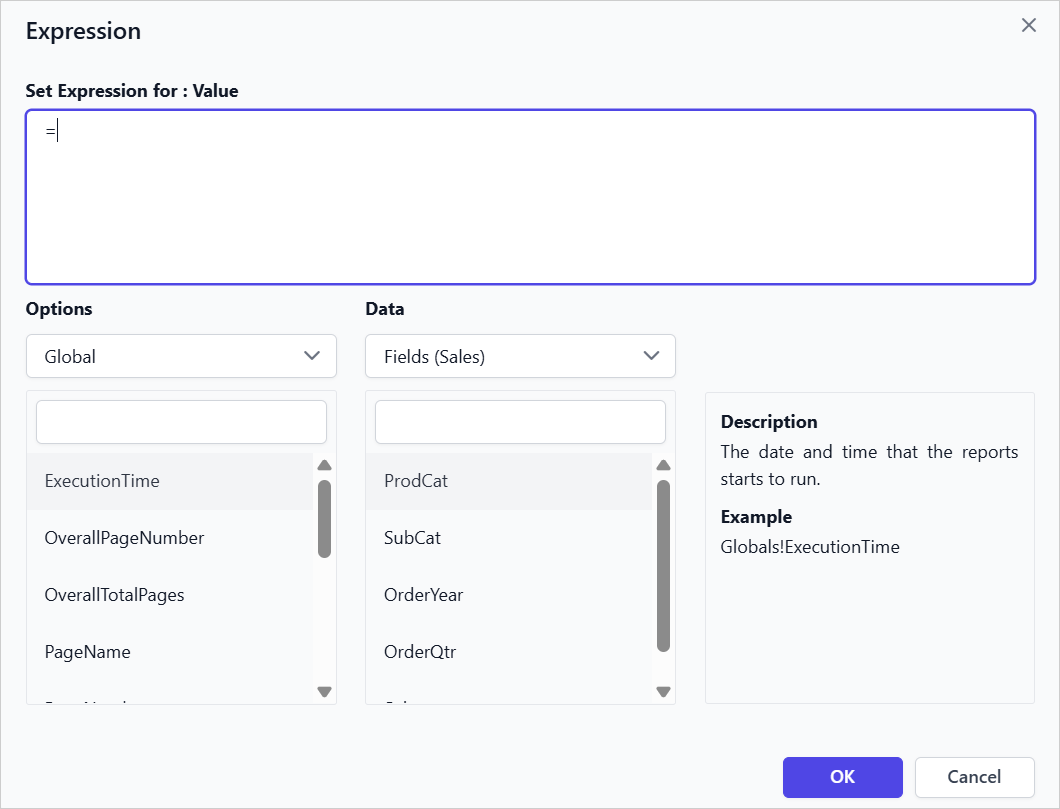
- Set the Expression in the Expression editor and click
OK.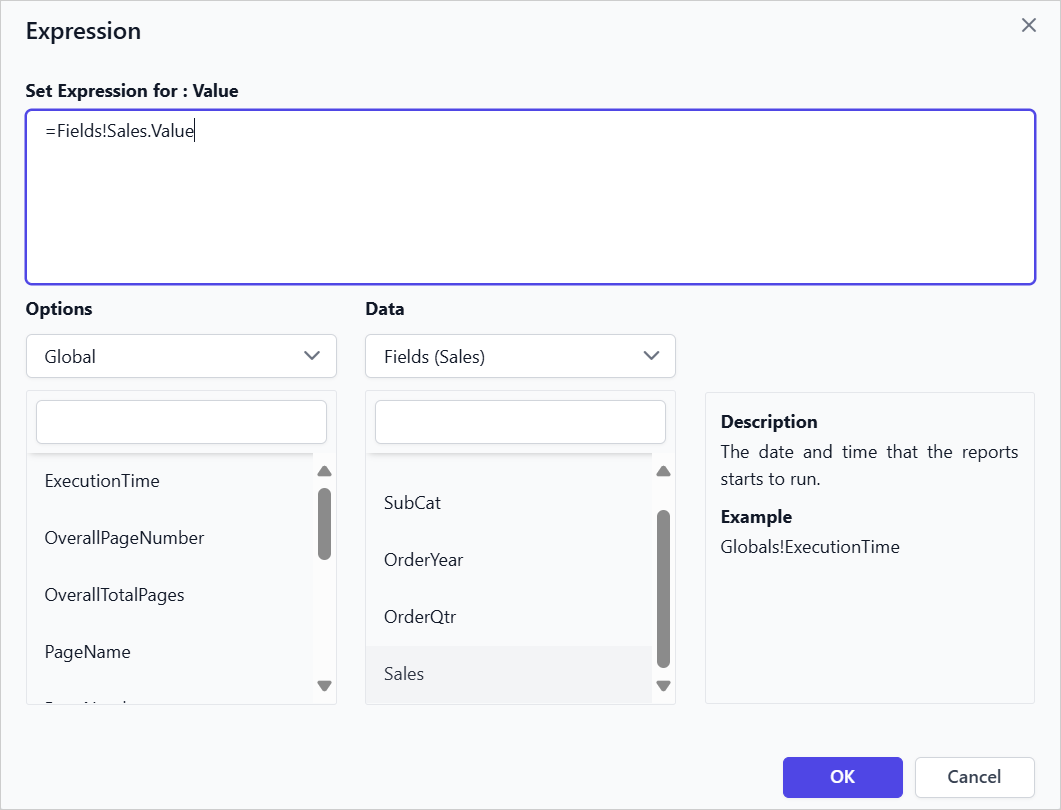
- Click
OKto assign the added expression to the respective tablix cell.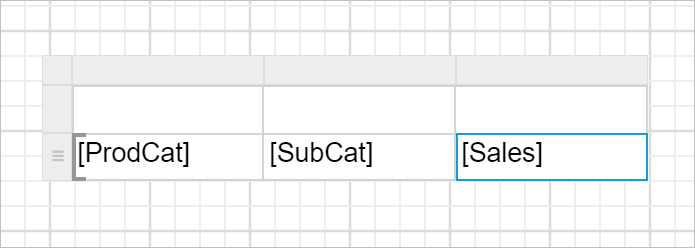
Set header text using data assign menu
You set header text in a table cell with the Add Text option of the Web Report Designer data assign menu.
- Select the table cell and click the
Data assignmenu icon to open the data assign menu.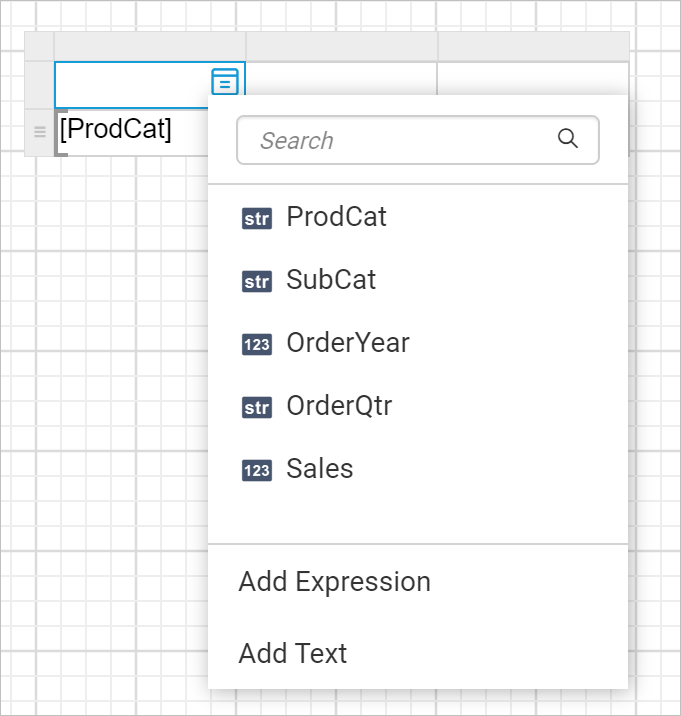
- Click the
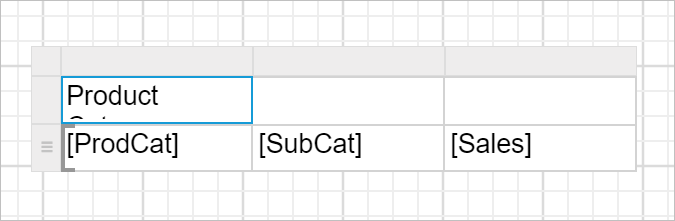
Add Textoption in the menu. TheMulti-Text Run Editor Dialogopens, as shown in the following image.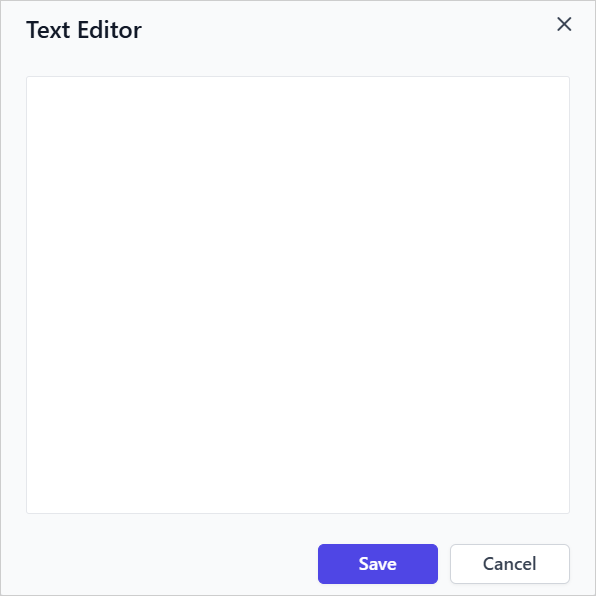
- Enter the desired header text in the text editor area and click the
Savebutton.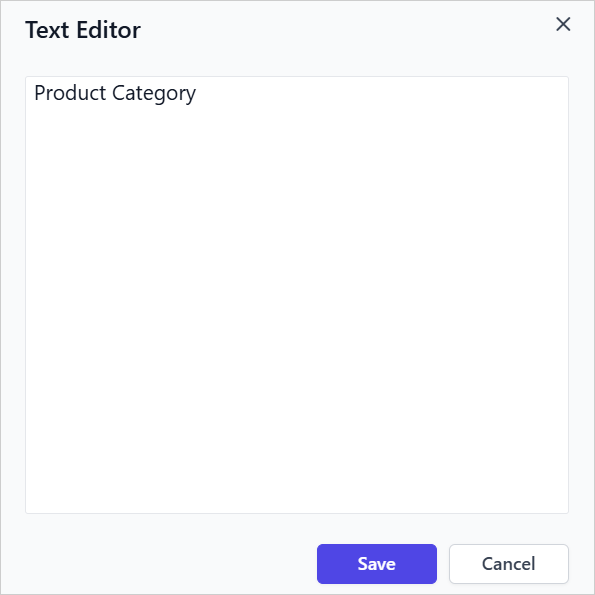
- Check that the text is displayed in the respective cell, as shown in the following image.
How do I resize a column?
You resize a table column in the Bold Reports® Web Report Designer by dragging the column gripper. Resizing the table row height and column width improves report readability.
- Place the mouse pointer on the respective column border.
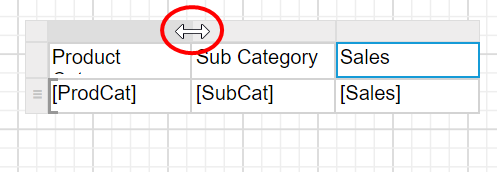
- Drag the column gripper horizontally to adjust the column width.
How do I resize a row?
You resize a table row in the Bold Reports® Web Report Designer by dragging the row gripper.
- Place the mouse pointer on the respective row border.
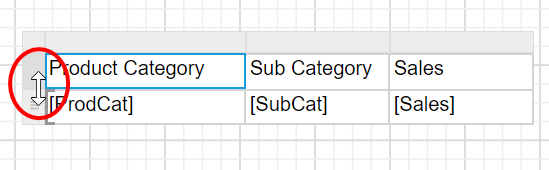
- Drag the row gripper vertically to adjust the row height.
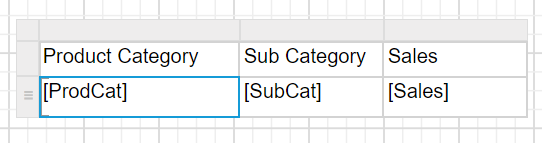
What does the final design look like?
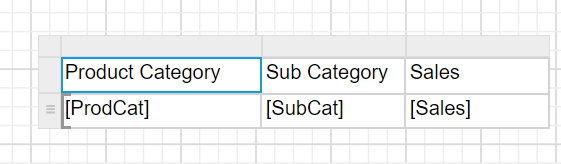
A simple table design in the Bold Reports® Web Report Designer looks like the following image.
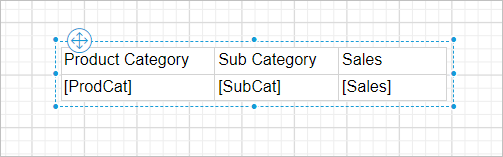
Download the table report design (RDL).
Frequently asked questions
How many rows and columns does a new table have?
A new Table renders with two rows and three columns in the design area.
What report item does each table cell contain?
Each cell in the table is a simple textbox, which you can replace with a different report item.