Tablix cell in Bold Reports® Web Report Designer
In the Bold Reports® Web Report Designer, a tablix cell contains the actual content that the table presents. You can change or delete the item in a cell, set its properties, and cut, copy, and paste cell contents.
How do I change an item within a cell?
A tablix cell in the Bold Reports® Web Report Designer contains the report items that display the data in tabular format. By default, all cells in a tablix contain the Textbox report item. You can place any of the other report items supported in the Web Report Designer inside the tablix cell to present data. There are two ways to change an item within a cell:
- Drag and drop report item into table cell.
- Insert item using cell menu.
How do I drag and drop a report item into a table cell?
You drag and drop the required report item into the table cell from the Web Report Designer item panel.
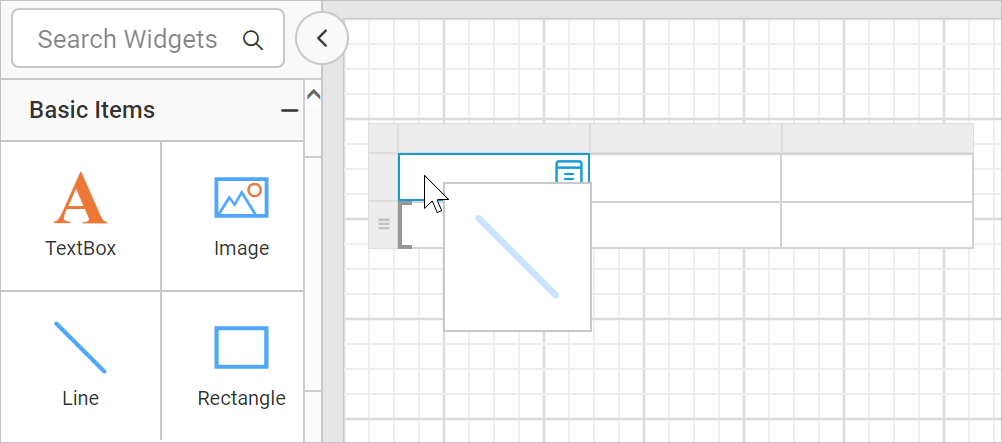
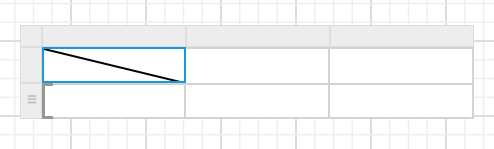
The item replaces the existing textbox in the cell and inserts a line report item.
You can insert other report items into the table cell in the same way. The following image shows tablix cells with different report items.
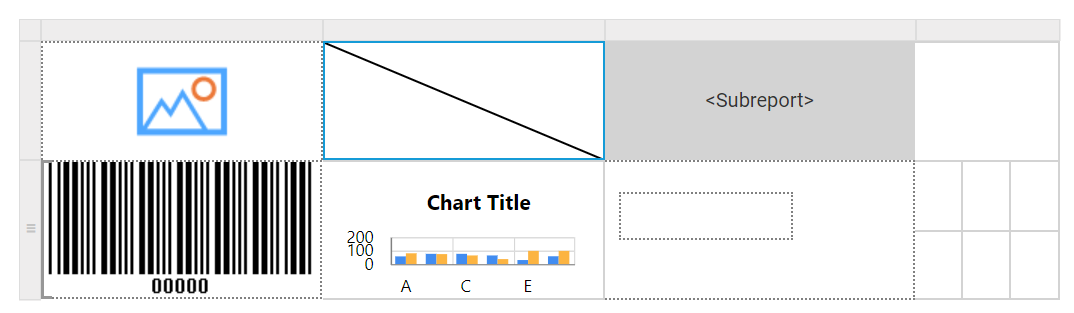
When you drag and drop an item into the cell which contains text box, line, image, sub-reports, chart or barcode report item, the old item in the cell will be replaced by a new report item. If the cell contains a report items such as a rectangle, list, table, or matrix, the new item is added to the containing item instead of replacing it. To replace such report item with a new item, delete the respective item from the cell. Deleting the rectangle, list, table, or matrix item replaces it with a text box, which you can then replace with another item.
Insert item using cell menu
You insert a report item into a tablix cell with the Insert option of the Web Report Designer cell menu.
-
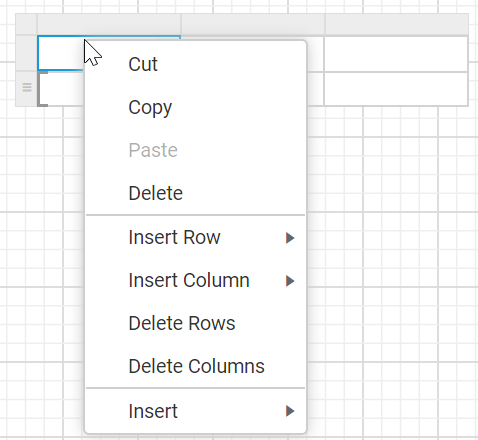
Select a cell in the tablix and right-click in the cell. The cell menu opens, as shown in the following image.
-
Choose the required report item from the
Insertmenu option.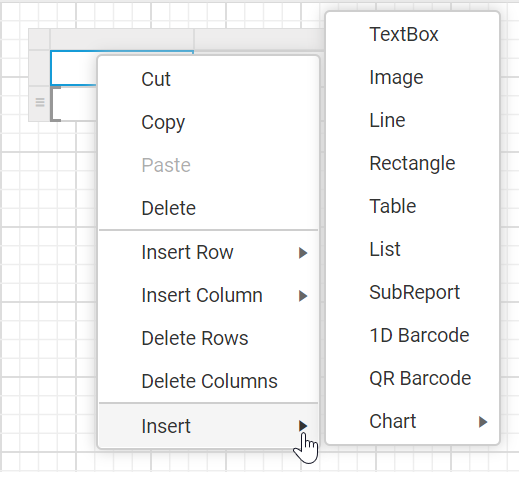
-
Check that the old report item in the cell is replaced by the new report item.
Here, line report item is used to demonstrate the behaviour.
When you insert item into the cell using the
Insertoption from cell context menu, the report item in the cell will be replaced by a new report item. To insert items inside the container report item such as a rectangle, drag and drop the required report item into the tablix cell containing rectangle.
Cell properties
The cell properties in the Bold Reports® Web Report Designer are the properties of the report item placed in the respective cell. For example, if the cell contains the line report item, the line report item properties are displayed in the properties panel. To style a tablix cell, select the required cell and modify the respective report item properties in the properties panel.
Refer to the Properties panel section to set and edit report item properties.
How do I delete an item from a cell?
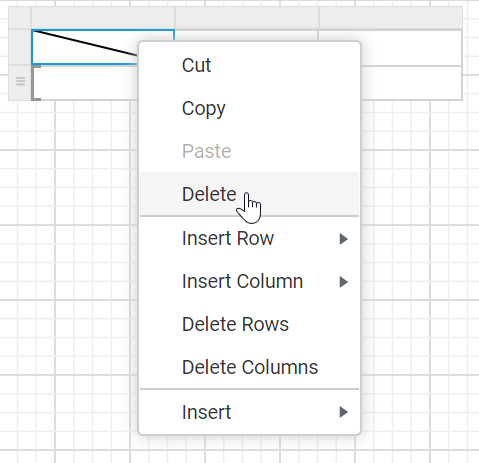
You delete an item from a tablix cell in the Bold Reports® Web Report Designer by selecting the cell, right-clicking, and clicking the Delete option.
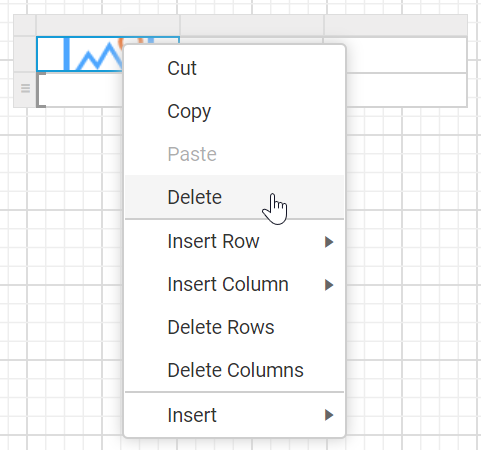
A new Textbox is then inserted in the respective cell.
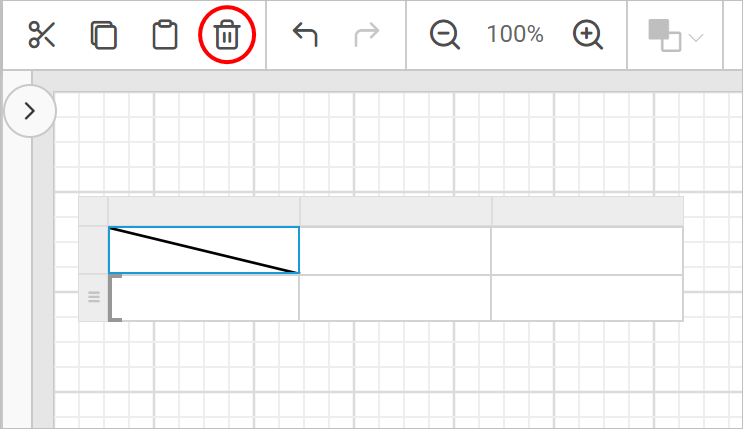
You can also delete the item from a cell using the Delete option in the toolbar. Select the cell and click the delete icon in the toolbar.
How do I cut, copy, and paste cell contents?
You cut, copy, and paste tablix cell contents in the Bold Reports® Web Report Designer with the right-click menu or the corresponding icons in the toolbar.
-
Cut - Select the cell content and use the
Cuticon in the toolbar, or right-click and select theCutoption from the menu, to delete the selected cell content. You can later insert the cut data in any other cell in the tablix or in the design area. -
Copy - Select the cell content and either use the
Copyicon in the toolbar or right-click and select theCopyoption from the menu. You can later insert the copied cell content in any other cell in the tablix or in the design area. -
Paste - Select a cell and either use the
Pasteicon in the toolbar or right-click and select thePasteoption to insert the previously copied or cut cell content into the selected cell or the design area.
You can also use the following keyboard shortcuts to perform cut, copy and paste operations:
- Ctrl+X key combination for cutting;
- Ctrl+C key combination for copying;
- Ctrl+V key combination for pasting.
How do I cut, copy, and paste a single cell?
You cut, copy, and paste a single tablix cell in the Web Report Designer as follows.
Cut :
- Select a tablix cell, use the
Cuticon in the toolbar or right-click and select theCutoption from the menu.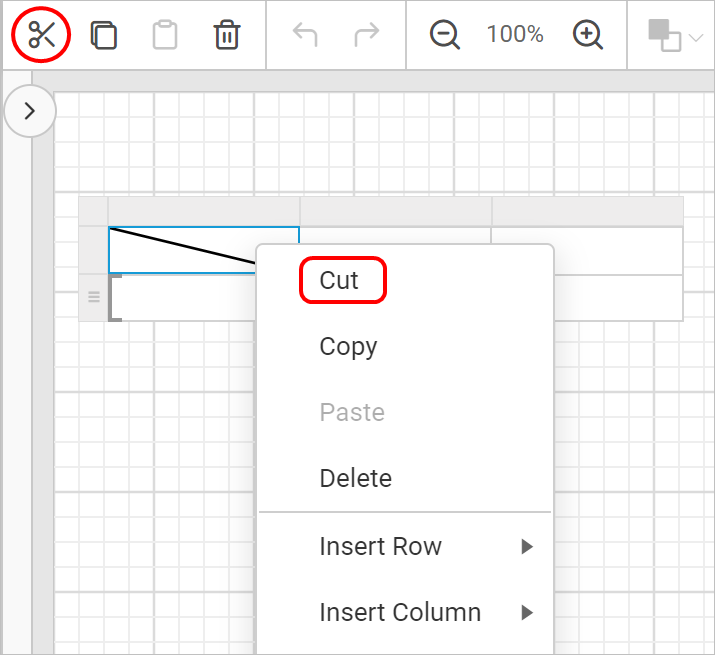
- Check that the report item is deleted and a new
Textboxis inserted in the respective cell.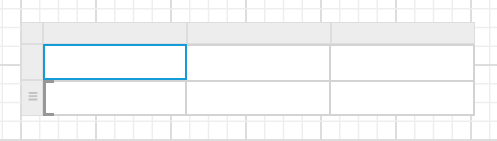
Copy :
- Select a tablix cell, use the
Copyicon in the toolbar or right-click and select theCopyoption from the menu.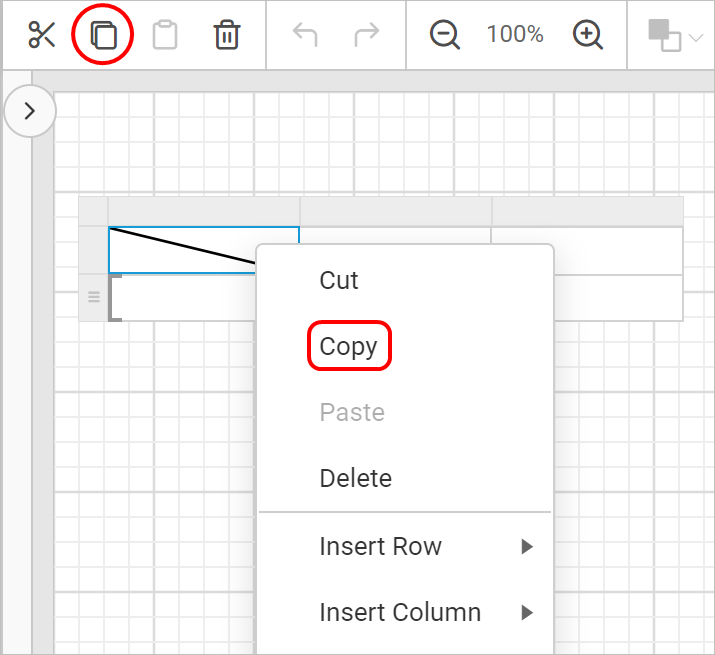
- Insert the copied cell content later in any other cell in the tablix or in the design area.
Paste :
- Select a tablix cell, use the
Pasteicon in the toolbar or right-click and select thePasteoption in the cell menu.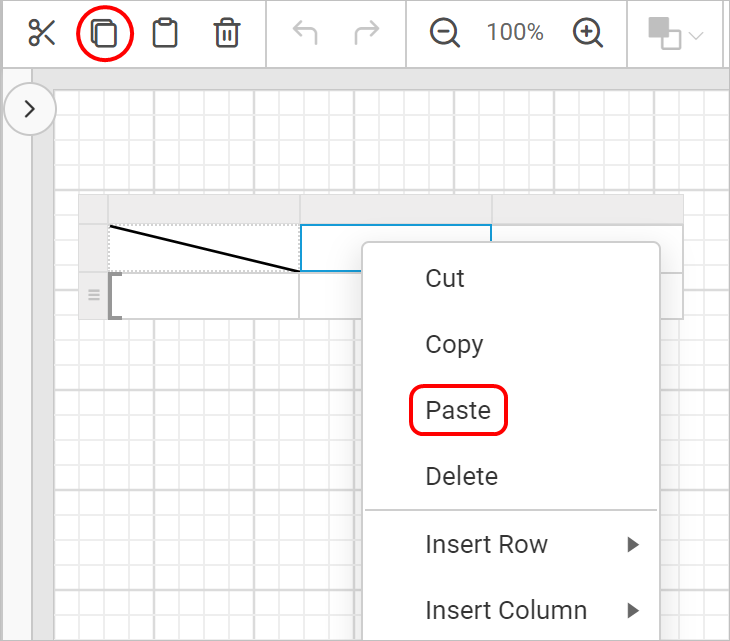
- Check that the previously copied item is pasted in the selected cell.
How do I cut, copy, and paste multiple cells?
You can perform the cut or copy and paste action on multiple tablix cells at a time in the Web Report Designer.
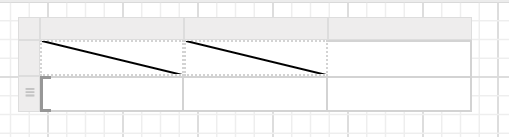
- Select the required cells in the tablix data region and perform the copy or cut action. Here, the copy action is performed.
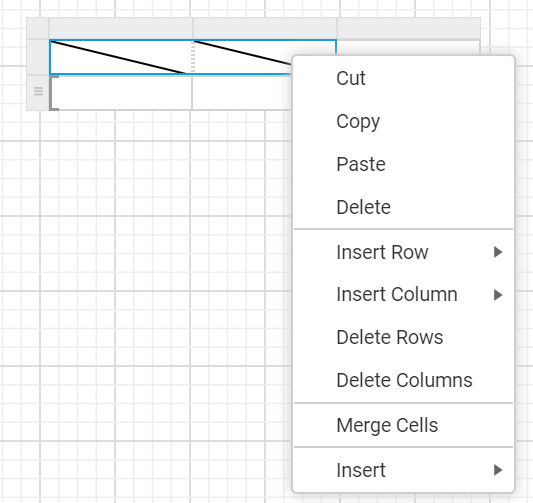
- Select the cells in the tablix data region where you want to paste the copied cell content and perform the paste action.
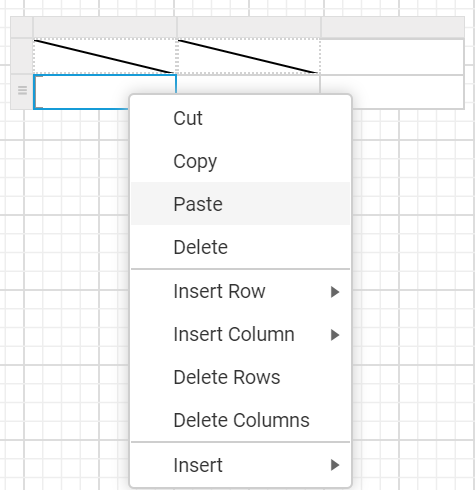
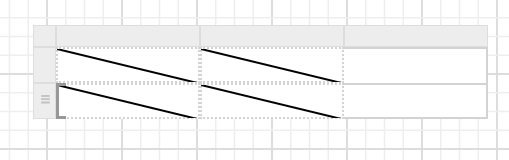
- Check that the copied cell contents are pasted in the selected cells, as shown in the following image.
What if the paste area does not match?
The copied cell content area and the target cell content area for the paste action need to be the same. In the following example, the cell content in the second row, first two columns is copied and pasted into the second row, last column.
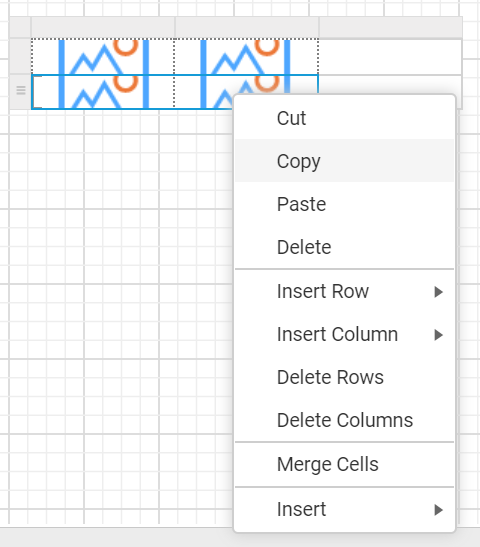
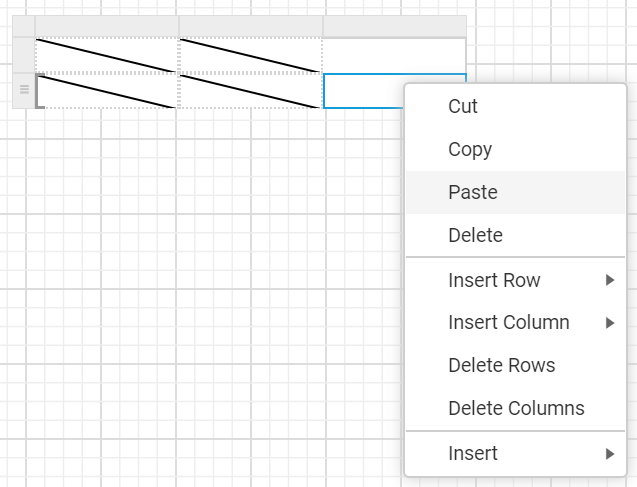
The following alert message is then shown in the design area.
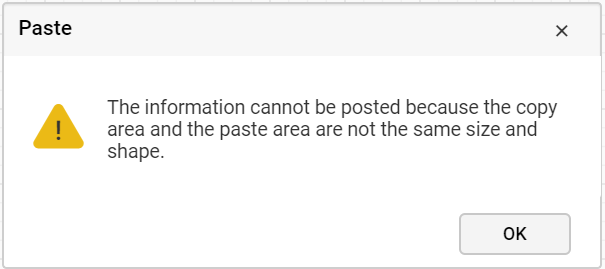
Whenever you perform the paste action, the target area must have enough left, top, right, and bottom cell areas.
Frequently asked questions
What report item does a tablix cell contain by default?
By default, all cells in a tablix contain the Textbox report item.
What happens to a cell after I delete its item?
A new Textbox is inserted in the respective cell.