Design ssrs rdl report using table with multi textrun
The following steps guides you to design ssrs rdl report using table with multi textrun.
Add a table to the report using Tablix Wizard
- Refer to the Create a Matrix Report using Tablix Wizard section and assign the
ProdCat,SubCat,OrderYear,OrderQtrandSalesfields in the initial matrix design.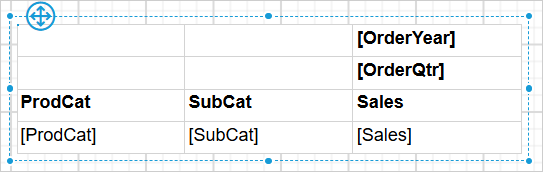
- Remove any unnecessary rows and apply styles to the Tablix item and its cells to improve visual clarity.
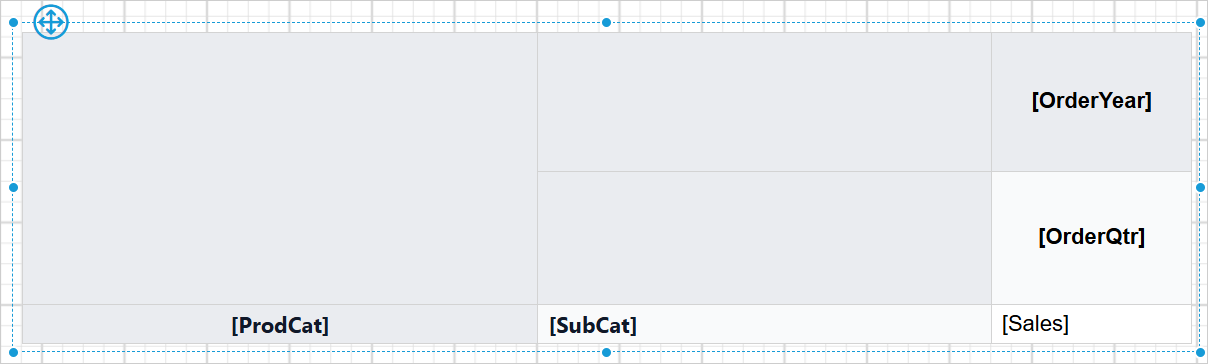
Set header text for Tablix data
-
Select the tablix cell and click the
Text Editoricon to open theMulti-Text Run EditorDialog.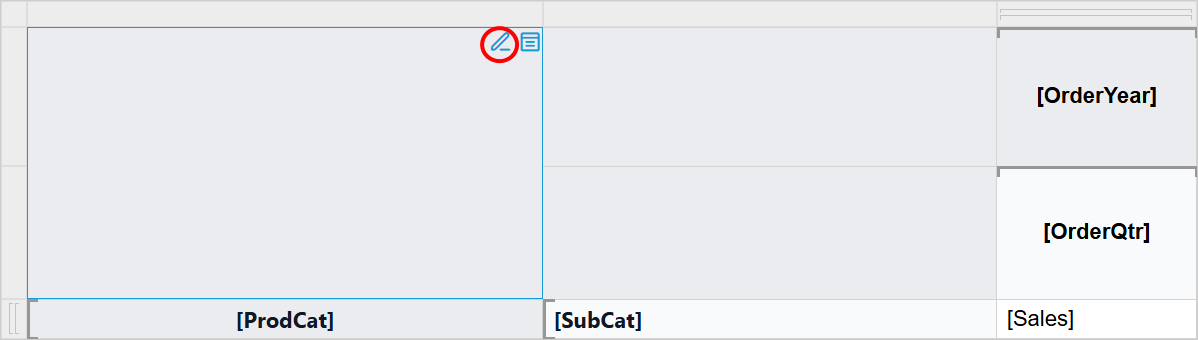
-
The
Multi-Text Run Editordialog will open, allowing you to enter and format the content.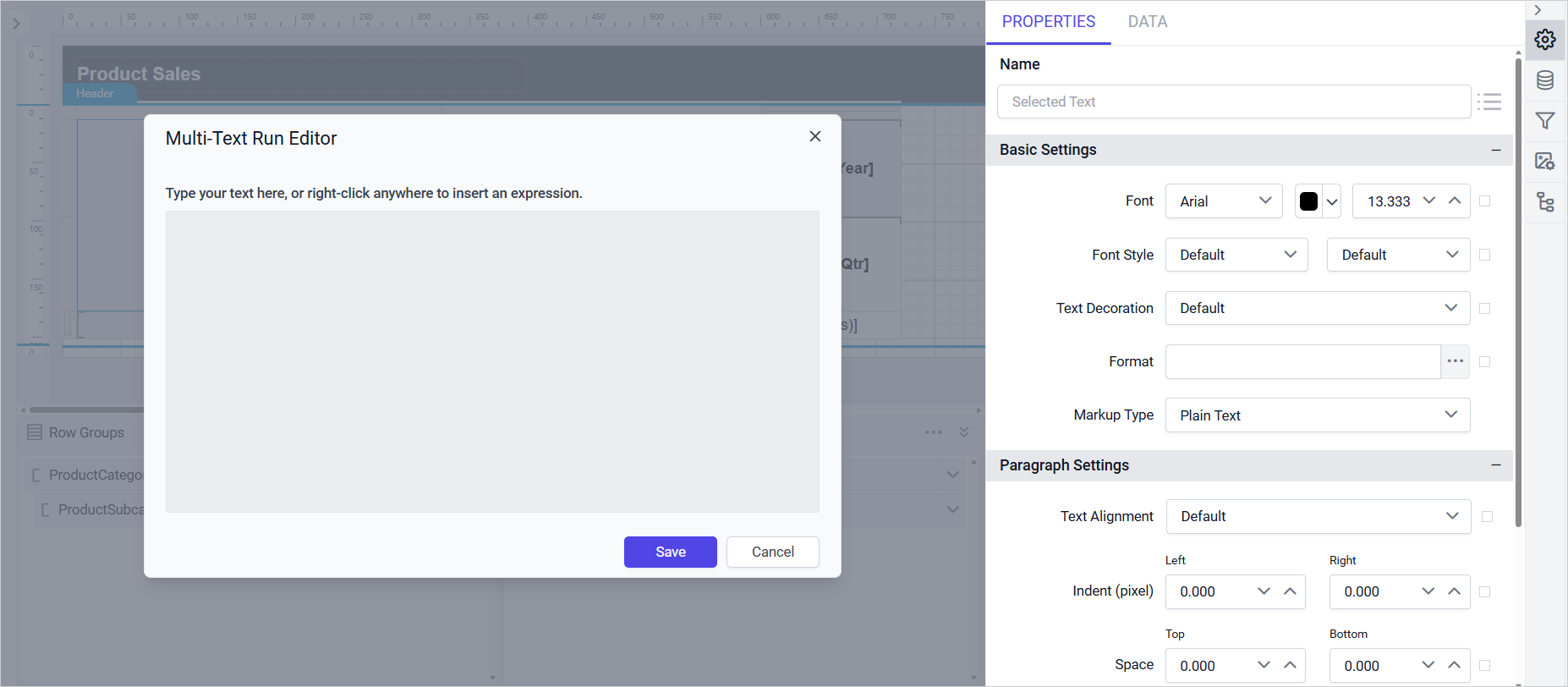
-
Enter the required header text in the
Multi-Text Run Editordialog.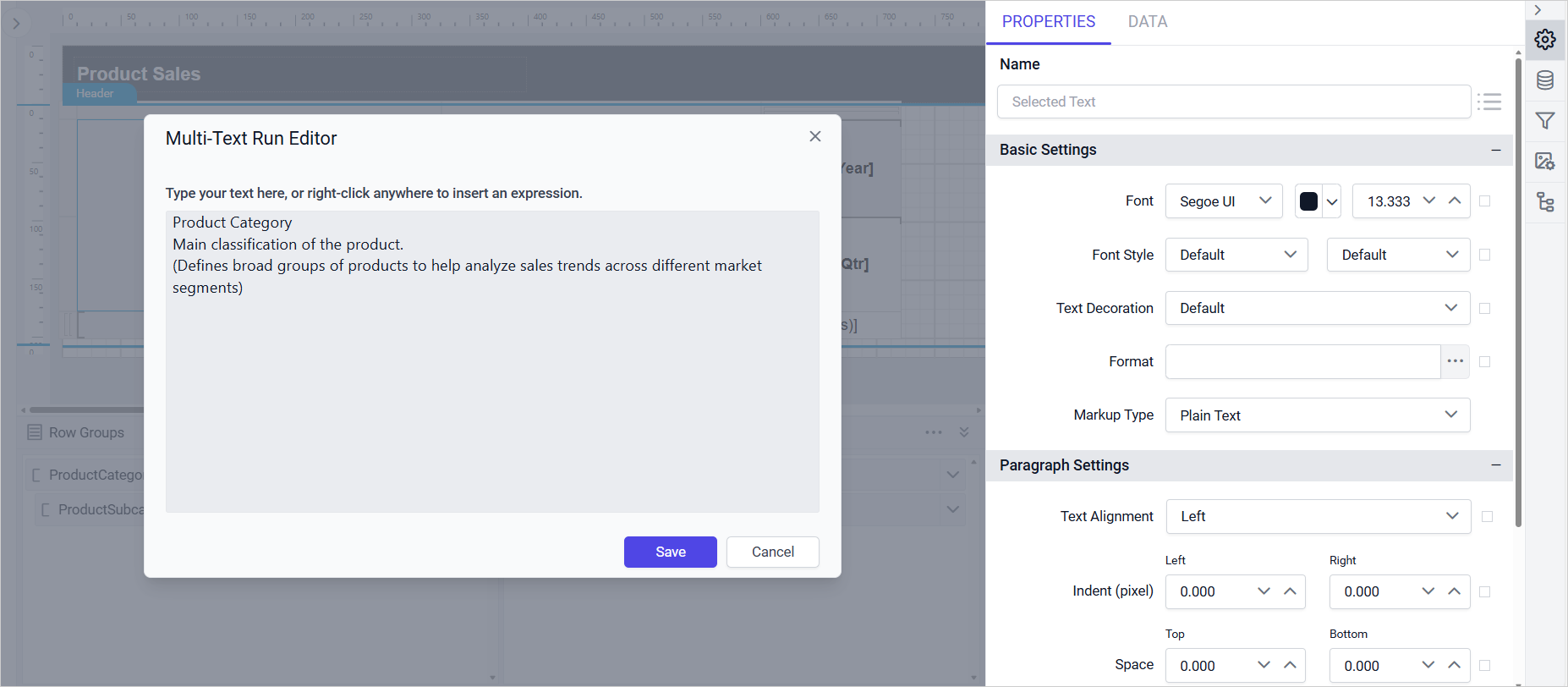
-
Apply styling to the header text using the selected text properties available in the
Property Panel.a. Select all the text and set the
Text Alignmentto Center.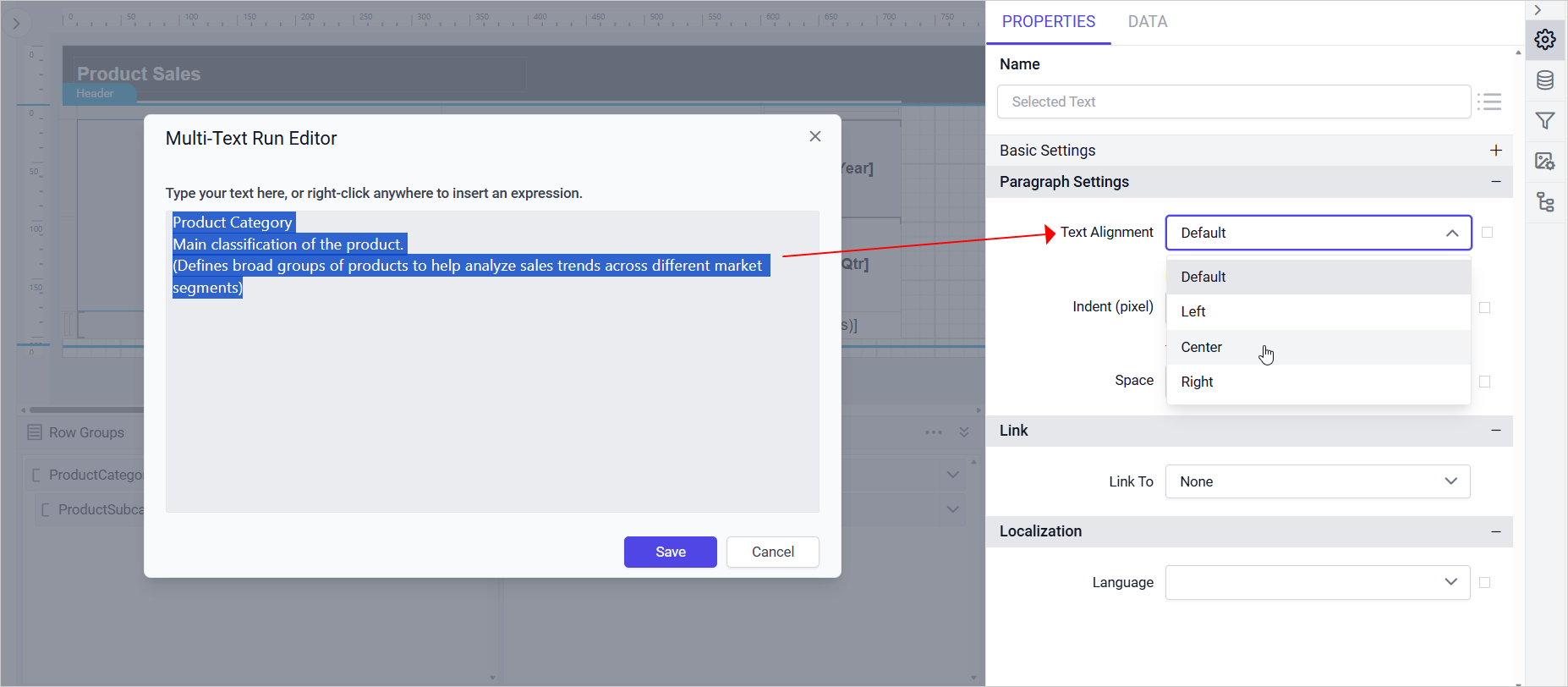 b. Highlight the header portion and set
 Font Weightto Bold.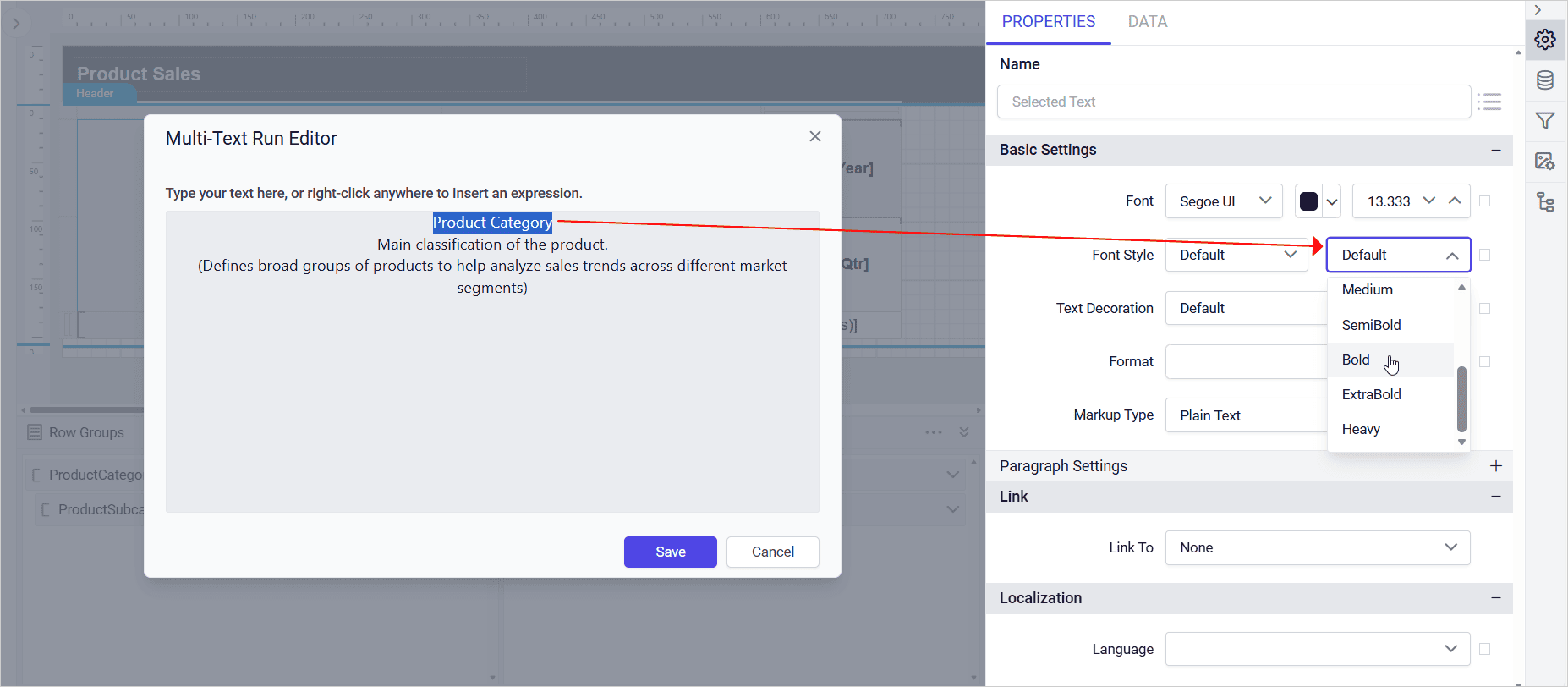 c. Select the descriptive part of the heading and set
 Font Styleto Italic.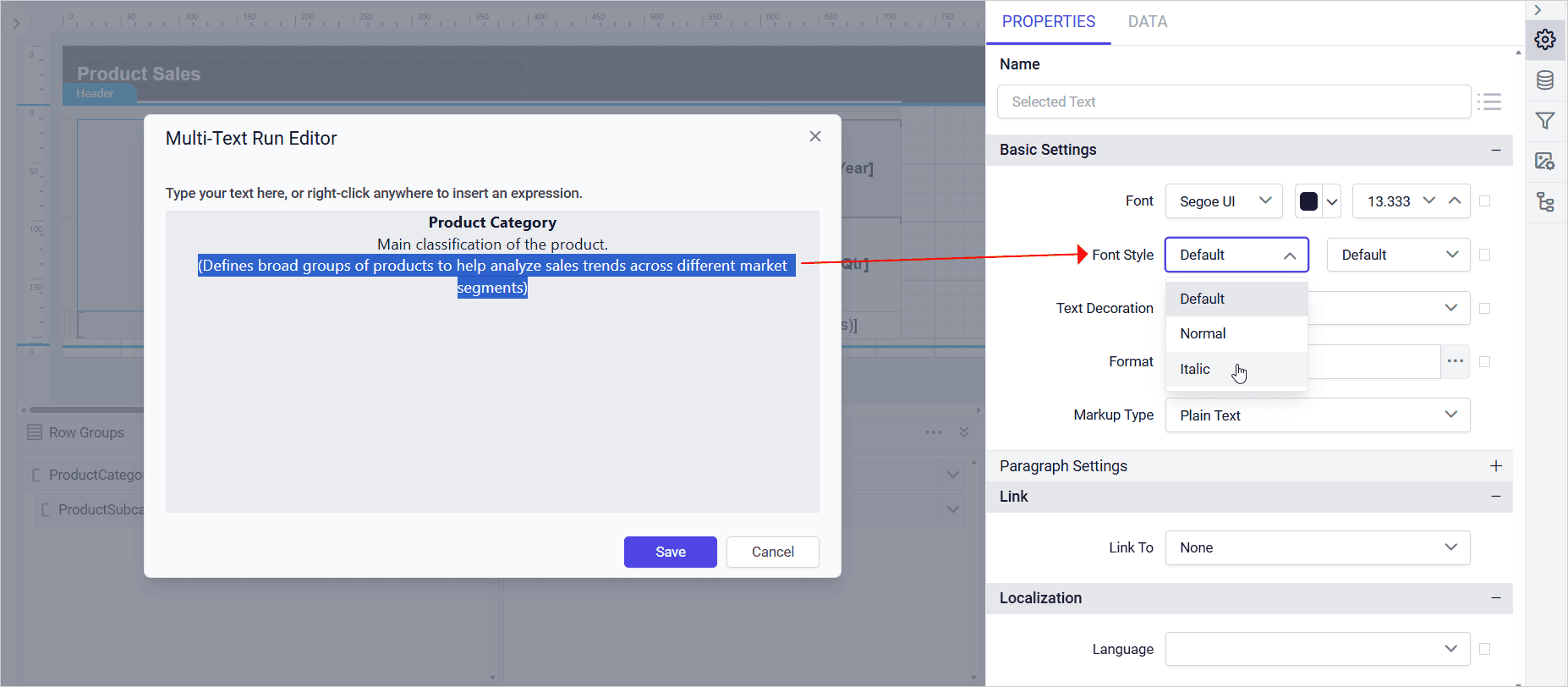
-
After applying the desired properties to the header text, click
Saveto apply the changes to the tablix cell.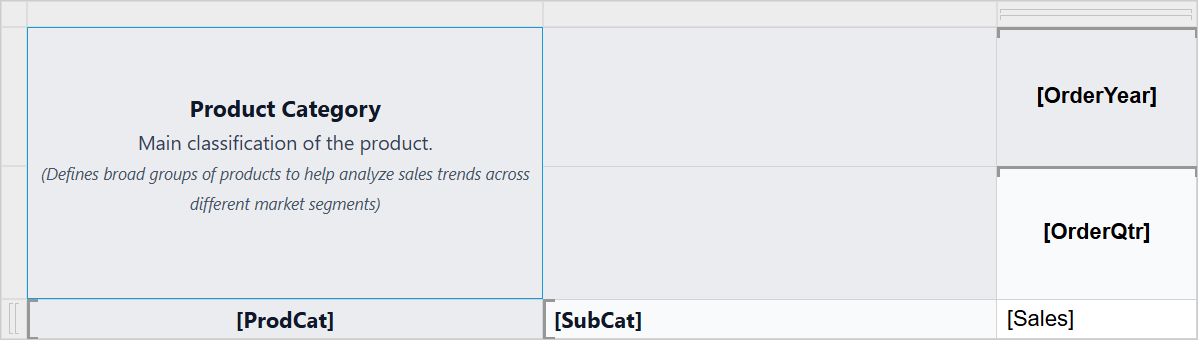
-
Repeat the same steps to format the header text for both the
Product Sub CategoryandOrder Yearcells consistently.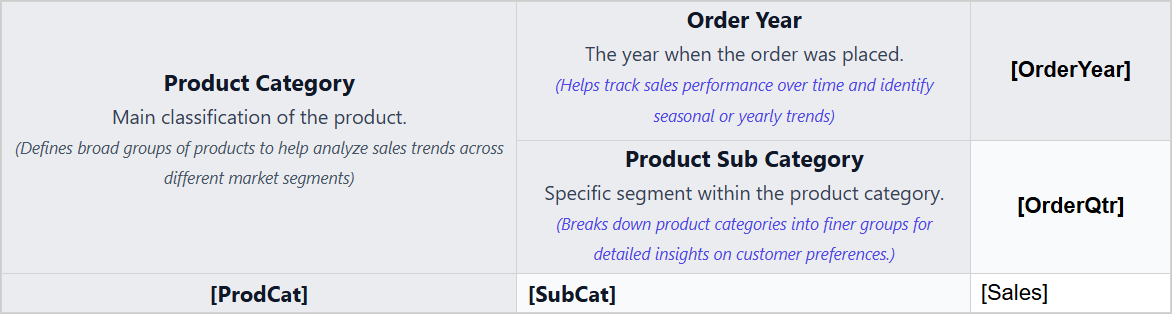
Add Expression in Tablix Cell
To add the [Sales] expression into a selected Tablix cell, follow the steps outlined in the Set expression using Multi-Text Run Editor Dialog section.
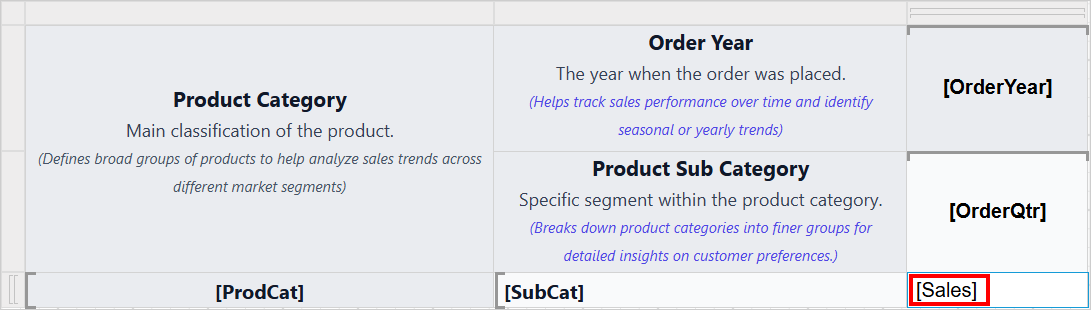
Edit Expression in Tablix Cell
To update a Tablix cell with the [Sum(Sales)] expression, follow the steps outlined in the Edit expression using Multi-Text Run Editor Dialog section.
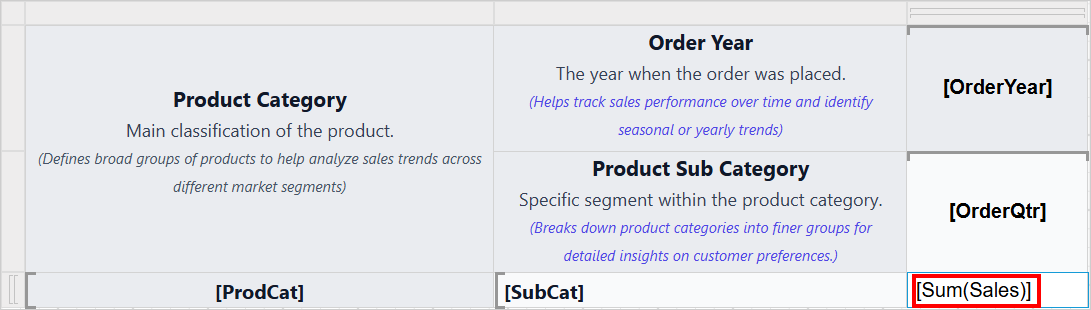
Report preview
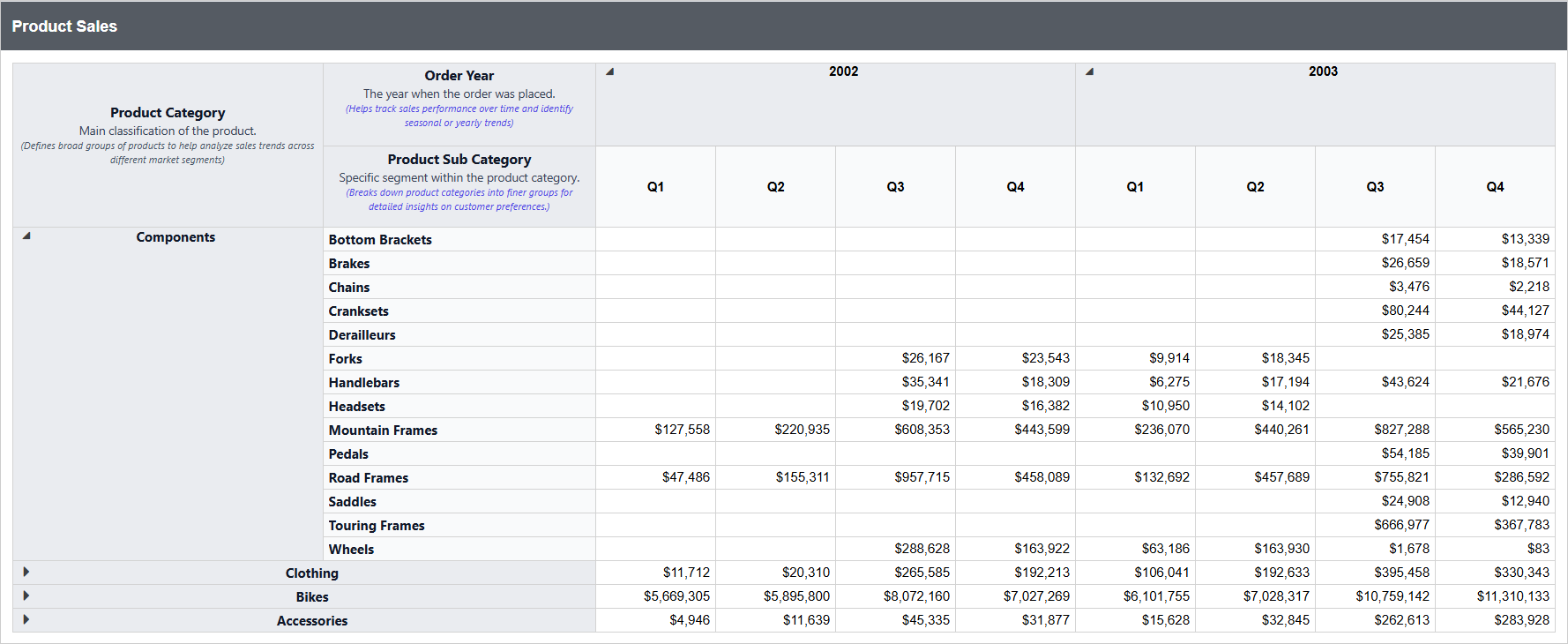
On report preview, the product sales report of a company will be displayed like below,
Download the above report design from the link.