Upload report(s) or add report to Report Server
This section explains how to upload or add reports to Bold Reports® On-Premise, allowing you to select the data source and data sets for the report. Below is a step-by-step guide on uploading reports in Bold Reports®:
Steps to upload a report
-
Click on the
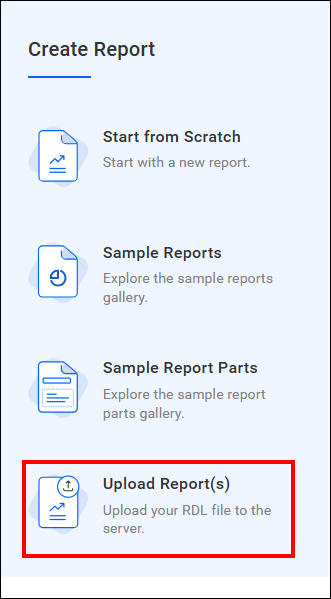
[+]icon from the left side panel and click on theUpload Report(s)option.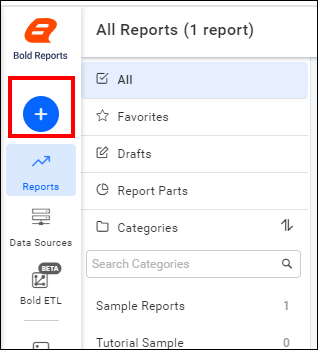
-
Select a category, enter a description, upload one or more RDL files, and create or choose tags to organize your reports effectively.
When you click on
New Tag, a new tag will be created for the reports.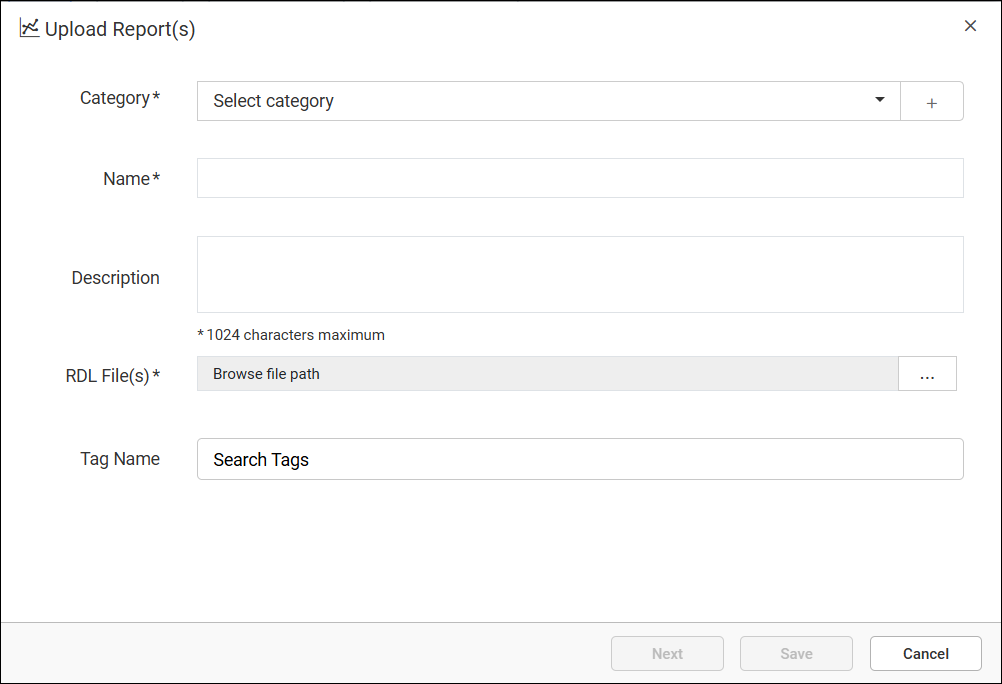
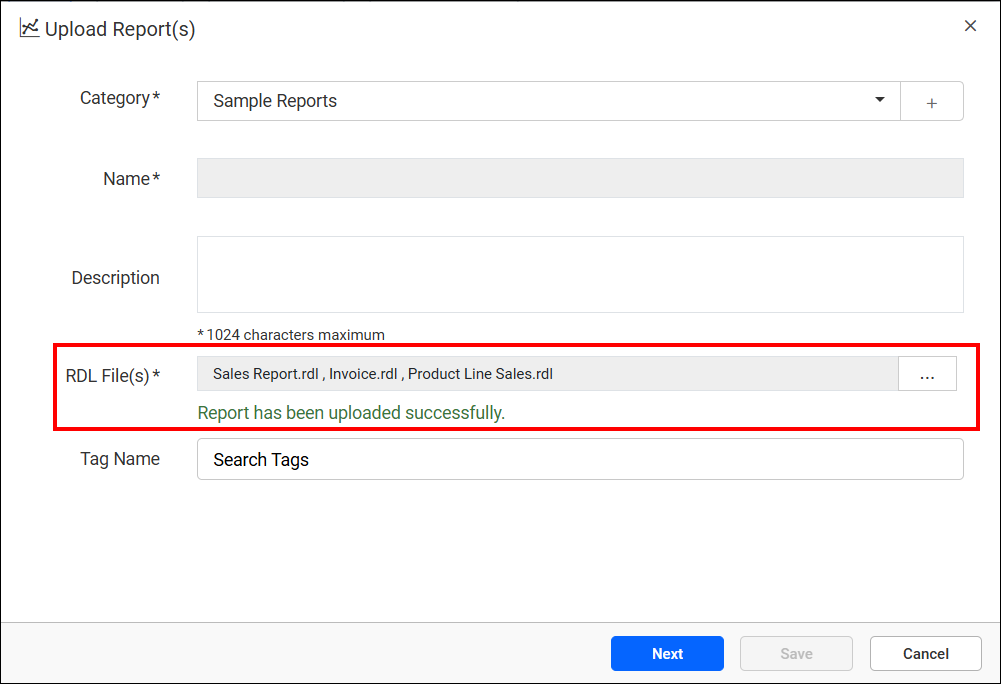
If multiple reports are uploaded, the Name field will be disabled and auto-filled using the
.rdlfile names. -
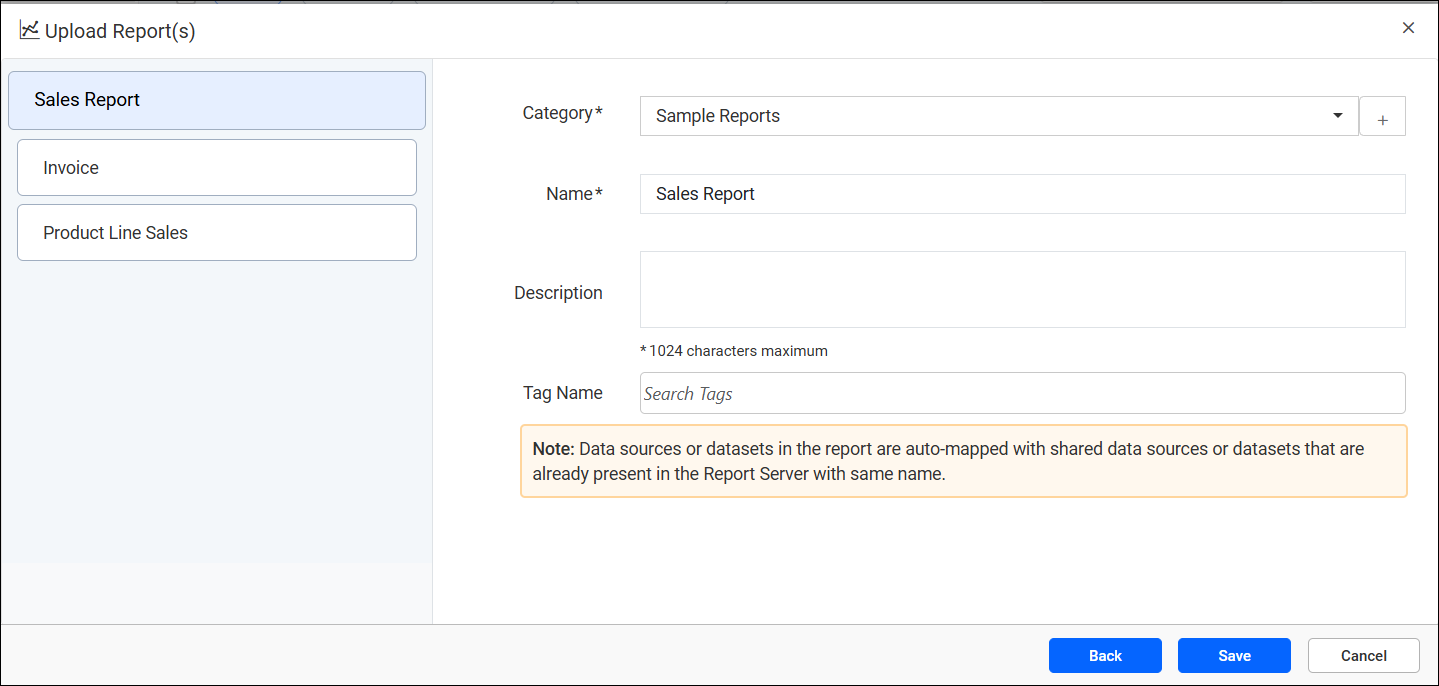
Click the
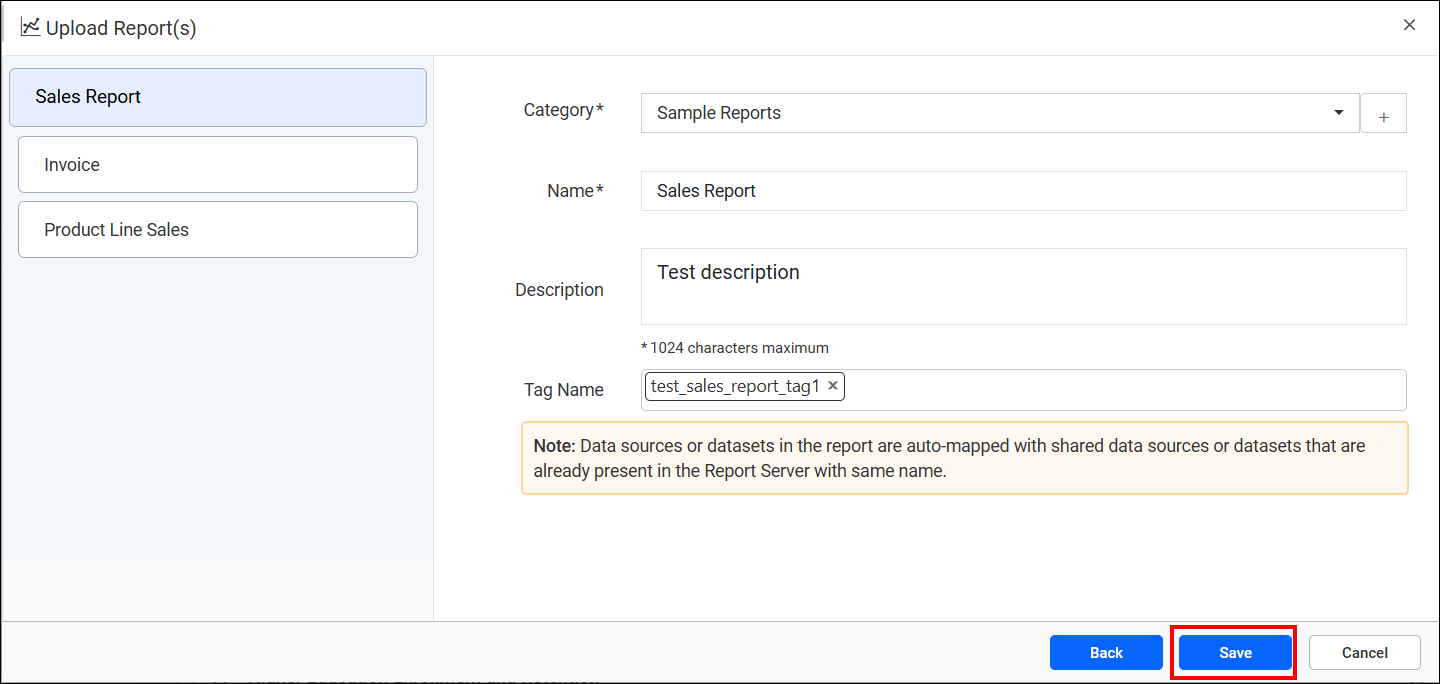
Nextbutton, a dialog appears to configure each report individuallyThe left panel lists all uploaded reports. Selecting a report lets you update its name, category, description and tags.
-
Click the
Savebutton to save the changes.