Configure OAuth 2.0 SSO in Bold Reports® User Management Server
You can configure the Bold Reports® User Management Server to use OAuth 2.0 for Single Sign-On (SSO). Users then log in after authenticating with OAuth 2.0.
What do I need before configuring OAuth 2.0?
To configure OAuth 2.0 in the Bold Reports® User Management Server, you need the following:
-
An account with an OAuth 2.0 provider.
-
Register the User Management Server in the OAuth 2.0 provider.
Steps to configure OAuth 2.0 in User Management Server
To configure OAuth 2.0 in the Bold Reports® User Management Server, follow these steps:
-
Log in to the User Management Server with the admin credentials.
-
In the left-side menu, click
Settings, thenAuthentication, and finallyOAuth 2.0.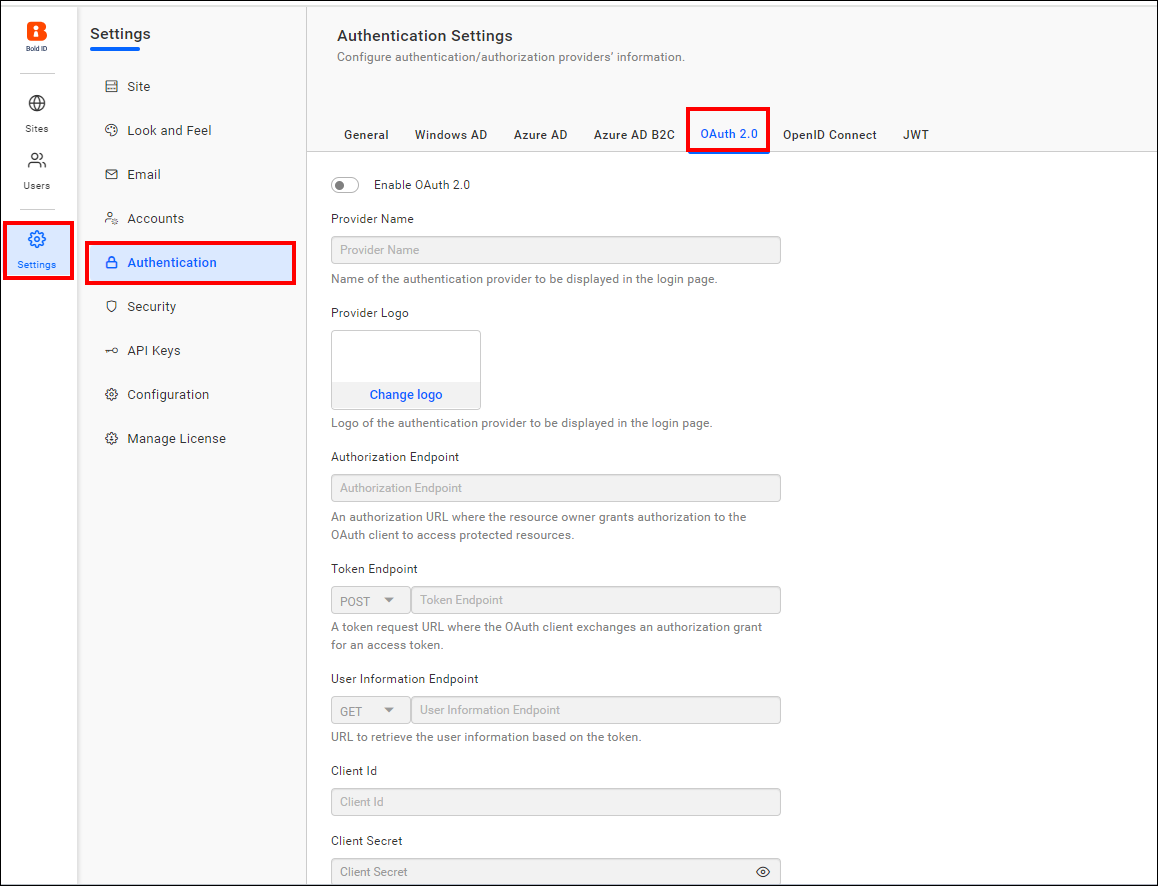
-
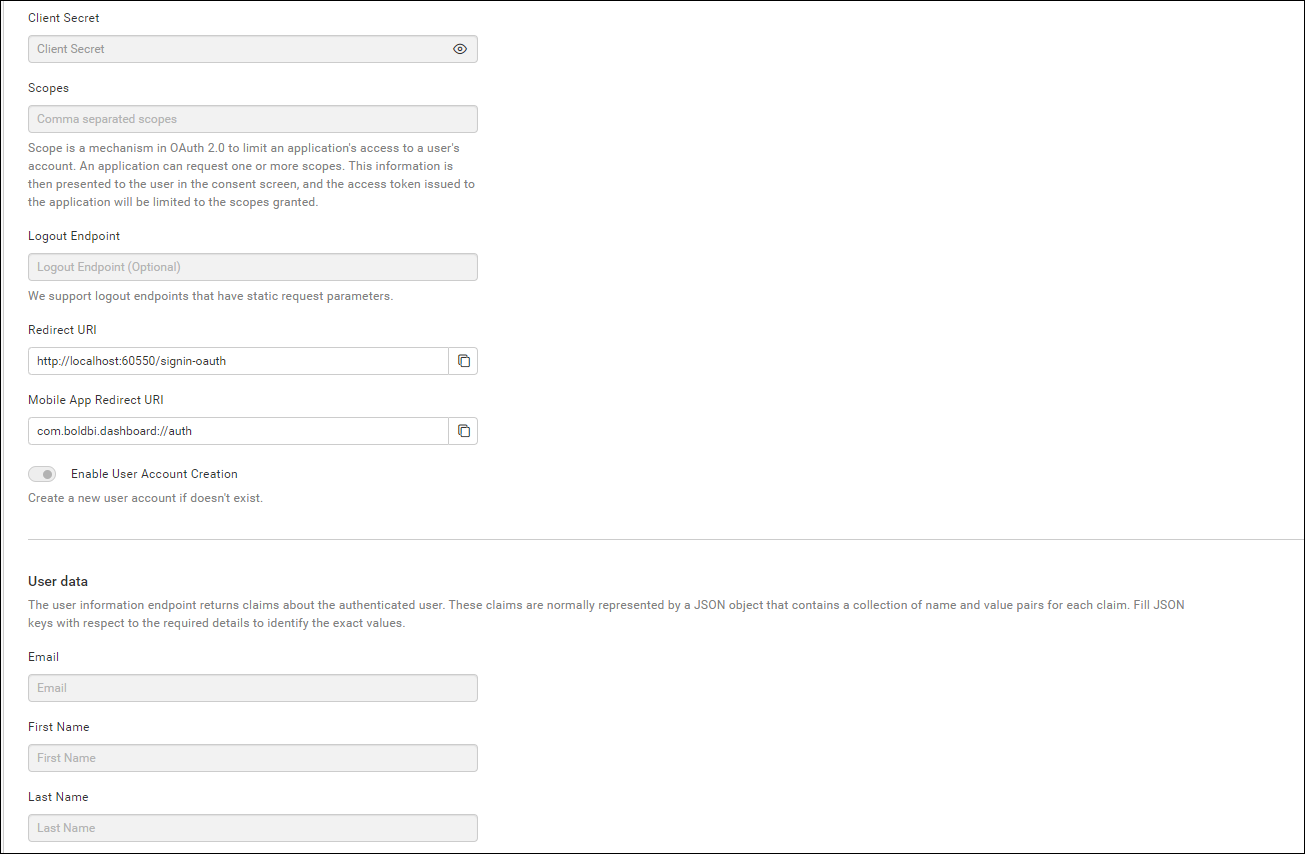
Provide the following details in the
OAuth 2.0settings of User Management Server.Provider Name It represents the name of the authentication provider that will be displayed on the login page. Provider Logo It represents the logo of the authentication provider that will be displayed on the login page. Authorization Endpoint It is the endpoint in the provider used to authorize the user. Token Endpoint Method It represents the request type required to access the token endpoint. Token Endpoint It is the endpoint within the provider responsible for generating the token. User Information Endpoint Method It is the endpoint within the provider used to retrieve user details. User Information Endpoint It specifies the request type required to access the user information endpoint. Client ID It is a unique identifier provided to each application when registering with the providers. Client Secret It is a secret key used to authorize the applications. Scopes It is a comma-separated list of identifiers that specify the access privileges being requested from the provider. Email This must be the email associated with an admin account of the providers.
Group Claims Authentication
Group claims authentication in the Bold Reports® User Management Server maps users and groups automatically, based on the group claim received in the authentication token. The claims are typically represented as a JSON object containing key-value pairs for each claim. Provide the appropriate JSON key to identify the group claim value.
| Enable User and Group Mapping | When enabled, the system fetches group claim values from the token and dynamically maps users to one or more groups during login. |
| Un-map Existing Groups of User and map to New Group | When enabled, all previously assigned groups for the user are removed, and the user is mapped only to the groups specified in the claim. |
| Group Claim Name | Enter the claim name that contains the group identifiers. Users will be mapped only if the group names in the claim match existing groups in the site. |

To import the OAuth 2.0 groups, you must configure the group details when saving the OAuth authentication settings.

Which OAuth 2.0 providers have setup guides?
The following guides explain how to connect each OAuth 2.0 provider to the Bold Reports® User Management Server:
Set OAuth 2.0 as default authentication
In the Bold Reports® User Management Server, you can set OAuth 2.0 as the default authentication method when OAuth 2.0 settings are enabled.
To configure default authentication, follow these steps:
-
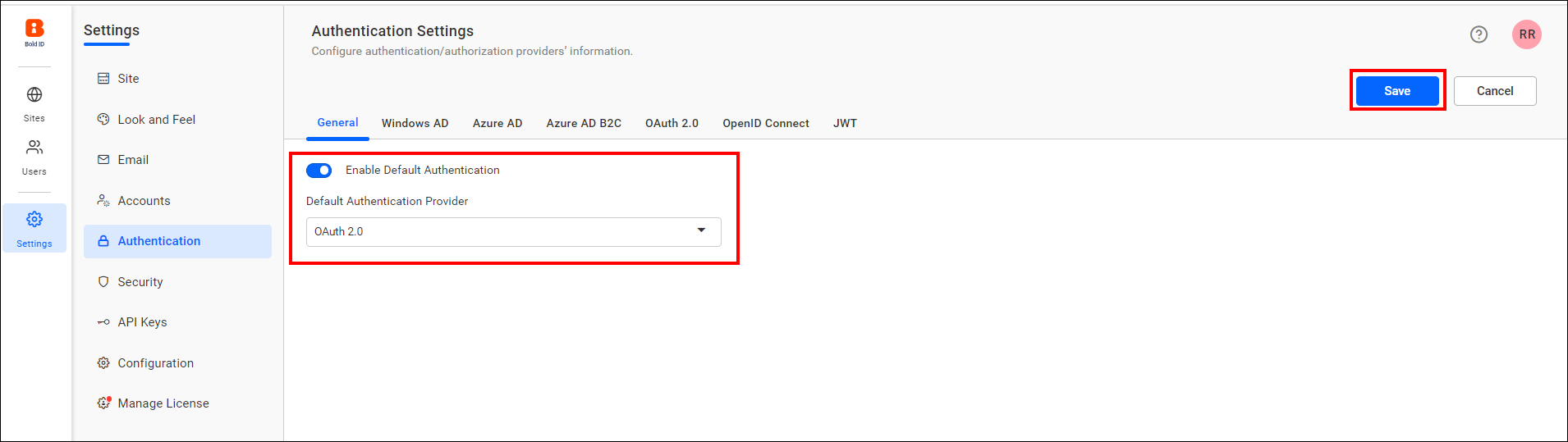
On the settings page, click the
Authenticationtab and selectGeneral. -
Enable the Enable Default Authentication option and choose OAuth 2.0 as the default authentication provider, as illustrated in the following screenshot.
How do I disable OAuth 2.0 default authentication?
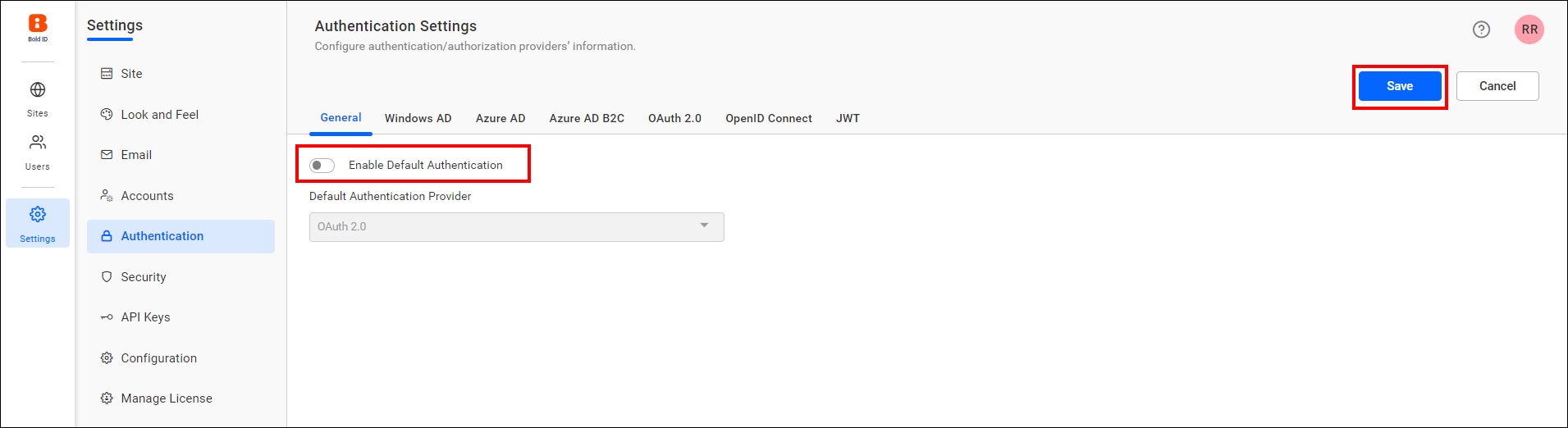
To disable the OAuth 2.0 default authentication in Bold Reports®, turn off the Enable Default Authentication option and then click Save.
Frequently asked questions
How do I import OAuth 2.0 groups?
Configure the group details when you save the OAuth authentication settings.
When can OAuth 2.0 be the default authentication?
OAuth 2.0 can be set as the default authentication method when the OAuth 2.0 settings are enabled.