Connect to Excel data source
The Bold Reports® allows you to connect to the Excel data source that retrieves data from an excel file and external URL.
File Prerequisites
-
Bold Reports® supports connecting Excel workbooks created with version 2007 and later with
.xlsxand.xlsfile extensions. -
Prepared workbook should be a structured one. It should be created with unique column names and the value in a row must be in same data type for the corresponding columns.
-
The first row values of your worksheet will be considered as column names by default in Bold Reports®. So, provide a unique and meaningful column name in your spreadsheet that will make it easy to identify your data.
-
You can upload a maximum of file size 20 MB.
How to create Excel data source
To configure the Excel data source, follow the below steps:
- Click on the Data icon in the configuration panel.
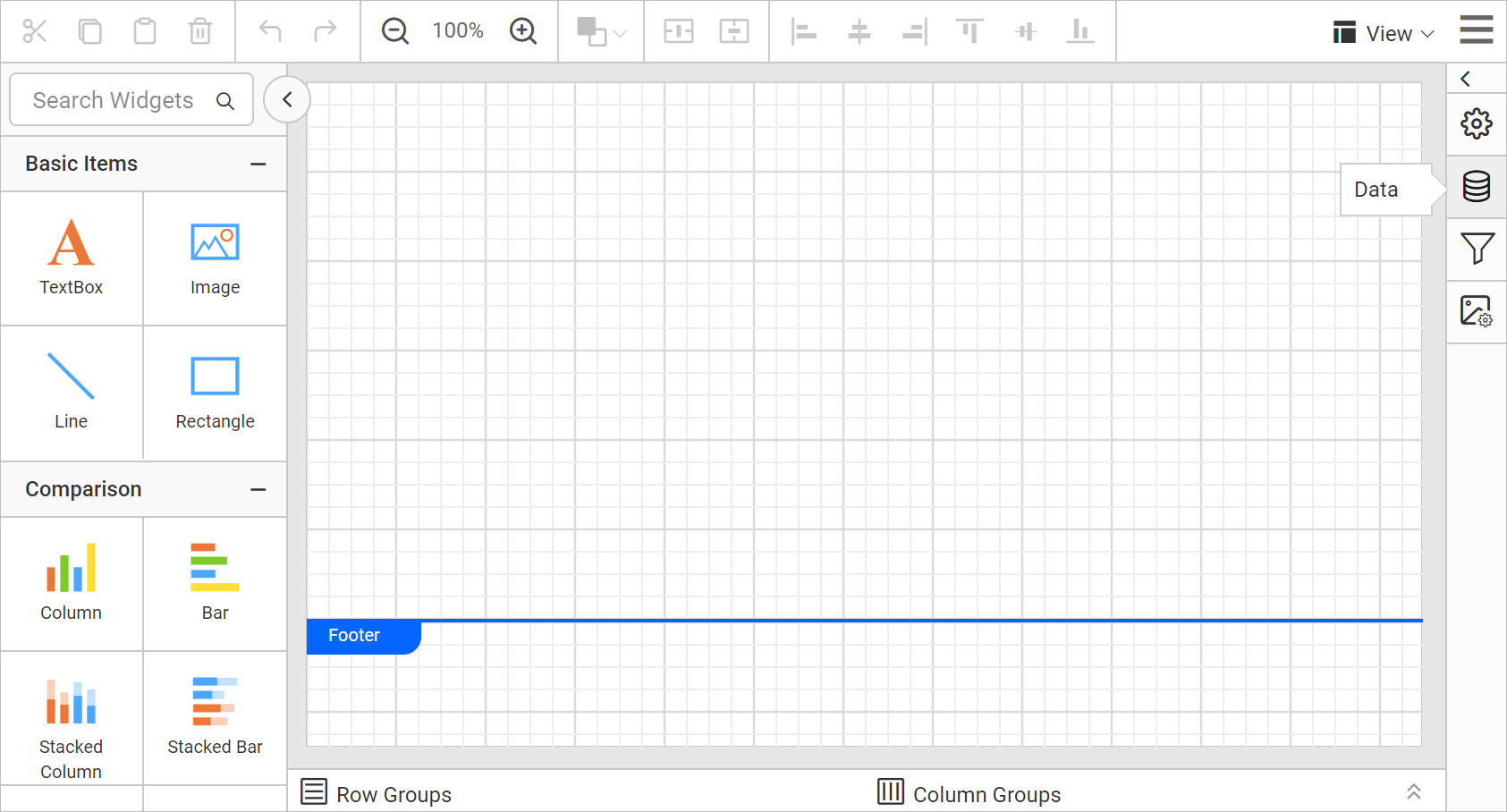
- In the
DATAconfiguration panel, click on theNEW DATAbutton.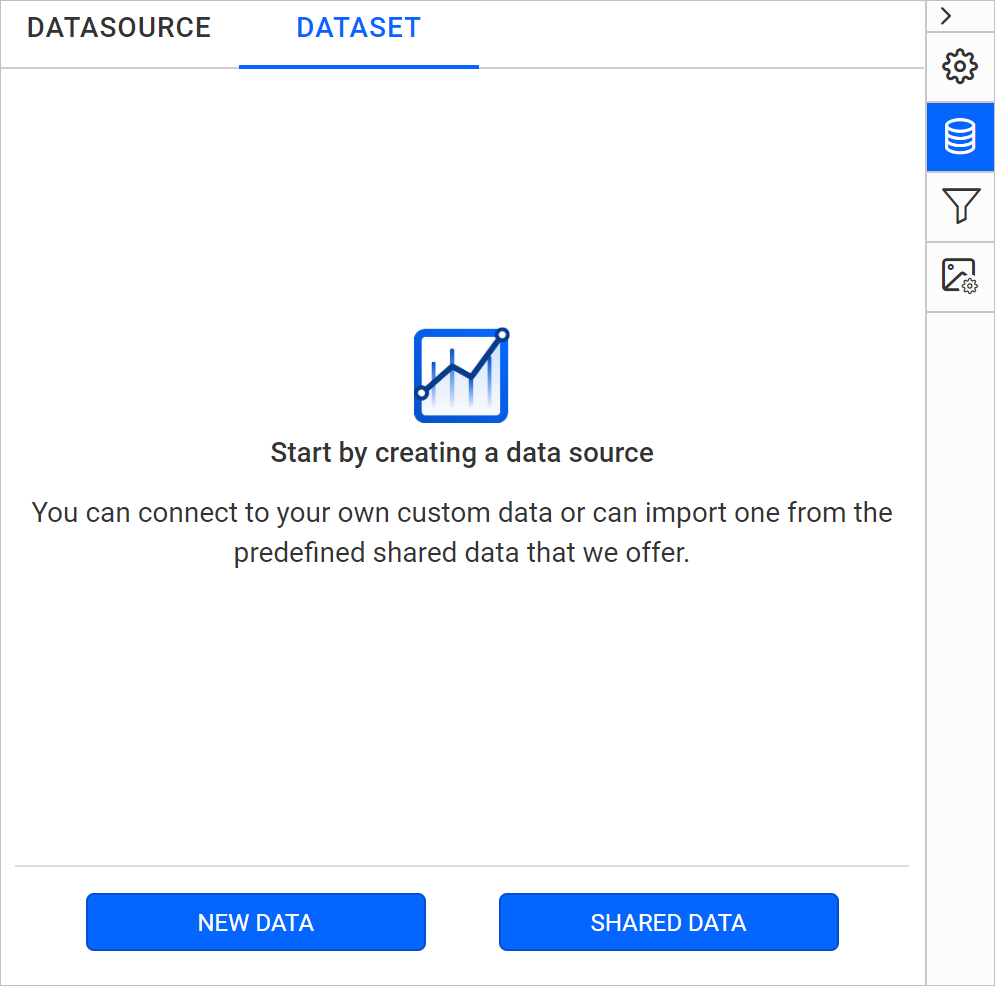
- In the connection type panel, choose the
Exceldata source type.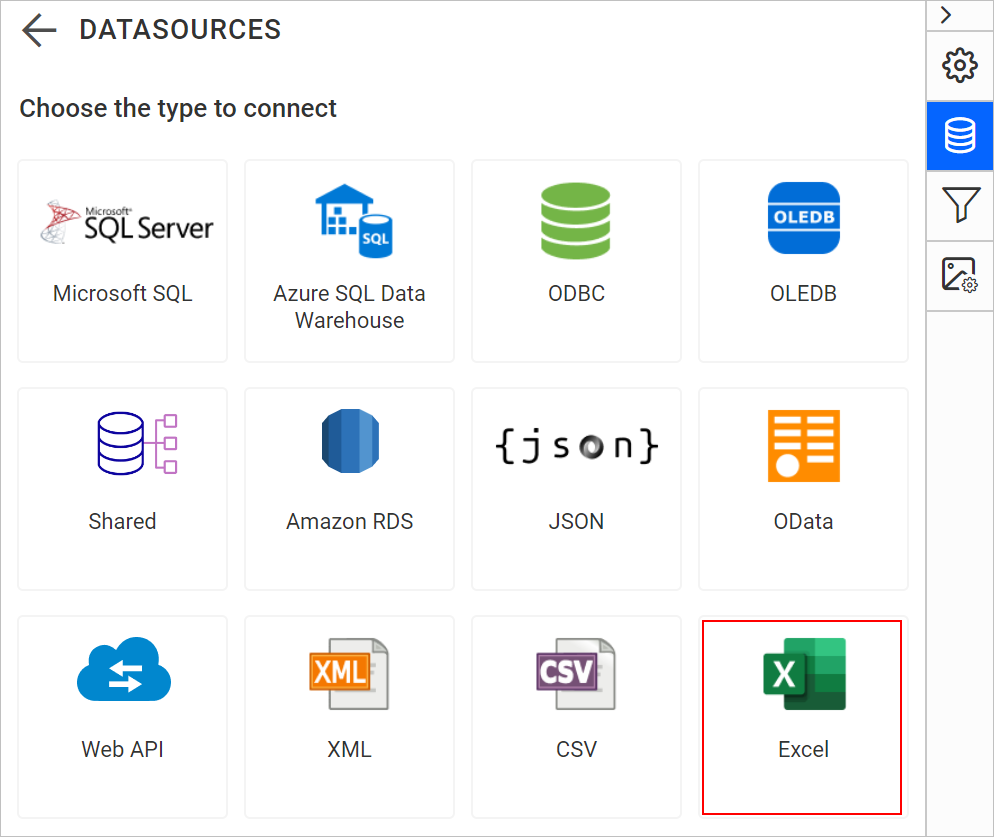
- Specify the data source name without special characters, in Name field.
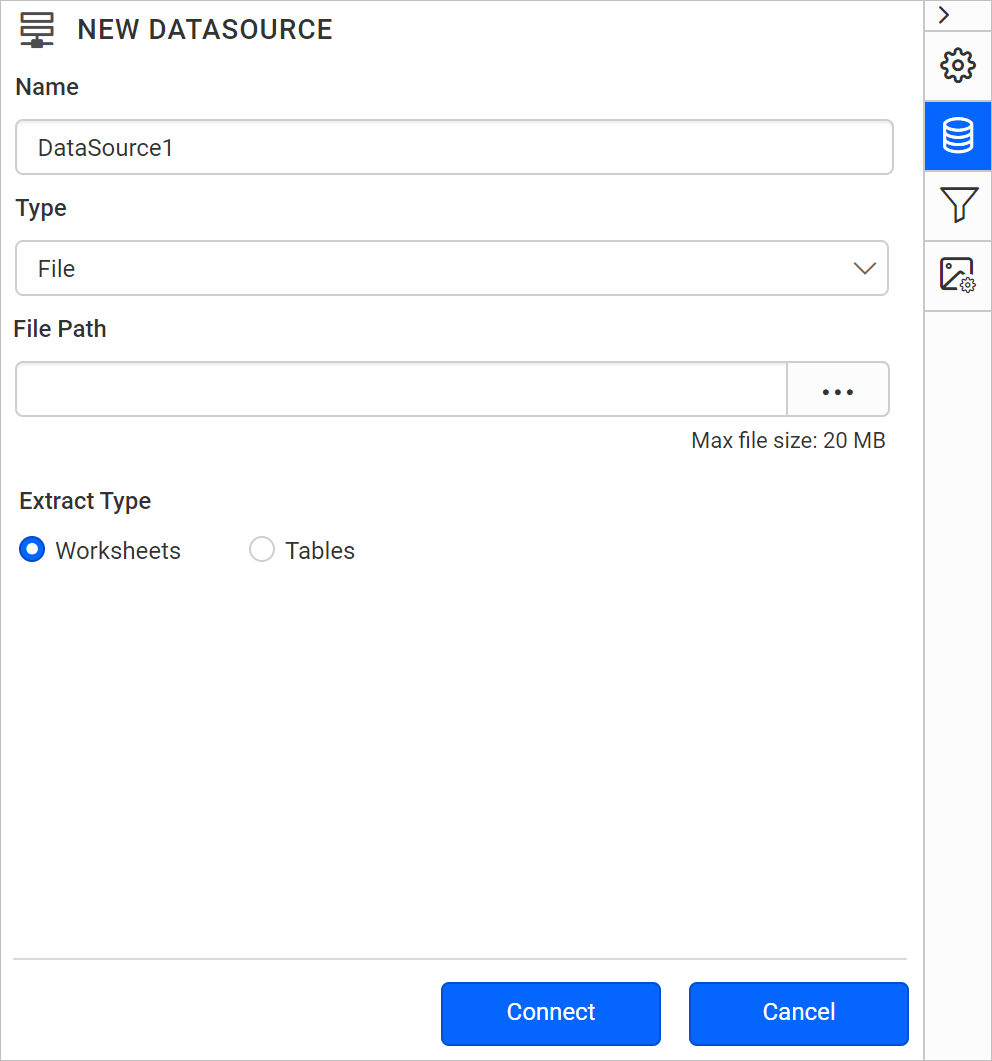
You can connect Excel data using the following two options,
- File Path - Load from disk
- External - Load from external URL
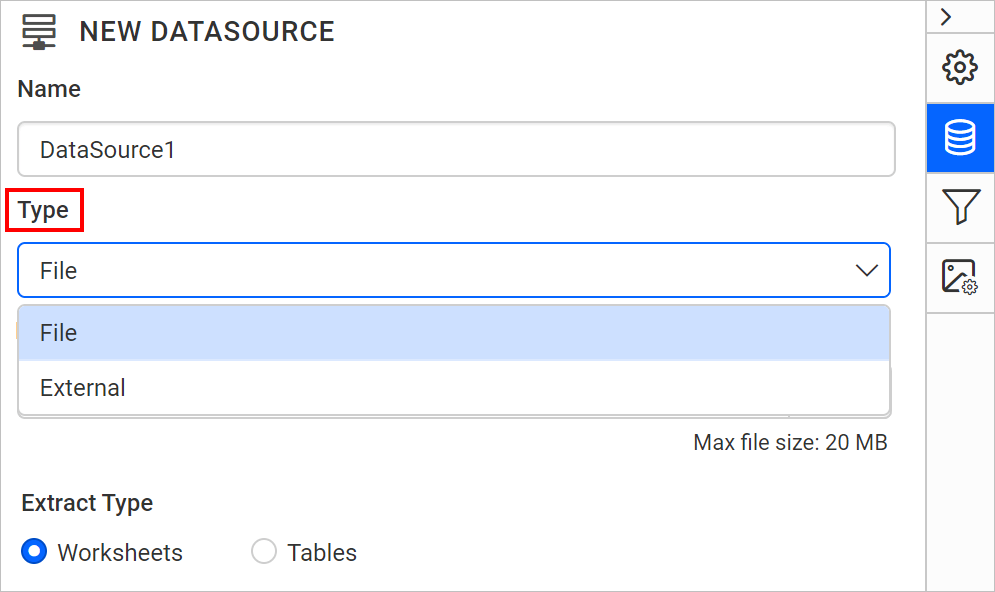
Load from disk
- Choose
Fileoption inTypefield. Now, the upload option will start displaying like below.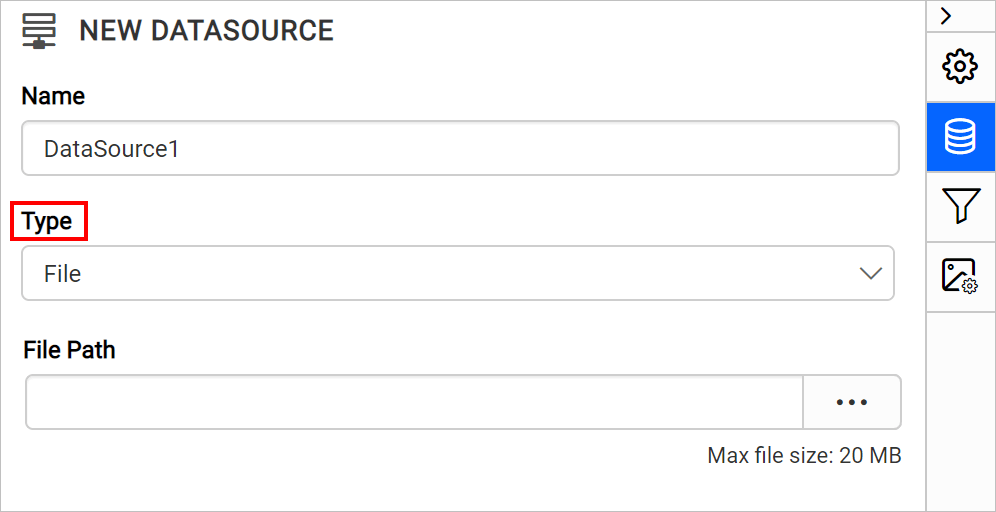
- Click on the three-dotted button to open upload box. Browse the Excel file and click open,
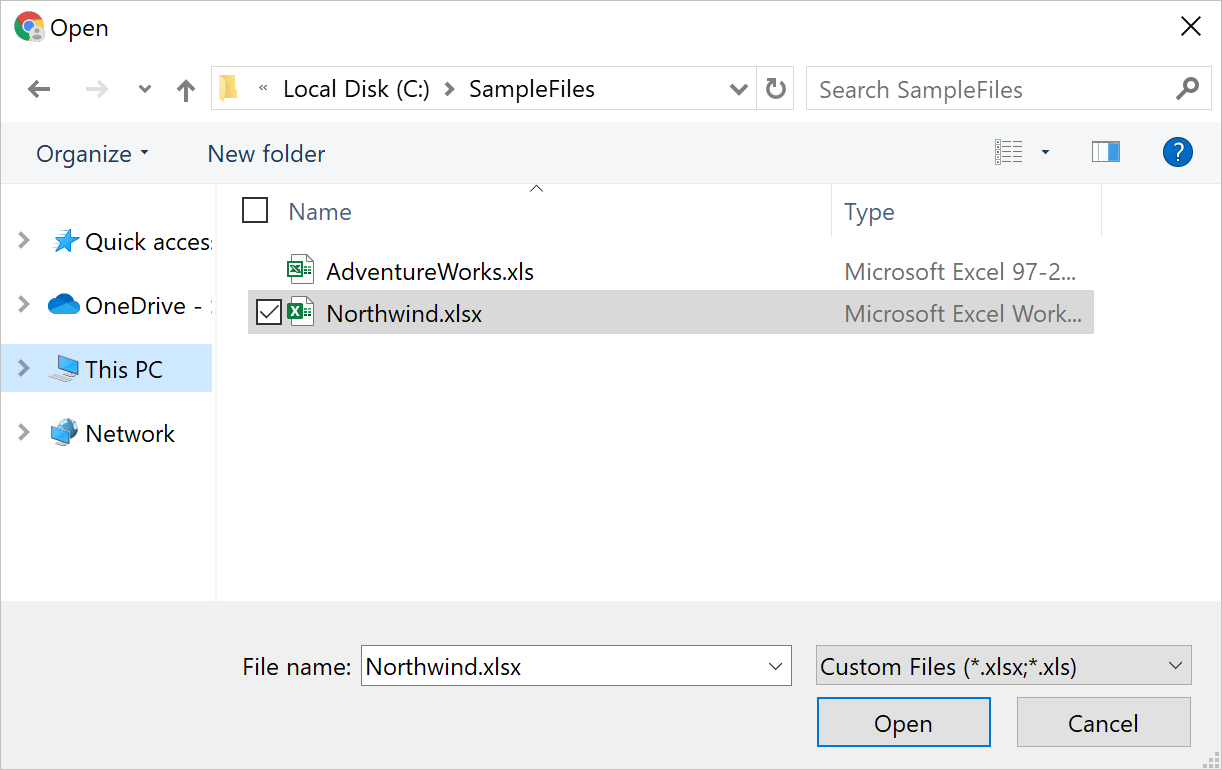
- Here, Bold Reports® allows different
Extract Typeand click here to know about each extract type.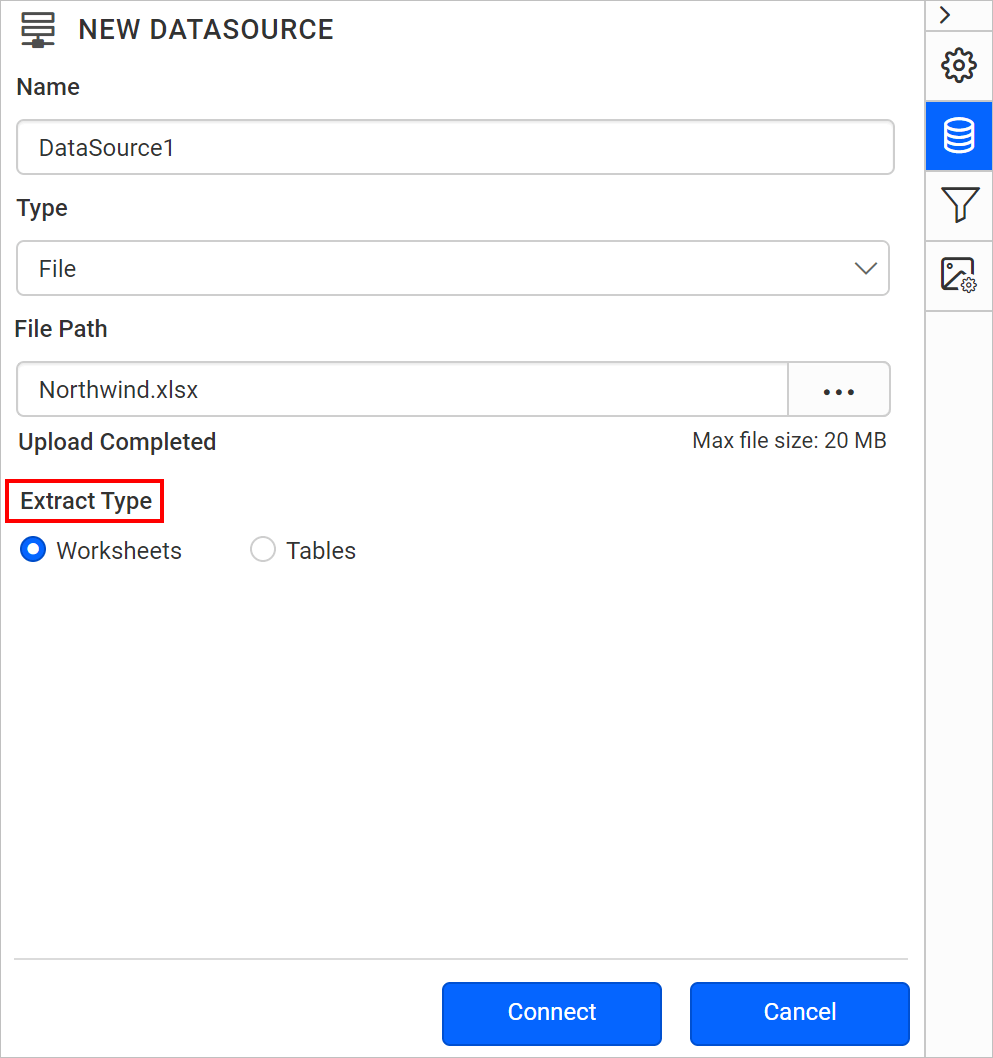
- Click on the
Connectto proceed with query design pane. The query design pane will show the worksheets/tables in a tree view on the left side pane.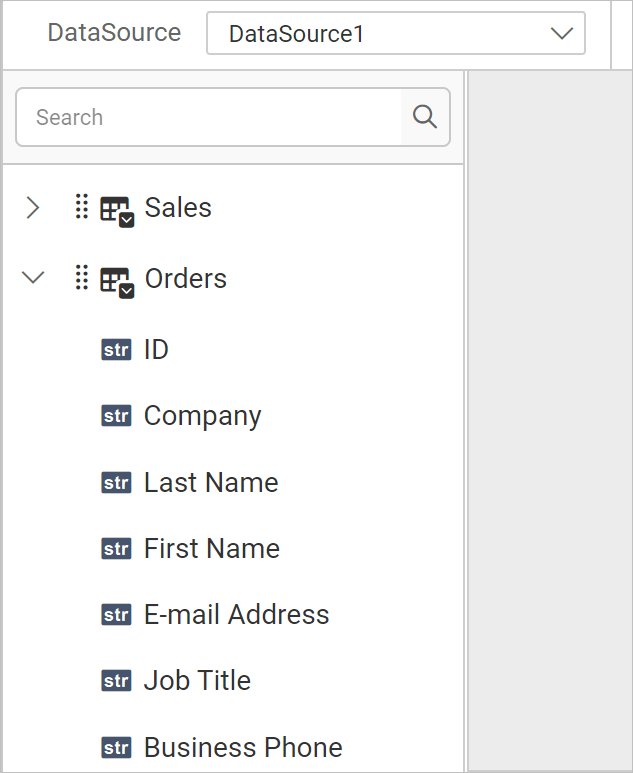
- Now, drag and drop the worksheet/table you want to analyze, from the left pane in the query design view page and execute.
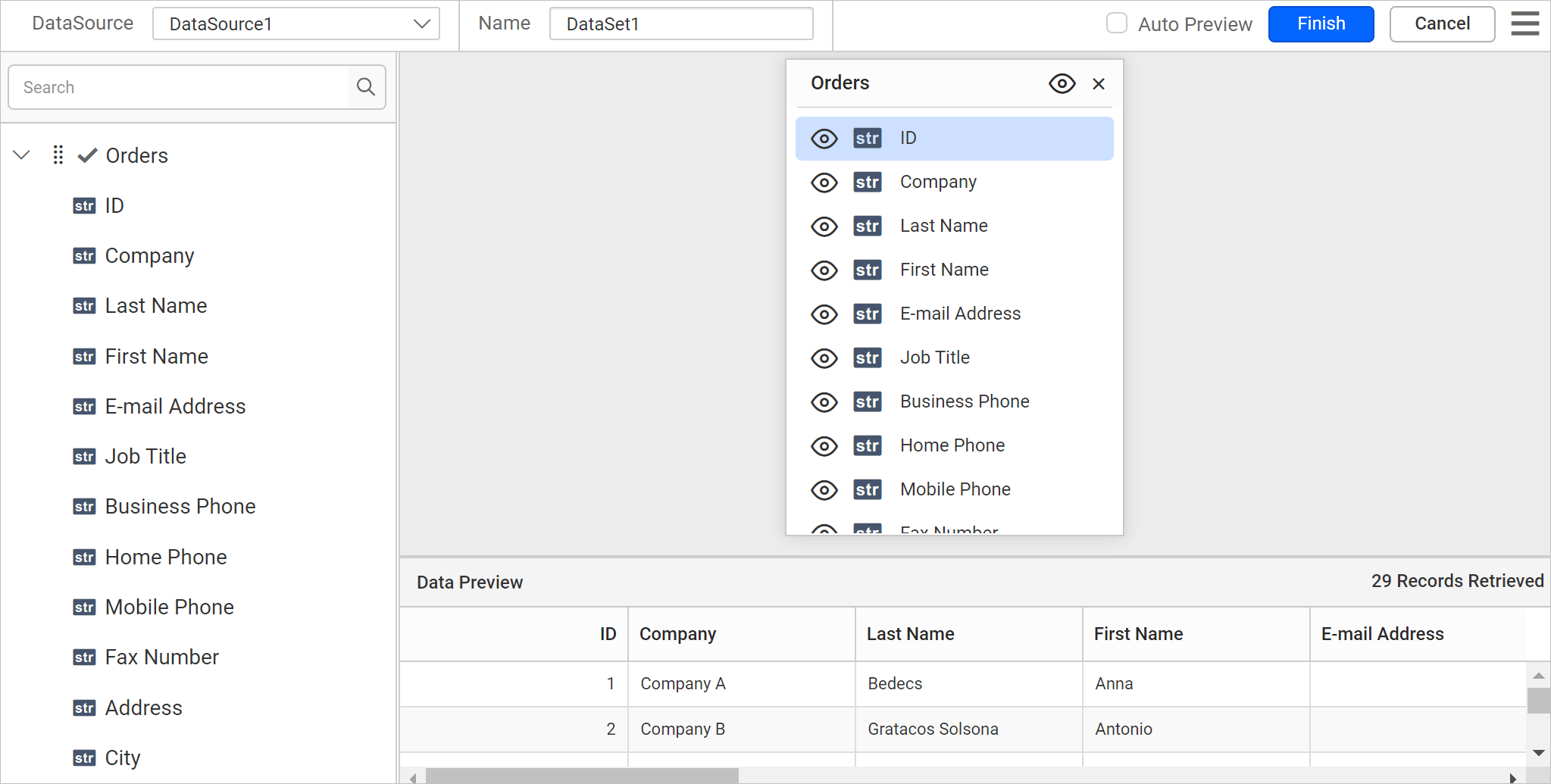
NOTE: The Excel data source does not allow multiple joins across sheets or tables.
- Click
Finishto save the data source with a relevant name to proceed with designing report.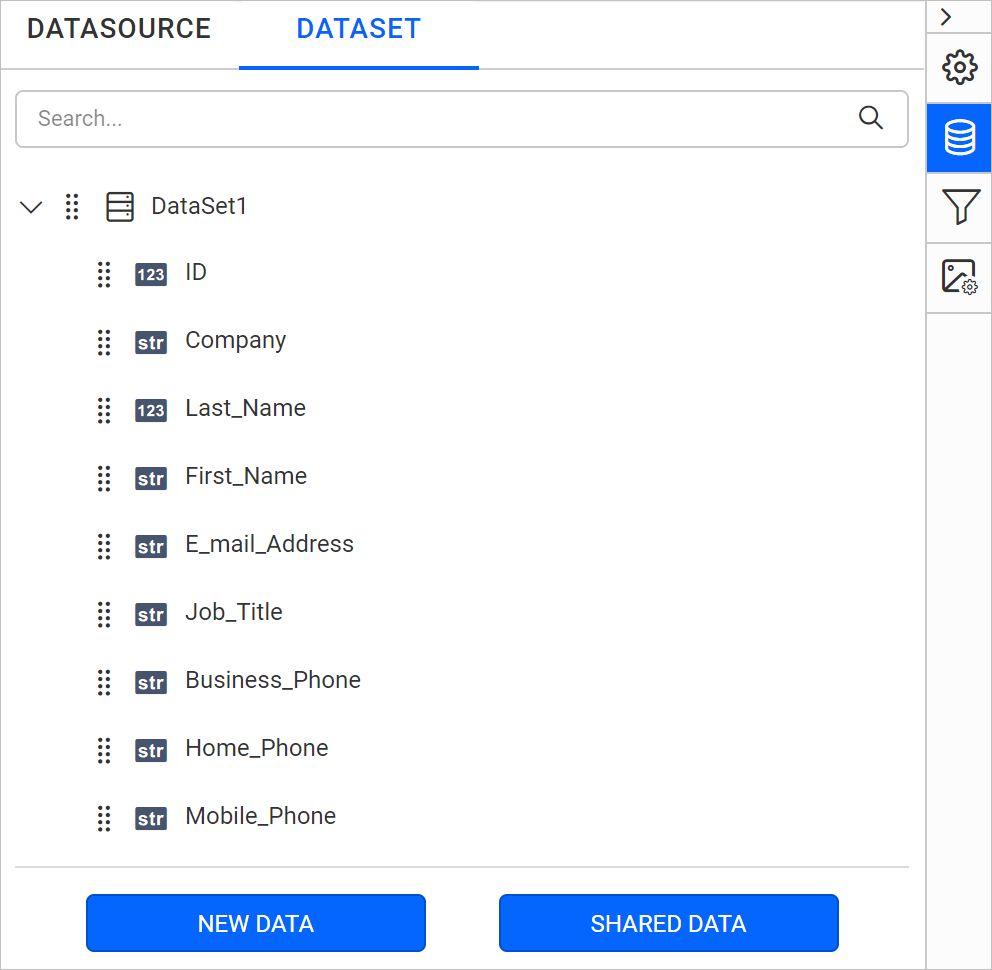
Load from external URL
- Choose
Externaloption inTypefield.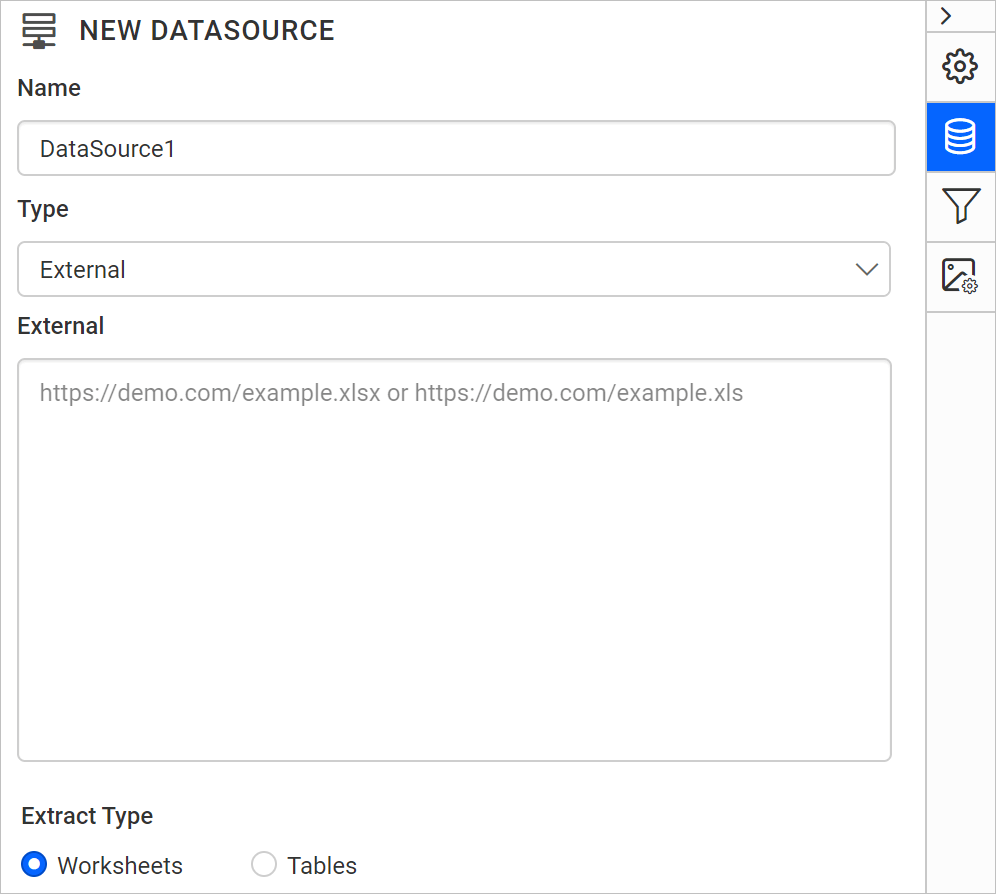
- Specify an external URL in the
Externaltext area.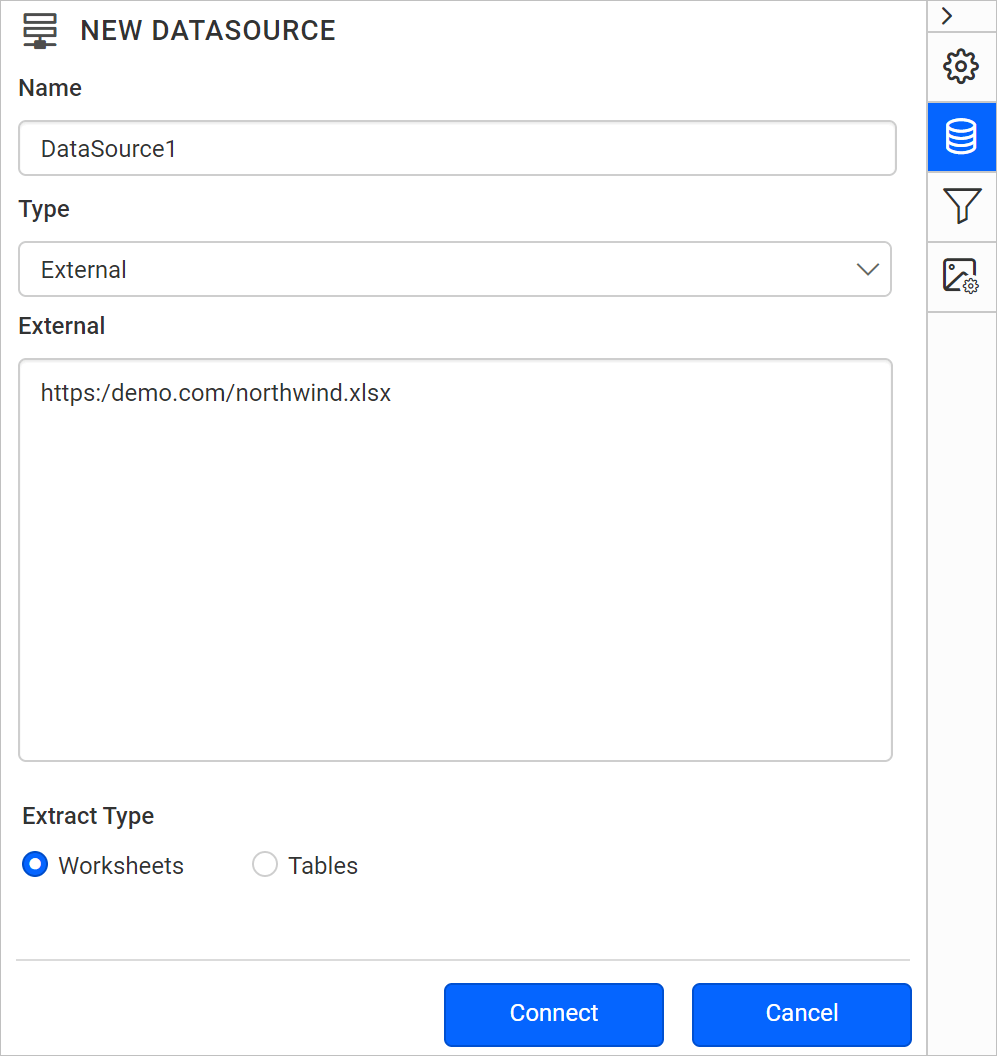
- Here, Bold Reports® allows different
Extract Typeand click here to know about each extract type. - Click on the
Connectto proceed with query design pane. The query design pane will show the worksheets/tables in a tree view on the left side pane. - Drag and drop the table from the left pane in the query design view page and execute.
- Click
Finishto save the data source with a relevant name to proceed with designing report.
Importing data
Bold Reports® allows you to import excel as Worksheets and Tables.
- Worksheets: Choose
Worksheetsto fetch an entire worksheet of data along with tables. - Table: Choose
Tablesto fetch tables from Excel worksheets.
NOTE: The import type feature is only available for the version 2007 and later with .xlsx extension format.
Importing Worksheets
Bold Reports® Excel data connector allows you to connect data from different worksheets. In the following excel file, there are two worksheets.
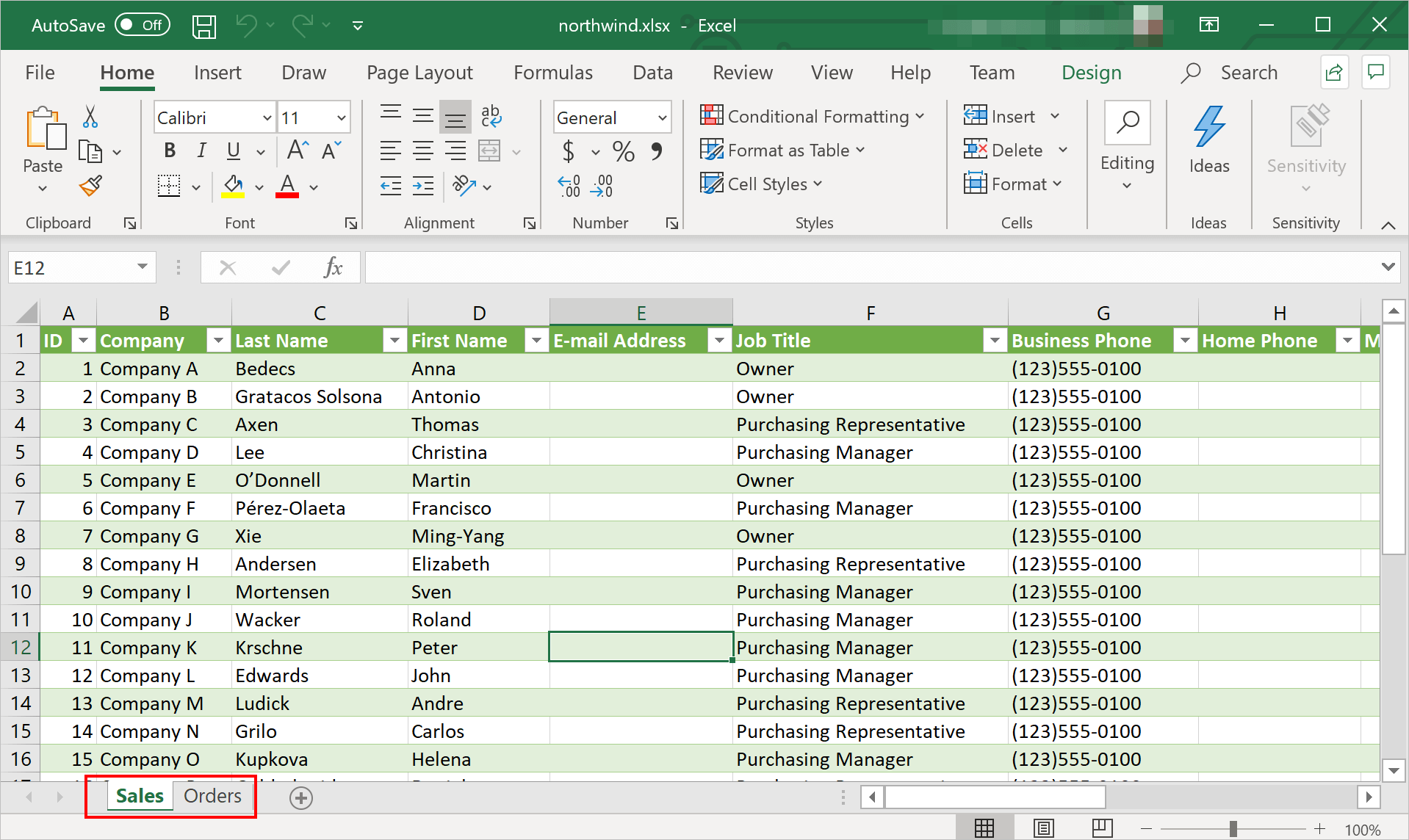
To connect entire worksheet along with tables, choose Worksheets in Extract type.
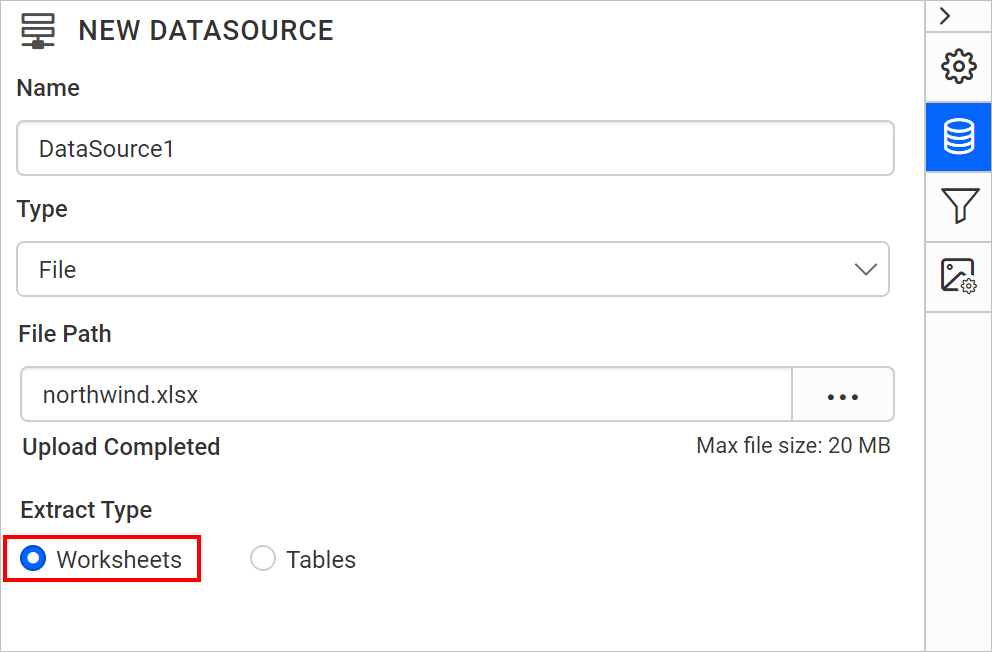
Click on the Connect. The query designer will show the worksheets in a tree view on the left side pane.
Importing Tables
Bold Reports® Excel data connector allows you to connect multiple tables across the worksheets. In the following workbook, Order Details worksheet has two different tables.
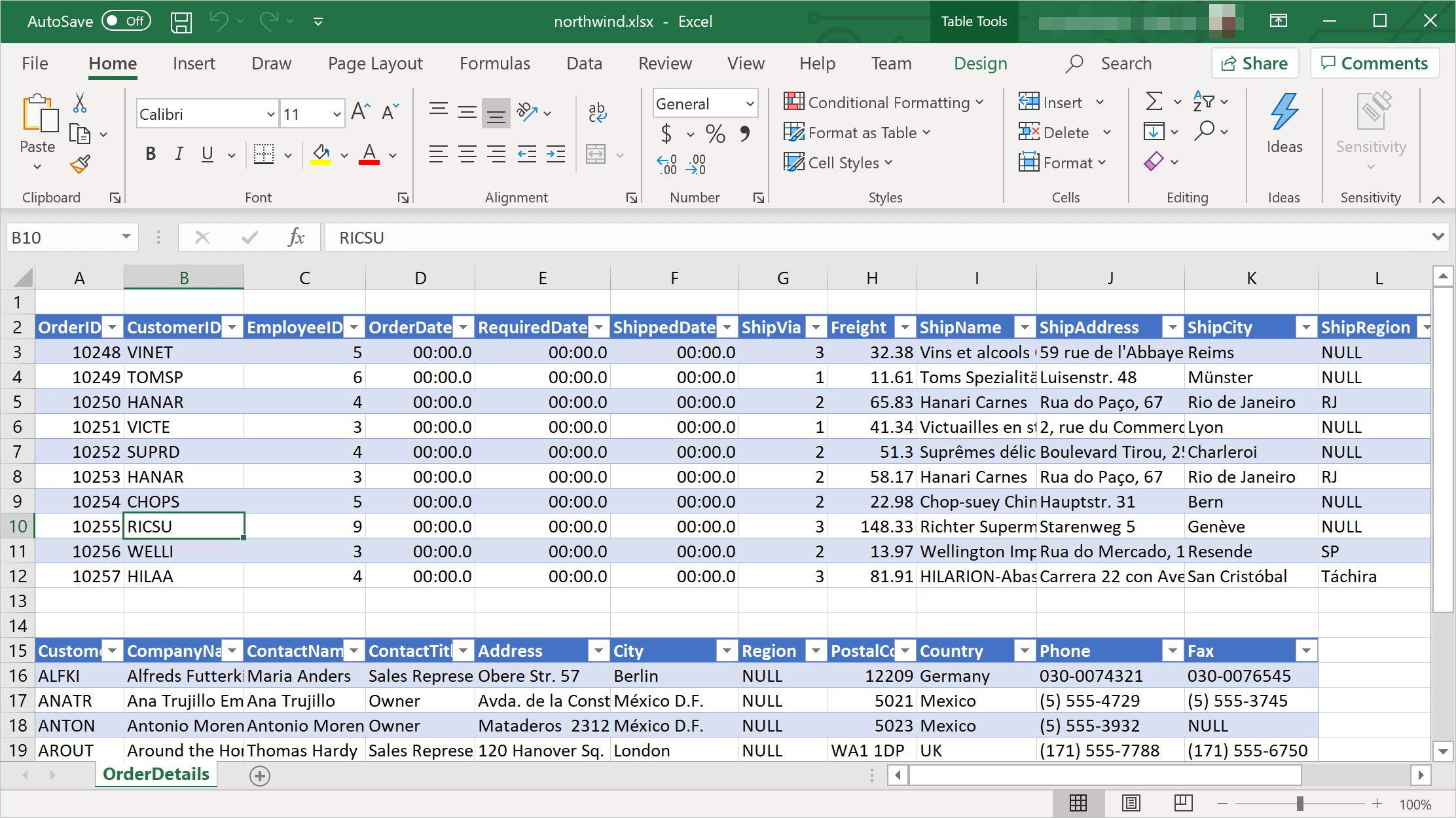
To connect one or more tables from your worksheets, choose Tables in Extract type.
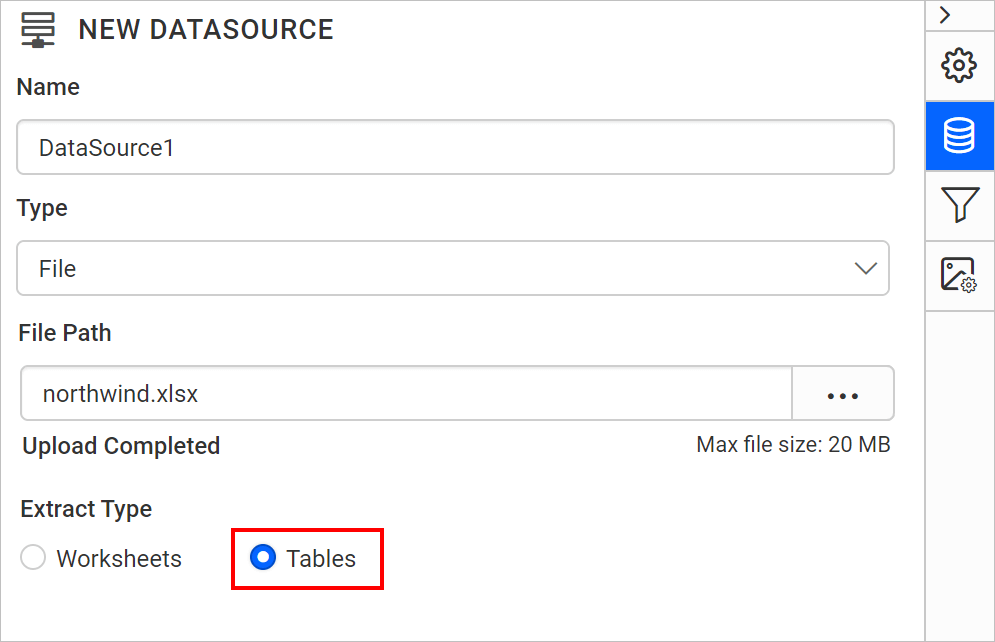
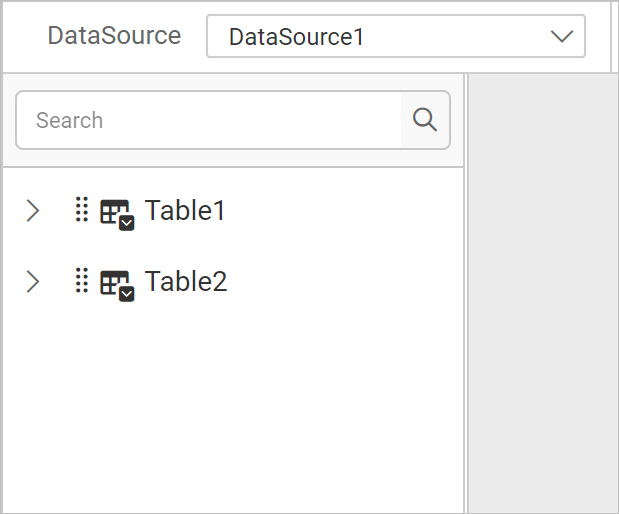
Click on the Connect. The query designer will show the tables in a tree view on the left side pane.
Limitations
- You couldn’t connect an excel file with the formats other than .xls and .xlsx extensions.
- You couldn’t connect an empty worksheet.
- Inserted image, charts, shapes or non-data elements in the file will not be shown.
- You couldn’t connect the password protected worksheet.
- You couldn’t execute an SQL query on Excel data within the code mode of the query design pane.