Connect to XML data source
The Bold Reports® allows you to connect to the XML data source that retrieves data from XML file, a string in XML format or a external URL.
How to create XML data source
To configure the XML data source, follow the below steps:
- Click on the Data icon in the configuration panel.
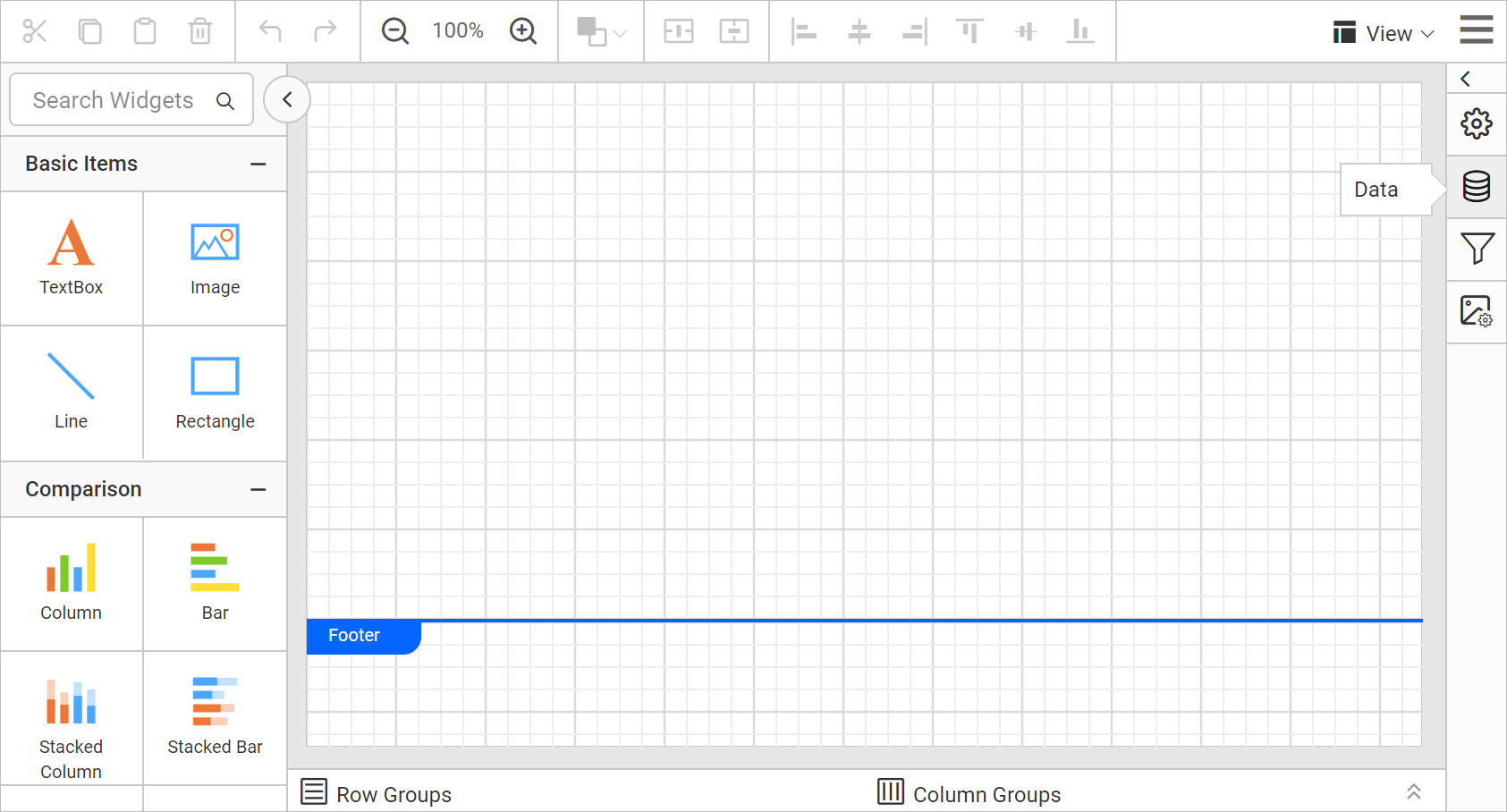
- In the
DATAconfiguration panel, click on theNEW DATAbutton.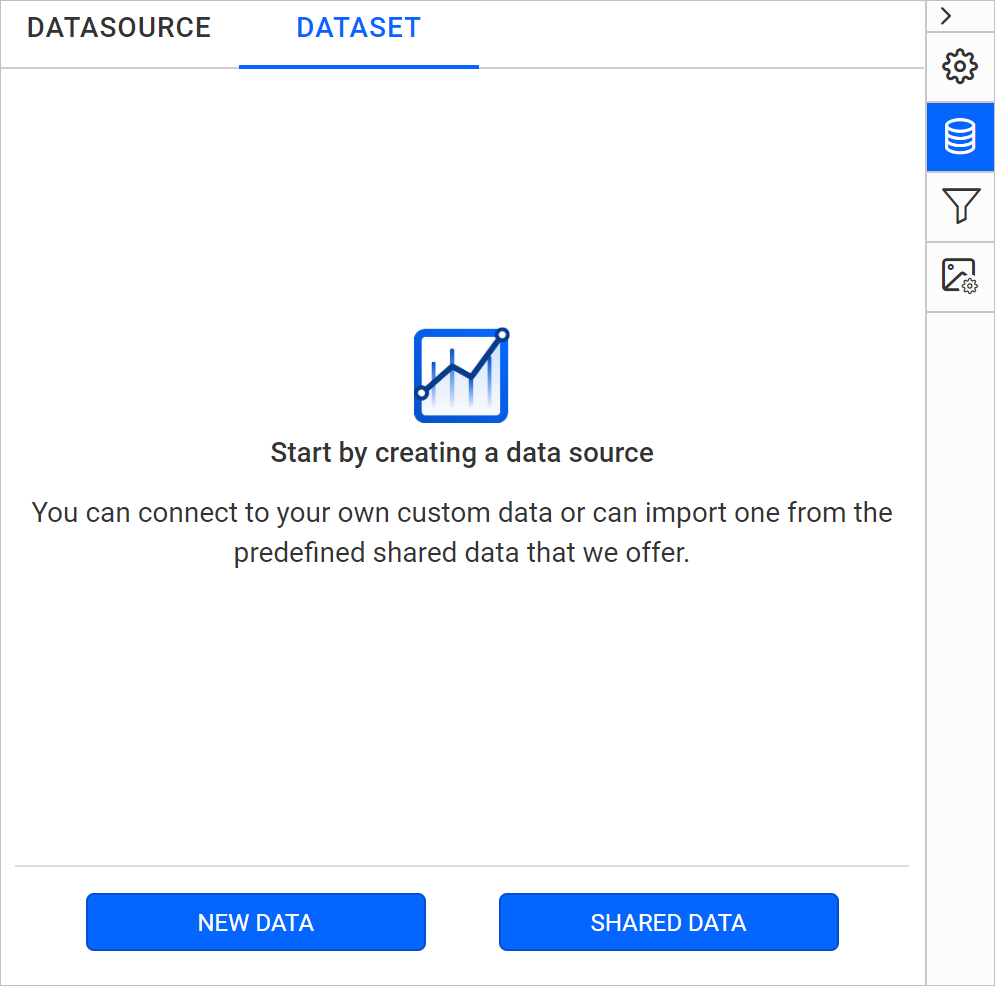
- In the connection type panel, choose the
XMLdata source type.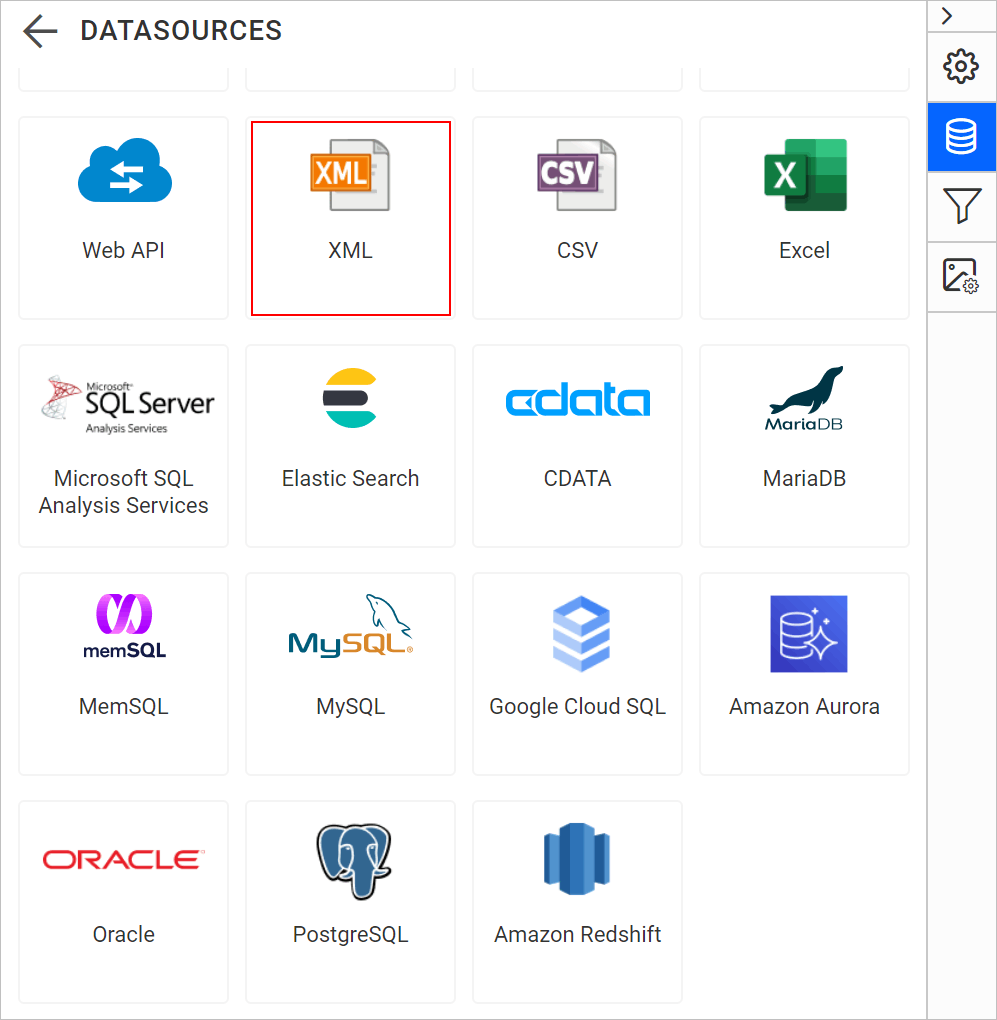
- Specify the data source name without special characters, in Name field.
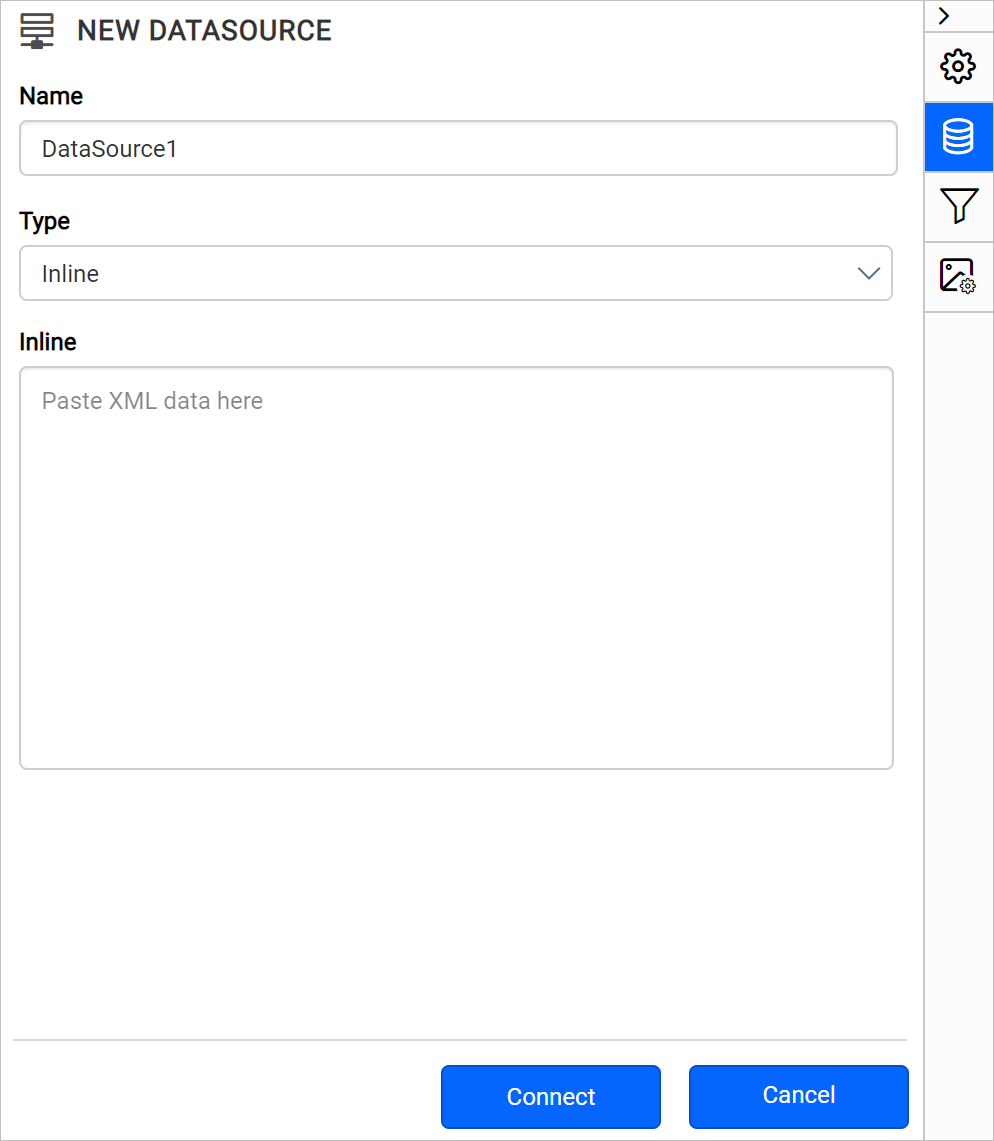
You can connect XML data using the following three options,
- Inline - Inline data
- File Path - Load from disk
- External - Load from external URL
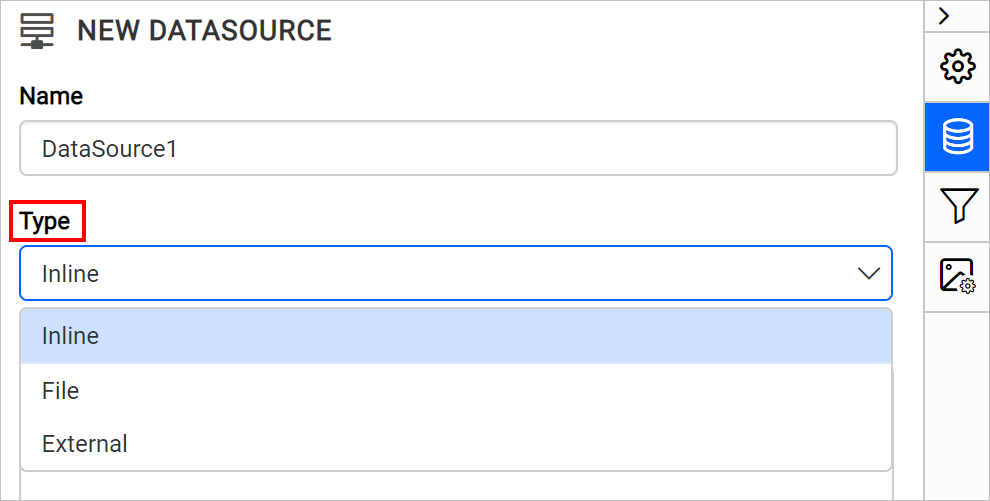
Inline data
-
Choose
InlineinTypedrop-down. -
Specify a string that contains XML data in the
Inlinetext area.<?xml version="1.0" encoding="UTF-8"?> <root> <element> <FirstName>First Name 1</FirstName> <ID>1</ID> <IDBook>1</IDBook> <LastName>Last Name 1</LastName> </element> <element> <FirstName>First Name 2</FirstName> <ID>2</ID> <IDBook>1</IDBook> <LastName>Last Name 2</LastName> </element> </root> -
Click on the
Connectto proceed with query design pane. The query design pane will show the specified XML data’s structure in left pane.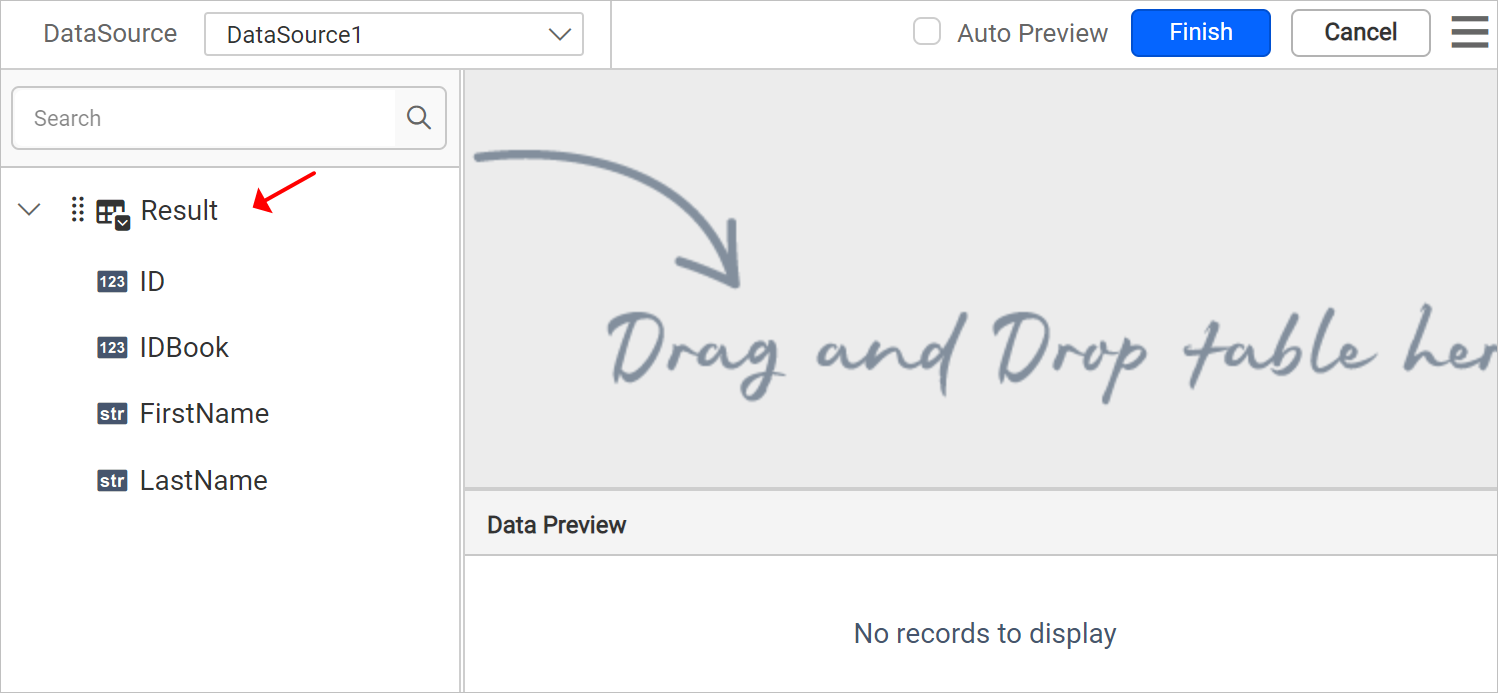
-
Drag and drop the table from the left pane in the query design view page and execute.
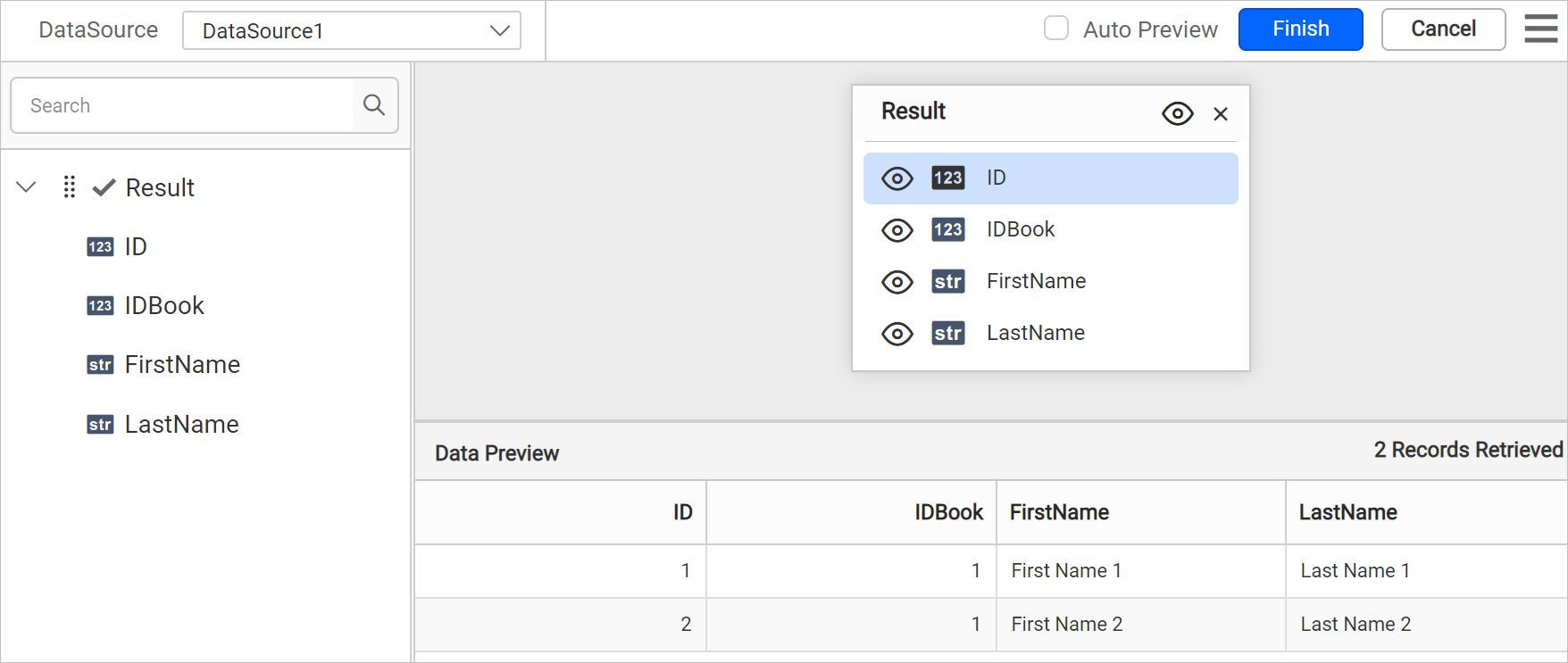
-
Click
Finishto save the data source with a relevant name to proceed with designing report.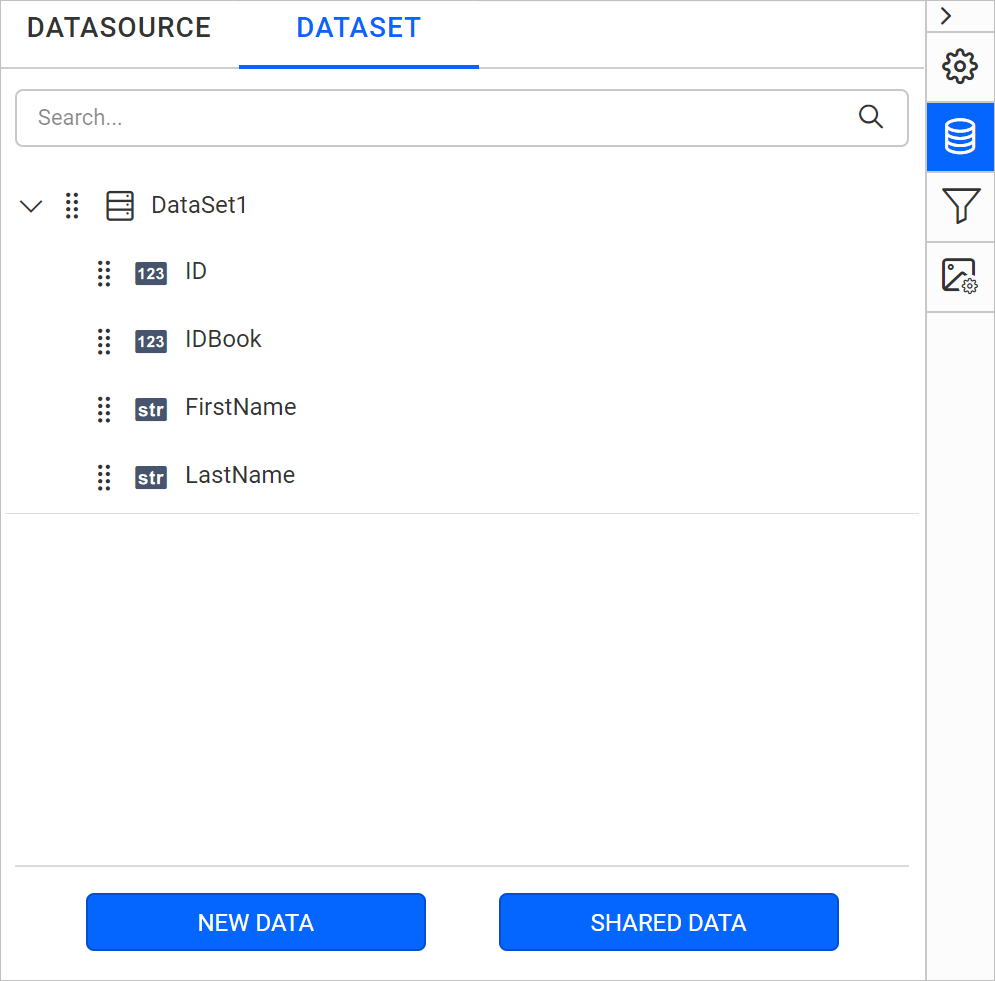
Load from disk
- Choose
Fileoption inTypefield. Now, the upload option will start displaying like below.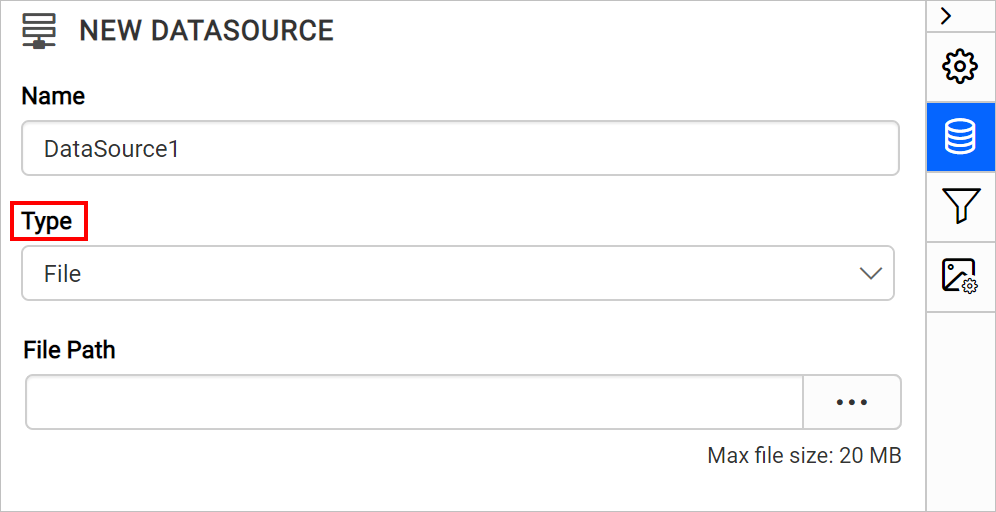
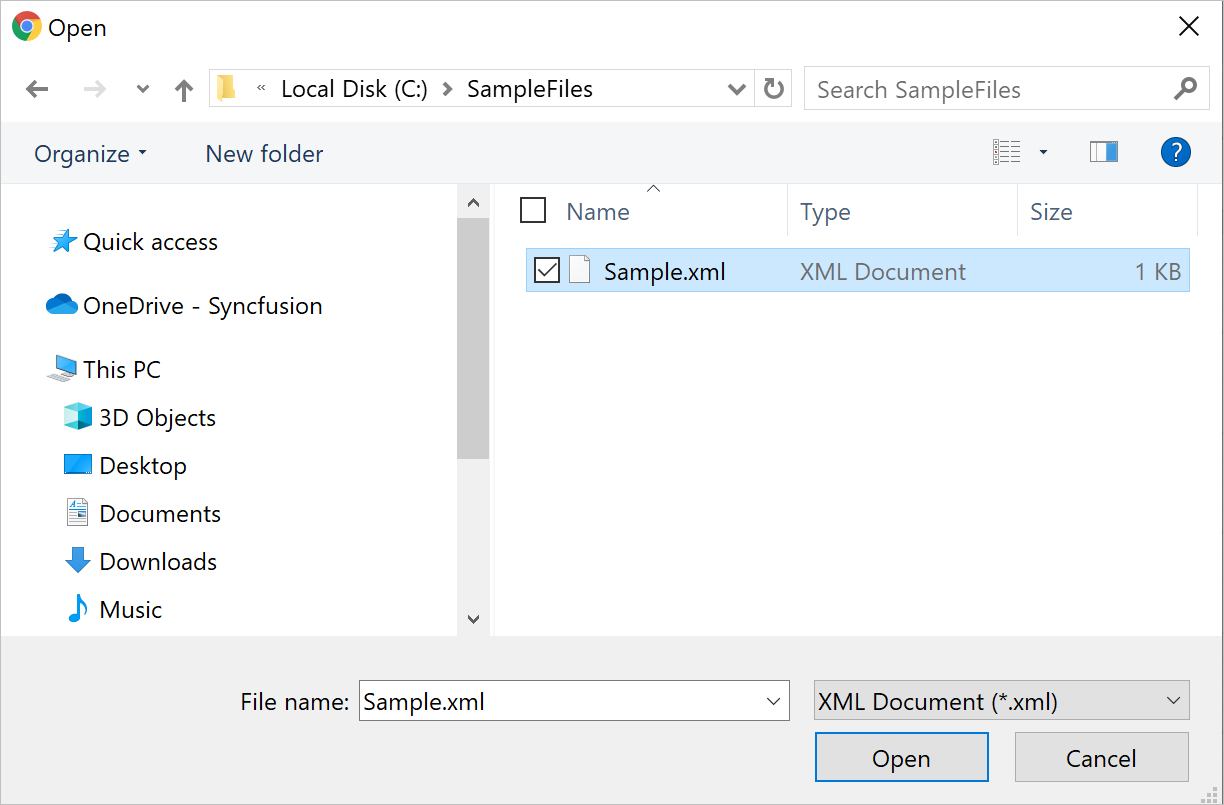
- Click on the three-dotted button to open upload box. Browse the XML file and click open,
- Click on the
Connectto proceed with query design pane.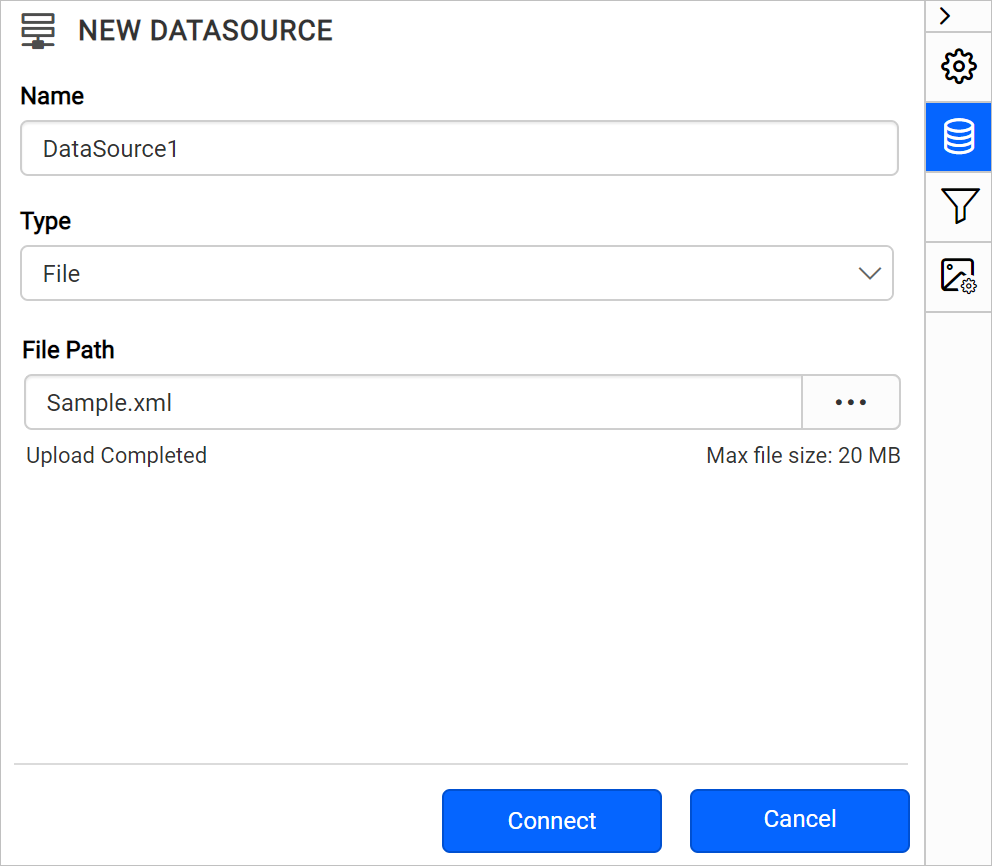
- The query design pane will show the specified XML data’s structure in left pane.
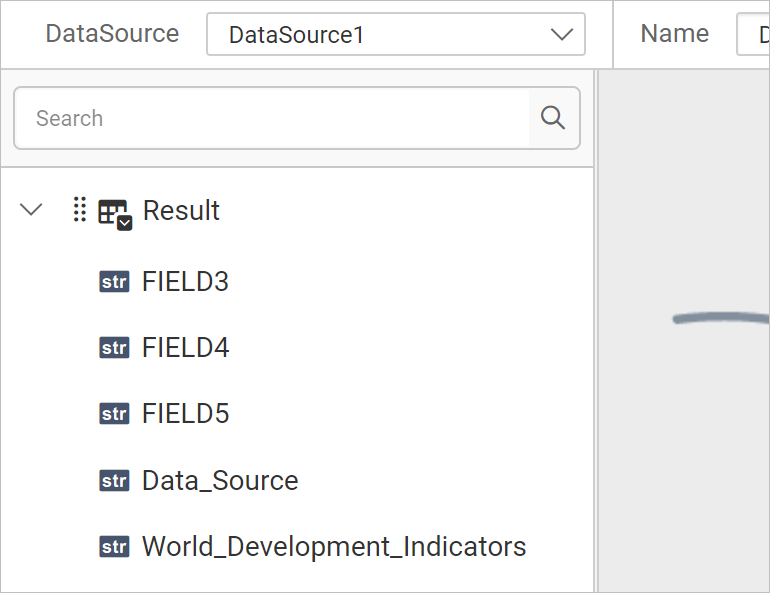
- Drag and drop the table from the left pane in the query design view page and execute.
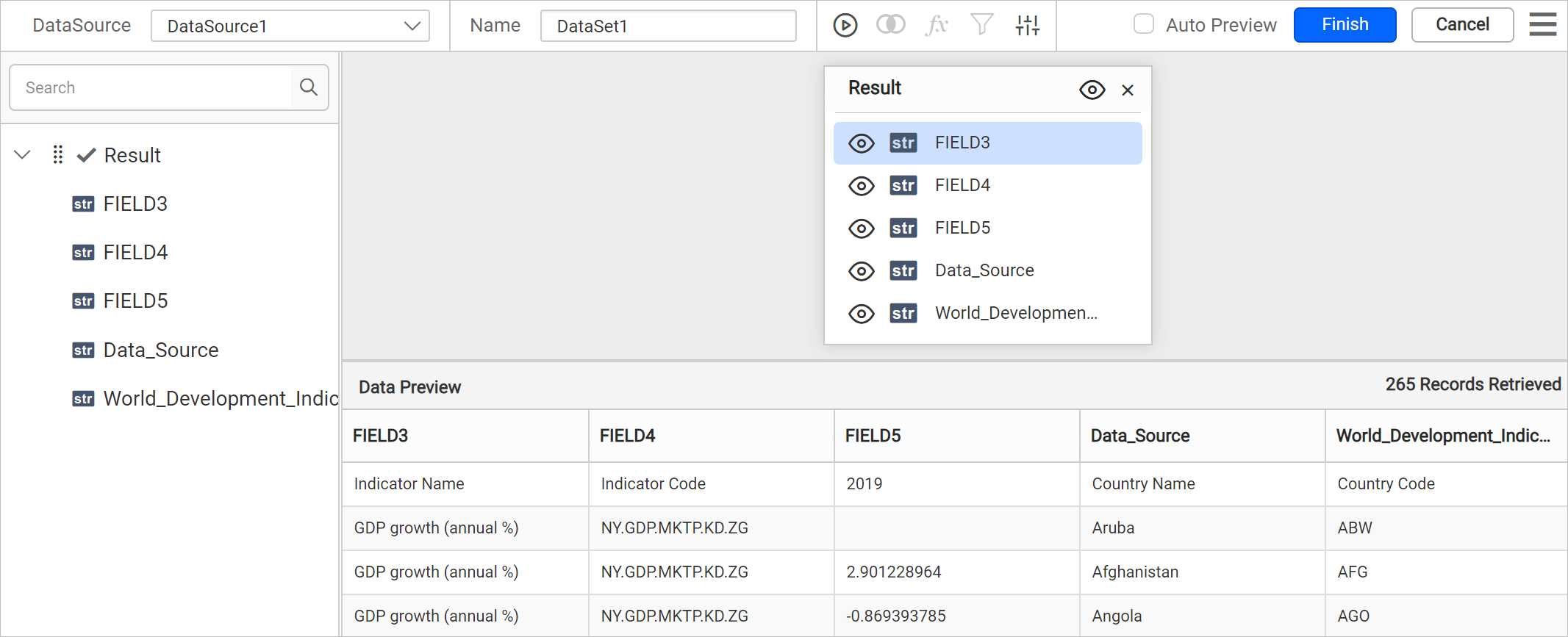
- Click
Finishto save the data source with a relevant name to proceed with designing report.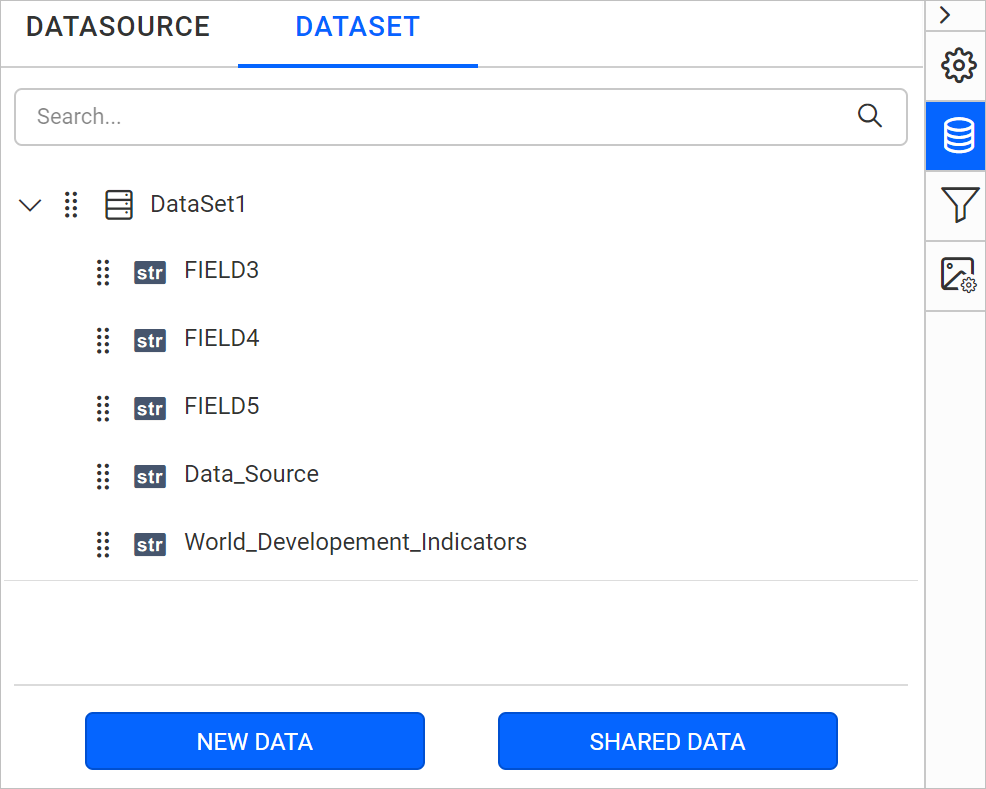
Load from external URL
- Choose
Externaloption inTypefield.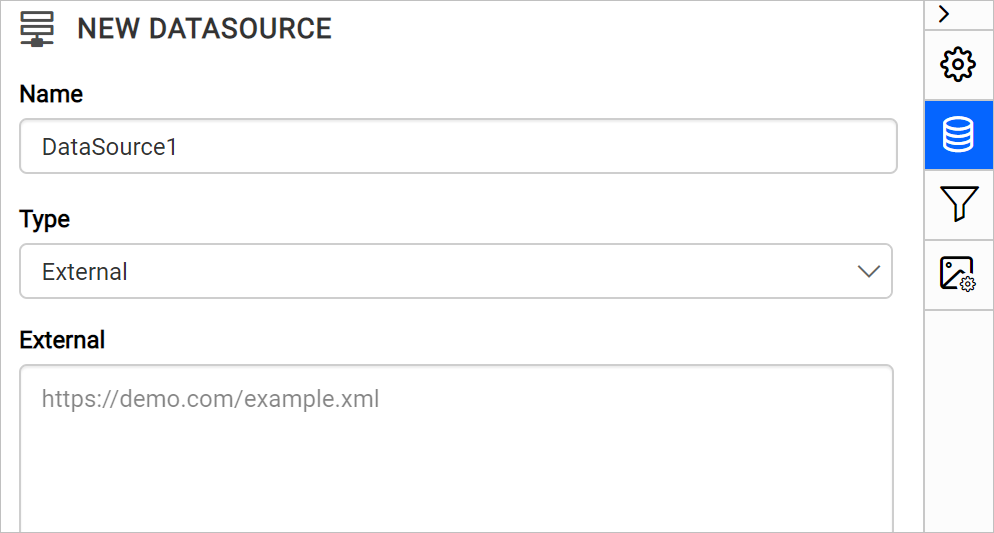
- Specify a external URL in the
Externaltext area.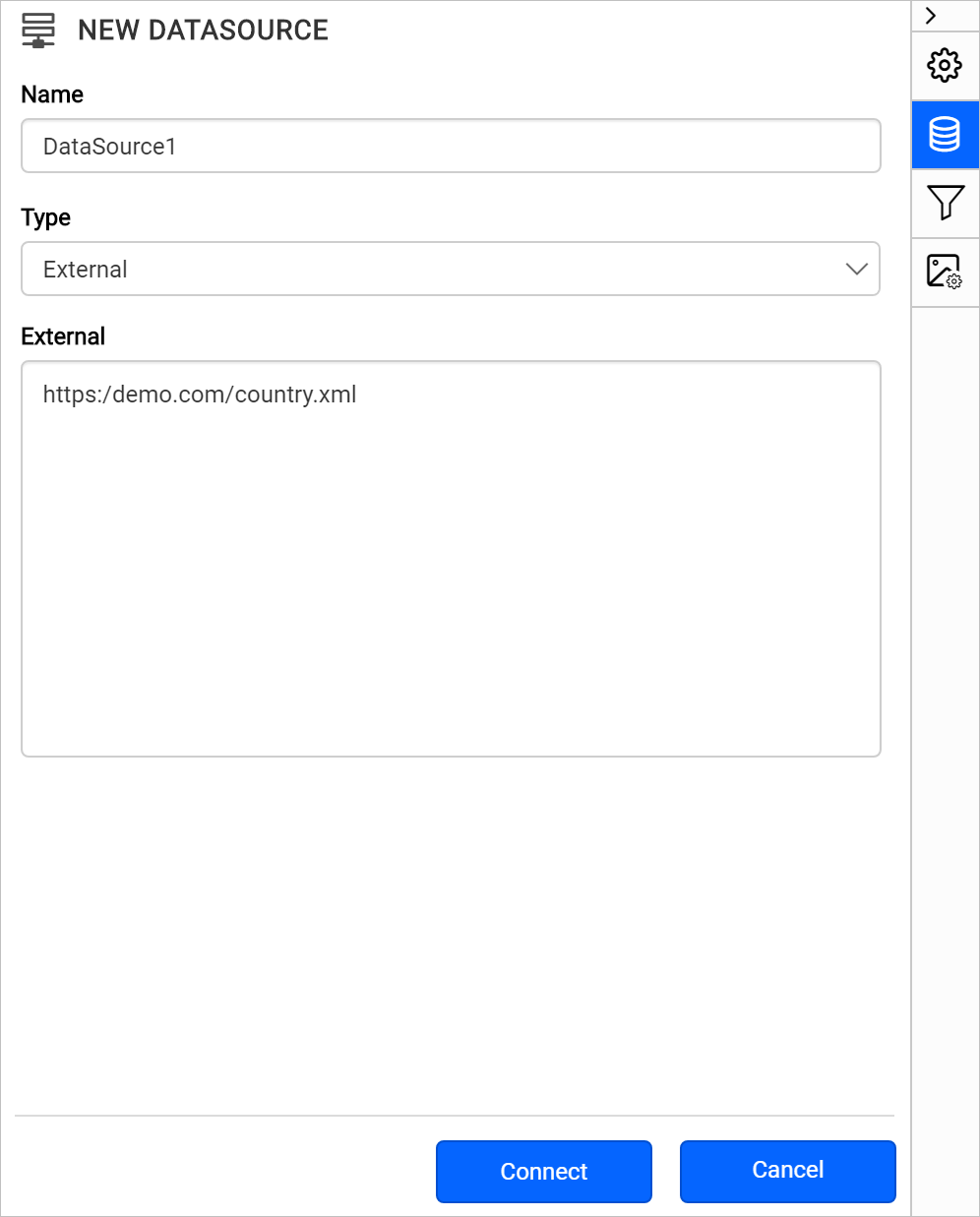
- Click on the
Connectto proceed with query design pane. The query design pane will show the specified XML data’s structure in left pane. - Drag and drop the table from the left pane in the query design view page and execute.
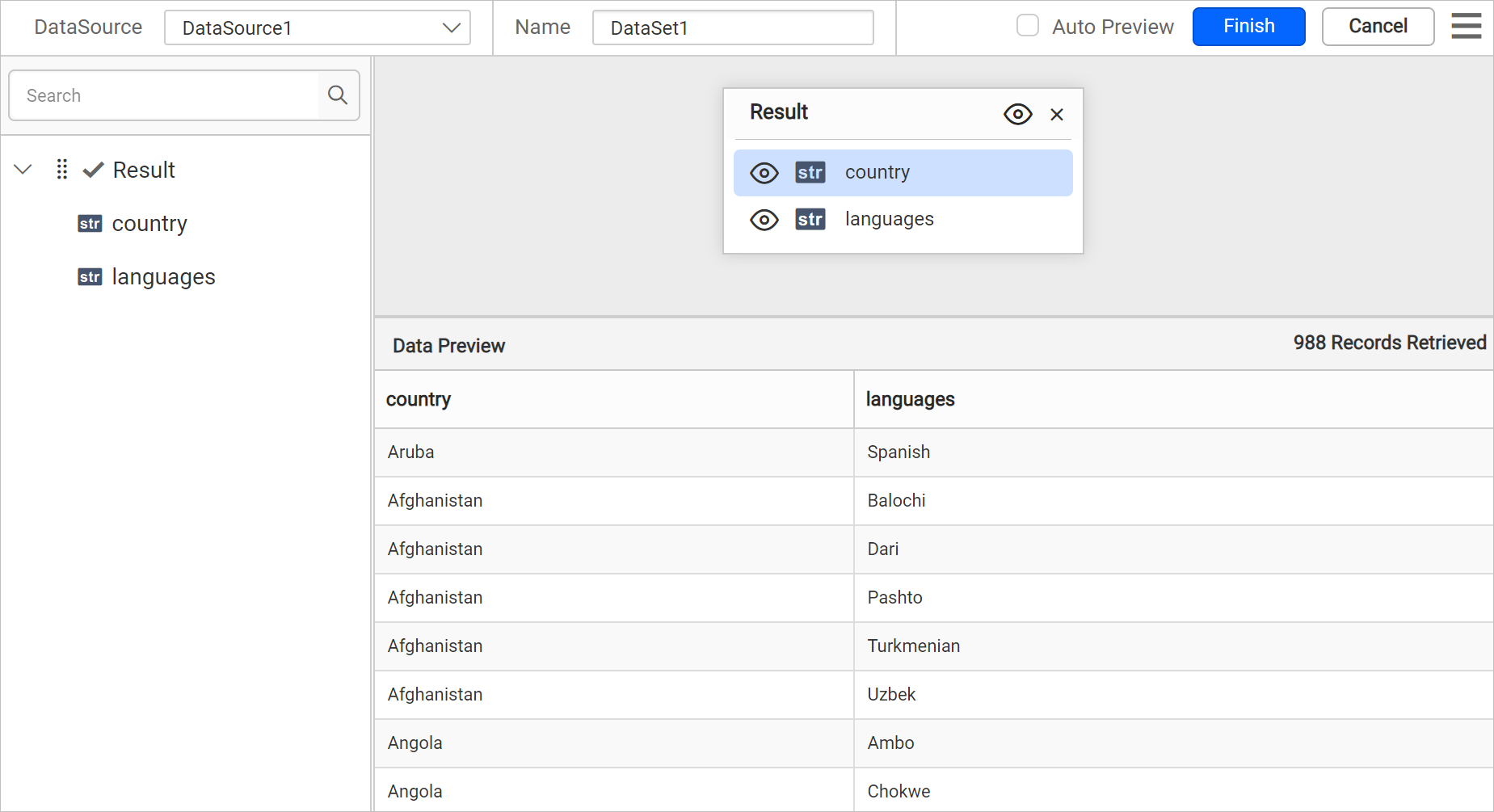
- Click
Finishto save the data source with a relevant name to proceed with designing report.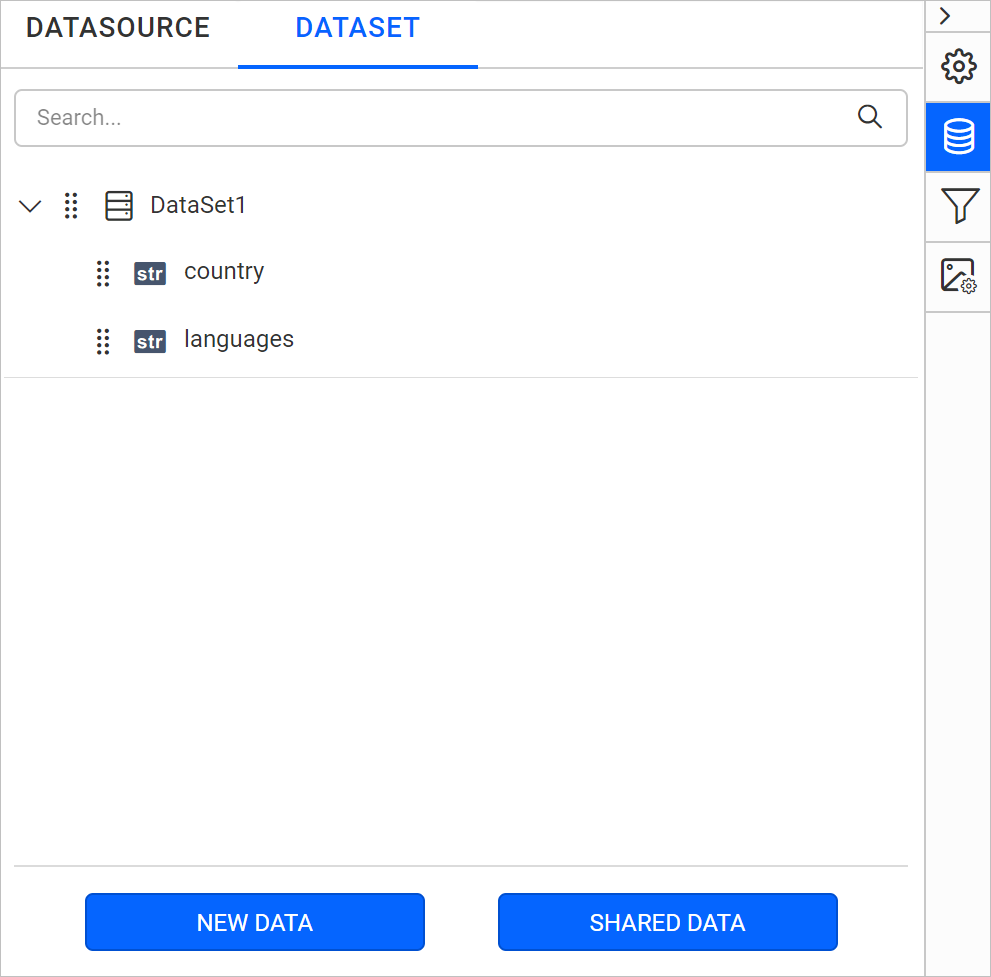
Note:
- In schema tree, the nested fields in the XML data will be shown as flat structure.
- When the XML data contains duplicate key names at different levels, Bold Reports® ensures uniqueness and avoids conflicts by appending the parent keys to each field name using the following format:
<fieldName>__<topLevelParentKey>_<nextParentKey>_..._<immediateParentKey>_.