Connect to CSV data source
The Bold Reports® allows you to connect to the CSV data source that retrieves data from csv and text files, or an external URL.
How to create JSON data source
To configure the CSV data source, follow the below steps:
- Click on the Data icon in the configuration panel.
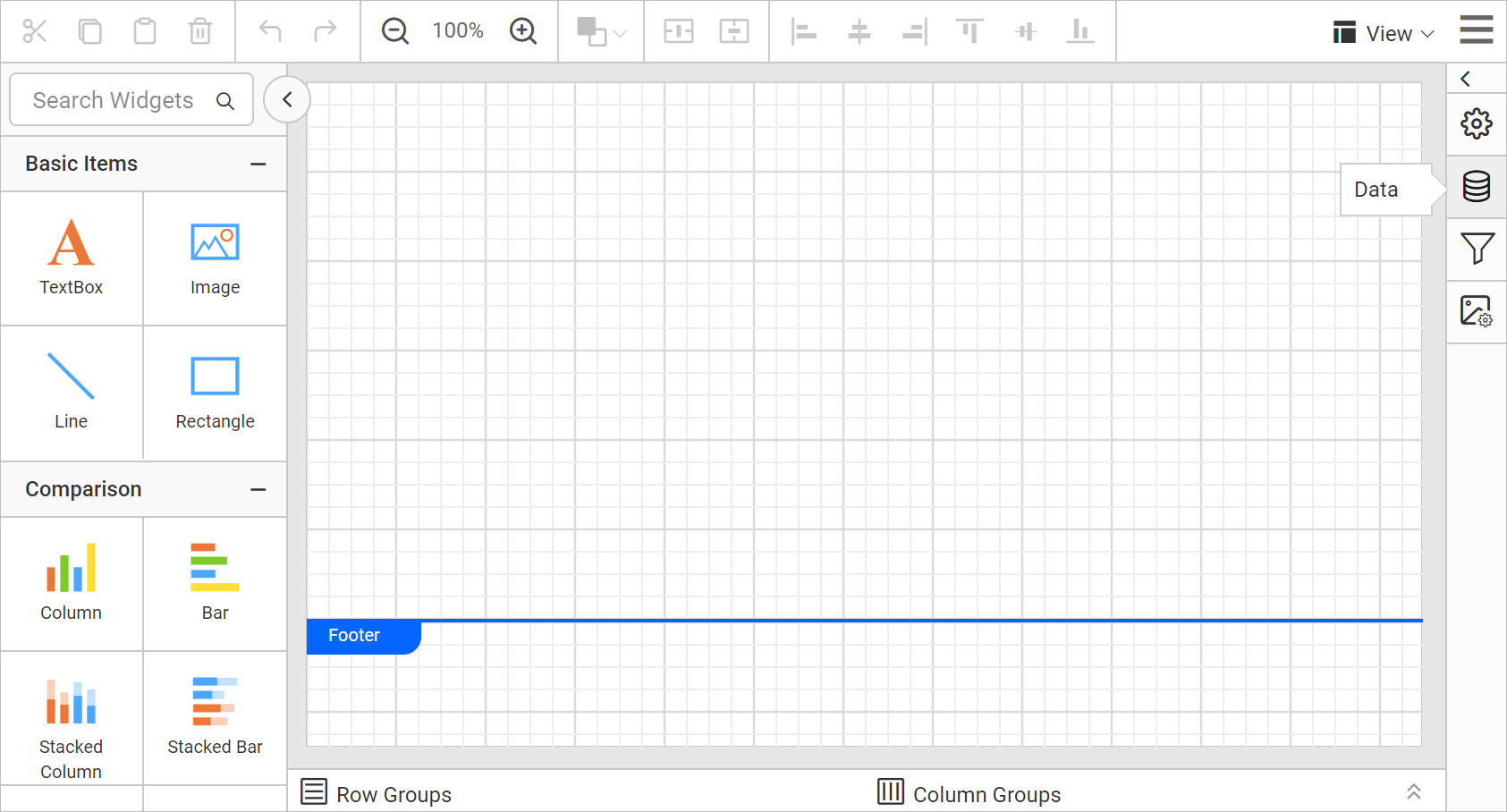
- In the
DATAconfiguration panel, click on theNEW DATAbutton.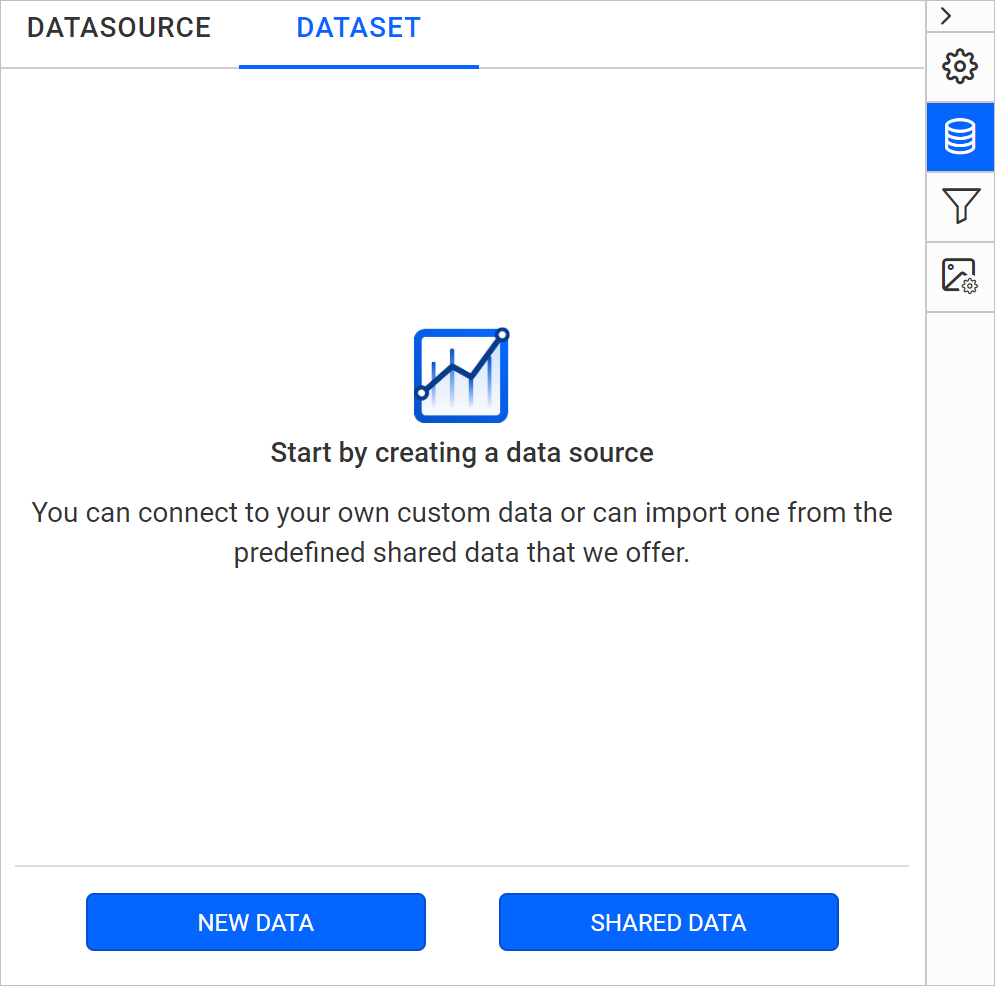
- In the connection type panel, choose the
CSVdata source type.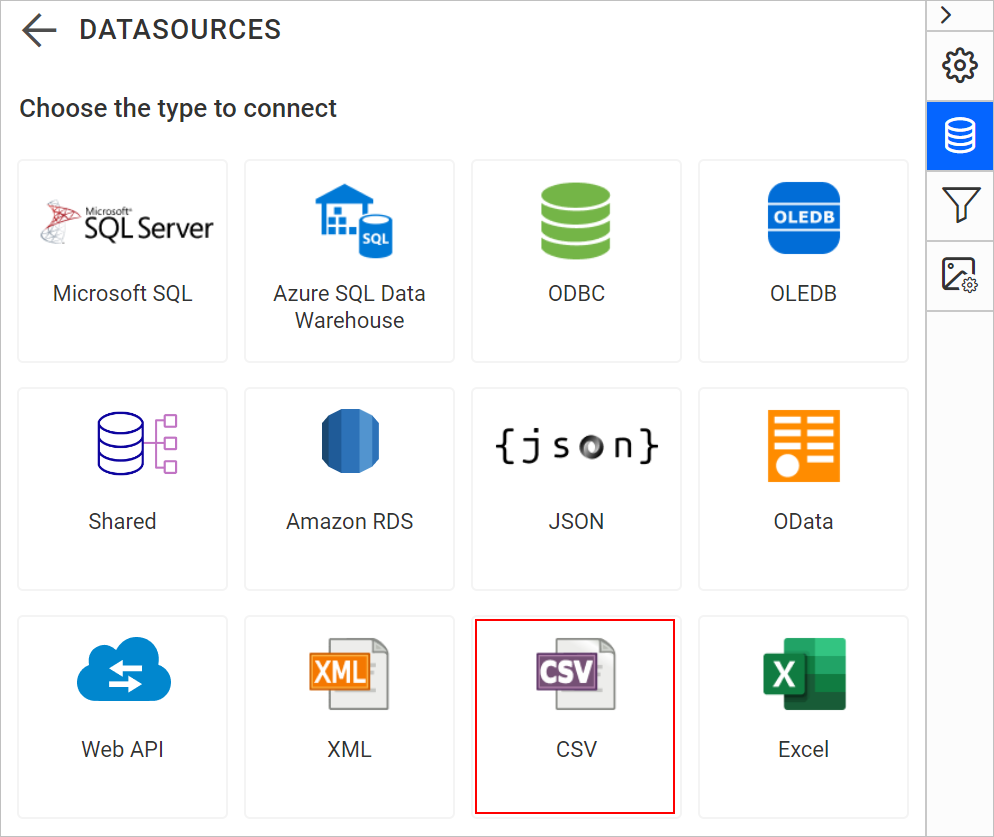
- Specify the data source name without special characters, in Name field.
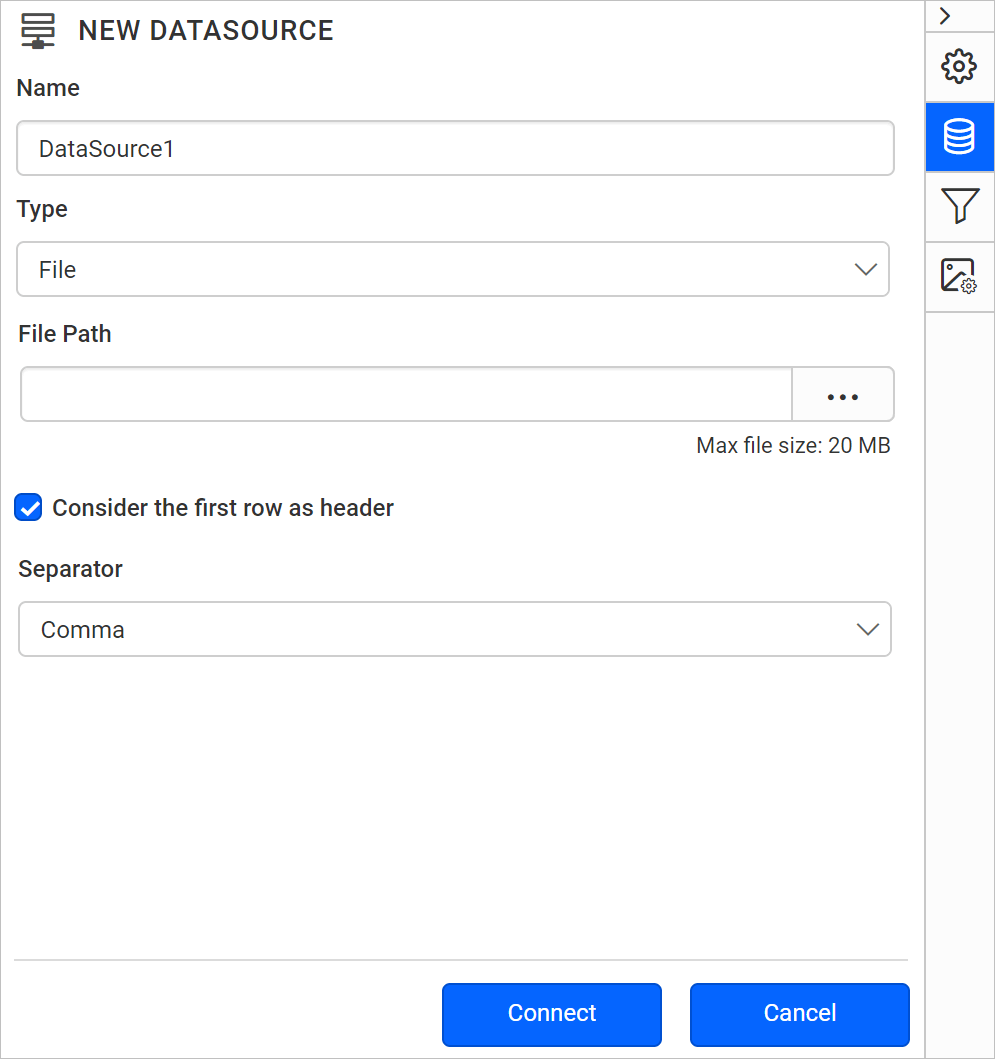
You can connect CSV data using the following two options,
- File Path - Load from disk
- External - Load from external URL
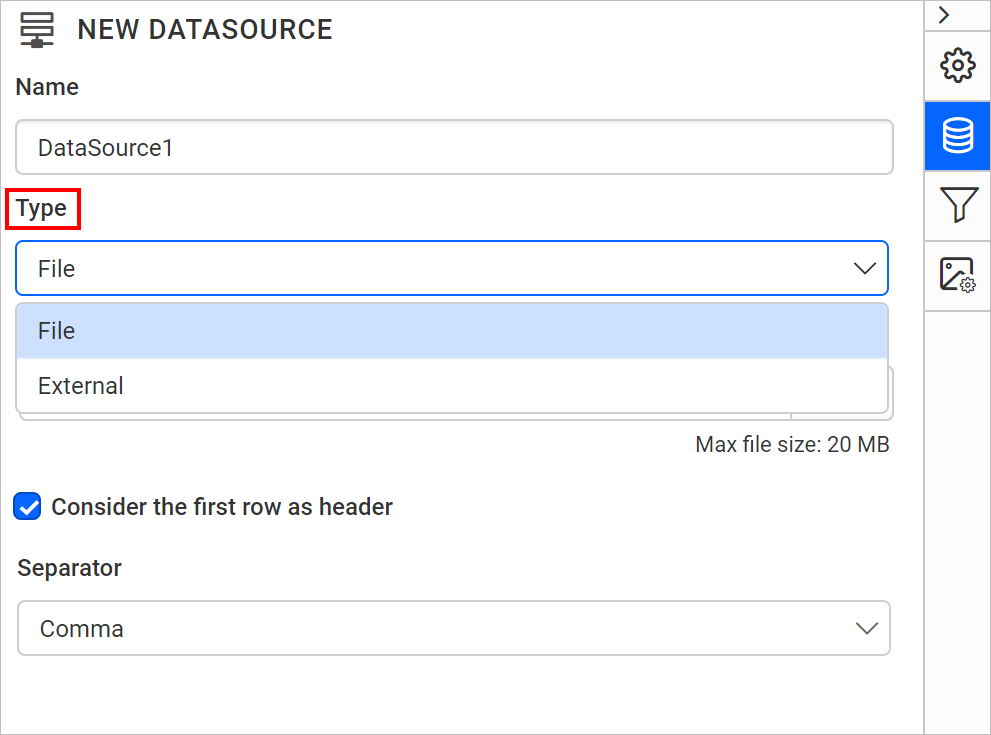
Load from disk
- Choose
Fileoption inTypefield. Now, the upload option will start displaying like below.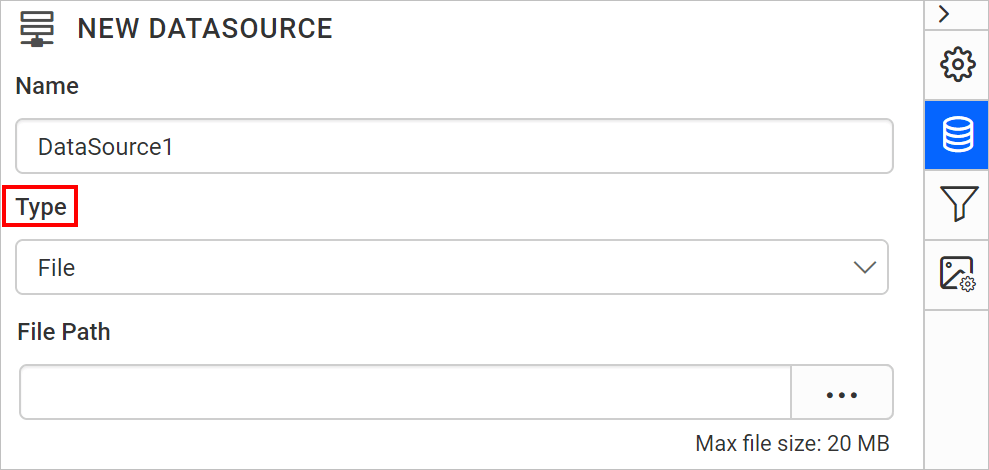
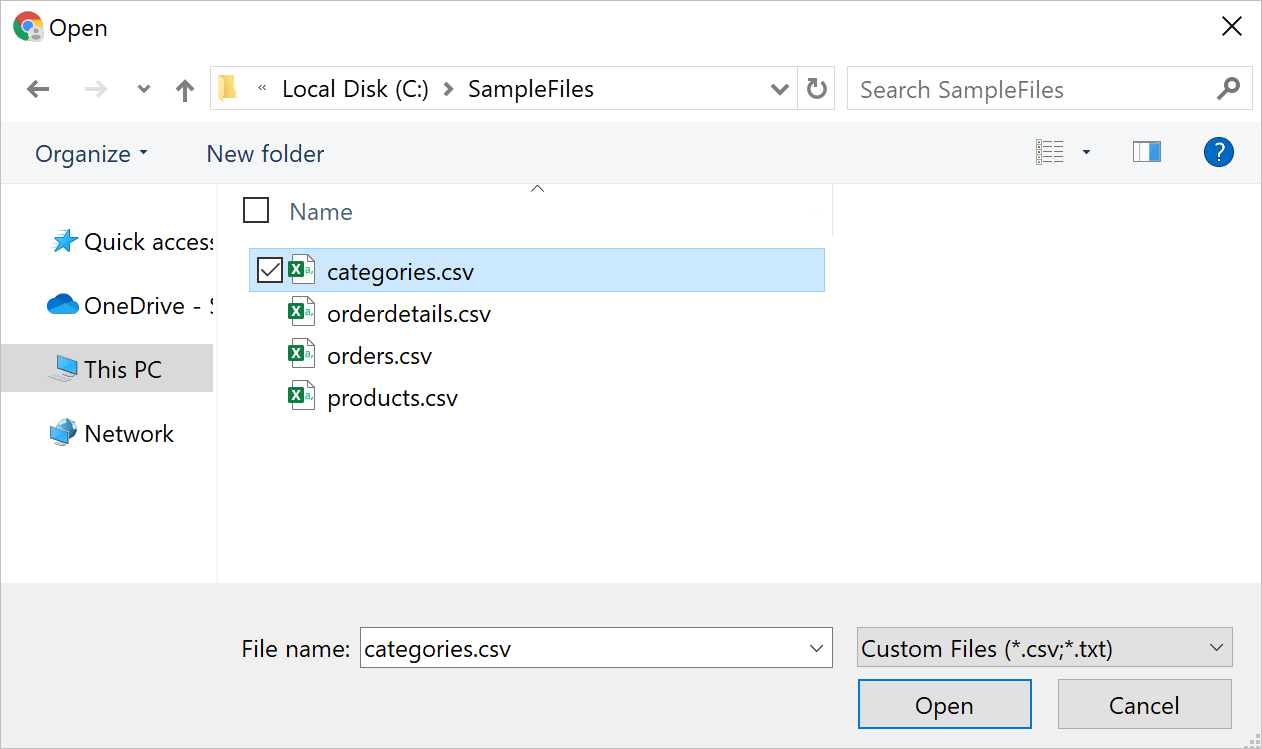
- Click on the three-dotted button to open upload box. Browse the CSV file and click open,
- If your data contains headers, enable
Consider the first row as headeroption to treat them as headers. - Use
Separatorbased on the type of file uploaded. Click here to know about supported separators.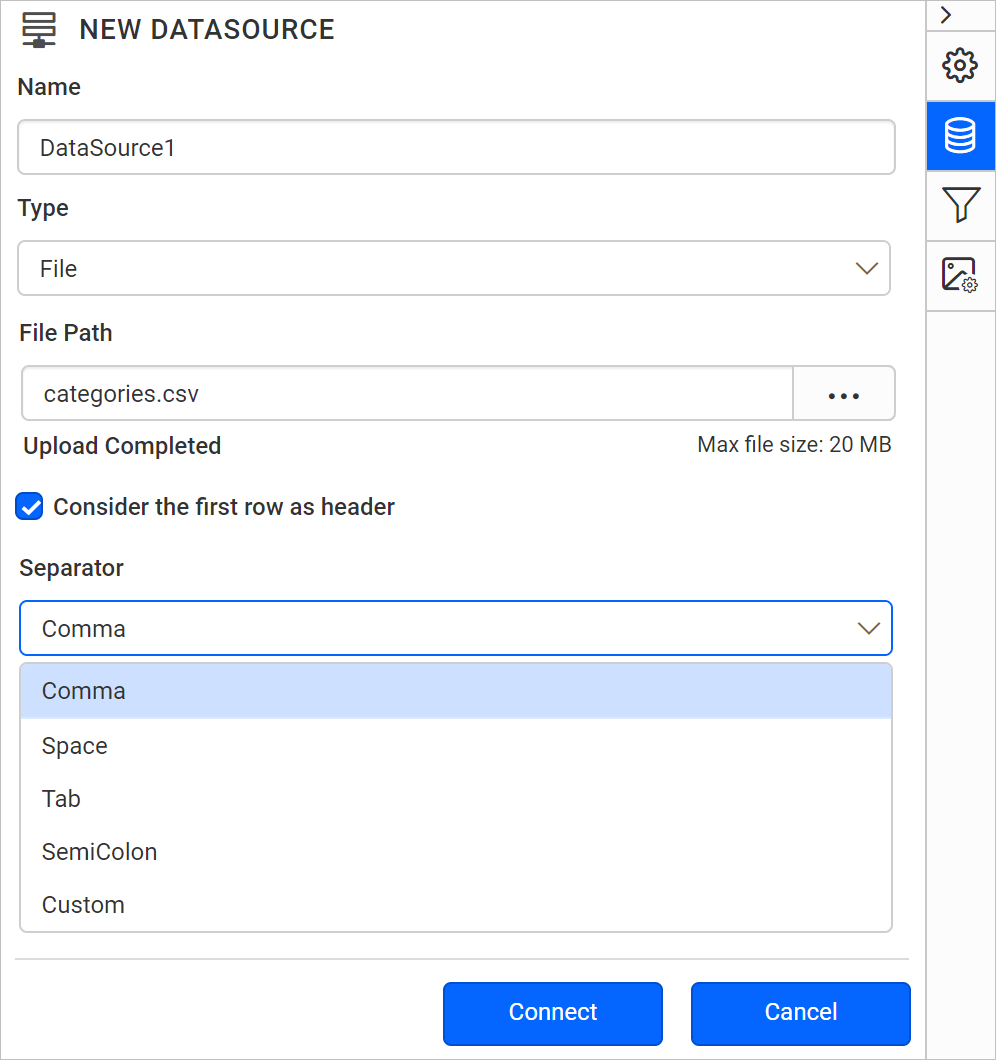
- Click on the
Connectto proceed with query design pane. The query design pane will show the specified CSV data’s structure in left pane.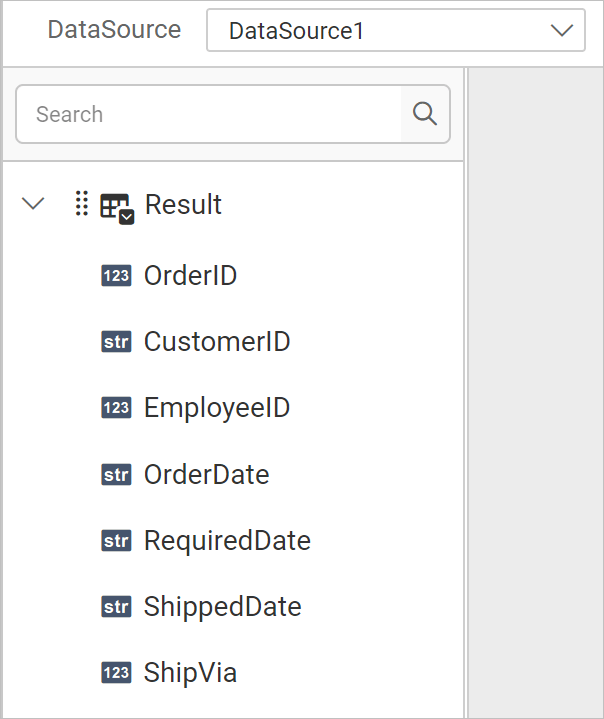
- Drag and drop the table from the left pane in the query design view page and execute.
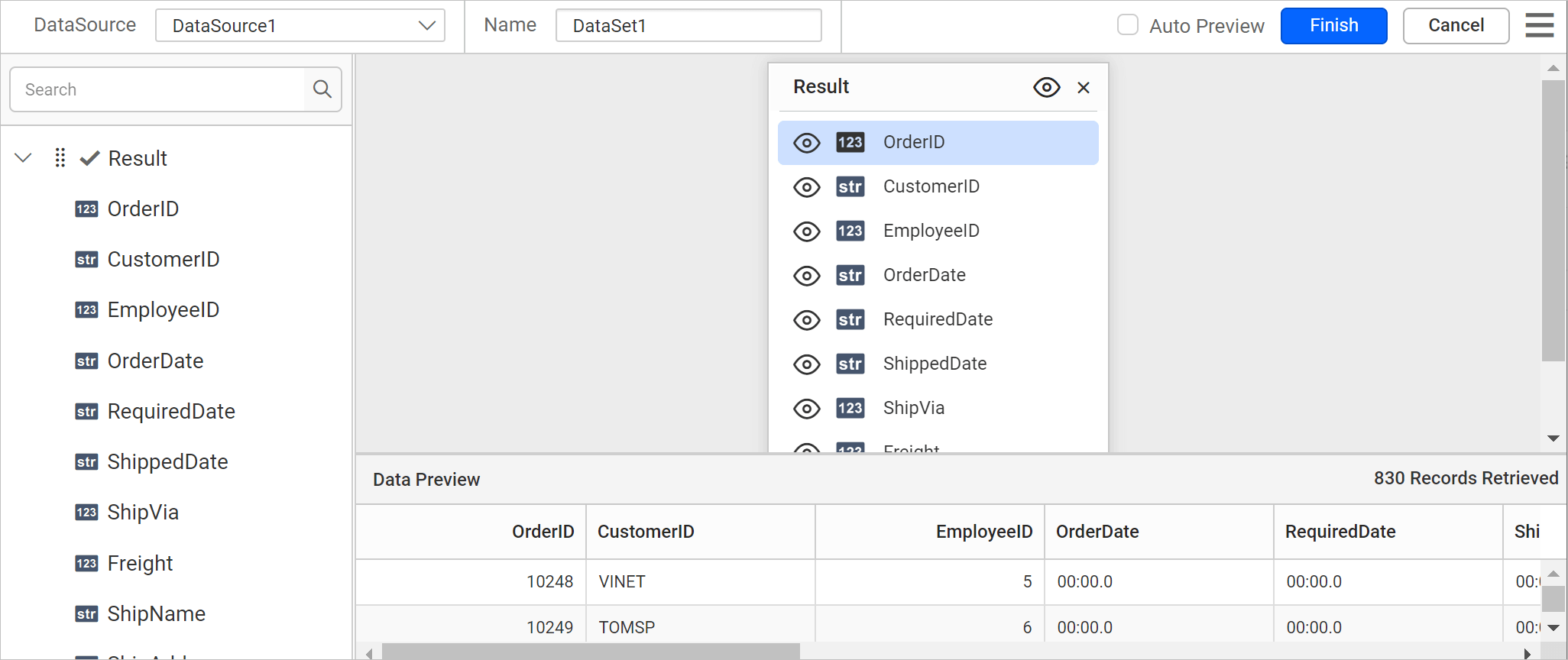
- Click
Finishto save the data source with a relevant name to proceed with designing report.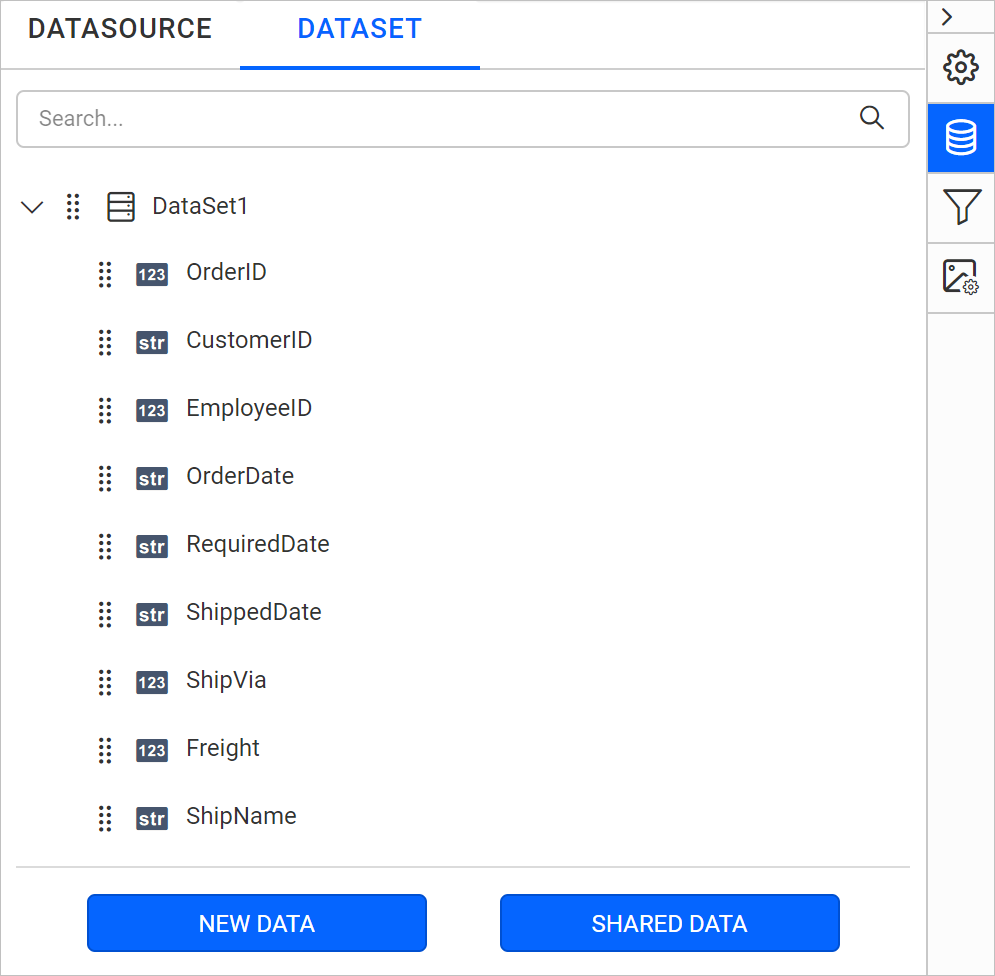
Load from external URL
- Choose
Externaloption inTypefield.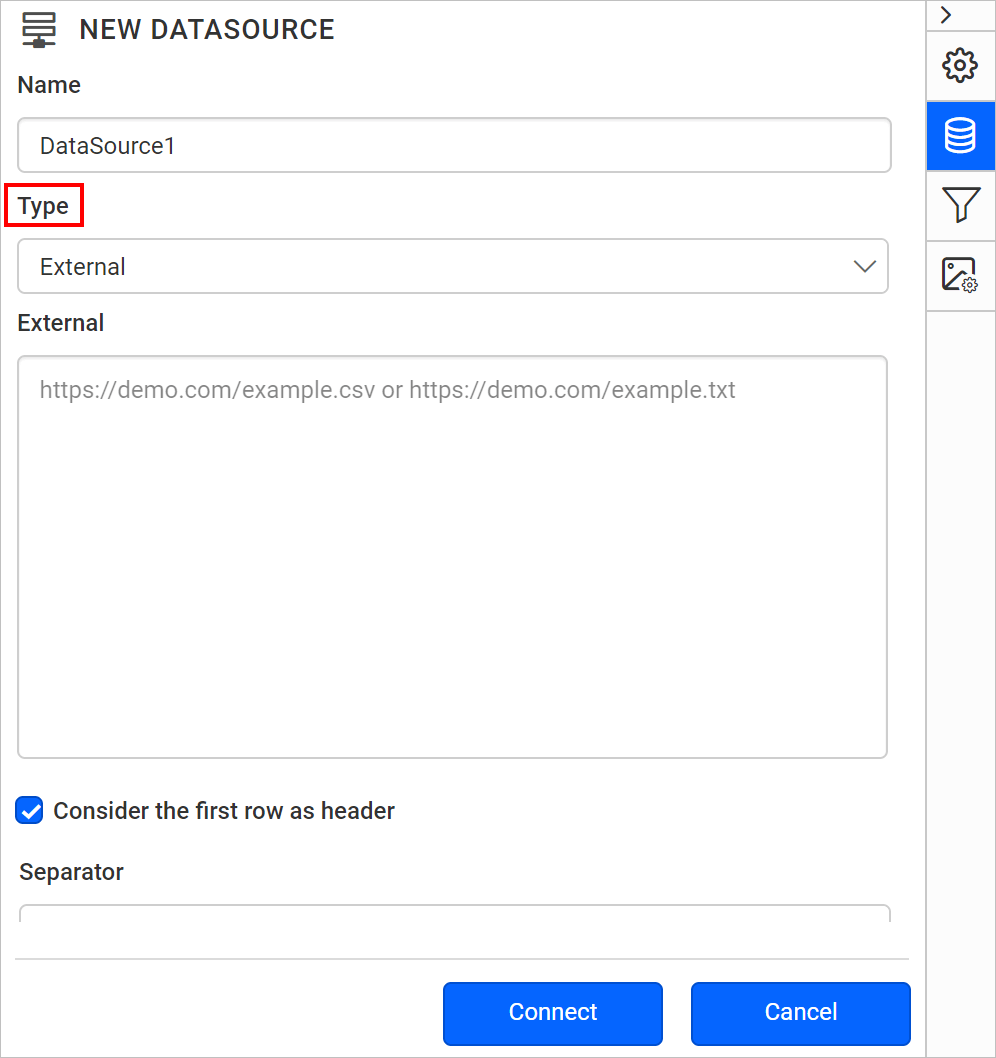
- Specify a external URL in the
Externaltext area.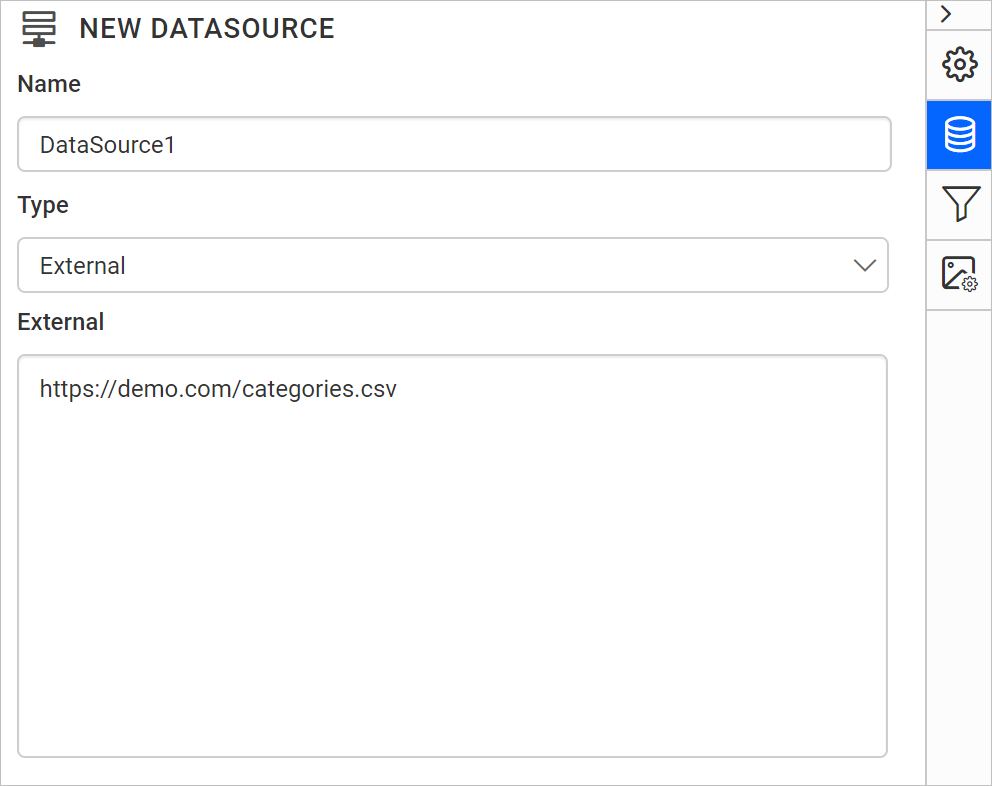
- If your data contains headers, enable
Consider the first row as headeroption to treat them as headers. - Use
Separatorbased on the type of file uploaded. Click here to know about supported separators. - Click on the
Connectto proceed with query design pane. The query design pane will show the specified CSV data’s structure in left pane. - Drag and drop the table from the left pane in the query design view page and execute.
- Click
Finishto save the data source with a relevant name to proceed with designing report.
Separator
Use Separator based on the type of file uploaded. Available options are listed under separator drop-down.
To set custom delimiter, choose Custom option in separator drop-down.
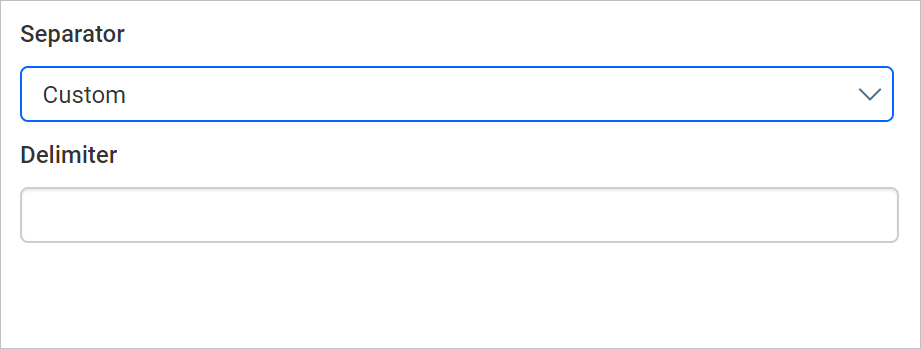
In delimiter textbox, enter the required delimiter. The data will be retrieved from the data source based on that delimiter.