Connect to Google BigQuery data source
The Bold Reports® allows you to connect to a Google BigQuery data source. To do this, you can use a service account key file to securely access and query data from your Google BigQuery projects. Follow the steps below to create a service account and set up the connection:
Create a service account
-
Go to the Create Service Account page in the Google Cloud console:
https://console.cloud.google.com/projectselector2/iam-admin/serviceaccounts -
Select your project from the dropdown menu or create a new project.

-
Click
Create Service Account.
-
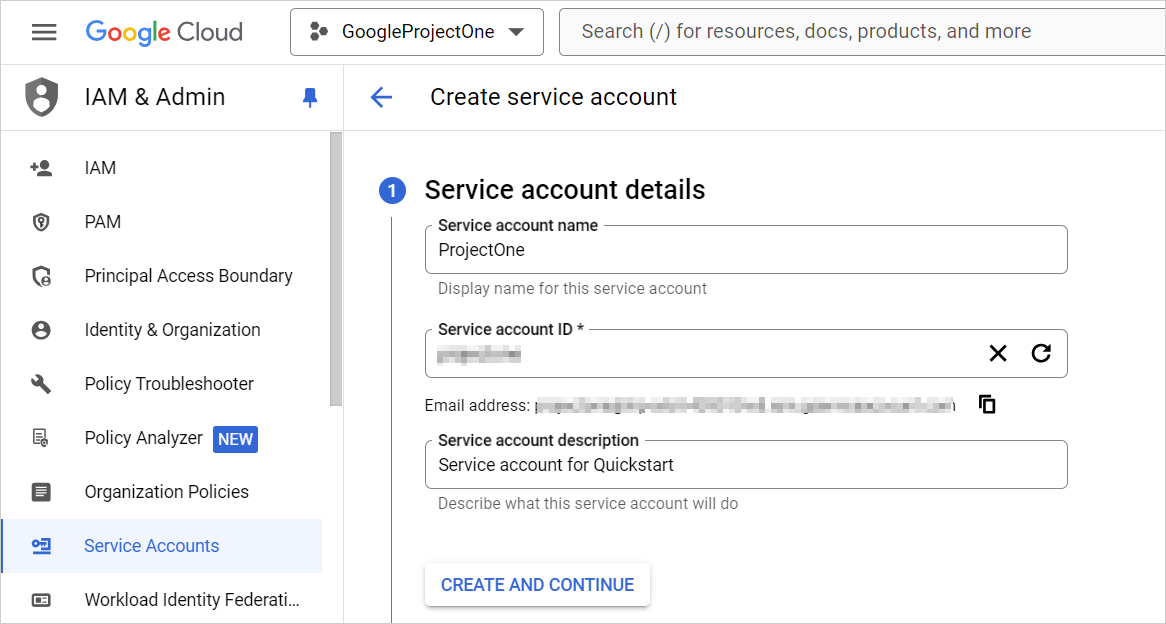
In the Service account name field, enter a name. The Google Cloud console will automatically populate the Service account ID field based on this name. Enter a description for the Service account. For example: Service account for Quickstart. Then Click Create and Continue button.
-
To provide access to your project, grant the following role(s) to your service account: Project > Owner. Select a role, then click Continue.
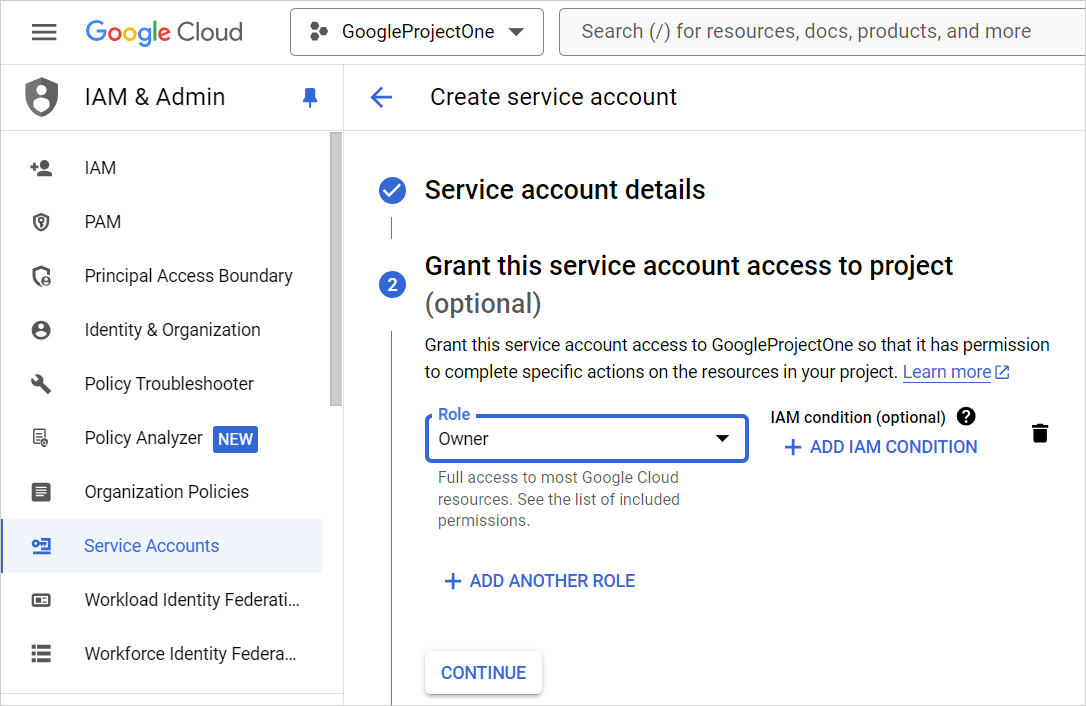
To add more roles, click on Add Another Role and select additional roles individually.
NOTE: The role you assign determines which resources the service account can access in your project. You can revoke or grant additional roles later. In production environments, avoid assigning the Owner, Editor, or Viewer roles. Instead, assign a predefined or custom role based on your needs.
-
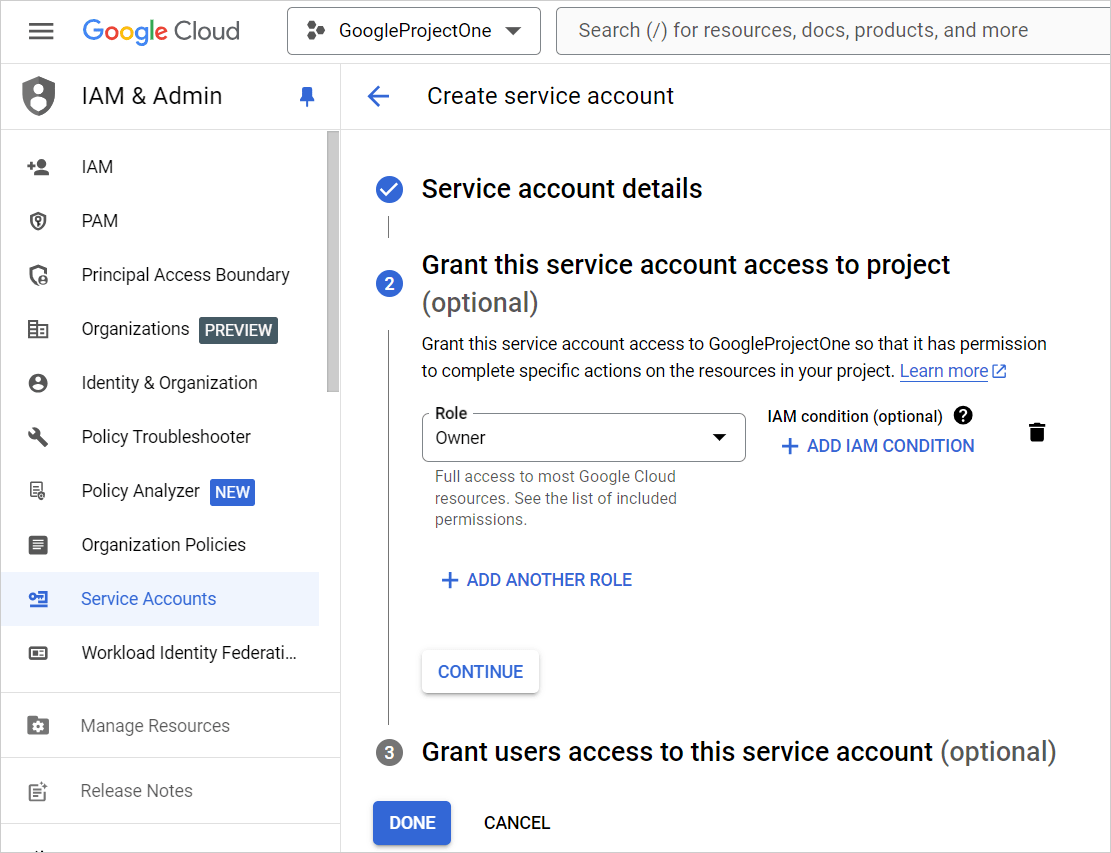
Click Done to finish creating the service account. Keep the browser window open—you will need it for the next step.
Create a service account key
-
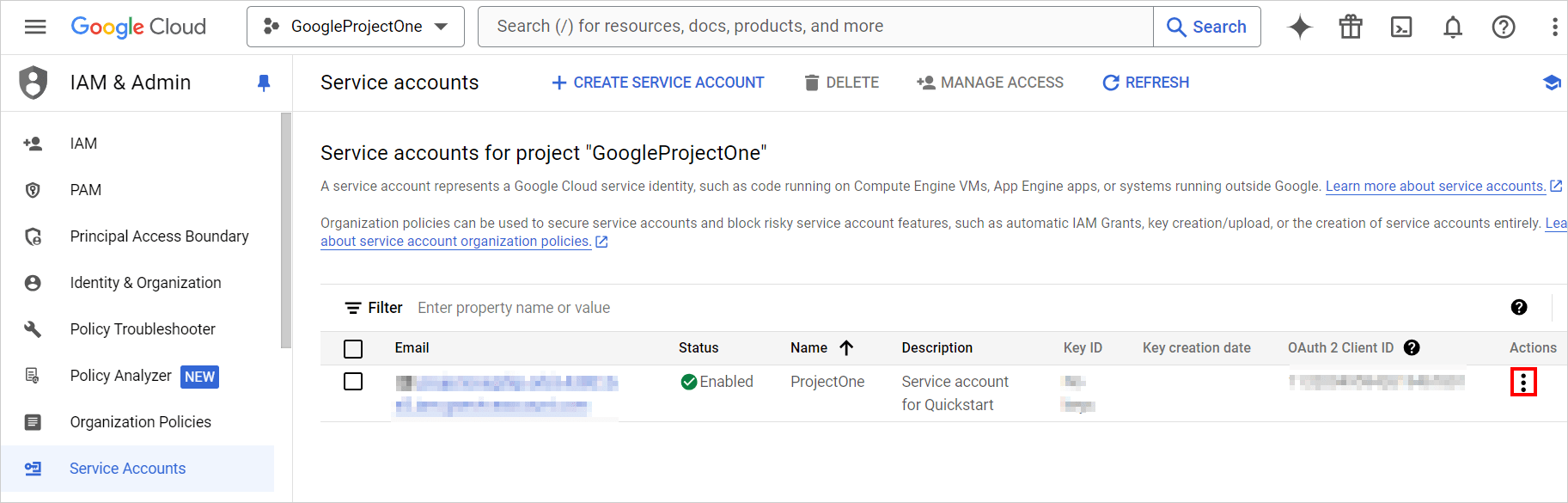
In the Google Cloud Console, the created service account displayed. Click on the below highlighted icon.
-
Select the
Manage Keysfrom theActionscontext menu.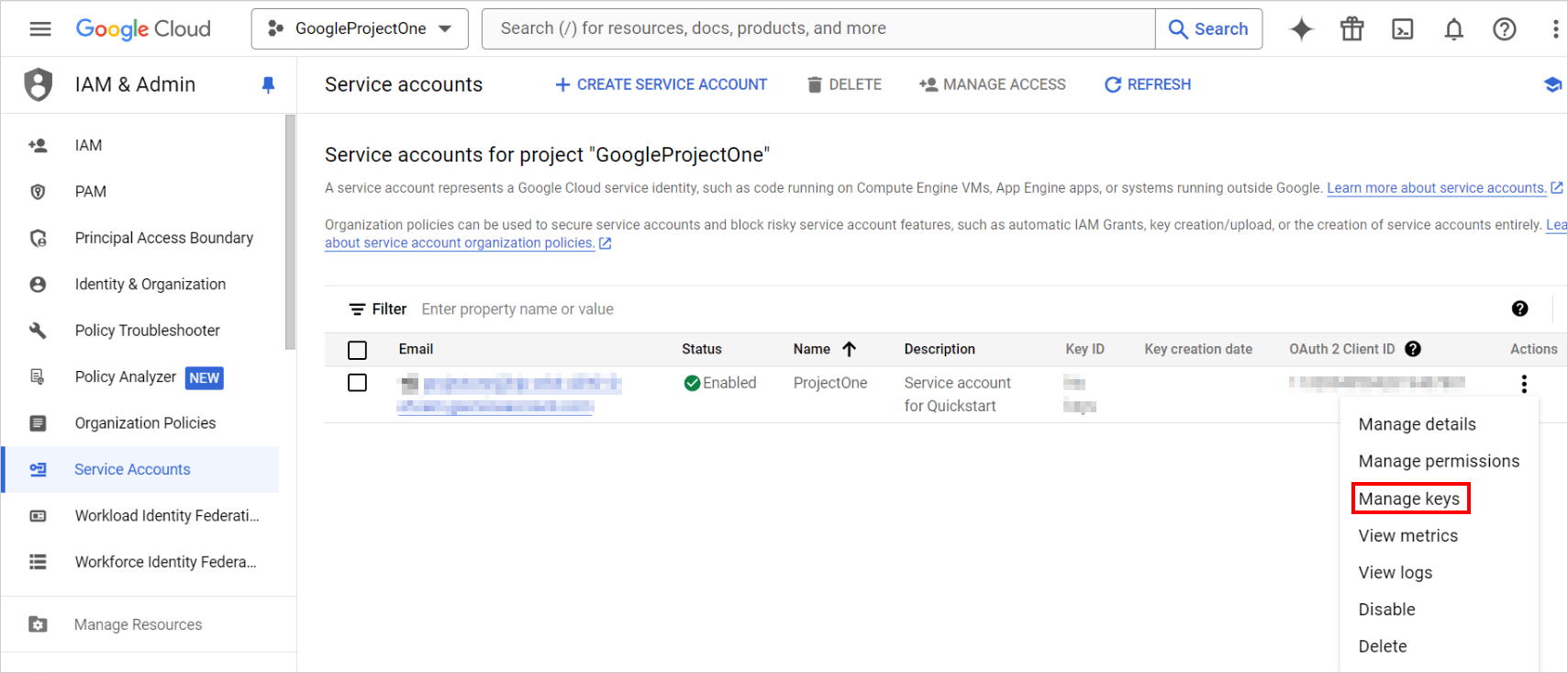
-
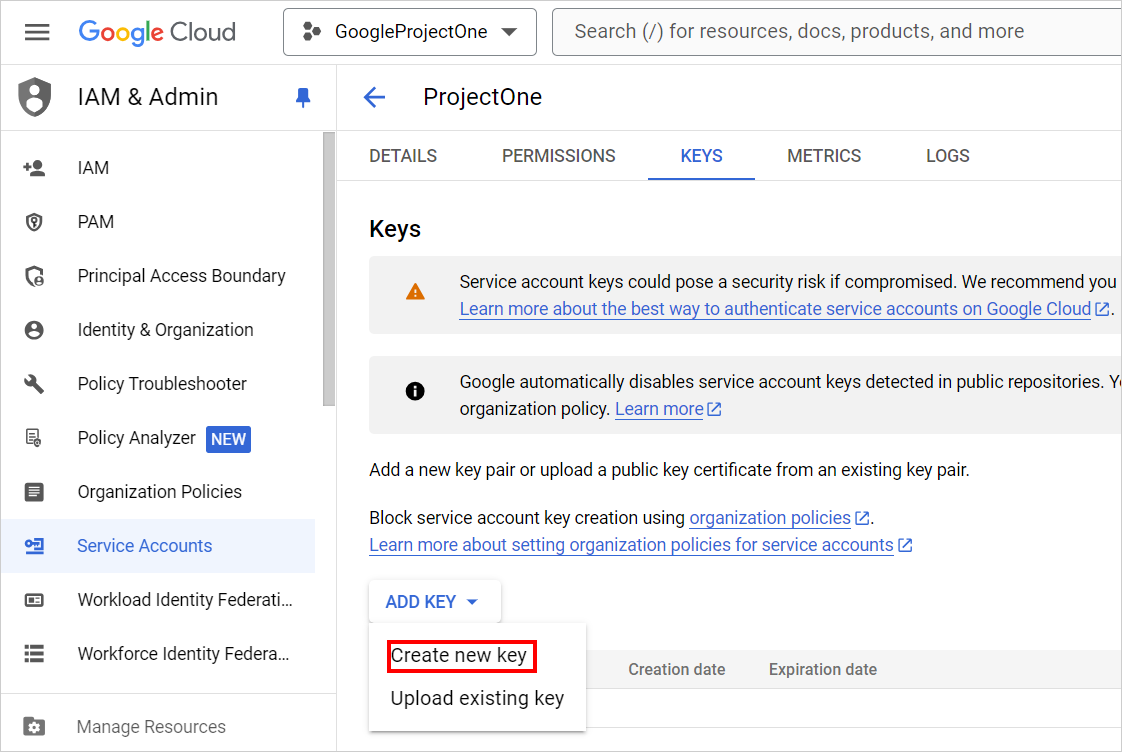
Click Add key, and then click Create new key.
-
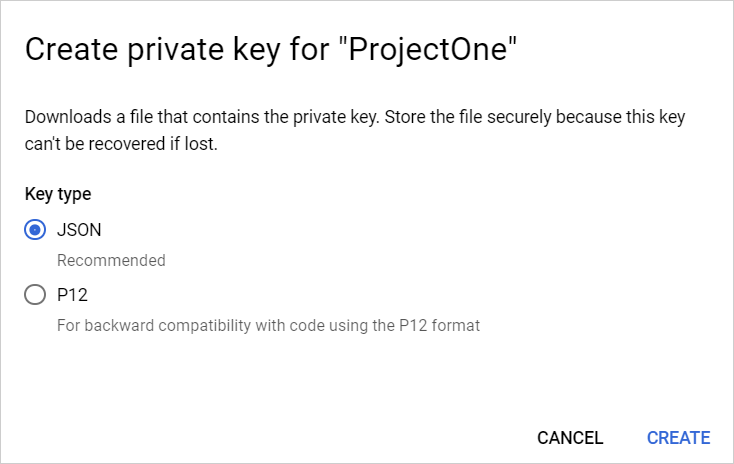
Click Create. A JSON key file will be downloaded to your computer.
Create a Google BigQuery data source
To configure the Google BigQuery data source, follow the below steps:
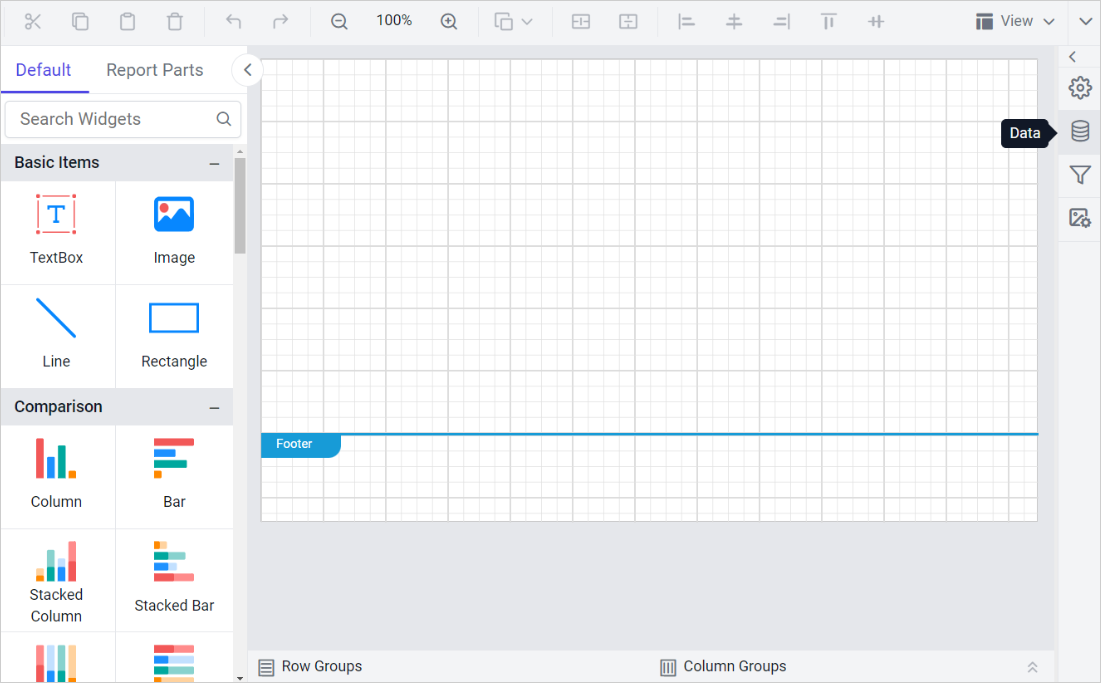
- Click the Data icon in the configuration panel.
- In the
DATAconfiguration panel, click on theNEW DATAbutton.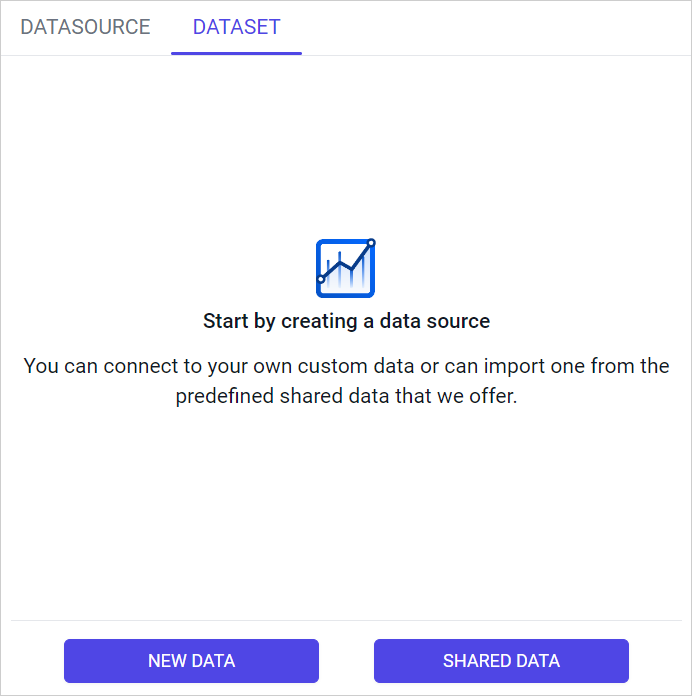
- In the connection type panel, choose the
Google BigQuerydata source type.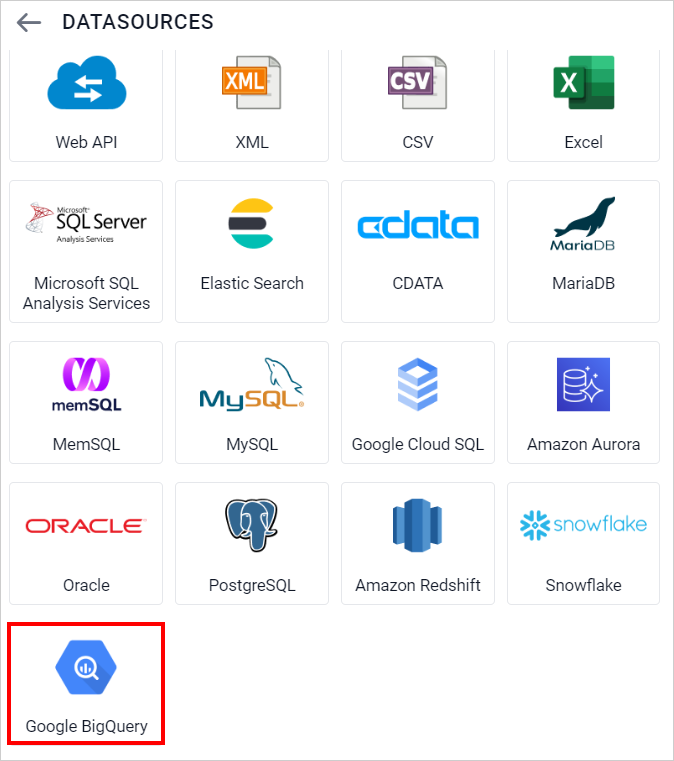
- In the Name field, specify the data source name without special characters.
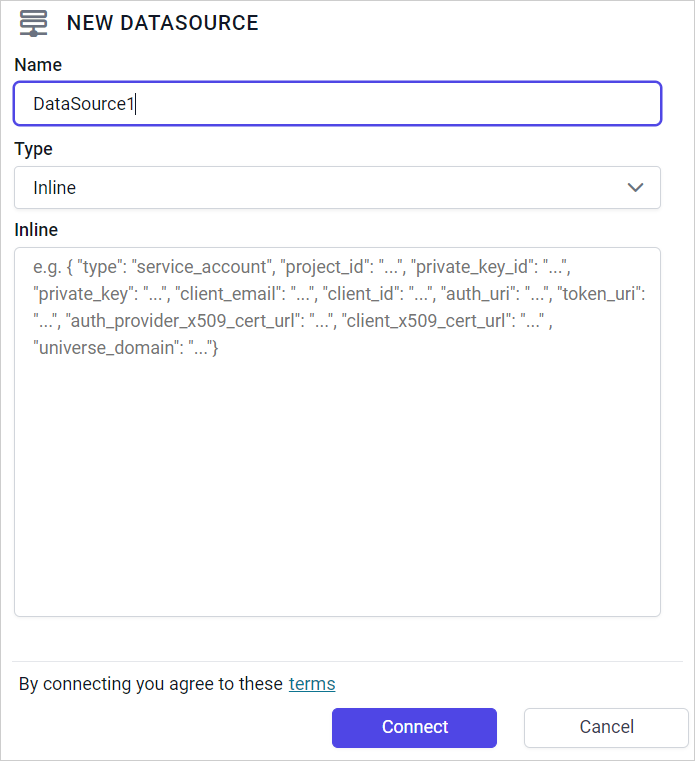
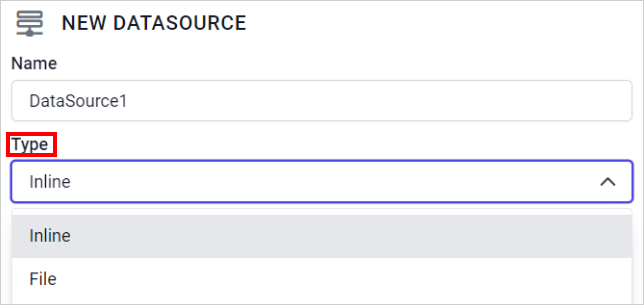
- You can provide the service account JSON data in two ways: either in inline mode or by uploading the JSON key file.
Inline
-
Choose
Inlinefrom theTypedrop-down menu and specify valid service account information for the BigQuery project as a JSON object in theInlinetext area.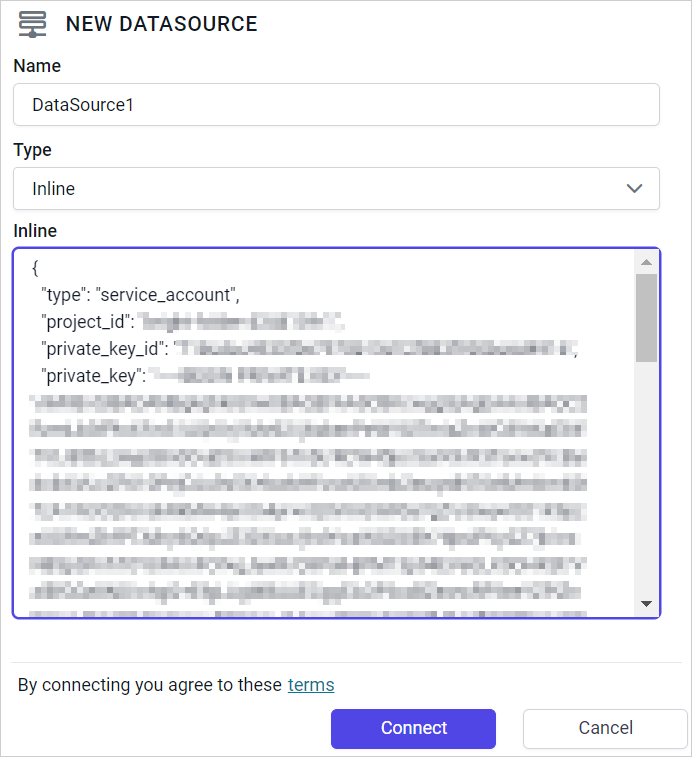
-
Click
Connectto proceed to the query design pane. Enter the required query and execute it. The corresponding values will be displayed in a grid for preview.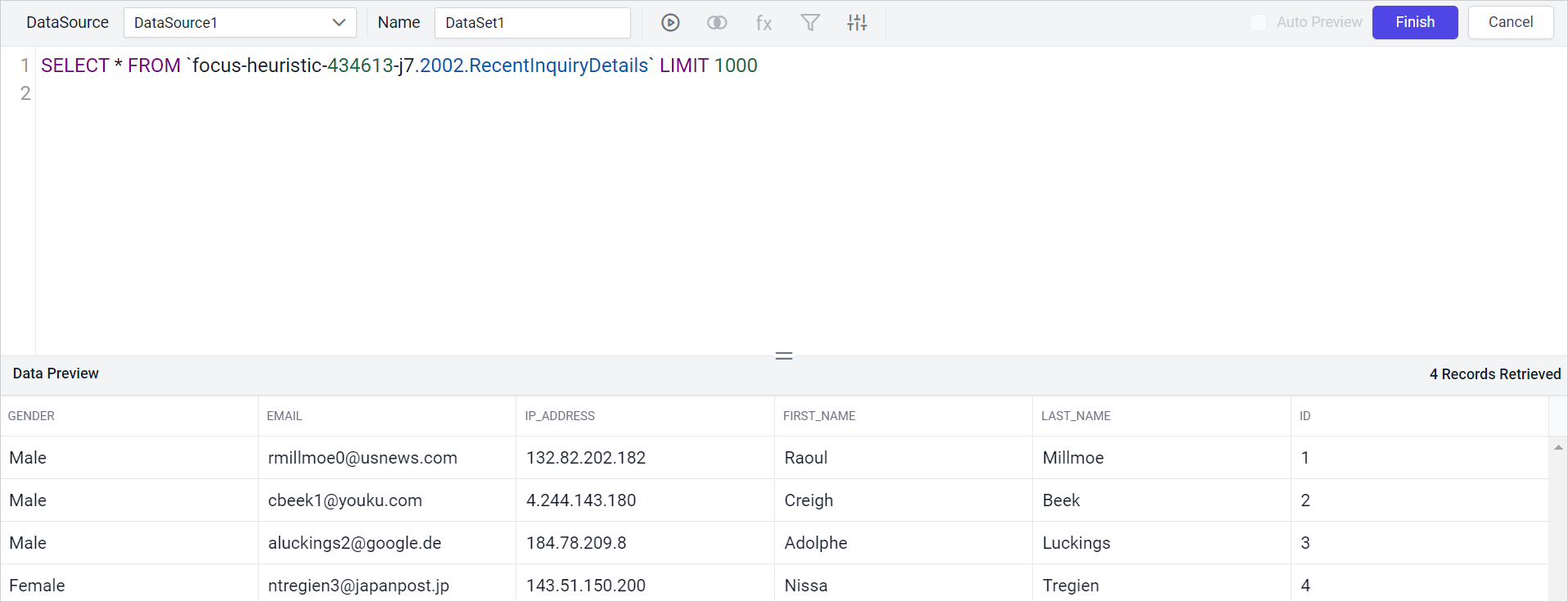
-
Click
Finishto save the data source with a relevant name to proceed with designing the report.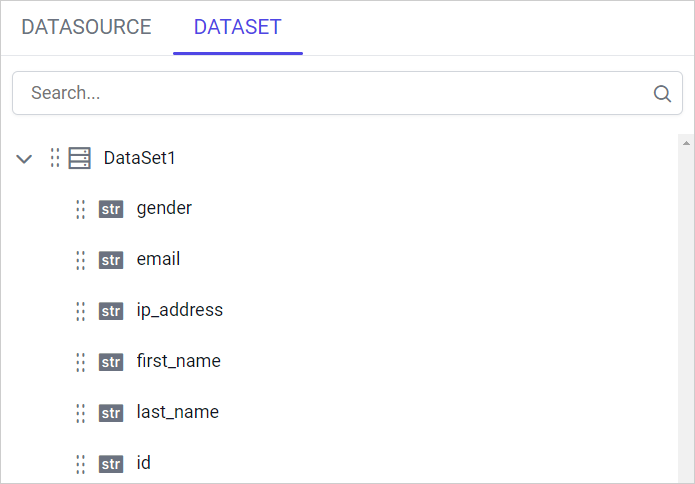
Upload file from disk
-
Choose
Filefrom theTypedrop-down menu.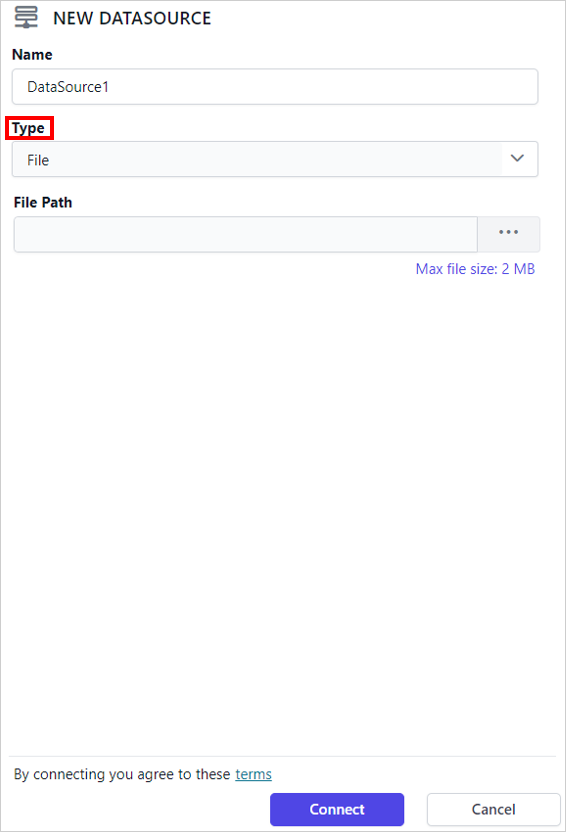
-
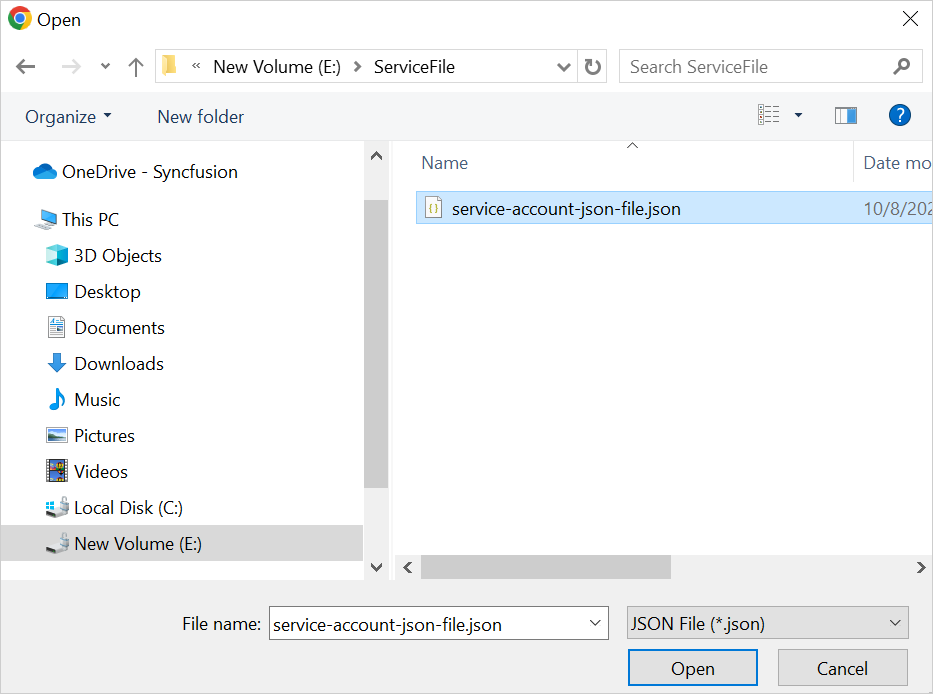
Click the three-dot button to open the upload box. Browse for the JSON file downloaded from Create Service Account
-
Click
Connectto proceed to the query design pane.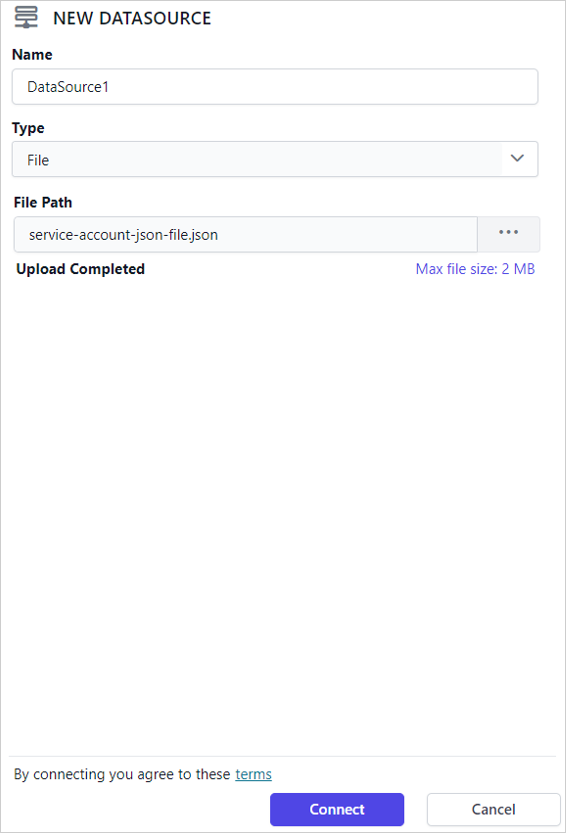
-
Enter the required query and execute it. The corresponding values will be displayed in a grid for preview.
-
Click
Finishto save the data source with a relevant name to proceed with designing the report.