Link a shared datasource
This section guides you to link a shared datasource in Bold Report Designer.
-
Click the
Dataicon in the configuration panel to launch aDataconfiguration.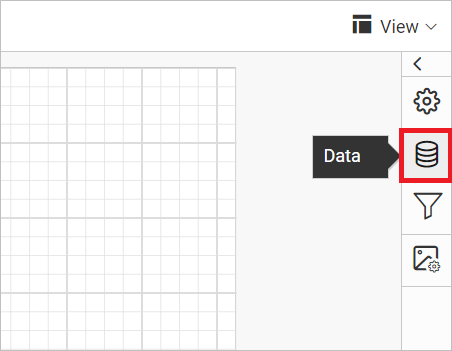
-
In the
Datapanel, click on theDATASOURCEon the top-left corner.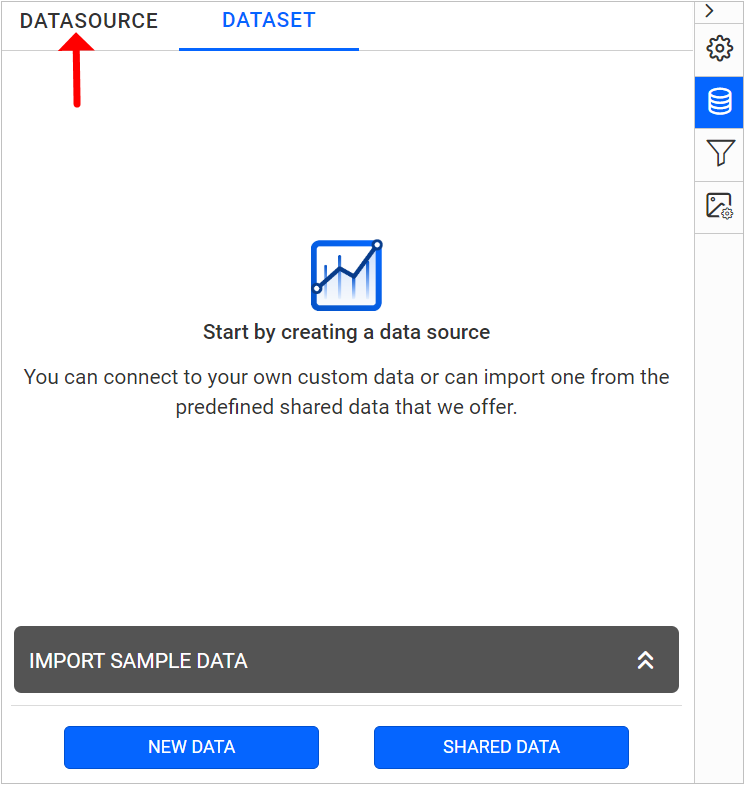
-
In the
DATASOURCEconfiguration panel, click on theNEW DATASOURCEbutton.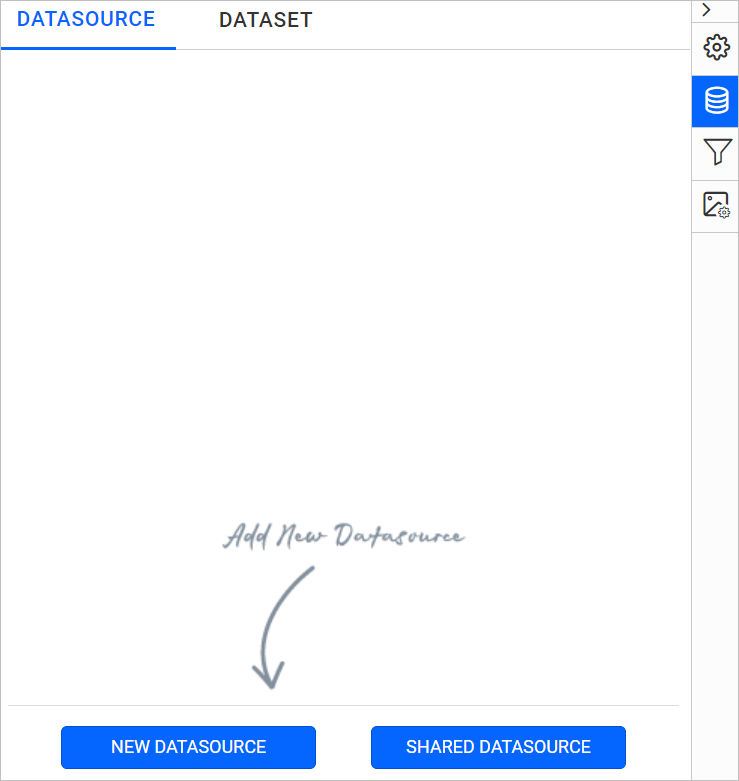
-
In the connection type panel, choose the
Shareddata source type.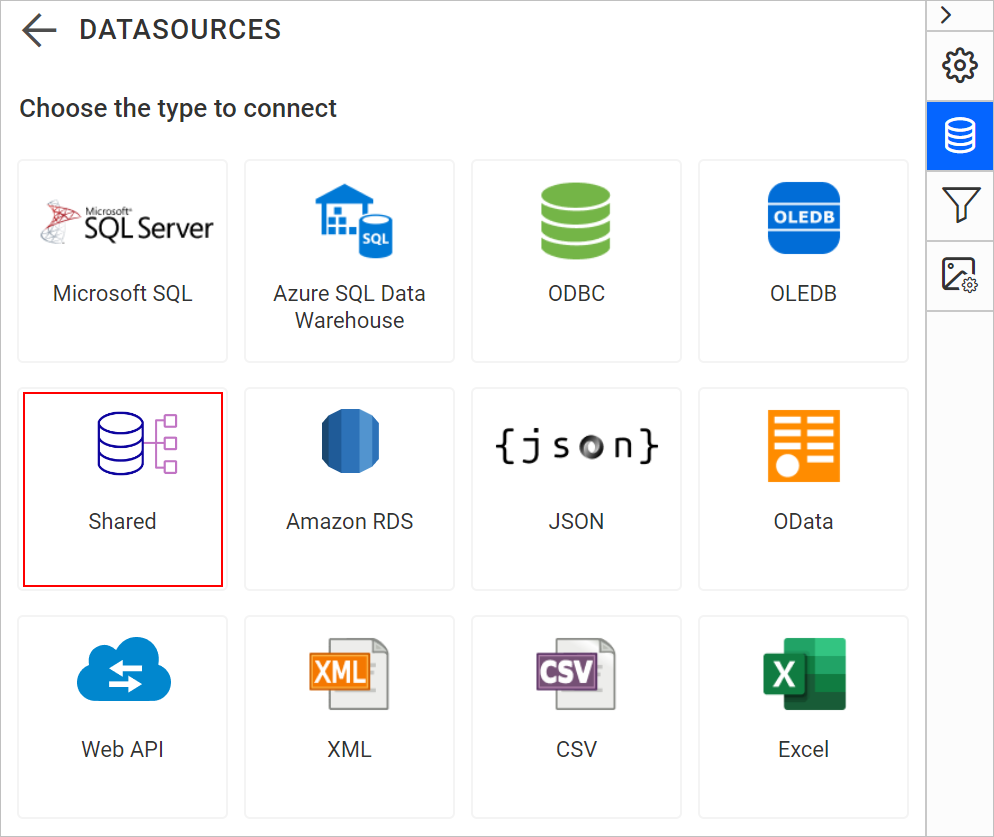
-
After choosing the
Shareddatasource type, the new connection wizard will be shown as below: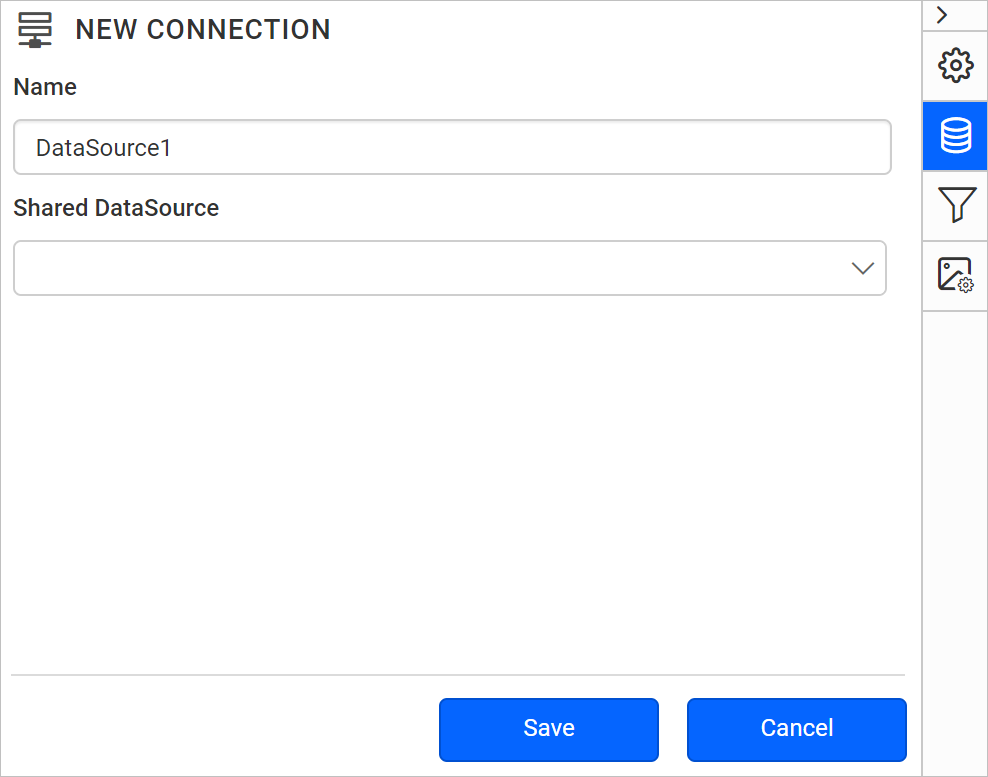
-
In Name field, specify the data source name without special characters.
-
In Shared DataSource field, you can select an existing shared data sources in the server from the drop-down list.
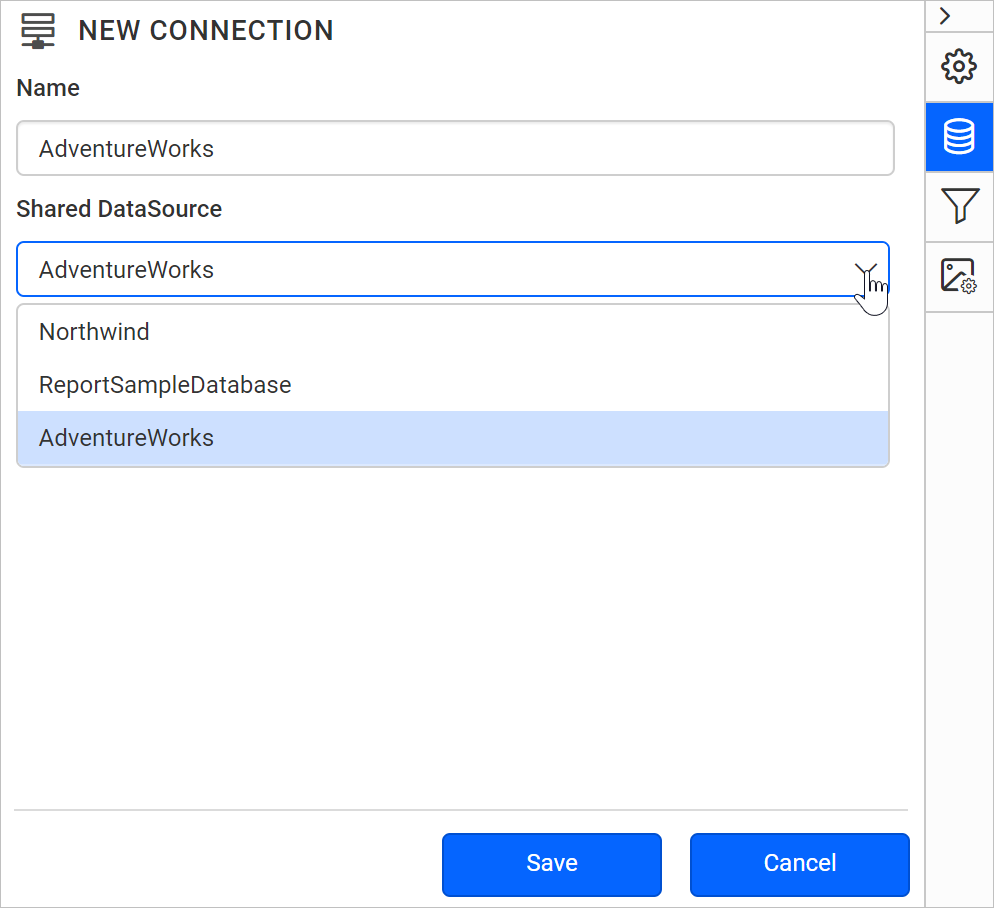
-
Now, click on the
Savebutton and the new shared data source will be added in data list pane like below.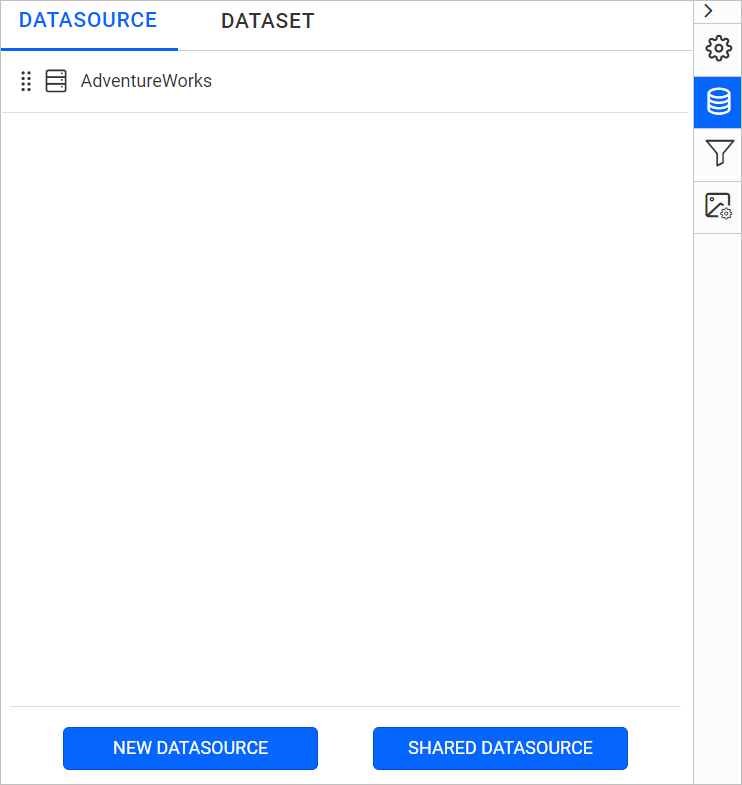
Note: You can link multiple shared data sources into the report.