Create an embedded data source
This section guides you to create an embedded data source in Bold Report Designer. The embedded data source can only be used by the report in which it is embedded.
Add a new data source
To bind data to a report item, a minimum of one data source is needed. A data source can be created through the below steps:
-
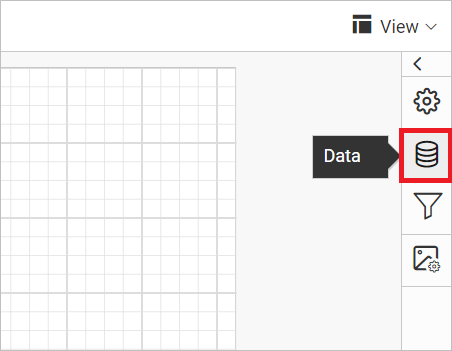
Click on the Data icon in the configuration panel.
-
In the
Datapanel, click on theDATASOURCEon the top-left corner.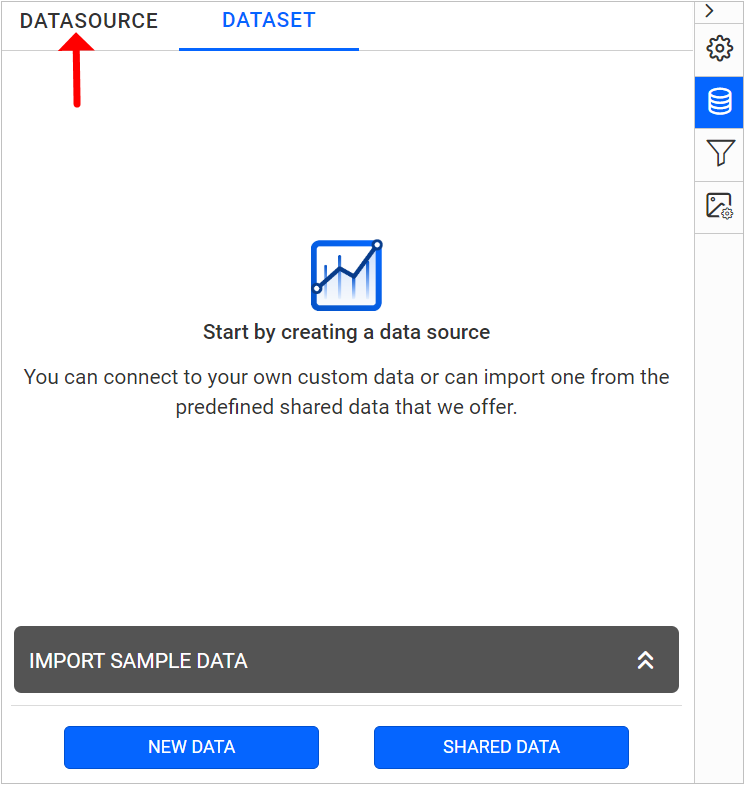
-
In the
DATASOURCEconfiguration panel, click on theNEW DATASOURCEbutton.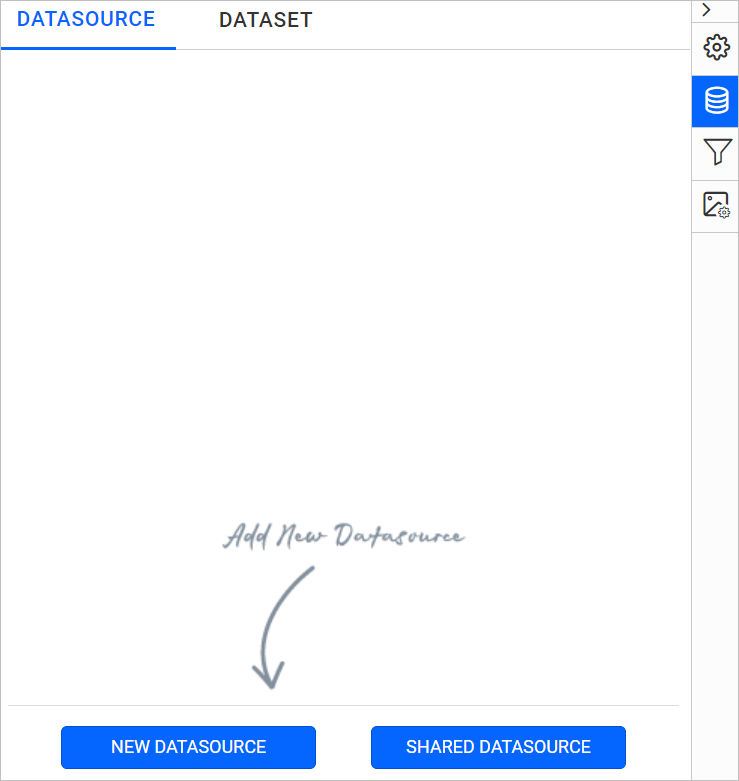
-
In the connection type panel, choose the data source type that you want to connect.
Here,
SQLconnection type is used for demonstration.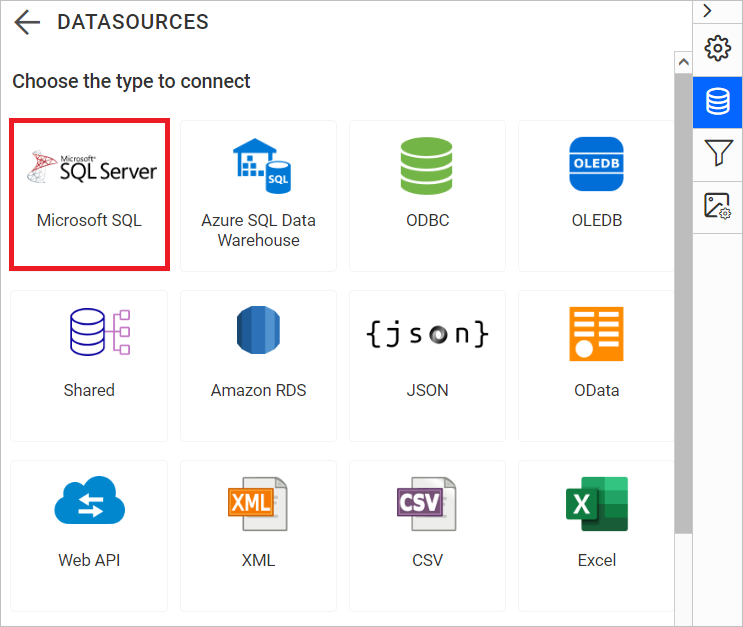
-
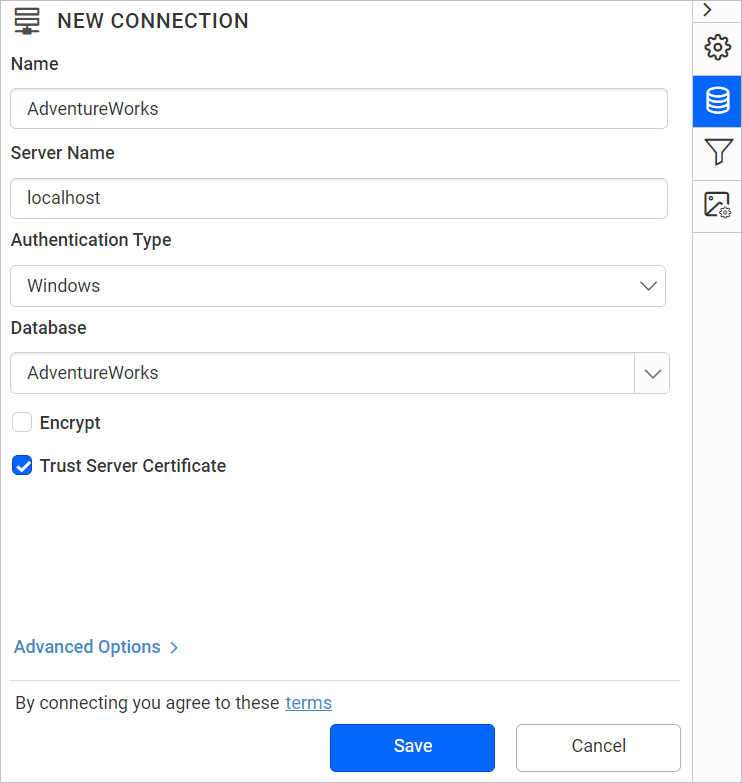
In the new connection panel,
- In Name field, specify the data source name without special characters.
- In Server Name field, you need to select existing server in the local network from the drop-down list or specify the specific remote server name like
myserver.domain.com. - In Authentication Type field, choose Windows or SQL Server authentication.
- If you have chosen SQL Server authentication, specify the username and password of the server.
- In Database field, choose or enter an existing valid database e.g. AdventureWorks.
-
Now, click on the
Savebutton and the new embedded data source will be added in data source list pane like below.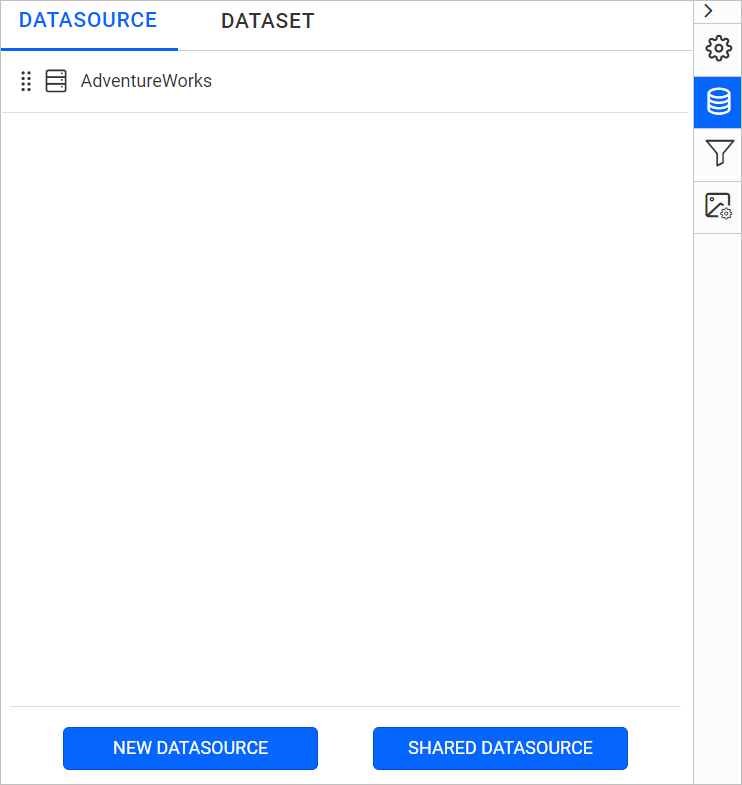
-
The embedded data source is created in the report and it is ready to create/use the data.