Download and Installation of Crystal Report to SSRS Convertor
This topic walks through registering for and downloading the Crystal Report to SSRS Converter setup, then installing it using either the online or offline installation flow. Before you begin, confirm your machine meets the prerequisites, including the Crystal Reports Runtime and .NET SDK requirements.
Register and download the Crystal Report to SSRS Convertor
-
Go to the Crystal to SSRS utility download page.
-
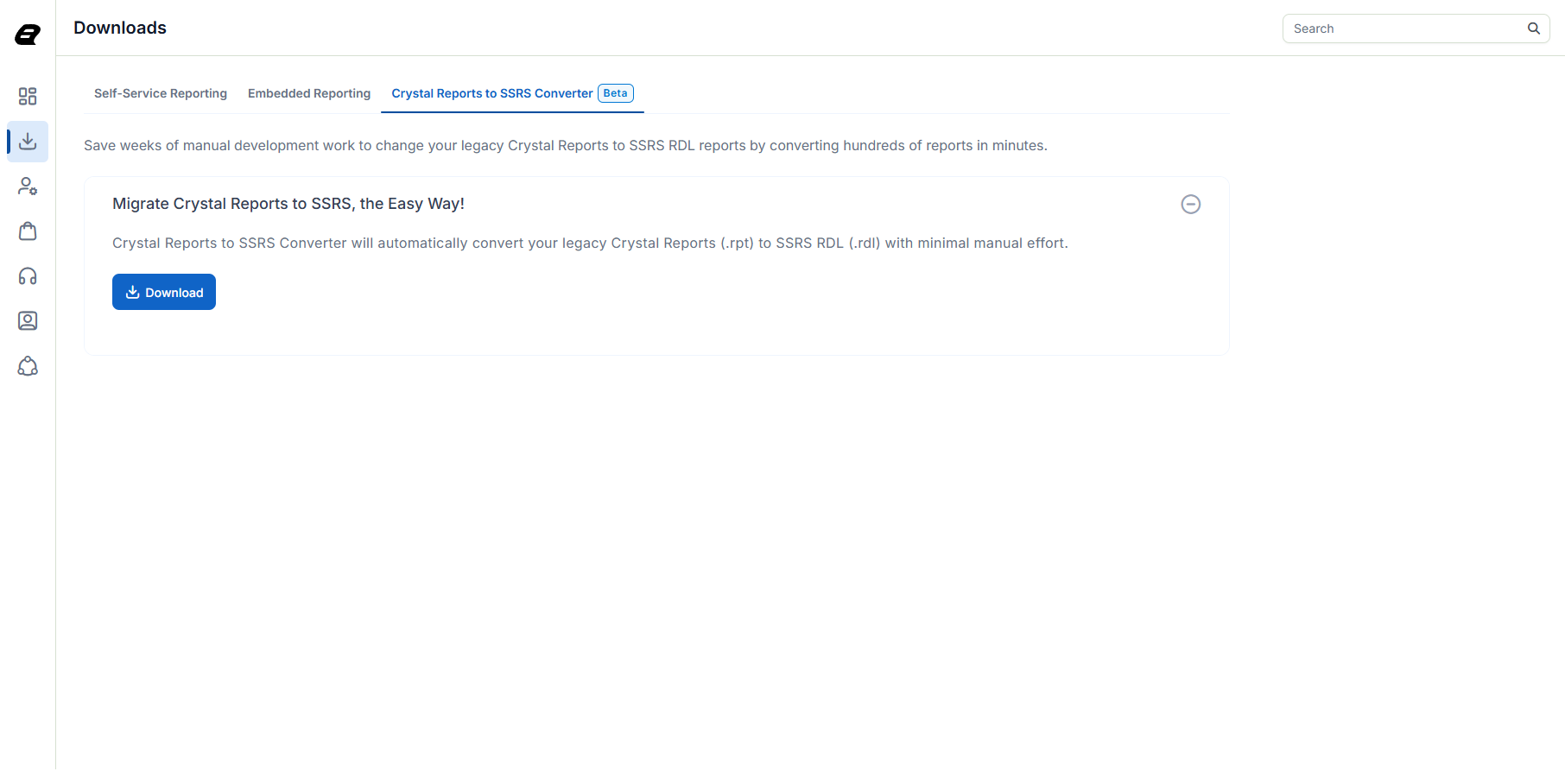
After you sign in, you will be redirected to the Downloads page. Navigate to the Crystal Report to SSRS Convertor tab.
-
By clicking the download button, you can download the Bold Reports® Crystal Report to SSRS Convertor exe file.
Online Installation
-
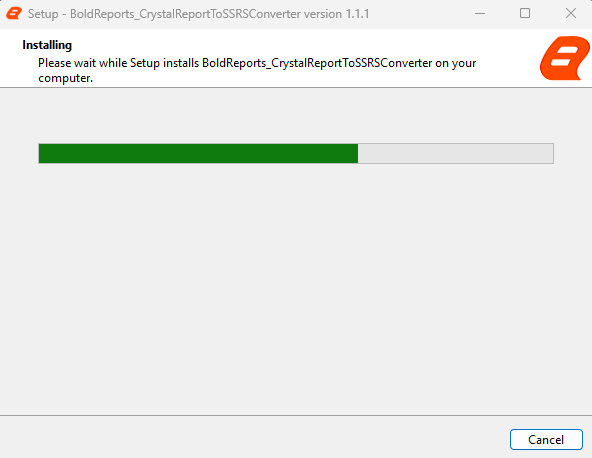
Once the setup is downloaded, run the installer from the saved location by double-clicking the EXE file.
-
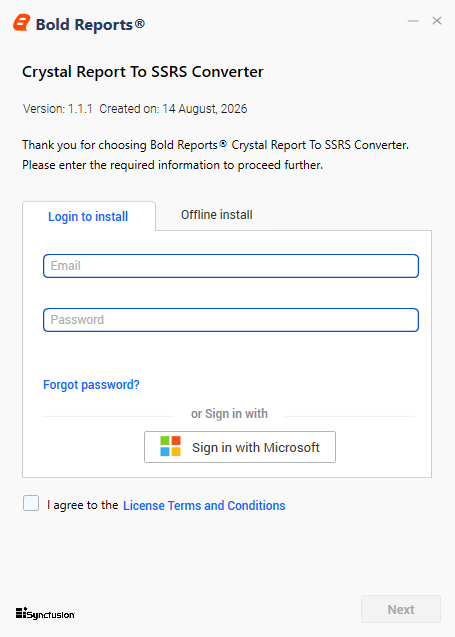
Sign in with your registered email address to unlock the setup.
-
Accept the license agreement for the Crystal Report To SSRS Convertor Tool by clicking
License Terms and Conditions. -
Choose the location where you would like to install the Crystal Report to SSRS Converter. If you want to perform additional tasks like Start Menu group creation and desktop shortcut creation, you can check the options. Otherwise, you can uncheck them and click
Next.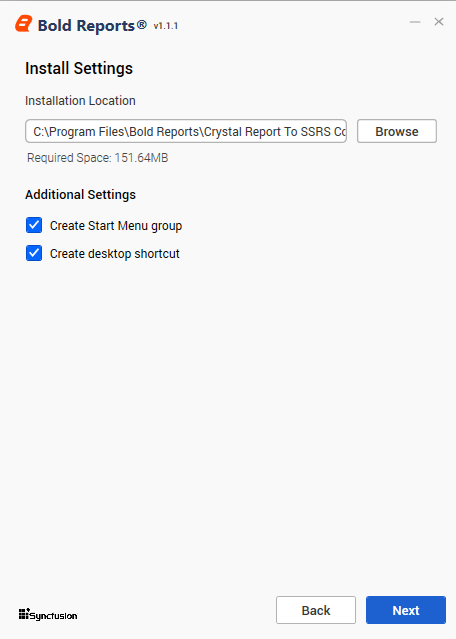
-
Before installation, review the SAP Crystal Reports Runtime requirements and click
Install. The installer then checks whether the required package is installed on the system.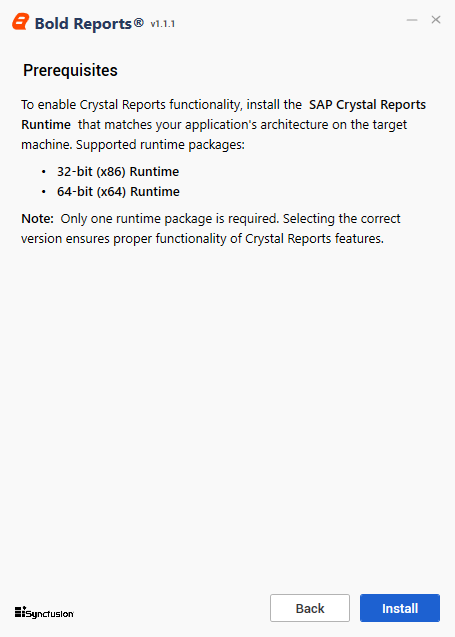
-
If the installer detects that the required runtime package is not installed, a validation error message is displayed. Use the provided download
linkto download and install the required package that matches your system architecture, and then clickRetryto continue the installation.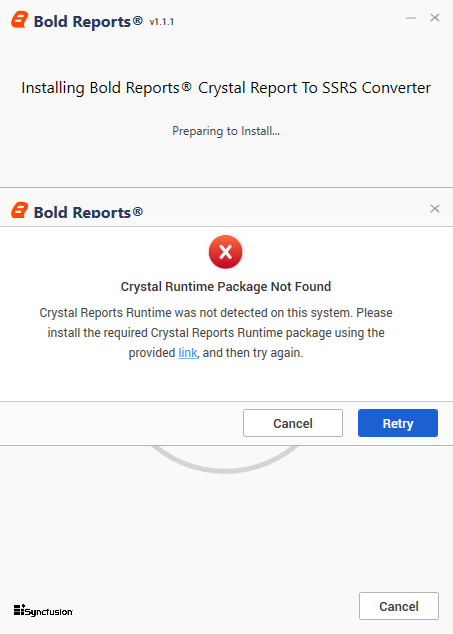
-
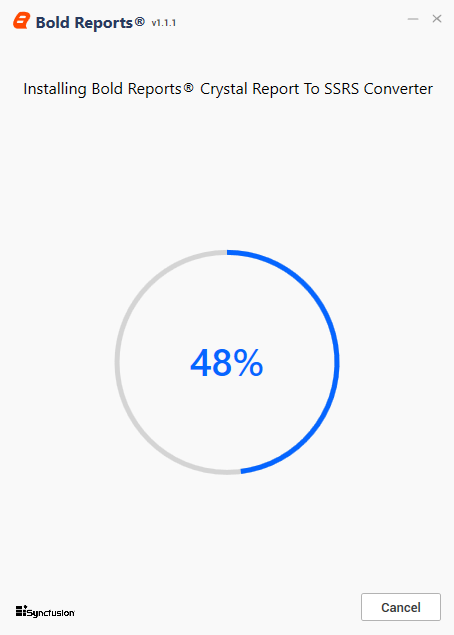
After the prerequisite validation succeeds, the installation process starts.
-
After the installation completes successfully, click
Reveal in Explorerto open the installation directory. You can find the converter utility executable (EXE) there.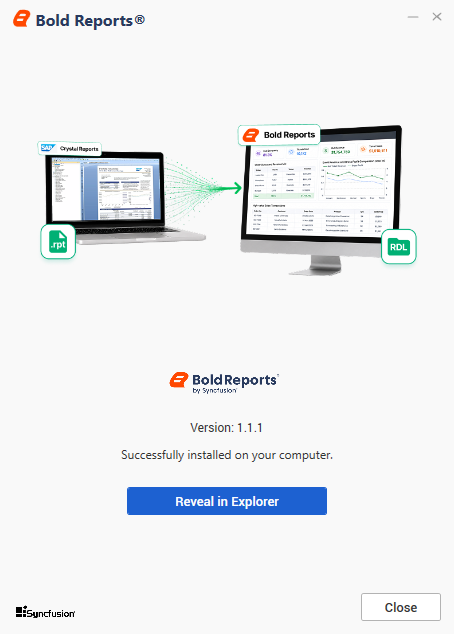
Offline Installation
-
Run the installer to launch the setup wizard.
-
Select the
Offline installtab. If you do not already have an unlock key file, click here to go to the Bold Reports® downloads page. -
Under the Downloads & Keys tab, click
Claim License Key.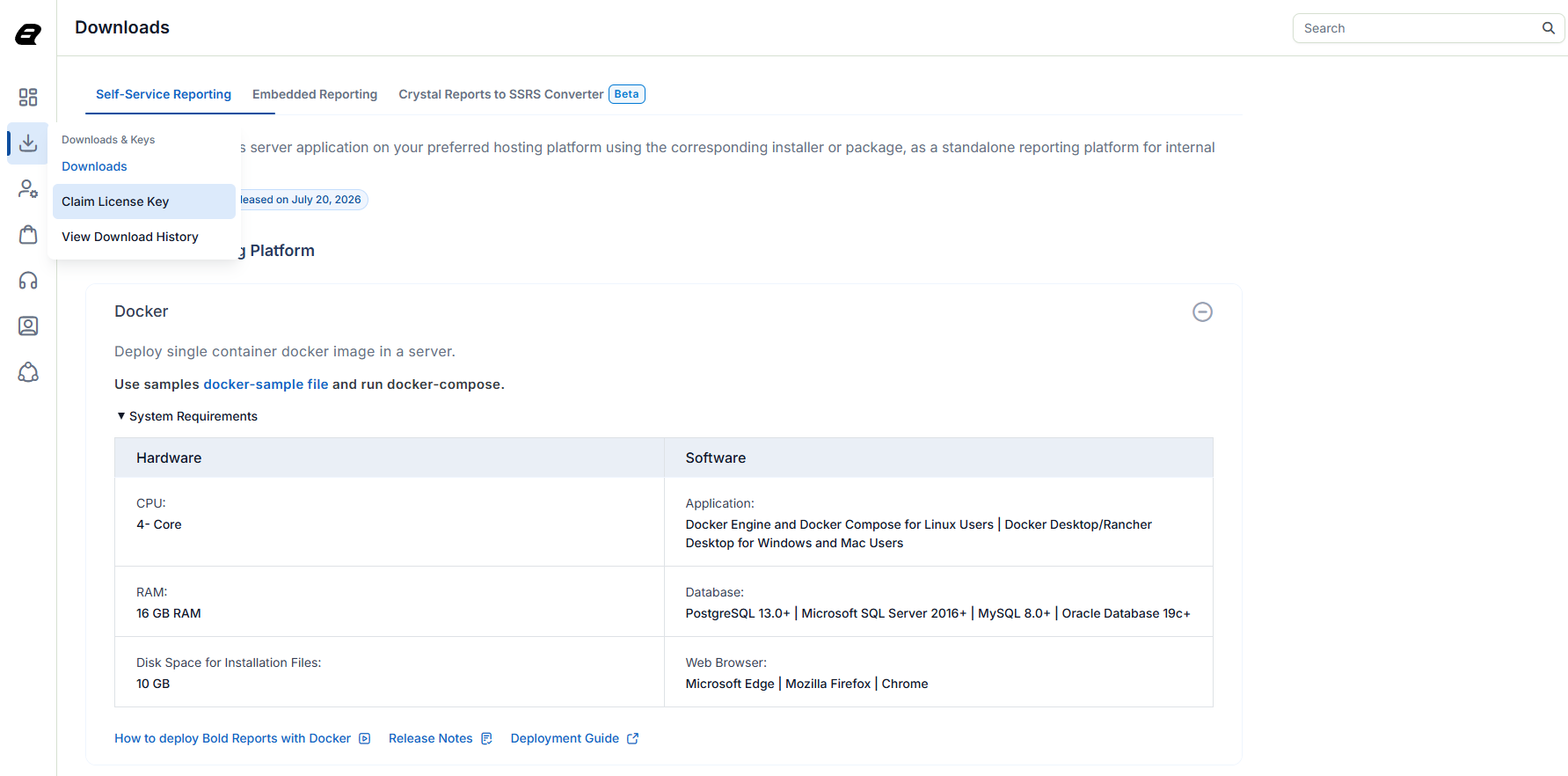
-
Click
Download Unlock Key Filein the Claim license key page to download the unlock key file.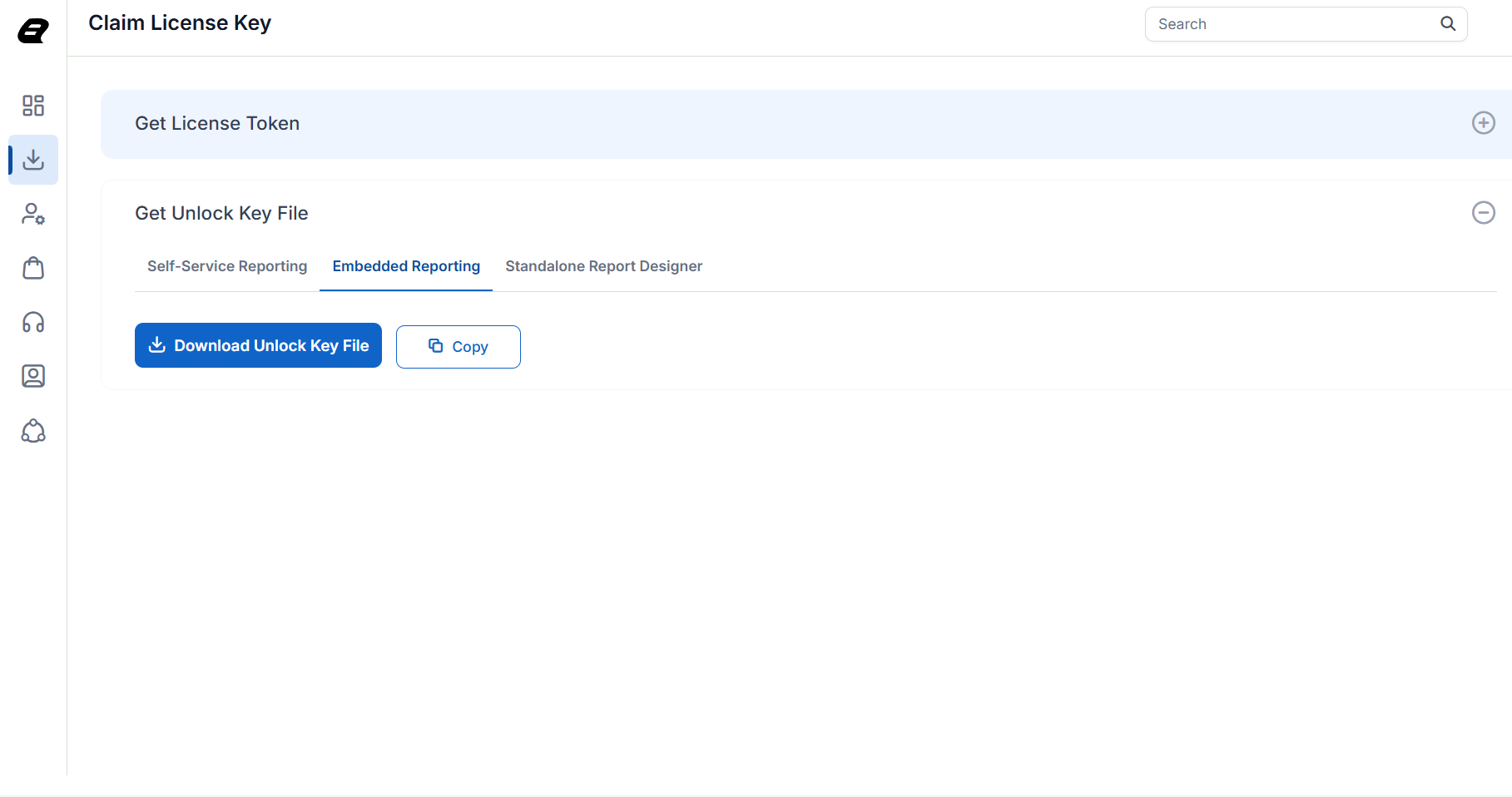
-
To unlock the setup, upload the downloaded
.licfile and then enable the license terms and conditions checkbox and click Next.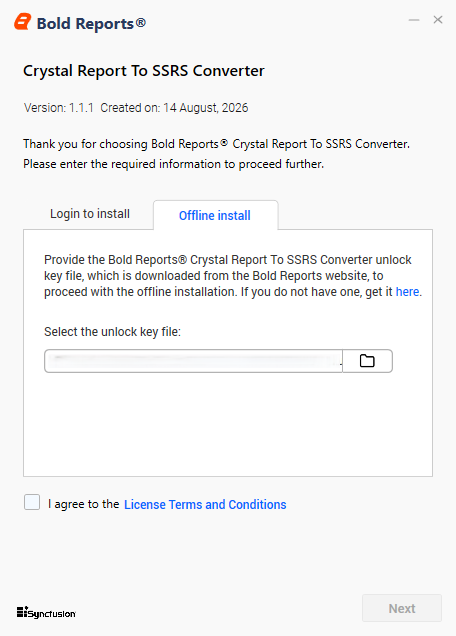
-
Then, follow the steps from 3 to 8 in the Online Installation.
Next step
After installation completes, continue to Getting Started to launch the converter and run your first bulk or single-file conversion.