Migration Guide
Use this guide to understand what to expect before you convert reports with the Crystal Report to SSRS Converter. It covers how the conversion pipeline works, which Crystal Reports features convert automatically to SSRS RDL, and which features have limitations that need manual review after conversion.
How migration works
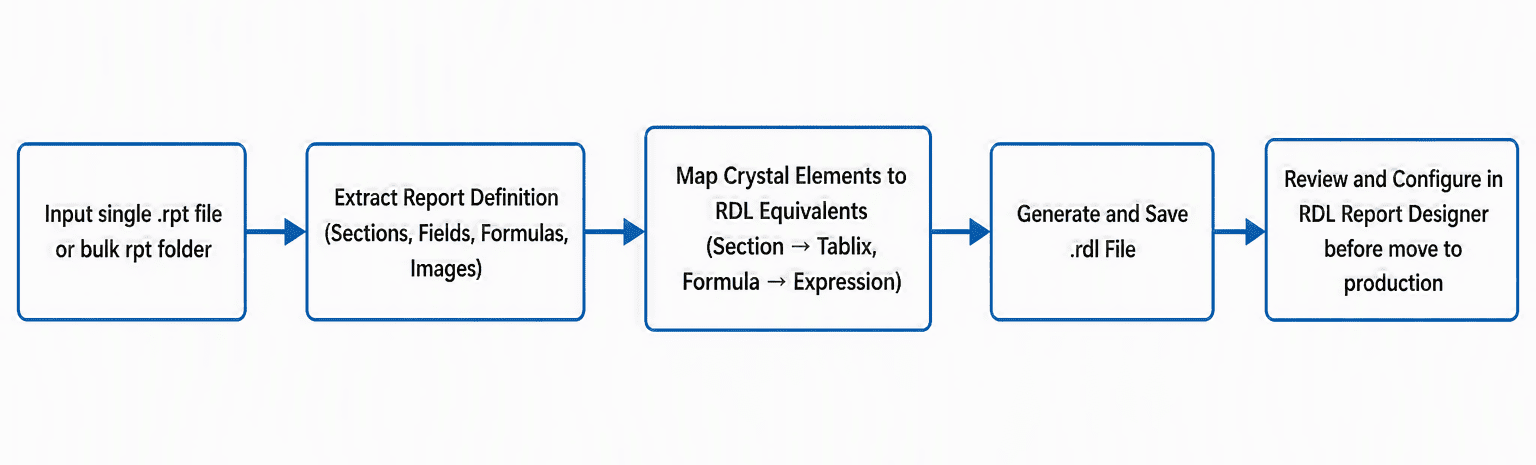
The converter processes each .rpt file through a series of internal stages: it reads the report definition using the Crystal Reports engine, maps the report’s structure, data connections, and report items to their RDL equivalents, and then generates the resulting .rdl file.
Conversion pipeline
Supported conversions
The Crystal Report to SSRS Converter successfully automates the conversion of the following Crystal Reports features:
Report structure
| Feature | How it converts |
|---|---|
| Report Sections | Report Header, Page Header, Details, Report Footer, and Page Footer are converted to their corresponding RDL sections and report items. |
| Detail Section | Detail section are converted to RDL Tablix Item. |
| Page Setup | Page dimensions, margins, and orientation are extracted and applied to the RDL report. |
| Section Styling | Background colors and basic styling are preserved during conversion. Section properties are mapped to RDL section styles. |
Data and connections
| Feature | How it converts |
|---|---|
| Data Sources | Supported connection types are converted and mapped to RDL data source definitions. Connection strings, server names, and database names are preserved. |
| Tables and Fields | Database tables and fields are recognized and converted. |
| Datasets | Crystal Reports tables are converted to RDL datasets with appropriate field definitions and query mappings. |
Report objects and items
| Feature | How it converts |
|---|---|
| Text Objects | Static text boxes with formatting are converted to RDL TextBox items. Font, color, size, and alignment are preserved. |
| Field Objects | Data-bound fields are converted to RDL TextBox instances with database field expressions, maintaining format settings. |
| Field Headings | Column header labels are converted to RDL text boxes with appropriate styling. |
| Lines & Boxes | Crystal Reports line and box objects are converted to RDL Line and Rectangle report items with size, position, and style properties preserved. |
| Blob Fields | Binary data fields (e.g., database image columns) are converted to RDL Image items. |
| Chart Objects | Crystal Reports charts are converted to RDL Chart items. Supported chart types include: column, pie, doughnut, line, area, radar, bubble, numeric, gauge, funnel and scatter. |
| Document Map | If tablix grouping is present in the converted report, the grouping hierarchy is automatically mapped to the RDL Document Map. |
Formulas and expressions
Formula fields (text boxes containing basic expressions) are converted to equivalent RDL expressions.
Layout and positioning
| Feature | How it converts |
|---|---|
| Item Sizing & Position | Report object dimensions (width, height) and positions (left, top) are preserved during conversion. Measurements are converted to inches for RDL compatibility. |
| Grouping | Crystal Reports grouping structures are converted to RDL group sections with data field bindings. |
Report parameters
Crystal Reports parameters are converted based on type and visibility. Parameter definitions are mapped to RDL report parameters.
Conversion limitations
The converter migrates Crystal Reports objects to their equivalent RDL objects as closely as possible. However, due to differences between the .NET object models used by Crystal Reports and the capabilities of RDL, the following limitations apply:
Report layout and sections
| Feature | Limitation |
|---|---|
| Keep Together Section | Section keep-together settings are not converted during conversion. |
| Underlay Following Sections | Crystal Reports underlay section behavior is not supported during conversion. Page layout must be manually adjusted. |
Data connections and sources
| Feature | Limitation |
|---|---|
| Unsupported Data Source Provider | Currently, only SQL and XML data sources are supported for conversion. |
| Record Selection Formula | Crystal Reports record selection formulas are not converted to RDL dataset filters. Manual reconfiguration of filtering logic may be required. |
| XML Datasource | XML datasets used in Crystal Reports are not directly compatible with RDL datasets and cannot be automatically converted. Manually configure the dataset and report items in the target report designer. |
Report objects
| Feature | Limitation |
|---|---|
| Text Box Formatting | Some properties do not have an equivalent RDL feature. |
| Box Formatting | Properties such as Drop Shadow, Rounding, and Always Close Border do not have an equivalent RDL feature. |
| Embedded Picture Data | Embedded Crystal Reports picture content is not exported and is replaced with a placeholder image. Picture URLs or data sources must be manually linked. |
| Cross Tab | Cross tab objects are not converted. Manually create a matrix to achieve the desired output. |
| Text Formatting Formula | Conditional text formatting formulas (e.g., “If value > 100 then red”) are not automatically converted to RDL expression-based formatting. |
| Chart Formatting | Advanced Crystal Reports chart formatting and styling options are not fully converted. Default formatting is applied to converted charts. |
| Unsupported Chart Variants and Features | Multiple Pie/Doughnut, Stacked Line, Percentage Line, Horizontal Line, Horizontal Area, 3D Surface, 3D Riser, Gantt and Histogram are not fully supported during conversion. These chart types may be converted to the closest supported RDL chart type, and some visual behaviors or formatting may not be preserved. Manual review and reconfiguration may be required after conversion. |
| Chart Grouping | Chart-specific grouping and Top N settings are not converted. Chart grouping must be manually reconfigured. |
| Gauge with Multiple Datasets | Gauges configured with multiple data fields are not fully converted during conversion. Only the first data field is mapped to the gauge. |
Sub reports
| Feature | Limitation |
|---|---|
| Local Subreport Reference | Subreport conversion is supported only when the parent report and the referenced subreport are available through a local file path. |
| Parent Child Location Dependency | The parent report and its associated subreports must be located in the same directory or accessible local location during conversion. If the referenced subreport cannot be found, the subreport may not be converted correctly. |
Grouping and sorting
Formula-based group conditions and conditional grouping are not converted. Grouping logic must be manually recreated.
Parameter limitations
Parameter default values and range values are not converted to RDL and must be configured manually. In addition, RDL does not support using multiple datasets for parameter label and value pairs. Only single-dataset parameters are supported.
Migration Validation Notice: The converter automates the conversion of supported Crystal Reports features to SSRS RDL. However, due to differences between the Crystal Reports and SSRS report models, manual validation of data, layout, formatting, and business logic is recommended before deploying converted reports to production.
FAQ
Can I convert a Crystal Report that uses subreports?
Yes, but only if the parent report and its subreports are available through a local file path and located in the same directory or another accessible local location. If a referenced subreport can’t be found, it may not convert correctly. See Sub reports above.
Should I validate a converted report before deploying it to production?
Yes. Because of the differences between the Crystal Reports and SSRS report models, manual validation of data, layout, formatting, and business logic is recommended before deploying any converted report to production.
Can all Crystal Reports property formulas be converted automatically?
Most formula fields are converted to equivalent RDL expressions. However, formulas used in report item properties, such as formatting, visibility, or positioning, are not automatically converted and may require manual configuration after conversion.
Related articles
- Overview - What the Crystal Report to SSRS Converter does and when to use it.
- Getting Started - How to launch the converter and run bulk or single-file conversions.
- Prerequisites - System requirements for running the converter.