Getting Started
This topic describes how to launch the Crystal Report to SSRS Converter after installation and use the available conversion modes to convert Crystal Reports (.rpt) files into SSRS Report Definition Language (.rdl) files.
To get start quickly with Crystal Report to SSRS Converter, you can check on this video:
Launching the Converter
-
Open the installation directory.
-
Run the converter application using
Run as Administrator. Administrator privileges are required to create and write log files in theLogsfolder. -
Launch the converter executable that matches your system architecture:
-
CrystalReportToSSRSConverter.exefor 64-bit (x64) Crystal Reports Runtime. -
CrystalReportToSSRSConverter.x86.exefor 32-bit (x86) Crystal Reports Runtime.
-
Run Modes
Bulk conversion (recommended for multiple reports)
Convert multiple Crystal Reports (.rpt) files from a directory in a single operation.
Steps
-
Enter conversion paths:
-
Enter the source path (folder containing
.rptfiles):
-
Enter the output folder path (folder for converted
.rdlfiles):
-
Press Enter to start the conversion.
-
-
Monitor conversion progress:
-
A migration summary is displayed after all reports have been converted.
-
Check the log file in the
Logsfolder for any errors, warnings, or conversion limitations related to the converted reports.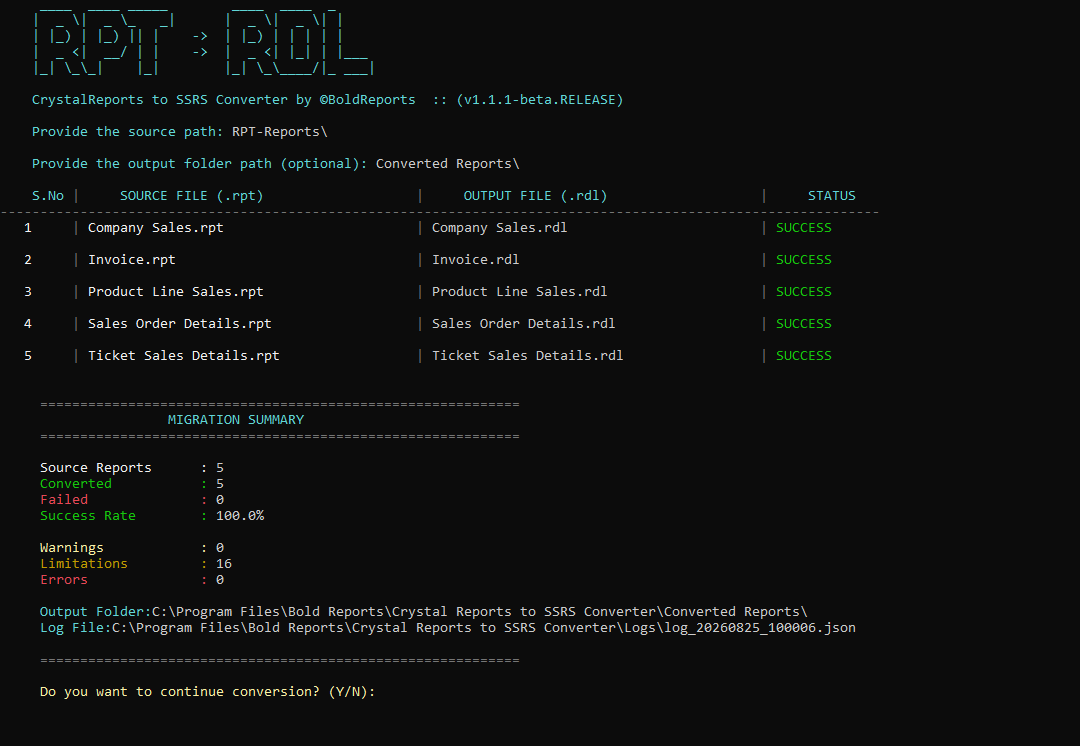
-
Single file conversion
Convert a single Crystal Report (.rpt) file from the specified path.
Steps
-
Enter file paths:
-
Enter the source path (the
.rptfile):
-
Enter the output folder path (output
.rdlfile):
-
Press Enter to start the conversion.
-
-
View conversion result:
-
A migration summary is displayed after the report has been converted.
-
Check the log file in the
Logsfolder for any errors, warnings, or conversion limitations related to the converted report.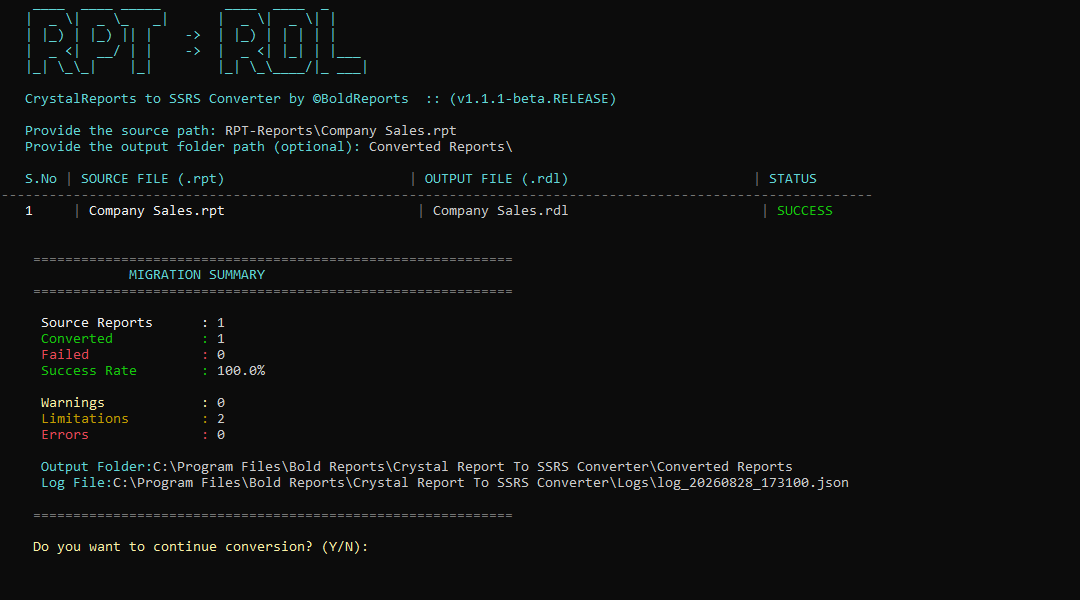
-
Next step
After conversion, review the Migration Guide to see which Crystal Reports features convert automatically and which ones need manual attention before you deploy the converted .rdl report.