Set a no rows message in the Bold Reports® Web Report Designer
In the Bold Reports® Web Report Designer, the No Rows property displays static text when a dataset returns empty or zero rows at run time. You set the message text and format its font, alignment, and spacing in the properties panel.
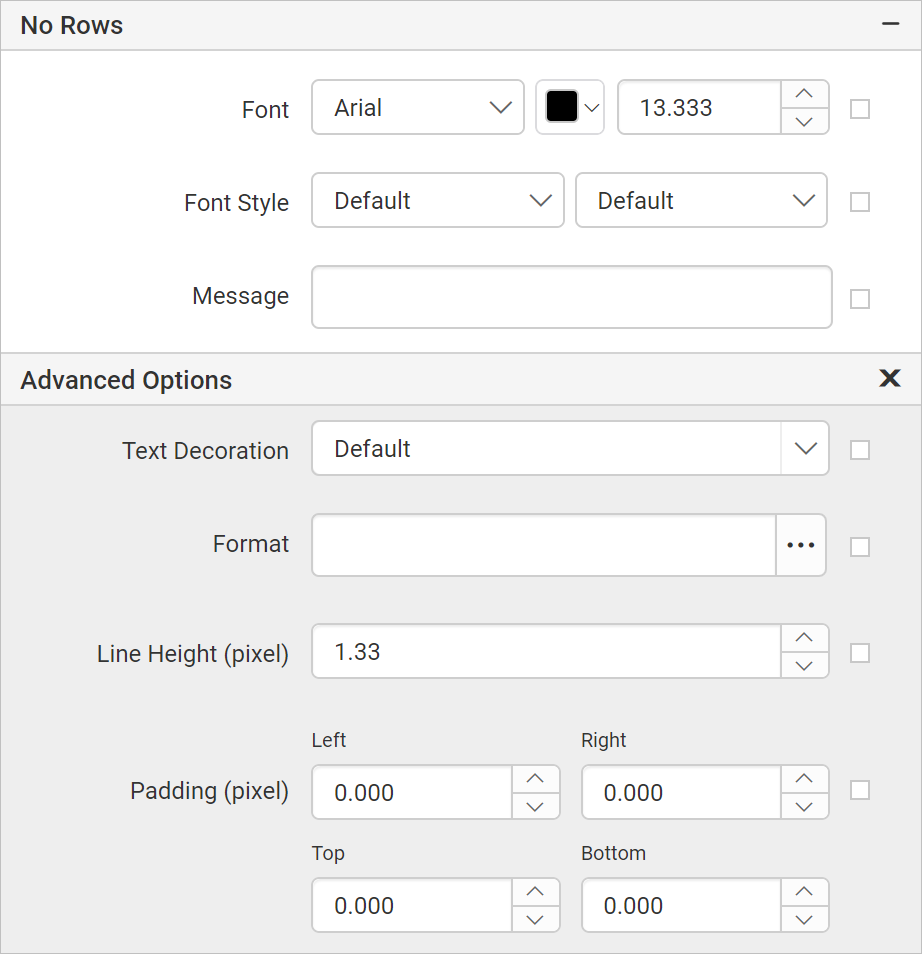
The following image shows the No Rows properties of a tablix.
Font
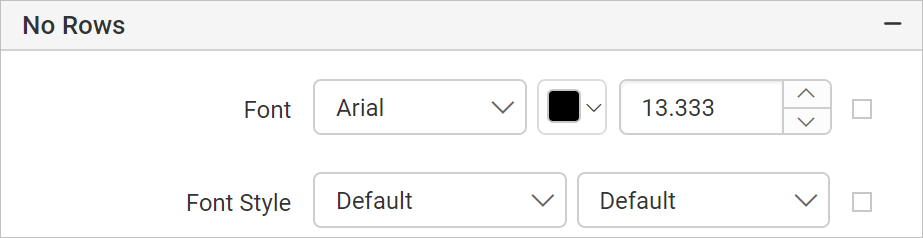
The Bold Reports® no rows message Font properties set the font family, color, size, style, and weight of the message, as shown in the following image.
Font Family
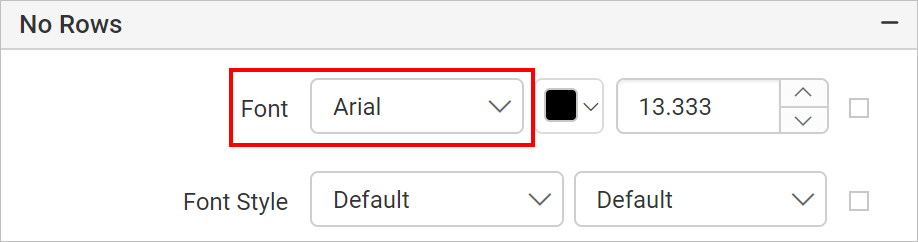
The Font Family property sets the font of the no rows message. The dropdown list shows the supported font family names. Choose the font family you need from the list.
Font Color
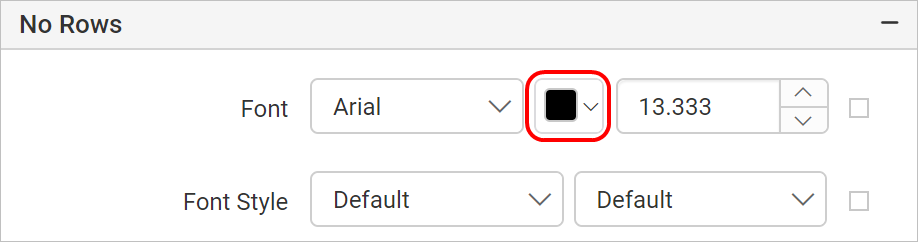
The Font Color property sets the color of the no rows message. Click the color palette icon and choose the color you need in the Color Palette.
Font Size
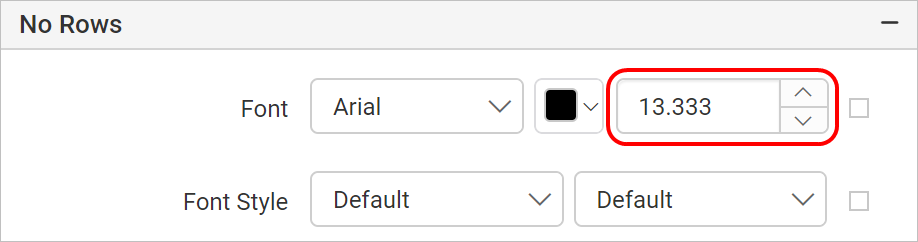
The Font size property increases the size of the text in the no rows message. You can increase the font size with the numeric dropdown highlighted in the following image.
Font Styles
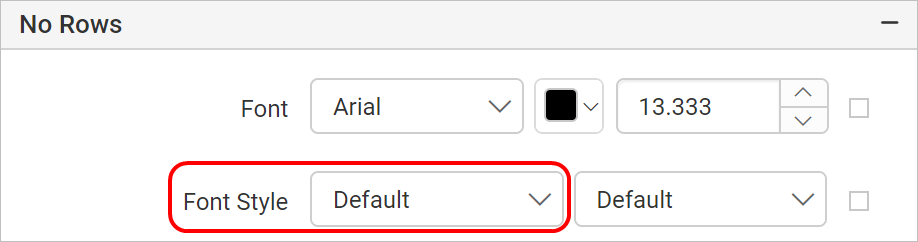
The Font Style property changes the font style of the no rows message. Choose the font style you need in the Font Style dropdown list. The supported font styles are:
- Default
- Normal
- Italic
Font Weight
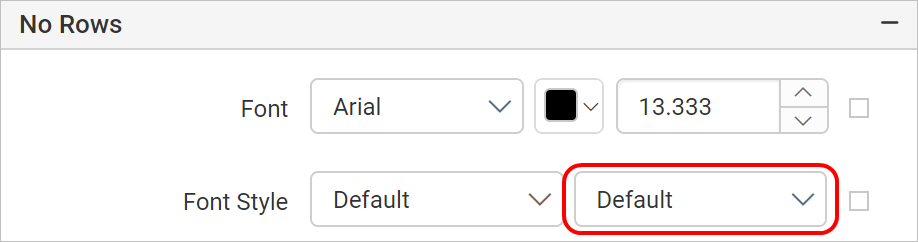
The Font Weight property changes the font weight of the no rows message. Choose the font weight type you need from the dropdown list.
Message
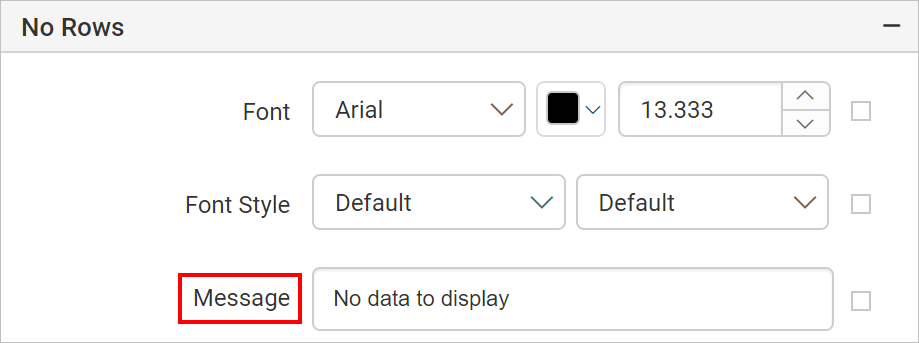
The Bold Reports® no rows Message property holds the text shown to the user when the dataset returns empty or zero rows. Enter the text you need in the message textbox.
To customize the message appearance, open the Advanced Panel.
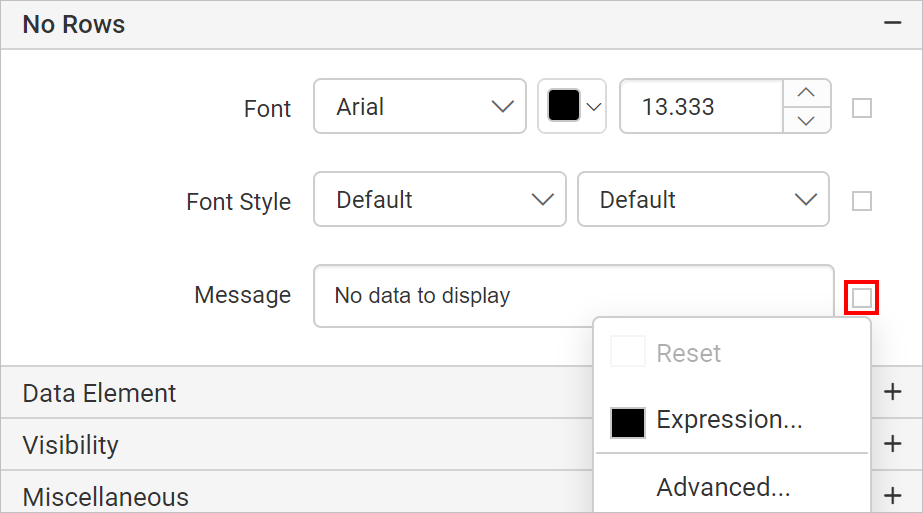
Text Decoration
The Text decoration property sets the appearance of decorative lines on the no rows message text.
- None - Produces no text decoration.
- Underline - Each line of text is underlined.
- Overline - Each line of text has a line above it.
- Line-through - Each line of text has a line through the middle.
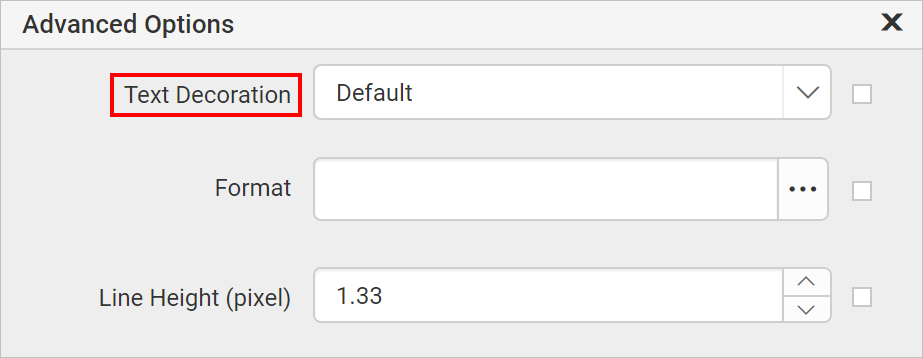
Format
The Format property formats the text in the no rows message. See the Format section to show the text in Numbers, Currency, Date, Time, Scientific, Percentage, and Custom formats.
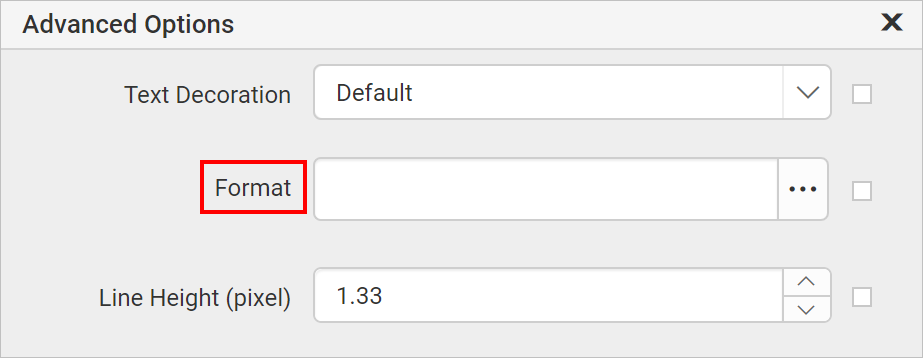
Line height
The Line height property increases the space between lines in the no rows message. Increase or decrease the value in the numeric dropdown to set the line height.
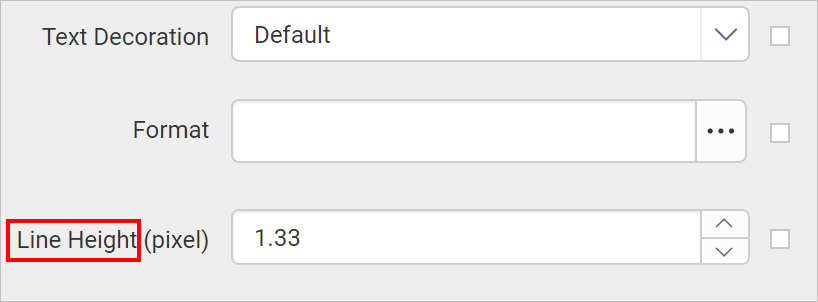
Padding
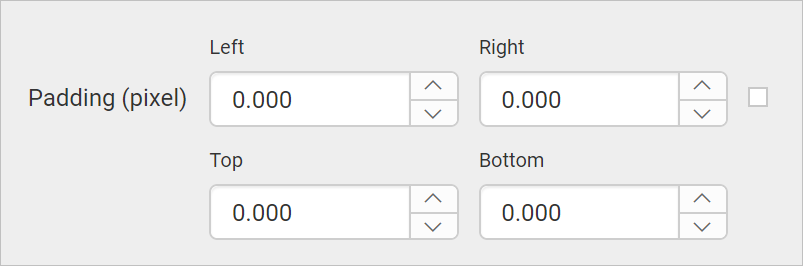
The Padding property adds space around the no rows message content. Increase or decrease the values in the numeric dropdown to set the left, right, top, and bottom padding.
Text Align
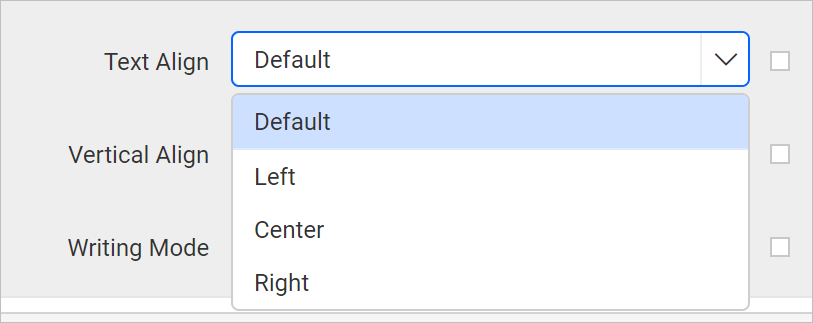
The Text align property sets the horizontal alignment of a no rows message. You can align the text in the left, right, or center position. Choose the text align option you need from the dropdown list.
Vertical Align
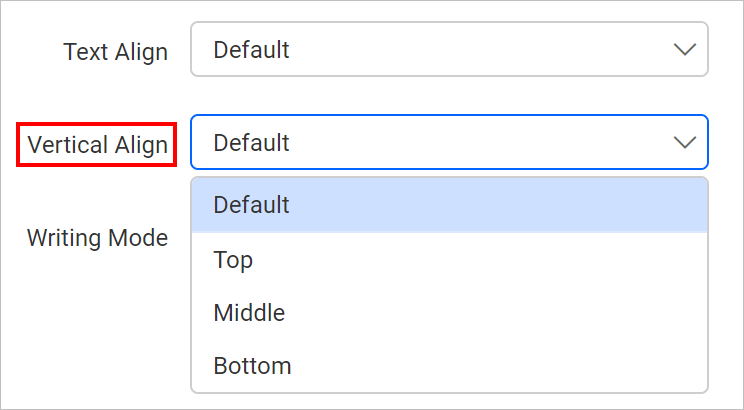
The Vertical Align property sets the vertical alignment of a no rows message. Choose the vertical align option you need from the dropdown list.
Writing Mode
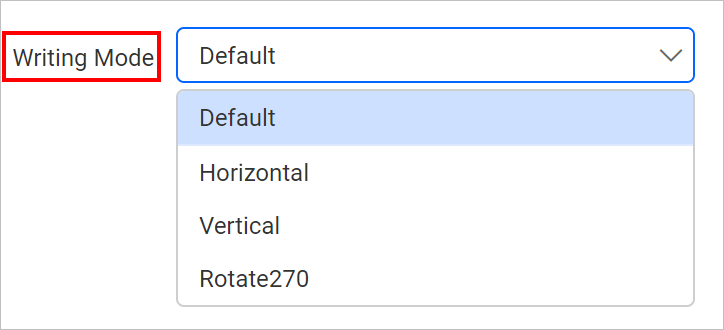
The Writing mode property sets the direction of the no rows message to Horizontal, Vertical, or Rotate270. Choose the writing mode you need from the dropdown.
Horizontal: Text will be horizontal, read left to right.
Vertical: Text will be vertical, read top to bottom.
Rotate 270: Text will be vertical, read bottom to top.
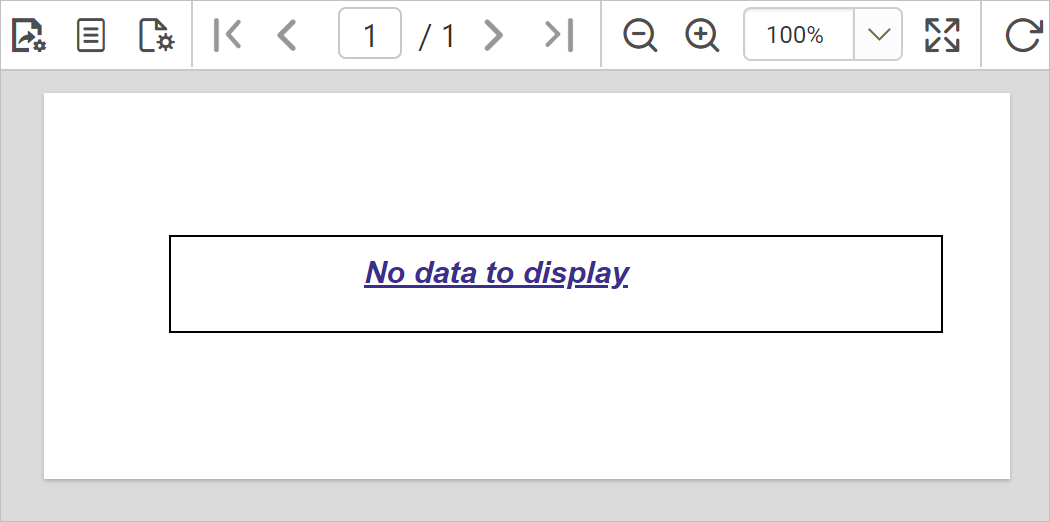
How does the no rows message look in preview?
Bold Reports® applies all the customizations to the no rows message container when you preview the report.
Frequently asked questions
When does the no rows message appear?
The Bold Reports® no rows message appears when the dataset returns empty or zero rows at run time.
Which font styles can I use for the no rows message?
The supported font styles are Default, Normal, and Italic.