Tablix member properties in the Bold Reports® Web Report Designer
In the Bold Reports® Web Report Designer, the properties panel lists the tablix member properties under different categories based on the behavior of each property. Static members and group members each have their own set of properties.
Static member properties
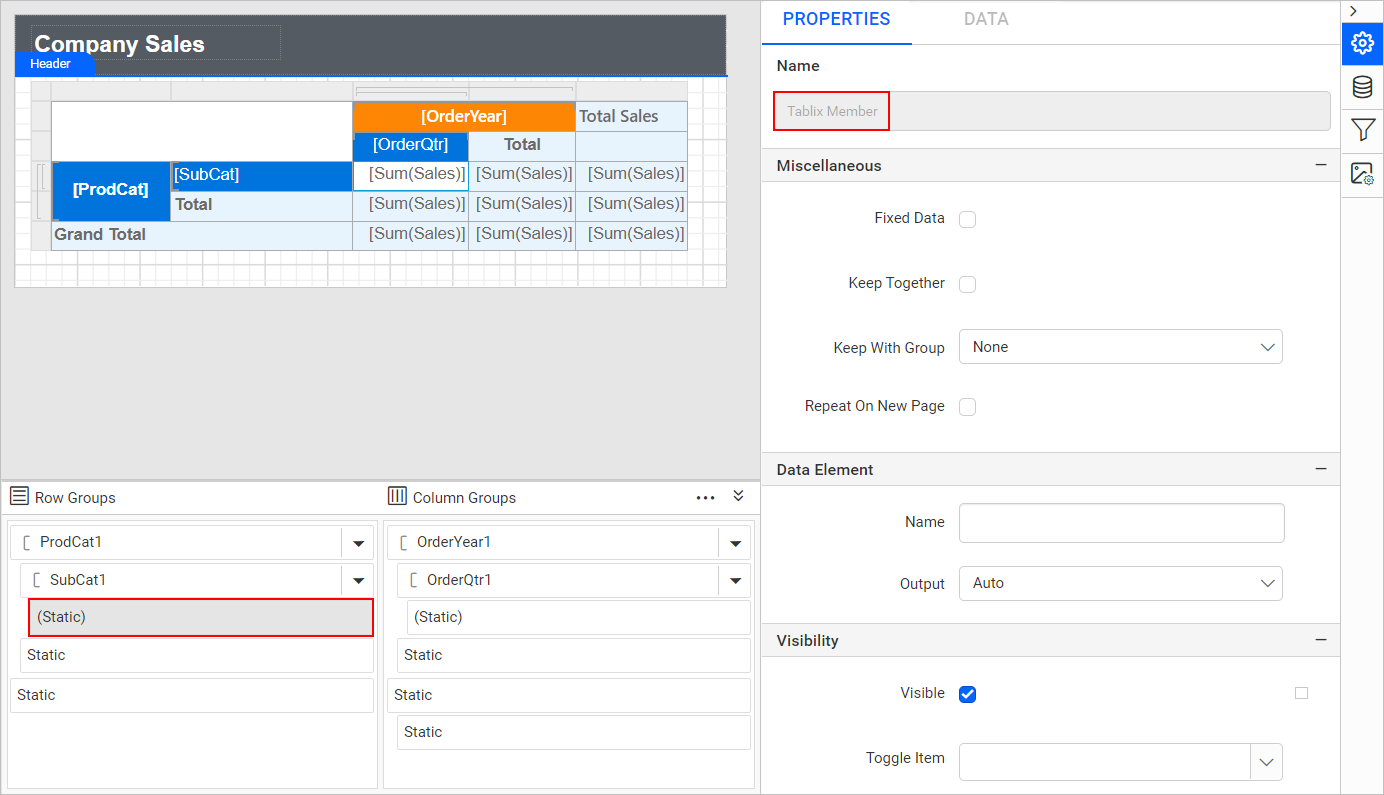
The Bold Reports® static member properties appear when you click a static tablix member in the Row Groups or Column Groups pane. The properties panel then lists the properties of that tablix member.
Miscellaneous
The static member Miscellaneous category holds the Fixed Data, Keep Together, Keep with group, Repeat on new page, Data Element, and Visibility properties, as shown in the following image.

Fixed Data
The Fixed Data property keeps the row or column headers visible when you scroll the pages of a report in Bold Reports® Report Viewer.
-
To keep the row header visible when you scroll the pages of a report, select the static header member in the
Row Groupspane and enable theFixed Dataproperty in the properties panel. -
To keep the column header visible when you scroll the pages of a report, select the static header member in the
Column Groupspane and enable theFixed Dataproperty in the properties panel.

Keep Together
The Keep Together property displays the entire tablix member and any nested members on a single page on report preview or export. Enable the checkbox to keep the content on a single page. Otherwise, the content spans multiple pages.

Keep with group
The Keep with group property keeps the row with the previous or following sibling group member.
- None - Select this option to indicate no preference for keeping this member with the members of the selected row group.
- Before - Select this option to keep the respective member with the members of the previous group.
- After - Select this option to keep the respective member with the members of the following group.

Repeat on new page
The Repeat on new page property displays the static row or column headers on multiple pages in a report.

Data Element
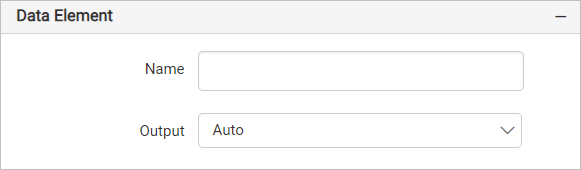
The static member Data Element properties control the visibility of a static row or column when you export the report in XML format. The properties panel lists them under the Data Element category.
Name
The Name field assigns a custom name to the static row or column. The row or column is exported with the name you provide.
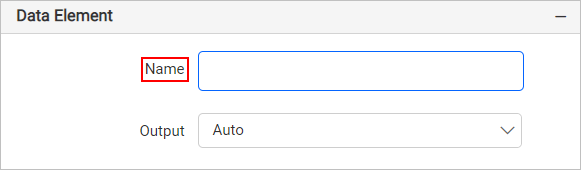
Note: The name cannot contain spaces, and it must begin with a letter followed by letters, numbers, or the underscore character (_).
Output
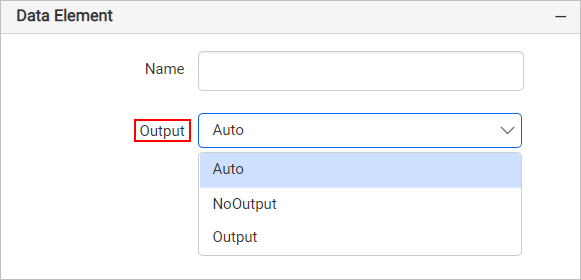
The Output property controls the visibility of the static row or column when you export the report. Each option for the Output property performs the following operation:
- Auto or Output - Exports the row or column.
- NoOutput - Does not export the row or column.
Visibility
The static member Visibility category holds the Visibility and Toggle settings, as shown in the following image.

Visibility - The Visibility property conditionally shows or hides the row or column when the report is initially run. To set the visibility of a static row or column in the properties panel, see the Visibility section.
Toggle - The toggle settings property lets the user interactively expand or collapse the report items, or the rows and columns associated with the group, to drill down to further detail within the same report. Common reasons to use the toggle visibility feature are:
-
To hide columns or rows with details in table and matrix report items.
-
To completely hide a table or matrix item.
-
To hide other report items.

Group member properties
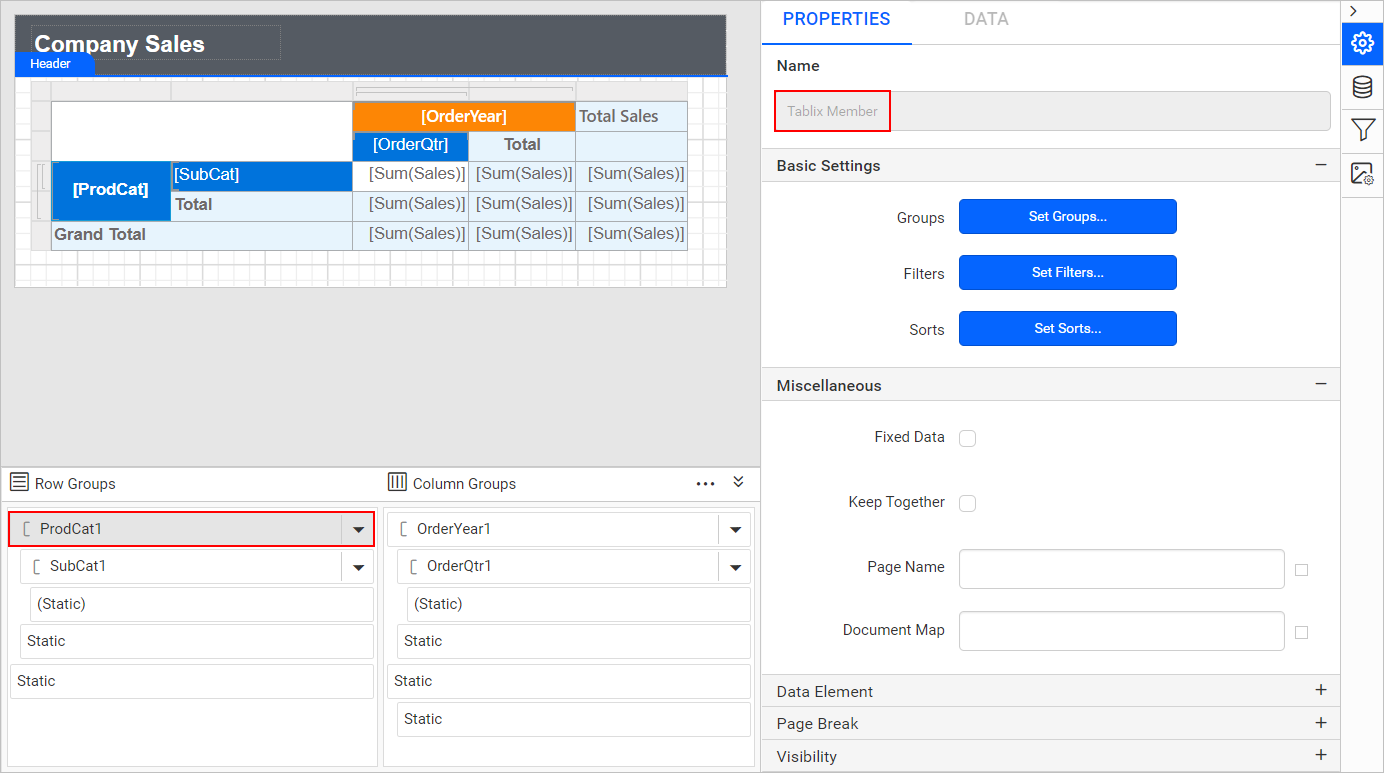
The Bold Reports® group member properties appear when you click a group tablix member in the Row Groups or Column Groups pane. The properties panel then lists the properties of that tablix member.
Basic settings
The group member Basic settings category holds the Groups, Filters, and Sorts properties, as shown in the following image.

Groups
The Groups property edits the row or column group. Select a row or column group and click the Set Groups... button in the properties panel. The Grouping dialog opens as shown in the following image.

Modify the group Name or group expression in the group dialog and click OK.
Filters
The Filters property filters the data in the tablix. In the tablix data region, you can apply filters independently to row groups, column groups, and adjacent groups. Select a group in the grouping panel and click the Set Filters... button in the properties panel. The filter dialog opens as shown in the following image.

To create a filter expression for the group member, follow the steps in the Filter Data section.
Sorts
The Sorts property sorts numeric or string fields in the tablix. You can apply sorting to the whole data region or to each group, including the details group. Select a group in the grouping panel and click the Set Sorts... button. The sort dialog opens as shown in the following image.

To create a sort expression for the group member, follow the steps in the Sort Data section.
Miscellaneous
The group member Miscellaneous category holds the Fixed Data, Keep Together, and Data Element properties, as shown in the following image.

Fixed Data
The Fixed Data property keeps the row or column group headers visible when you scroll the pages of a report in Bold Reports® Report Viewer.
-
To keep the row header visible when you scroll the pages of a report, select the dynamic header member in the
Row Groupspane and enable theFixed Dataproperty in the properties panel. -
To keep the column header visible when you scroll the pages of a report, select the dynamic header member in the
Column Groupspane and enable theFixed Dataproperty in the properties panel.
Keep Together
The Keep Together property displays the entire tablix member and any nested members on a single page on report preview or export. Enable the checkbox to keep the content on a single page. Otherwise, the content spans multiple pages.
Data Element
The group member Data Element properties control the visibility of a dynamic row or column when you export the report in XML format. The properties panel lists them under the Data Element category.
Name
The Name field assigns a custom name to the dynamic row or column. The row or column is exported with the name you provide.
Note: The name cannot contain spaces, and it must begin with a letter followed by letters, numbers, or the underscore character (_).
Output
The Output property controls the visibility of the dynamic row or column when you export the report. Each option for the Output property performs the following operation:
- Auto or Output - Exports the row or column.
- NoOutput - Does not export the row or column.
Page break
The group member Page Break property controls the amount of information on each page when you preview the report. Follow these steps to apply the page break property to a dynamic member.
The following image shows the Page Break property in the properties panel.

Choose any Break Location type in the dropdown.

To prevent predefined page breaks from being applied during report preview, enable the Break Disabled property checkbox. You can also control page breaks during report preview with expressions. To set and reset page breaks dynamically, see the Set Expression and Reset Expression sections.

To restart page numbering on each page, enable the Page Number Reset property checkbox.

Visibility
The group member Visibility category holds the Visibility and Toggle settings, as shown in the following image.
Visibility - The Visibility property conditionally shows or hides the row or column groups when the report is initially run. To set the visibility of dynamic row or column members in the properties panel, see the Visibility section.
Toggle - The toggle settings property lets the user interactively expand or collapse the report items, or the rows and columns associated with the group, to drill down to further detail within the same report. Common reasons to use the toggle visibility feature are:
-
To hide columns or rows with details in table and matrix report items.
-
To completely hide a table or matrix item.
-
To hide other report items.