Keep column headers visible while scrolling in SSRS reports with Bold Reports®
You keep column headers visible while scrolling in the Bold Reports® Web Report Designer by setting the Fixed Data and Repeat On New Page properties on the static header row. Follow the steps in this guide to set them up in a table report.
How do I keep column headers visible while scrolling?
To keep column headers visible while you scroll through a report in the Bold Reports® Web Report Designer, follow these steps:
-
See the Simple Table Design section and create a table report.
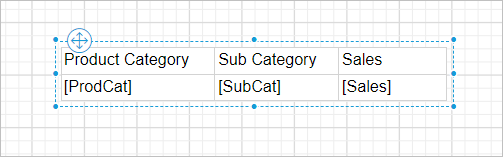
-
Click the surface of the table design to enable the grouping panel.
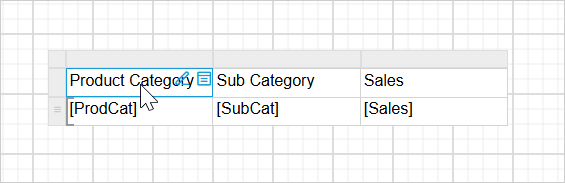
-
See the Advanced Mode section to enable advanced mode in the grouping panel.
-
After you click
Advanced Mode, the grouping panel shows the static columns in both the row and column group. Select the static column in the row group pane (Header Row Group).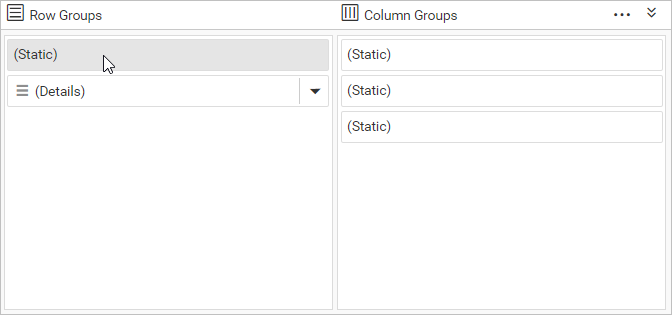
-
In the properties panel, enable the
Fixed DataandRepeat On New Pageproperty checkboxes and setKeep With GrouptoAfter.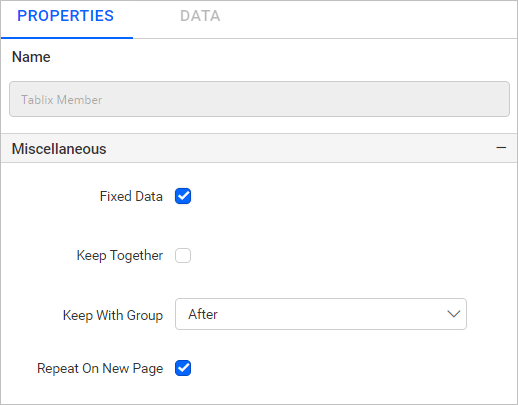
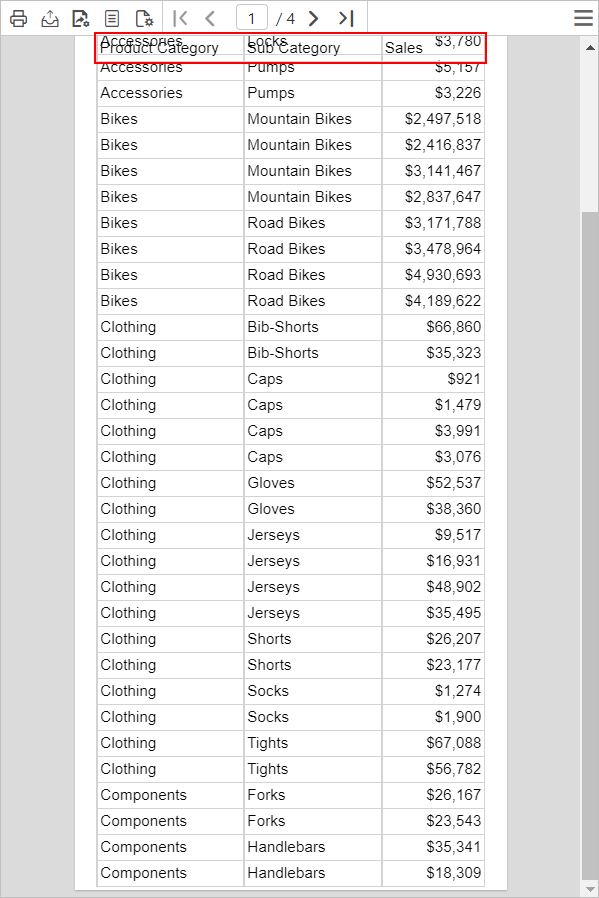
Preview your report and try scrolling. The column header looks messy because its background is transparent by default.
-
To fix this, change the background color of the cells in the header row.
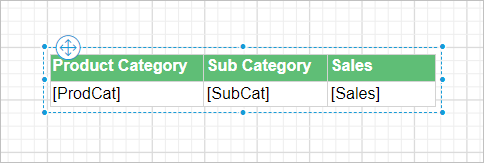
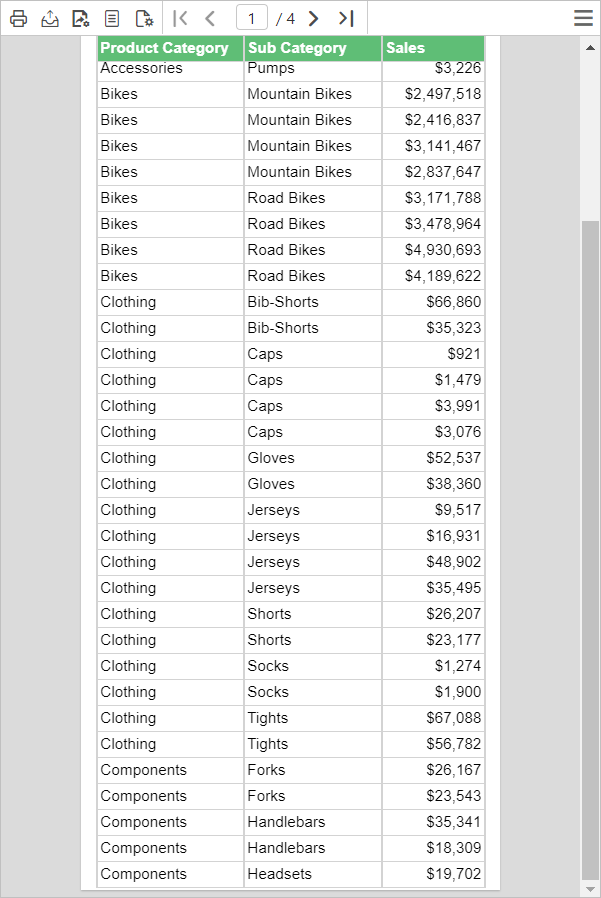
Download the keep headers visible report design (RDL).
Frequently asked questions
Why does the fixed column header look messy when I scroll?
In the Bold Reports® Web Report Designer, the header background is transparent by default. Change the background color of the cells in the header row to fix it.