How do I use SQL Server as a data source in Cloud Reporting?
The Bold Reports® Cloud Web Report Designer connects to a Microsoft SQL Server data source so you can visualize and analyze its data in reports.
Supported Server Versions: Microsoft SQL Server (2012, 2014, 2016, 2017, 2019, and 2022)
What does the Microsoft SQL Server connector support?
The Web Report Designer connects to Microsoft SQL Server with the following options.
| Item | Supported |
|---|---|
| Server versions | Microsoft SQL Server 2012, 2014, 2016, 2017, 2019, and 2022 |
| Query design | Design view (drag and drop tables) or code view (custom SQL query) |
| Stored procedures | Supported. Stored procedures are supported only for Microsoft SQL Server. |
| Authentication types (basic options) | Windows, SQL Server |
| Authentication types (advanced options) | Windows, SQL Server, Prompt, None |
| Connection security | Encrypt and Trust Server Certificate options |
How to create a Microsoft SQL Server data source
You create a Microsoft SQL Server data source from the DATA configuration panel of the Web Report Designer by clicking NEW DATA and selecting SQL.
-
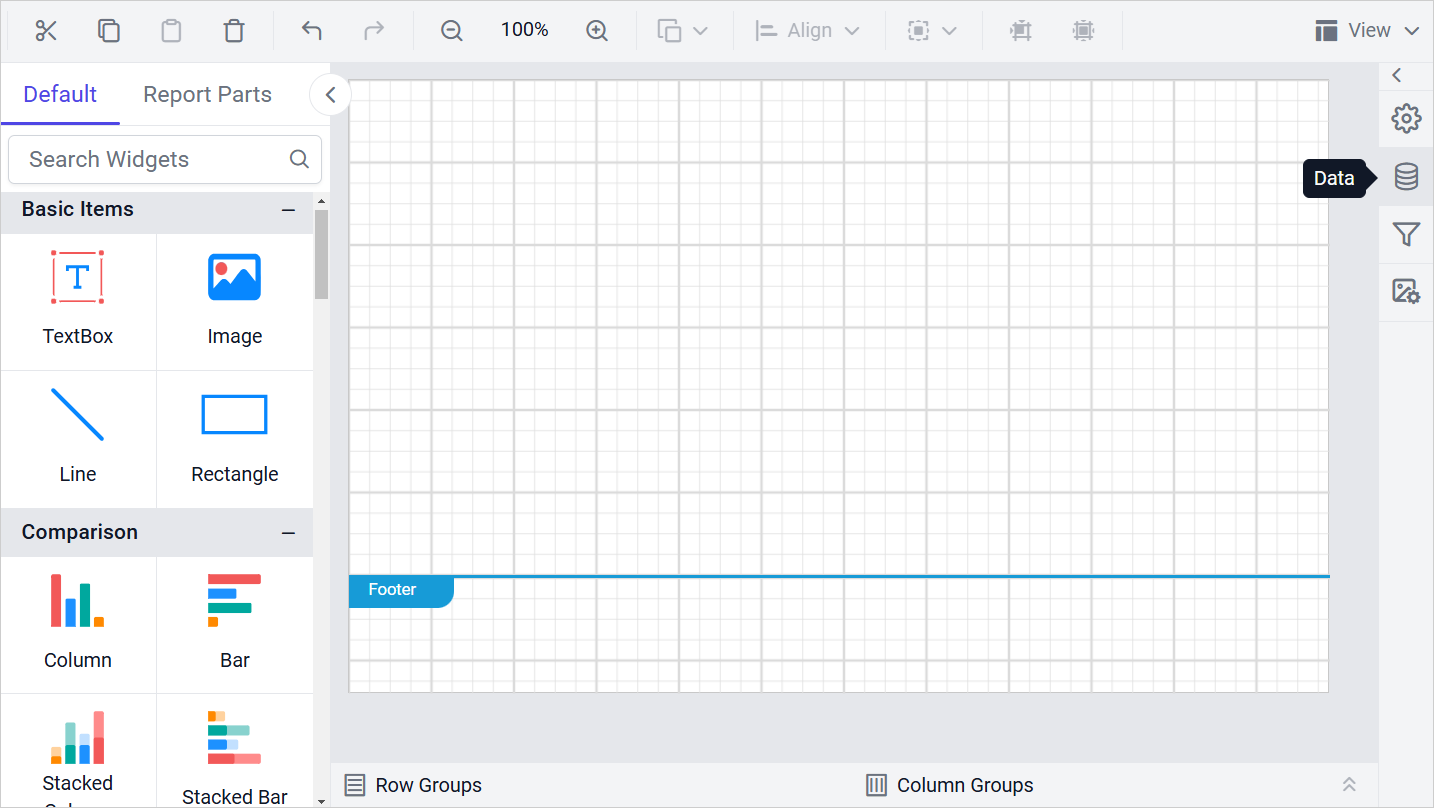
Click the Data icon in the configuration panel.
-
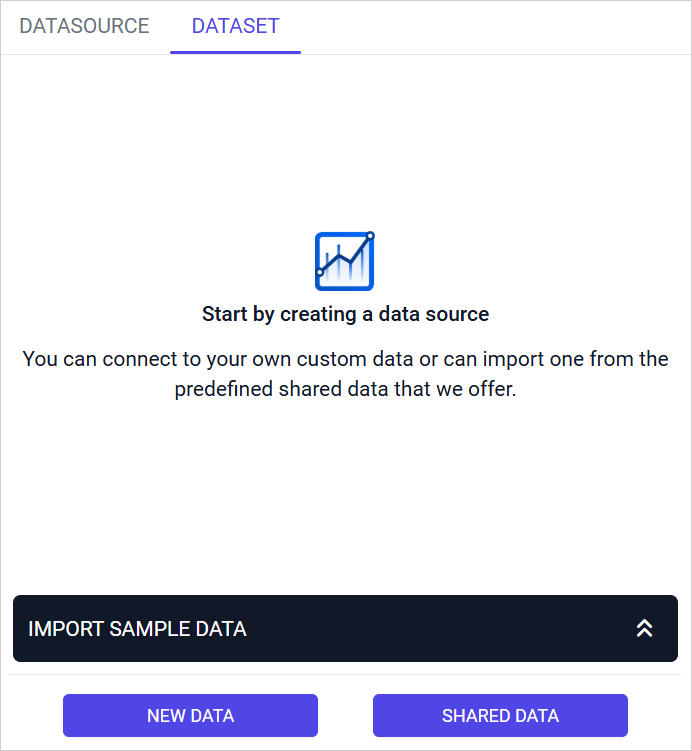
In the DATA configuration panel, click NEW DATA.
-
In the connection type panel, select SQL.

Create Microsoft SQL Server data source with basic options
The NEW DATASOURCE panel opens with basic options when you create new data. Enter the connection details as follows:
- Specify the data source name without special characters, in Name field.
- In the Server Name field, select an existing server in the local network from the drop-down list, or enter a remote server name such as
myserver.domain.com. - In Authentication Type field, choose Windows or SQL Server authentication.
- Choose or enter an existing valid database, such as AdventureWorks.

- Set the Encrypt and Trust Server Certificate options to match your SQL Server configuration.

- Click Connect to connect to the Microsoft SQL Server database.
- Drag a table from the table schema into the query design view.

- Click Finish to save the data source and continue designing the report.

Authentication types for basic connection
The SQL Server basic options support two authentication types: Windows and SQL Server.
If your data source supports authentication directly through Windows Credentials(Integrated Security), choose Windows under Authentication Type.

If your data source requires a username and password, choose SQL Server under Authentication Type and enter the username and password for the server in the Server Name field.

Enable the Save password option to embed the credentials within the report when saving it in Bold Reports® Report Server.
On report download action, the credentials will be not be saved with report data.
Create Microsoft SQL Server data source with advanced options
To connect to SQL Server with advanced options, click Advanced Options in the New Data panel.

Now, the panel is switched to advanced options. In advanced options, you can build your own connection string.
Set the connection string and authentication type, and then click Connect.

Drag and drop the table from the table schema in the query design view page.
Click Finish to save the data source with a relevant name to proceed with designing report.
Click on
Basic Optionsto switch back to the basic connection settings.

Connection string
Connection strings are the text representation of connection properties for a data provider.
If the database is located in the SQL Server Database Engine and installed on your local computer. Specify connection string like below example,
Data source=<InstanceName>; initial catalog=AdventureWorks
If database is located in any other server domain, specify connection string with or without credentials like below examples,
Data Source=myserver.domain.com;Initial Catalog=AdventureWorks
Data Source=myserver.domain.com;Initial Catalog=AdventureWorks;user id=sa;password=sa@123
Authentication types for advanced connection
The SQL Server advanced options support four authentication types: Windows, SQL Server, Prompt, and None.

Windows - If your data source supports authentication directly through windows credentials(Integrated Security), choose Windows under Authentication Type.
SQL Server - A user name and password must be supplied to access the SQL Server database, the credentials might be for a database login. The credentials are passed to the data source for authentication.

Enable the Save password option to embed the credentials within the report when saving it in Report Server.
When you download the report, the credentials are not saved with the report data.
Prompt - When you configure a data source connection to use prompted credentials, each user who accesses the report must enter a user name and password on preview action to retrieve the data.

None - Choose the authentication type as None, when the authentication details or any other arguments required to connect with the data source are provided in connection string.
How to connect to a stored procedure in SQL Server
In Bold Reports®, you can use stored procedures defined in a SQL Server database through a Microsoft SQL connection.
NOTE: Bold Reports® supports stored procedure only for Microsoft SQL Server.
Connect to the SQL Server database with Basic Options or Advanced Options. After you connect, the query design view lists the available stored procedures in the tree view on the left pane. Expand a procedure to see its parameters.

Drag the stored procedure from the left pane into the query design view, enter the required parameter values, and then click OK.

The stored procedure data for the supplied parameters appears in the preview grid.

Save the data source by clicking the Finish button.
How to connect through a custom SQL query
You can define a Microsoft SQL Server data source with a SQL query that you write in the code view of the query design view instead of dragging tables.
You can connect to data source of certain data connections through the custom SQL query. With this feature, you define the data source with manually written queries instead of dragged tables, for connection types such as Microsoft SQL.
Connect to the SQL Server database with Basic Options or Advanced Options. After connect action, you will get into the query design view.
Switch to code view
By default, the query design view opens with design view. Switch to the code view by enabling the slider option in the tools pane in query design view as shown (highlighted) in the following image.

The Query Editor pane opens.

Write query and execute
In the Query Editor pane, you can write your own query which helps you to access table schema information and perform all the operations with respect to retrieving data from your database.
After writing your query, click the Execute option in the tools pane. You can also view the data for your query in bottom of the Query Editor.

If you switch back to design view by disabling the Code Slider in the tools pane, an alert message asks you to confirm removing your query. Proceeding with this action resets the code view query.

Clicking Yes will discard the query and take you to design view, otherwise click No. Save the data source by clicking the Finish button.
Code view for tables in design view
You can view the query in the Query Editor pane for a data source that you already created in design view.
For example, drag the SalesOrderDetail table into design view and apply filters.
Then, enable the Code Switcher to view the query. The query shows the applied filters and all changes made to the table.

Frequently asked questions
Can I use a stored procedure as a report data source?
Yes. After you connect, the query design view lists the stored procedures. Drag one in, enter its parameter values, and click OK to preview the data.
Can I write my own SQL query for SQL Server?
Yes. Turn on the code view slider in the query design view, write the query in the Query Editor pane, and click Execute. Switching back to design view discards the query.
Why can’t Cloud Reporting connect to my SQL Server database?
Cloud Reporting reaches your server from fixed IP addresses. Allow them in your database firewall, or in the firewall or security group of Azure SQL or AWS RDS. See Whitelist IP addresses.
How do I make each viewer enter their own SQL Server credentials?
In Advanced Options, set the authentication type to Prompt. Each user who opens the report enters a user name and password on preview.
Why is Microsoft SQL Server missing from the connection type panel?
An administrator may have disabled the Microsoft SQL Server connector. Only the connectors enabled on the Settings page of the Report Server appear when you create a data source. See Connectors settings.