Automated & Bulk Migration
For large report repositories, use the PowerShell-based automated migration script instead of repeating the manual steps for every report. The script runs entirely as a backend process, with no manual UI steps needed once it's configured.
How It Works
The script connects to your SSRS Report Server and your Bold Reports® server using the credentials you provide, then migrates data sources, datasets, and reports together in batches, preserving names, bindings, and category structure.
Required Inputs
Gather the following before running the script:
-
SSRS credentials: access to the SSRS Report Server with permission to read and export all items.
-
Bold Reports® credentials: the Server URL, Site/Tenant identifier (for example, site1), and a valid Bearer token for the REST API with permission to create items.
-
PowerShell (Windows): local write permission to the export folder is required to run the migration script.
Migration Steps
Running the automated migration involves four steps:
-
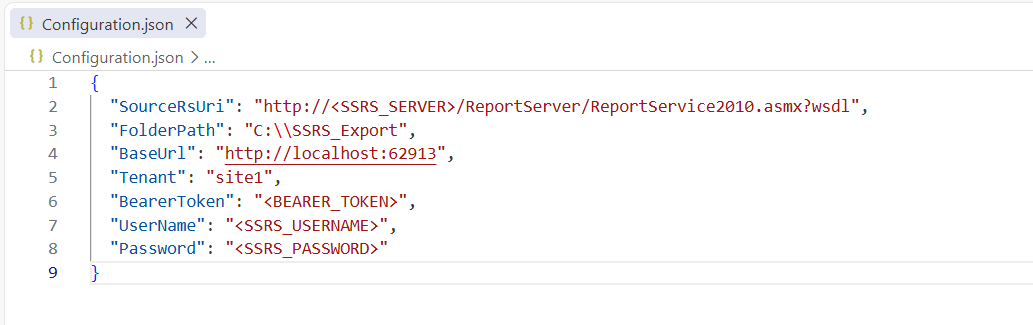
Provide credentials: Supply the SSRS server details, including the username and password, along with the Bold Reports® server details (URL, tenant name, and Bearer token) to the migration script.
-
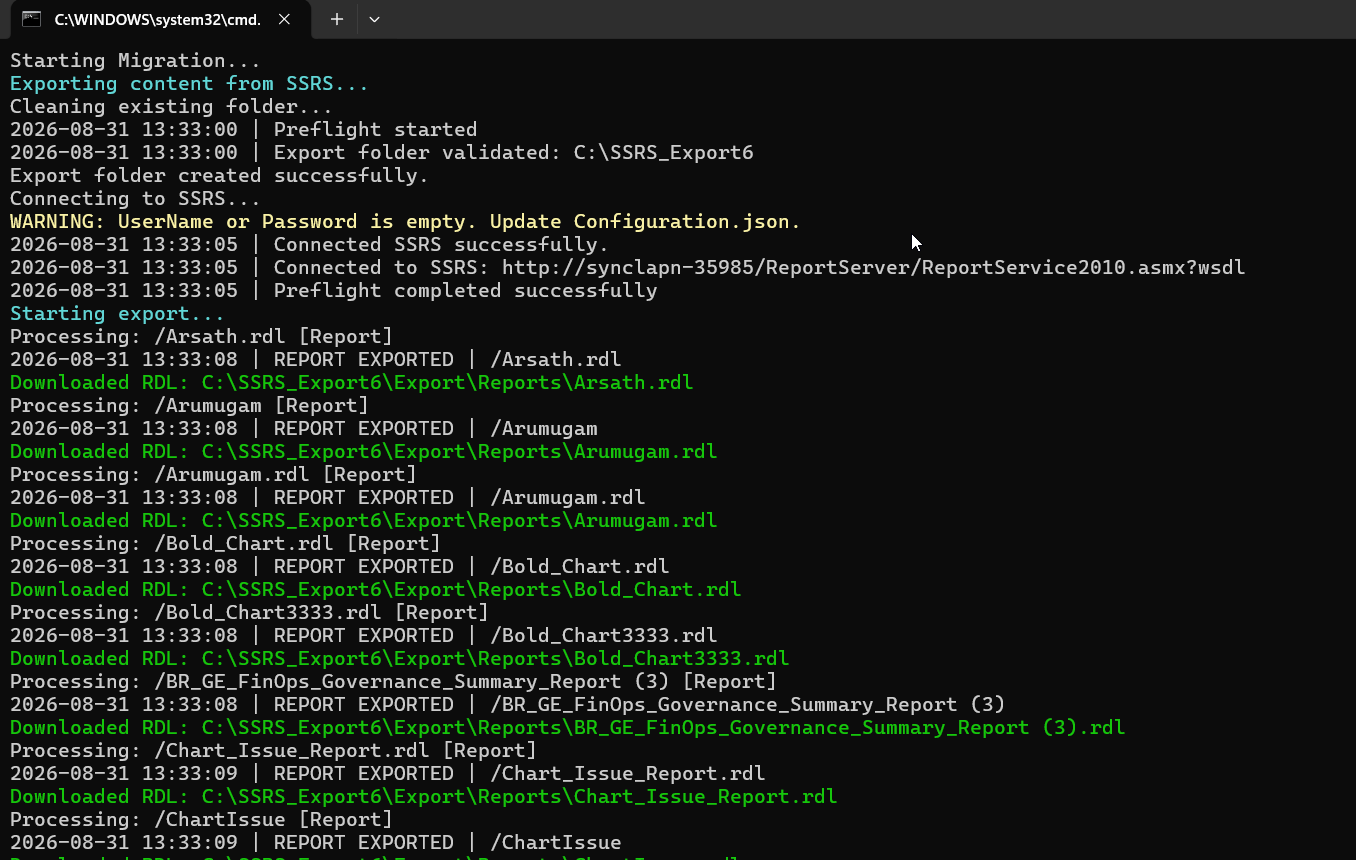
Run the script: The script connects to both the SSRS server and the Bold Reports® server and processes reports in batches.
-
Automatic migration: For each batch, the script migrates shared data sources first, followed by shared datasets and then reports. During the migration, each report is automatically bound to the corresponding data source and dataset by name, and Bold Reports® categories are created based on the SSRS folder structure.
-
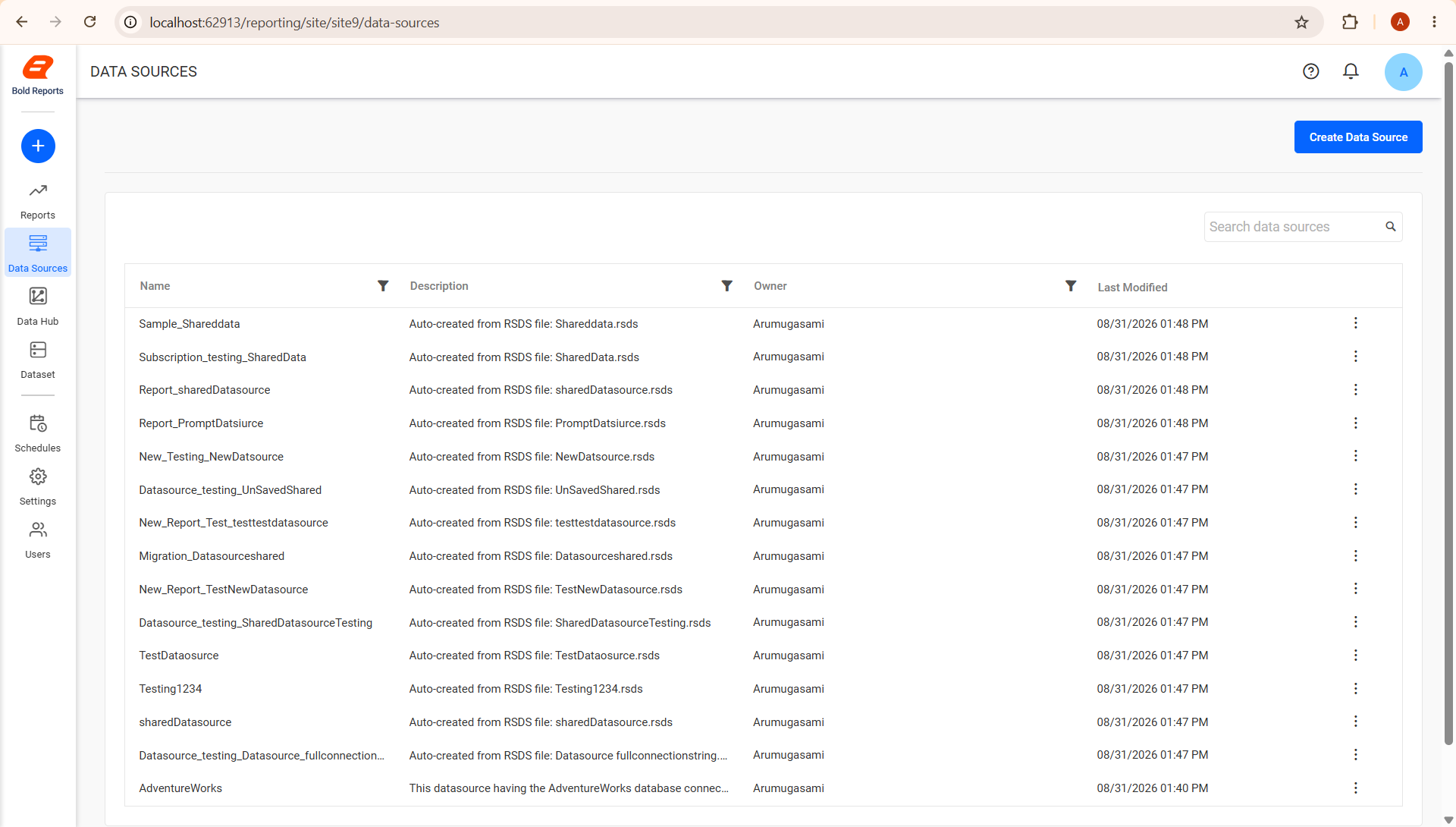
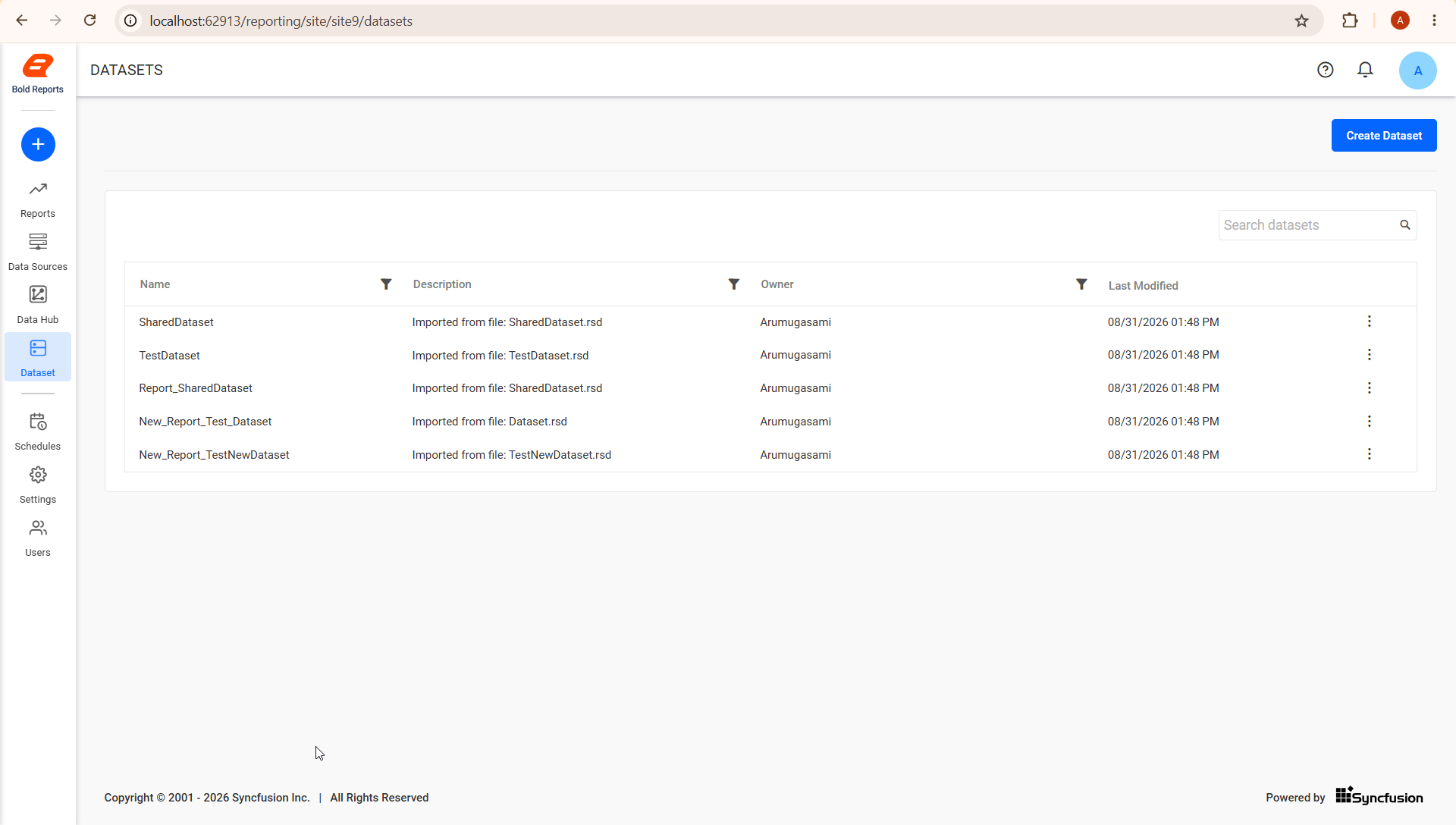
Review the run: Check the script output or log file for any items that were skipped (because they already exist) or failed during migration, and address those items individually. Once the run completes, confirm the migrated items appear in Bold Reports®:
Data Sources: migrated shared data sources listed under Data Sources.
Datasets: migrated shared datasets listed under Datasets, each bound to its data source.
Reports: migrated reports listed under their respective categories, matching the original SSRS folder structure.
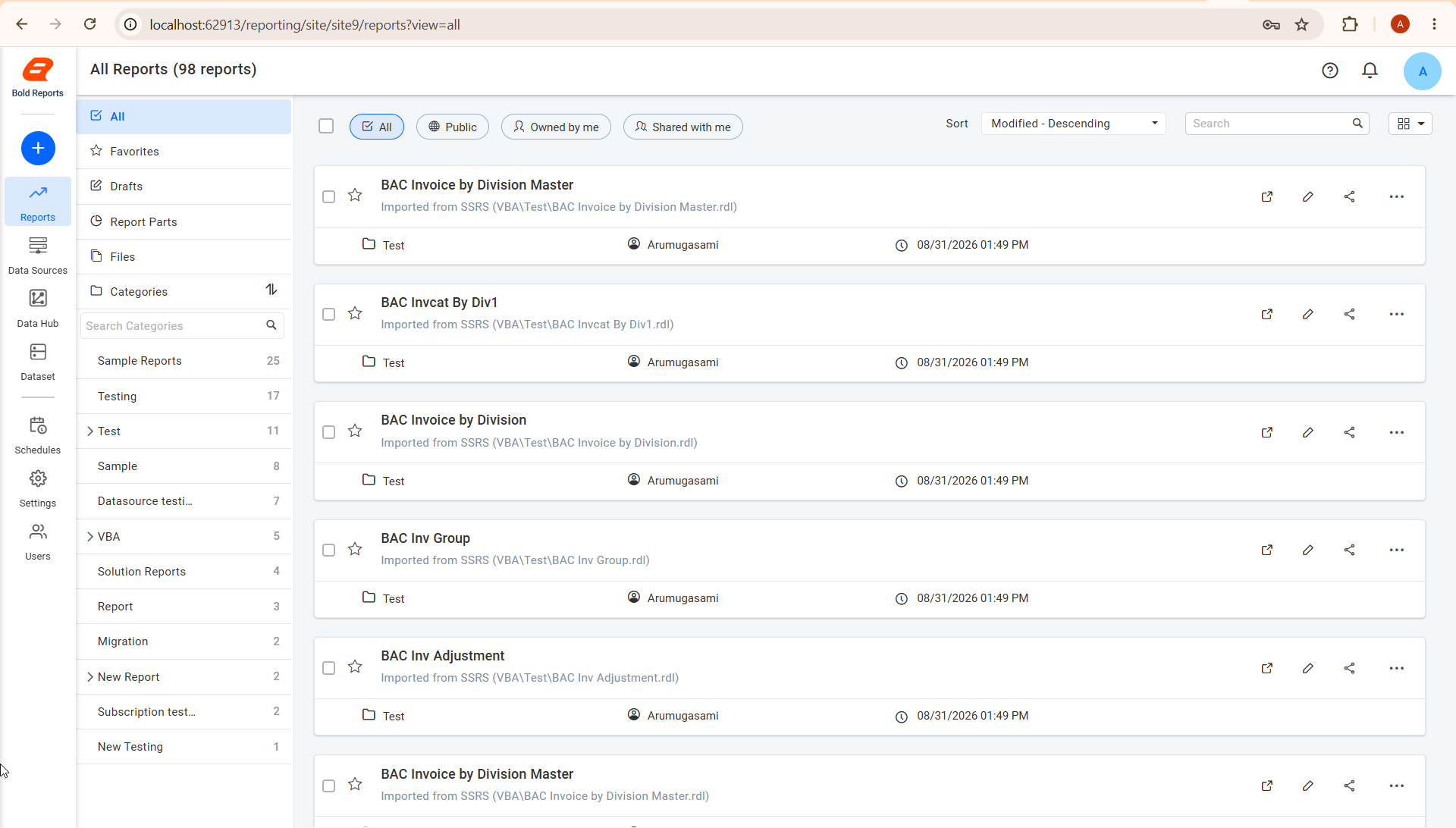
After the Script Runs
⚠️ Warning: Automated migration recreates the structure of your data sources, not live credentials. Update the username and password on each migrated shared data source in Bold Reports® immediately after the run. Don't defer this step, or reports will fail at execution with connection errors.
When to Use This vs. Manual Migration
Use the comparison below to decide which migration approach fits your situation:
| Approach | Best for |
|---|---|
| Automated & Bulk Migration | Dozens or hundreds of reports sharing a common set of data sources and datasets; preserving category structure at scale |
| Manual Migration | One-off reports, troubleshooting a specific report, or validating your migration approach before running it at scale |
Tip: Keep SSRS item names consistent before running the script, since it relies on name matching to bind datasets to data sources correctly.
Reference Documentation
Full, copy-ready PowerShell scripts for all four steps are maintained in the source KB article and should be treated as the authoritative script version:
If your RDL reports live in a GitHub repository instead of an SSRS Report Server, a separate script automates uploading them directly to Bold Reports®:
Next: After the script completes, continue to Post-Migration Validation to confirm your migrated reports run as expected. If any items fail to migrate or bind correctly, see Troubleshooting.