Bold Reports® MCP Server
The Bold Reports® MCP Server enables AI-powered coding assistants like GitHub Copilot, ChatGPT, Claude, and VS Code agents to access Bold Reports® documentation directly inside your development environment.
Using the Model Context Protocol (MCP), developers can generate code, troubleshoot integrations, and retrieve documentation-backed guidance without leaving their IDE.
What You Can Do with Bold Reports® MCP Server
Once connected, your AI assistant can:
- Answer questions about Bold Reports® features, APIs, and concepts.
- Generate code for embedding report viewers and designers.
- Assist with RDL / RDLC report structures and expressions.
- Guide integrations for ASP.NET , Angular, React, Blazor, and JavaScript.
- Retrieve relevant help content instantly from Bold Reports® documentation.
How It Works
The MCP server acts as a secure bridge between your AI assistant and Bold Reports® documentation.
-
Connect your IDE or AI assistant.
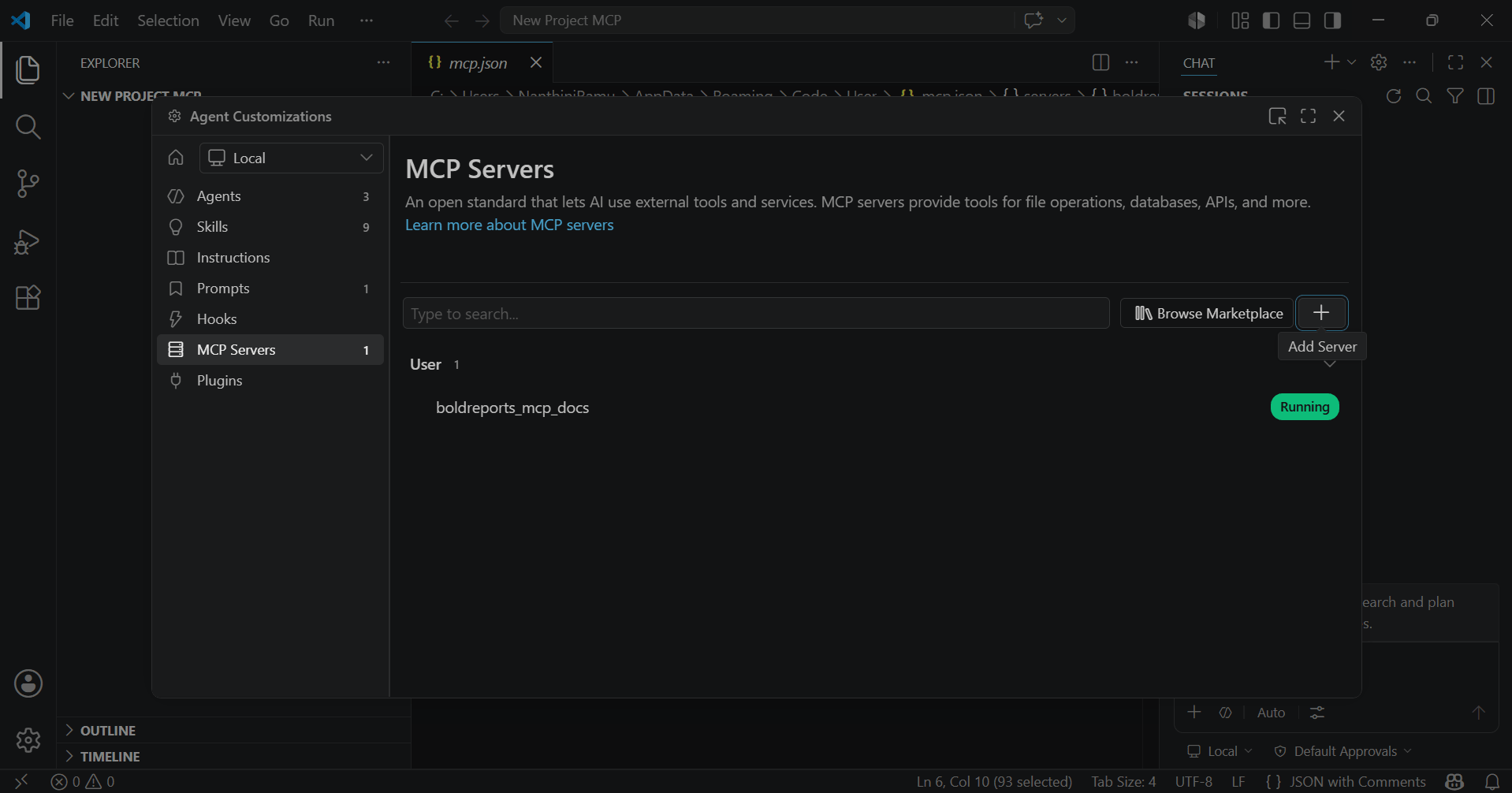
-
Configure the Bold Reports® MCP Server.
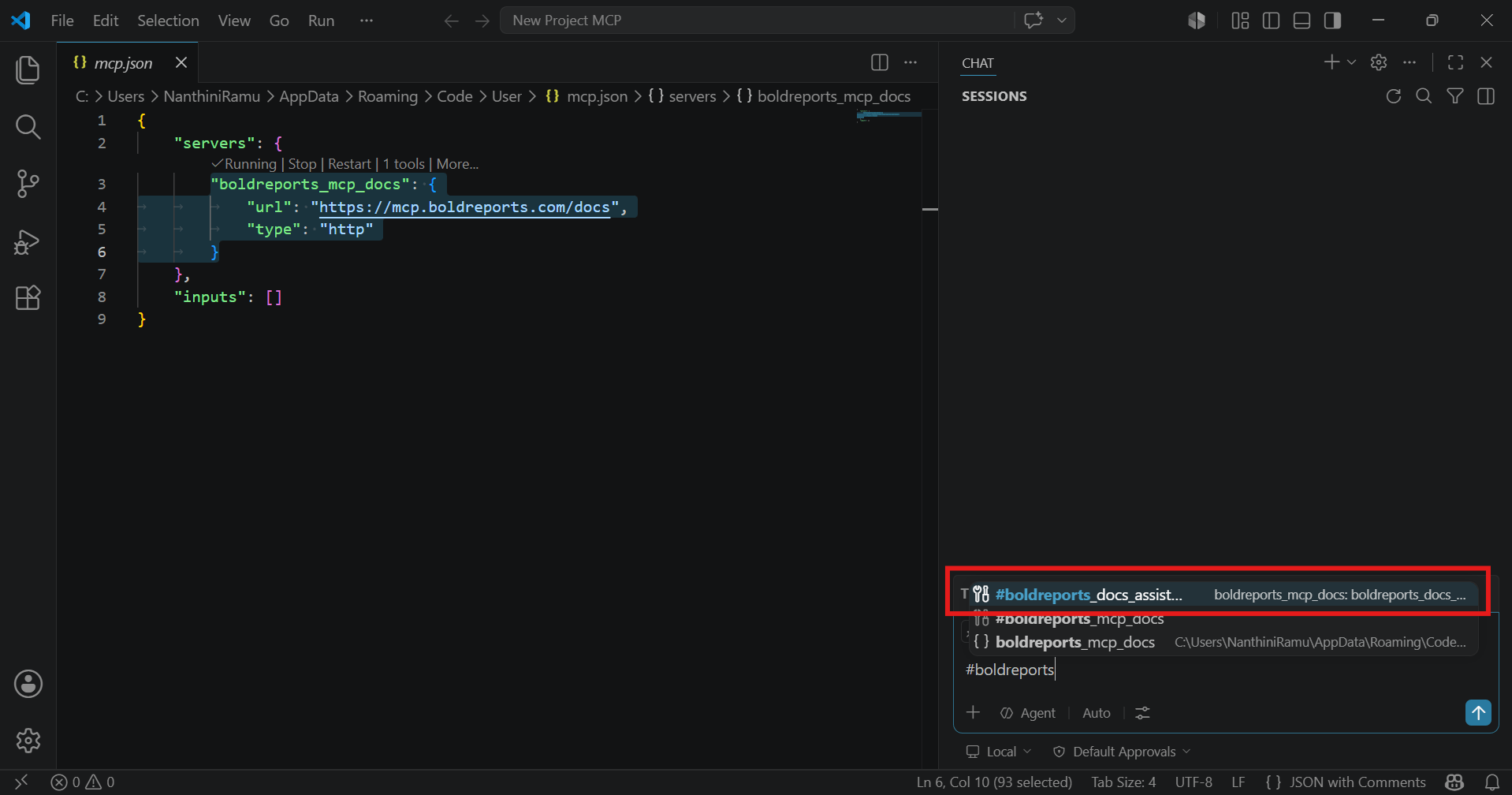
-
The AI assistant sends the request to the MCP server.
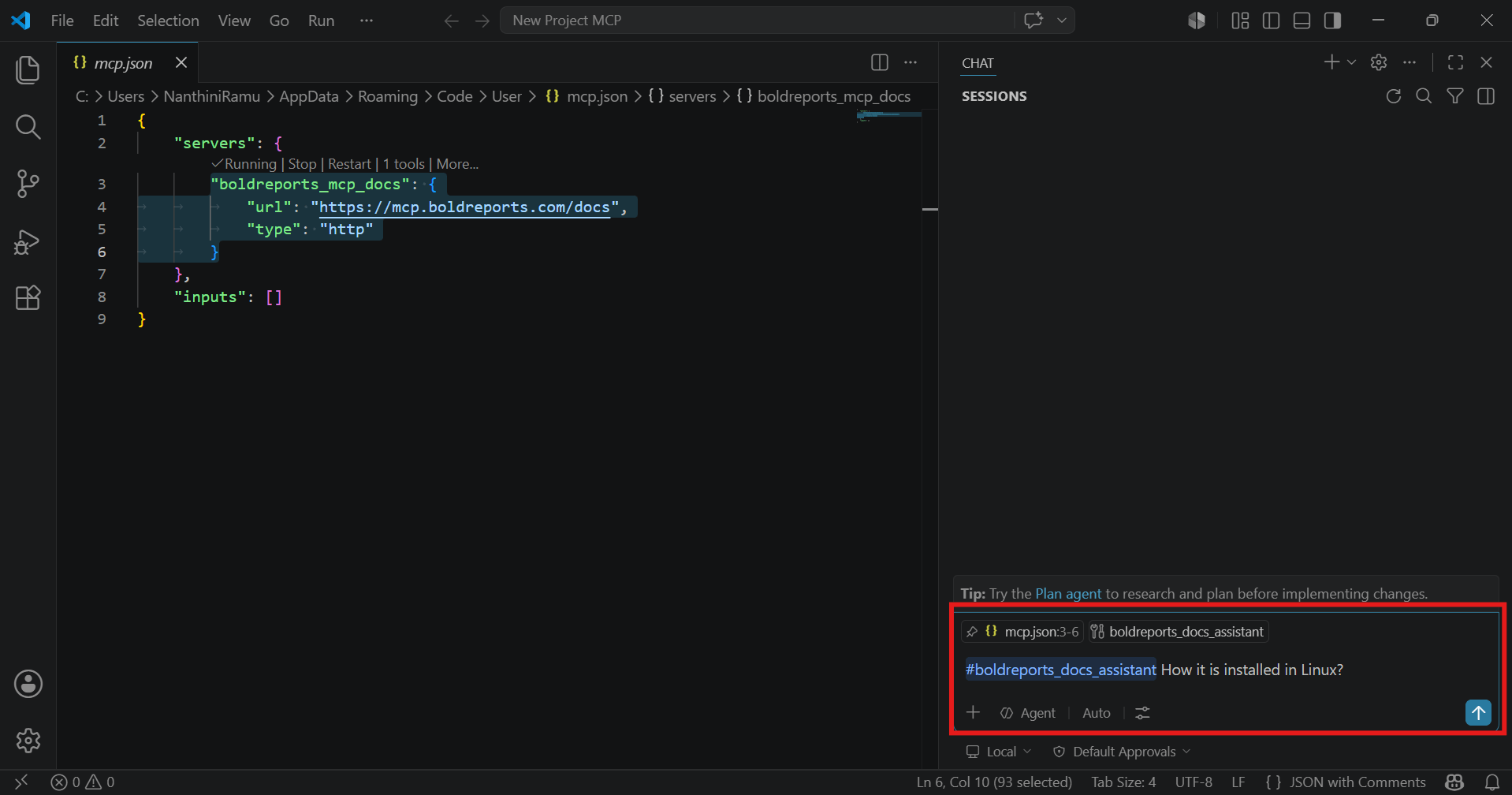
-
The MCP server searches Bold Reports® help resources.
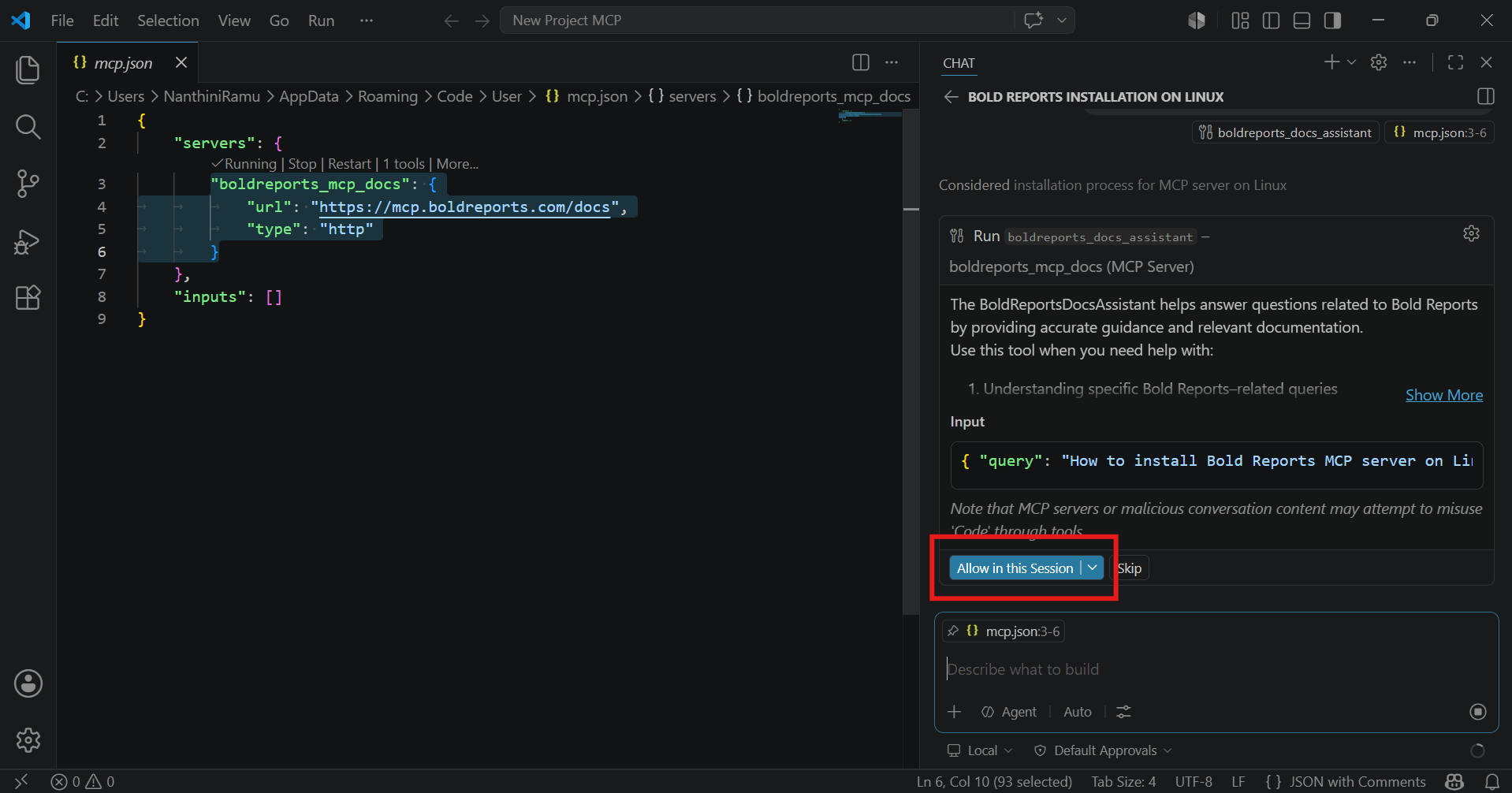
-
The assistant responds with accurate, contextual answers.
This approach enables developers to get accurate, documentation-based guidance directly within their coding environment.
Prerequisites
Supported IDEs
- Visual Studio 2022
- Visual Studio 2026
- Visual Studio Code
Supported AI Tools
- GitHub Copilot
- JetBrains AI Assistant
- Claude Desktop
- Claude Code (CLI)
- ChatGPT (Plus, Team, or Enterprise)
- Gemini CLI
- Other MCP-compatible AI Assistants
For the best experience, use up-to-date versions of your IDEs and extensions to ensure smooth integration and access to the latest capabilities.
Common Setup Steps
- Enable Agent Mode: Make sure Agent Mode is turned on in your IDE to allow MCP-based interactions with Bold Reports®. Refer to your IDE documentation if needed.
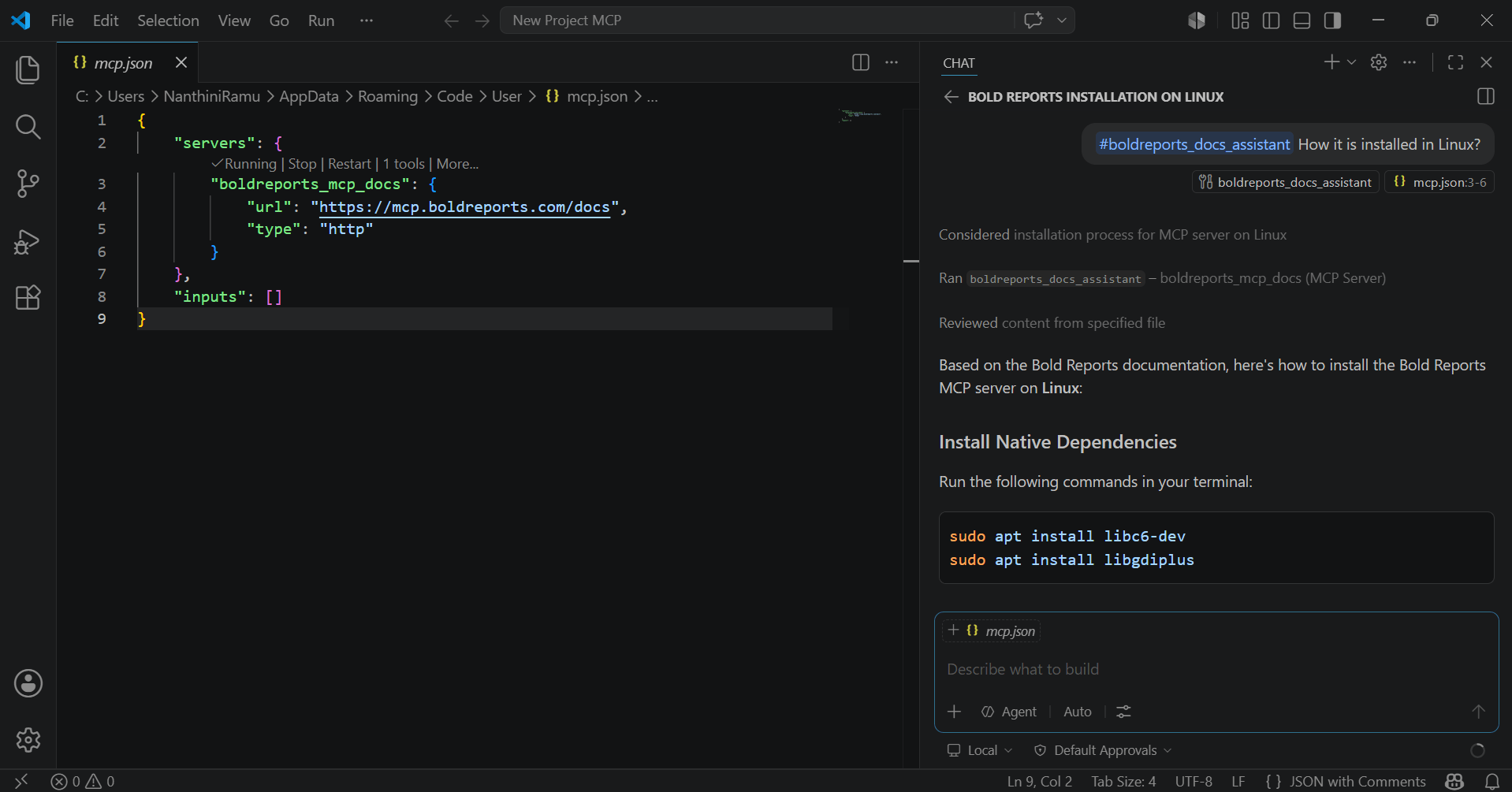
- Set Up Bold Reports® MCP Server: Add the Bold Reports® MCP server endpoint to your MCP configuration. Some IDEs may support quick or one-click setup options.
- Validate the Connection: Ensure the Bold Reports® tools are available in your AI assistant, such as #boldreports_docs_assistant.
- Add Custom Instructions (if needed): Provide tailored prompts or guidance to improve how the AI assistant interacts with Bold Reports® documentation and tools.
One-Click Installation Links
Use the following links for quick installation:
- Install Bold Reports® MCP in Visual Studio 2022/2026 ↗
- Install Bold Reports® MCP in VS Code ↗
- Install Bold Reports® MCP in VS Code Insiders ↗
Note: If the one-click installation does not work, you can follow the manual installation steps provided in the next section.
Manual Installation and Related Documentation
Visual Studio 2022
Add a .mcp.json file to the %USERPROFILE% directory.
Visual Studio (Latest Versions)
Ensure the .mcp.json file is available in the %USERPROFILE% location.
VS Code
Use the Command Palette → “MCP: Add Server”, or manually create
ChatGPT
Setup steps:
- Open ChatGPT in your browser.
- Go to Settings → Connectors → Advanced Settings.
- Enable Developer Mode.
- Click Create Connector.
- Name: “Bold Reports® Documentation”.
- URL:
https://mcp.boldreports.com/docs - Authentication: None.
- Trust and create the connector.
Read more:
Asking a Question: Best Practices
To get accurate results from the Bold Reports® MCP Server:
- Be specific: Clearly mention the feature (Report Viewer, Designer, RDL, parameters, data sources).
- Include your environment: Specify your tech stack (ASP.NET Core, Angular, React, Blazor, JavaScript).
- Ask for details: Request code samples or step-by-step guidance when needed.
- Reference documentation: Use phrases like “based on Bold Reports® docs” for better results.
Sample Queries
- Create an ASP.NET Core app with the Bold Reports® Viewer and secure access.
- Design a parameter-driven RDL report using a SQL data source.
- Generate React code to integrate the Bold Reports® Viewer with custom toolbar options.
- Explain how to implement drill-through reports.
- Build a Blazor app with the Report Designer and a REST API data source.
Troubleshooting
| Issue | Solution |
|---|---|
| MCP server not starting | Restart IDE and check configuration |
| Invalid JSON | Fix syntax errors in mcp.json |
| Server not recognized | Verify endpoint and connection type |
| No AI response | Enable MCP/Agent mode |
| Connection errors | Check access to MCP endpoint |
| MCP tools unavailable | Ensure MCP is enabled |
Security Considerations
- Review all AI-generated responses before using them.
- Validate configurations and code before deployment.
- Ensure usage aligns with your organization’s security policies.