Proxy Settings
You can configure proxy settings in the Bold Reports® application to route traffic through a specified proxy server.
What is a Reverse Proxy?
A reverse proxy is a server that sits between client devices and your backend application servers. It receives incoming requests from clients and forwards them to the appropriate internal server. Once the response is received from the internal server, it is sent back to the client by the reverse proxy.
Configure Proxy URL
-
You can choose either
httporhttpsfor the protocol based on your certificate configuration. -
In the Site or Proxy URL field, enter your desired domain (e.g., example.com or localhost:55981).
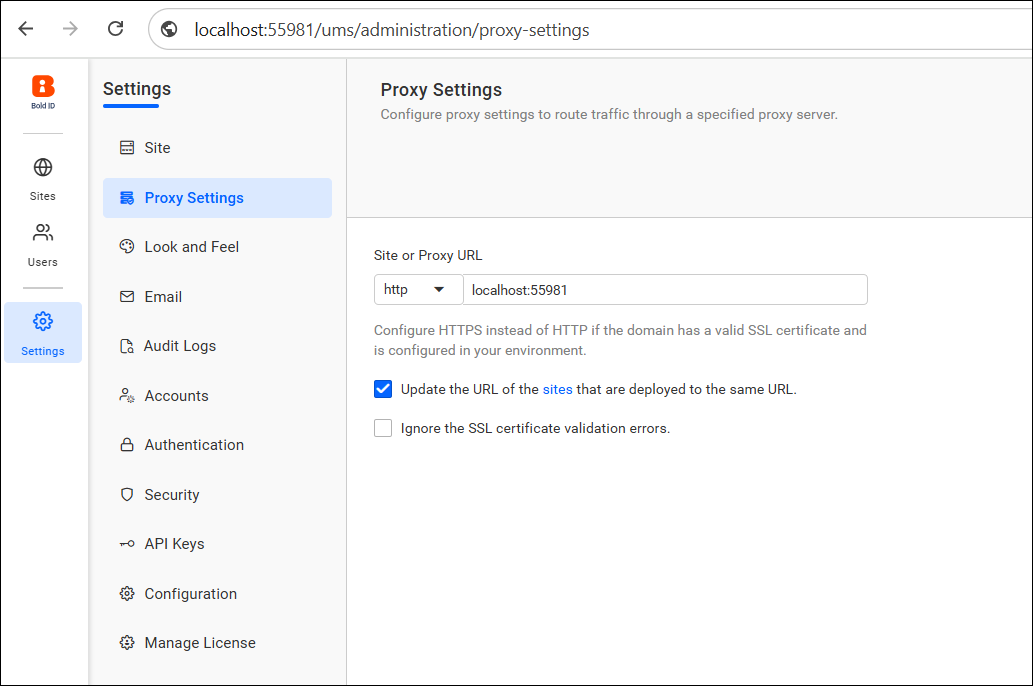
Available Options
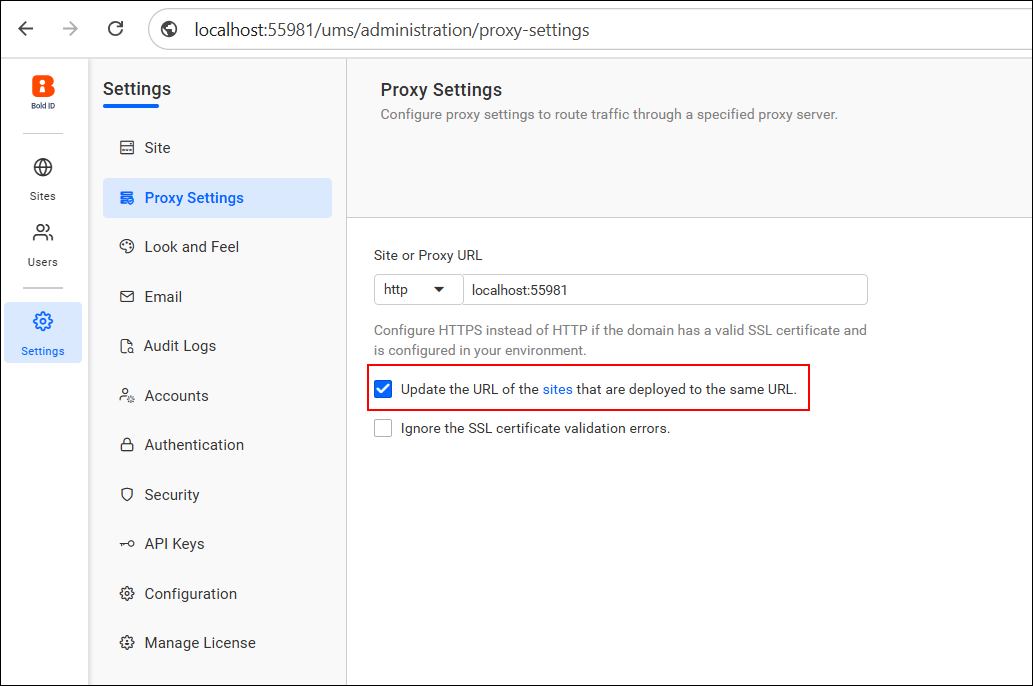
Update the URL of the sites
-
Enable this checkbox to automatically update the URL for all sites that are deployed using the same domain.
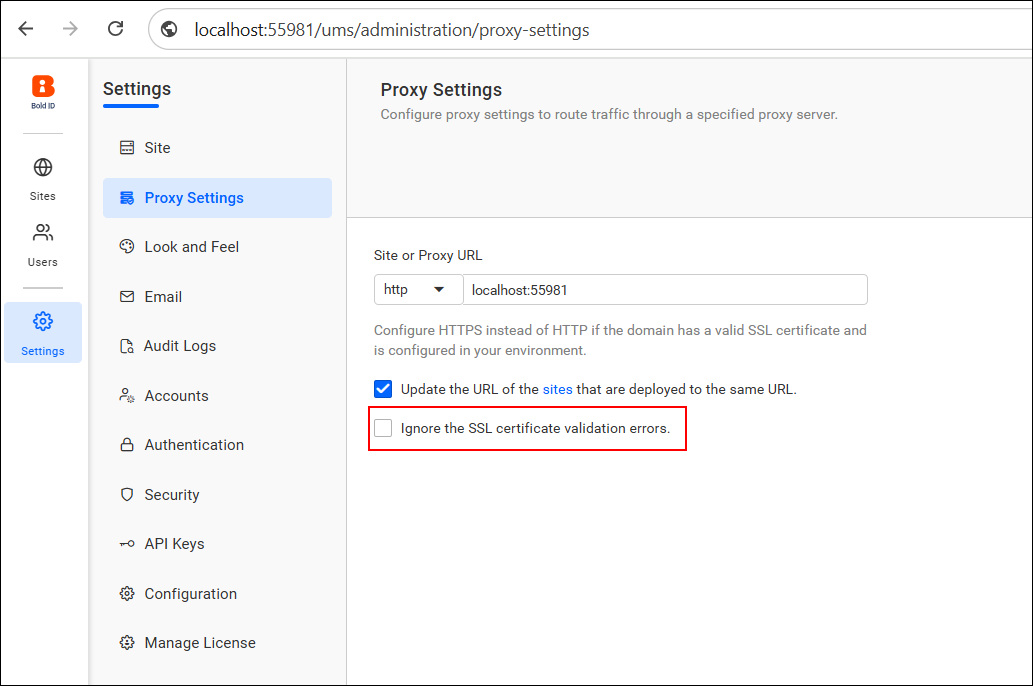
Ignore SSL Certificate Validation
-
If your environment does not have a valid SSL certificate, you can check Ignore the SSL certificate validation errors.
-
This is helpful for development or internal environments without a trusted certificate authority.
Notes
- Use https only if a valid SSL certificate is configured.
- Once the proxy settings are updated, you need to restart IIS for the changes to take effect.
If you want to set up Bold Reports® to work securely through an Nginx reverse proxy, we’ve created a step-by-step guide. It explains how to deploy Bold Reports® on different platforms and connect it through a Linux-based reverse proxy. Please refer to the KB article.