How to migrate one sever to another server using PostgreSQL database on Windows
We can migrate Bold Reports® Server data from one server to another server without any data loss. It involves a few manual steps, as below.
-
Before proceeding with the migration, Install the same version of Bold Reports® build on your target machine.
-
After installation, do not launch or start the application.
-
We need to make some configuration changes in files to migrate data from Server 1 to Server2. So please Stop BoldReports_EnterpriseReporting application in IIS manager.
-
Application data will be stored in the app_data folder, and this will make the Bold Reports® a stateful application. So, we need to copy the app_data folder under Deployed location:\BoldService from Server-1 and paste that folder in the same location on Server-2.
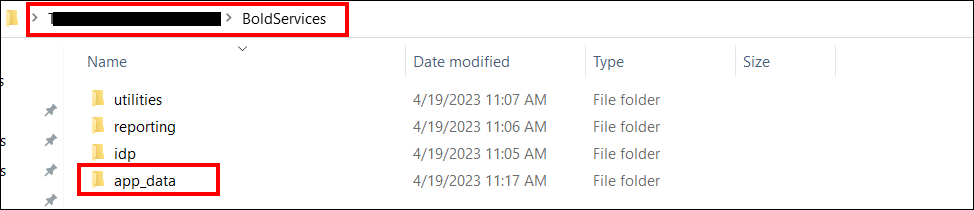
Please follow the below steps to change the configurations on the target server,
Backup Database
Each Bold Reports® site maintains an individual metadata database. To ensure data protection for each site, you need to back up all these metadata databases used across your Bold Reports® applications. Follow the steps below to perform the backup.
-
Open pgAdmin and connect to the Server in server-1.
-
Expand Databases and select the required database.
-
Right click on the database -> Backup.
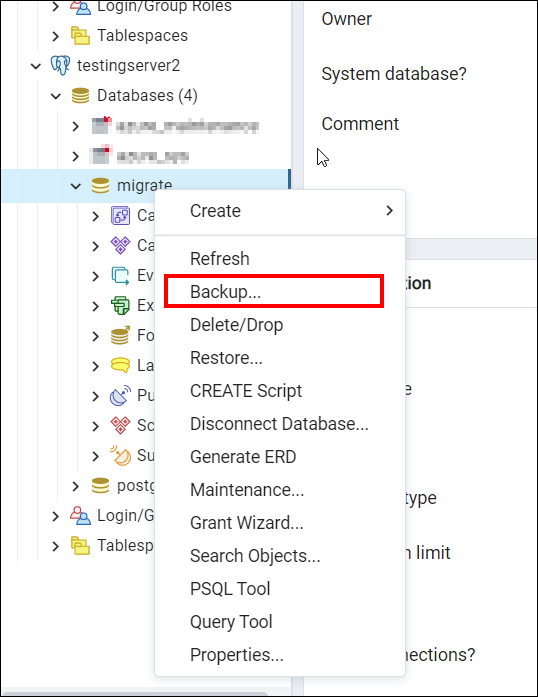
-
In Back Up Database window, select browse option in the file name.
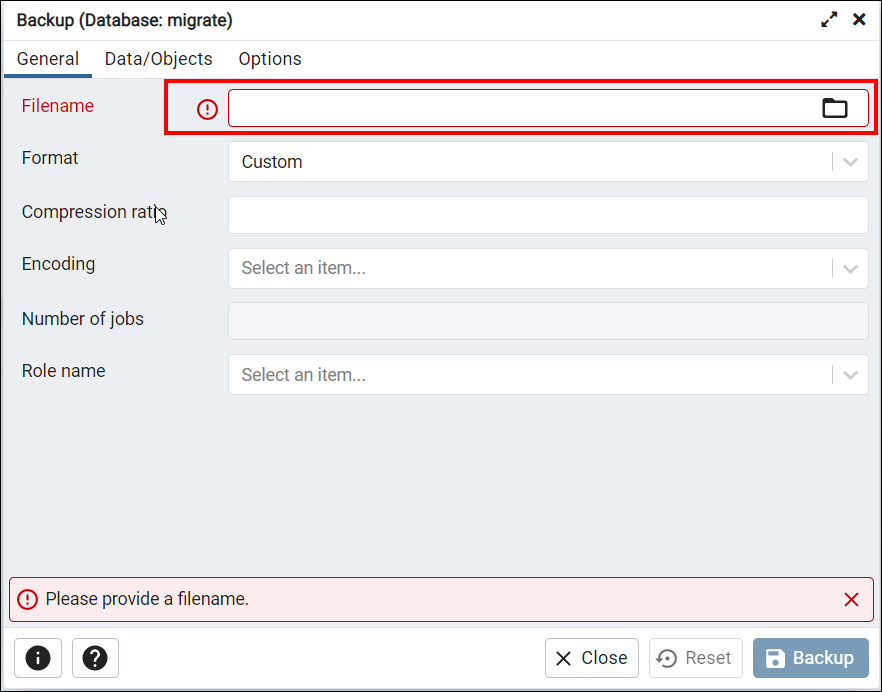
-
Select the folder name and enter the file name which should be same as database name with a .sql extension. Click create.
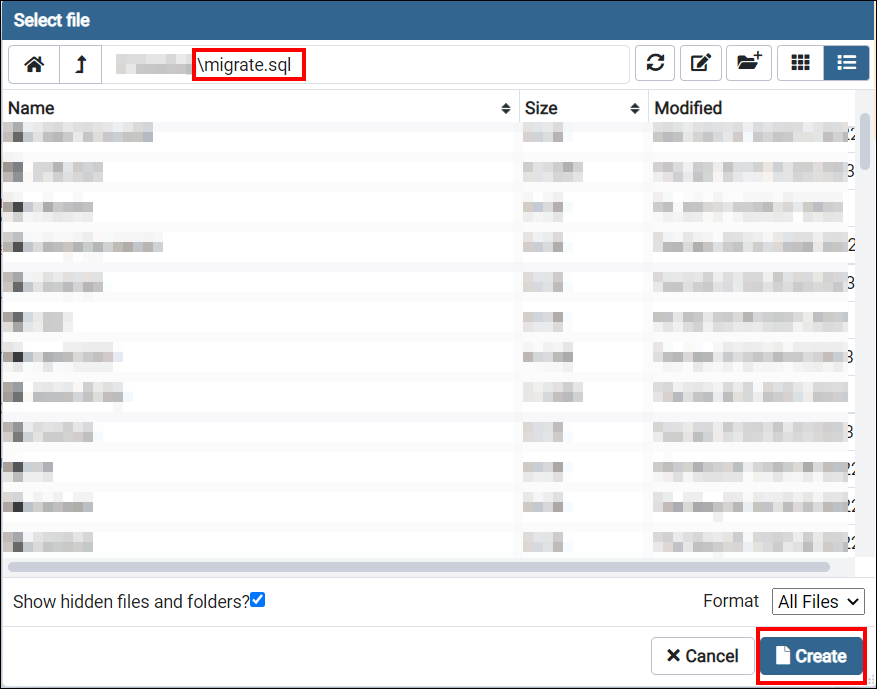
-
Click backup to end the backup process.
Restore Database
Copy all the backup database files with .sql extension from server-1 to server-2. Follow the below steps to restore your SQL backup databases.
-
Open PgAdmin and connect to your database in server-2.
-
Select the Databases and right click -> Restore Database.
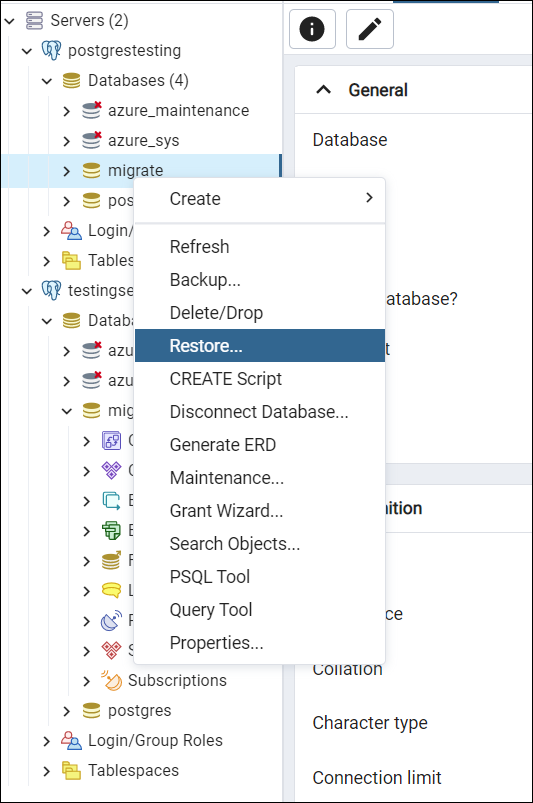
-
In the Restore Database window, select browse option in the file name.
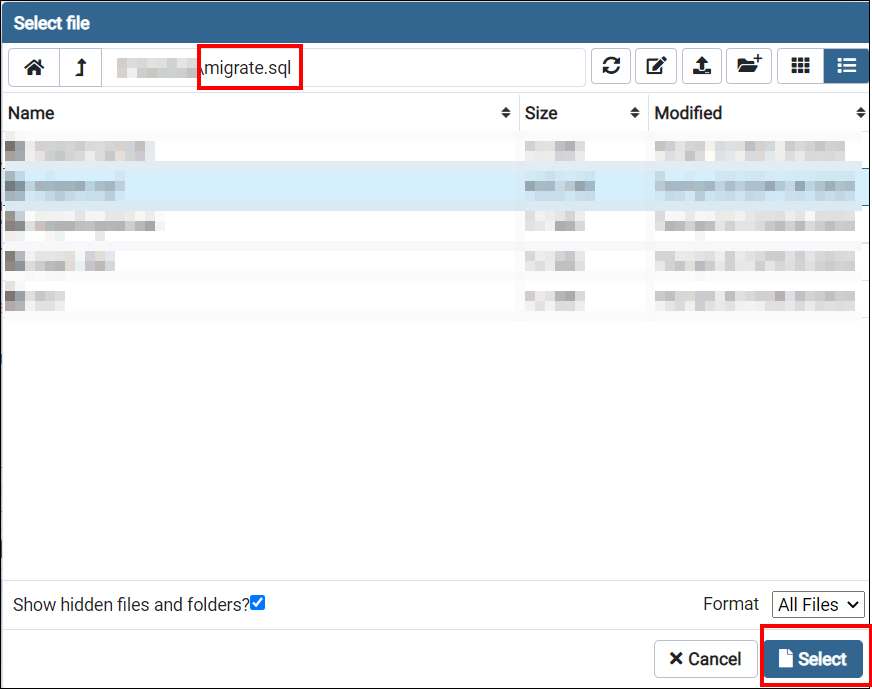
-
Select the backup file which you want to restore and click select.
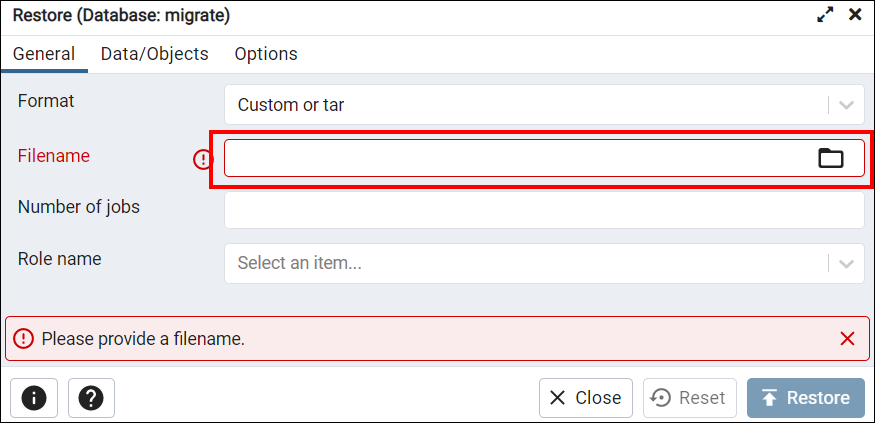
-
Click restore to restore the files.
Update database connection string in Bold Reports®
-
We need to update the database connection string in the config.xml file under C:\BoldServices\app_data\configuration.
-
To change the database connection string, Download the utility from Utility
-
Extract the zip file.
-
Create new folder app_data\configuration in the utility as like in below screenshot.
-
Copy the config.xml and privatekeys.dat files from
C:\BoldServices\app_data\configuration and paste it under adminutils-1865244183\app_data\configuration
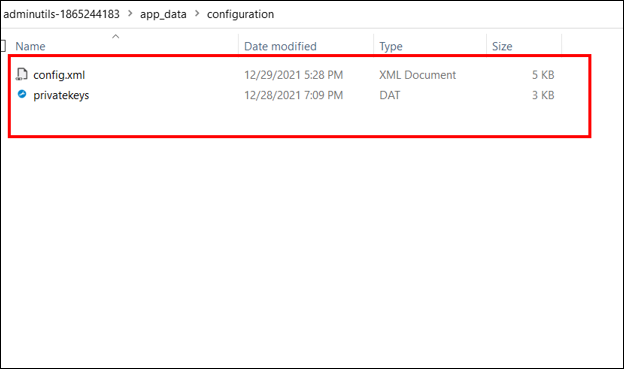
-
Navigate to the utility directory in command prompt and run the following command
Syncfusion.Server.Commands.Utility.exe dbconfig -servername “localhost” -databasename “BoldReportsMasterDatabase” -u “Admin” -p “Admin@12345” -iswindowsauthentication false -sslenabled false -port “25060”
Command details
Servername – Server hostname/IP
Database name - database name (IDP)
u – server username
p – server password
iswindowsauthentication – Is windows authentication required (this is optional)
sslenabled – Is encrypted connection required (this is optional)
-
Once it was ran successfully, copy the config.xml and privatekeys.dat files from adminutils-1865244183\app_data\configuration from the utility folder. Replace it in Deployed location:\BoldServices\app_data\configuration in the server-2.
-
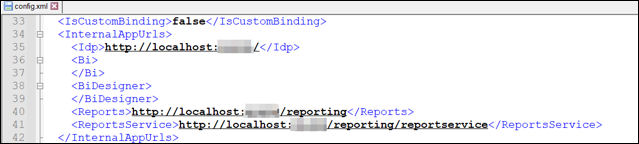
Check and update Ip address or localhost port in the config.xml file and product.json under BoldServices\app_data\configuration in Server-2. If you are using DNS leave as it is since it will be already available when copying the files from server-1 to server-2.
-
Make sure to bind your DNS in IIS in server-2 which you have used it in server-1, if not used please ignore this step.
-
Start the BoldReports_EnterpriseReporting application in IIS manager.
-
Go to site listing page of UMS application.
-
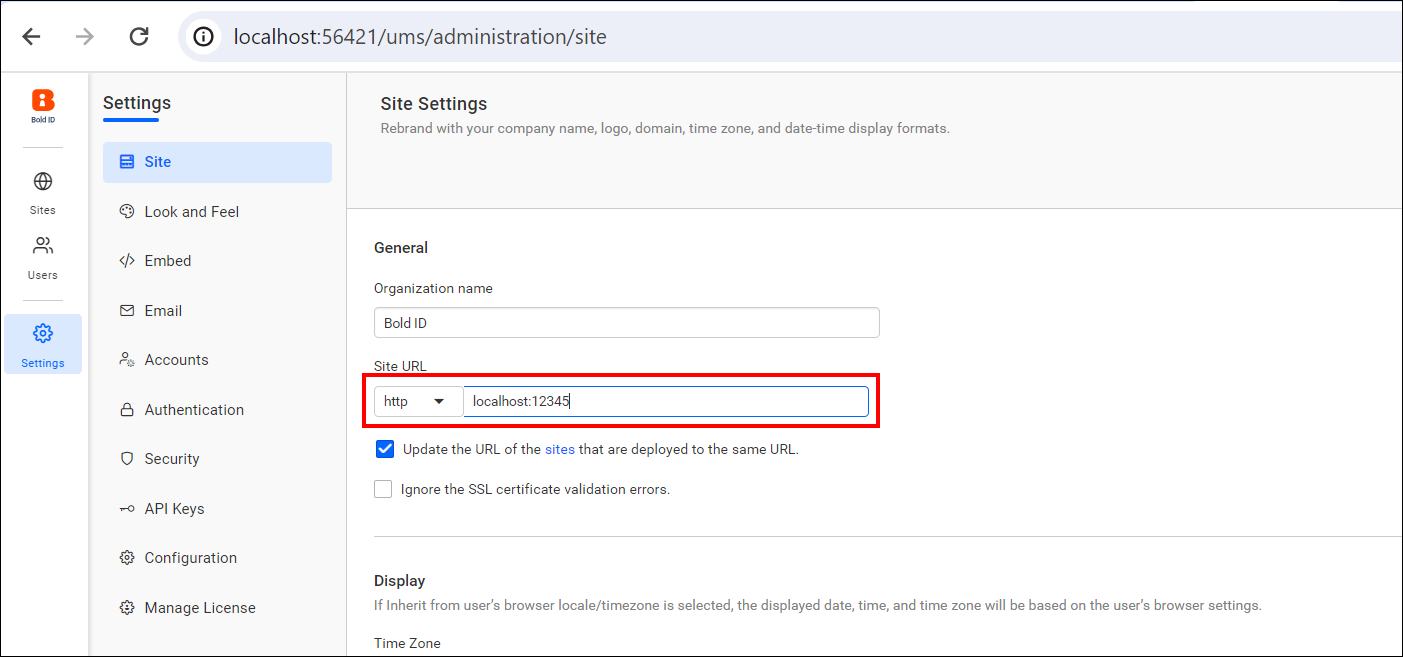
Go to settings and change the site url with your domain name like below
-
Now your reports sites will launch with your existing data.