How to migrate one server to another server without using database on Windows
We can migrate Bold Reports® Server data from one server to another server without any data loss. Please follow the below steps,
-
Before proceeding with the migration, Install the same version of Bold Reports® build on your target machine.
-
After installation, do not launch or start the application.
-
We need to make some configuration changes in files to migrate data from one server to another server. So Stop BoldReports_EnterpriseReporting application in IIS manager in Server-2.
-
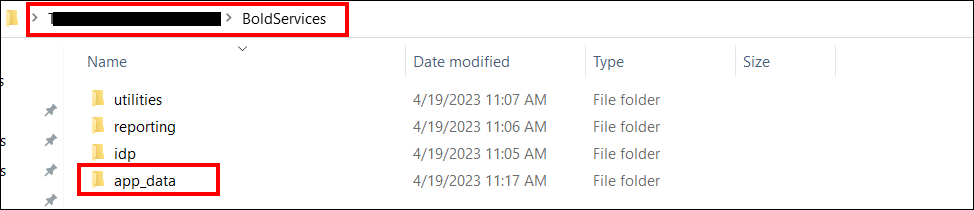
In server-1 from build installed location copy the app_data folder completely.
-
Paste the copied app_data folder in the same location in server-2.
-
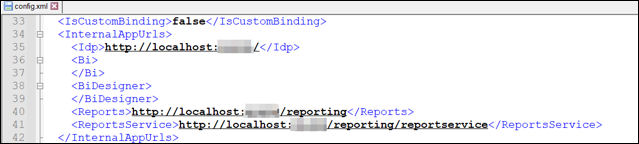
Check and update Ip address or localhost port in the config.xml file and product.json under BoldServices\app_data\configuration in Server-2. If you are using DNS, leave it as it is, because it will already be available when copying the files from server-1 to server-2.
-
Make sure to bind your DNS in IIS in server-2 which you have used in server-1, if not used please ignore this step.
-
Start the BoldReports_EnterpriseReporting application in IIS manager.
-
Go to site listing page of UMS application.
-
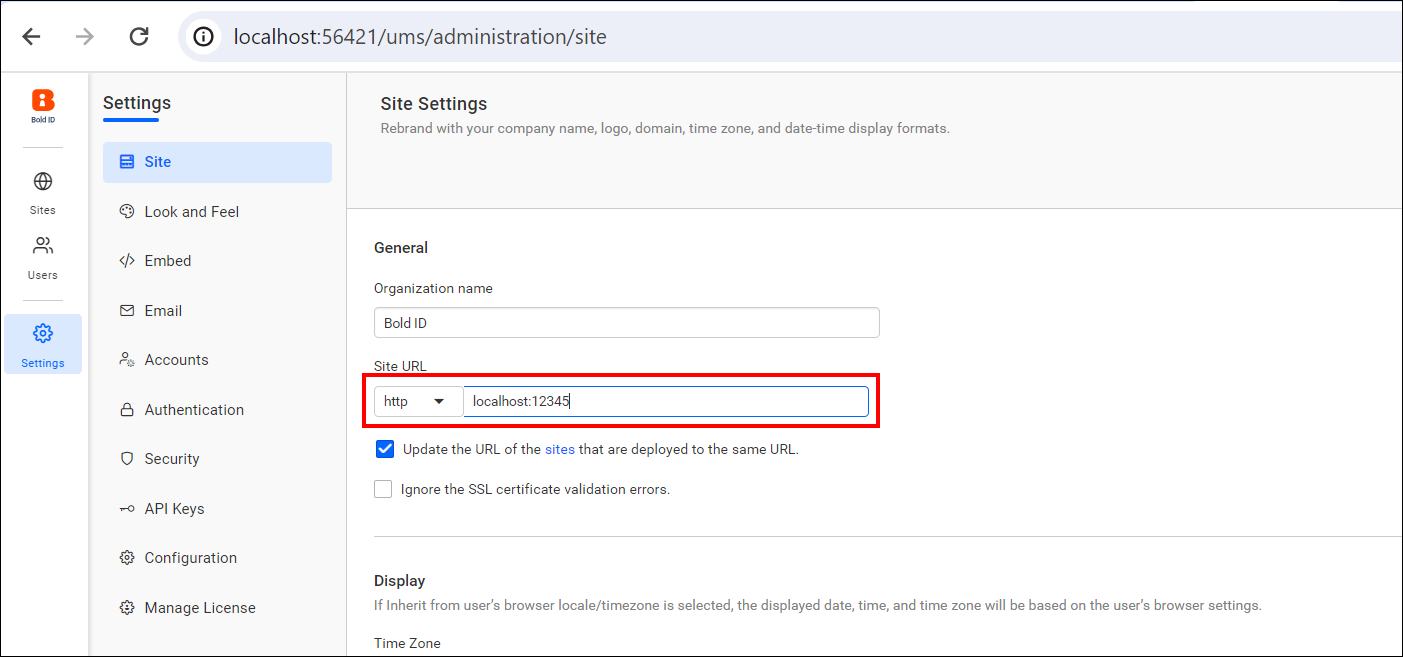
Go to settings and change the site url with your domain name like below.
-
Now your reports sites will launch with your existing data.