How to Migrate the Bold Reports® Database from One Server to Another Using MySQL
This section explains how to migrate Bold Reports® metadata database from one server to another. Follow these steps to complete the database migration.
-
Back Up and Restore the Metadata.
-
Reset the Bold Reports® Application Connection String.
-
Update the Site Metadata Connection String.
-
Restart the Bold Reports® Services.
Backup Database
You need to take a backup of all the databases used in Bold Reports® applications. Please follow the steps below to back up the databases.
-
Open MySQL Workbench and connect to the database server used in Server 1.
-
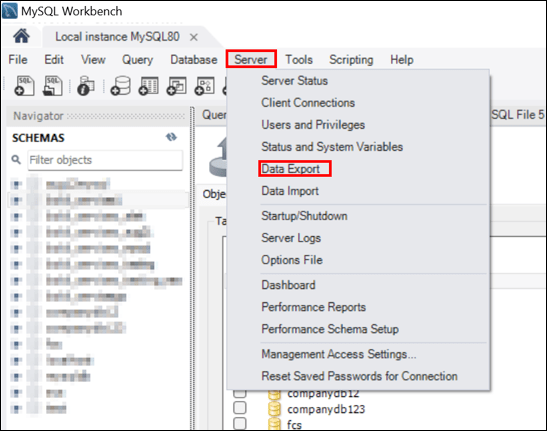
Select the server and click the Data Export option from the menu.
-
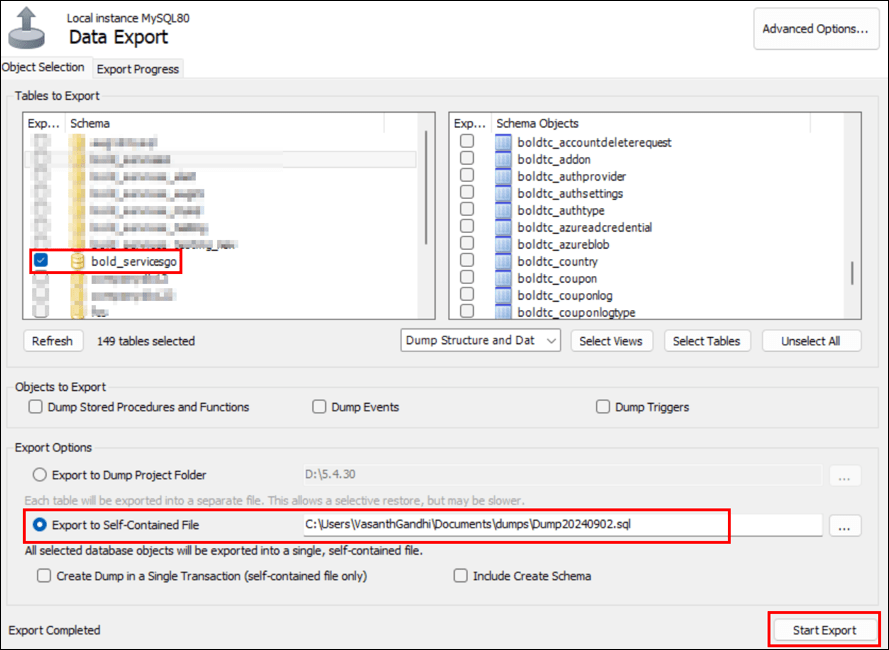
Select the schema, set the export option to Export to Self-Contained File, and choose the backup location.
-
Click on Start Export.
Restore Database
Copy all the backup database files with the .sql extension from Server 1 to Server 2. Follow the steps below to restore your MySQL backup databases.
-
Open MySQL Workbench and connect to your new database that will be used on Server 2.
-
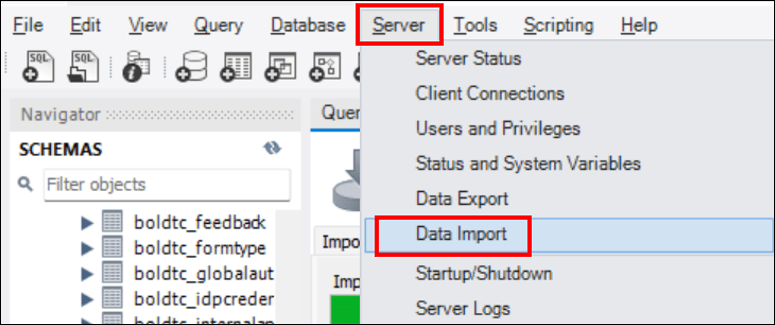
Click on the Server option and select Data Import from the menu.
-
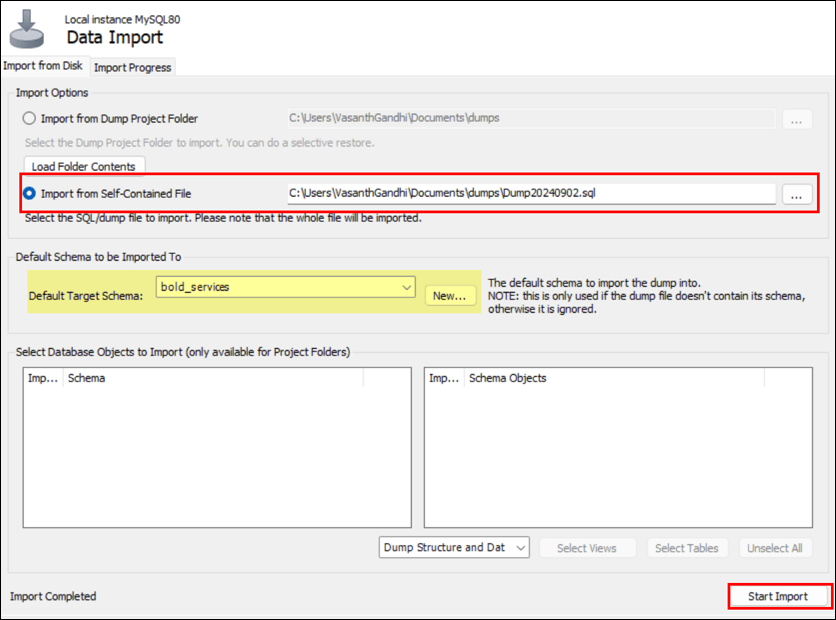
Select Import from Self-Contained File under Import Options and choose the backup database location. Additionally, create a new schema to restore the database.
-
Click Start Import.
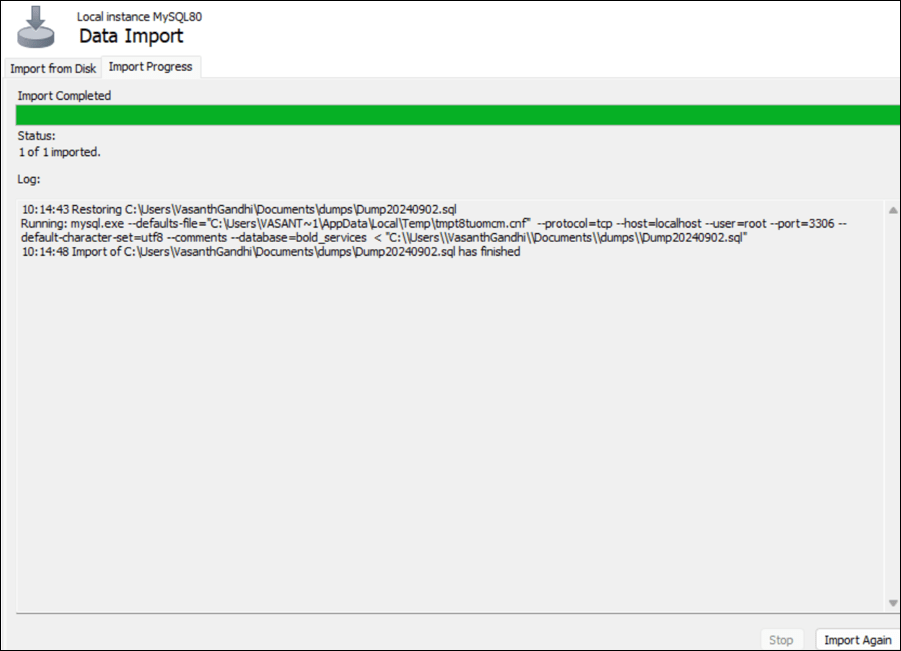
Additionally, follow the provided guidelines to back up and restore databases based on the database type:
| Database Type | Help Link |
|---|---|
| PostgreSQL | Back and Restore Documentation |
| MSSQL | Back and Restore Documentation |
| MySQL | Back and Restore Documentation |
Reset the Bold Reports® Application Connection String
- Use this link to run the utility and reset the database.
Update the Site Metadata Connection String
-
Navigate to the following location:
https://<App Base URL>/ums/sites. -
Edit the sites where you want to change the database connections.
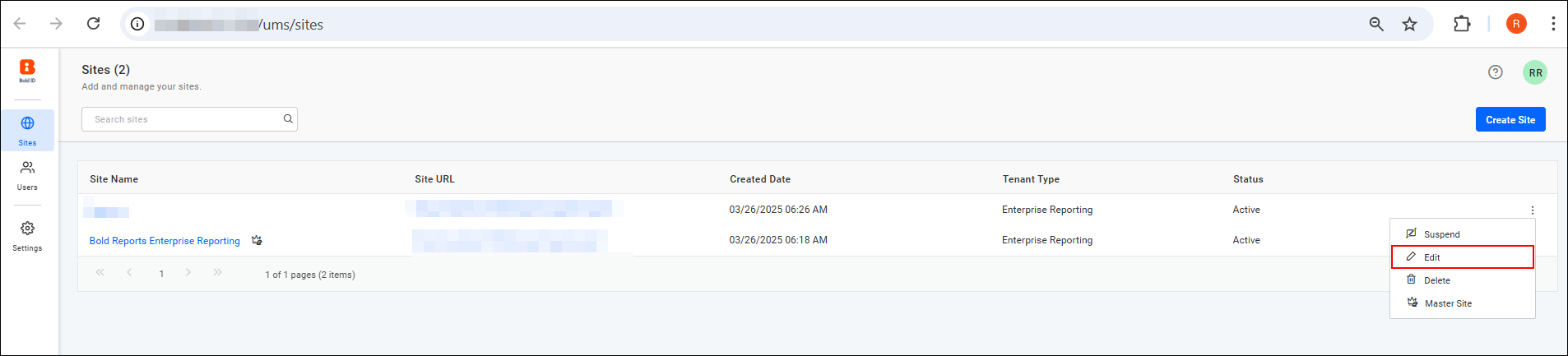
-
Update the new database connection details and click the Update button.
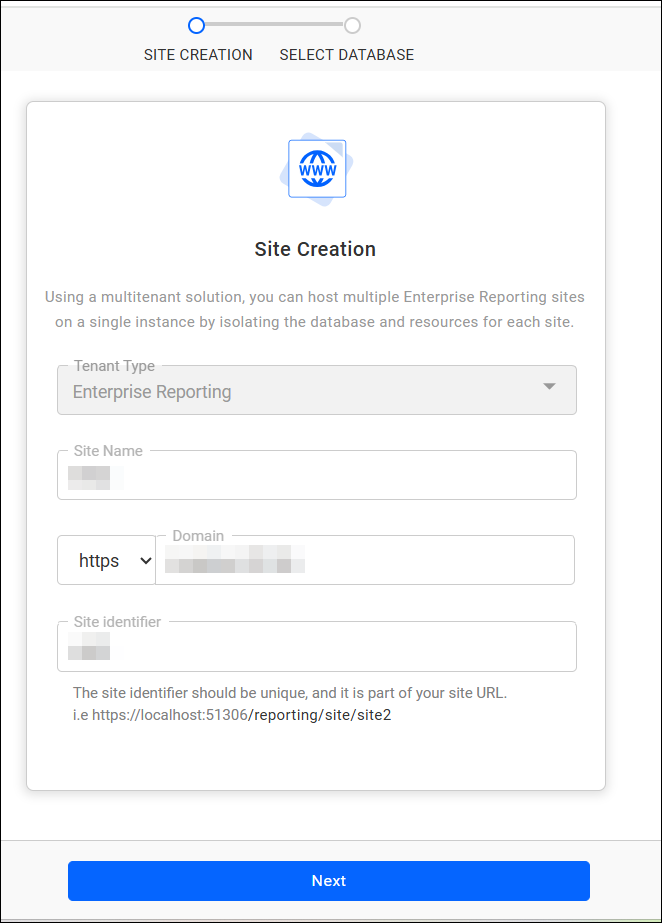
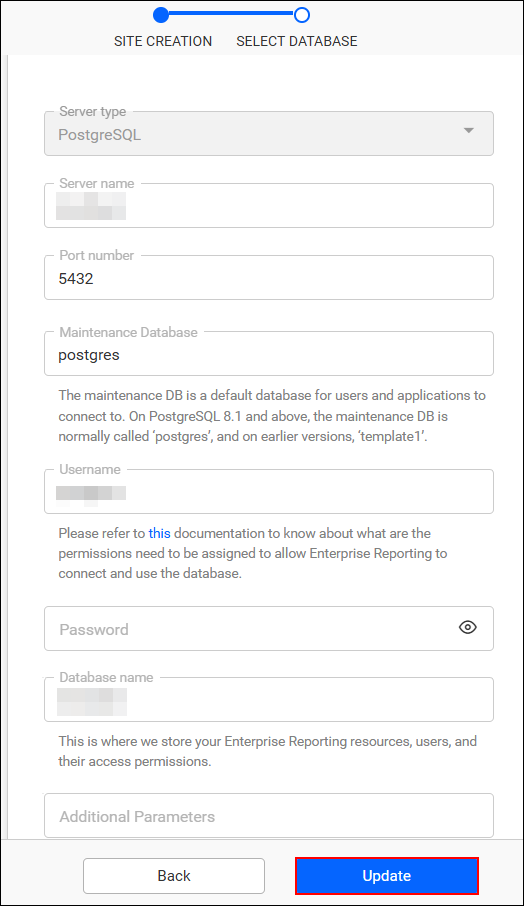
-
After updating, your data will be stored in the restored database.
Restart the Bold Reports® Services
- Refer to the documentation to restart the Bold Reports® services.