Configure SSL for Bold Reports® in IIS Manager
Follow the below steps to configure SSL for Bold Reports® application in IIS Manager.
Import SSL Certificates
-
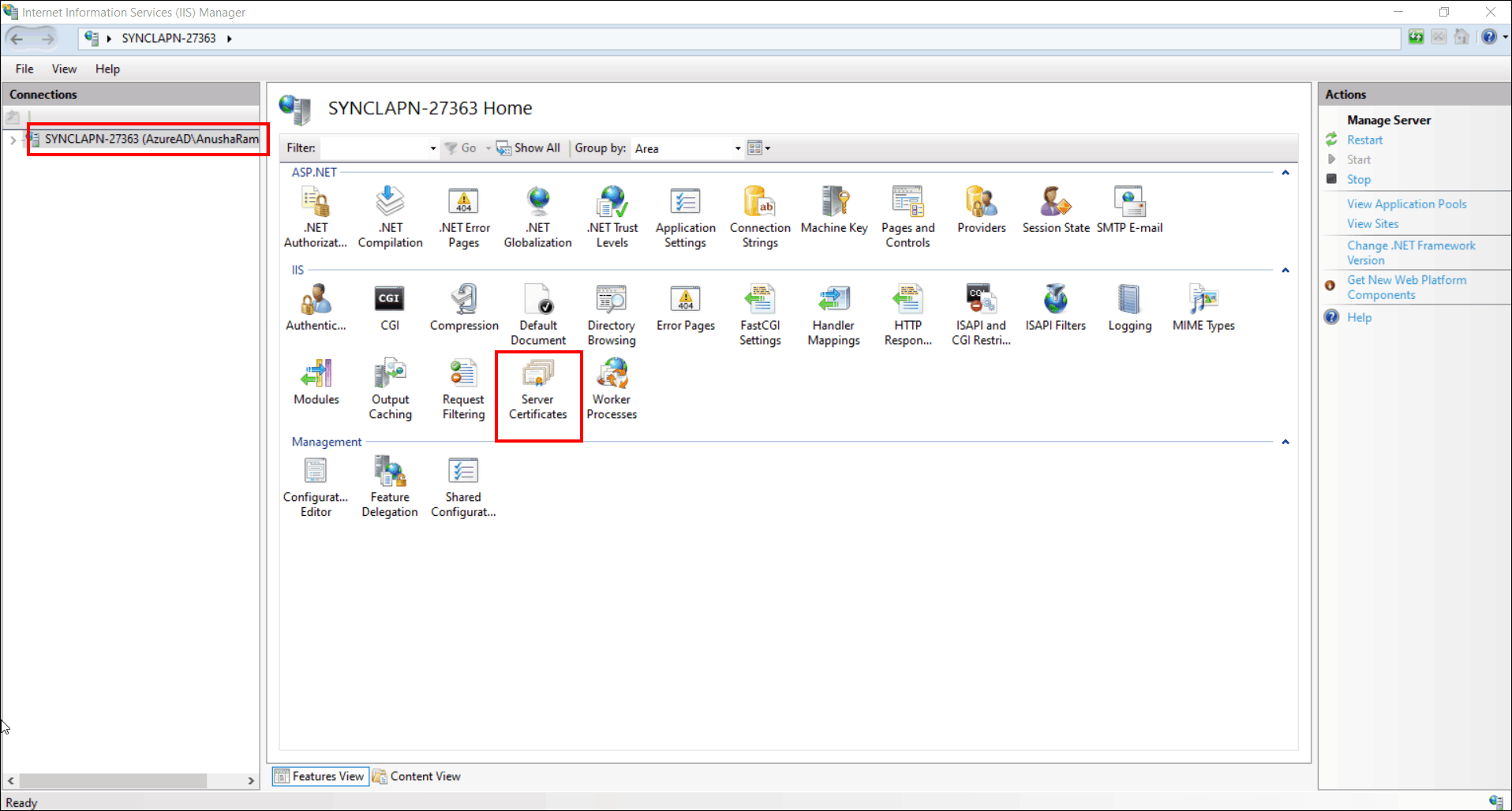
Open IIS Manager. Click Server Certificates.
-
In Actions panel on the right, select import.

-
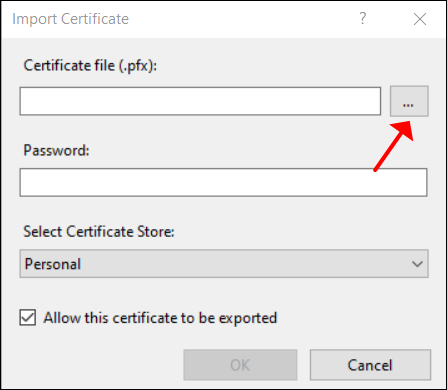
In the Import Certificate dialog box, click on browse option and select the .pfx file and Provide the required Password.
-
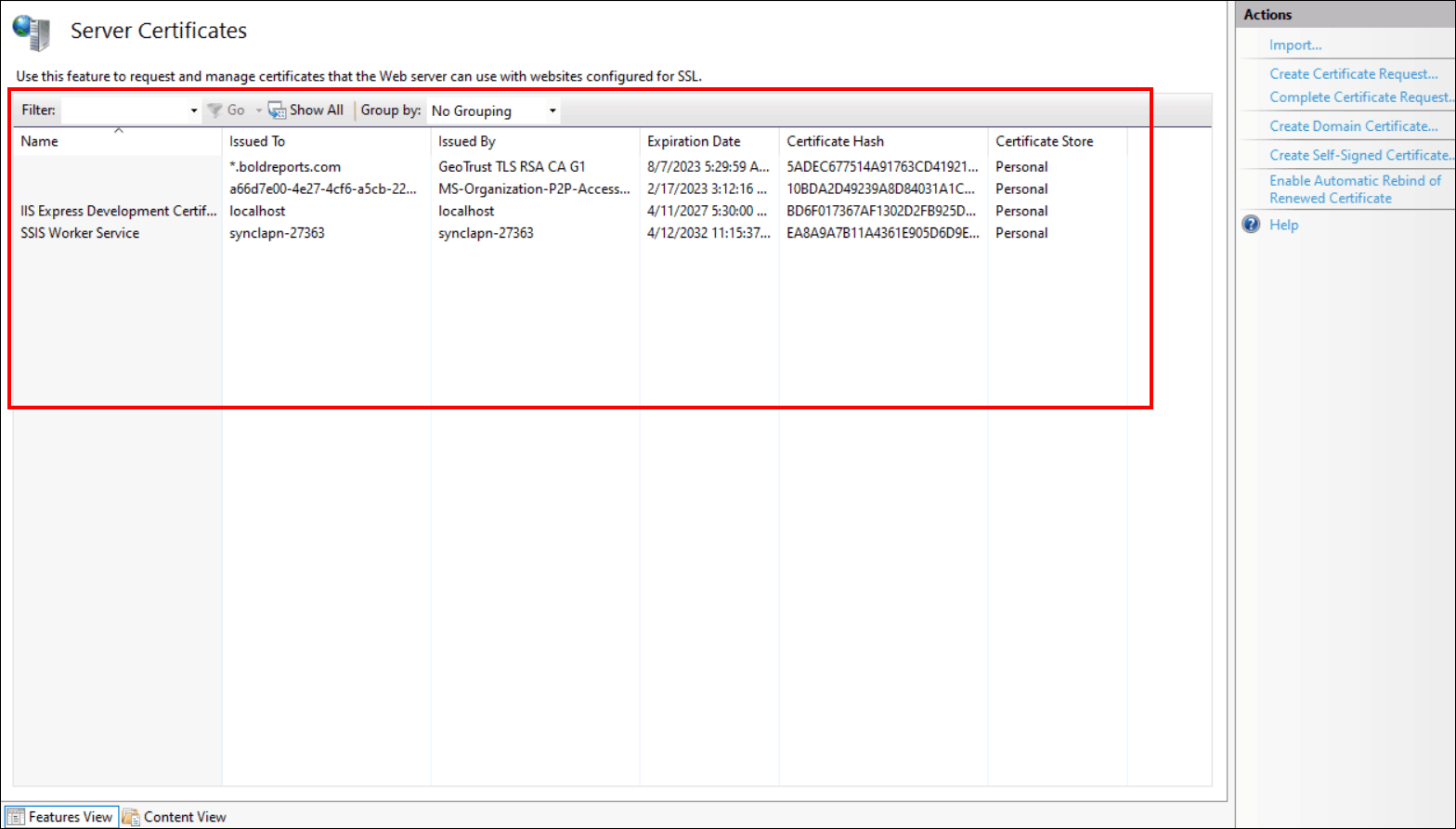
Click OK. The SSL Certificate will be imported to the server.
Sites Binding
-
Once Bold Reports® Enterprise Reporting application is installed, Open IIS Manager.
-
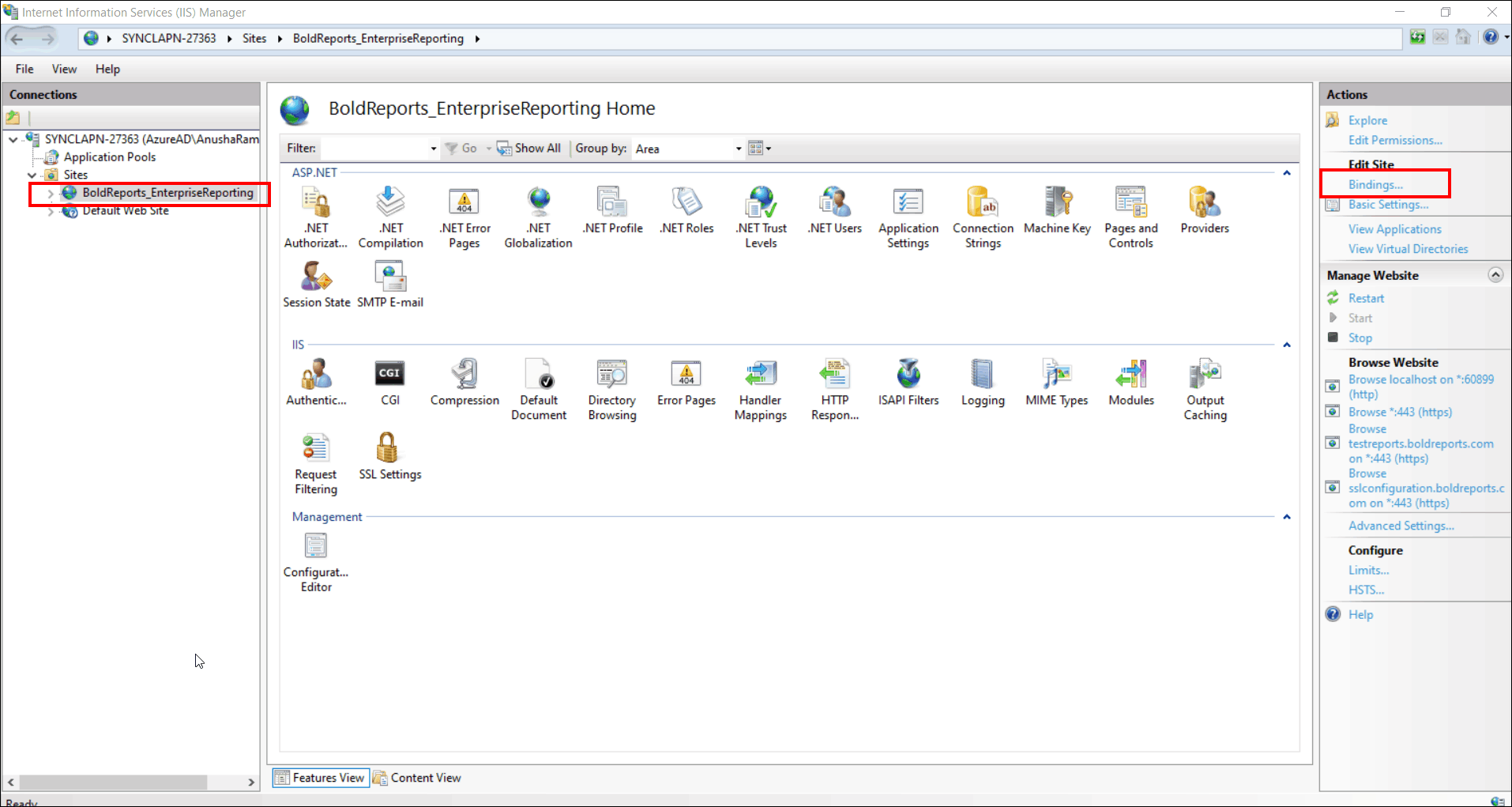
In IIS Manager, Select BoldReports_EnterpriseReporting. In Actions panel on the right, Select Bindings.
-
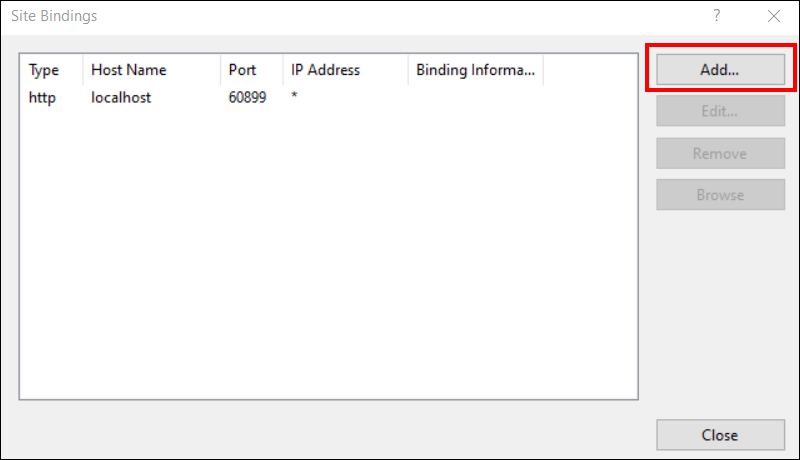
In the Site Bindings dialog box, click Add button.
-
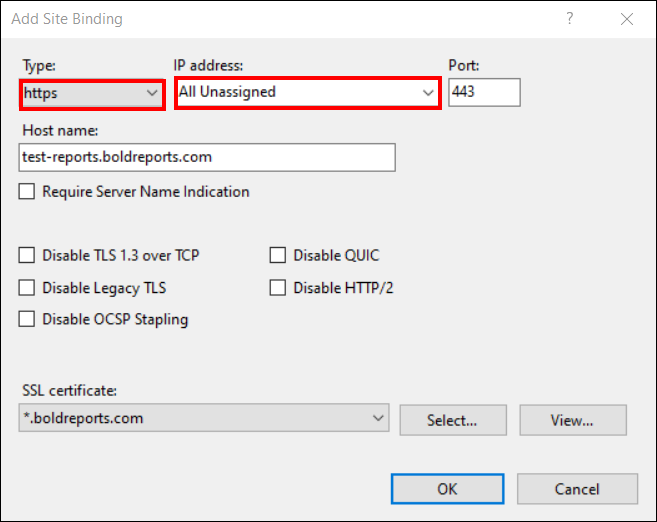
In the Add Site Binding dialog box, click on Type dropdown option and select https. Select All Unassigned as default in IP address.
-
In Host Name, provide the sub-domain name with the Domain name for which the certificate is issued to.
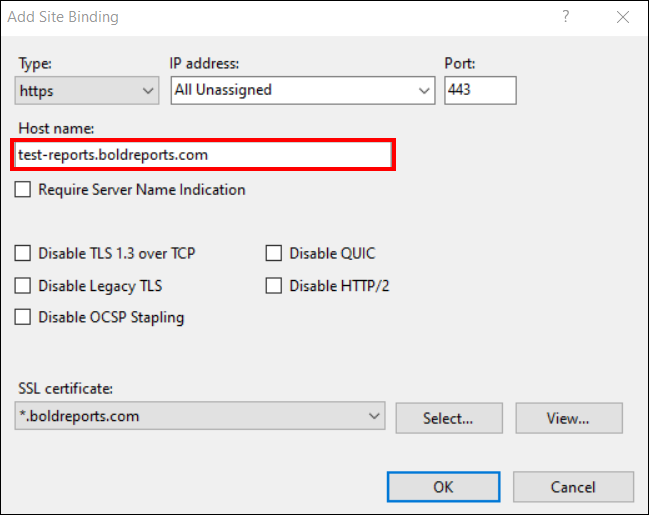
Note: sub-domain name is your choice.
-
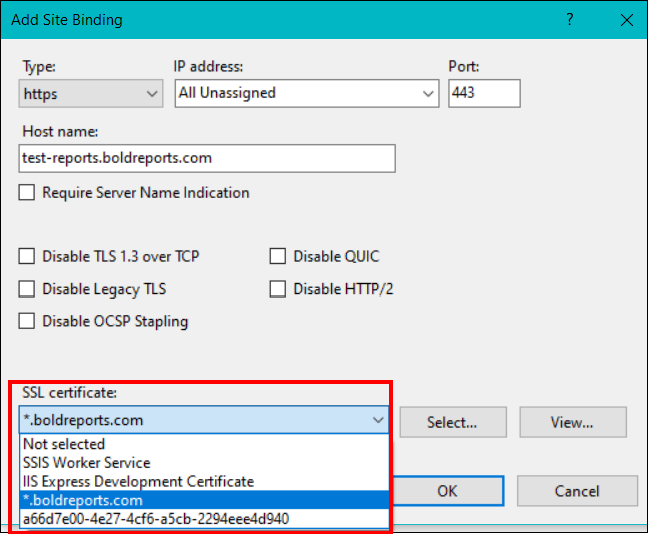
In SSL Certificate dropdown option, select the certificate which you require.
-
Click OK.
-
Restart the application. Your Bold Reports® Enterprise Reporting application in windows is configured with SSL Certificate.
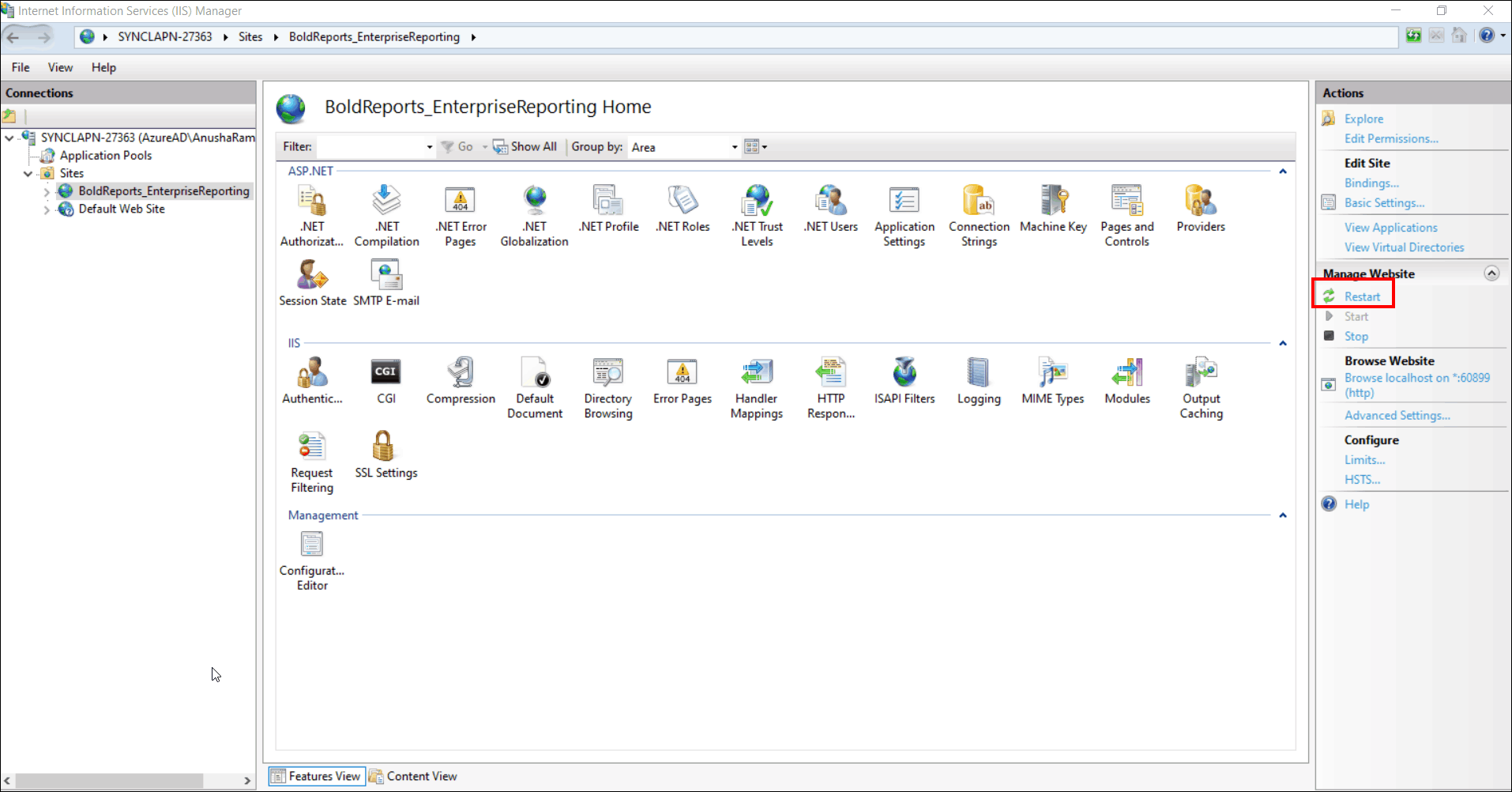
-
Browse the application.
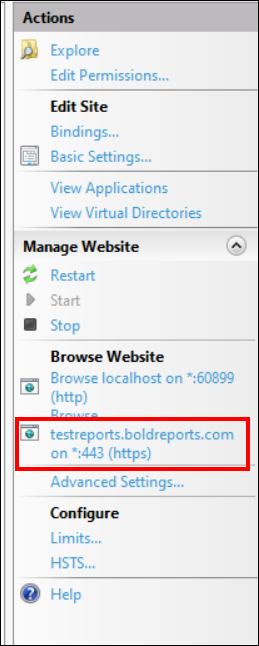
Please refer this Link to change the binding information in Bold Reports® Enterprise Reporting Application.