Report custom properties
Report custom properties in the Bold Reports® WPF Report Viewer improve performance with large data, fix report layout issues, and handle long-running requests.
How do I improve performance and handle large amounts of data?
To improve performance and handle large amounts of data in the WPF Report Viewer with less memory footprint, set the EnableVirtualEvaluation and DisablePageSplitting custom properties in a report.
How do I render large data reports faster?
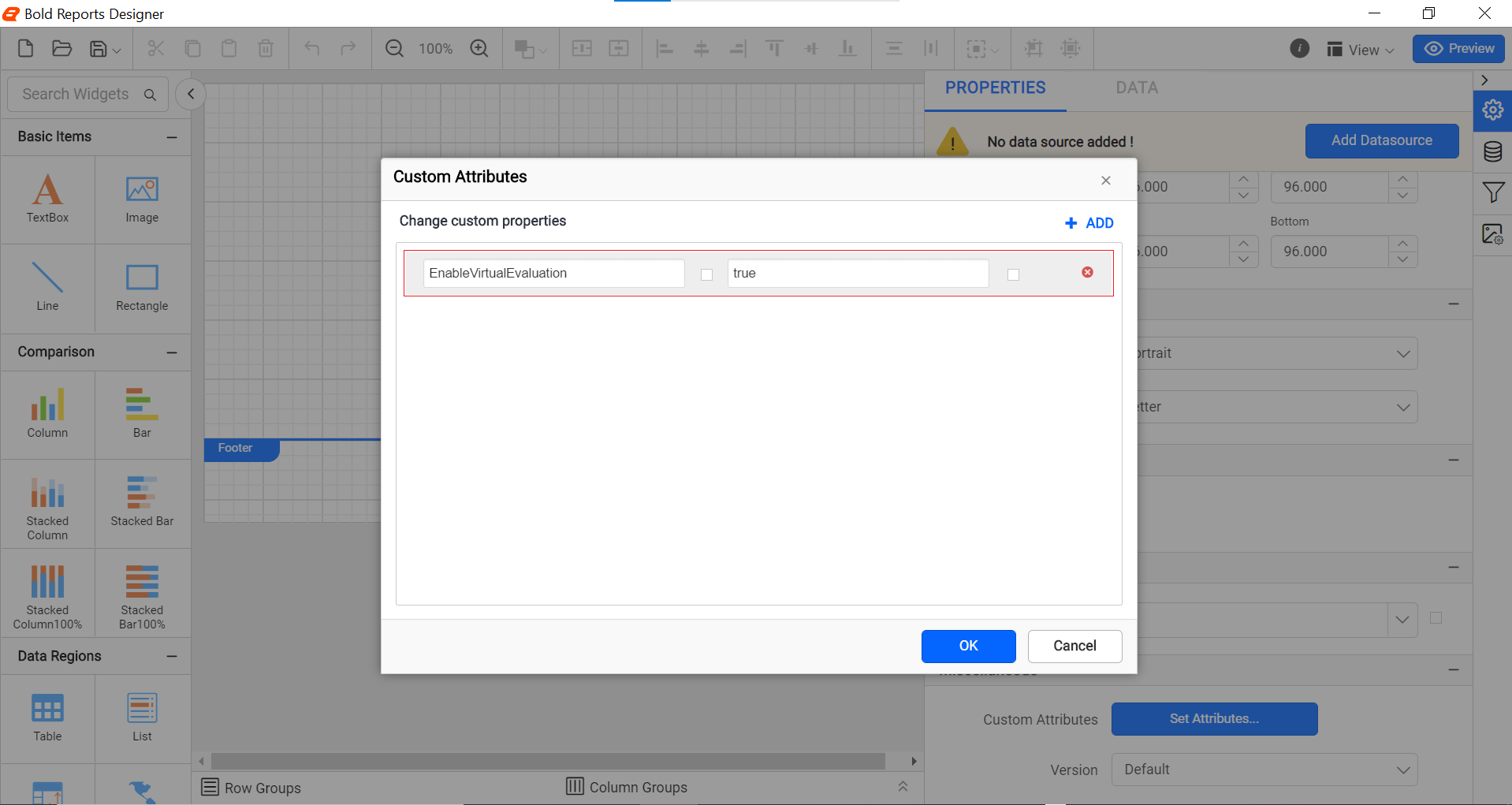
To render a large data report faster in the WPF Report Viewer, set the EnableVirtualEvaluation custom property. The property value should be static or an expression that returns a boolean value. You can set the property value, as shown in the following image:
How do I reduce the memory footprint for large data reports?
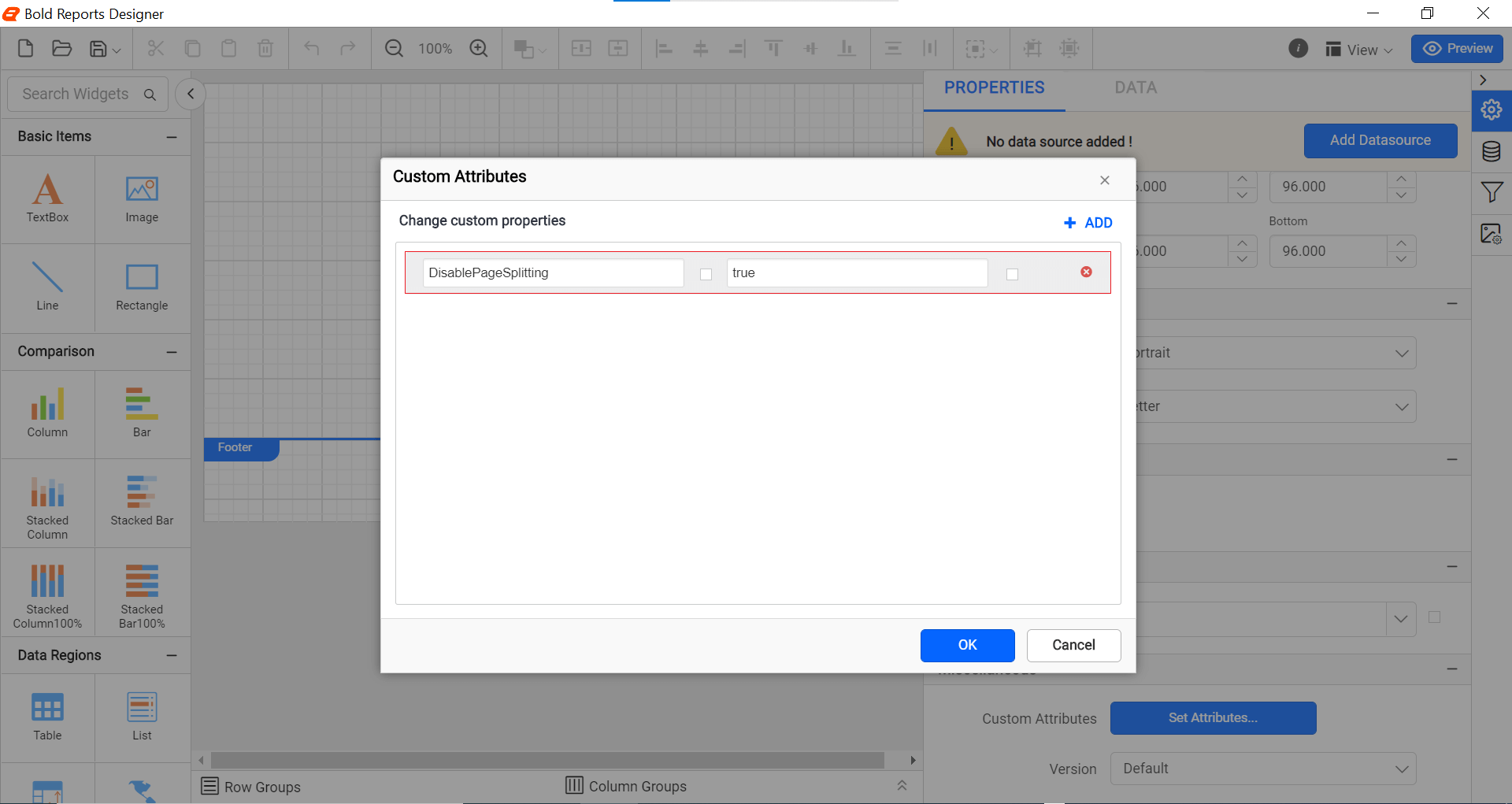
To reduce the memory footprint for a large data report in the WPF Report Viewer, set the DisablePageSplitting custom property. The property value should be static or an expression that returns a boolean value. You can set the property value, as shown in the following image:
How do I improve report item layout and avoid extra blank pages?
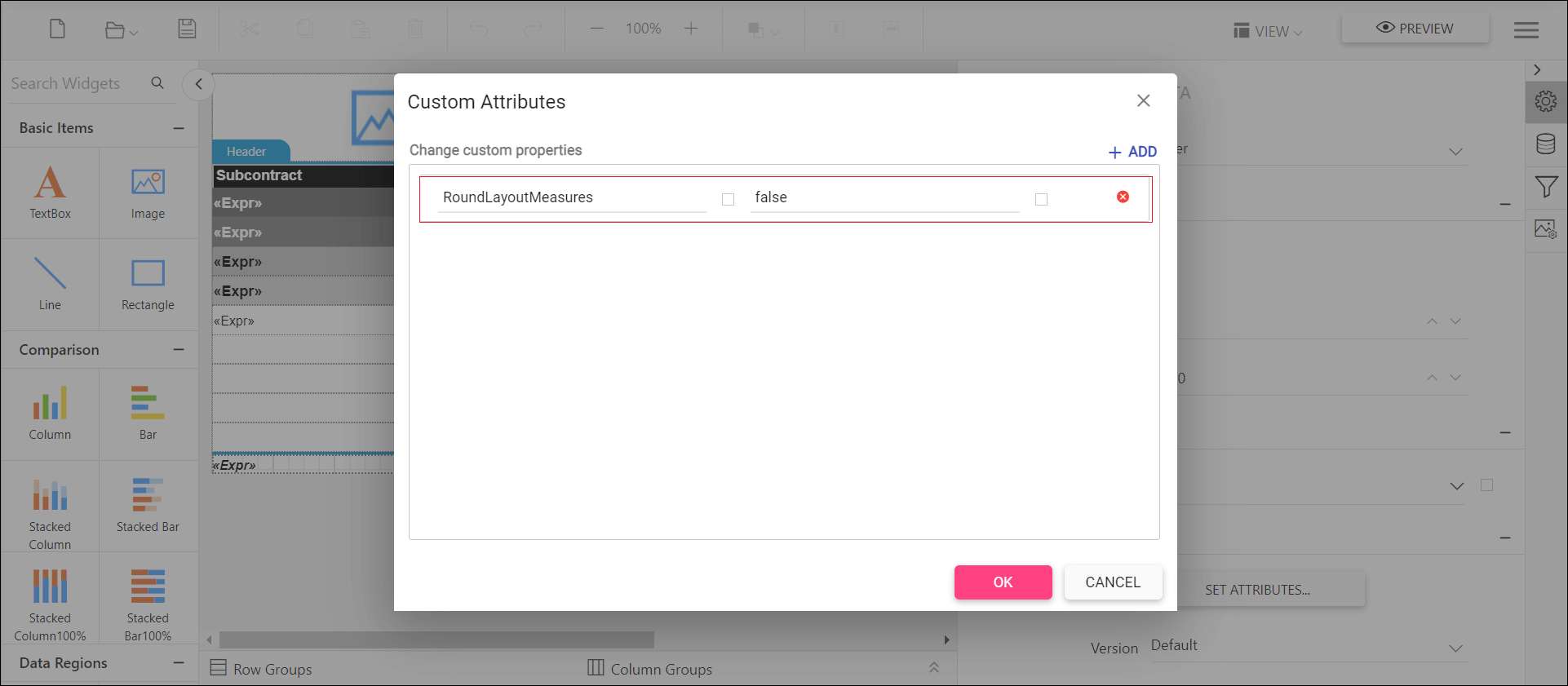
To improve report item layout and avoid extra blank pages in the WPF Report Viewer, set the RoundLayoutMeasures property to false. When the property is false, all non-integral values that are calculated during the report processing are rounded to whole pixel values. This provides the following improvements.
- Report text rendered without cuts.
- Eliminates extra blank pages.
- Removes item and text overlaps.
- Eliminates the blur semi-transparent edges that are produced by anti-aliasing.
- Produces identical look in report view and export output.
You can set the property value, as shown in the following image:
How do I handle long-running HTTP requests, report processes and timeouts?
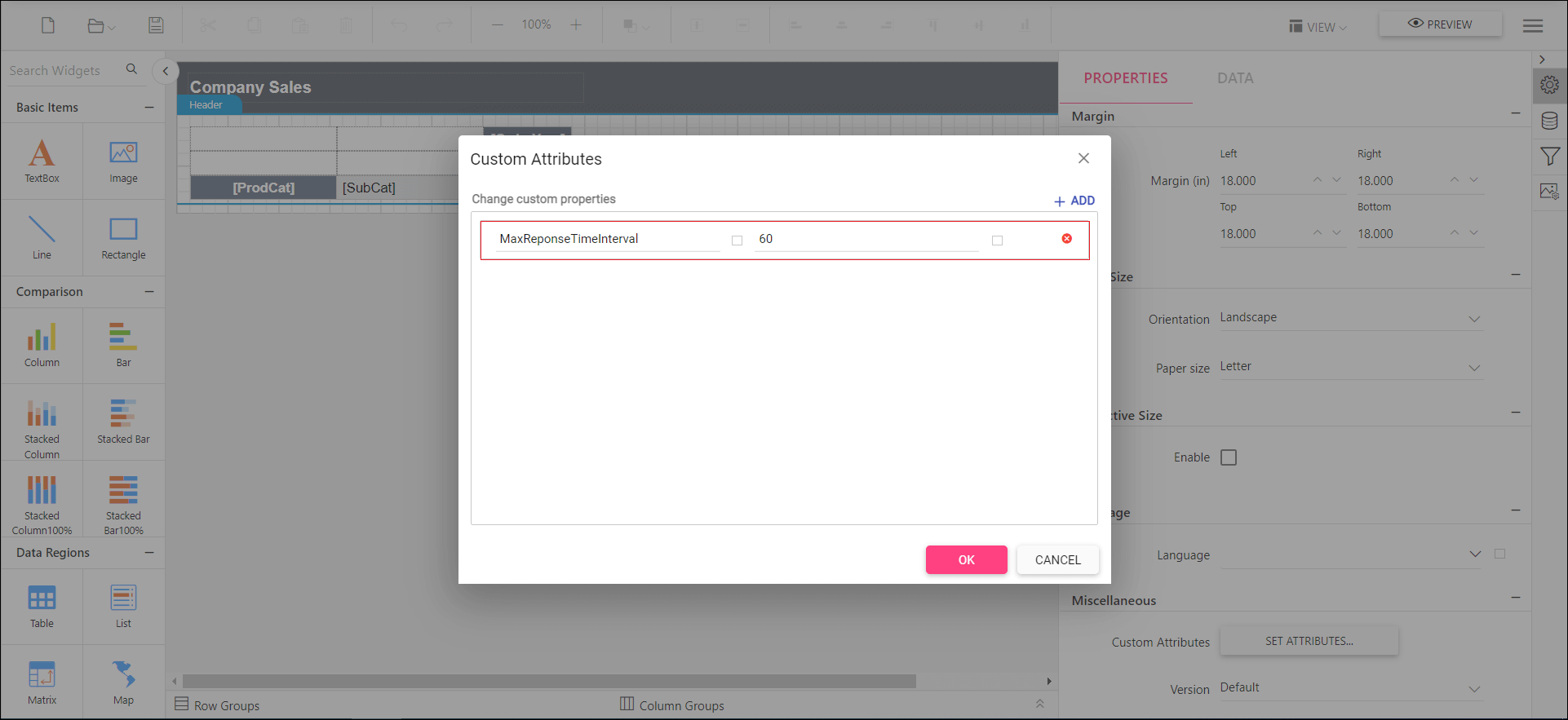
To avoid timeouts in the WPF Report Viewer, set the MaxResponseTimeInterval custom property. When a report takes a long time to process due to huge records, or an HTTP request takes too long to respond, the result is a Gateway Timeout or report rendering errors. The property specifies the seconds to process an HTTP request and respond back, which keeps the client and server connection live.
You can set the property value as shown in the following image:
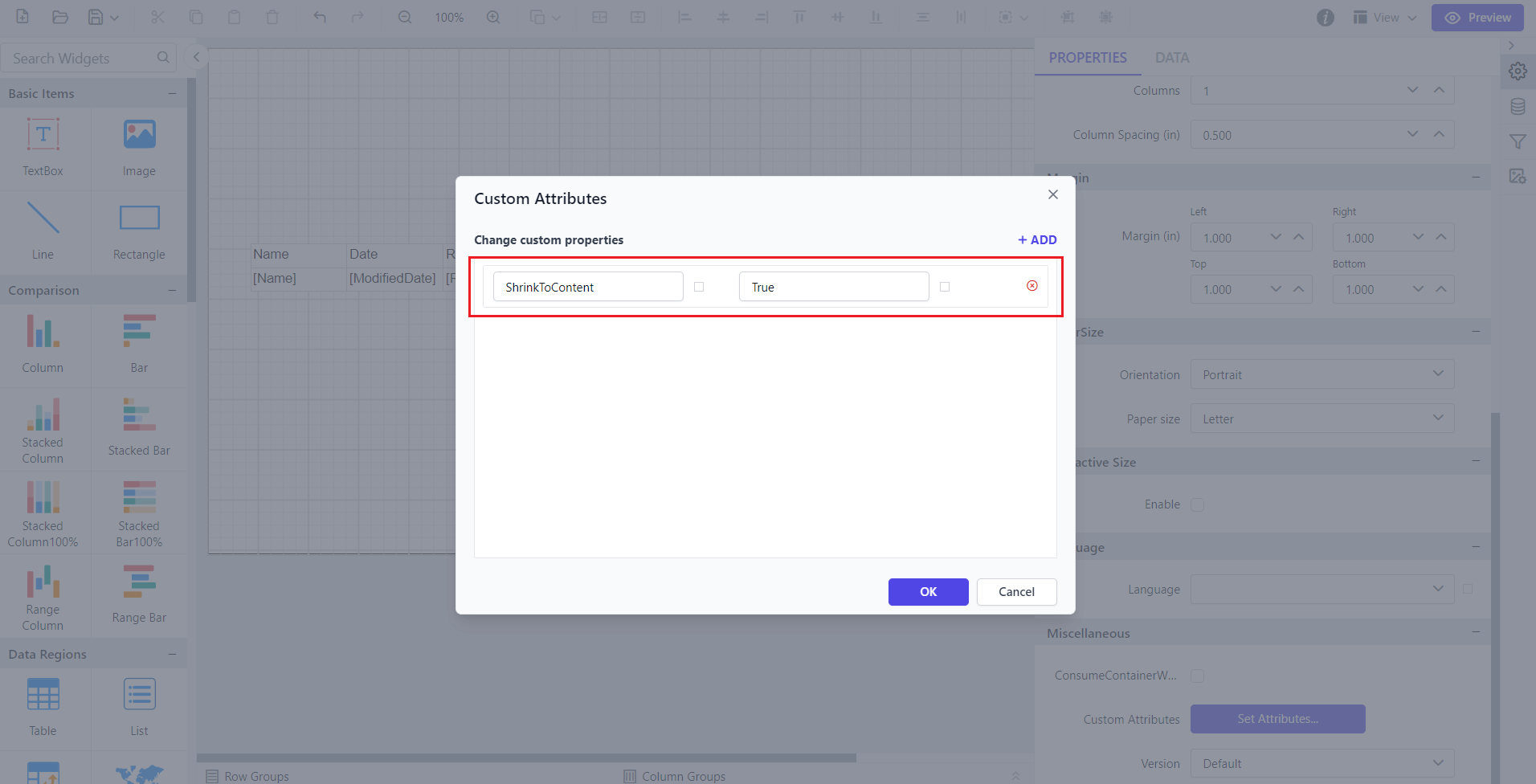
How do I shrink the report based on report item visibility?
To remove unnecessary white space caused by hidden report items in the WPF Report Viewer, set the ShrinkToContent custom property. Report items can be configured to be visible or hidden, and a hidden item typically retains its white space in the report layout, leading to unwanted gaps. The property adjusts the report layout dynamically to eliminate those gaps.
You can set the property value.