How to add a new item to the Bold Reports® Report Designer toolbar
To add a new item to the Bold Reports® JavaScript Report Designer toolbar, add the item or group to the toolbar object in the toolbarRendering event, and handle its click in the toolbarClick event.
Toolbar Events
toolbarRendering event : You can add custom options to the toolbar using the toolbarRendering event. This event is triggered during the initialization of the toolbar rendering in the Report Designer.
toolbarClick event : You can provide functionality for the custom option or override an existing functionality using the toolbarClick event. This event is triggered when an option in the toolbar is clicked.
The following sections show how to frame the input object for a toolbar item and render the respective item in the toolbar using Report Designer toolbar events.
An item or a group of items in a toolbar can be rendered by defining an object that includes GroupName, GroupId, and Items properties.
| Property | Type | Description |
|---|---|---|
GroupName |
String | The name of a toolbar group, used to label and organize related items. You can customise based on your preference. |
GroupId |
String | A unique identifier for the group, used to differentiate between groups and ensure proper functionality when interacting with or modifying the toolbar. To create a GroupId the prefix value should be args.target[0].id |
Items |
array[] | An array of items used to configure toolbar commands. Refer to the item details documentation for more information. |
How do I add a new group to the toolbar?
To add a new set of options as a separate group in the JavaScript Report Designer toolbar, define an object containing the GroupName and an array of Items. Then push the object into the args.items array of the toolbar object to insert the new group.
You can access the report designer’s toolbar object via the toolbarRendering event argument and push the required group of items, as shown in the following code snippet. The code adds the new group at the end of the toolbar.
<div id="container"></div>
<script>
var reportControlId = 'container';
$("#" + reportControlId).boldReportDesigner({
    serviceUrl: "https://demos.boldreports.com/services/api/ReportingAPI",
    toolbarRendering: $.proxy(updateDesignerToolBar, this)
});

function updateDesignerToolBar(args) {
    if (args && args.target && $(args.target).hasClass('e-rptdesigner-toolbarcontainer') && args.action === 'beforeCreate' ) {
        args.items.push({
            GroupName: 'customaboutitem',
            GroupId: args.target[0].id + '_custom_info_group',
            Items: [{
                align: 'Right',
                type: 'Button',
                text: 'Info',
                id: args.target[0].id + '_custom_toolbar_btn_info',
                cssClass: 'e-rptdesigner-tlbar-info'
            },
            {
                align: 'Right',
                type: 'Button',
                text: 'Help',
                id: args.target[0].id + '_custom_toolbar_btn_help',
                cssClass: 'e-rptdesigner-tlbar-help'
            },
            {
                align: 'Right',
                type: "Separator",
                id: args.target[0].id + '_custom_toolbar_separator'
            }]
        });
        args.items.push({
            GroupName: 'customrefreshitem',
            GroupId: args.target[0].id + '_custom_refresh_group',
            Items: [{
                align: 'Right',
                prefixIcon: 'e-customtoolbar-refresh',
                id: args.target[0].id + '_custom_toolbar_btn_refresh',
                cssClass: 'e-rptdesigner-tlbar-refresh'
            },
            {
                align: 'Right',
                prefixIcon: 'e-customtoolbar-update',
                id: args.target[0].id + '_custom_toolbar_btn_update',
                cssClass: 'e-rptdesigner-tlbar-update'
            },
            {
                align: 'Right',
                type: "Separator",
                id: args.target[0].id + '_custom_toolbar_separator'
            }]
        });
    }
}
</script>
<style>
    .e-customtoolbar-refresh:before {
        /*Set the icon path or content*/
        content: "\e850";
        font-family: 'b-reportdesigner-icons';
    }
    .e-customtoolbar-update:before {
        /*Set the icon path or content*/
        content: "\e815";
        font-family: 'b-reportdesigner-icons';
    }
</style>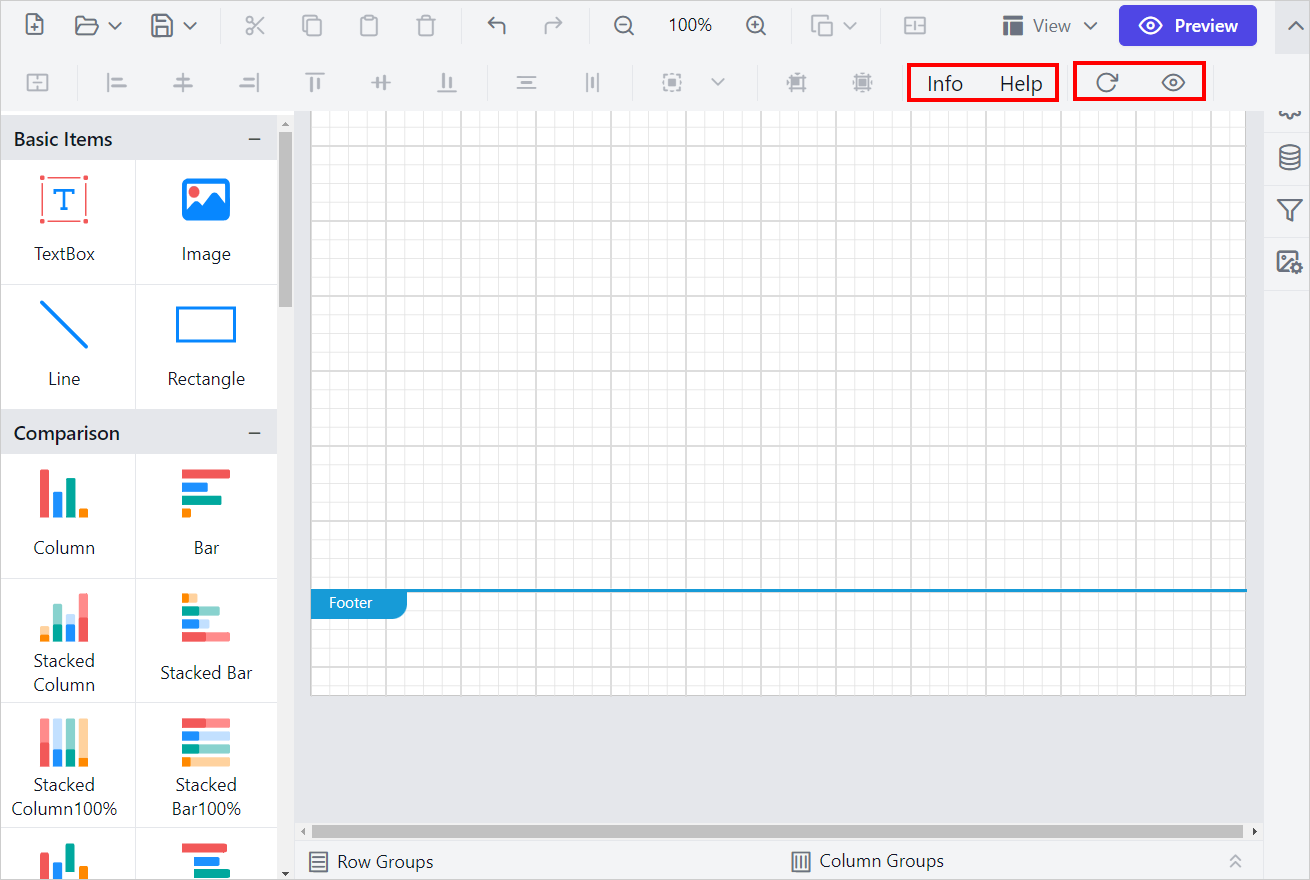
To add a new group between existing groups, use the splice method on the args.items array of the toolbar object, as shown in the following code snippet:
<div id="container"></div>
<script>
var reportControlId = 'container';
$("#" + reportControlId).boldReportDesigner({
    serviceUrl: "https://demos.boldreports.com/services/api/ReportingAPI",
    toolbarRendering: $.proxy(updateDesignerToolBar, this)
});
function updateDesignerToolBar(args) {
    if (args && args.target && $(args.target).hasClass('e-rptdesigner-toolbarcontainer') && args.action === 'beforeCreate' ) {
        // Adding a new Group in align to grid options
            args.items.splice(8, 0, {
                GroupName: 'customaboutitem',
                GroupId: args.target[0].id + '_custom_info_group',
                Items: [{
                    type: 'Button',
                    text: 'Info',
                    id: args.target[0].id + '_custom_toolbar_btn_info',
                    cssClass: 'e-rptdesigner-tlbar-info'
                },
                {
                    type: 'Button',
                    text: 'Help',
                    id: args.target[0].id + '_custom_toolbar_btn_help',
                    cssClass: 'e-rptdesigner-tlbar-help'
                },
                {
                    type: "Separator",
                    id: args.target[0].id + '_custom_toolbar_separator'
                }]
            });
         // Adding new Group in clipboard icon groups
            args.items.splice(1, 0, {
                GroupName: 'customrefreshitem',
                GroupId: args.target[0].id + '_custom_refresh_group',
                Items: [{
                    prefixIcon: 'e-customtoolbar-refresh',
                    id: args.target[0].id + '_custom_toolbar_btn_refresh',
                    cssClass: 'e-rptdesigner-tlbar-refresh'
                },
                {
                    prefixIcon: 'e-customtoolbar-update',
                    id: args.target[0].id + '_custom_toolbar_btn_update',
                    cssClass: 'e-rptdesigner-tlbar-update'
                },
                {
                    type: "Separator",
                    id: args.target[0].id + '_custom_toolbar_separator'
                }]
            });
    }
}
</script>
<style>
    .e-customtoolbar-refresh:before {
        /*Set the icon path or content*/
        content: "\e850";
        font-family: 'b-reportdesigner-icons';
    }
</style>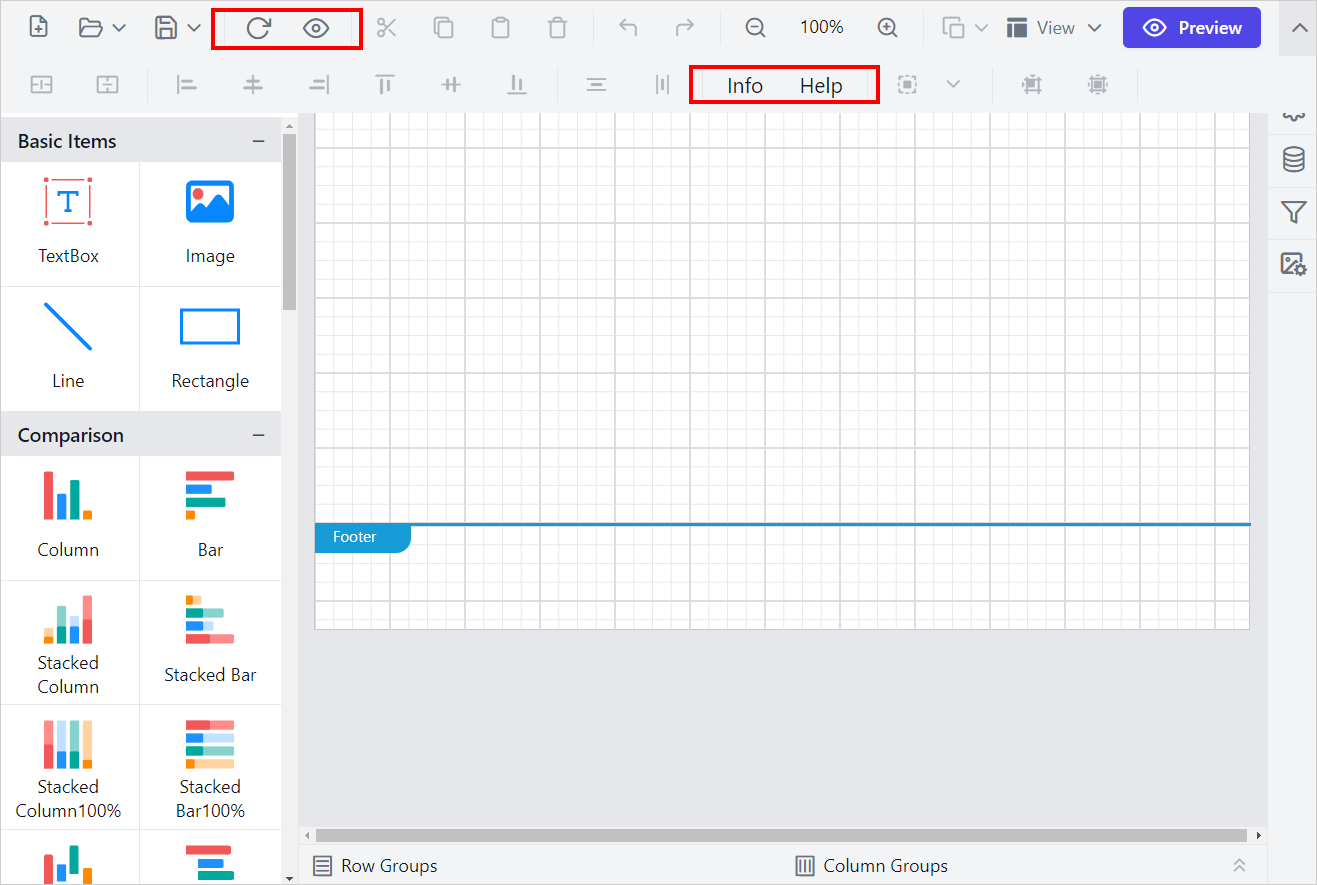
How do I add a new item to an existing toolbar group?
To add a new item to an existing JavaScript Report Designer toolbar group, use the splice method on the args.items array of the appropriate toolbar group. For example, args.items[1] refers to the clipboard group, and inserting at args.items[1].Items[4] adds a new item between the cut button and the clipboard ratio template. You can do this in the toolbarRendering event by using the event’s argument:
<div id="container"></div>
<script>
var reportControlId = 'container';
$("#" + reportControlId).boldReportDesigner({
    serviceUrl: "https://demos.boldreports.com/services/api/ReportingAPI",
    toolbarRendering: $.proxy(updateDesignerToolBar, this)
});

function updateDesignerToolBar(args) {
    if (args && args.target && $(args.target).hasClass('e-rptdesigner-toolbarcontainer') && args.action === 'beforeCreate' ) {
        args.items[1].Items.splice(4, 0, {
            type: 'Input',
            template: new ejs.buttons.CheckBox({ label: 'Select All'}),
            id: args.target[0].id + '_custom_select_all',
            cssClass: 'e-rptdesigner-select-all'
        });
    }
}
</script>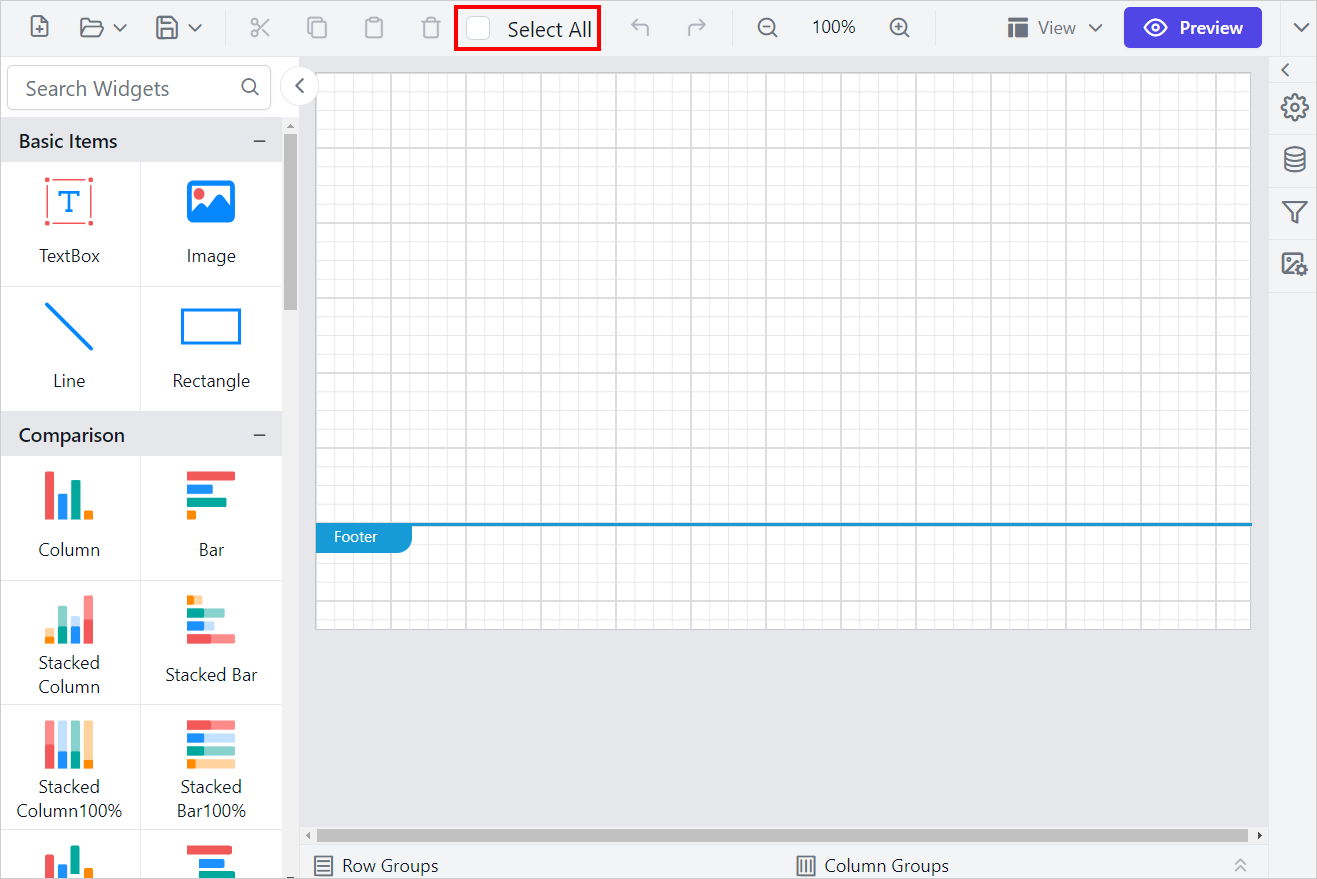
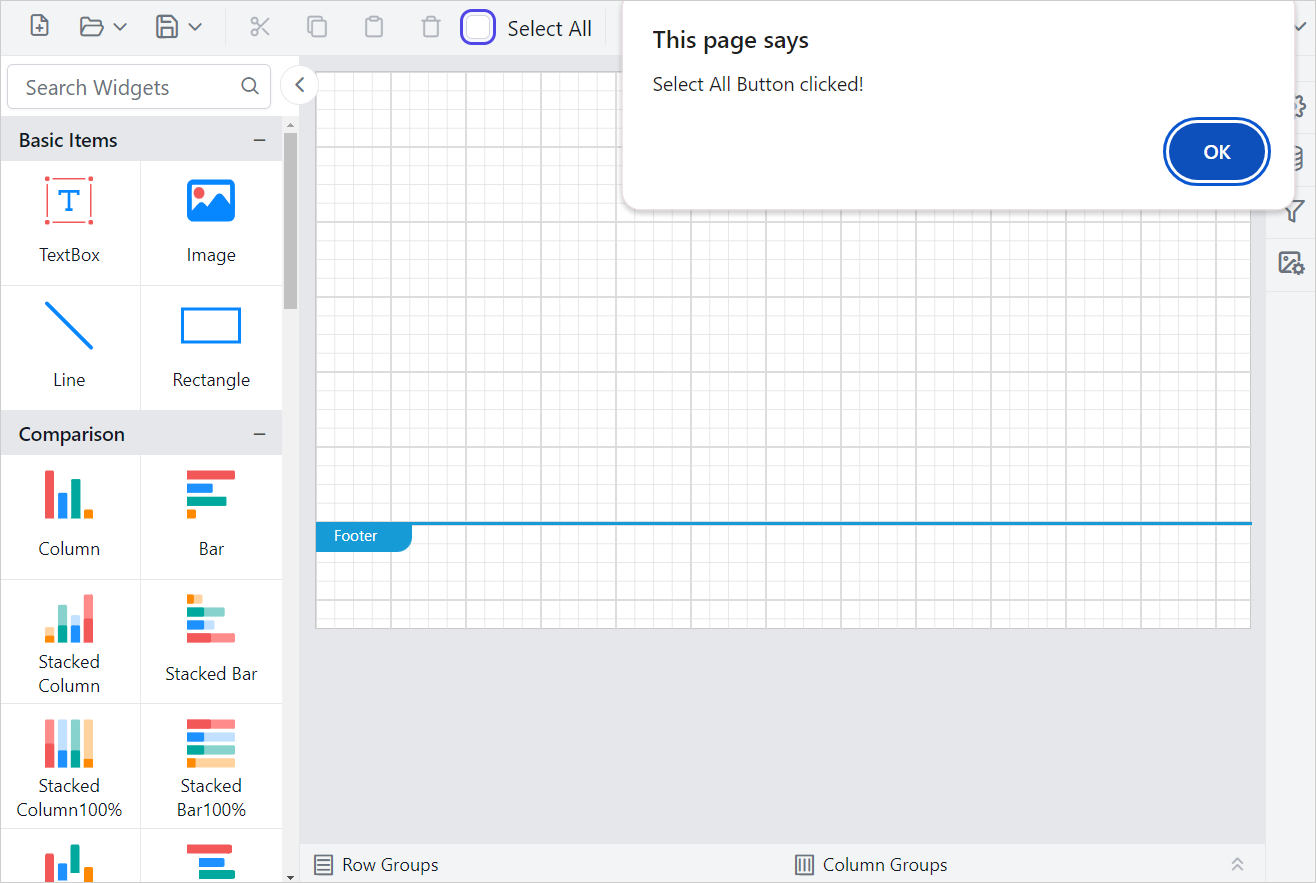
How do I handle click actions for toolbar items?
To implement click actions for new items in the JavaScript Report Designer toolbar, check the click type and target type from the toolbarClick event argument. For new items, the click type will be External. You can get the click type and target element from the event argument, as shown in the following code snippet:
<div id="container"></div>
<script>
var reportControlId = 'container';
$("#" + reportControlId).boldReportDesigner({
    serviceUrl: "https://demos.boldreports.com/services/api/ReportingAPI",
    toolbarClick: $.proxy(overWriteToolbarClick, this)
});

// This method will trigger on toolbar click action
function overWriteToolbarClick(args) {
    if (args.click === 'External') {
        args.cancel = true;
        if (args.target && args.target.item) {
            var clickedItem = args.target.item.properties.cssClass;
            if (clickedItem  === 'e-rptdesigner-toolbar-alertinfo') {
                alert("Trigerred Information icon click");
            } else if (clickedItem === 'e-rptdesigner-tlbar-refresh') {
                alert("Trigerred Refresh icon click");
            } else if (clickedItem === 'e-rptdesigner-select-all'){
                alert("Trigerred Select All option click");
            }
        }
    }
}
</script>