How to list out the specific data connectors
To list only specific data connectors in the Bold Reports® JavaScript Report Designer data panel, set the filterDataConnectors API on the client side or the FilterDataConnectors property on the server side. The Bold Reports® Report Designer supports 15+ data connectors. You can customize the data connector list and enable specific data connectors to build data in reports in two ways:
- By configuring the data connector list on the client side.
- By configuring the data connector list on the server side.
How do I configure the data connector list on the client side?
You can customize the data connector list on the client side when you initialize the JavaScript Report Designer by using the filterDataConnectors API. The filterDataConnectors API takes the data connector names as an array of strings.
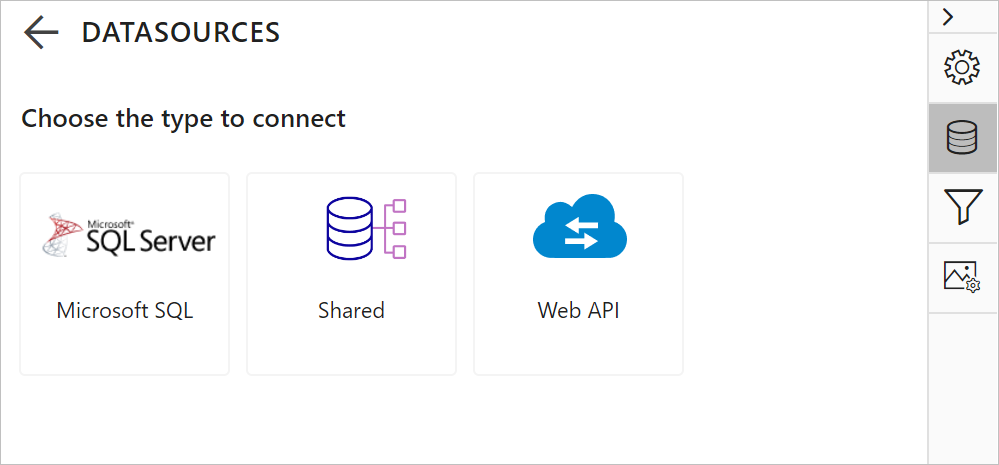
The following code snippet displays the SQL and WebAPI data sources in the data panel user interface.
<div id="container"></div>
<script>
    $("#container").boldReportDesigner({
        serviceUrl: "/api/ReportingAPI",
        filterDataConnectors: ['SQL', 'WebAPI']
    });
</script>
Note: By default, the
Sharedoption will remain enabled in the data panel.
How do I configure the data connector list on the server side?
To customize the data connectors on the server side, inherit the IDesignerSettings interface and implement the InitializeSettings method in the Report Designer Web API controller. The method is triggered when the Report Designer initializes.
[System.Web.Http.Cors.EnableCors(origins: "*", headers: "*", methods: "*")]
public class ReportingAPIController : ApiController, IReportDesignerController, IDesignerSettings
{
    public void InitializeSettings(DesignerSettings designerSettings)
    {

    }
}
The InitializeSettings function has an argument named designerSettings that contains the Report Designer properties model. Set the data connector list to the FilterDataConnectors property in the designerSettings argument, as shown in the following code snippet:
[System.Web.Http.Cors.EnableCors(origins: "*", headers: "*", methods: "*")]
public class ReportingAPIController : ApiController, IReportDesignerController, IDesignerSettings
{
    public void InitializeSettings(DesignerSettings designerSettings)
    {
        designerSettings.FilterDataConnectors = new List<string>() { "SQL", "Excel" };
    }
}
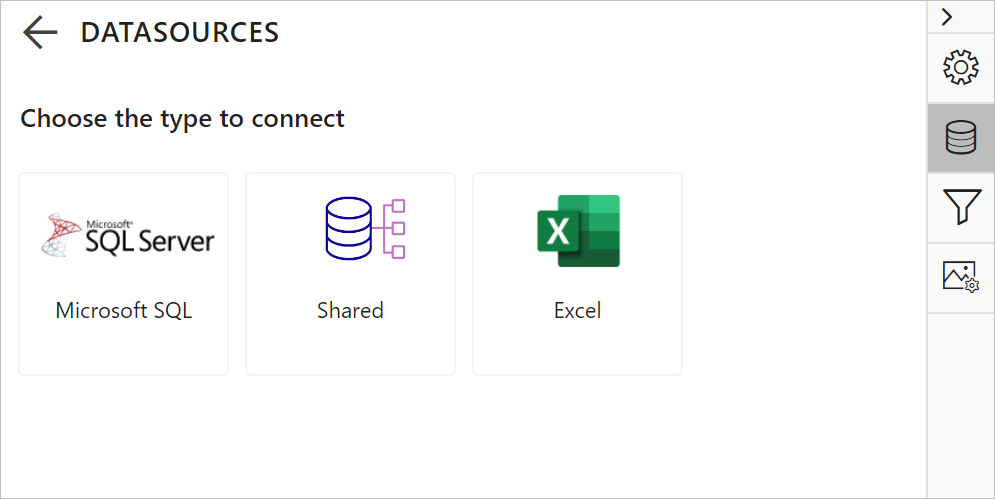
Build and run the application. SQL and Excel data connectors will be displayed in the data panel, and other data connectors will remain hidden.
Note: By default, the
Sharedoption will remain enabled in the data panel.