How to customize the Bold Reports® Report Designer toolbar
To customize the Bold Reports® JavaScript Report Designer toolbar, show or hide the whole toolbar or specific toolbar options to show a customized user interface. You do this by using the ToolbarSettings API.
How do I show or hide the toolbar?
To show or hide the Report Designer toolbar, set the showToolbar property as either true or false in the ToolbarSettings API.
How do I show the Report Designer toolbar?
To show the Report Designer toolbar, set showToolbar to true in toolbarSettings, as in the following code snippet:
<div id="container"></div>
<script>
    $("#container").boldReportDesigner({
        serviceUrl: "/api/ReportingAPI",
        toolbarSettings: { showToolbar: true }
    });
</script>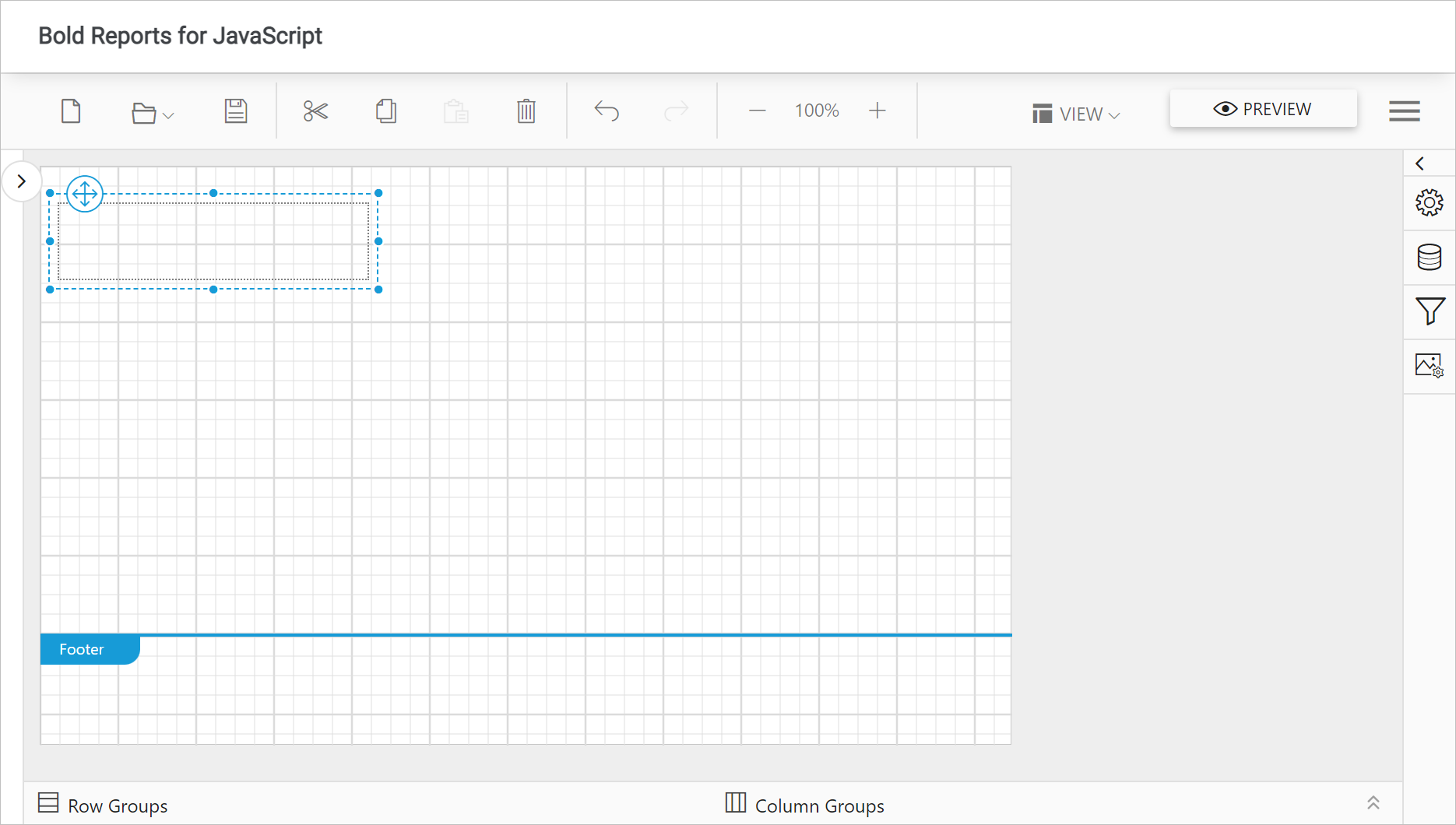
How do I hide the Report Designer toolbar?
To hide the Report Designer toolbar, set showToolbar to false in toolbarSettings, as in the following code snippet:
<div id="container"></div>
<script>
    $("#container").boldReportDesigner({
        serviceUrl: "/api/ReportingAPI",
        toolbarSettings: { showToolbar: false }
    });
</script>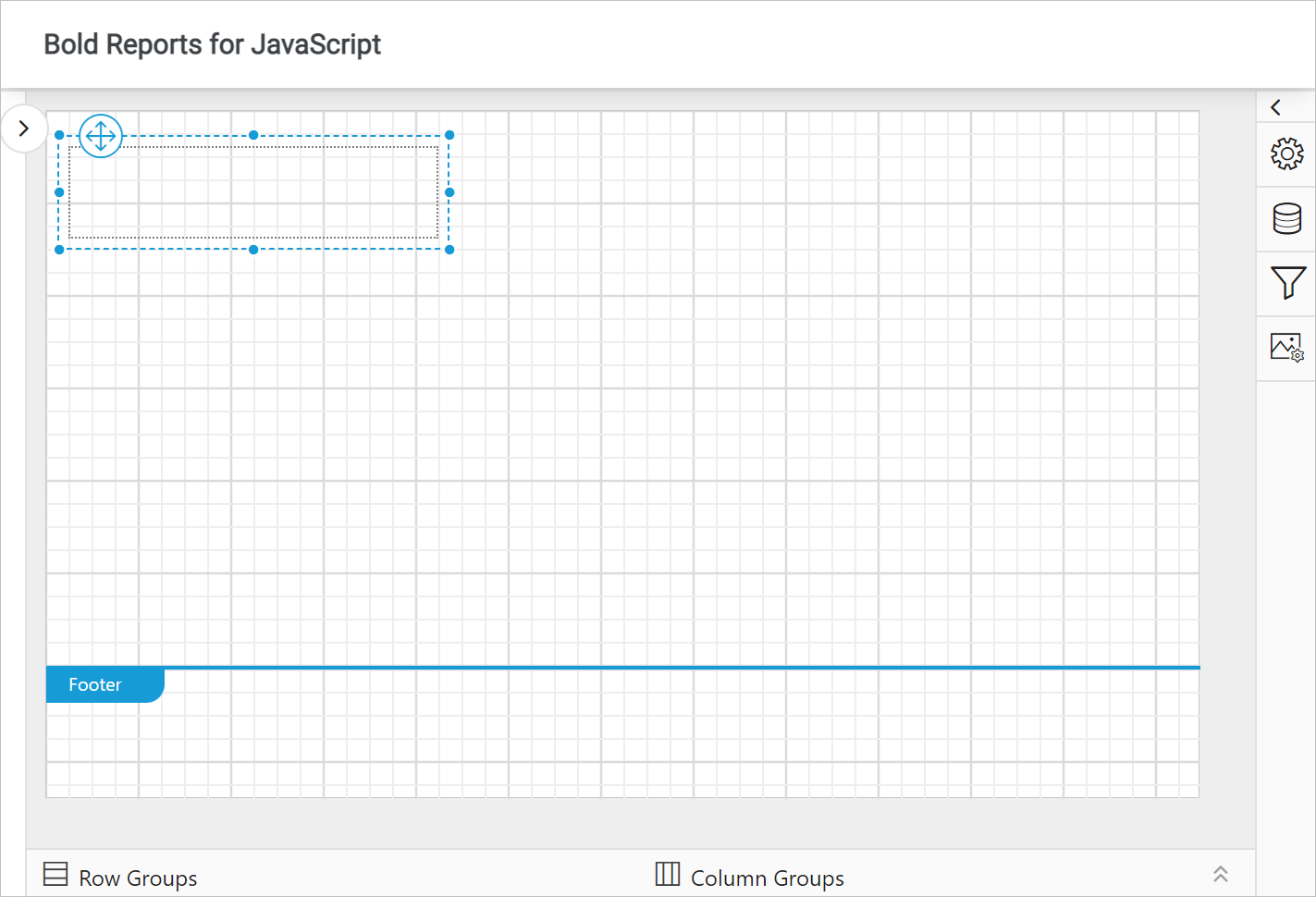
How do I show or hide toolbar items?
To show or hide JavaScript Report Designer toolbar items, set the items property under the toolBarSettings API. The toolbarSettings.items property accepts value as flagged enumerations, so that multiple behaviors can be enabled or disabled using Bitwise operators (&, |, ~, <<, etc.). The following code snippets show how to configure the items property using flagged enumerations.
How do I show all toolbar items?
To show all items in the Report Designer toolbar, set the enum value to ej.ReportDesigner.ToolbarItems.All, as shown in the following code snippet:
<div id="container"></div>
<script>
    $("#container").boldReportDesigner({
        serviceUrl: "/api/ReportingAPI",
        toolbarSettings: { items: ej.ReportDesigner.ToolbarItems.All }
    });
</script>
How do I hide all toolbar items?
To hide all items in the Report Designer toolbar, prefix the ~ to ej.ReportDesigner.ToolbarItems.All, as shown in the following code snippet. Based on the flagged enumerations constraint, all items will be hidden from the toolbar.
<div id="container"></div>
<script>
    $("#container").boldReportDesigner({
        serviceUrl: "/api/ReportingAPI",
        toolbarSettings: { items: ~ej.ReportDesigner.ToolbarItems.All }
    });
</script>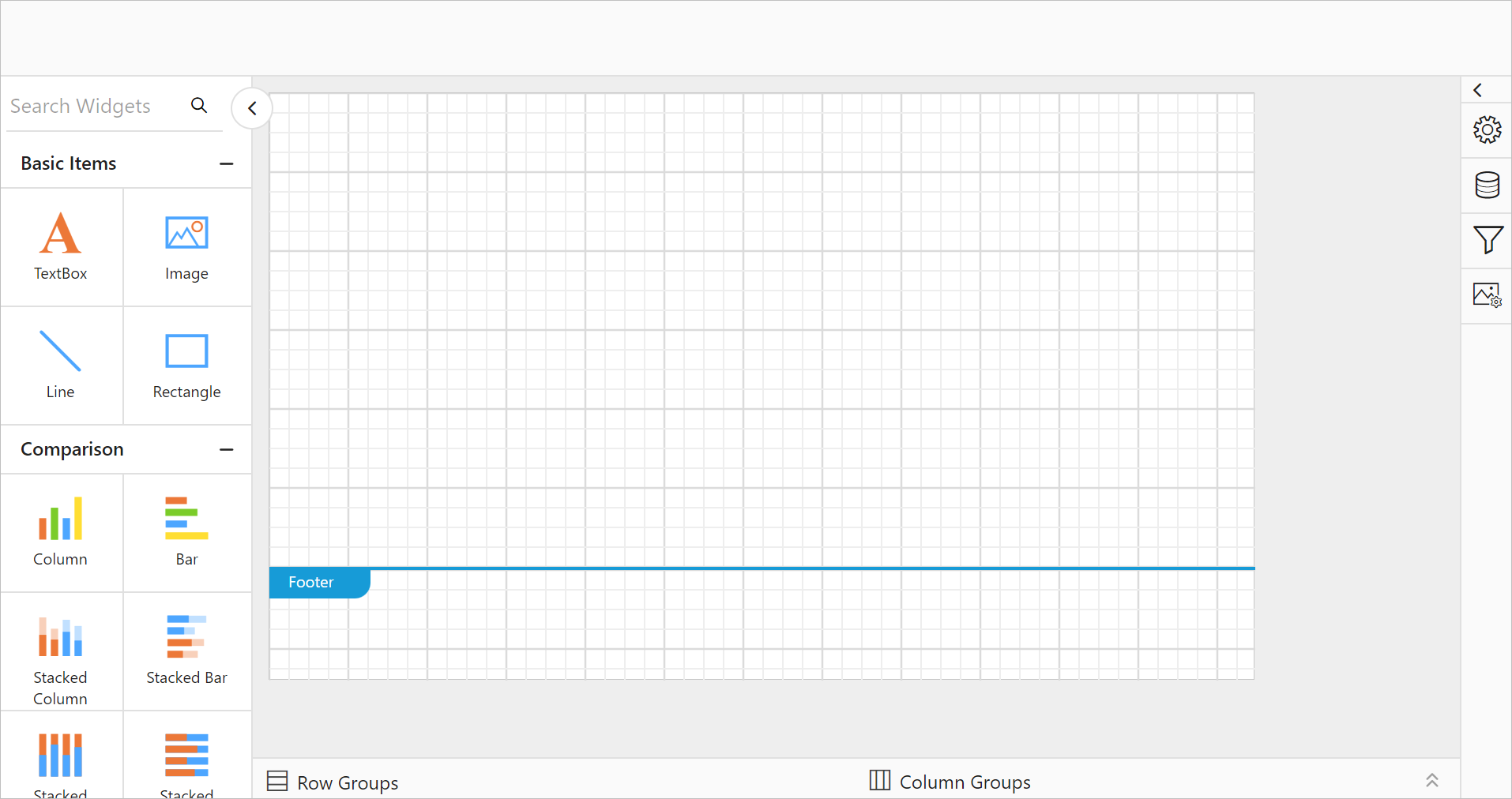
How do I hide a specific option in the toolbar?
To hide a specific option in the Report Designer toolbar, prefix the ~ to the respective toolbar enum and combine the constraints using the Bitwise ‘&’ (AND) operator. The following code snippet hides the New report option from the toolbar.
<div id="container"></div>
<script>
    $("#container").boldReportDesigner({
        serviceUrl: "/api/ReportingAPI",
        toolbarSettings: { items: ej.ReportDesigner.ToolbarItems.All & ~ej.ReportDesigner.ToolbarItems.New}
    });
</script>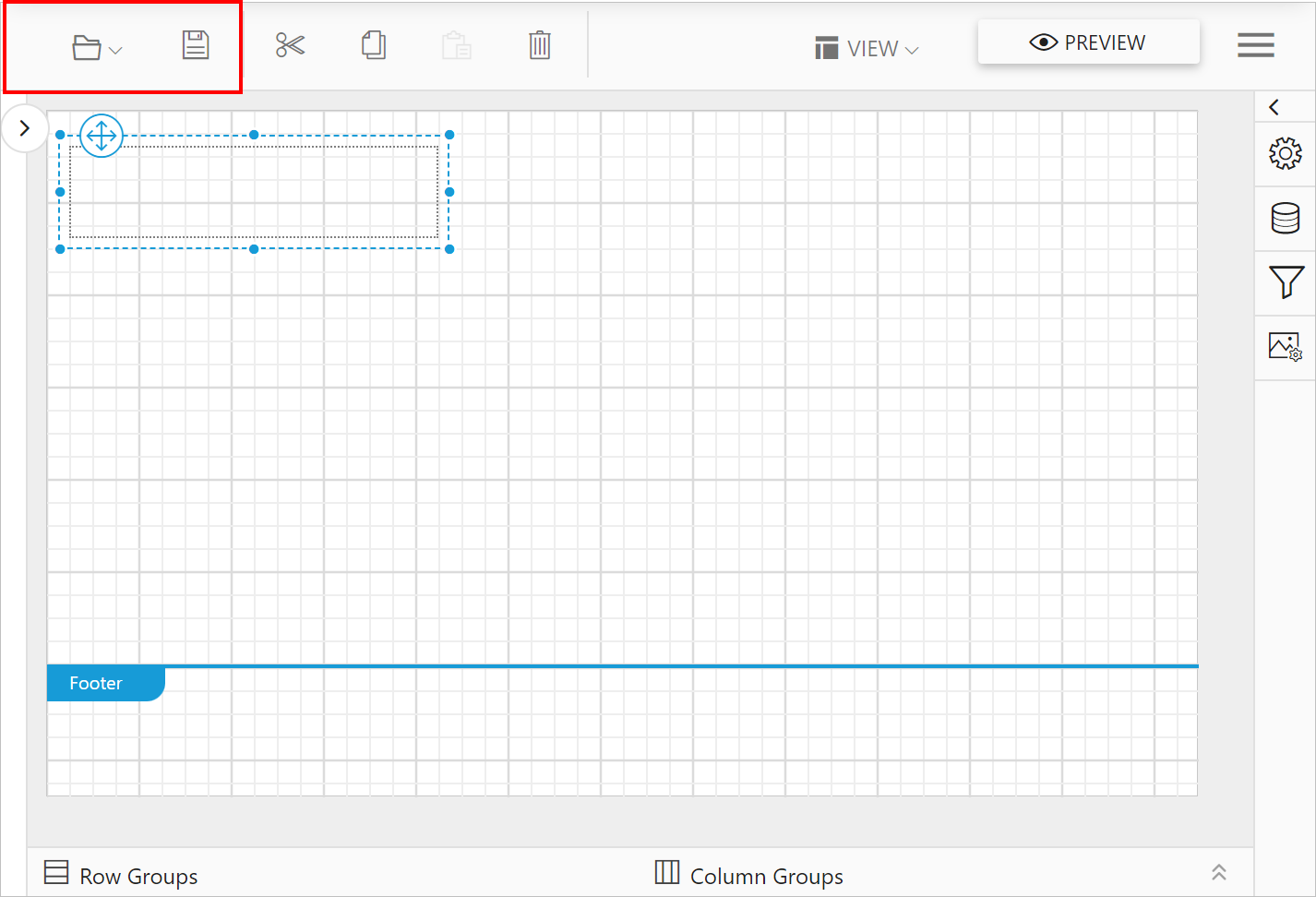
Similarly, to hide multiple items, combine the required options with the Bitwise ‘&’ (AND) operator. The following code snippet hides the Open and Save options from the toolbar.
<div id="container"></div>
<script>
    $("#container").boldReportDesigner({
        serviceUrl: "/api/ReportingAPI",
        toolbarSettings: { items: ej.ReportDesigner.ToolbarItems.All & ~ej.ReportDesigner.ToolbarItems.Open & ~ej.ReportDesigner.ToolbarItems.Save }
    });
</script>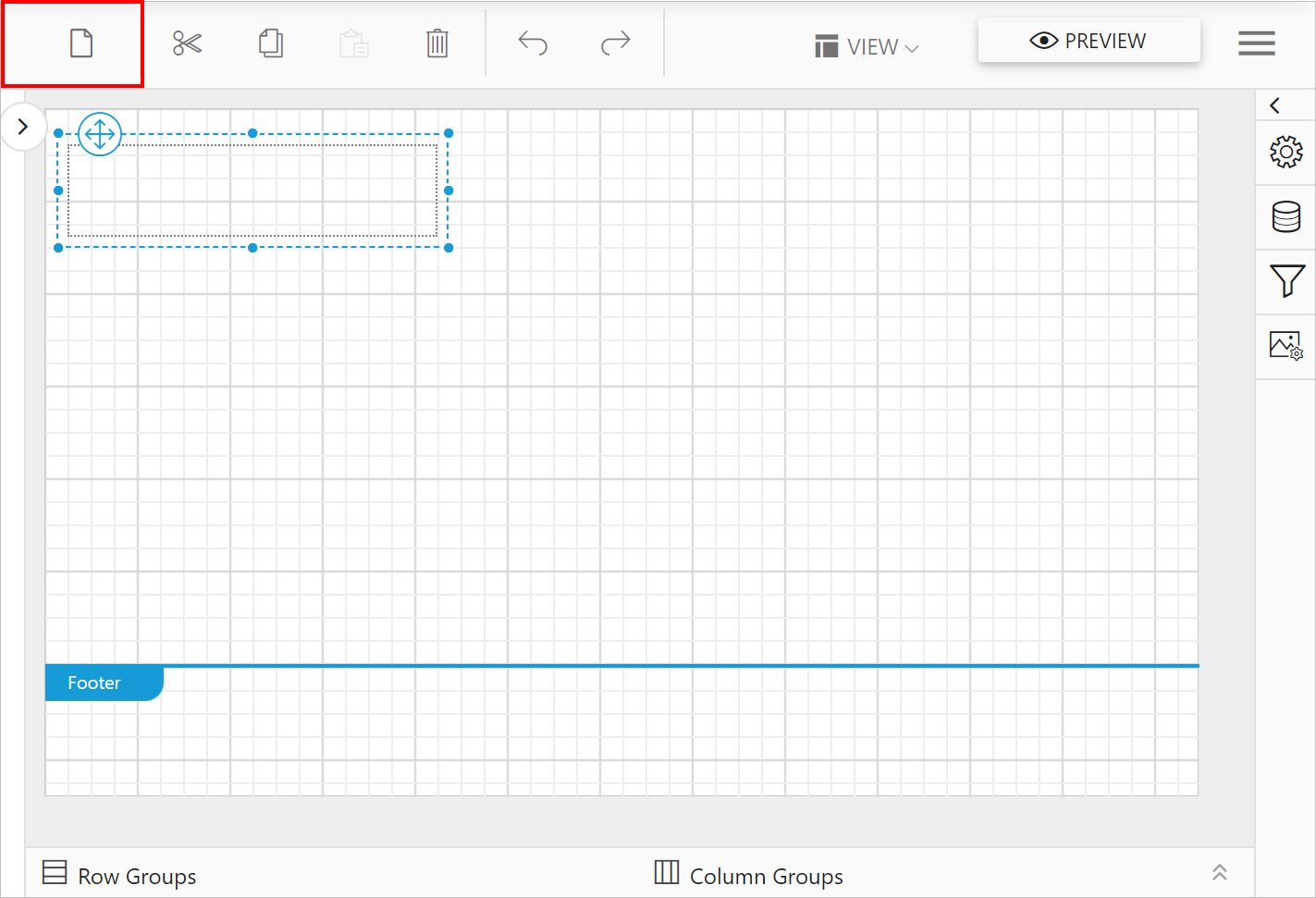
Refer to the toolbarSettings.items section for the enum name of each option in the toolbar.