Create a multi value report parameter
Multi Value Parameter is used to dynamically filter the report data based on more than one value. This section describes the steps required to create a multi value report parameter in Bold Report Designer.
Refer Create Parameter section for better understanding with the following steps.
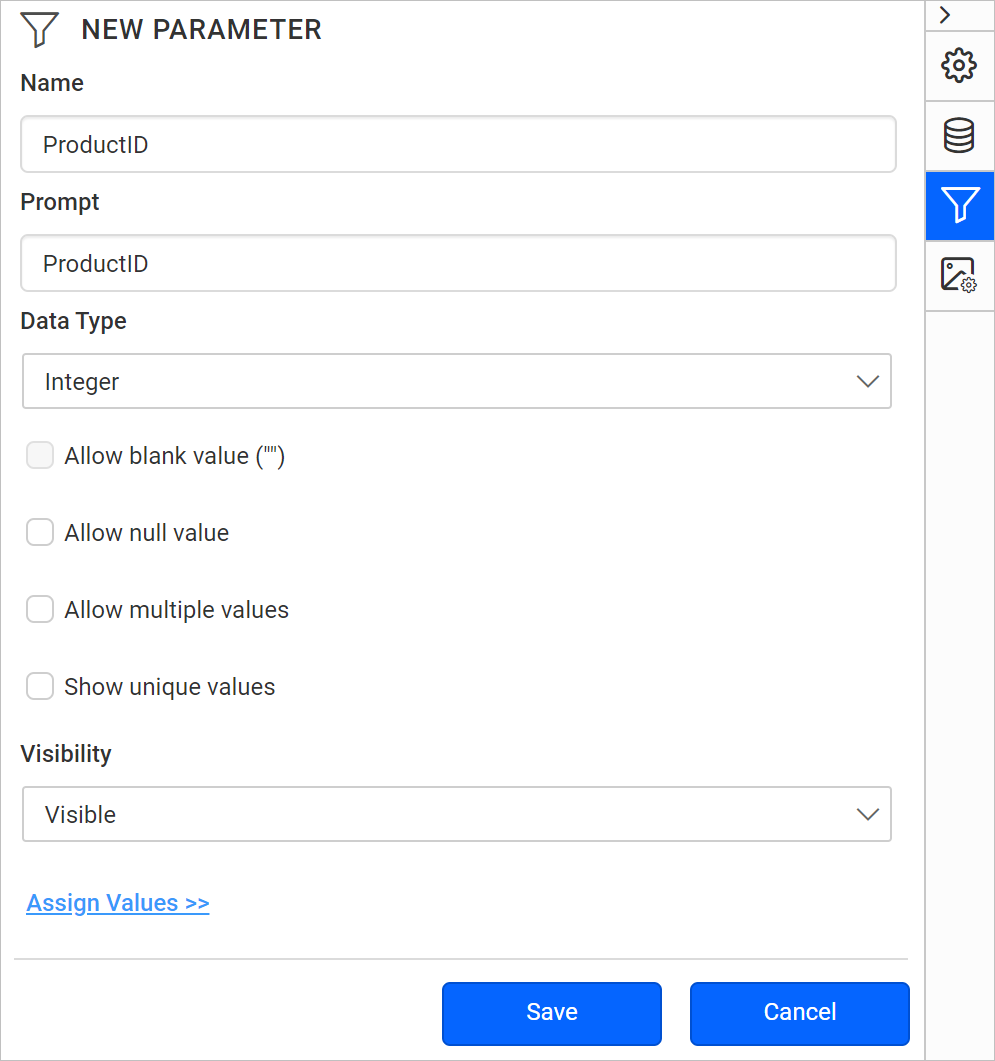
-
Select Allow multiple values, to create a multi-value parameter.
A multi-value parameter cannot include
nullvalues.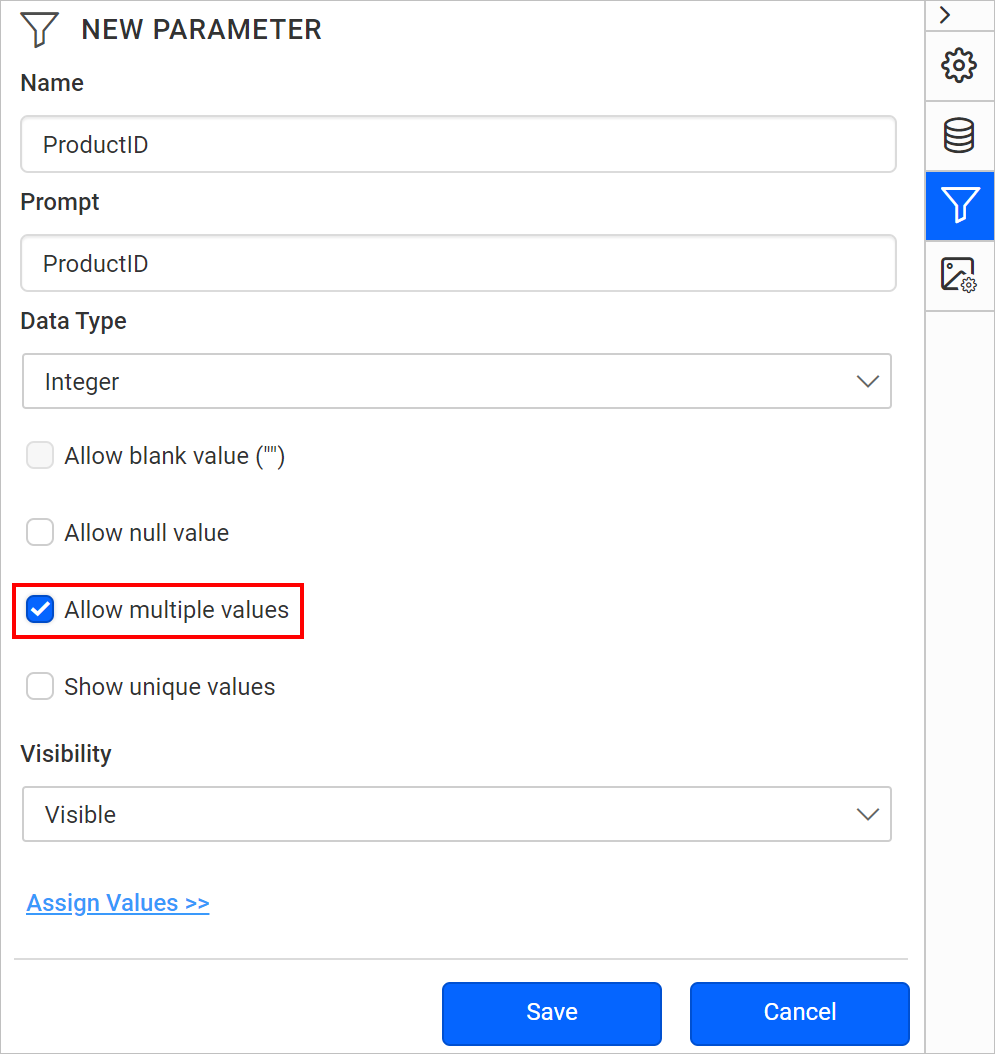
-
Click on
Assign Value >>to open parameter assign dialog.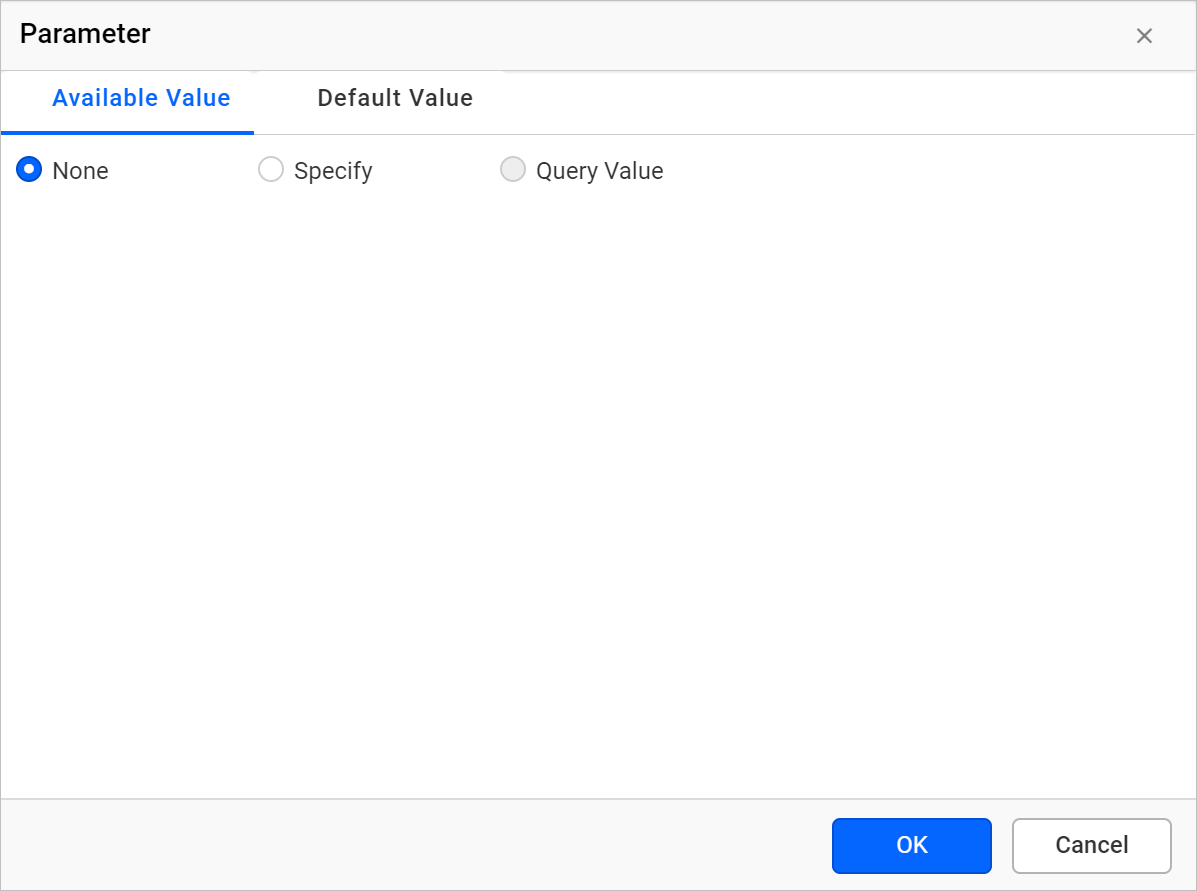
-
Select
Query Valueoption underAvailable Valuetab.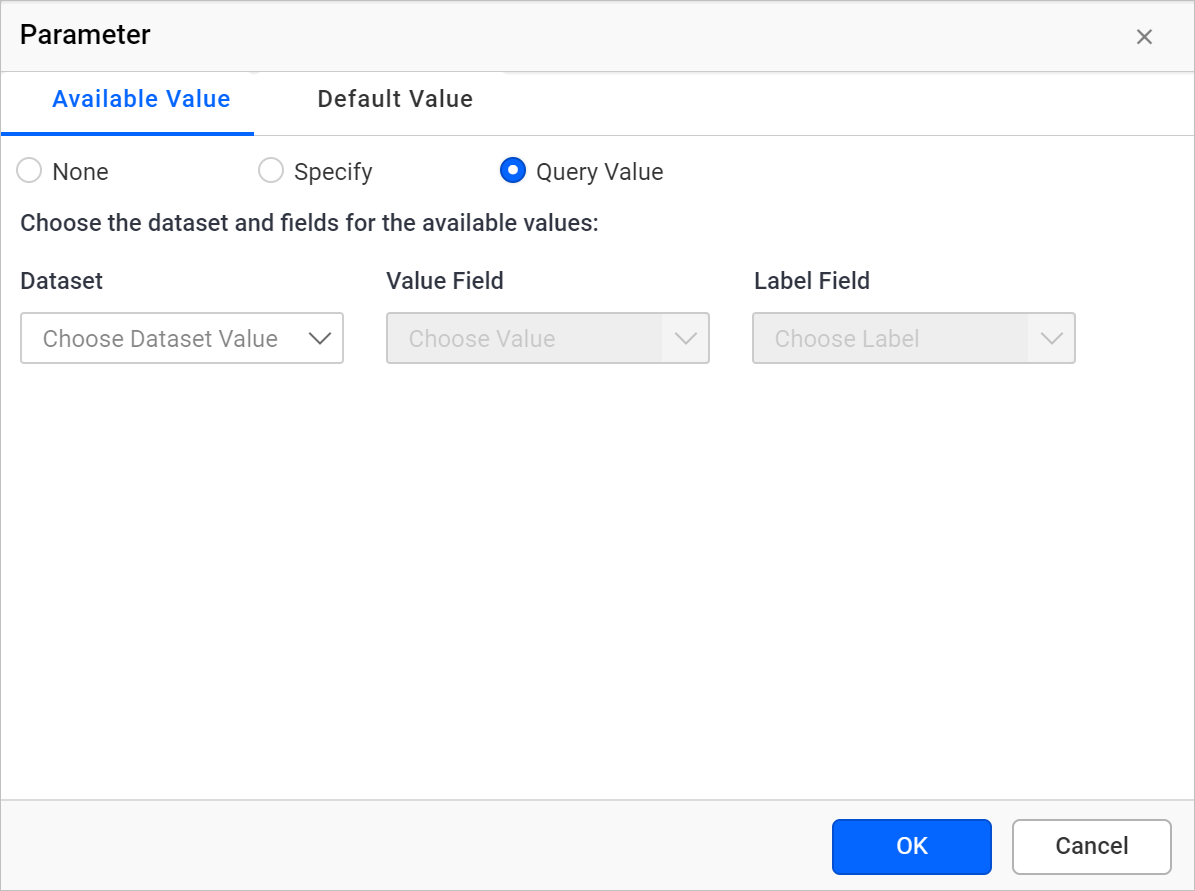
-
Select the dataset and fields in the drop-down list and Click
OK.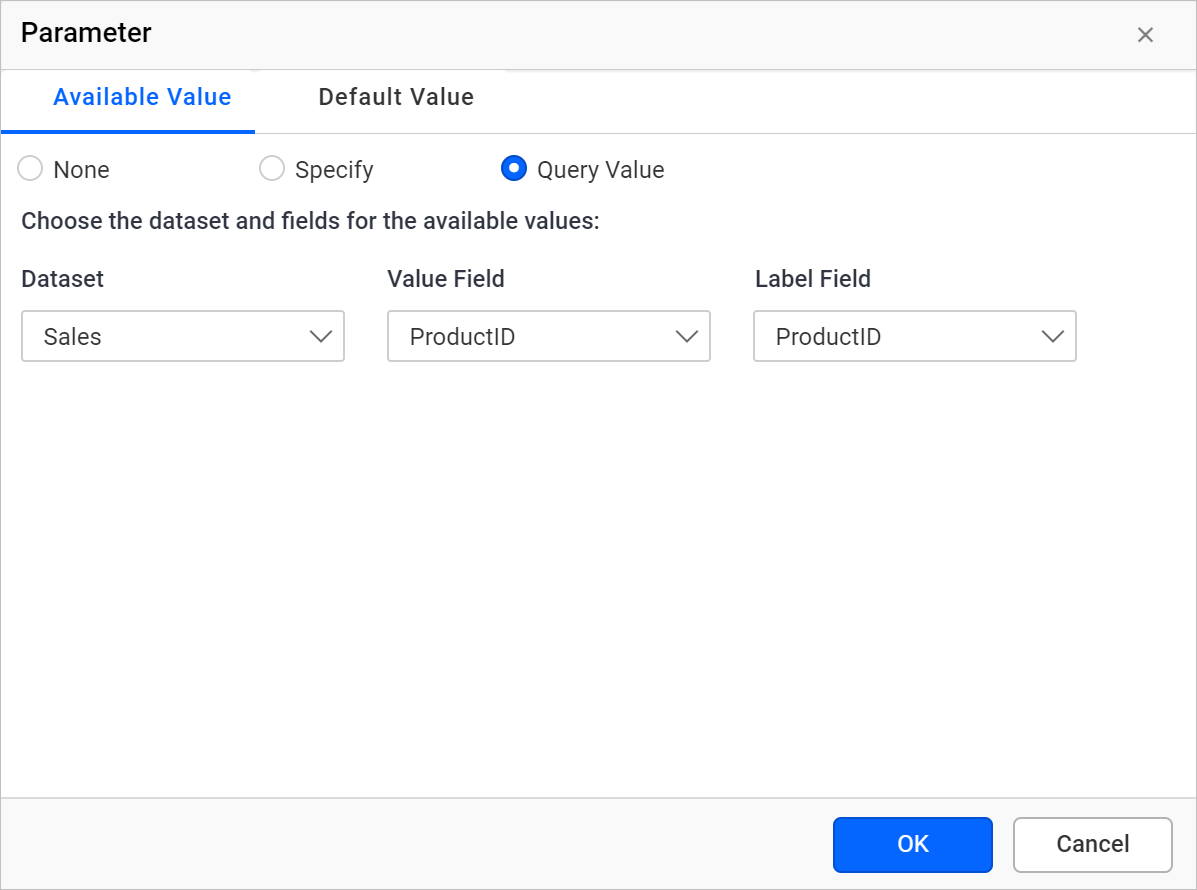
-
Save the parameter.
Filter a table data based on report parameter
Using the ProductID parameter, we can filter the ProductID field values at runtime like below.
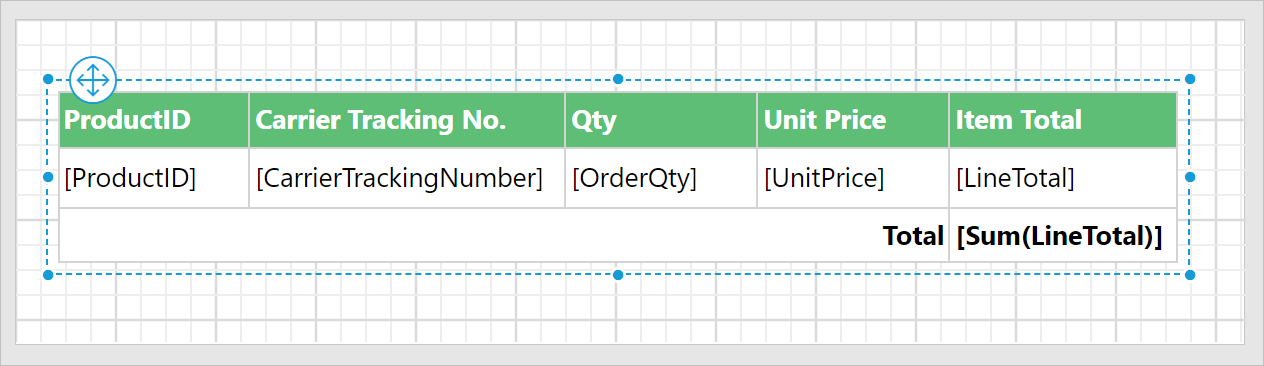
- Select the table report item in design area.
- Click on the
Propertiesicon in the configuration panel, to open table properties.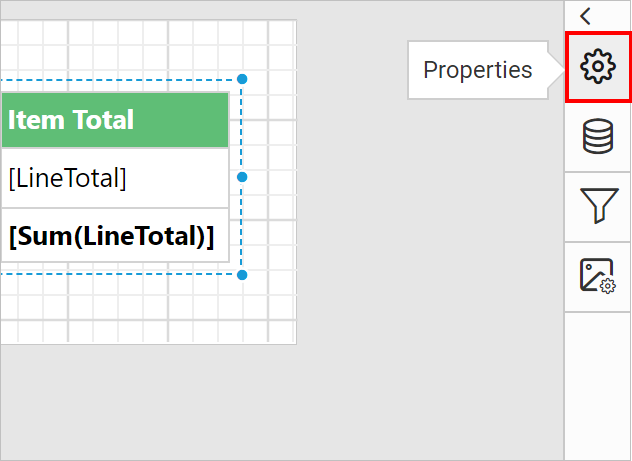
- In
Tableproperties, click onSet Filters...button.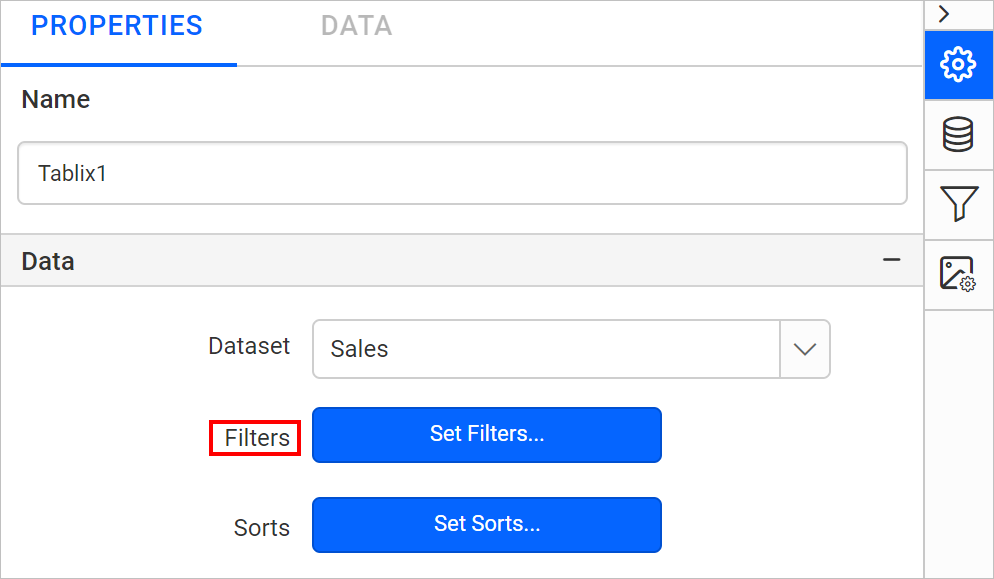 Refer Set filters section to create new filter expression.
 - Choose the
Inoperator and assign theProductIDparameter in the Value field. Save the filter.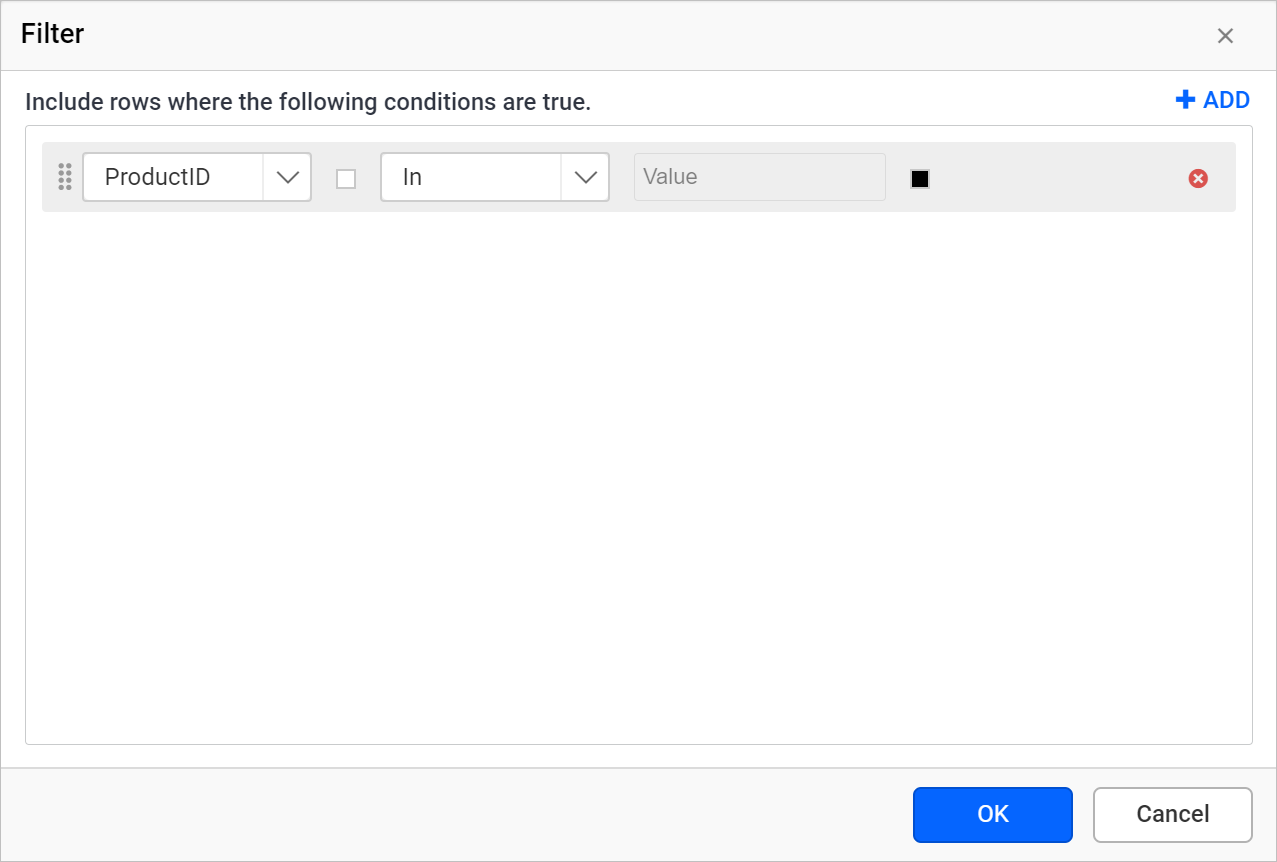
- Click on the
Previewbutton in the report header. Select the required values in drop-down list.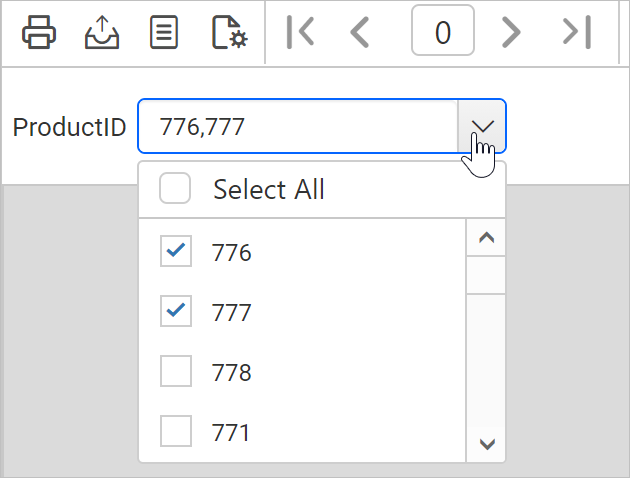
- Click on the
View Reportbutton.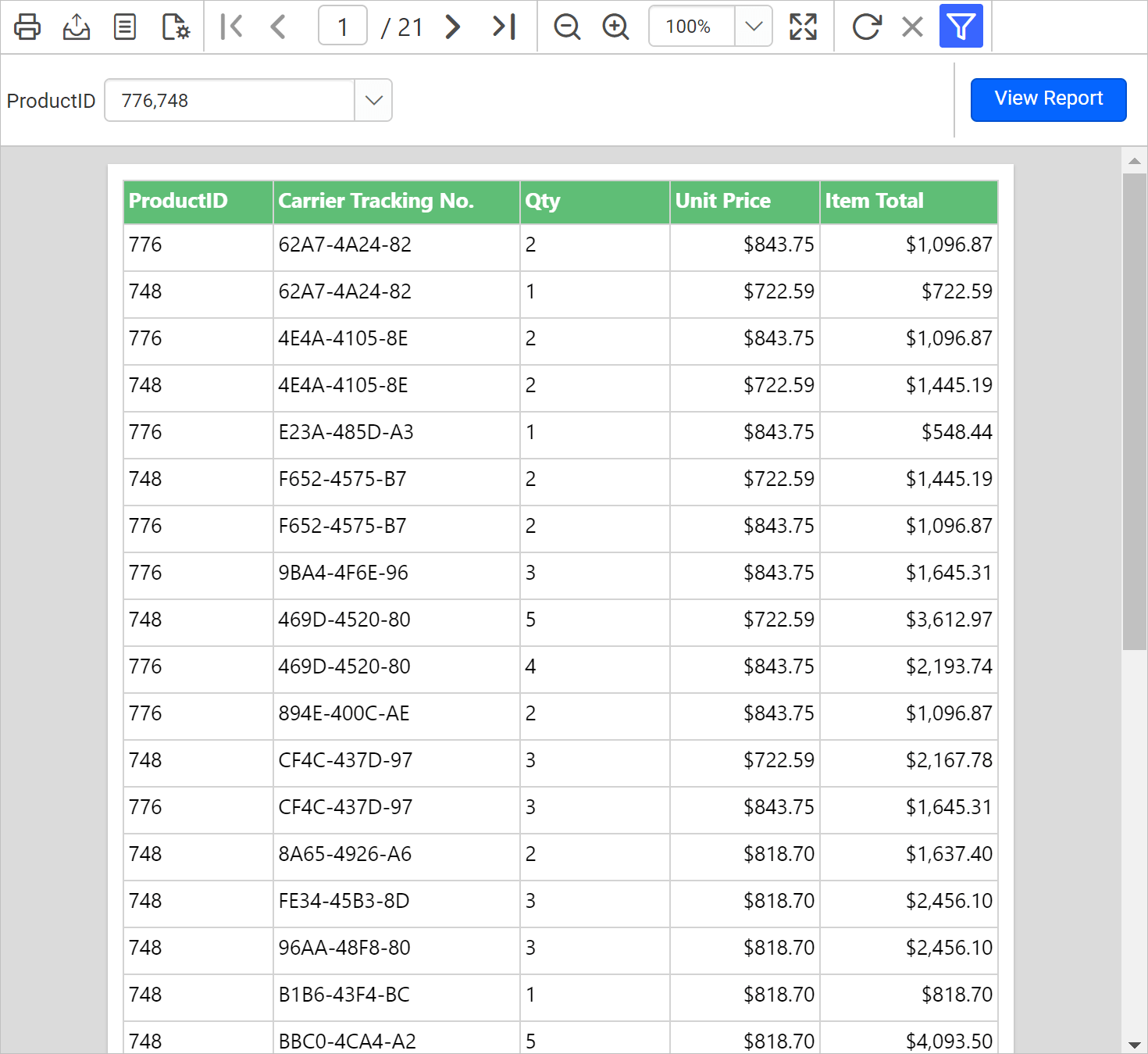
Download the above report design from link.