Cascading Parameter
The concept of cascading parameters is a list of values for one parameter depends on the values chosen in another parameter. This type of parameters can be used when a parameter has a long list of values.
Steps to create cascading parameters
The following section describes the step by step process to create a cascading parameters in Web Report Designer.
Create the main dataset
Create a new dataset by following the steps provided in Create Data section before proceeding with below steps:
-
In Name field, type the name of the dataset. For example, we have provided SalesbyCategory as dataset name.
-
Click on the
switcherin query designer toolbar, to switch to the query mode.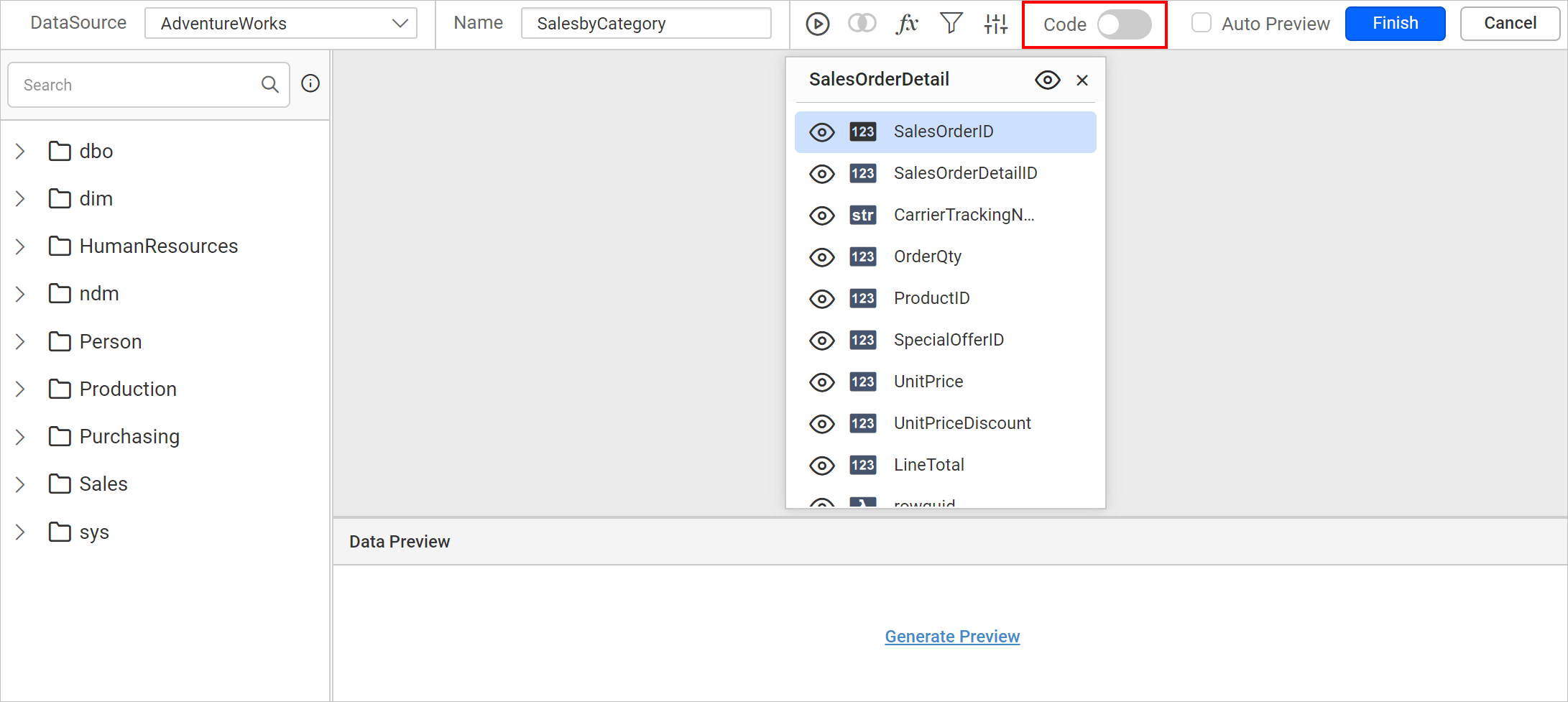
-
The query must have the following parts:
-
A list of column fields in
SELECTstatement to fetch from any specific table. -
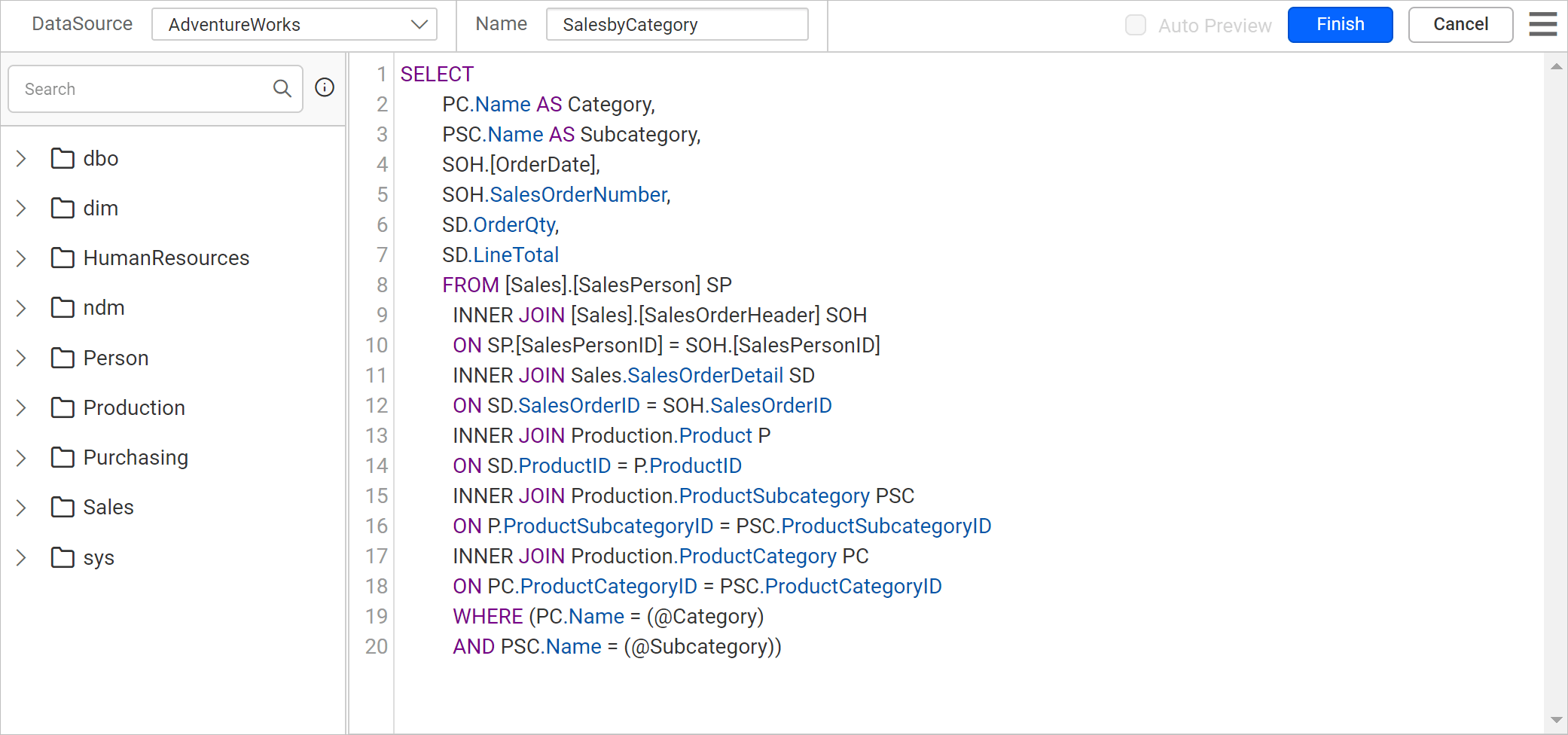
One query parameter for each cascading parameter. For example, we have chosen tables SalesPerson, SalesOrderHeader, SalesOrderDetail, Product, ProductSubcategory, ProductCategory from
AdventureWorksdatabase to include query parameters @Category and @Subcategory in below query:SELECT PC.Name AS Category, PSC.Name AS Subcategory, SOH.[OrderDate], SOH.SalesOrderNumber, SD.OrderQty, SD.LineTotal FROM [Sales].[SalesPerson] SP INNER JOIN [Sales].[SalesOrderHeader] SOH ON SP.[SalesPersonID] = SOH.[SalesPersonID] INNER JOIN Sales.SalesOrderDetail SD ON SD.SalesOrderID = SOH.SalesOrderID INNER JOIN Production.Product P ON SD.ProductID = P.ProductID INNER JOIN Production.ProductSubcategory PSC ON P.ProductSubcategoryID = PSC.ProductSubcategoryID INNER JOIN Production.ProductCategory PC ON PC.ProductCategoryID = PSC.ProductCategoryID WHERE (PC.Name = (@Category) AND PSC.Name = (@Subcategory))Paste the above query in query editor.
-
-
Click on the
Runicon in toolbar, now the Parameters dialog opens automatically. Type the desired value for each query parameter in the parameter value column. For example,-
In @Category parameter, we have typed
Componentsas value. -
In @Subcategory parameter, we have typed
Brakesas value.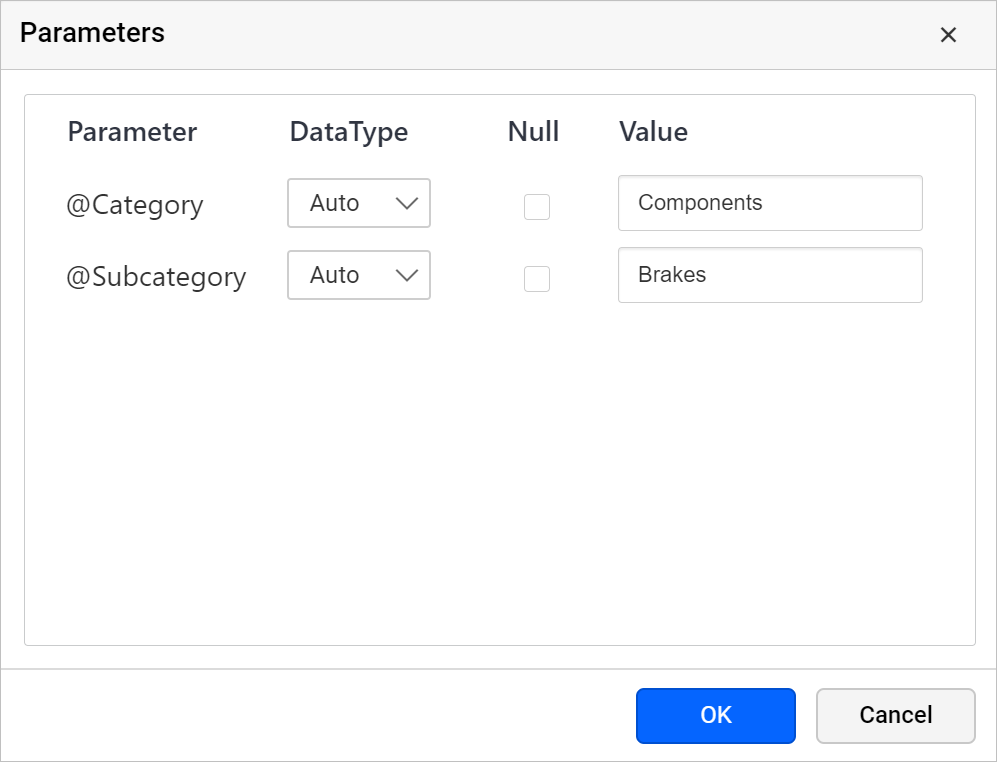
-
-
Click on the
Finishbutton. Now, theSalesbyCategorydataset will be listed under theDATApane.
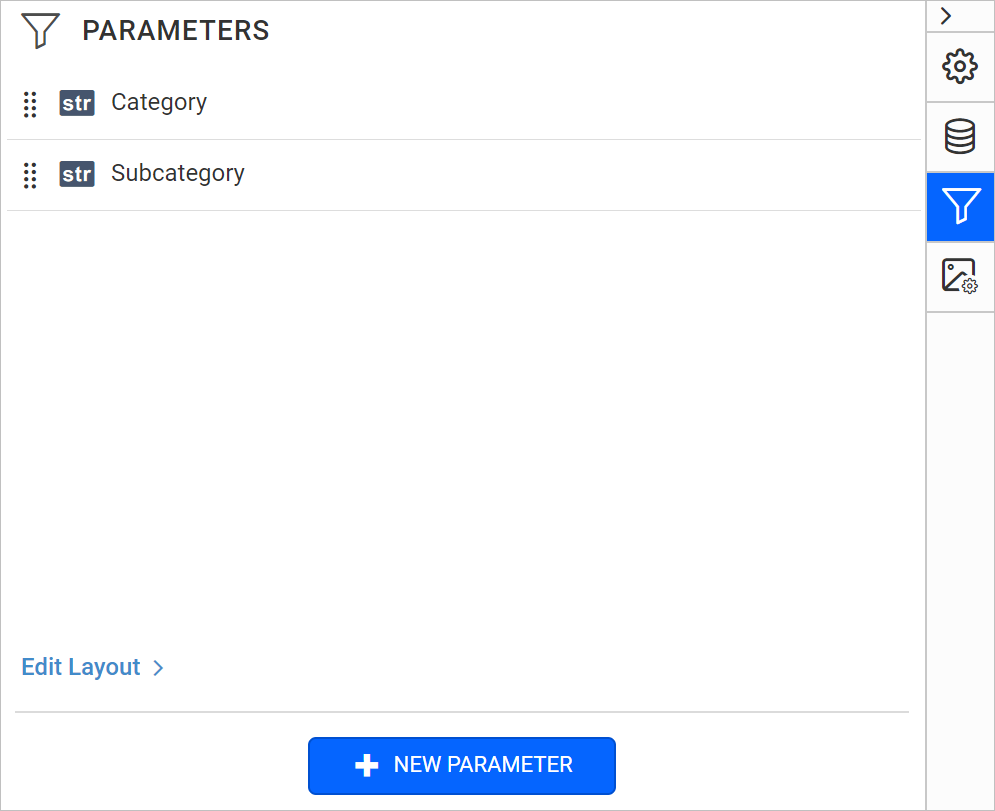
Once you save the dataset, an equivalent report parameters will be created under the PARAMETERS panel like below.
Create dataset for independent parameter
-
Create a new dataset by following the steps provided in Create Data section before proceeding with below steps.
-
In Name field, type the name of the dataset. For example, we have chosen CategoryValues as dataset name.
-
Paste the following query text in the query editor:
SELECT DISTINCT Name AS Category FROM Production.ProductCategoryHere column name Name and table ProductCategory has been represented in above query to create dataset for independent parameter
Category.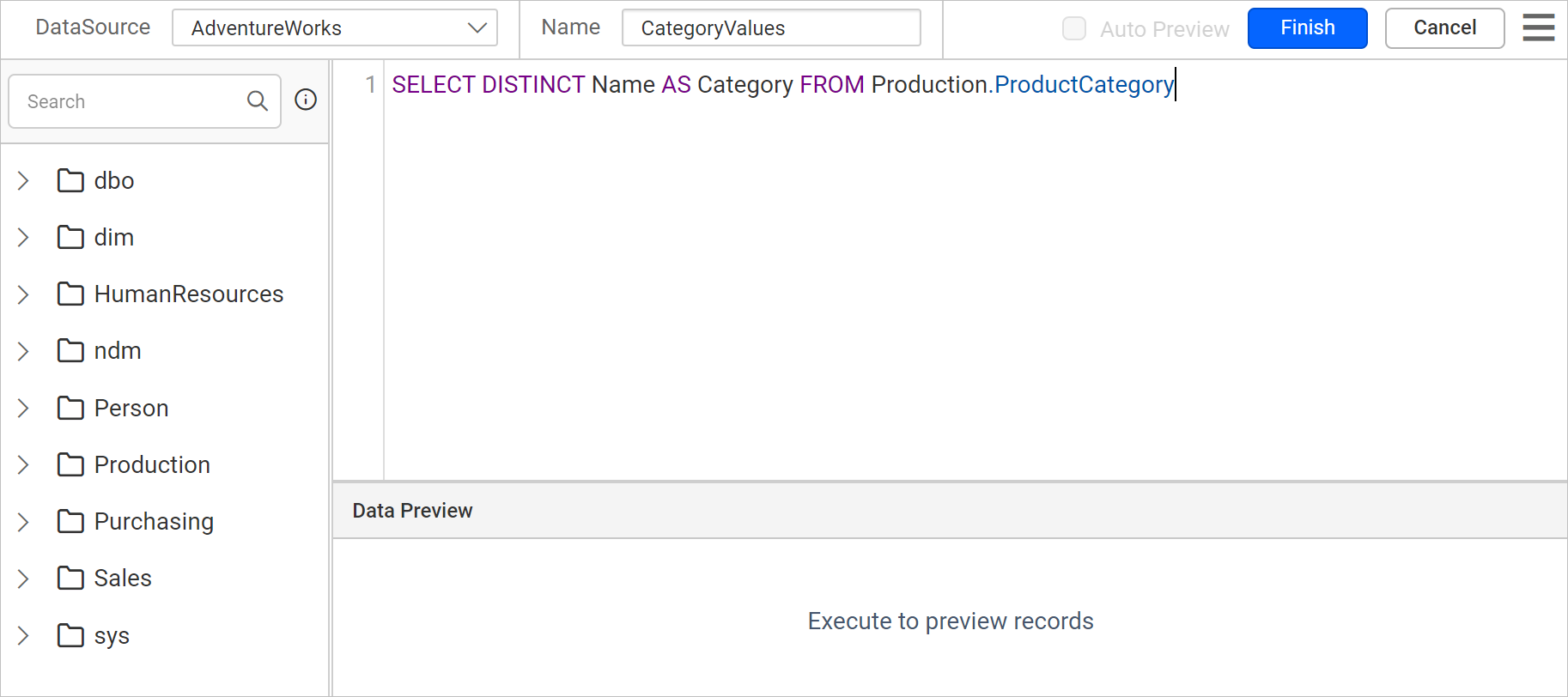
-
Click on the
Runicon in toolbar to see the result.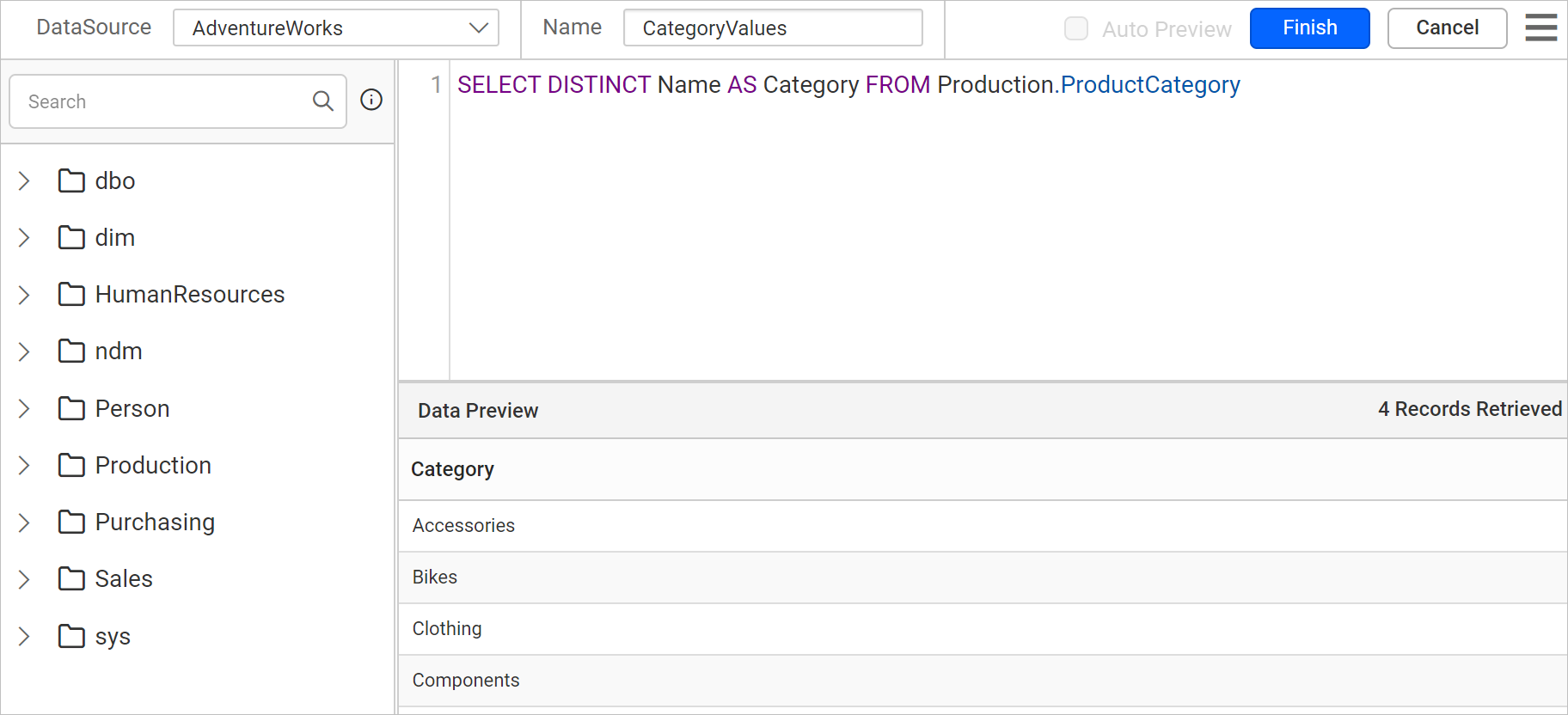
-
Click on the
Finishbutton. Now, theCategoryValuesdataset will be listed under theDATApane.
Set available values for independent parameter
- Click
Parametericon in the configuration panel to open aPARAMETERSpanel.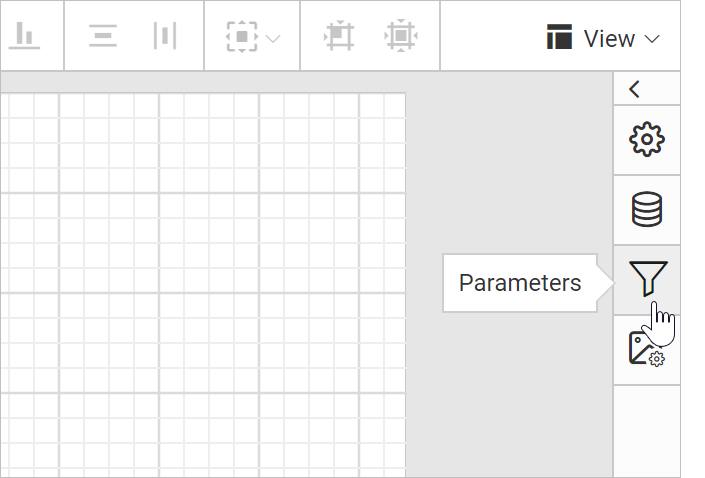
- Edit the Category parameter. In name field, verify that the name is Category. Refer Edit Report Parameter section.
- Click
Assign Value >>to open theParameter Assigndialog. - Select
Query Valueoption underAvailable Valuetab. - Select the
CategoryValuesin dataset field,Categoryin value and label field.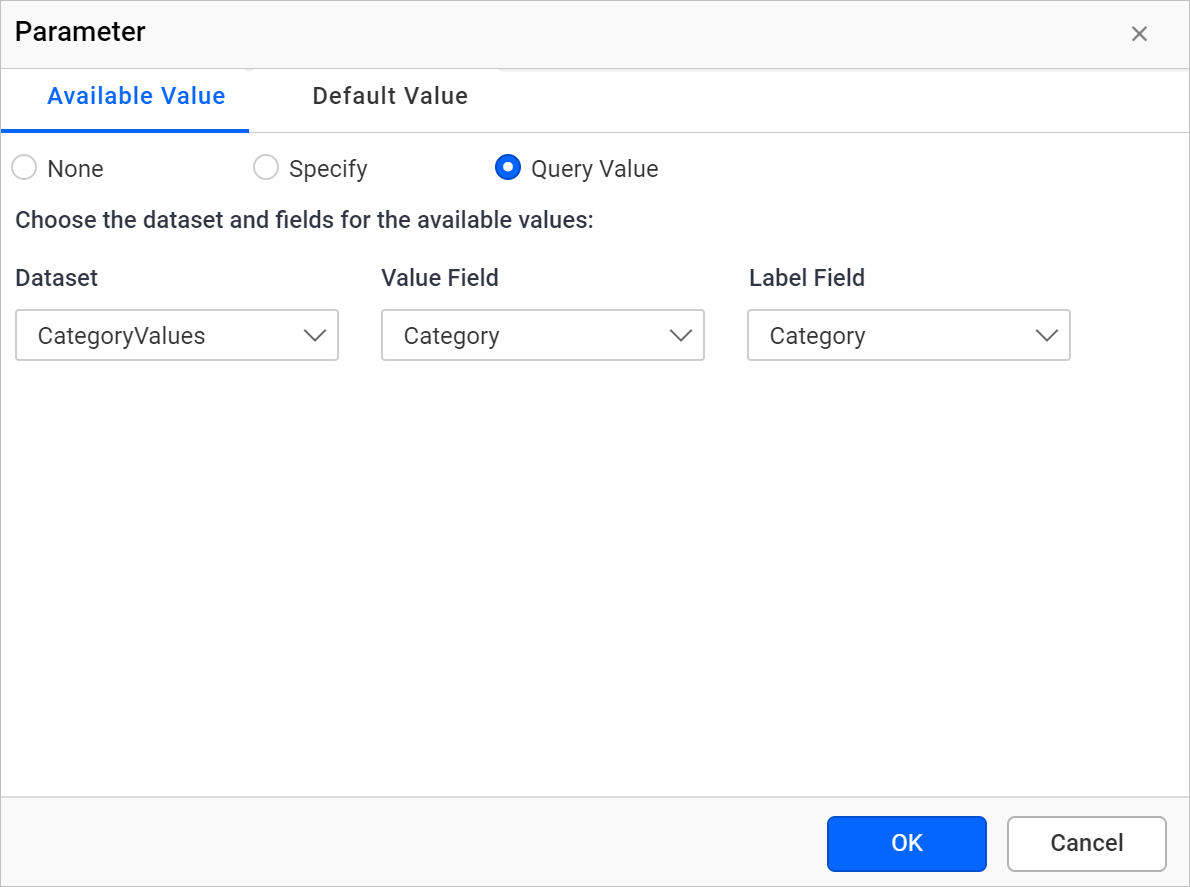
- Click on the
Okbutton andSavethe parameter.
Create dataset for dependent parameter
Next, need to create dataset for dependent parameter and assign values to it. For example, we have chosen @Subcategory as dependent parameter.
-
Create a new dataset by following the steps provided in Create Data section before proceeding with below steps.
-
In Name field, type the name of the dataset. For example, we have chosen SubcategoryValues as dataset name.
-
Switch to the query editor mode and paste the following query text in the query editor:
SELECT DISTINCT PSC.Name AS Subcategory
FROM Production.ProductSubcategory AS PSC
INNER JOIN Production.ProductCategory AS PC
ON PC.ProductCategoryID = PSC.ProductCategoryID
WHERE PC.Name = (@Category)
Here column name Name and table ProductSubCategory joins with table ProductCategory and includes condition with independent parameter
Categoryto create dataset for dependent parameterSubCategory.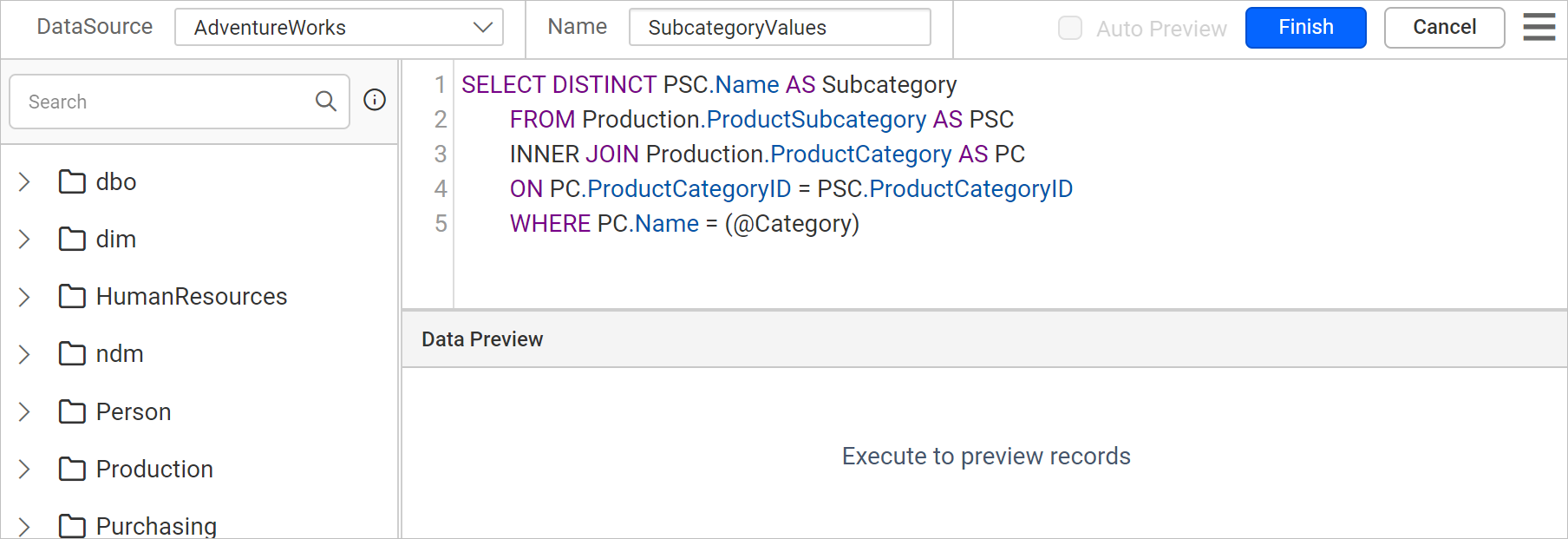
-
Click on the
Runicon in toolbar, now the Parameters dialog opens automatically. For example, In @Category parameter, we have typedComponentsas value.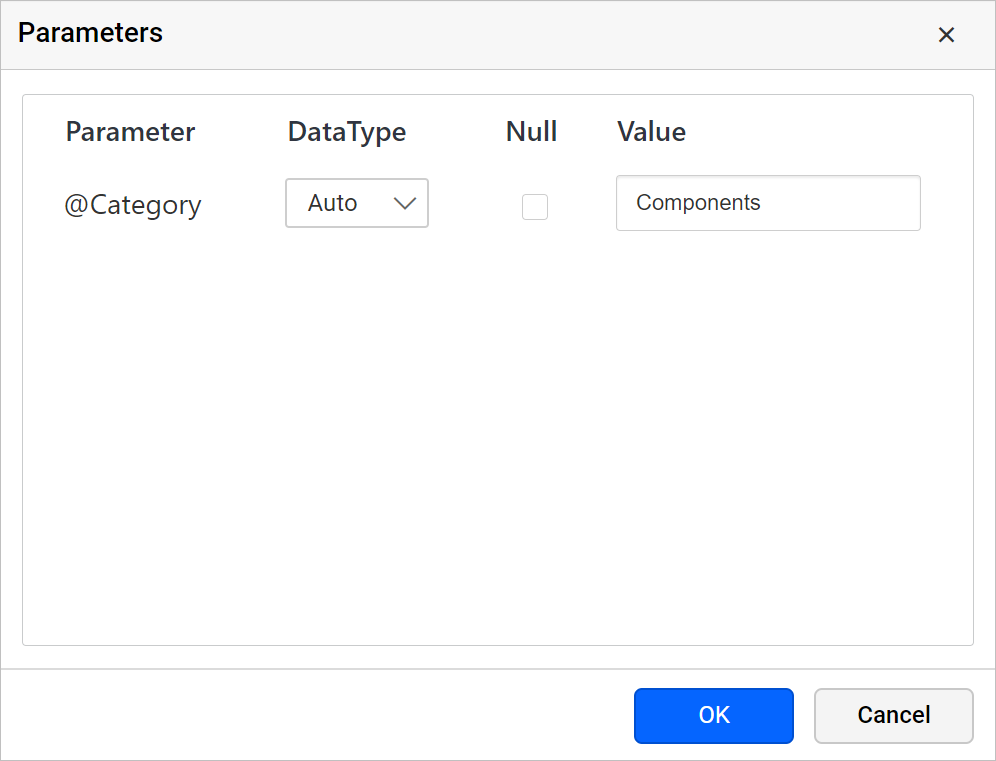
-
Click on the
OKbutton, the result set will display 14 rows.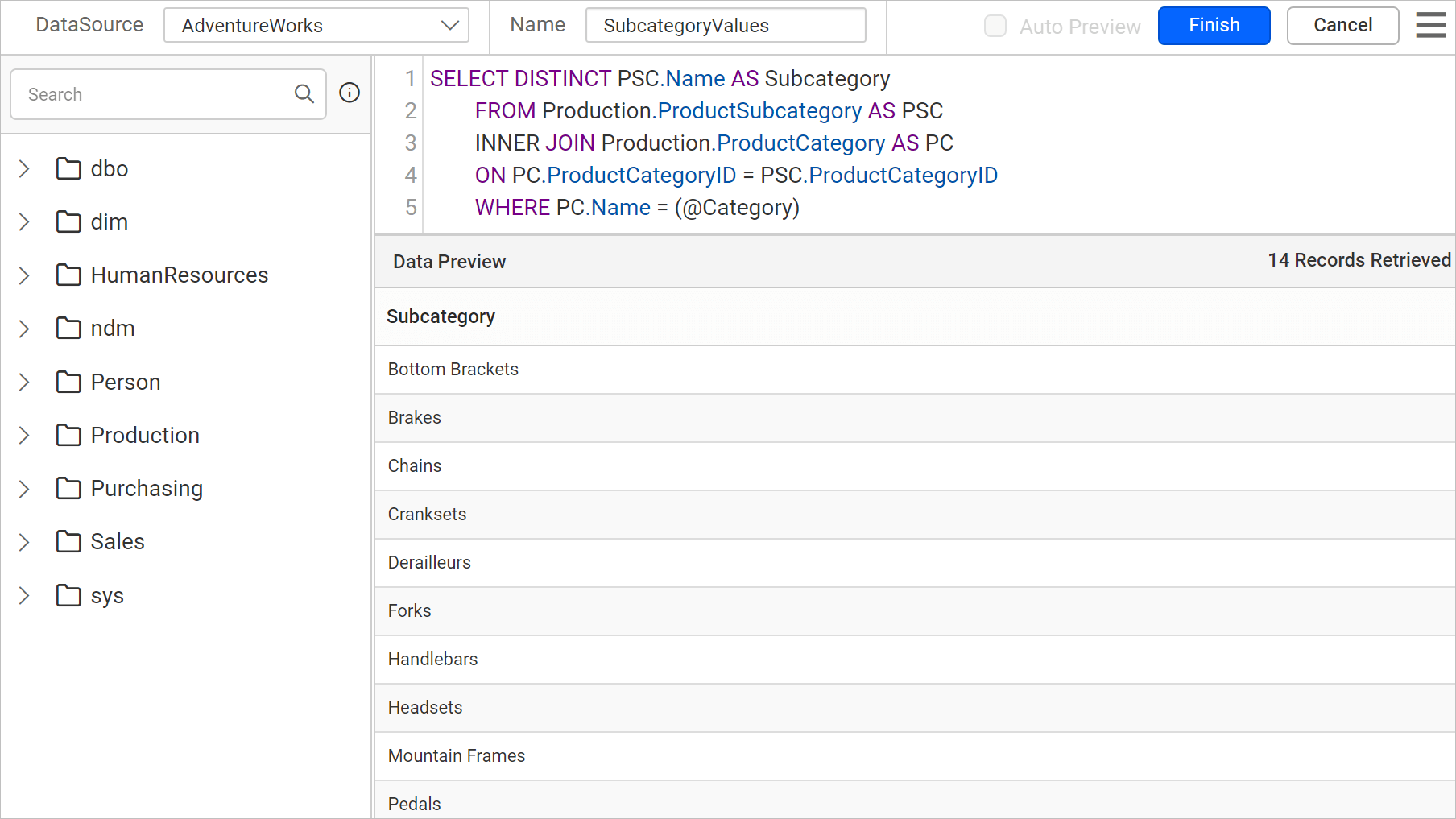
-
Click on the
Finishbutton. Now, theSubcategoryValuesdataset will be listed under theDATApane.
Set available values for dependent parameter
- Click on the
Parametericon in the configuration panel to open aParameterconfiguration panel. - Edit the Subcategory parameter. In name field, verify that the name is Subcategory.
- Click on
Assign Value>>to open theParameter Assigndialog. - Select
Query Valueoption underAvailable Valuetab. - Select the
SubcategoryValuesin dataset field,Subcategoryin value and label field.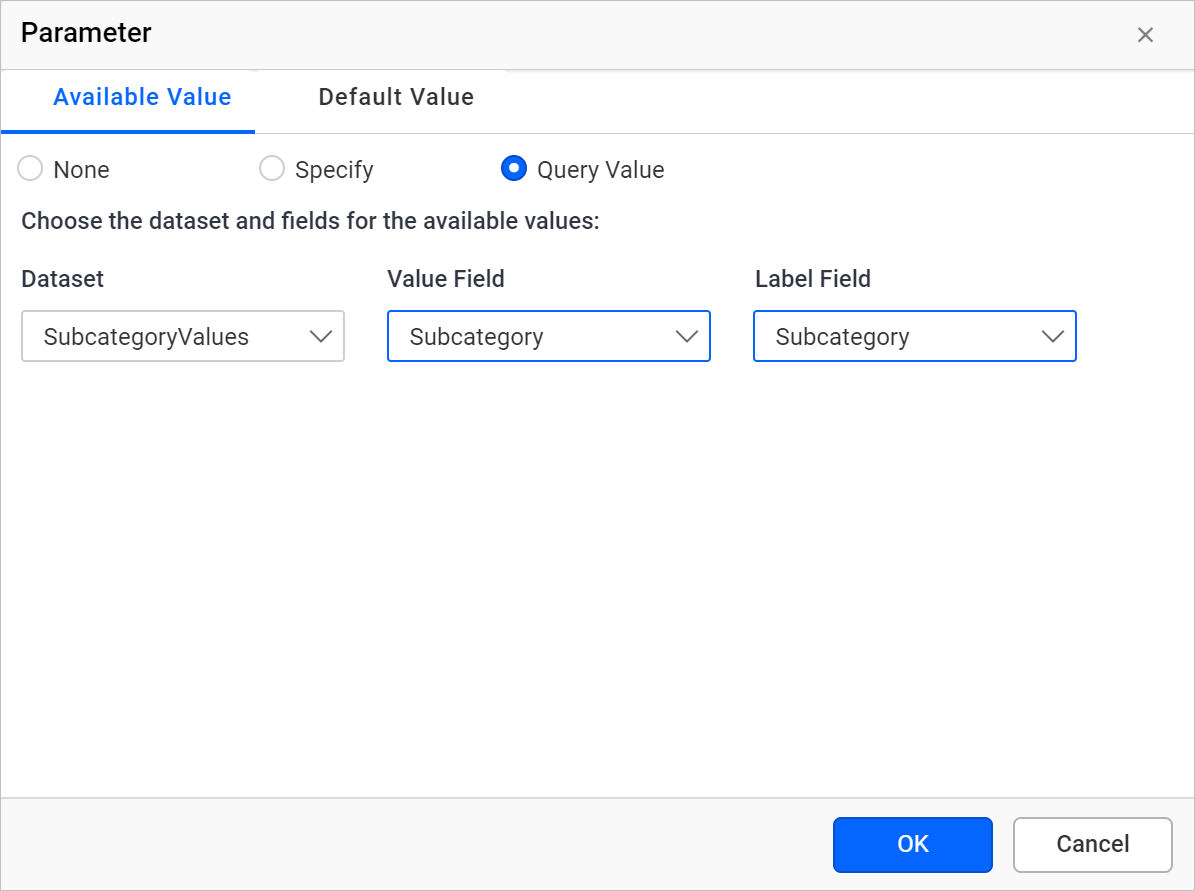
- Click on the
Okbutton andSavetheSubcategoryparameter.
Filter a table data based on report parameter
- Design a simple table report and assign the
SalesbyCategorydataset to the table.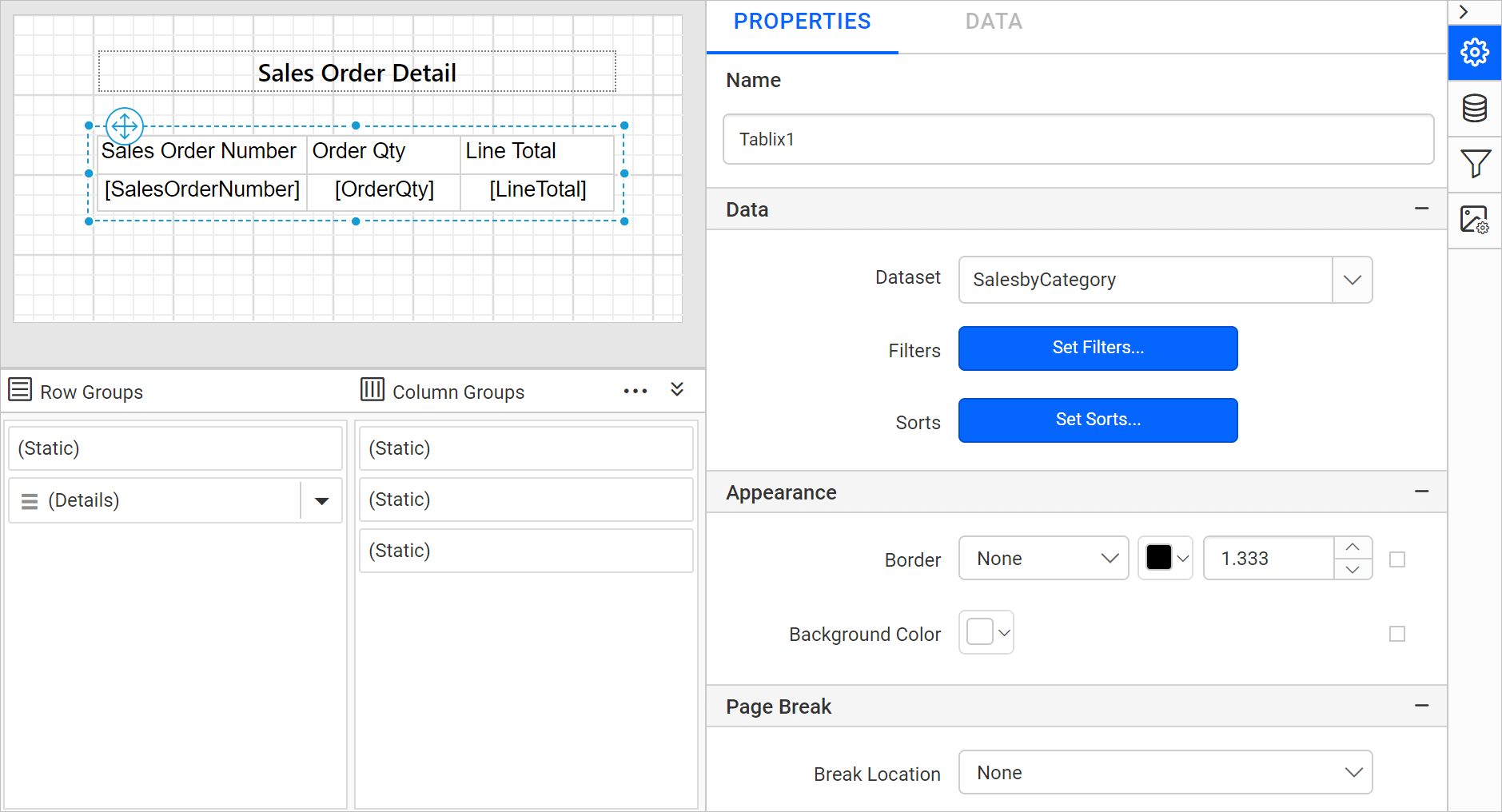
Refer Design a simple table report section to create a table report in Web Report Designer.
- Click on the
Previewbutton in the report header. - Choose
Accessoriesin theCategoryparameter drop-down, based on theAccessoriescategory the values will be populated in theSubCategorydrop-down.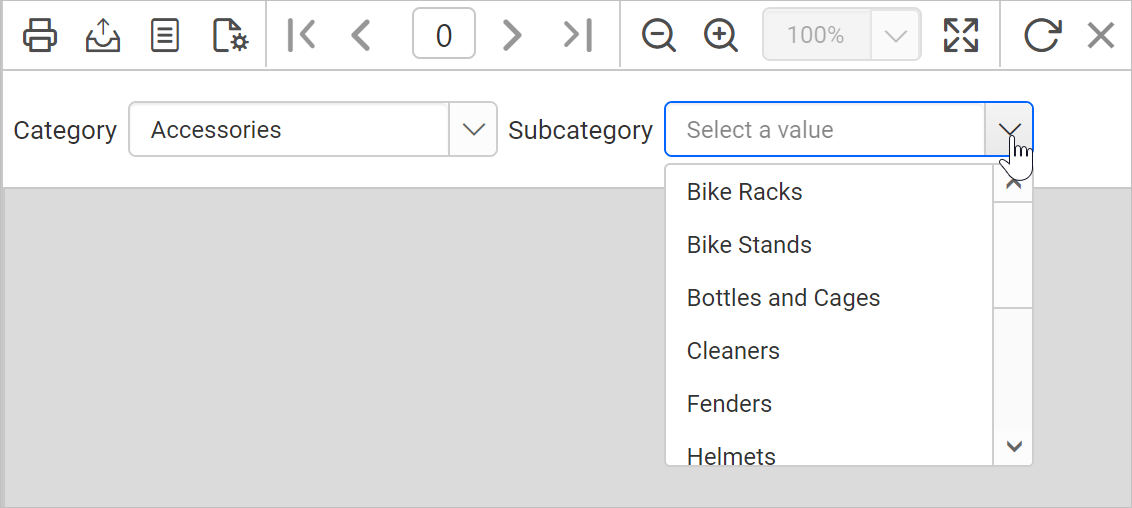
- Choose
Bike Racksin theSubcategorydropdown and click onView Reportbutton.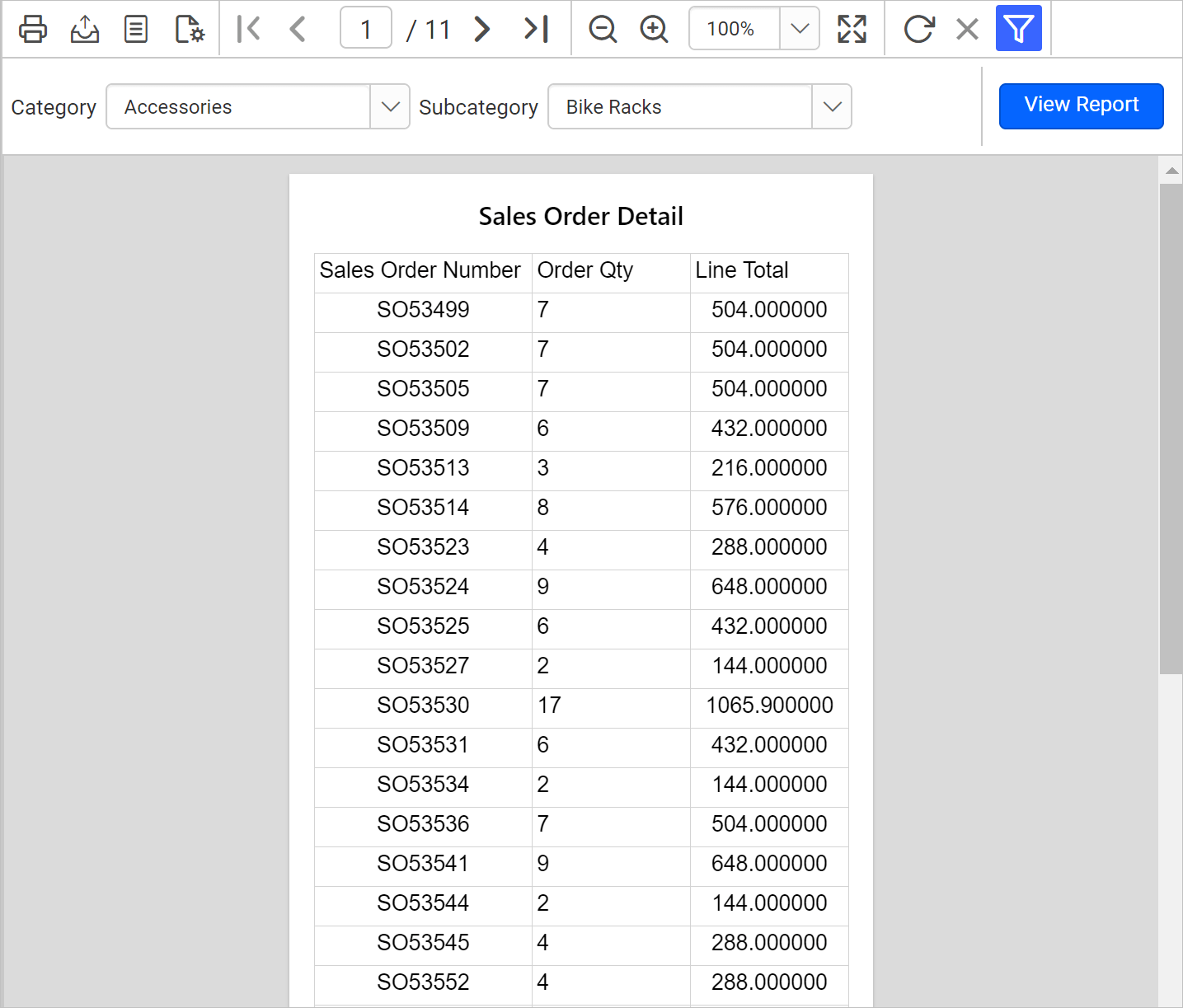
Download the above report design from link.