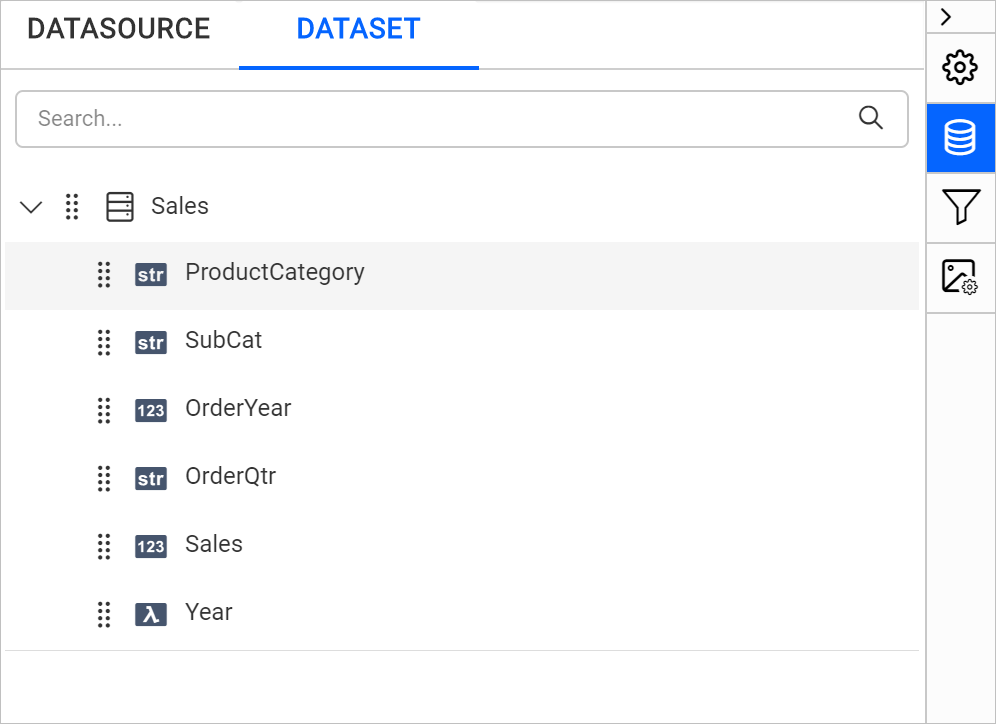
Fields
Fields options can be used to create a new field when a required information is not directly available in the retrieved dataset. It will also allows you to change the column names of the existing fields in the dataset.
Refer Create Data section and create a data in report designer.
Create calculated field
- Select a data in the
DATApanel to which you want to add fields.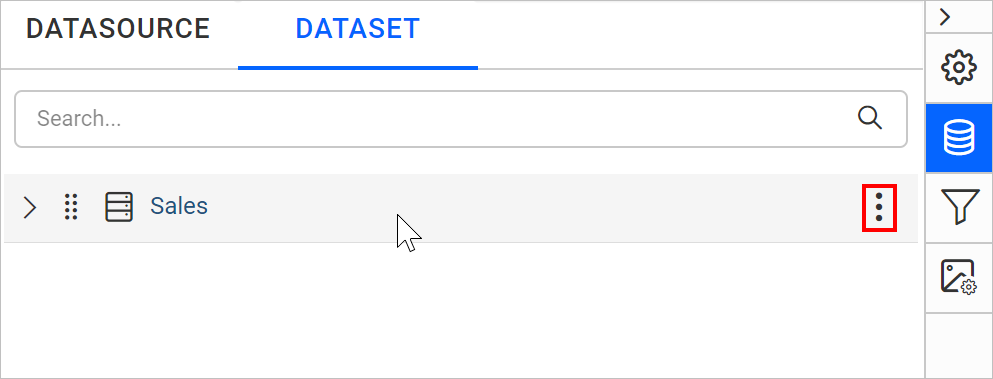
- Click on the above highlighted icon, the context menu will open with list of options.
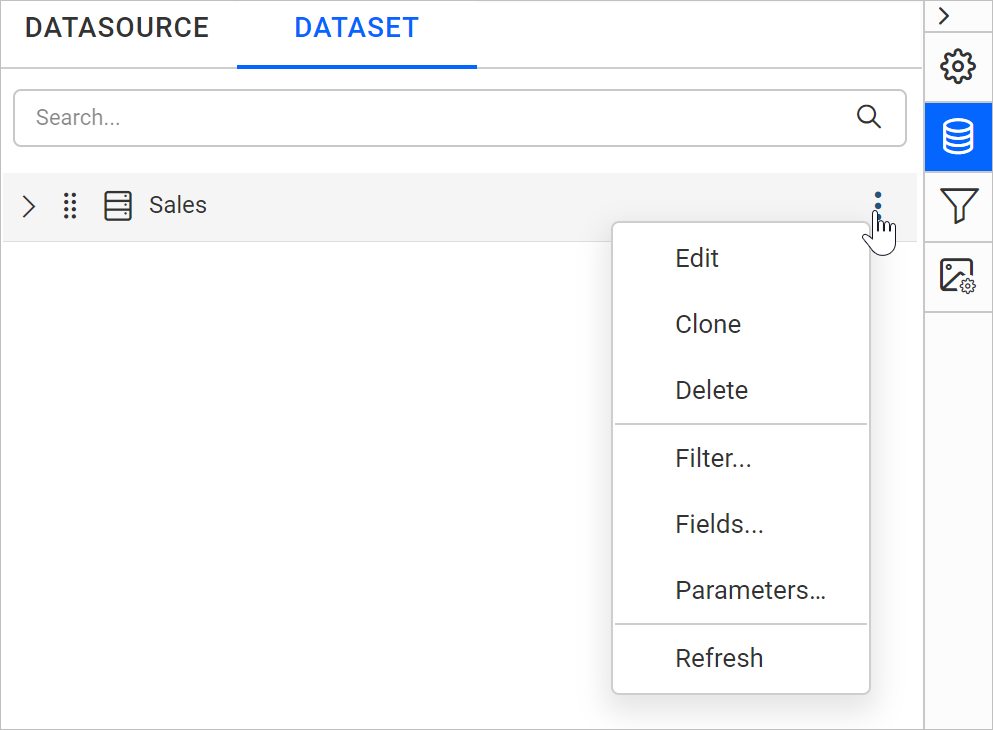
- Then, click on the
Fields...option in the menu. Now, the available fields in the selected dataset will be listed in theFieldsdialog as shown below.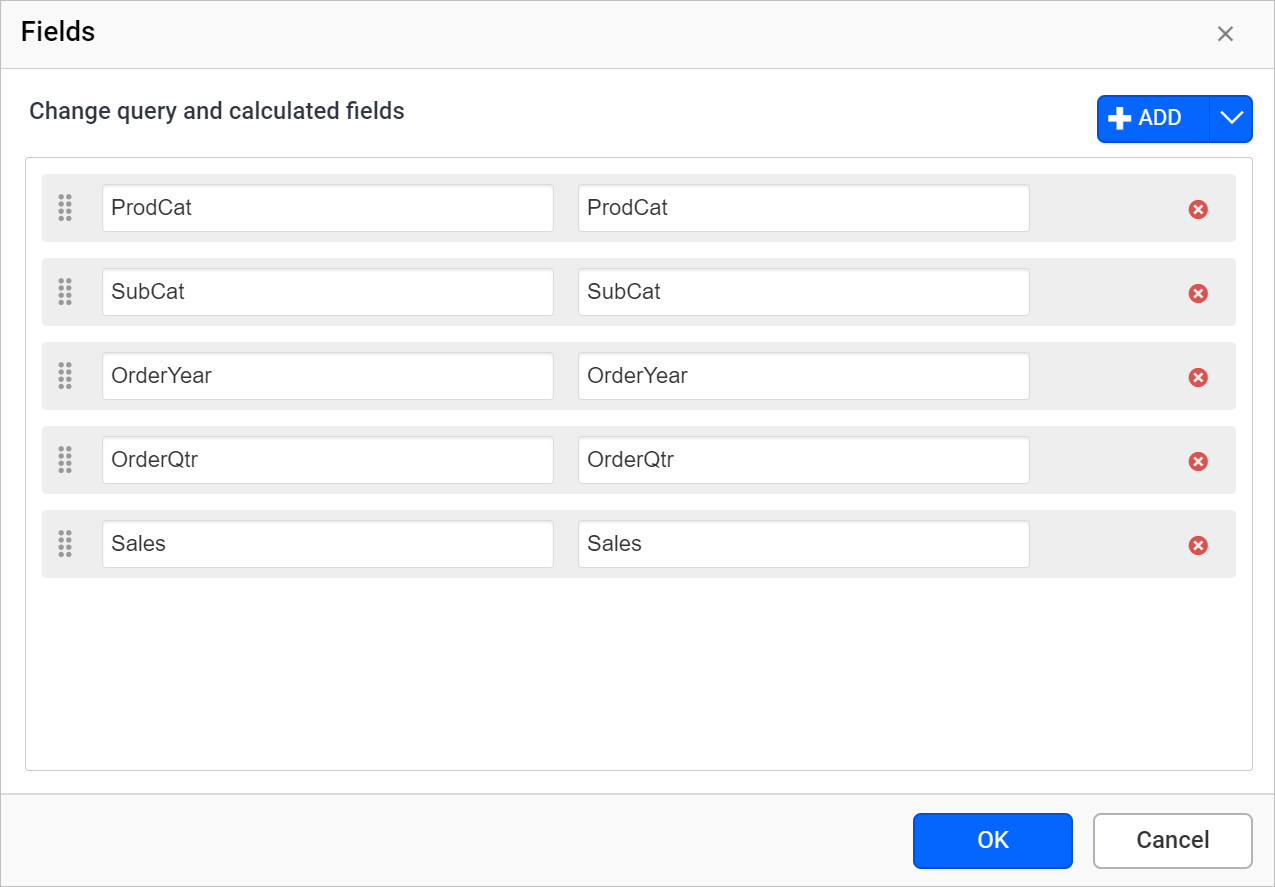
- To create a new calculated field, click on the
Addbutton and chooseCalculated Fieldin the menu.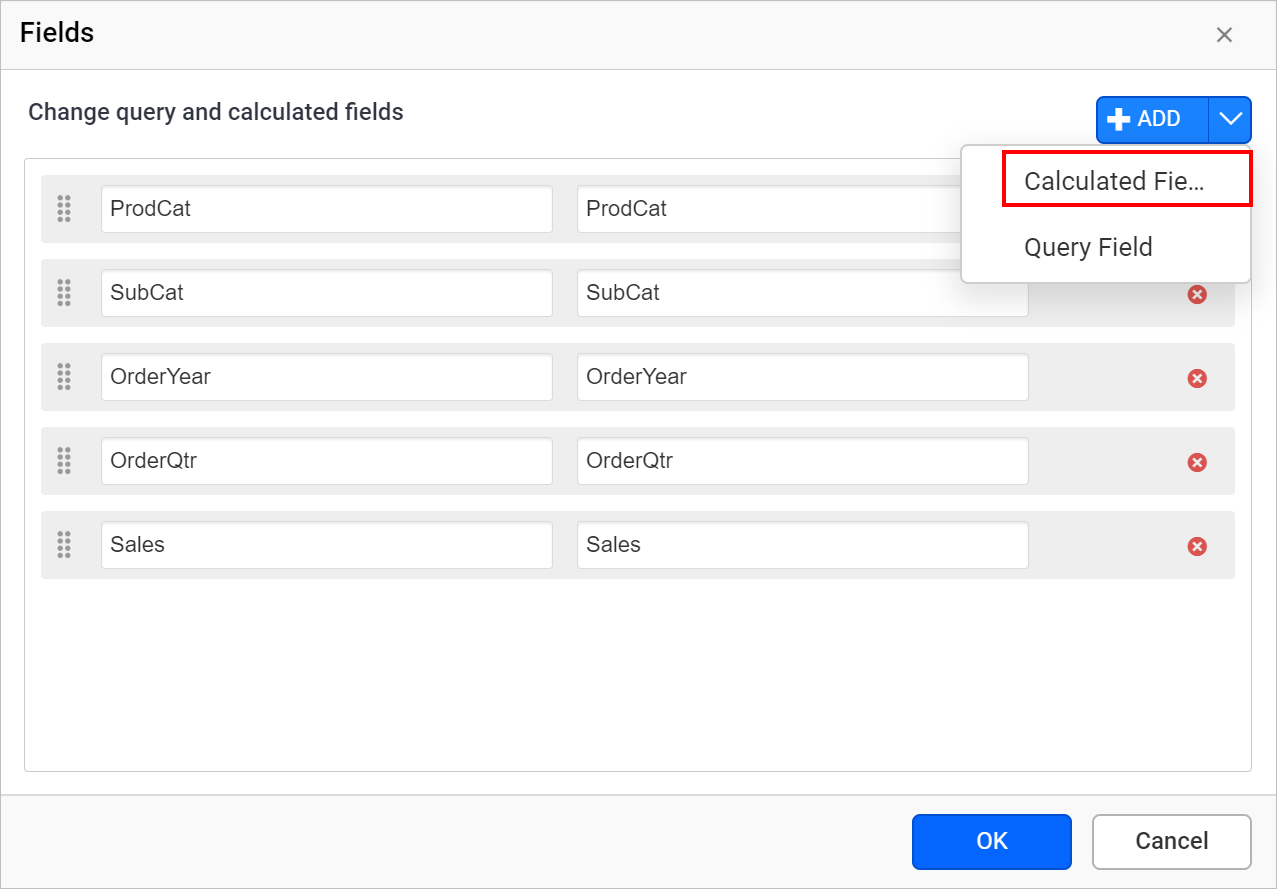
- In the
Field Nametext box, type the unique name for the field.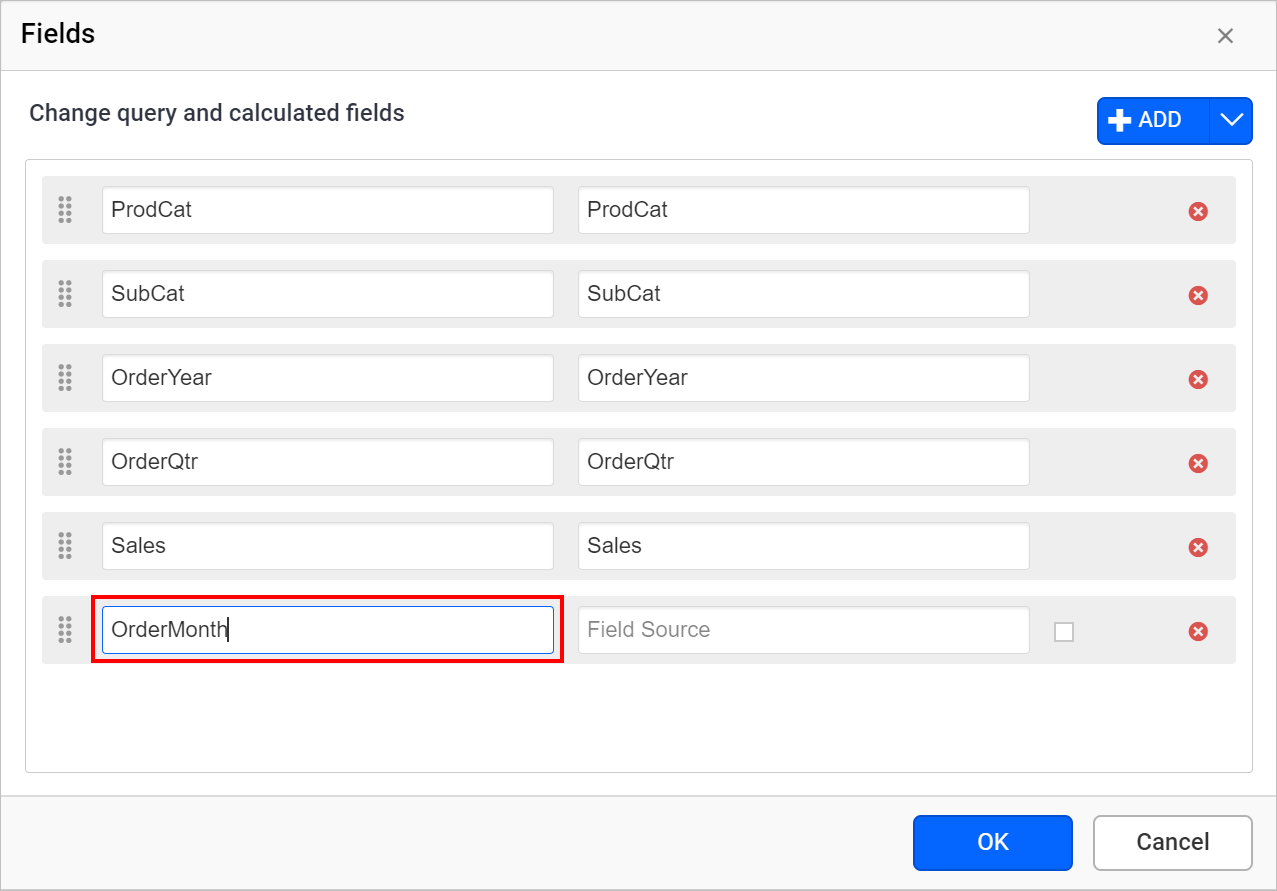
- In the
Field Sourcetext box, enter the static value directly or set an Expression for the field. Here,=Month(Fields!OrderYear.Value)expression is assigned to theOrderMonthfield.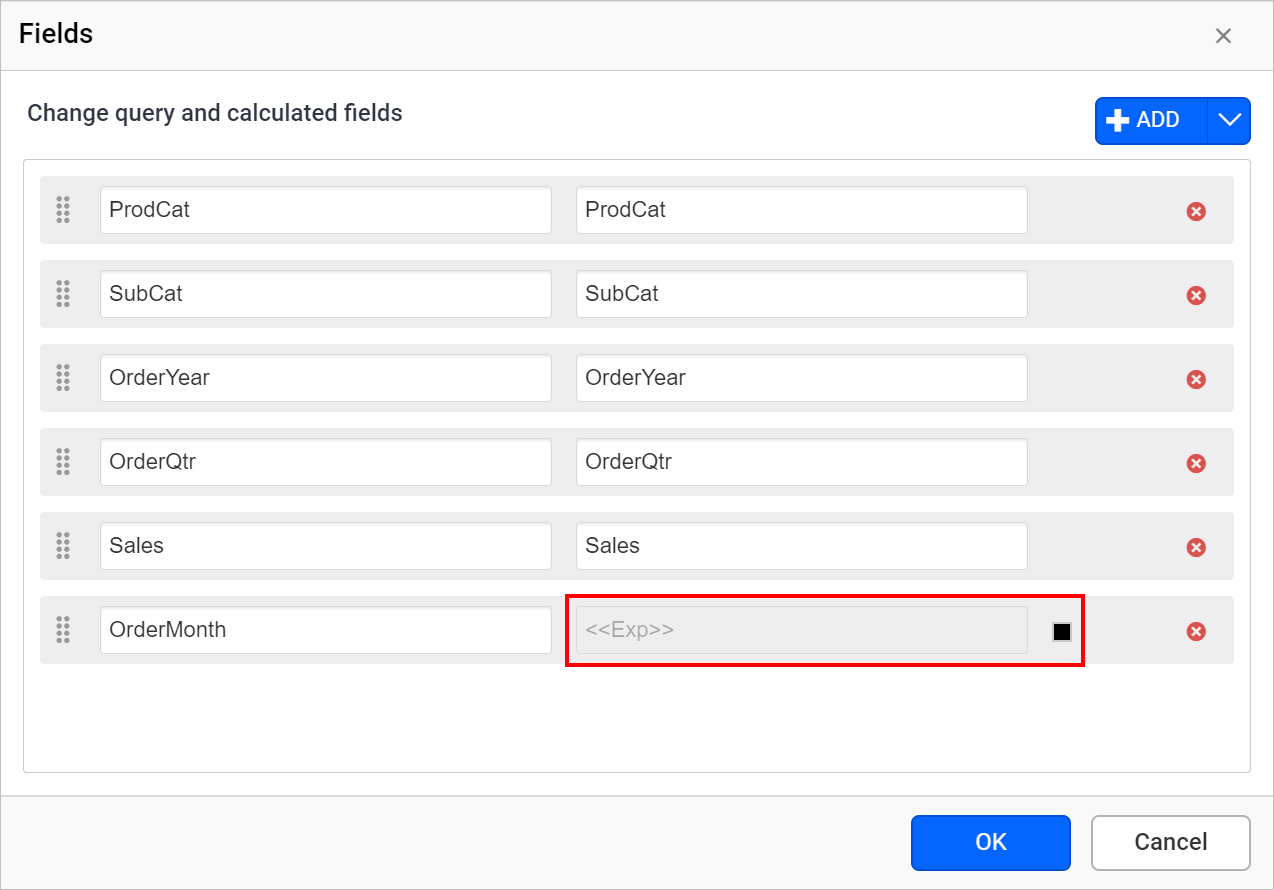
- Now, click on the
OKbutton and the newly added field will be listed under the respective dataset.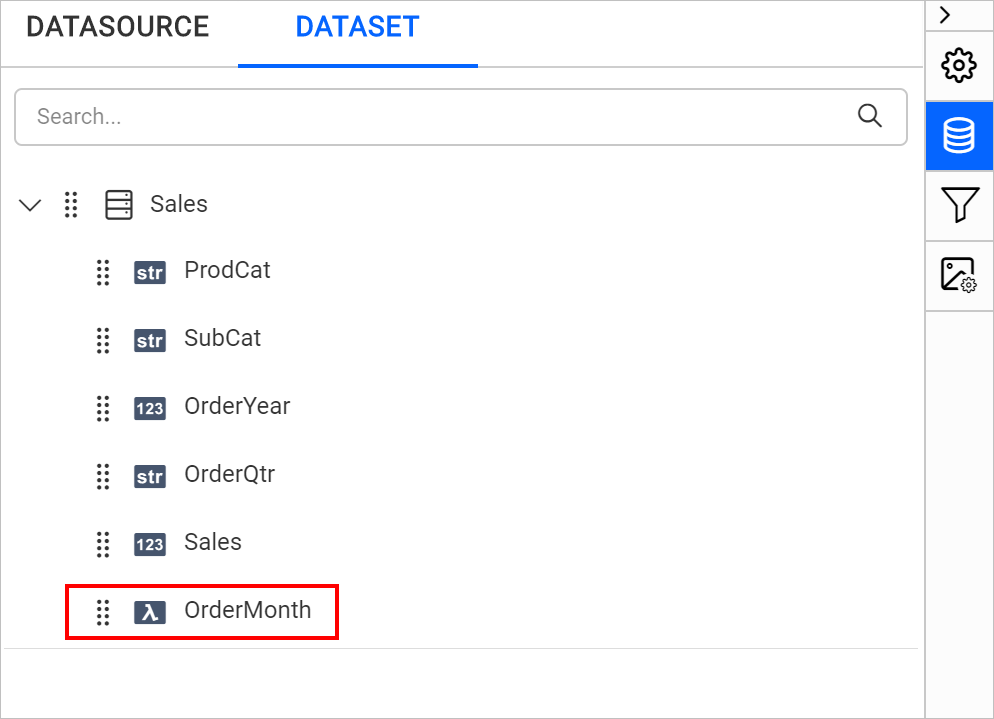
The expression for a calculated field cannot contain aggregates and the field name must be unique in the dataset.
Set expression
Follow steps 1 - 5, to create calculated field.
- To edit/create an expression of the calculated field, click on the square icon and select
Expression.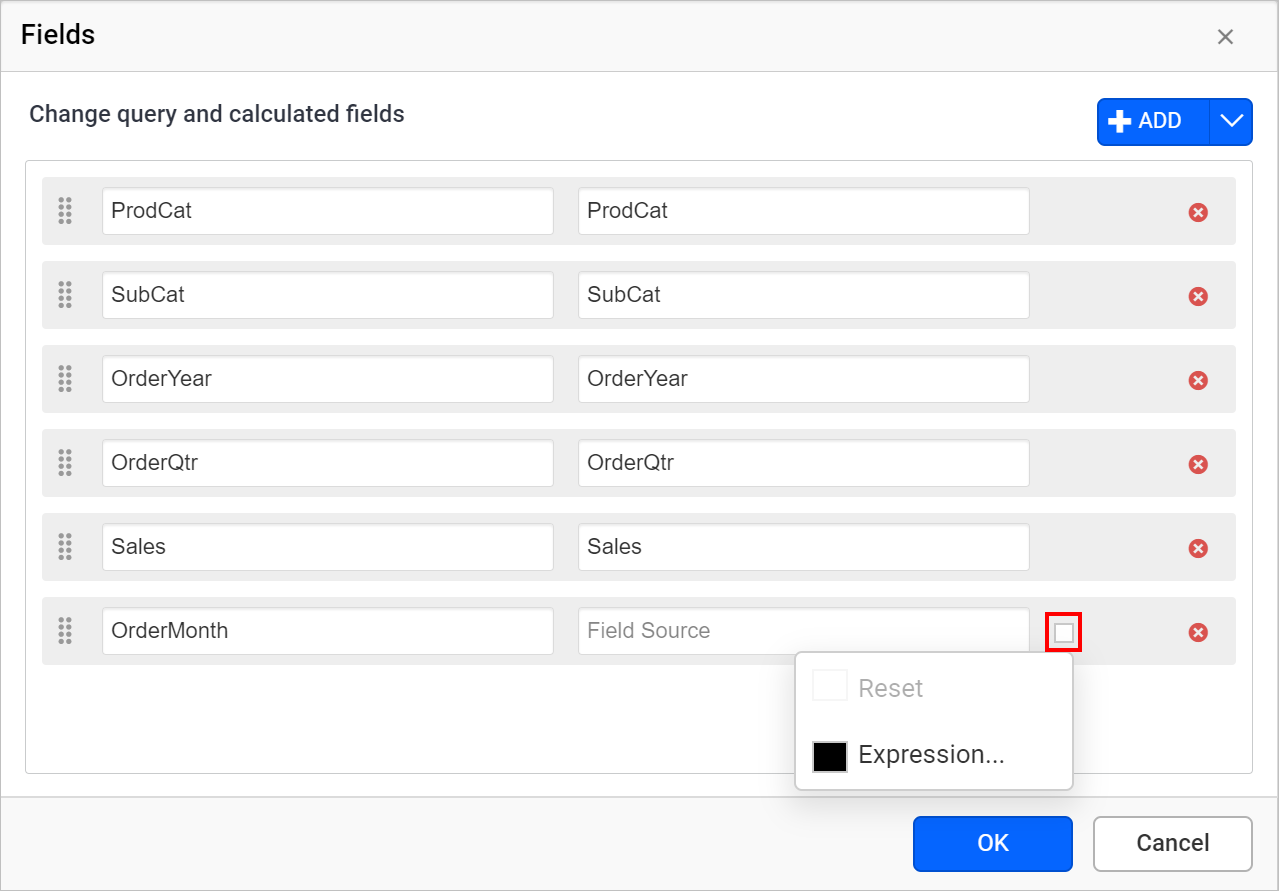
Expression Builderwill be open as shown below.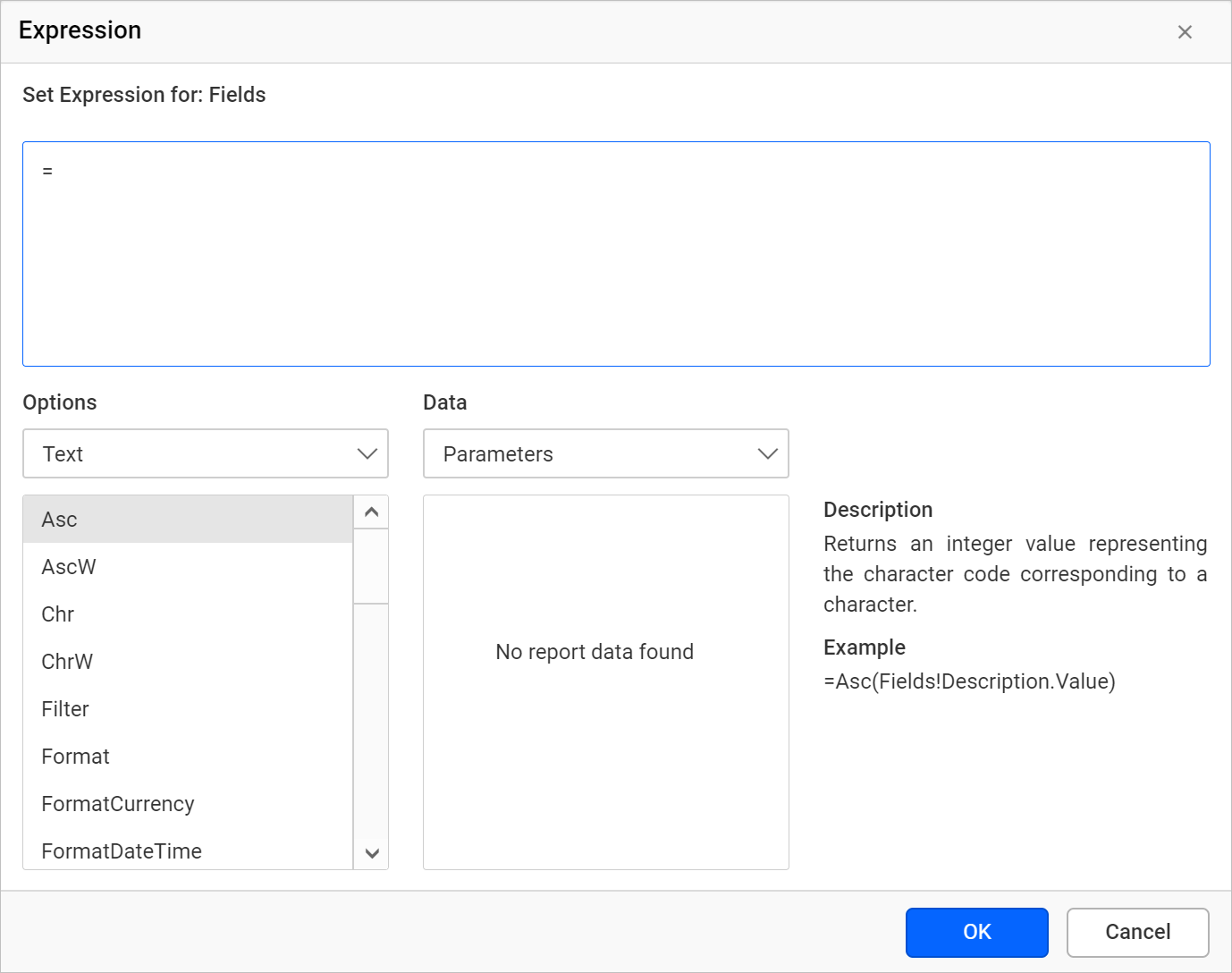
To learn more about handling expressions in report designer refer Expressions section.
- Provide the required expression and click on
OKbutton.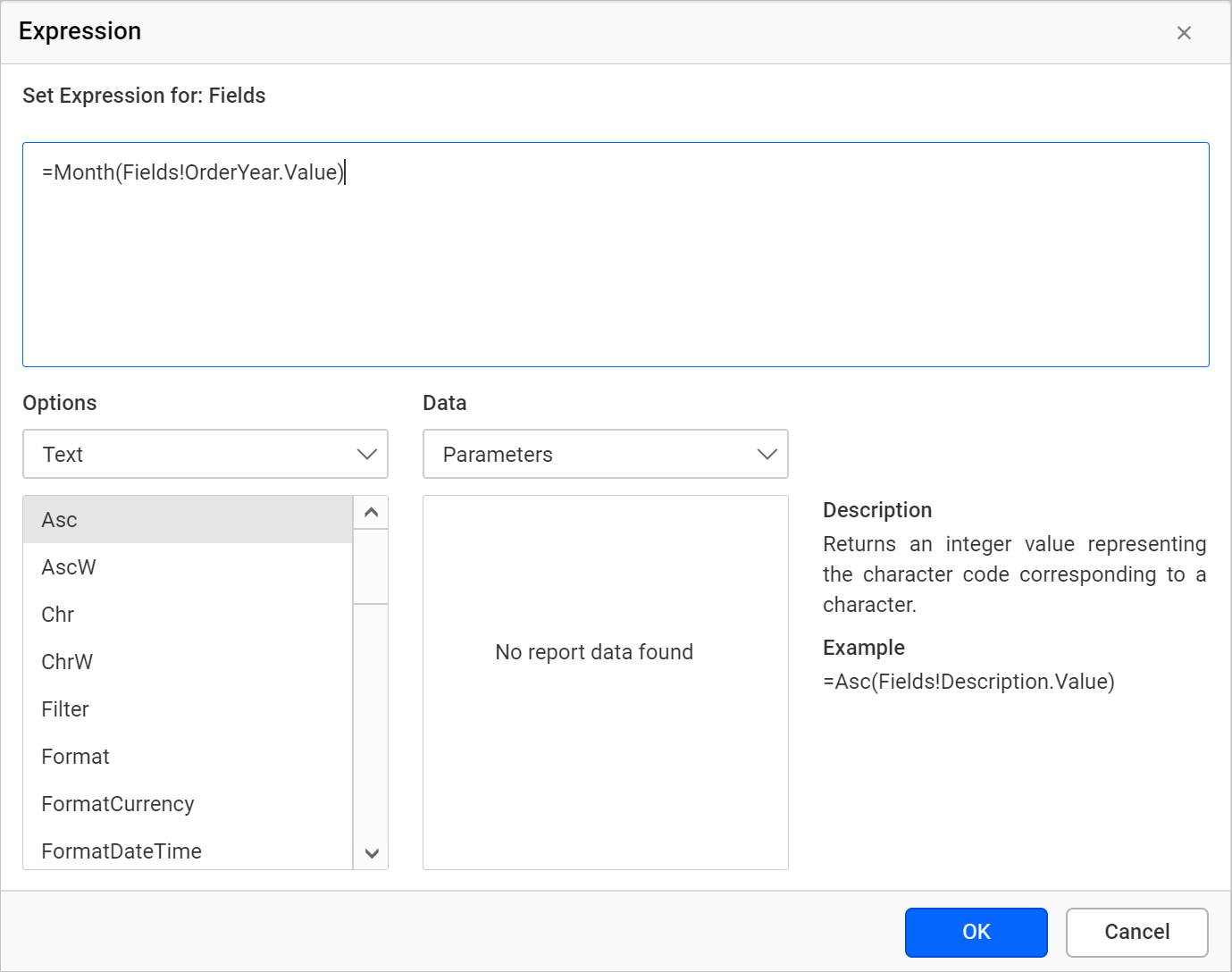
- The icon will be indicated in
Black color, if the expression is applied to the dataset field.
Reset Expression
- To reset an expression, click on the square icon and select
Reset.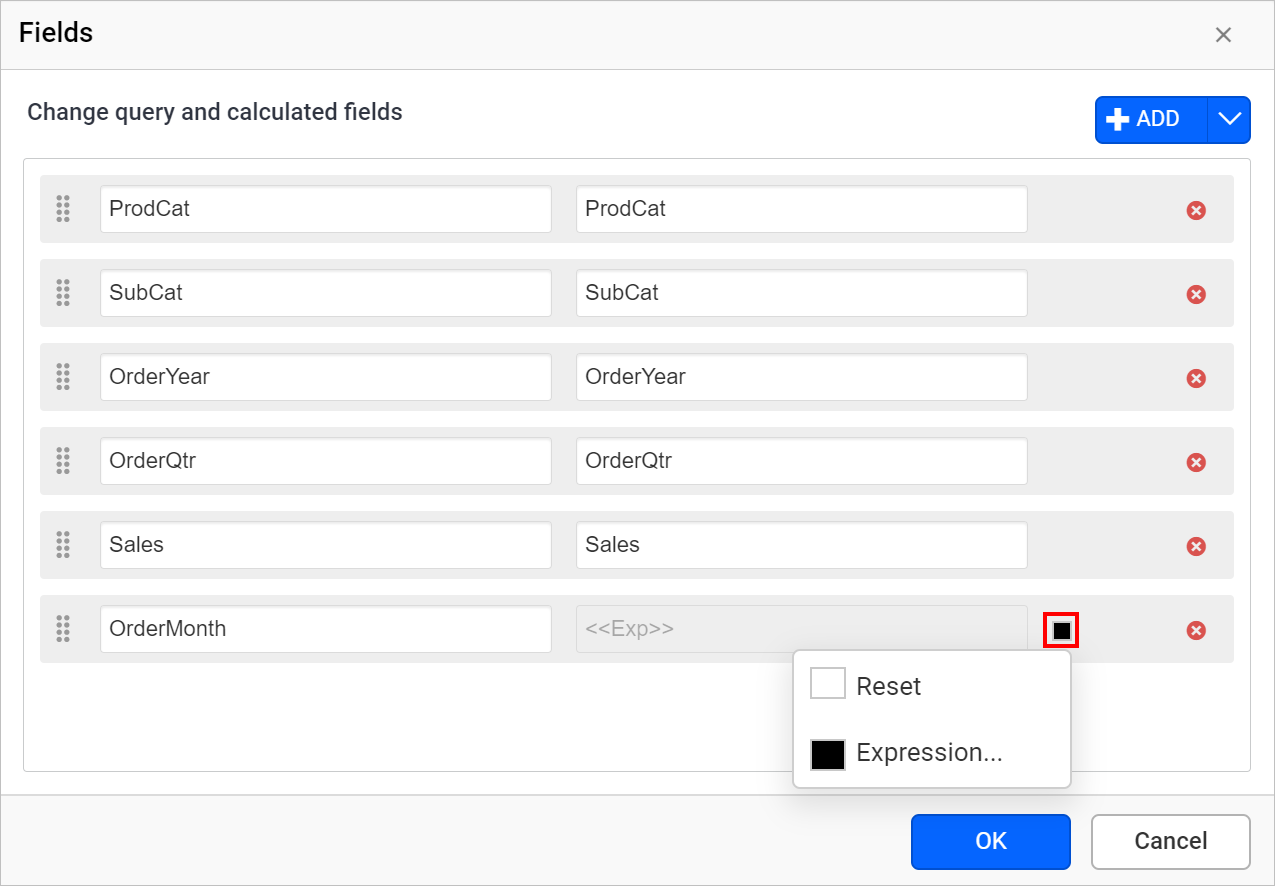
- The icon will be indicated in
White color, after reset action.
Create query field
- Select a data in the
DATApanel to which you want to add fields. - Click on the above highlighted icon, the context menu will open with list of options.
- Then, click on the
Fields...option in the menu. Now, the available fields in the selected dataset will be listed in theFieldsdialog as shown below. - To create a new query field, click on the
Addbutton and chooseQuery Fieldin the menu.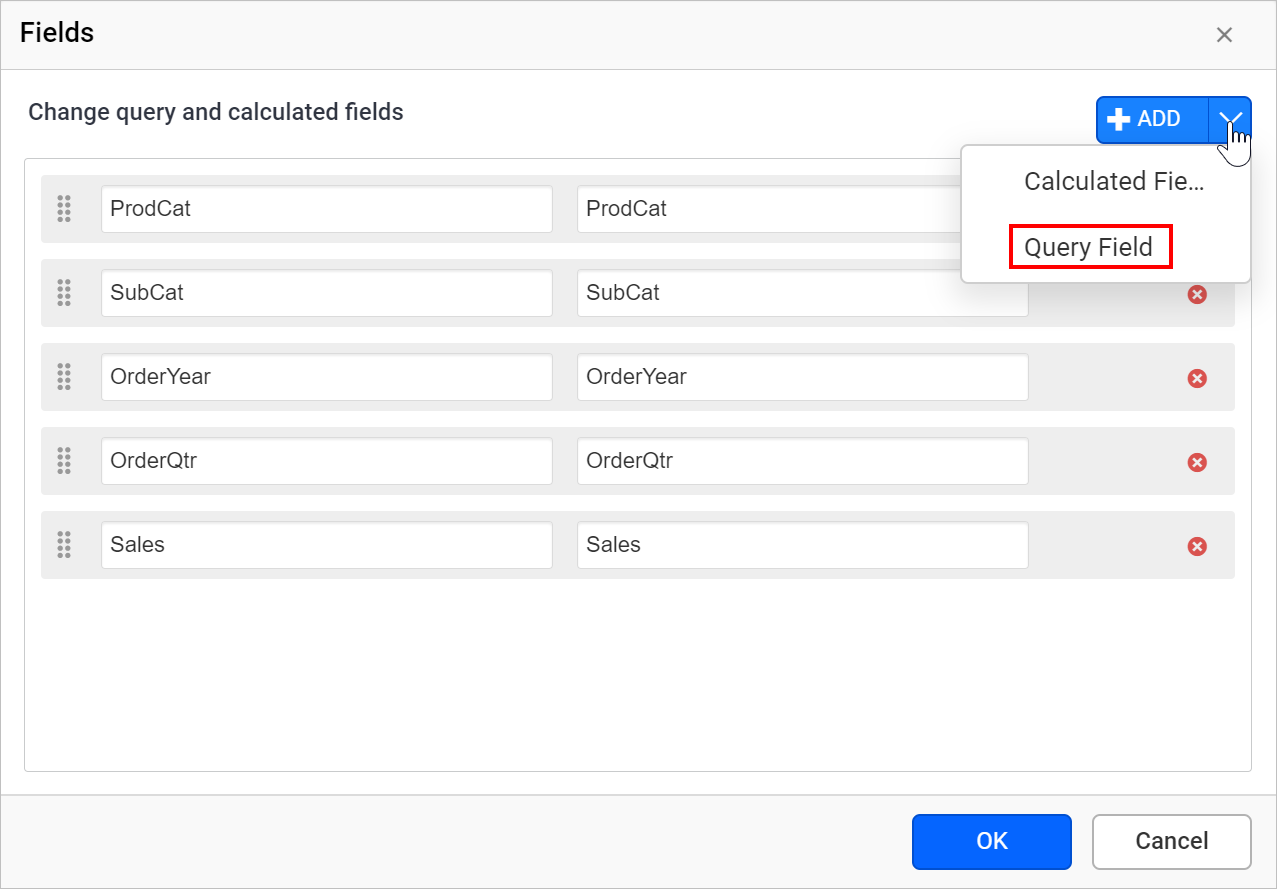
- In the
Field Nametext box, type the unique name for the field.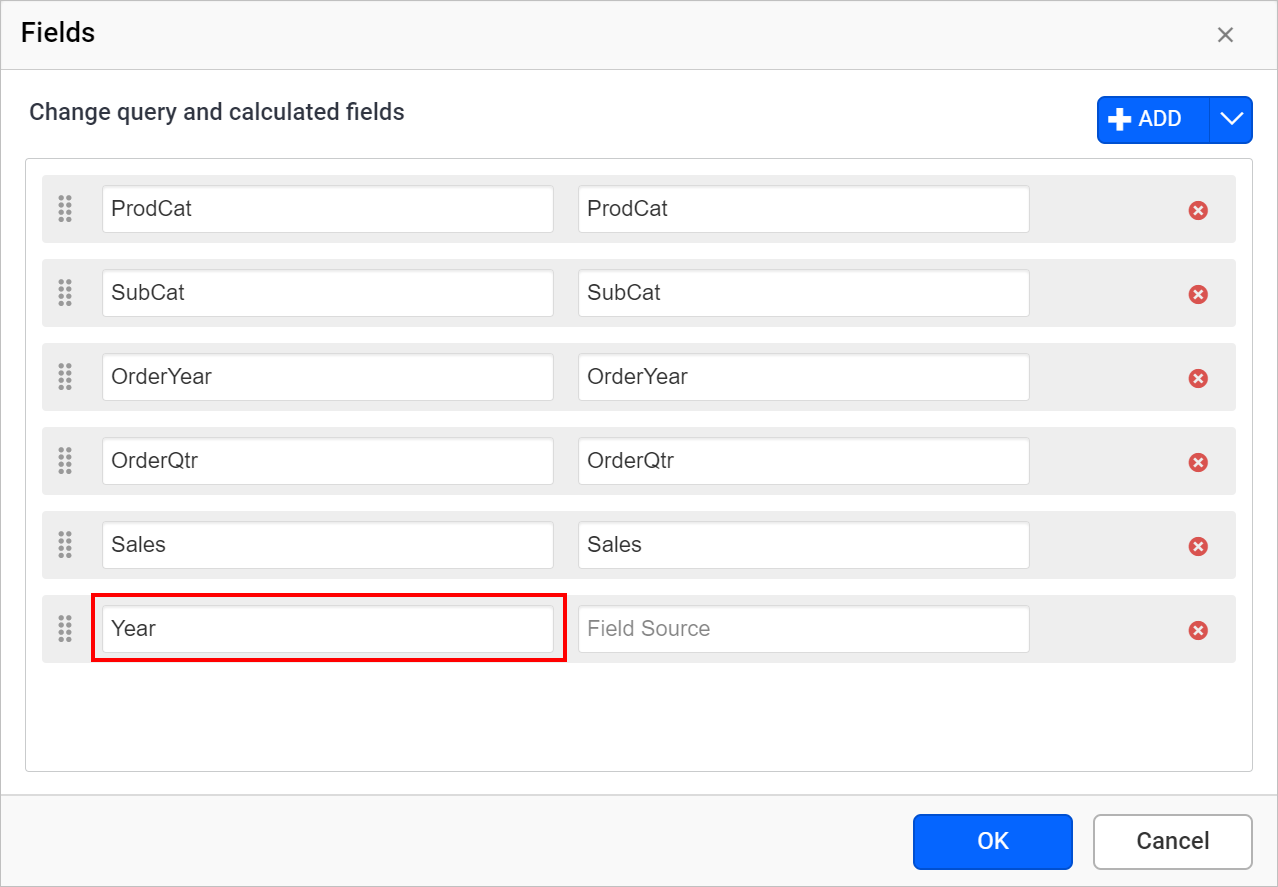
- In the
Field Sourcetext box, enter the name of an existing field on the data set.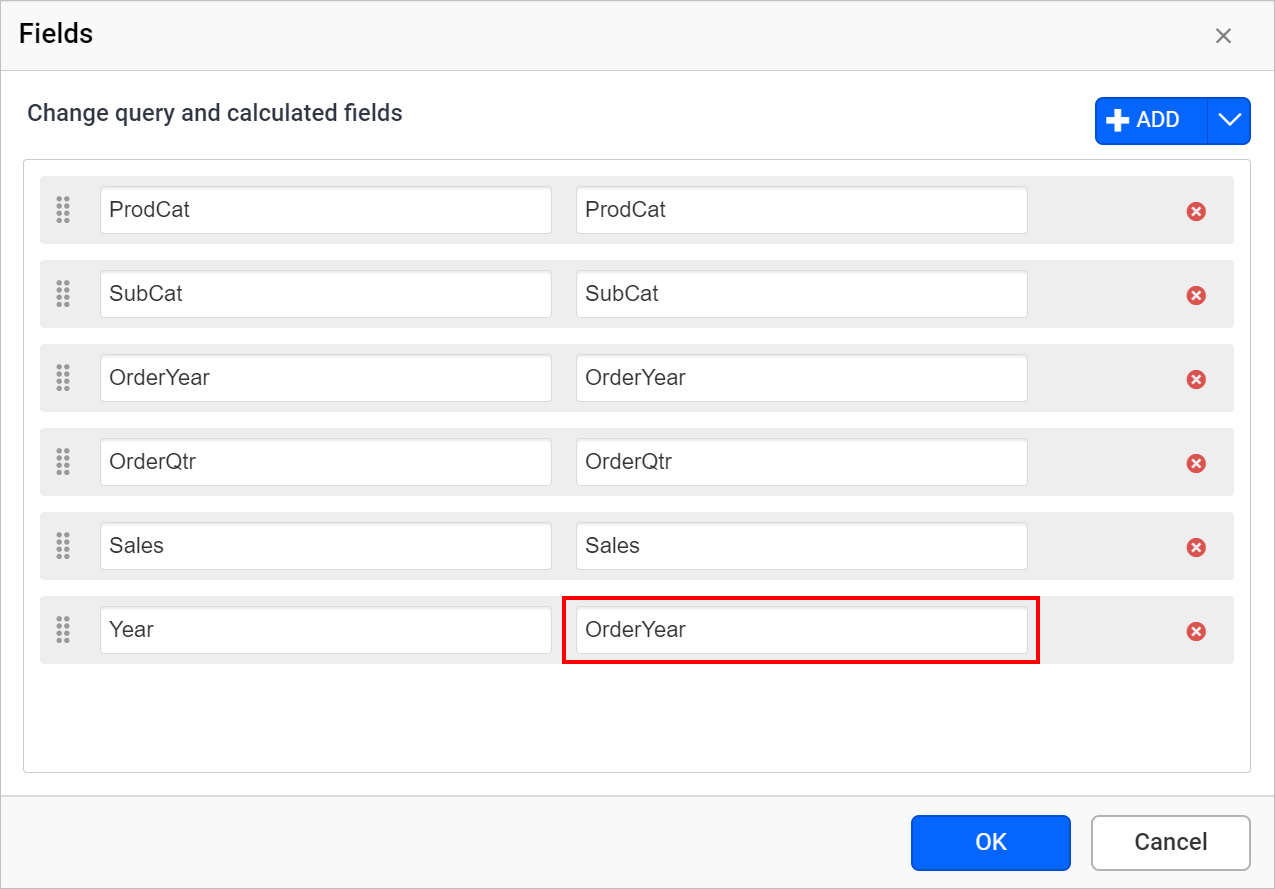
- Now, click on the
OKbutton and the newly added field will be listed under the respective dataset.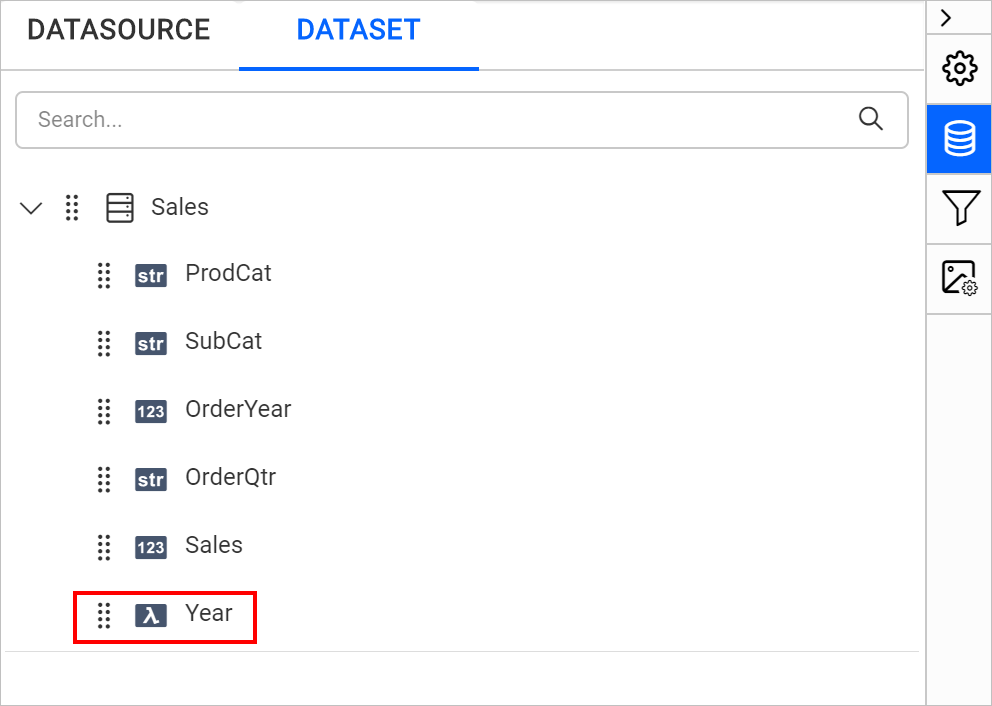
Delete field
Click on the Delete icon in the right corner to remove the required fields from the dataset.

Change field name
When you open the fields dialog, the available fields in the respective dataset will be listed in the Fields dialog as shown below.
To change the existing field name, modify the name in first textbox of the respective row and click on the OK button.
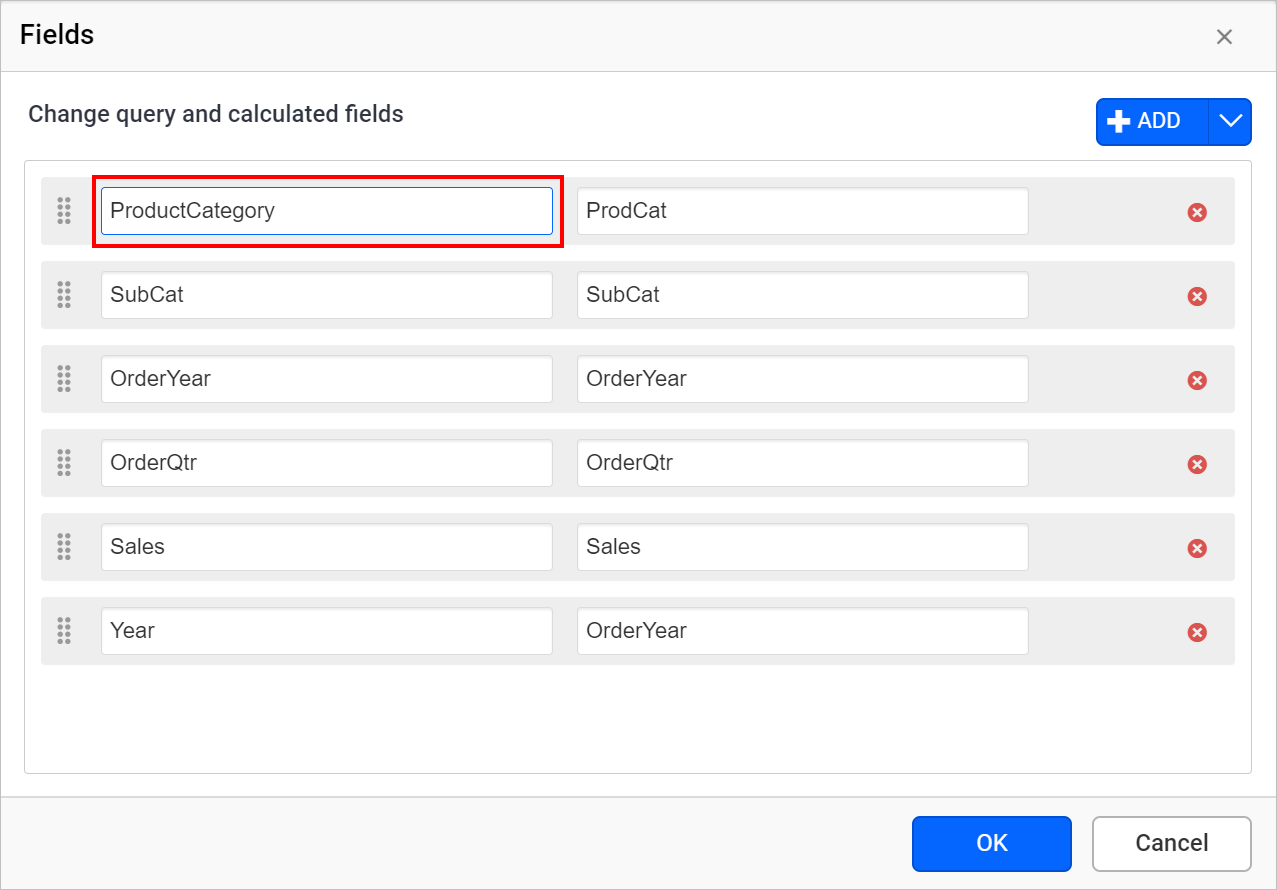
Now, the respective field name will be updated in the dataset collection and in the list view.