Manage dataset parameters in Bold Reports®
The Parameters option in the Bold Reports® Web Report Designer creates, edits, and deletes dataset parameters. These include query parameters that link to report parameters.
How do I open the dataset parameters dialog?
You open the dataset Parameters dialog from the DATA panel of the Bold Reports® Web Report Designer.
-
Select the data in the
DATApanel to which you want to add, edit, or delete parameters.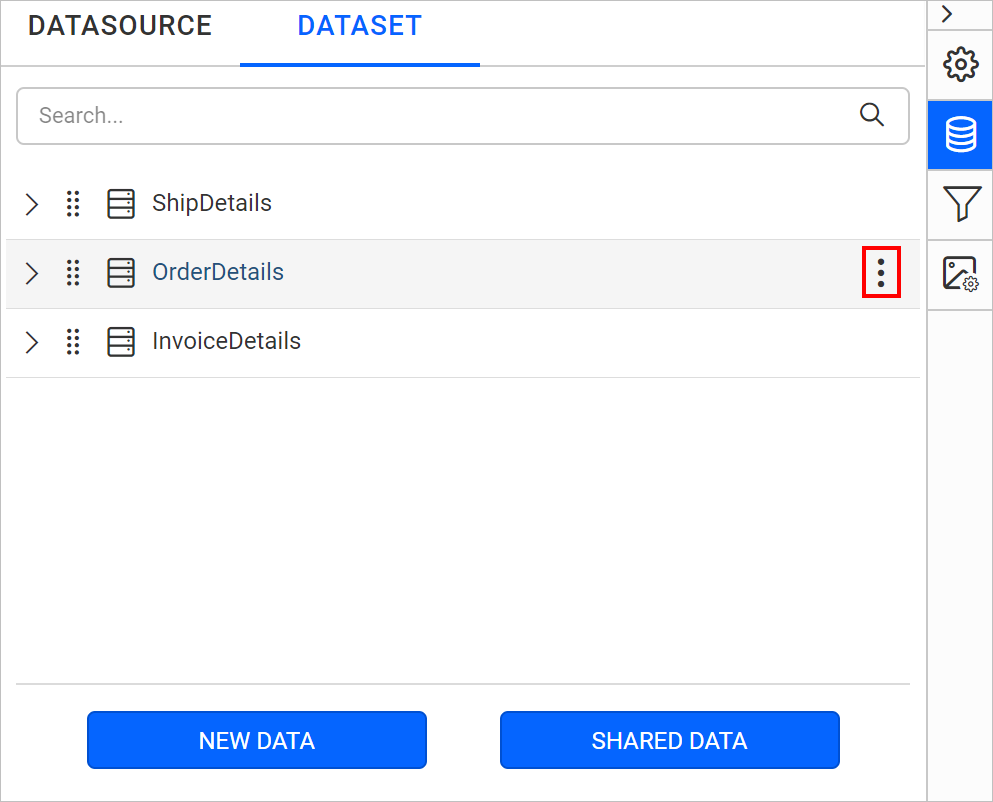
Refer to the Create Data section to create data in the report designer.
-
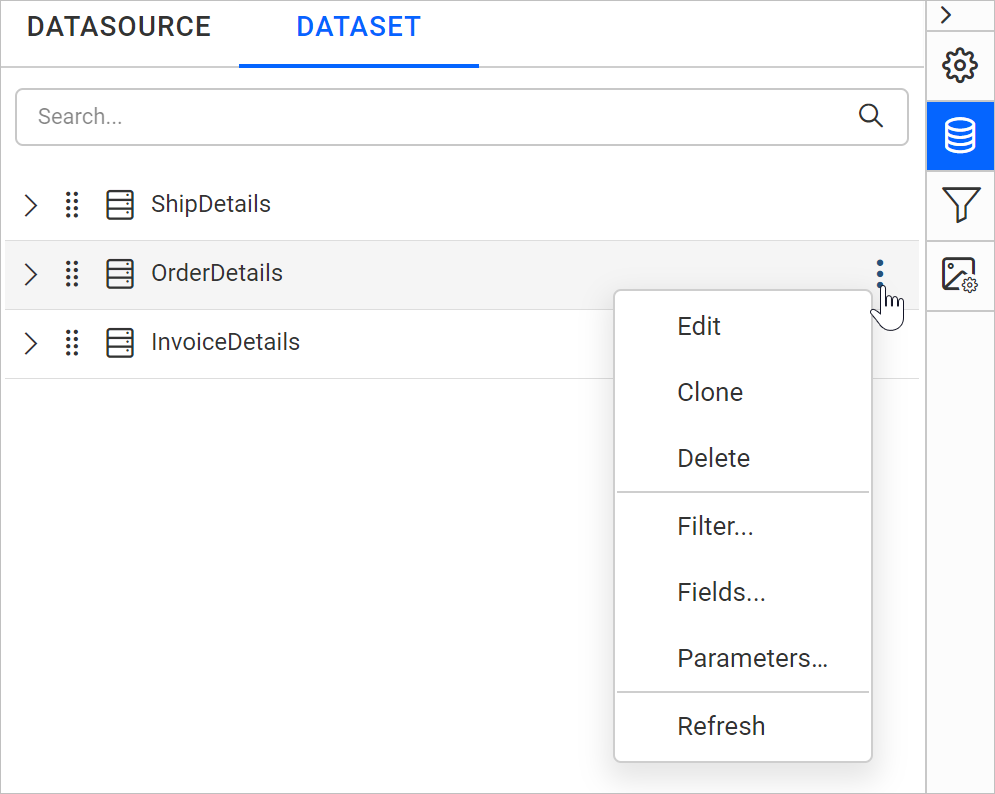
Click the highlighted icon shown in the previous image. The context menu opens with a list of options.
-
Click the
Parameters...option in the menu to open theParametersdialog.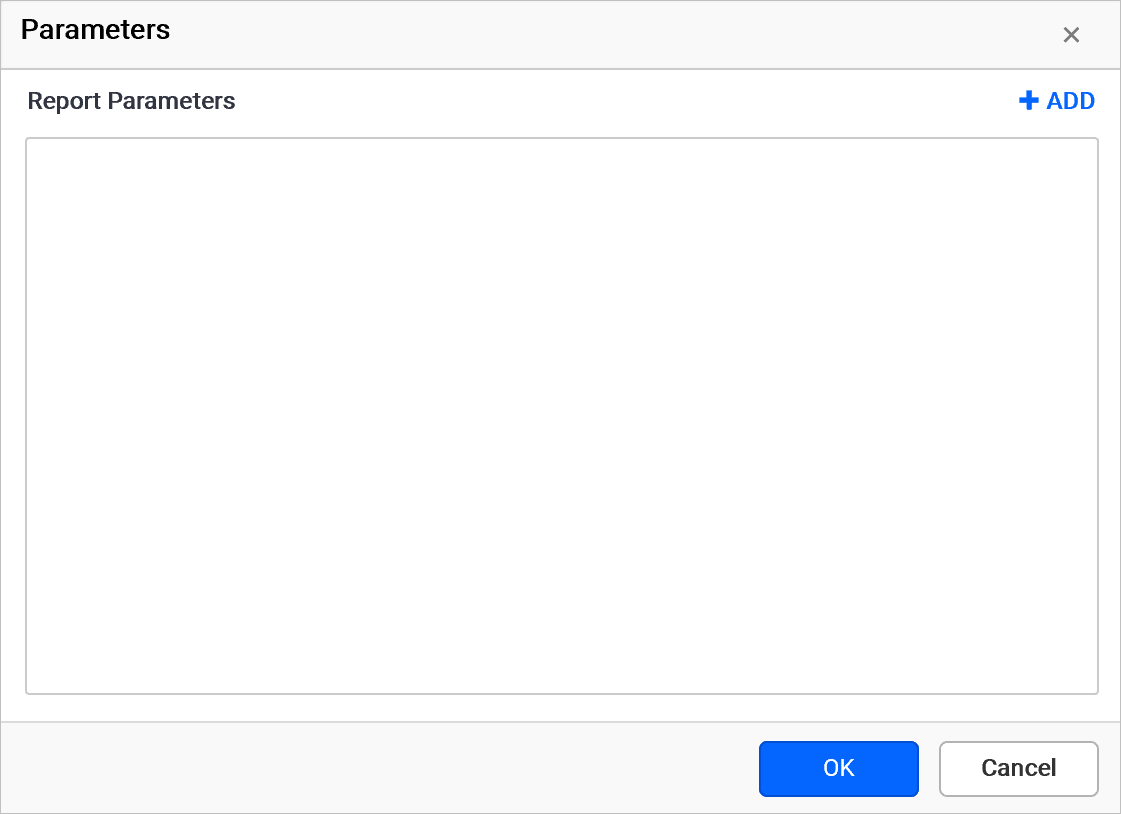
How are query parameters created?
The Web Report Designer creates a Report Parameter automatically when you add a query variable with the @ symbol in the query while creating a dataset.
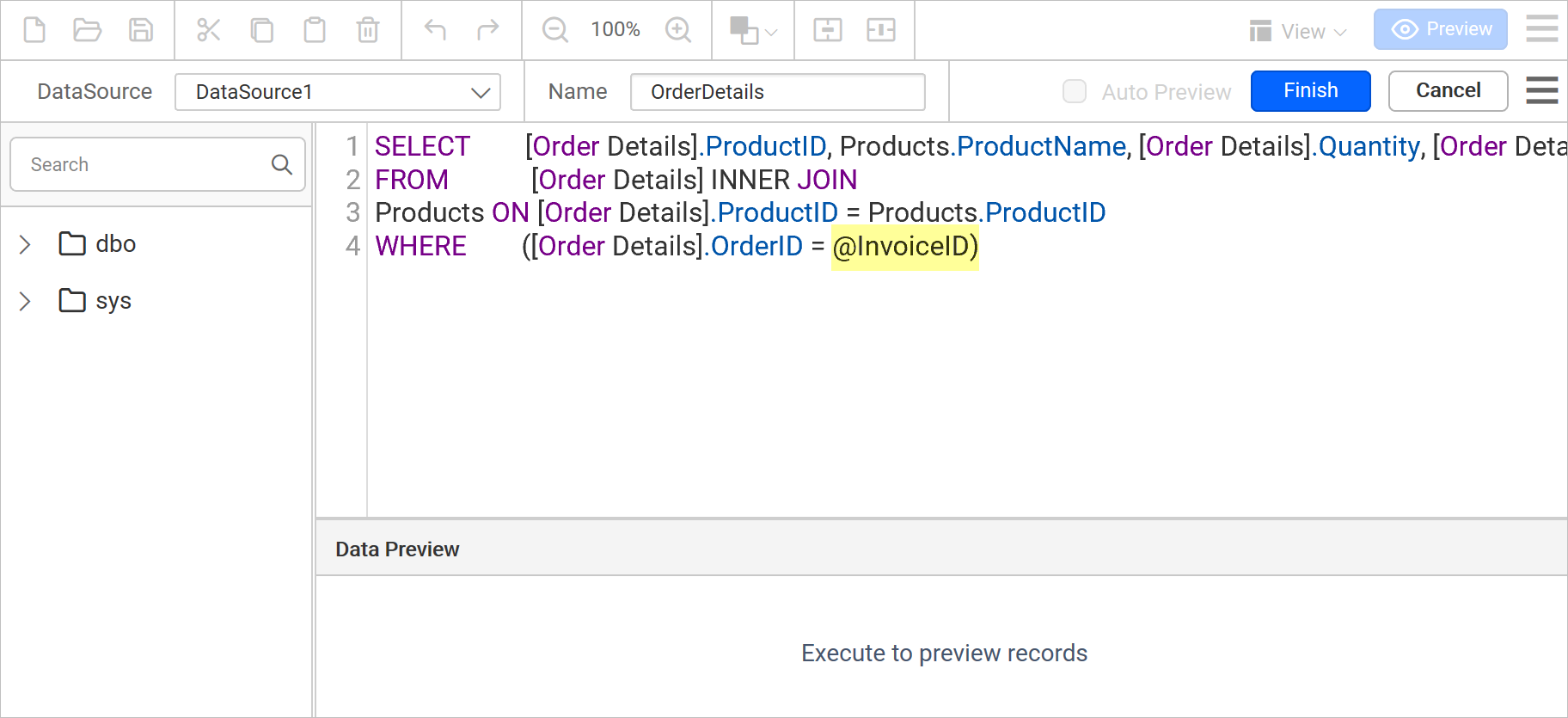
The new Report Parameter is listed in the parameters panel and in the dataset parameters dialog.
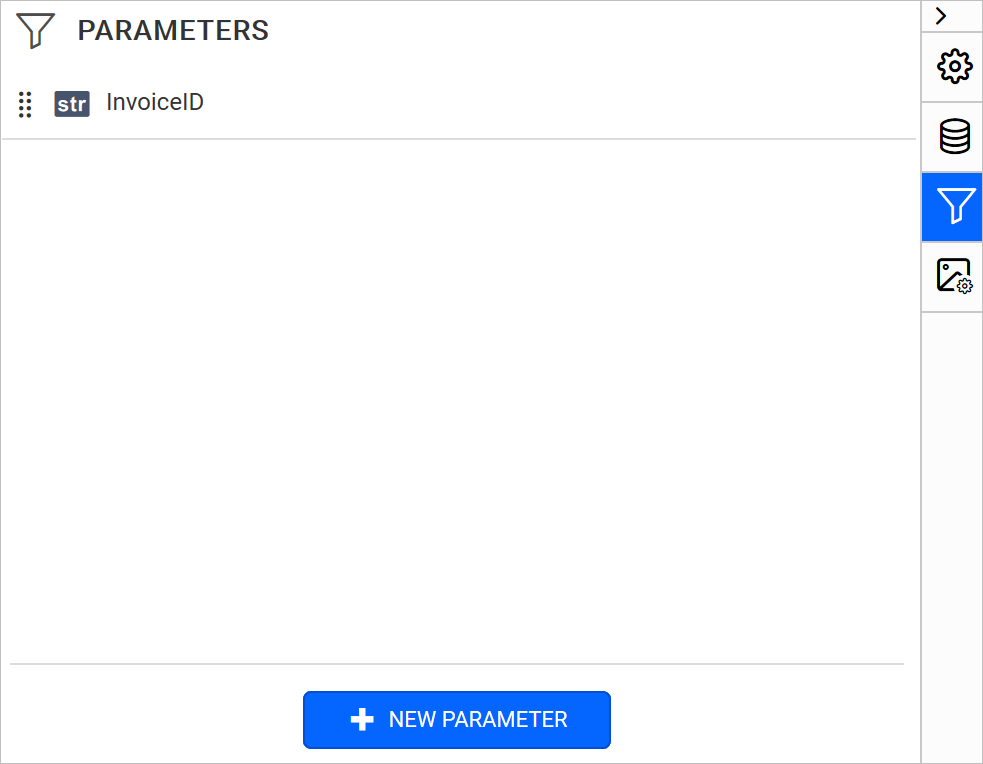
When you open the Parameters dialog, it lists the available parameters in the query, as shown below.
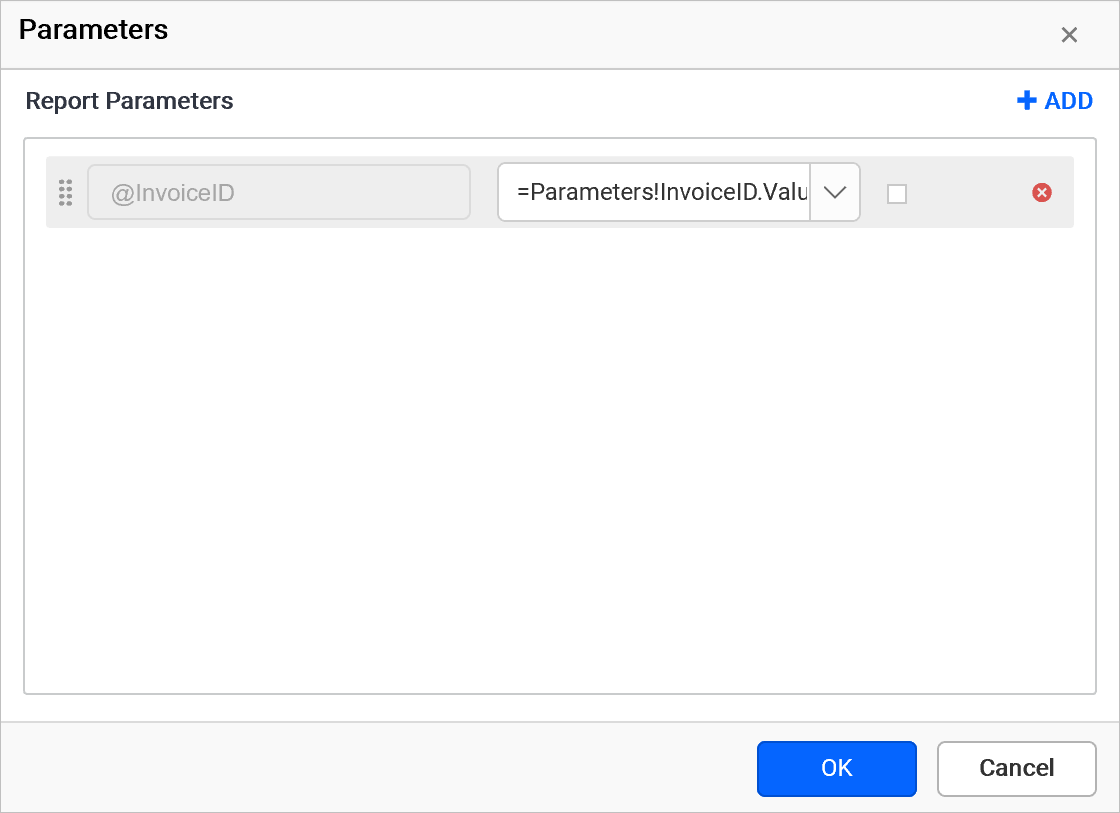
If you import a shared dataset into the report, the parameters dialog lists the available parameters in the shared dataset. You can modify the values for the parameters within the report scope. The change does not affect the actual query in the shared dataset.
How do I create a parameter?
You create a dataset parameter with the ADD button in the Web Report Designer Parameters dialog.
-
To create a new parameter, click the
ADDbutton. -
Parameter Name: In the Parameter Name text box, provide the name for the parameter. The parameter name must be unique within the dataset.
-
Value: In the Value field, provide the value for the parameter. The Value of a parameter can be a static value or an expression, but it cannot refer to any report items or fields.
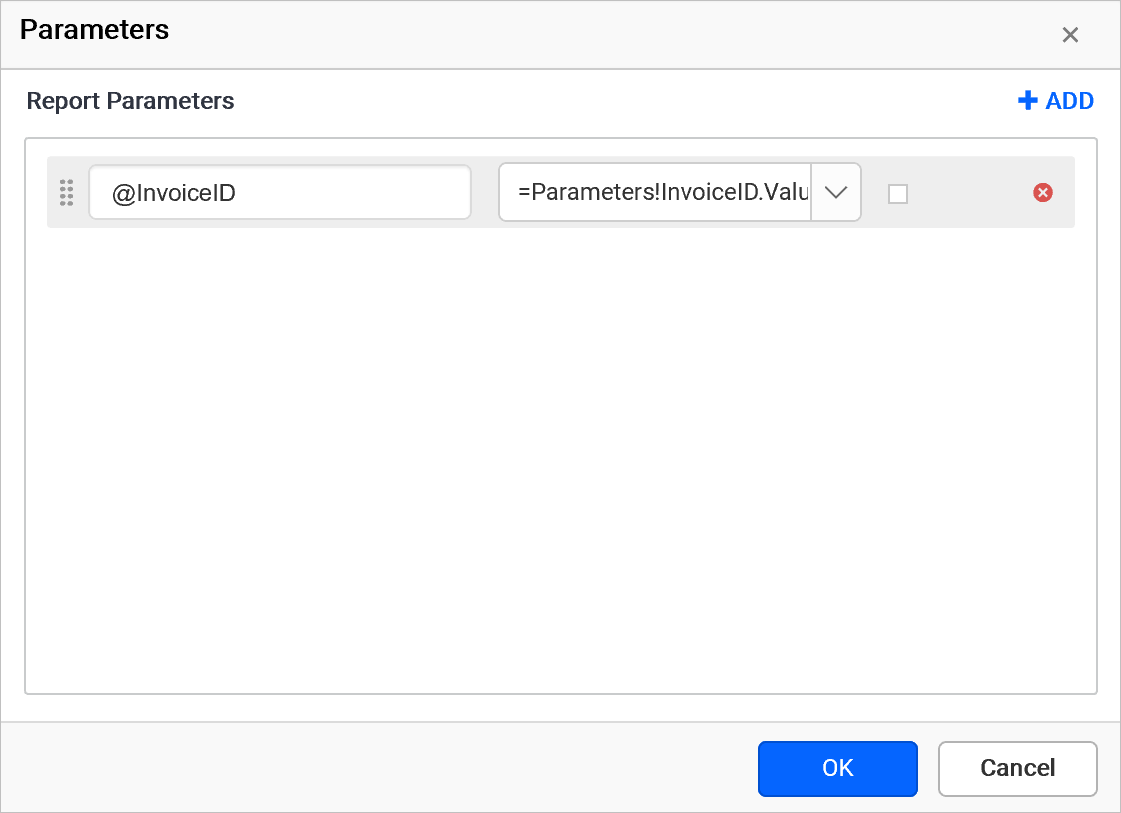
The parameters which you create here will act as a
User Definedparameter in the report, neither creates a query parameter nor affects existing query parameter.
How do I edit a parameter?
You edit a dataset parameter value in the Web Report Designer Parameters dialog, which lists the available parameters in the query.
Edit the Value for the parameter and click OK. By default, Value contains an expression that refers to a report parameter.
You cannot edit the
Nameof the existing query parameter in the dataset using parameters dialog.
How do I delete a parameter?
You delete a dataset parameter in the Web Report Designer by clicking the Delete icon in the right corner of its row.
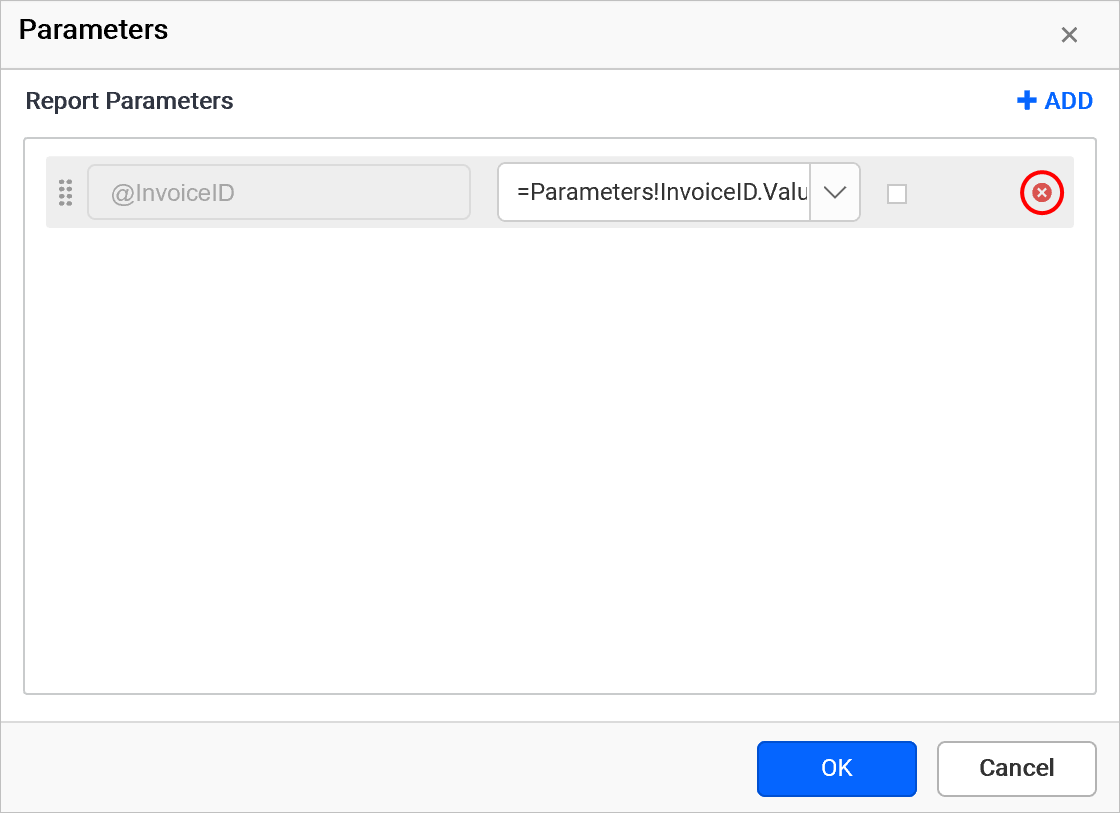
If you delete a parameter from the dataset, it will not be automatically removed from
Report Parameter. You need to remove it manually if needed.
How do I reorder parameters?
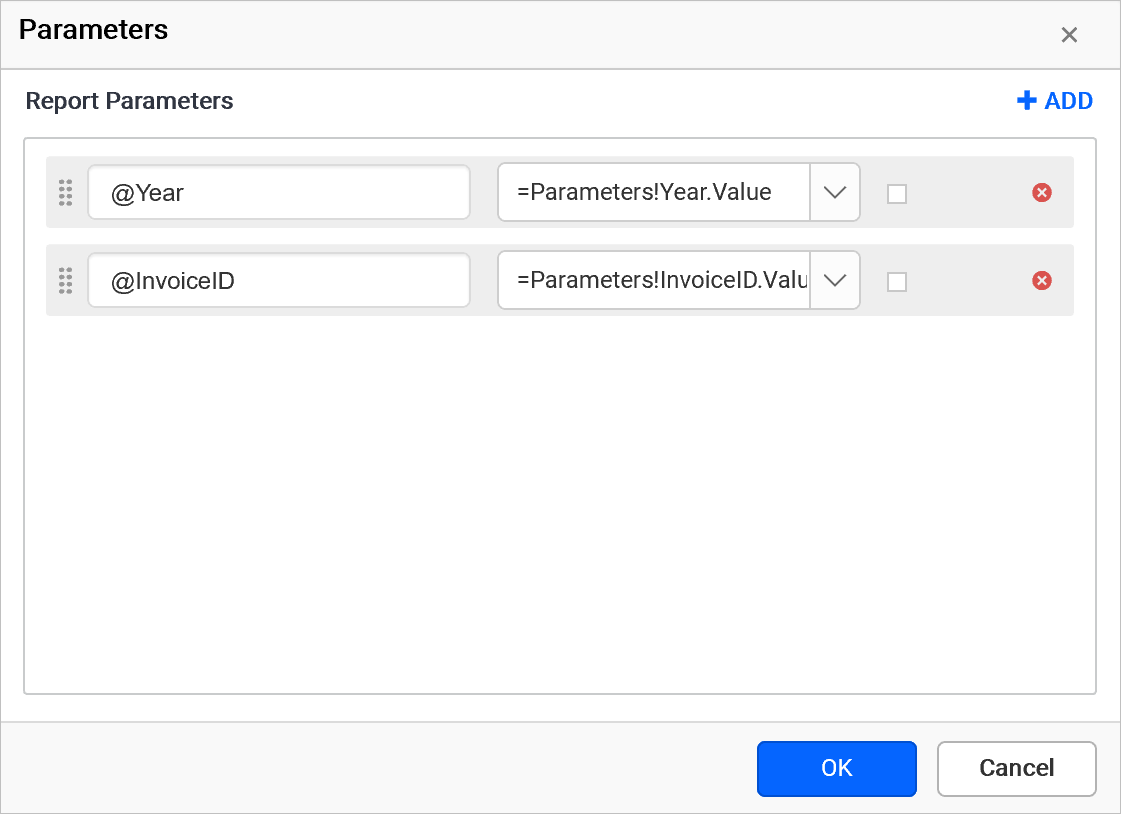
Bold Reports® retrieves results from the database based on the order of the parameters in the query when it executes a query or processes the report. You can change that order in the Parameters dialog.
The following image shows the parameter list before reordering the parameters.
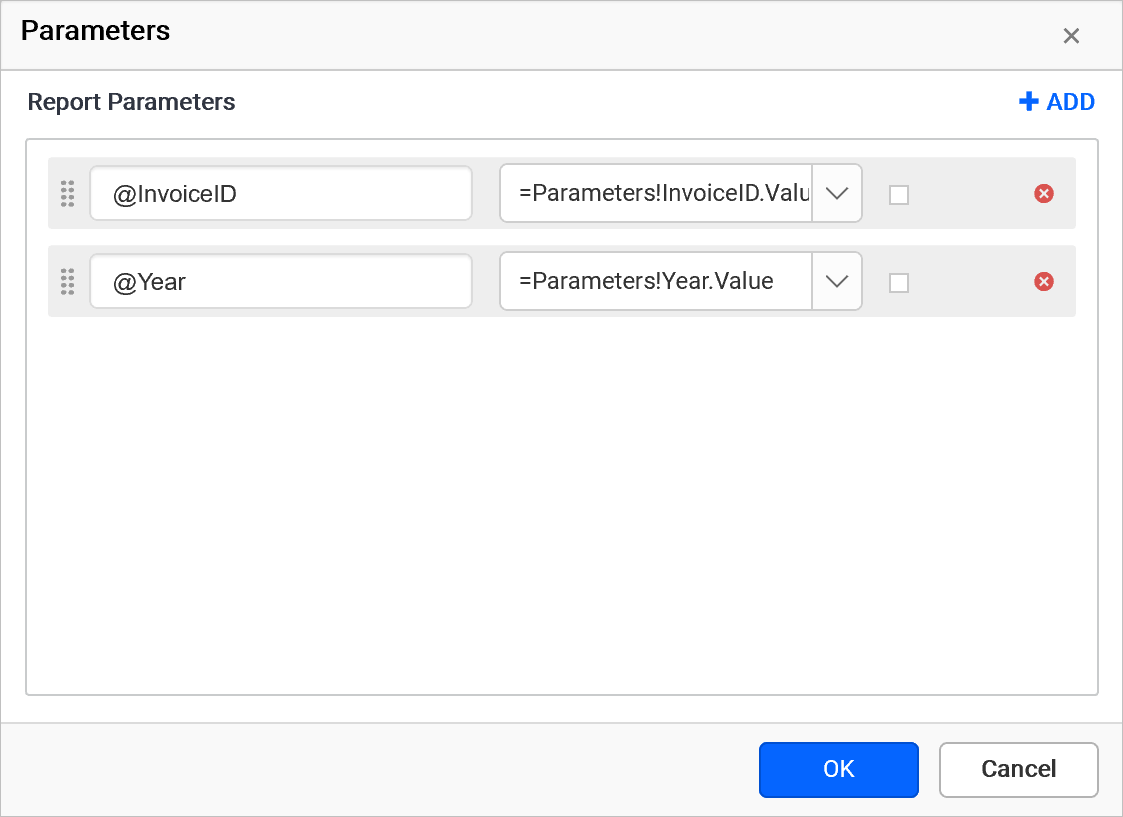
To change the order of the dataset parameters after creating them, follow these steps:
- Click and hold the icon in the left corner of the Parameter Name field.

- Drag the dataset parameter field to a higher or lower position in the list.
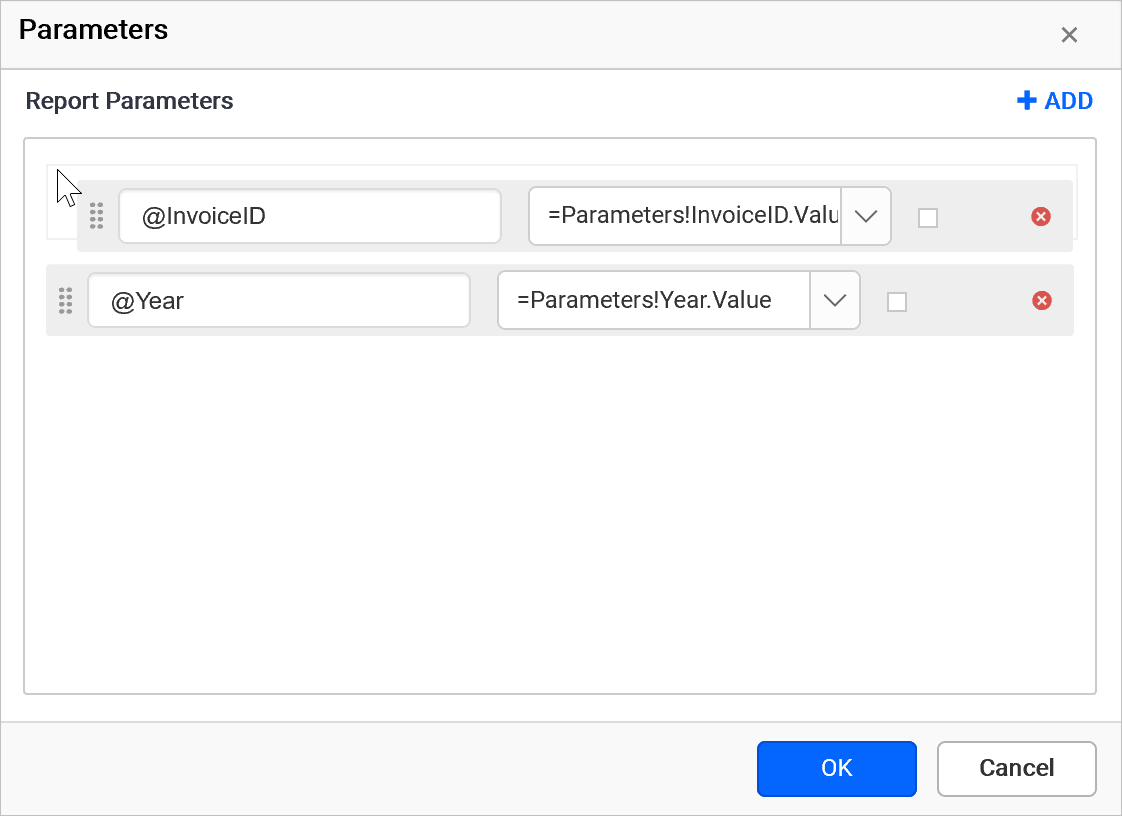
- Drop the dataset parameter field in the desired position.
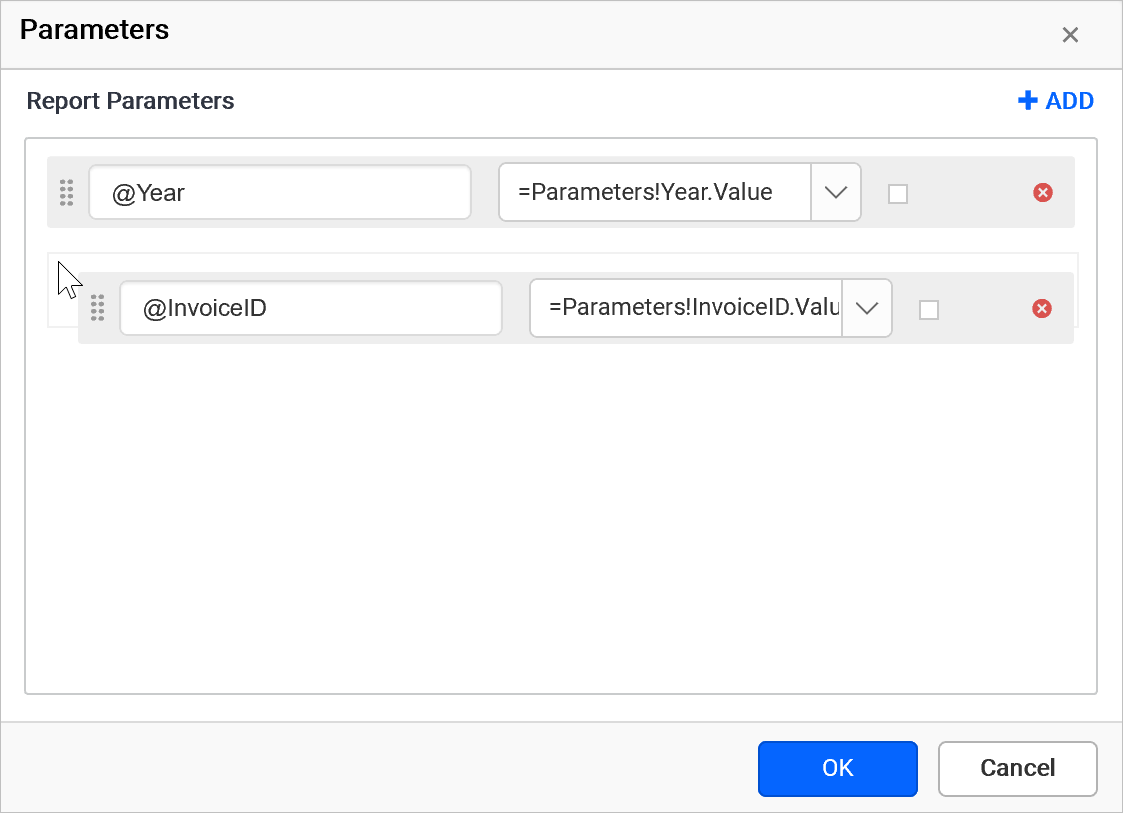
The following image shows the parameter list after reordering the parameters.
Frequently asked questions
Does deleting a dataset parameter remove the report parameter?
No. If you delete a parameter from the dataset, Bold Reports® does not remove it from Report Parameter automatically. You need to remove it manually if needed.
Can a dataset parameter value refer to report items or fields?
No. The Value of a parameter can be a static value or an expression, but it cannot refer to any report items or fields.