Export SSRS Report Server Report
To export a report from an SSRS Report Server with the Bold Reports® ASP.NET MVC Report Writer, set the ReportProcessingMode, ReportServerURL, and ReportPath properties in the Web API. The Report Writer exports these RDL reports to popular file formats such as PDF, Microsoft Word, Microsoft Excel, and CSV.
Follow these steps:
-
To create your first ASP.NET MVC Report Writer application, refer to the ASP.NET MVC Report Writer getting started guide.
-
Set the
reportProcessignModeAPI for the Bold Reports® Report Writer, as in the following code snippet:[HttpPost] public ActionResult Export(string writerFormat) { BoldReports.Writer.ReportWriter writer = new BoldReports.Writer.ReportWriter(); writer.ReportProcessingMode = ProcessingMode.Remote; } -
Set the
reportServerUrlAPI on the Bold Reports® Report Writer withWeb Service URLin the WebAPI, as in the following code snippet:[HttpPost] public ActionResult Export(string writerFormat) { BoldReports.Writer.ReportWriter writer = new BoldReports.Writer.ReportWriter(); writer.ReportProcessingMode = ProcessingMode.Remote; writer.ReportServerUrl = "http://<servername>/Reports_SSRS"; }The Web Service URL should be set as
reportServerUrlwhen using an ASP.NET MVC service. The Web Service URL can be found in the Reporting Services Configuration manager under theWeb Service URLsection. The following image shows where to find it.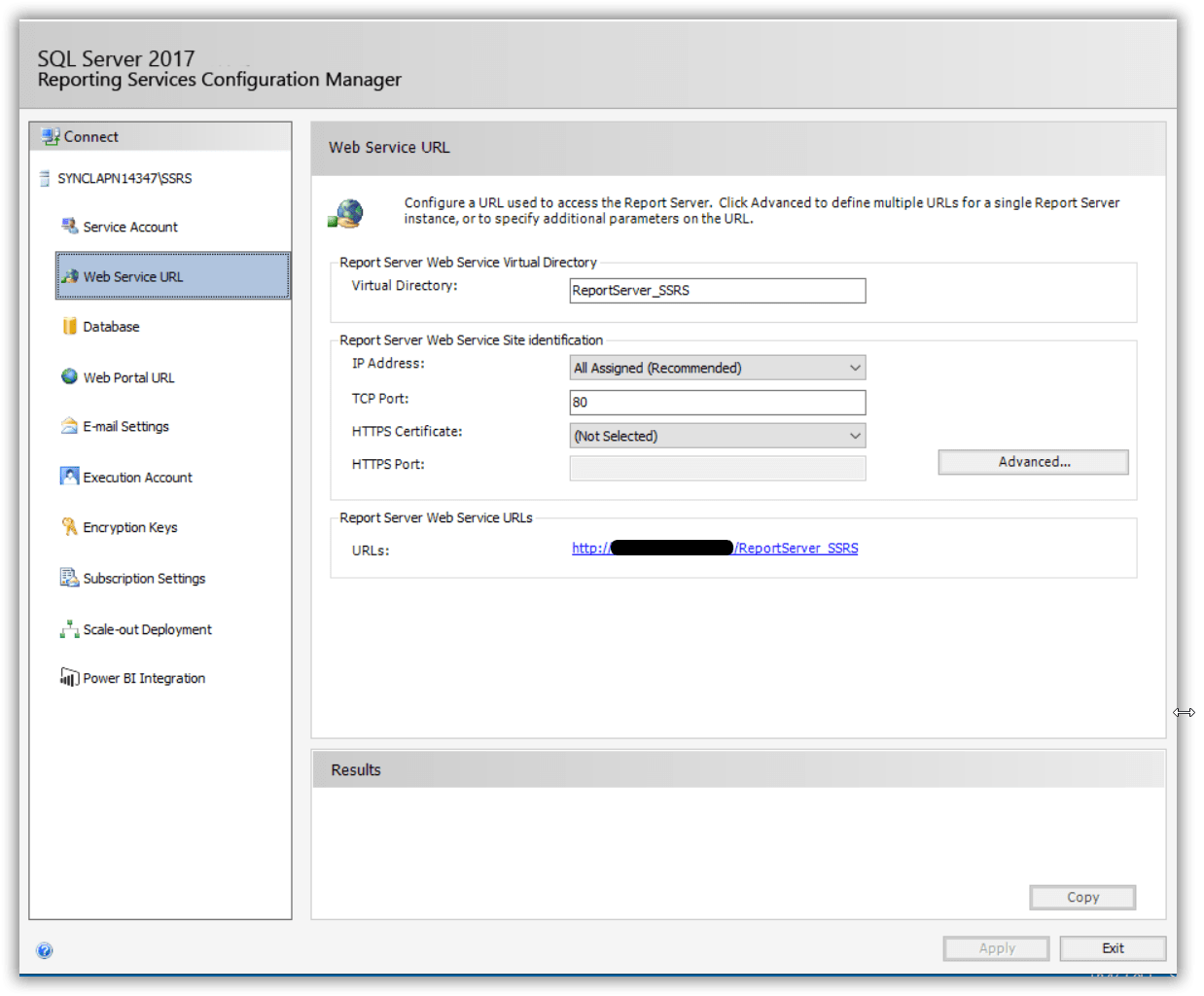
-
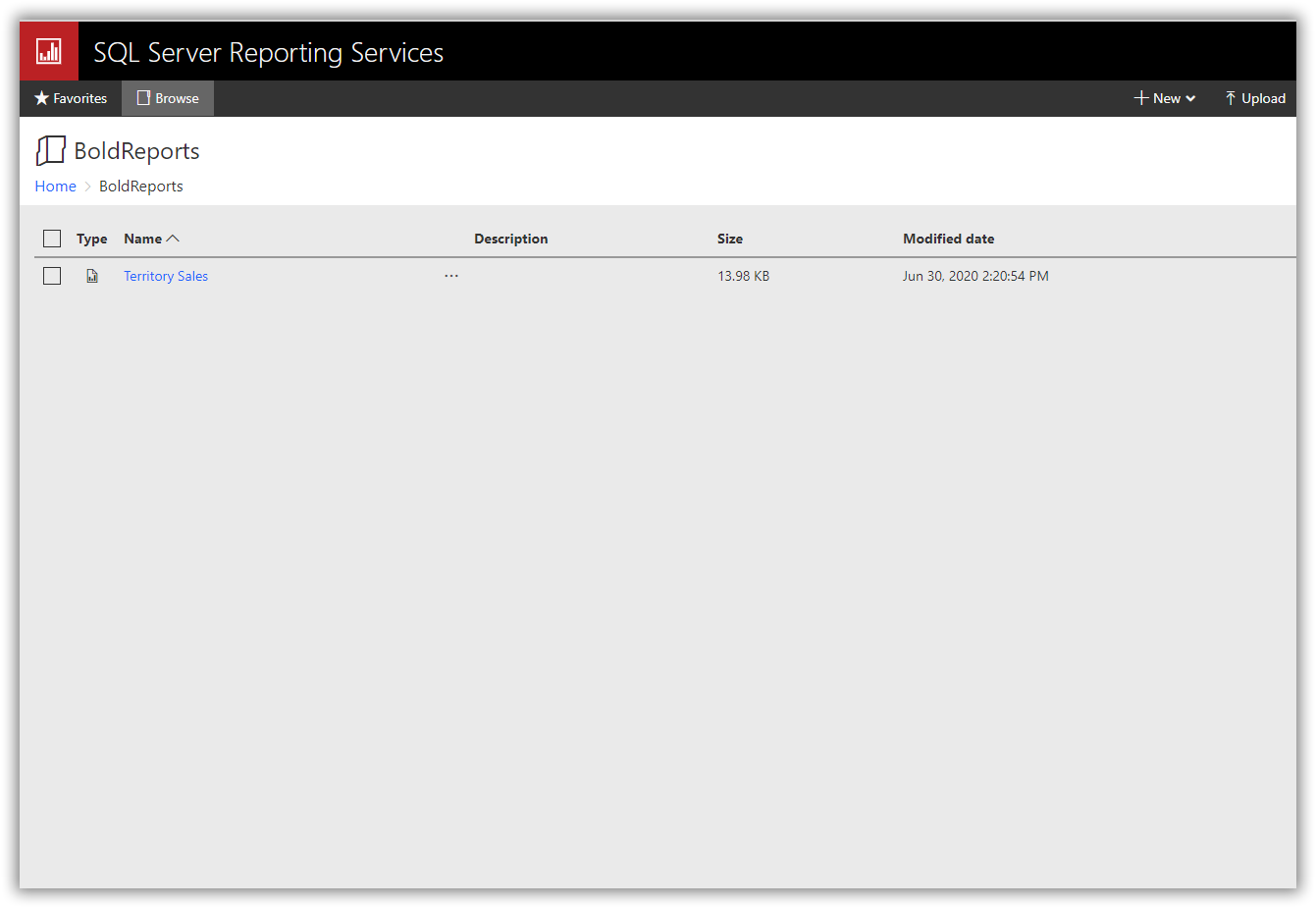
Set the report path for loading the reports from the SSRS Report Server. The report path should be in the format of
/folder name/report name.[HttpPost] public ActionResult Export(string writerFormat) { BoldReports.Writer.ReportWriter writer = new BoldReports.Writer.ReportWriter(); writer.ReportProcessingMode = ProcessingMode.Remote; writer.ReportServerUrl = "http://<servername>/Reports_SSRS"; writer.ReportPath = "/SSRSSamples2/Territory Sales"; }To find the report path, navigate to the report in the SSRS Report Server. The following image shows the report path.
How do I set network credentials for SSRS?
To load a report from an SSRS Report Server that needs network credentials, set the ReportServerCredential property of the Report Writer instance.
writer.ReportServerCredential = new System.Net.NetworkCredential("username", "password");If you have a problem accessing the SSRS Report Server reports, see How to provide the permission for user to access the SSRS Report Server reports.
How do I set credentials for shared data sources?
To connect report data sources that need credentials, set the data source credentials for each report data source in the Report Writer. The SSRS Report Server does not provide options to get credential information of the report data source deployed on the SSRS Server. If the report has any data source that uses credentials to connect with the database, then you should specify the DataSourceCredentials for each report data source to establish database connection.
List<BoldReports.Web.DataSourceCredentials> dataSourceCredentialsList = new List<BoldReports.Web.DataSourceCredentials>();
dataSourceCredentialsList.Add(new BoldReports.Web.DataSourceCredentials("datasource name", "username", "password"));
writer.SetDataSourceCredentials(dataSourceCredentialsList);
Data source credentials should be added to the shared data sources that do not have credentials in the connection strings.
Refer to the following final code snippet example to export the SSRS report server reports.
[HttpPost]
public ActionResult Export(string writerFormat)
{
    BoldReports.Writer.ReportWriter writer = new BoldReports.Writer.ReportWriter();
    writer.ReportProcessingMode = ProcessingMode.Remote;
    writer.ReportServerUrl = "http://<servername>/reportserver$instanceName";
    writer.ReportPath = "/SSRSSamples2/Territory Sales";
    writer.ReportServerCredential = new System.Net.NetworkCredential("username", "password");
    List<BoldReports.Web.DataSourceCredentials> dataSourceCredentialsList = new List<BoldReports.Web.DataSourceCredentials>();
    dataSourceCredentialsList.Add(new BoldReports.Web.DataSourceCredentials("Datasource name", "username", "password"));
    writer.SetDataSourceCredentials(dataSourceCredentialsList);

    string fileName = null;
    WriterFormat format;
    string type = null;

    if (writerFormat == "PDF")
    {
        fileName = "sales-order-detail.pdf";
        type = "pdf";
        format = WriterFormat.PDF;
    }
    else if (writerFormat == "Word")
    {
        fileName = "sales-order-detail.docx";
        type = "docx";
        format = WriterFormat.Word;
    }
    else if (writerFormat == "CSV")
    {
        fileName = "sales-order-detail.csv";
        type = "csv";
        format = WriterFormat.CSV;
    }
    else
    {
        fileName = "sales-order-detail.xlsx";
        type = "xlsx";
        format = WriterFormat.Excel;
    }

    MemoryStream memoryStream = new MemoryStream();
    writer.Save(memoryStream, format);

    // Download the generated export document to the client side.
    memoryStream.Position = 0;
    FileStreamResult fileStreamResult = new FileStreamResult(memoryStream, "application/" + type);
    fileStreamResult.FileDownloadName = fileName;
    return fileStreamResult;
}