Export SSRS RDL Report in Bold Reports® ASP.NET MVC Report Writer
The Report Writer is a class library that is used to export the RDL report with popular file formats like PDF, Microsoft Word, Microsoft CSV, and Microsoft Excel without previewing the report on the webpage. This section describes how to export the RDL report to an ASP.NET MVC application using the Report Writer.
Create an ASP.NET MVC application
- Start Visual Studio 2022 and click Create new project.
- Choose ASP.NET Web Application (.NET Framework), and then click Next.
- Change the project name, choose .NET Framework 4.6.2 or Higher in the framework field, and then click Create.
- Choose the MVC and Web API, and then click OK.
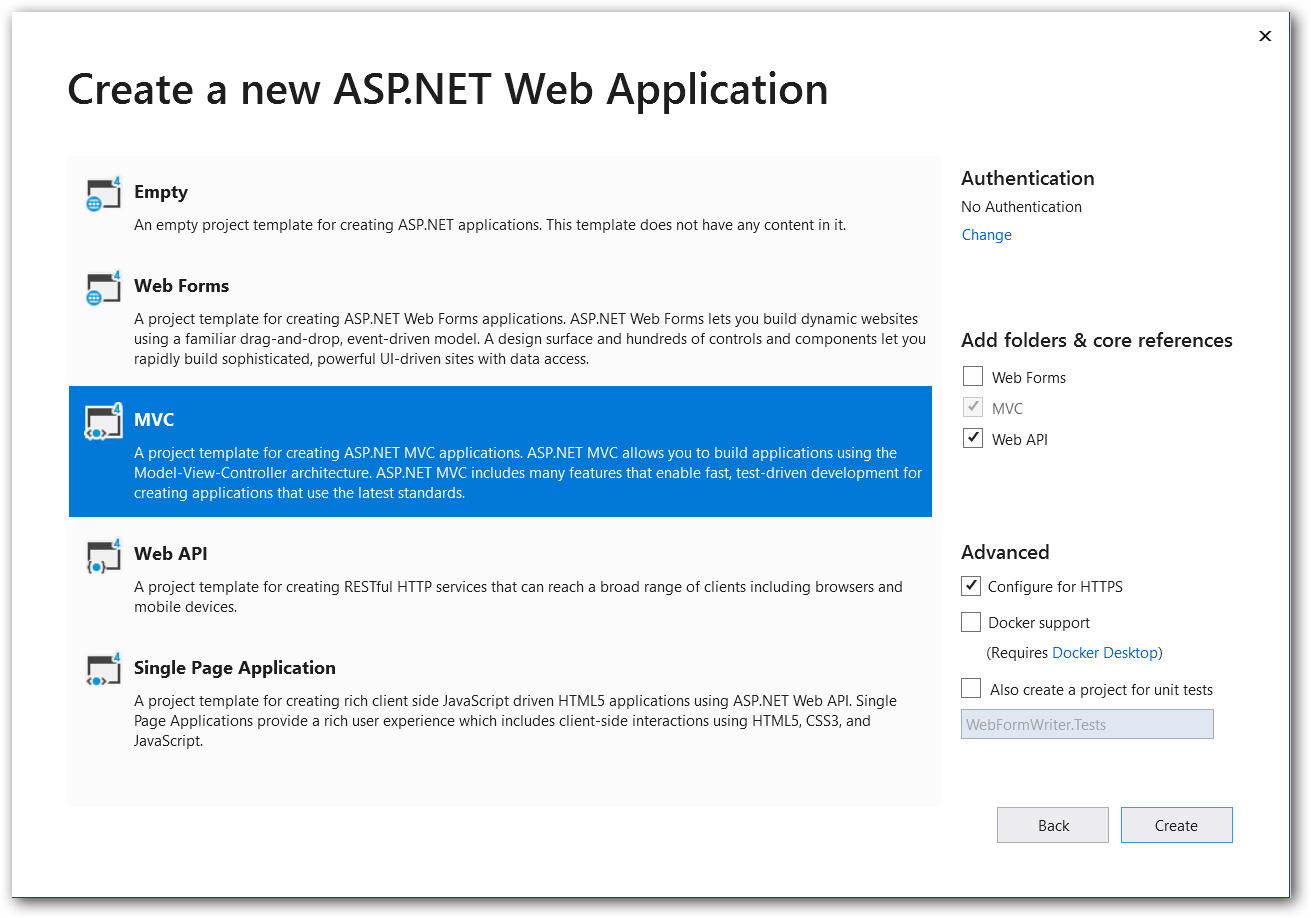
Starting with Bold Reports® version 8.1.1, support for .NET Framework versions lower than 4.6.2 (including .NET Framework 4.0, .NET Framework 4.5, and .NET Framework 4.6) has officially ended, with only limited support available for these versions. To continue receiving new features, improvements, and full support, upgrade to .NET Framework 4.6.2 or later. If you need to stay on an earlier .NET Framework version, use Bold Reports® version 7.1.10 or earlier.
List of dependency libraries
-
In the Solution Explorer tab, right-click the project or solution, and choose Manage NuGet Packages. Alternatively, select the Tools > NuGet Package Manager > Manage NuGet Packages for Solution menu command.
-
Search for
BoldReports.Webpackage and install this in your MVC application.
The following table provides details about the dependency packages and their usage.
| Package | Purpose |
|---|---|
Syncfusion.Pdf.AspNet |
Exports the report to a PDF. |
Syncfusion.DocIO.AspNet |
Exports the report to a Word. |
Syncfusion.XlsIO.AspNet |
Exports the report to an Excel. |
Syncfusion.Presentation.AspNet |
Exports the report to a PowerPoint. |
Newtonsoft.Json |
Serializes and deserializes data for the Report Writer. It is a mandatory package for Report Writer, and the package version should be 10.0.1 or higher. |
In this tutorial, the
sales-order-detail.rdlreport is used and it can be downloaded here. You can get the reports from the Bold Reports® installation location. For more information, refer to samples and demos section.
Server side Report Writer changes
-
Create a folder
Resourcesin theApp_Datafolder in your application. Copy and paste the sample RDL reports into theResouresfolder. -
Open
HomeController.csand add the following using statement.using System.IO; using BoldReports.Writer; -
Add the
Export()function to load the report as a stream. Refer to the following code snippet.[HttpPost] public ActionResult Export(string writerFormat) { // Here, we have loaded the sales-order-detail sample report from application the folder App_Data\Resources. FileStream reportStream = new FileStream(System.Web.Hosting.HostingEnvironment.MapPath(@"\App_Data\Resources\sales-order-detail.rdl"), FileMode.Open, FileAccess.Read); ...... } -
Initialize the Report Writer instance with a report stream and set the specified export format and file name for the export document.
public ActionResult Export(string writerFormat) { ...... BoldReports.Writer.ReportWriter writer = new BoldReports.Writer.ReportWriter(); string fileName = null; WriterFormat format; string type = null; fileName = "sales-order-detail.pdf"; type = "pdf"; format = WriterFormat.PDF; } -
You can use the
Savemethod in the Report Writer to generate the export document along with the information of the report stream, it will return the generated file as a Stream.writer.LoadReport(reportStream); MemoryStream memoryStream = new MemoryStream(); writer.Save(memoryStream, format); // Download the generated export document to the client side. memoryStream.Position = 0; FileStreamResult fileStreamResult = new FileStreamResult(memoryStream, "application/" + type); fileStreamResult.FileDownloadName = fileName; return fileStreamResult; -
To get the exported file stream, refer to the following complete code snippet.
[HttpPost]
public ActionResult Export(string writerFormat)
{
    // Here, we have loaded the sales-order-detail sample report from application the folder Resources.
    FileStream reportStream = new FileStream(System.Web.Hosting.HostingEnvironment.MapPath(@"\App_Data\Resources\sales-order-detail.rdl"), FileMode.Open, FileAccess.Read);
    BoldReports.Writer.ReportWriter writer = new BoldReports.Writer.ReportWriter();

    string fileName = null;
    WriterFormat format;
    string type = null;

    if (writerFormat == "PDF")
    {
        fileName = "sales-order-detail.pdf";
        type = "pdf";
        format = WriterFormat.PDF;
    }
    else if (writerFormat == "Word")
    {
        fileName = "sales-order-detail.docx";
        type = "docx";
        format = WriterFormat.Word;
    }
    else if (writerFormat == "CSV")
    {
        fileName = "sales-order-detail.csv";
        type = "csv";
        format = WriterFormat.CSV;
    }
    else if (writerFormat == "HTML")
    {
        fileName = "sales-order-detail.html";
        type = "html";
        format = WriterFormat.HTML;
    }
    else if (writerFormat == "PPT")
    {
        fileName = "sales-order-detail.ppt";
        type = "ppt";
        format = WriterFormat.PPT;
    }
    else
    {
        fileName = "sales-order-detail.xlsx";
        type = "xlsx";
        format = WriterFormat.Excel;
    }

    writer.LoadReport(reportStream);
    MemoryStream memoryStream = new MemoryStream();
    writer.Save(memoryStream, format);

    // Download the generated export document to the client side.
    memoryStream.Position = 0;
    FileStreamResult fileStreamResult = new FileStreamResult(memoryStream, "application/" + type);
    fileStreamResult.FileDownloadName = fileName;
    return fileStreamResult;
}
Client side changes
-
Use the following code snippet on the
Index.cshtmlhome page to invoke the Web API from the client side.@{Html.BeginForm("Export", "Home", FormMethod.Post); { <div> <input type="submit" value="Generate" style="width: 150px;" /> </div> } Html.EndForm(); } -
You can add the export file types to the home page to choose the format you want to export to the Report Writer. Copy and paste the following code snippet into your application.
@{Html.BeginForm("Export", "Home", FormMethod.Post); { <div class="Common"> <div class="tablediv"> <div id="description_Pane" style="text-align: justify;"> <h3>Description</h3> <span> Bold ReportWriter is a powerful control for exporting RDL and RDLC files into specified format files. </span> </div> <div class="rowdiv"> <div class="celldiv" style="padding:10px"> <label> <strong> Save As :</strong> </label> <input id="rbtnPDf" type="radio" name="writerFormat" value="PDF" checked="checked" style="margin-left: 15px" /> <label for="rbtnPDf" style="padding:0px 5px 0px 2px"> PDF </label> <input id="rbtnWord" type="radio" name="writerFormat" value="Word" style="margin-left: 15px" /> <label for="rbtnWord" style="padding:0px 5px 0px 2px"> Word </label> <input id="rbtnxls" type="radio" name="writerFormat" value="xls" style="margin-left: 15px" /> <label for="rbtnxls" style="padding:0px 5px 0px 2px"> Excel </label> <input id="rbtnCSV" type="radio" name="writerFormat" value="CSV" style="margin-left: 15px" /> <label for="rbtnCSV" style="padding:0px 25px 0px 2px "> CSV </label> <input class="buttonStyle" type="submit" name="button" value="Generate" style="width:150px;" /> </div> </div> </div> </div> Html.EndForm(); }} -
Now, run and export the report with the specified export format in your Report Writer application.
Congratulations! You have completed your first MVC Writer application! Click here to download the already created MVC Report Writer application.
Note: You can refer to our feature tour page for the ASP.NET MVC Report Writer to see its innovative features. Additionally, you can view our ASP.NET MVC Report Writer examples which demonstrate the rendering of SSRS RDLC and RDL reports.