Create an ASP.NET Core Web API Service
To create an ASP.NET Core Web API service for the Bold Reports® Angular Report Viewer, create an ASP.NET Core Web API project, install the BoldReports.Net.Core package, and add a controller that implements IReportController. Follow these steps:
Bold Reports® ASP.NET Core supports from
.NET Core 2.1only. So, choose the .NET Core versionASP.NET Core 2.1or higher versions for Viewer API creation.
To get started quickly with ASP.NET Core Web API for Report Viewer, watch the following video:
- Start Visual Studio 2022 and click Create new project.
- Choose ASP.NET Core Web API, and then click Next.
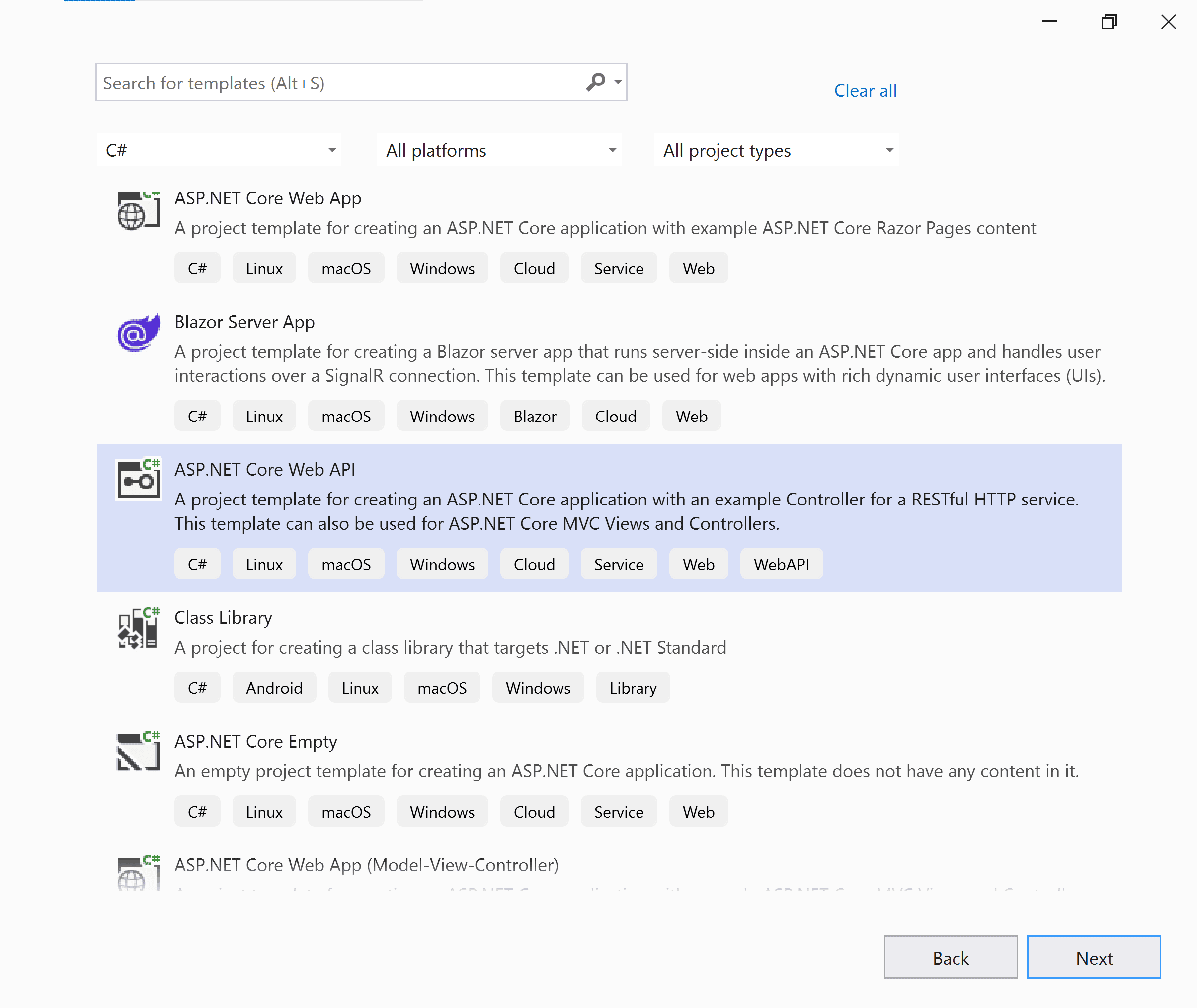 3. Change the project name, and then click Next.
4. In the dropdown for the ASP.NET Core version, choose ASP.NET Core 6.0, then click Create.
3. Change the project name, and then click Next.
4. In the dropdown for the ASP.NET Core version, choose ASP.NET Core 6.0, then click Create.
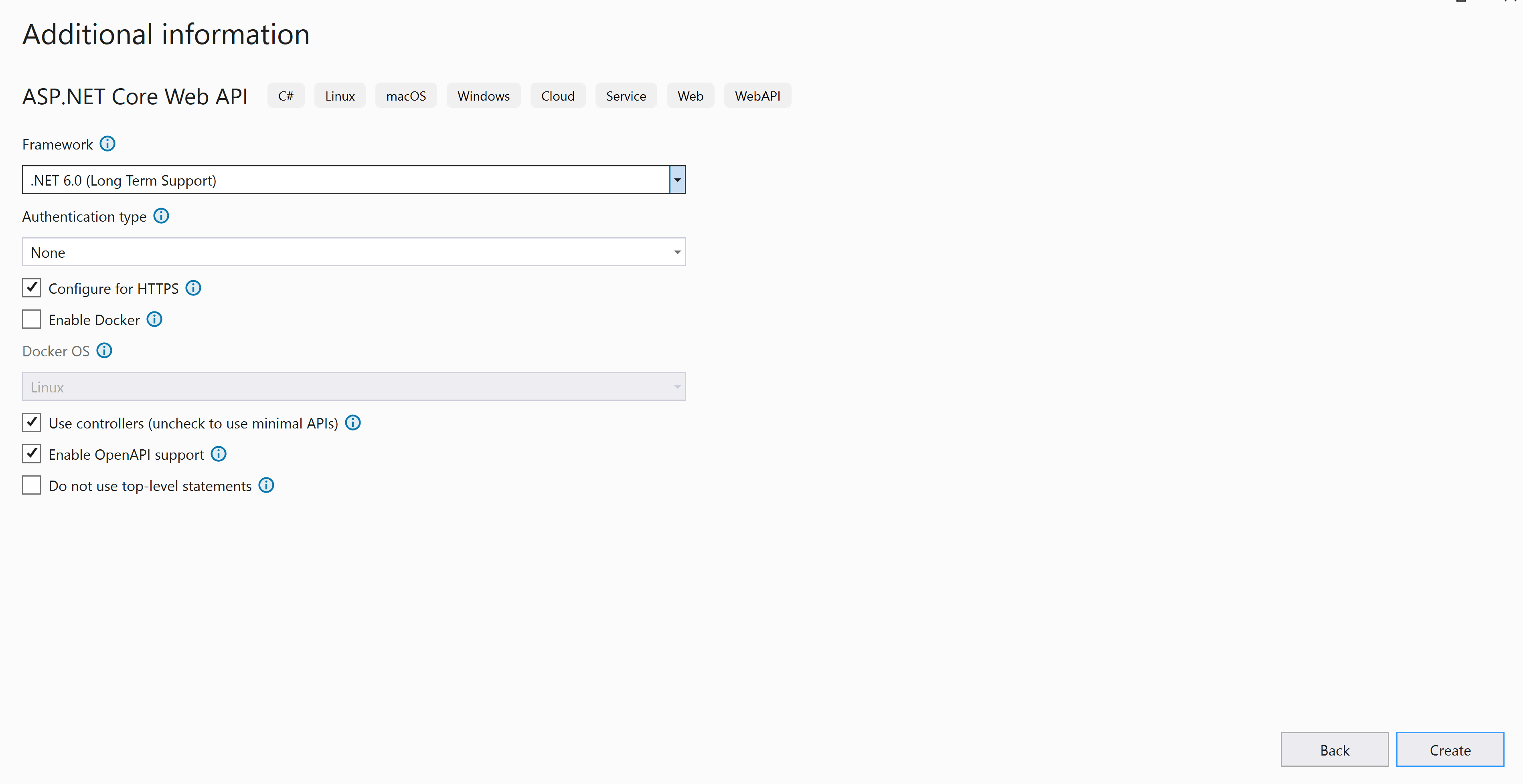
If you need to use Bold Reports® with ASP.NET Core on Linux or macOS, see Can Bold Reports® be used with ASP.NET Core on Linux and macOS.
Which NuGet packages does the Web API service need?
The Angular Report Viewer Web API service requires the BoldReports.Net.Core reporting server-side package. Right-click the project or solution in the Solution Explorer tab, choose Manage NuGet Packages, search for the BoldReports.Net.Core package, and install it in the application. The following table describes the package and its usage.
| Package | Purpose |
|---|---|
BoldReports.Net.Core |
Builds the server-side implementations. |
For details about installing and configuring the Report Viewer NuGet packages, see NuGet Packages.
The following table provides details about the dependency packages and its usage.
| Package | Purpose |
|---|---|
Syncfusion.Compression.Net.Core |
Supports for exporting the report to PDF, Microsoft Word, and Microsoft Excel format. It is a base library for the packages Syncfusion.Pdf.Net.Core , Syncfusion.DocIO.Net.Core and Syncfusion.XlsIO.Net.Core. |
Syncfusion.Pdf.Net.Core |
Supports for exporting the report to a PDF. |
Syncfusion.DocIO.Net.Core |
Supports for exporting the report to a Word. |
Syncfusion.XlsIO.Net.Core |
Supports for exporting the report to an Excel. |
Syncfusion.OfficeChart.Net.Core |
It is a base library of the Syncfusion.XlsIO.Net.Core package. |
Newtonsoft.Json |
Serialize and deserialize the data for report viewer. It is a mandatory package for the report viewer, and the package version should be higher of 10.0.1 for NET Core 2.0 and others should be higher of 9.0.1. |
System.Data.SqlClient |
This is an optional package for the report viewer. It should be referred in project when renders the RDL report and which contains the SQL Server and SQL Azure data source. Also, the package version should be higher of 4.1.0. |
How do I configure the Report Viewer Web API controller?
To configure the Web API, add an API controller that implements the IReportController interface. The IReportController interface declares the action methods that process RDL, RDLC, and SSRS reports and handle requests from the Angular Report Viewer:
| Methods | Description |
|---|---|
| PostReportAction | Action (HttpPost) method for posting the request in report process. |
| OnInitReportOptions | Report initialization method that occurs when the report is about to be processed. |
| OnReportLoaded | Report loaded method that occurs when the report and sub report start loading. |
| GetResource | Action (HttpGet) method to get resource for the report. |
ReportHelper
The ReportHelper class contains helper methods that process a Post or Get request from the Report Viewer control and return the response to the Report Viewer control. The ReportHelper class has the following methods:
| Methods | Description |
|---|---|
| GetResource | Returns the report resource to the requested key. |
| ProcessReport | Processes the report request and returns the result. |
Add Web API Controller
-
Right-click the project and select Add > New Item from the context menu.
-
In the Add New Item dialog, select API Controller class and name it as
ReportViewerController.cs.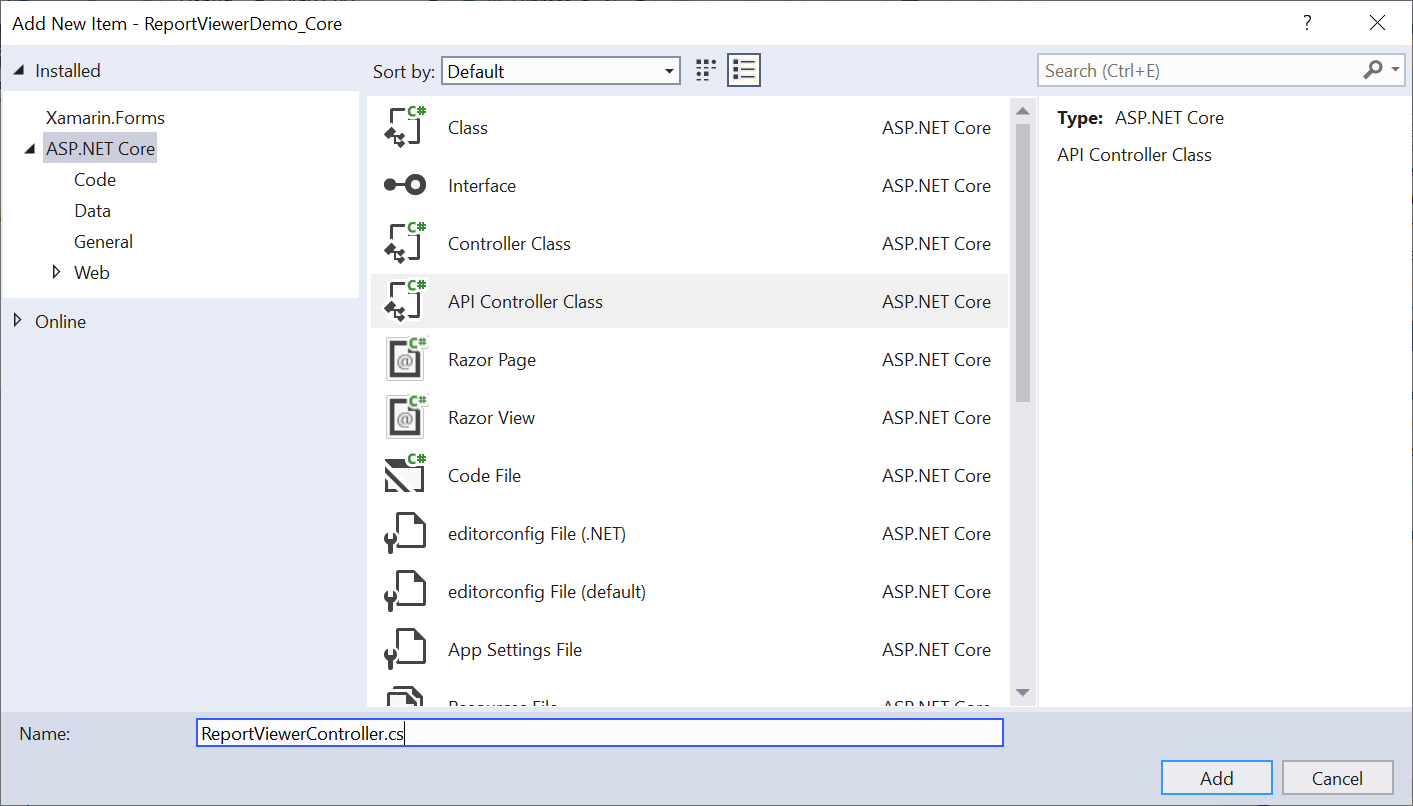
-
Click Add.
While adding API Controller class, name it with the suffix
Controllerthat is mandatory. -
Open the
ReportViewerControllerand add the following using statement.using BoldReports.Web.ReportViewer; -
Inherit the
IReportControllerinterface, and then implement its methods. -
Create local references for the interfaces given in following table.
Interface Purpose IMemoryCacheReport Viewer requires a memory cache to store the information of consecutive client request and have the rendered report viewer information in server. IWebHostEnvironmentIWebHostEnvironmentused to get the report stream from applicationwwwroot\Resourcesfolder. -
Next, add the [EnableCors] attribute to the
ReportViewerControllerclass and specify the policy name that is defined inProgram.cs.[Route("api/[controller]/[action]")] [Microsoft.AspNetCore.Cors.EnableCors("AllowAllOrigins")] public class ReportViewerController : Controller, IReportController { } -
The ASP.NET Core service cannot load the application report with path information, so load the report as a stream in
OnInitReportOptions.[NonAction] public void OnInitReportOptions(ReportViewerOptions reportOption) { string basePath = _hostingEnvironment.WebRootPath; // Here, we have loaded the sales-order-detail.rdl report from application the folder wwwroot\Resources. sales-order-detail.rdl should be there in wwwroot\Resources application folder. System.IO.FileStream reportStream = new System.IO.FileStream(basePath + @"\Resources\sales-order-detail.rdl", System.IO.FileMode.Open, System.IO.FileAccess.Read); reportOption.ReportModel.Stream = reportStream; } -
You can replace the template code with the following code:
[Route("api/[controller]/[action]")]
[Microsoft.AspNetCore.Cors.EnableCors("AllowAllOrigins")]
public class ReportViewerController : Controller, IReportController
{
    // Report viewer requires a memory cache to store the information of consecutive client request and
    // have the rendered report viewer information in server.
    private Microsoft.Extensions.Caching.Memory.IMemoryCache _cache;

    // IWebHostEnvironment used with sample to get the application data from wwwroot.
    private Microsoft.AspNetCore.Hosting.IWebHostEnvironment _hostingEnvironment;

    // Post action to process the report from server based json parameters and send the result back to the client.
    public ReportViewerController(Microsoft.Extensions.Caching.Memory.IMemoryCache memoryCache,
        Microsoft.AspNetCore.Hosting.IWebHostEnvironment hostingEnvironment)
    {
        _cache = memoryCache;
        _hostingEnvironment = hostingEnvironment;
    }

    // Post action to process the report from server based json parameters and send the result back to the client.
    [HttpPost]
    public object PostReportAction([FromBody] Dictionary<string, object> jsonArray)
    {
        return ReportHelper.ProcessReport(jsonArray, this, this._cache);
    }

    // Method will be called to initialize the report information to load the report with ReportHelper for processing.
    [NonAction]
    public void OnInitReportOptions(ReportViewerOptions reportOption)
    {
        string basePath = _hostingEnvironment.WebRootPath;
        // Here, we have loaded the sales-order-detail.rdl report from application the folder wwwroot\Resources. sales-order-detail.rdl should be there in wwwroot\Resources application folder.
        System.IO.FileStream reportStream = new System.IO.FileStream(basePath + @"\Resources\sales-order-detail.rdl", System.IO.FileMode.Open, System.IO.FileAccess.Read);
        reportOption.ReportModel.Stream = reportStream;
    }

    // Method will be called when reported is loaded with internally to start to layout process with ReportHelper.
    [NonAction]
    public void OnReportLoaded(ReportViewerOptions reportOption)
    {
    }

    //Get action for getting resources from the report
    [ActionName("GetResource")]
    [AcceptVerbs("GET")]
    // Method will be called from Report Viewer client to get the image src for Image report item.
    public object GetResource(ReportResource resource)
    {
        return ReportHelper.GetResource(resource, this, _cache);
    }

    [HttpPost]
    public object PostFormReportAction()
    {
        return ReportHelper.ProcessReport(null, this, _cache);
    }
}
You can download the
sales-order-detail.rdlsample report. Also, you can add the report from Bold Reports® installation location. For more information on installed sample location, see Samples and demos. -
Run the application and use the API URL
http://localhost:port_number/Homein the Report ViewerreportServiceUrlproperty.
How do I enable cross-origin requests?
To let the Angular Report Viewer call your Web API service from a different domain, enable cross-origin requests by calling AddCors in Program.cs. Browser security prevents Report Viewer from making requests to your Web API service when the two run in different domains.
Call AddCors in Program.cs to add the CORS services to the application’s service container. Replace the following code to allow any origin requests.
    builder.Services.AddCors(o => o.AddPolicy("AllowAllOrigins", builder =>
    {
    builder.AllowAnyOrigin()
            .AllowAnyMethod()
            .AllowAnyHeader();
    }));

    .......
    .......

    app.UseHttpsRedirection();
    app.UseCors();
    app.UseAuthorization();
For more information about CORS, see Configure CORS for API