Insert or delete a tablix column in the Bold Reports® Web Report Designer
In the Bold Reports® Web Report Designer, you can insert or delete columns in a tablix to organize the data in your report.
Insert a column
You can add a column to a Bold Reports® tablix in two ways: from the column gripper or from a cell.
To insert a column by selecting the column:
- Right-click the column gripper where you want to insert a column.
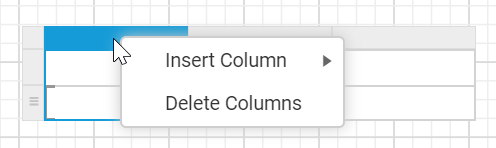
- Click
Insert Columnand then clickLeftorRight.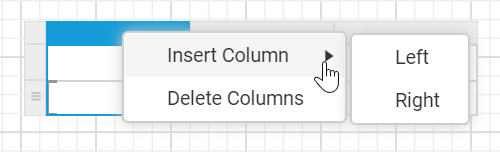
To insert a column by selecting a cell:
- Right-click a cell in the tablix where you want to insert a column.
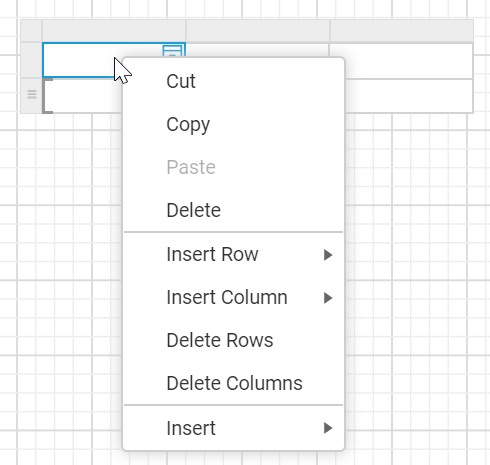
- Click
Insert Columnand then clickLeftorRight.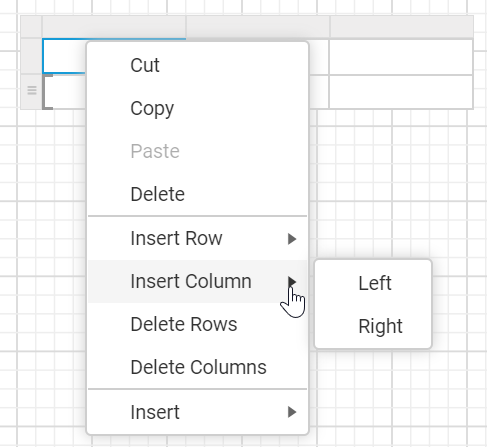
A new column is added to the left or right of the target column.

How do I insert a column in a group?
You can add a column to a group in a Bold Reports® tablix in two ways: from the column group gripper or from a column group cell.
To insert a column by selecting the column group:
- Right-click the column group gripper where you want to insert a column.
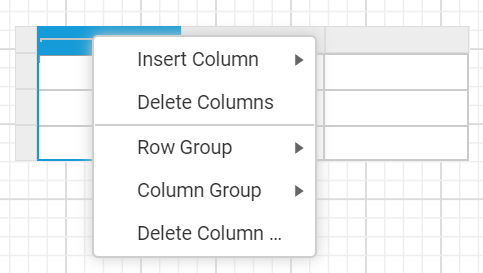
- Click
Insert Column.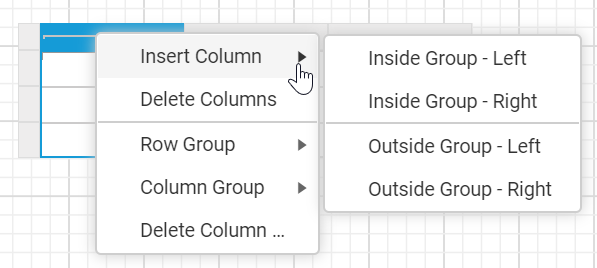
To insert a column by selecting a cell:
- Right-click a column group cell in the tablix where you want to insert a column.
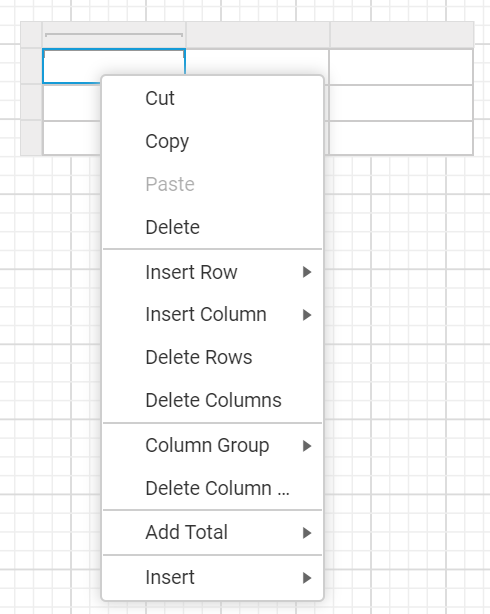
- Click
Insert Column.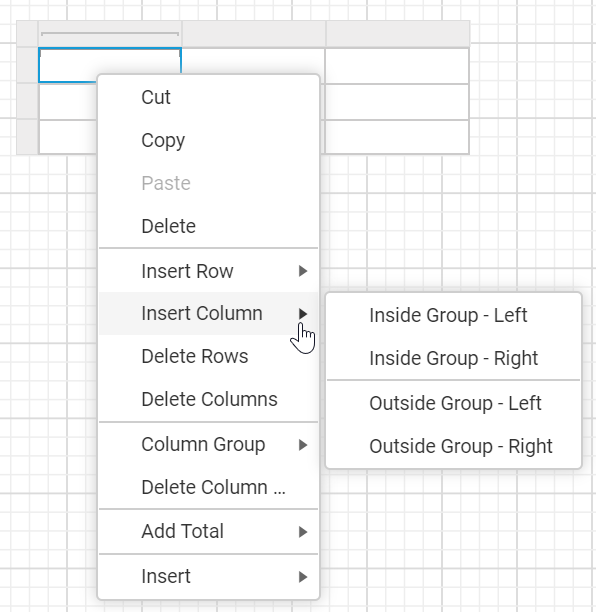
Which Insert Column options are available in a group?
The Web Report Designer lists the following options in the Insert Column menu:
- Inside Group - Left - A new column is added inside the target group but in the left position. In the following image, the
Grouping Indicatorshows that the column is added inside the group.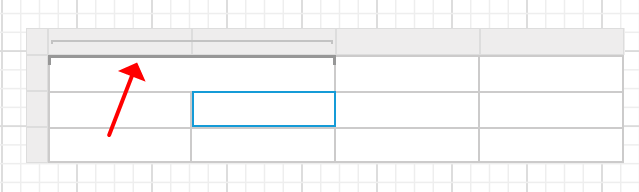
- Inside Group - Right - A new column is added inside the target group but in the right position. In the following image, the
Grouping Indicatorshows that the column is added inside the group.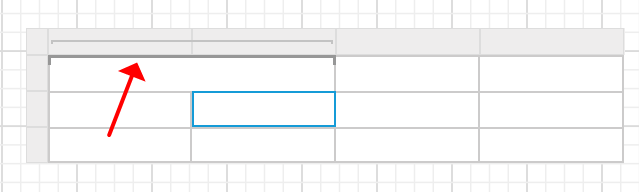
- Outside Group - Left - A new column is added outside of the target group but in the left position. In the following image, the
Grouping Indicatoris shown only for the target group.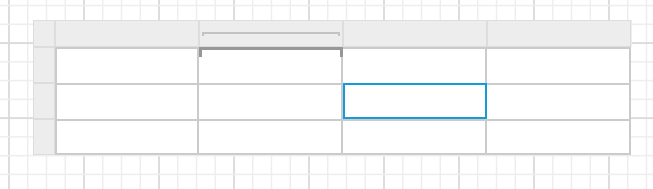
- Outside Group - Right - A new column is added outside of the target group but in the right position. In the following image, the
Grouping Indicatoris shown only for the target group.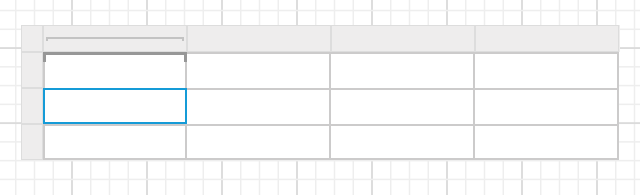
How do I delete a column?
You can delete a column from a Bold Reports® tablix in two ways: from the column gripper or from a cell.
To delete a column by selecting the column:
- Select the column that you want to delete.
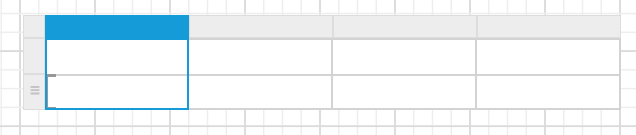
- Right-click the column gripper of that column.
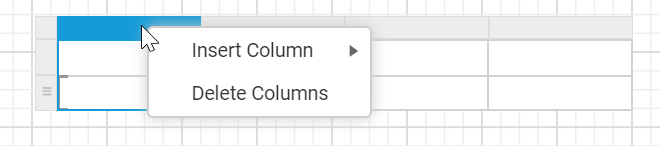
- Click
Delete Columnsin the context menu.
To delete a column by selecting a cell:
- Right-click a cell in the tablix where you want to delete a column.
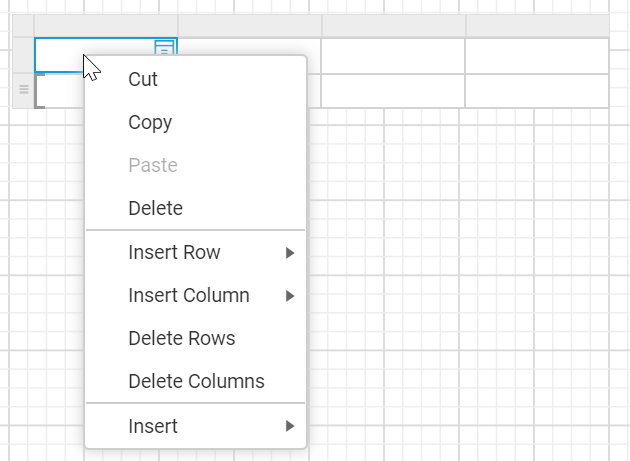
- Click
Delete Columnsin the context menu.
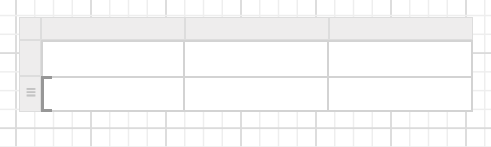
The selected column is deleted from the tablix.
How do I delete a column from a group?
To delete a column from a column group in a Bold Reports® tablix, follow these steps:
- Right-click a column group cell in the column group of a tablix.
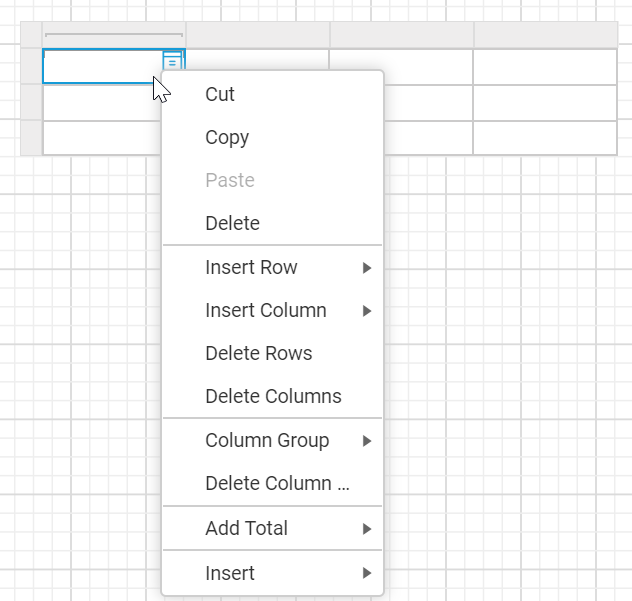
- Click
Delete Columns.
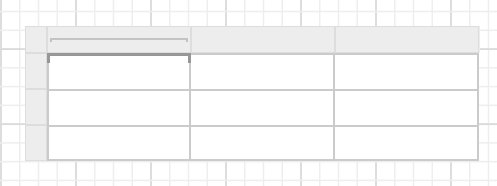
The selected column is deleted from the tablix.
Frequently asked questions
What is the difference between Inside Group and Outside Group?
In the Bold Reports® Web Report Designer, Inside Group adds the new column inside the target group. Outside Group adds the new column outside the target group, so the Grouping Indicator is shown only for the target group.