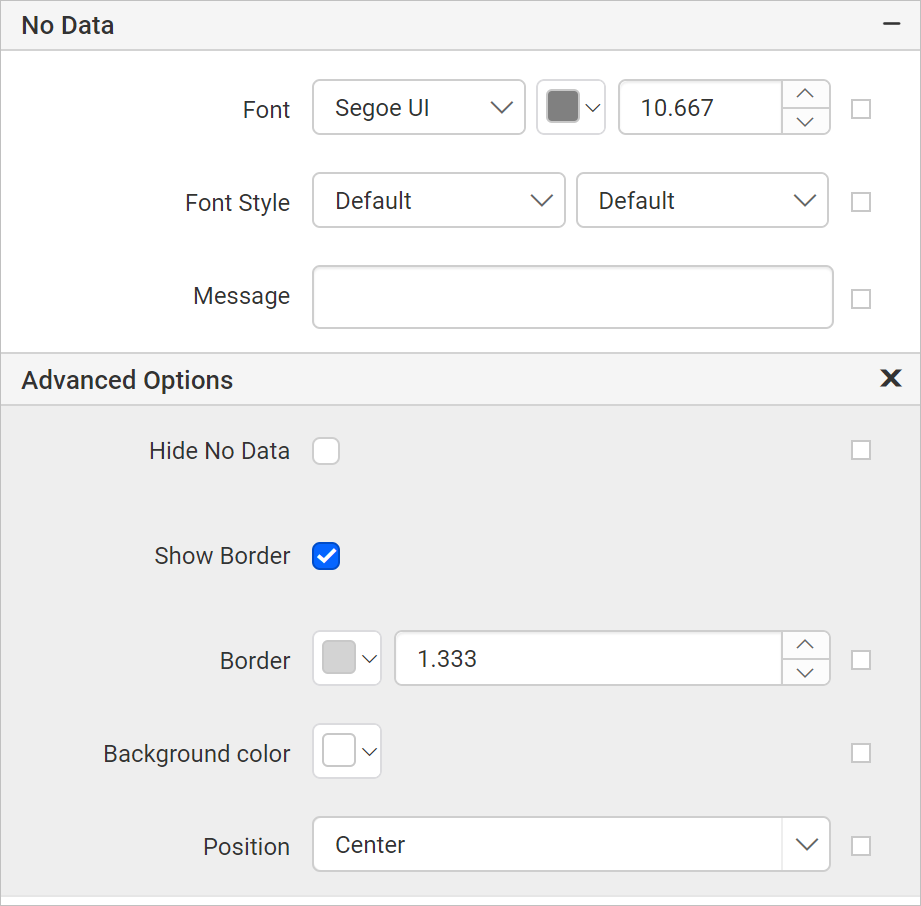
No Data
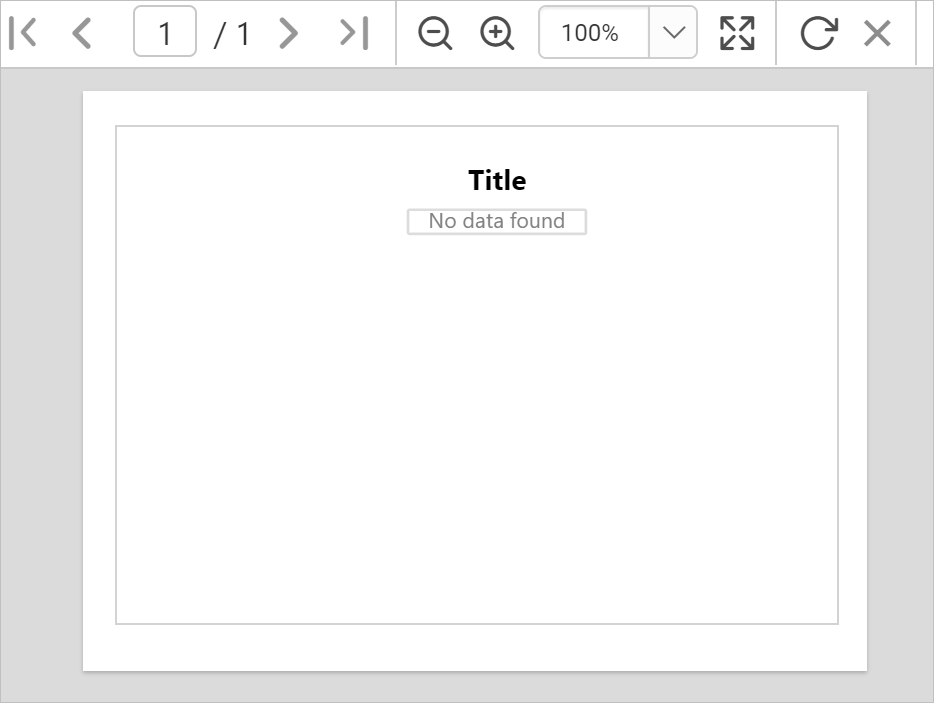
No Data property is used to display static text when dataset results with a empty or zero rows at run time.
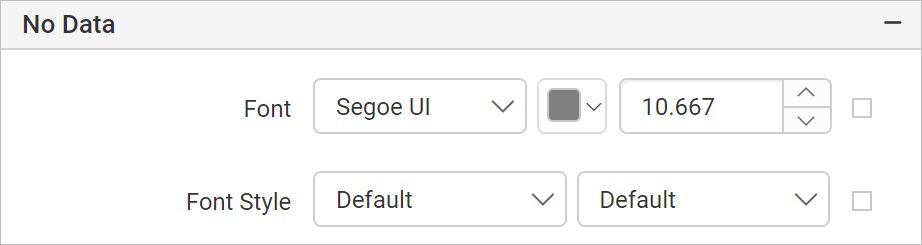
Font
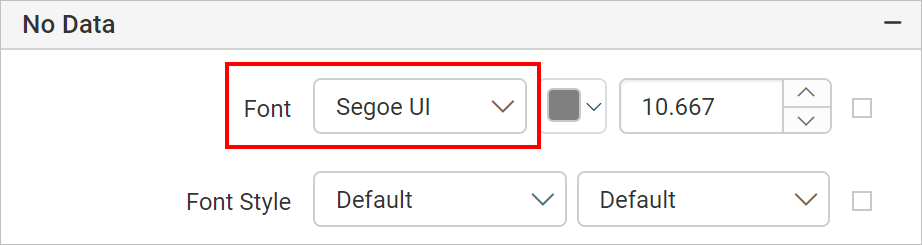
Font Family
Supported font family names are listed in the drop-down list, choose the required font family from the drop-down list to change the Font Family of the no data message.
Font Color
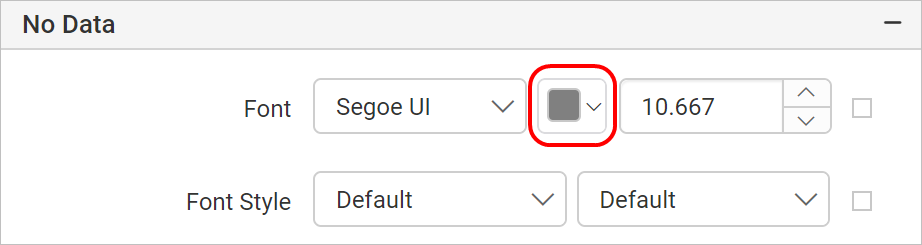
To set font color for the no data message, click on the color palette icon and choose the required color in the Color Palette.
Font Size
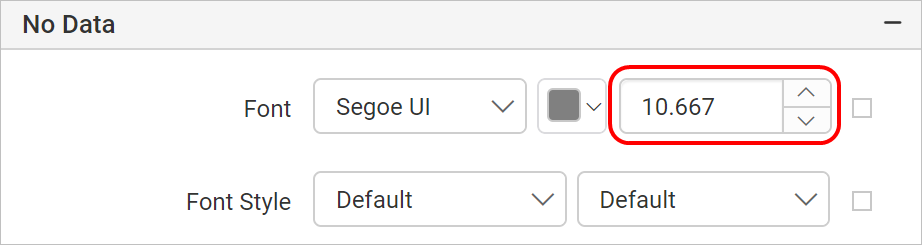
Font size property allows you to increase the size of the text in the no data message. You can increase the font size using the numeric drop-down highlighted in below snap.
Font Styles
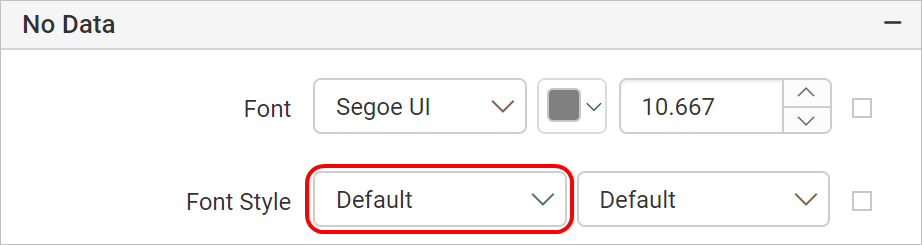
To change font style of the no data message, choose the required font style in the Font Style drop-down list. Following are the supported font styles:
- Default
- Normal
- Italic
Font Weight
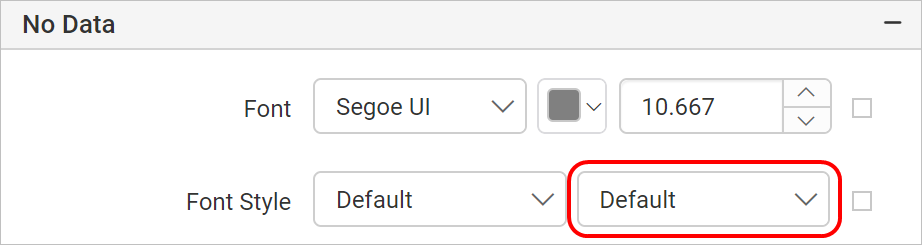
To change the font weight of the no data message, choose the required type of font weight property from the drop-down list.
Message
Provide the required text in the message textbox, the given message will be displayed to the user when dataset results with empty or zero rows.
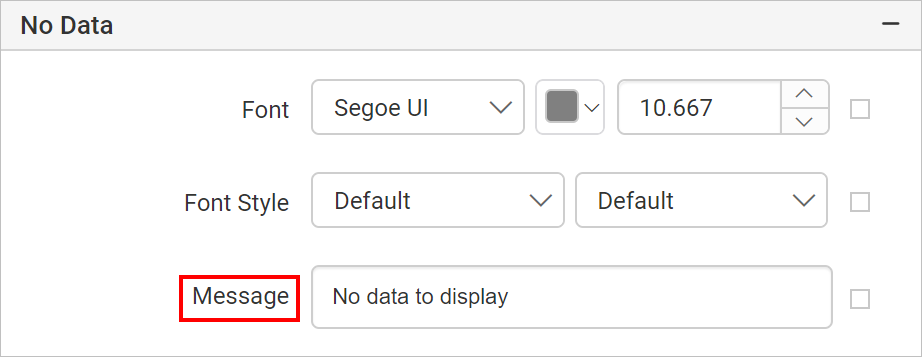
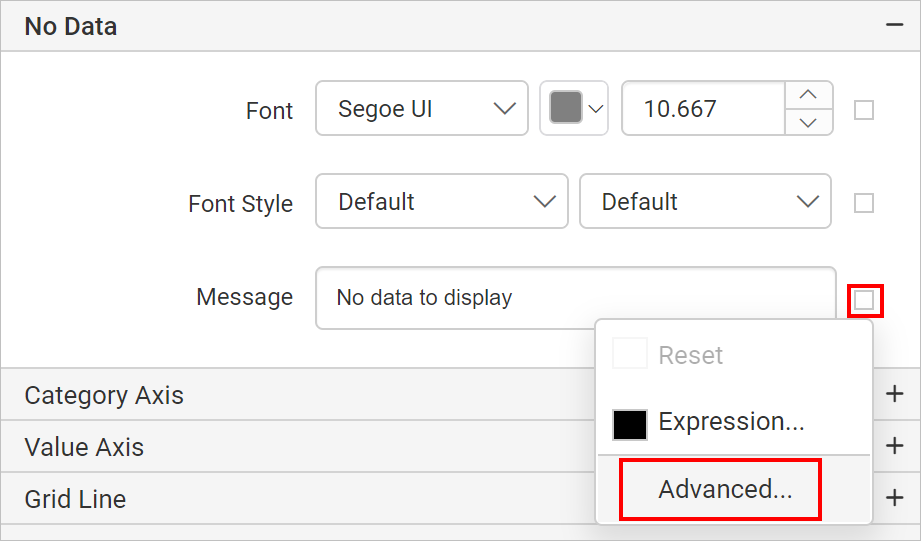
To customize the message appearance, open the Advanced Panel.
Hide No Data
To show/hide message in the chart surface, toggle the Hide No Data checkbox.
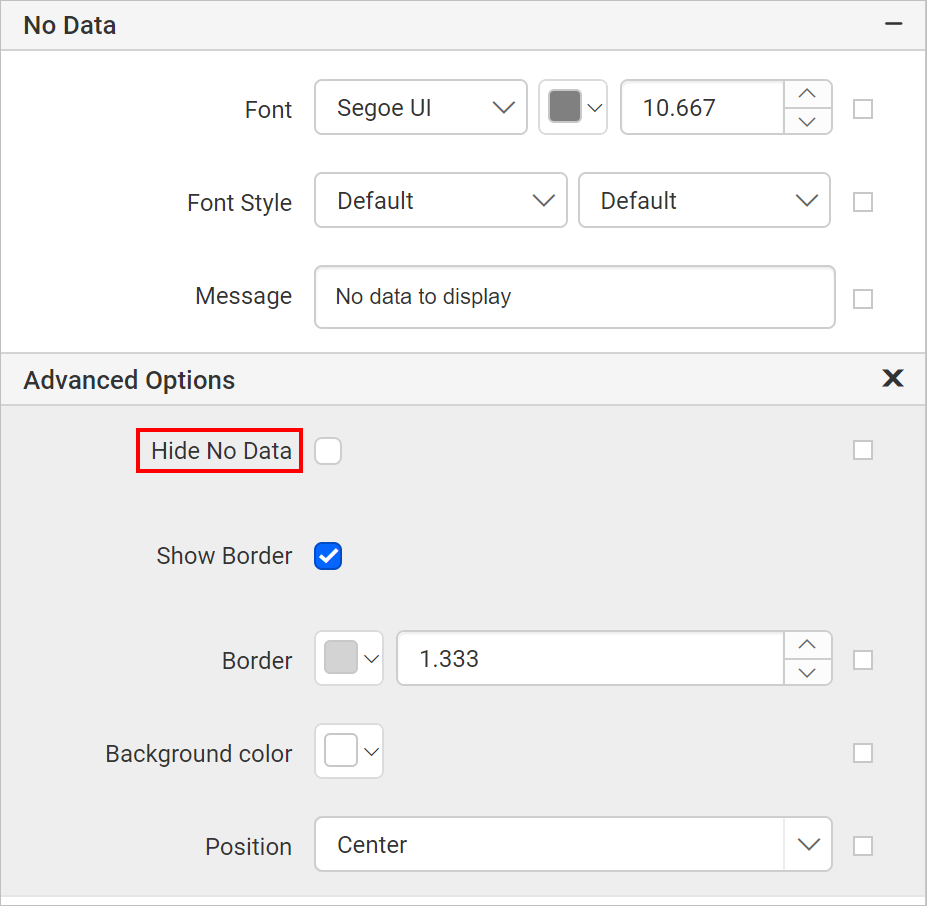
If you disable the Hide No Data checkbox, the no data message will be displayed on the chart area while preview.
You can also show or hide the message based on dynamic values, by using the Expressions. Refer Set Expression and Reset Expression section to open set/reset expression menu in properties panel.
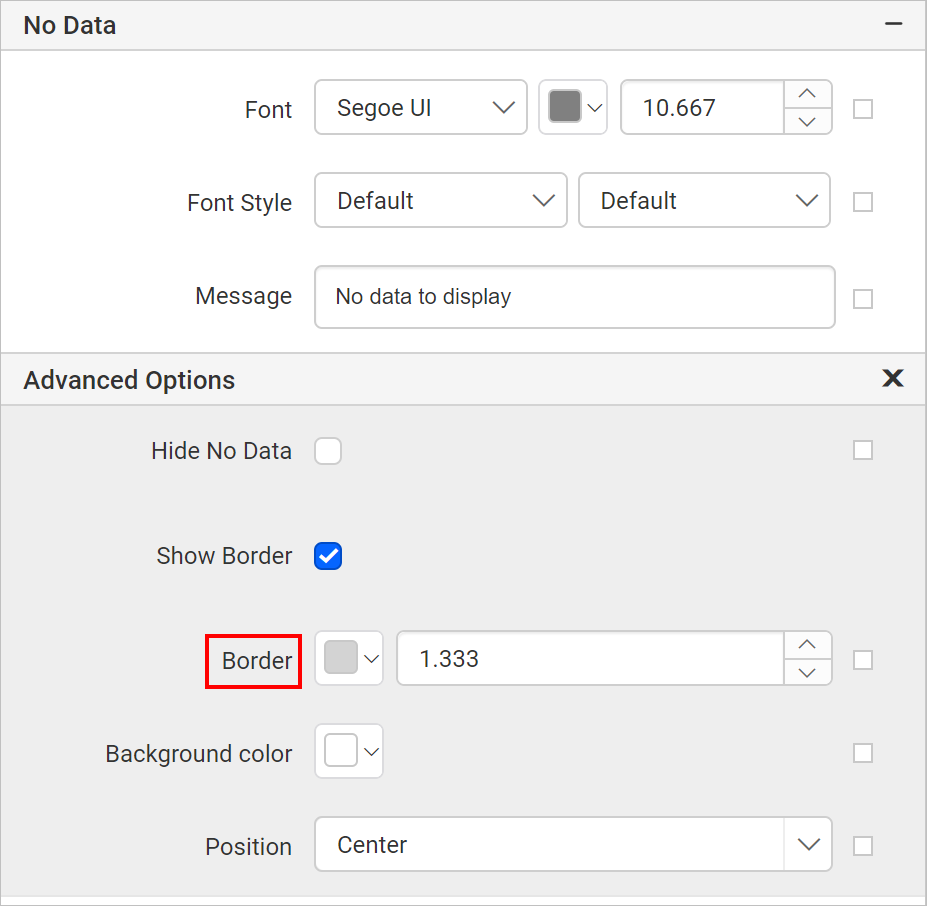
Border
Border property can be used to set the border color and width for the no data message container.
Background color
Background color property can be used to set the background color for the no data message container.
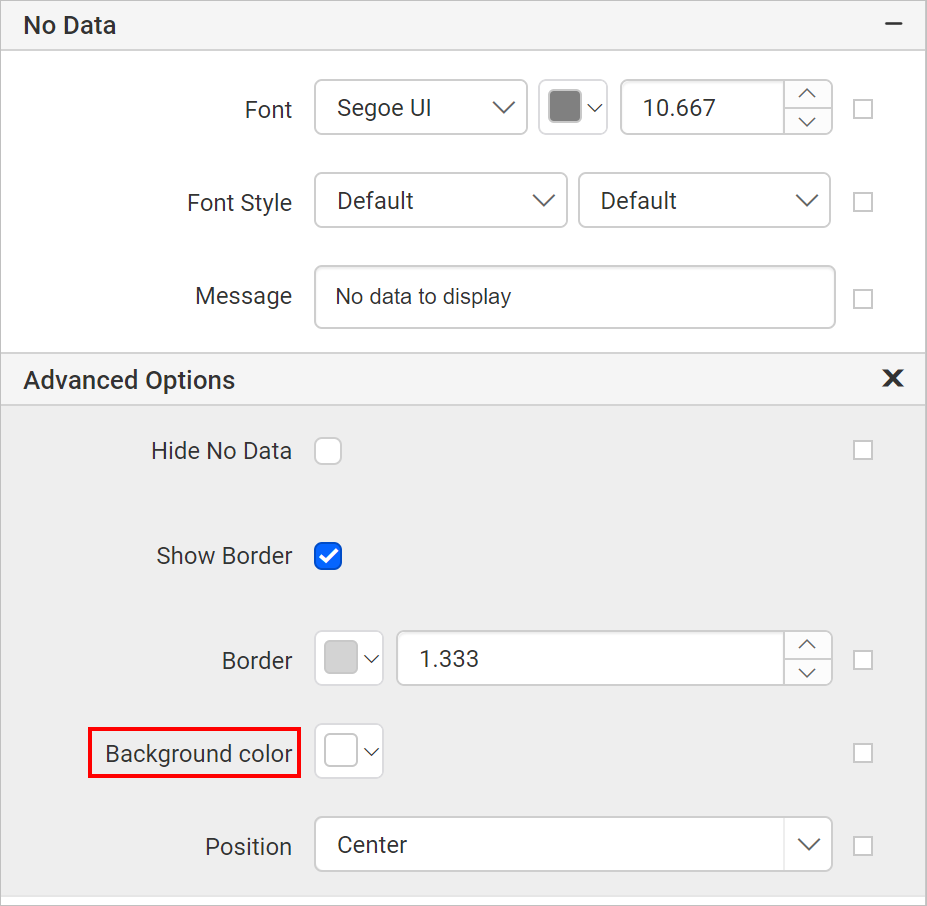
The background color property will be applied to the no data message container while preview.
You can also apply background color based on dynamic values, by using the Expressions. Refer Set Expressions and Reset Expressions section to open set/reset expression menu in properties panel.
Position
You can place the no data message container in different position inside the chart area. This property can be used to position the message container inside the chart area. Supported positioning patterns are listed in the Position drop-down.
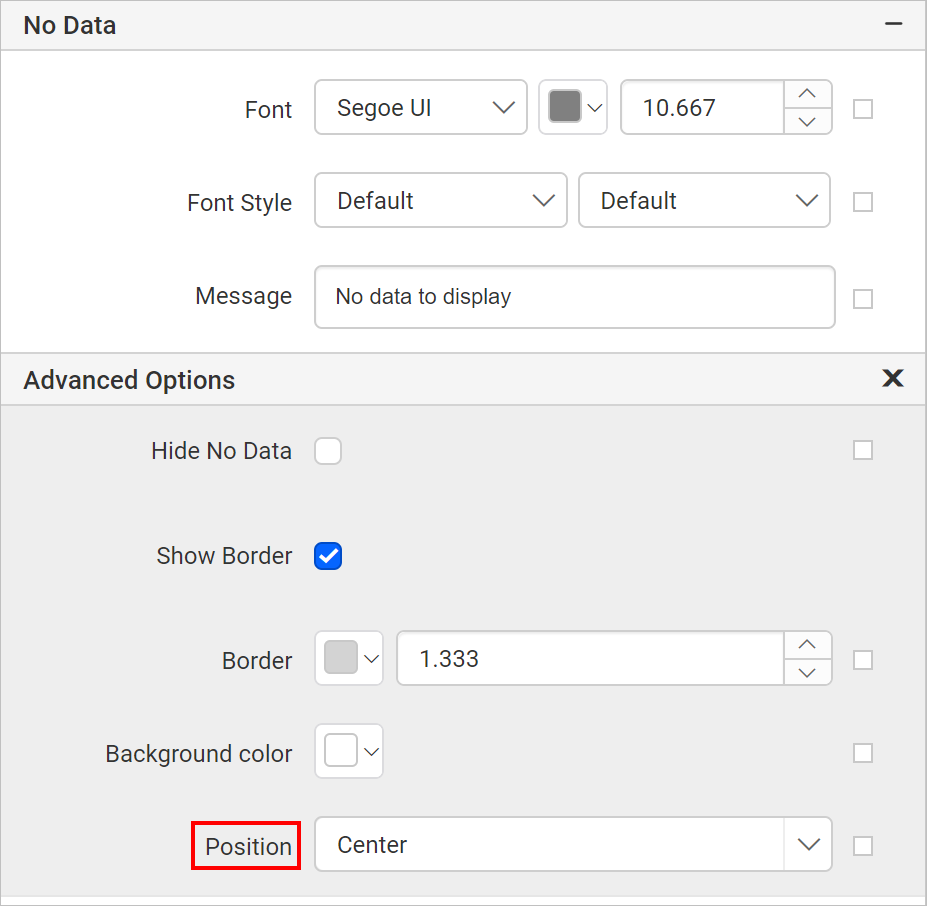
By default the message container will be placed in TopCenter position.
All the customizations will be applied to the no data message container while previewing the report.