Link a shared dataset
A shared dataset that you create in Bold Reports® Report Server can be linked with reports in the Web Report Designer. You link it from the Data panel so several reports use the same data feed.
How do I link a shared dataset?
You link a shared dataset in the Bold Reports® Web Report Designer with the following steps:
-
Click the
Dataicon in the configuration panel to launch theDataconfiguration.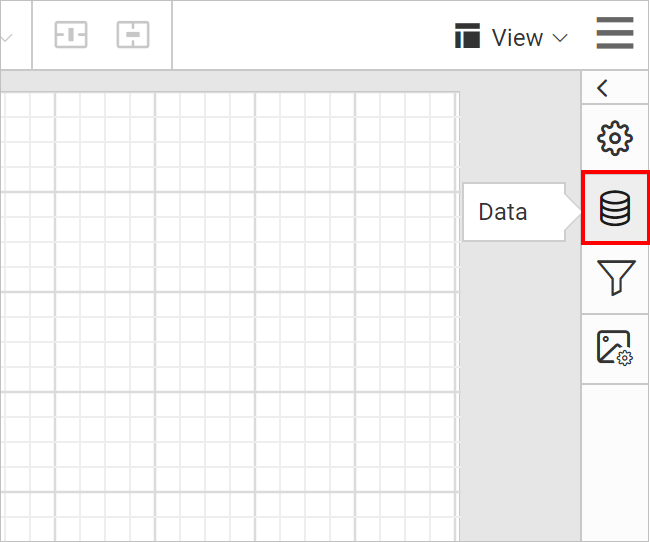
-
Click the
SHARED DATAbutton in theDatapanel.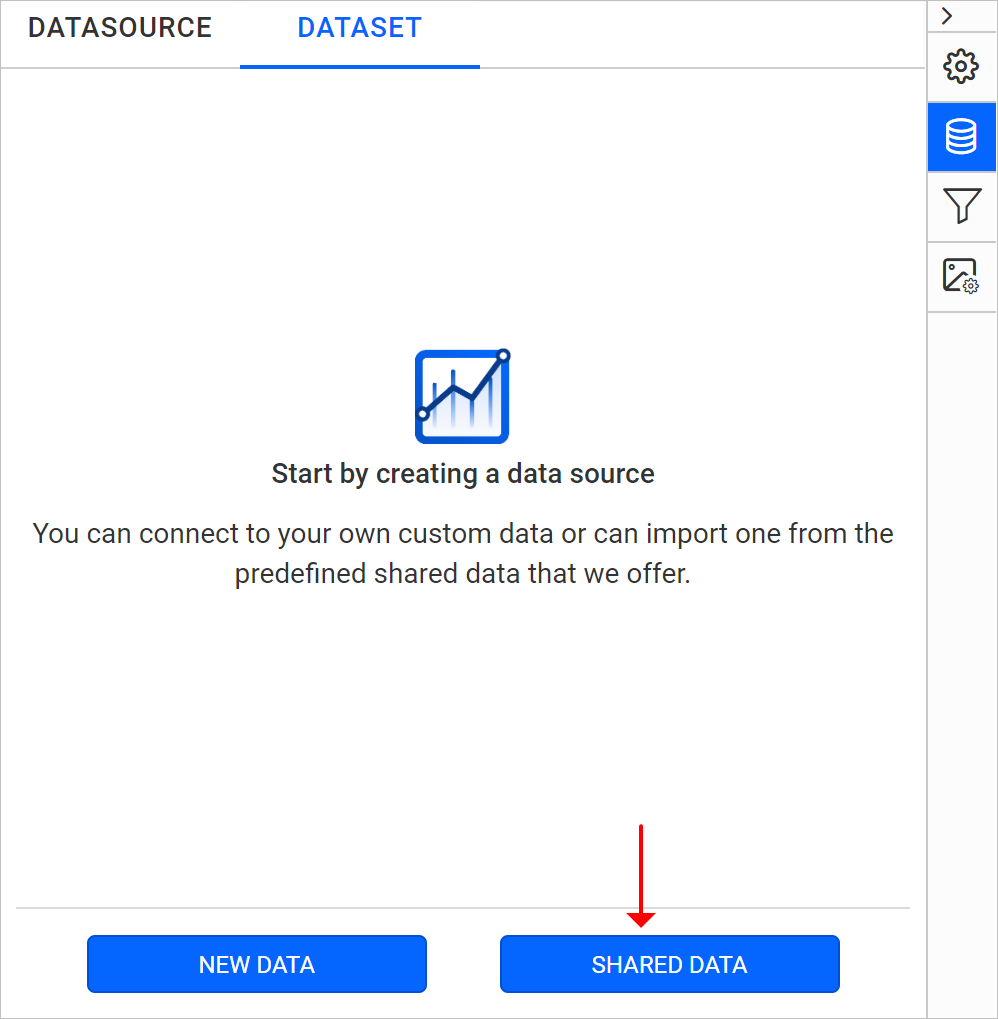
-
Review the new dataset wizard, which opens after you click
SHARED DATA, as shown below.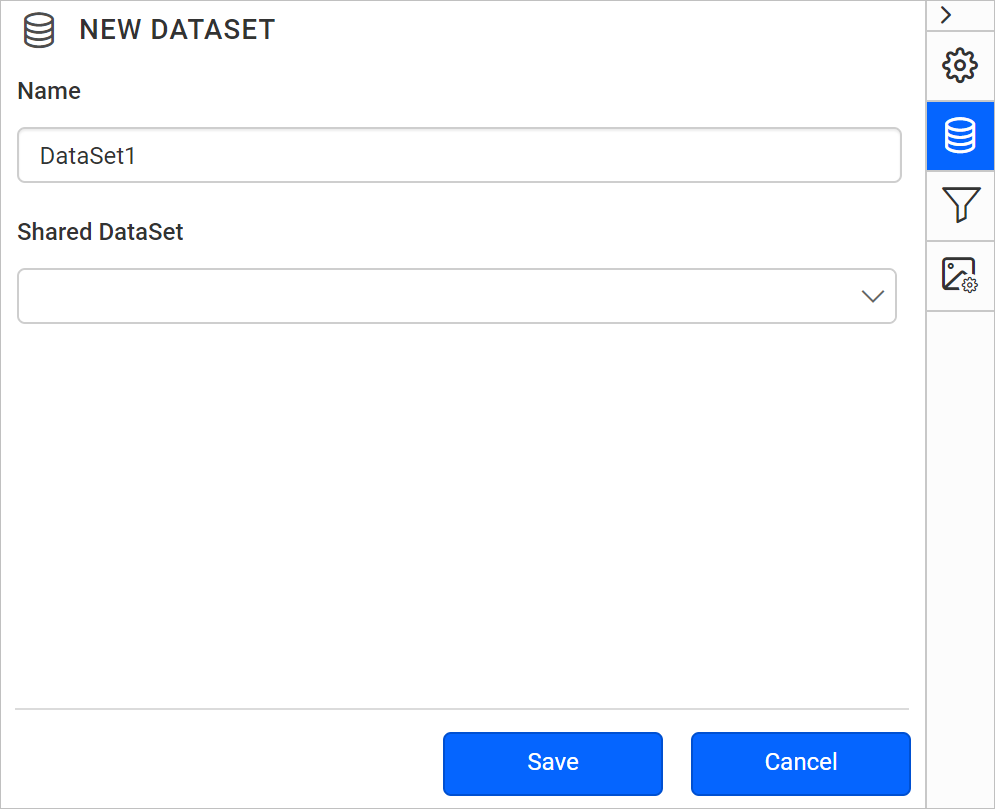
-
In the Name field, specify the dataset name without special characters.
-
In the Shared DataSet field, select an existing shared dataset in the server from the drop-down list.
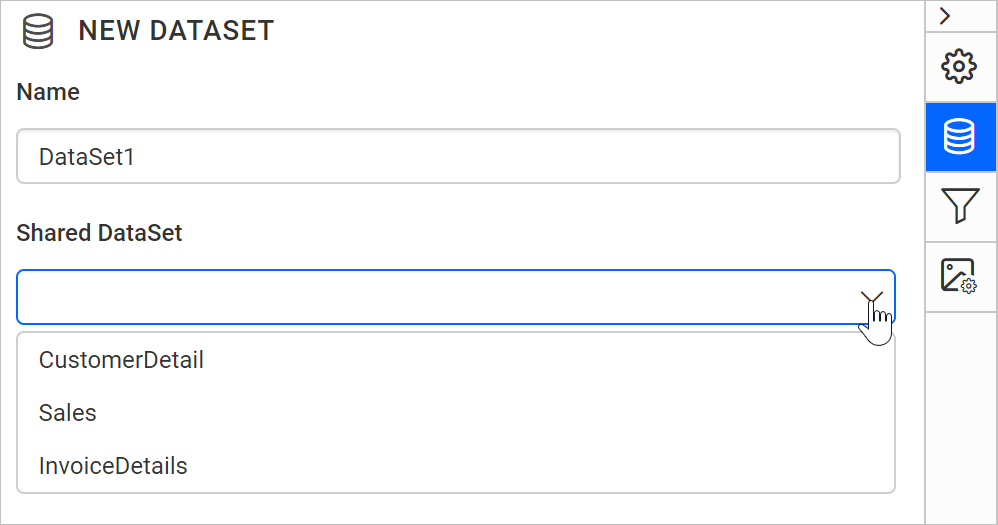
-
Click the
Savebutton. The new shared dataset is added to the report, as shown below.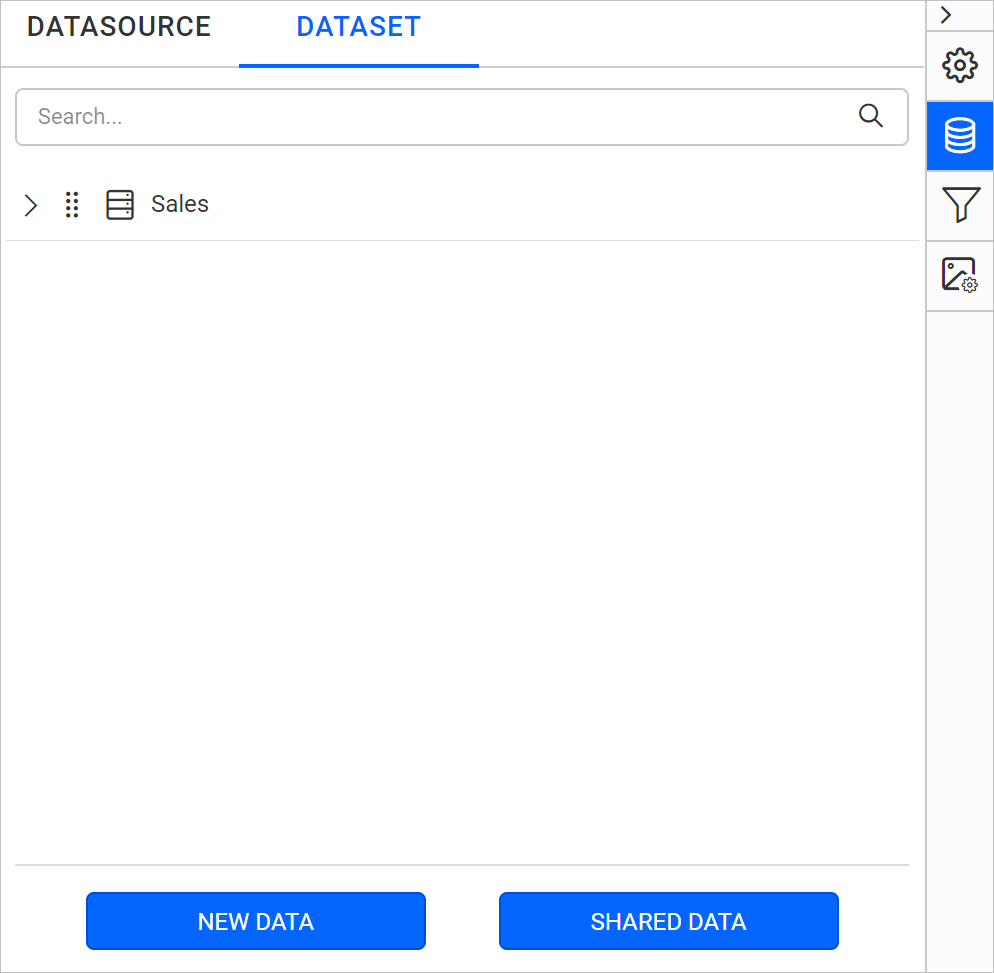
Note: You can link multiple shared dataset into the report.
Frequently asked questions
Can I link more than one shared dataset to a report?
Yes. The Bold Reports® Web Report Designer lets you link multiple shared datasets into the report.
Where do shared datasets come from?
Shared datasets are created in Bold Reports® Report Server. The Shared DataSet drop-down lists the existing shared datasets in the server.