Connect to Rest API data source
Bold Reports® supports connecting almost all web services that have a REST API interface. You can use GET or POST actions and pass dynamic values for the URL, headers, parameters, and raw data.
How do I choose the web data source?
To choose the web data source in the Bold Reports® Web Report Designer, open the Data configuration panel and select the Web API connection type.
- Click the Data icon in the configuration panel.
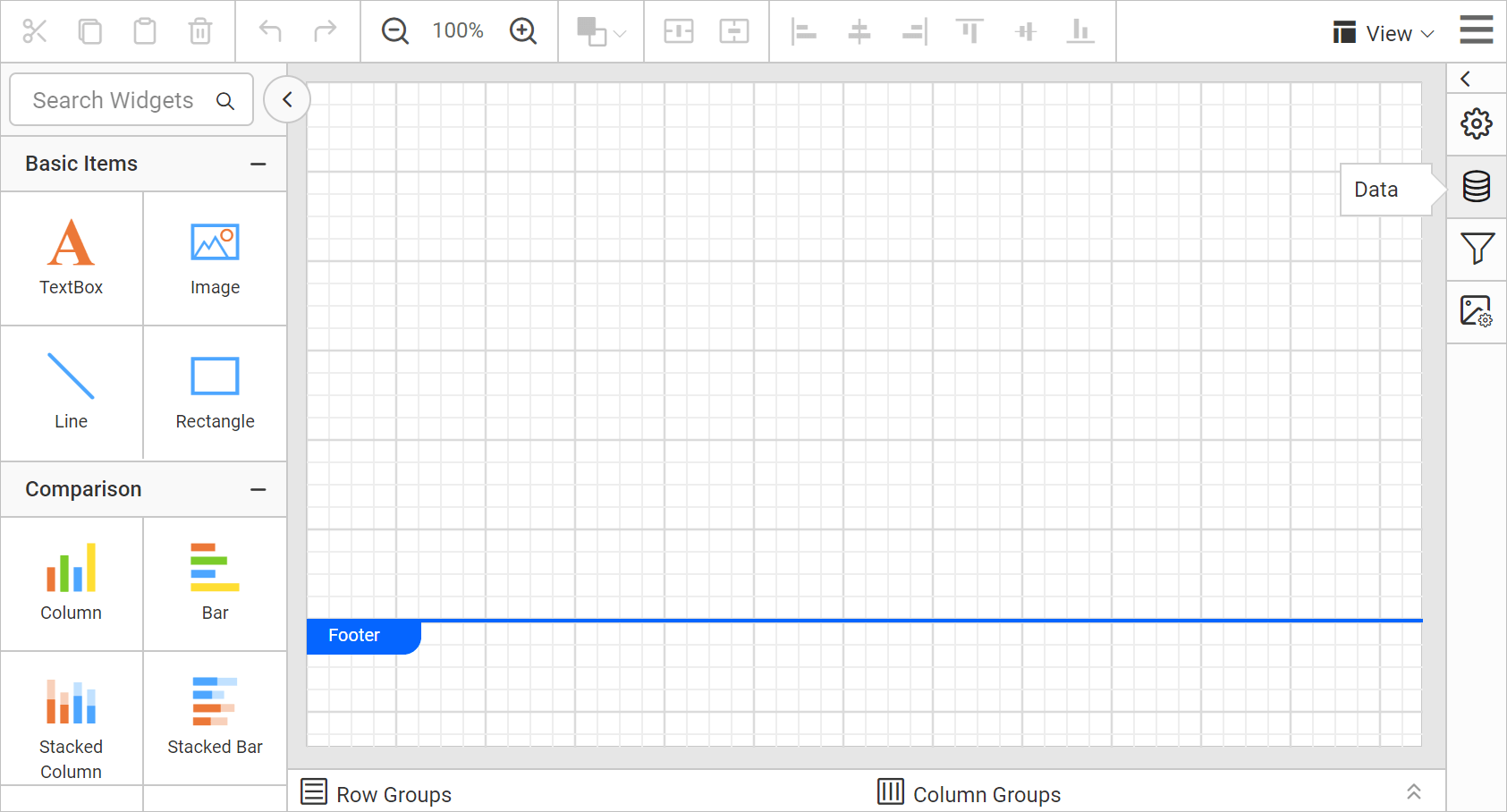
- In the
DATAconfiguration panel, click theNEW DATAbutton.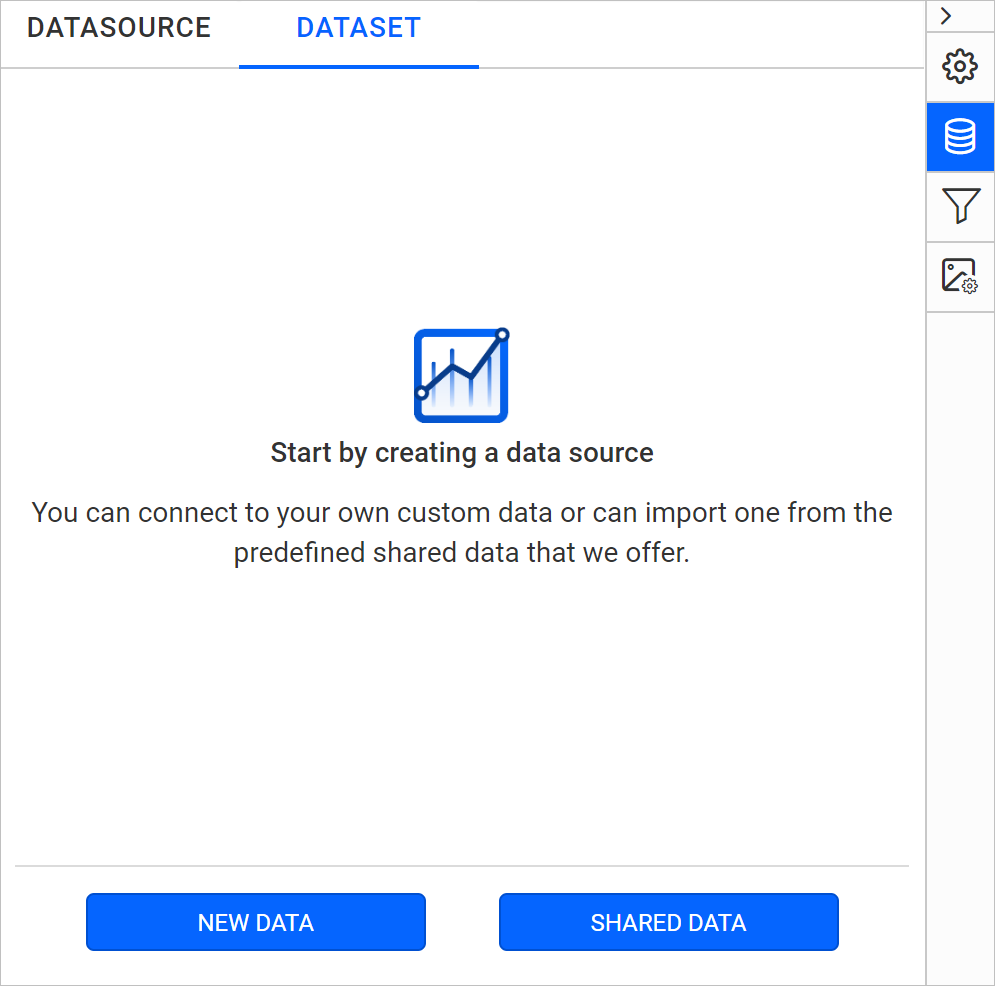
- In the connection type panel, choose the
Web APIdata source type.
- After you click the data source, the
NEW DATASOURCEconfiguration panel opens. Specify the data source name without special characters in the Name field.
How do I connect with a GET action?
To connect the Bold Reports® web data source with a GET action, enter the endpoint and choose GET as the method.
- Enter a valid REST API endpoint in the URL text box to perform GET action.
- Choose GET in the Method drop-down.
- Choose a Data Format from the drop-down based on the response of your provided REST API. Options are JSON, XML, and CSV.
- Choose an Authentication Type supported by the data source. Options are
Basic http authenticationandNone. Learn more about Authentication Types.
The basic connection details look similar to the following image.

If the REST API requires it, provide key value pairs in Headers.

Click Connect to open the query design pane. The query design pane shows a list of schemas in the left pane.

Drag and drop the table from the left pane in the query design view page and execute. The corresponding values appear in a grid for preview.

Note:
- In schema tree, the nested fields in the specified REST API will be shown as flat structure.
- When the JSON or XML data contains duplicate key names at different levels, Bold Reports® ensures uniqueness and avoids conflicts by appending the parent keys to each field name using the following format:
<fieldName>__<topLevelParentKey>_<nextParentKey>_..._<immediateParentKey>_.
Click Finish to save the data source with a relevant name and continue designing the report.

How do I connect with a POST action?
To connect the Bold Reports® web data source with a POST action, enter the endpoint and choose POST as the method.
- Enter a valid REST API endpoint in the URL text box to perform POST action.
- Choose POST in the Method drop-down.
- Choose a Data Format from the drop-down based on the response of your provided REST API. Options are JSON and XML.
- Choose an Authentication Type supported by the data source. Options are
Basic http authenticationandNone. Learn more about Authentication Types.
The connection details look similar to the following image.

Click Connect to open the query design pane.
Drag and drop the table from the left pane in the query design view page and execute. The results for posted data appear in a grid for preview.

Note:
- In schema tree, the nested fields in the specified REST API will be shown as flat structure.
- When the JSON or XML data contains duplicate key names at different levels, Bold Reports® ensures uniqueness and avoids conflicts by appending the parent keys to each field name using the following format:
<fieldName>__<topLevelParentKey>_<nextParentKey>_..._<immediateParentKey>_.
Click Finish to save the data source with a relevant name and continue designing the report.
How do I pass a dynamic value for the URL?
The Bold Reports® web data source lets you pass dynamic values for the URL with an expression. Follow these steps to set an expression for the URL field:
- Click the square icon in the right corner of the URL field to open the expression menu.

- Choose the
Expressionoption from the menu.
- The expression dialog opens.

- Enter the required expression and click OK.

- The square icon turns black and the URL field shows
<<Exp>>.
To reset the expression, choose the Reset option from the menu. Specify other required connection settings and click Connect. When you click connect for the first time, you are prompted for an actual URL to load data in query design.

Enter a direct URL value instead of an expression and click OK.

The query design view opens.

How do I pass headers?
The Bold Reports® web data source lets you pass the required headers for the REST API URL in the Headers property. To add headers, follow these steps:
-
Click
+ ADDto add a new header.
-
Enter the valid key and its value required to connect with the REST API.

Similarly, you can add multiple headers and pass values for them.
How do I pass dynamic values for headers?
During report processing, Bold Reports® lets you pass dynamic values for each key in headers using expressions. To set an expression for headers, follow these steps:
- Click the square icon in the right corner of the Value field to open the expression menu.

- Choose the
Expressionoption from the menu.
- The expression dialog opens.

- Enter the required expression and click OK.

- The square icon turns black and the value field shows
<<Exp>>.
To reset the expression, choose the Reset option from the menu. Specify other required connection settings and click Connect. When you click connect for the first time, you are prompted for valid header values to load data in query design.

Enter valid header values instead of an expression and click OK.

Bold Reports® fetches field information from the specified REST API URL and opens the query design view.
How do I pass parameters?
The Bold Reports® web data source shows the parameter option when you choose the POST method. To add a parameter, follow these steps:
-
Click
+ ADDto add a new parameter.
-
Enter the property name and its value to post the data.

How do I pass dynamic values for parameters?
During report processing, Bold Reports® lets you pass dynamic values for each parameter using expressions. To set an expression for a parameter value, follow these steps:
- Click the square icon in the right corner of the Value field to open the expression menu.

- Choose the
Expressionoption from the menu.
- The expression dialog opens.

- Enter the required expression and click OK.

- The square icon turns black and the value field shows
<<Exp>>.
To reset the expression, choose the Reset option from the menu. Specify other required connection settings and click Connect. When you click connect for the first time, you are prompted for direct values to load data in query design.

Enter values instead of an expression and click OK.

Bold Reports® posts the information to the specified REST API URL and opens the query design view.
How do I pass raw data?
The Bold Reports® web data source lets you post raw data with the POST method. To specify a raw value, follow these steps:
-
Choose the POST method and switch the
Rawradio button. A text area with an option to set an expression appears.
-
Enter the direct value in the text area, for example:
{
  "ID": 220,
  "Title": "Book 220",
  "Description": "Book 220 added",
  "PageCount": 100,
  "Excerpt": "Lorem lorem lorem. Lorem lorem lorem. Lorem lorem lorem.\r\n",
  "PublishDate": "2020-08-06T10:42:22.464Z"
}
How do I pass dynamic values for raw data?
During report processing, Bold Reports® lets you pass raw data directly using expressions. To set an expression for a raw value, follow these steps:
- Click the square icon in the right corner of the Raw field to open the expression menu.

- Choose the
Expressionoption from the menu. The expression dialog opens.
- Enter the required expression and click OK.

- The square icon turns black and the value field shows
<<Exp>>.
To reset the expression, choose the Reset option from the menu. Specify other required connection settings and click Connect. When you click connect for the first time, you are prompted for raw data to load data in query design.

Enter valid data and click OK.

Bold Reports® posts the data to the specified REST API URL and opens the query design view.
What syntax do I use for expressions in raw data?
Bold Reports® accepts the following syntaxes for expressions in raw data.
Syntax 1: When passing data as JSON object, it should be enclosed with in double quotes, the key/value strings should be enclosed within single quotes. Otherwise, it can follow any syntax which supports the Client-Server transaction.
= "{'ItemType':'Dataset','ReportReferences':['3fe0ea1c-b6a1-4b20-95dd-158edd24ae4b']}"
Syntax 2: To use the Parameters, Data fields, or Variables along with a Json object, follow this syntax.
="{'ItemType':'Dataset','ReportReferences':['" & Parameters!ReportParameter1.Value & "']}"
Double quotes identify whether the data is a whole string value.
Expression Format
Bold Reports® requires expressions in a single line format, not in multiple lines. For example, when you provide a JSON object as input, format it as a single line rather than multiple lines, as shown below:
="{
  'ID': 220,
  'Title': 'Book 220',
  'Description': 'Book 220 added',
  'PageCount': 100,
  'Excerpt': 'Lorem lorem lorem. Lorem lorem lorem. Lorem lorem lorem.\r\n',
  'PublishDate': '2020-08-06T10:42:22.464Z'
}"
Incorrect format :
="{
'ID': 220,
'Title': 'Book 220',
'Description': 'Book 220 added',
'PageCount': 100,
'Excerpt': 'Lorem lorem lorem. Lorem lorem lorem. Lorem lorem lorem.\r\n',
'PublishDate': '2020-08-06T10:42:22.464Z'
}"
To use the Parameters with a Json object, follow this syntax:
="{'ID': '" & Parameters!id.Value & "','Title':'" & Parameters!title.Value & "','Description':'" & Parameters!description.Value & "','PageCount':'" & Parameters!pageCount.Value & "','Excerpt':'" & Parameters!excerpt.Value & "','PublishDate':'" & Parameters!publishDate.Value & "'}"
How do I use pagination?
Pagination allows a REST API to conserve resources, improve response times, and optimize the user experience. To get better response times for huge records in Bold Reports®, append pagination properties to the URL or specify them as Headers. For example, you can append the pagination parameter in the URL as follows:
https://demo.net/rest/api/2/Books?id=1278&startAt=0&maxResults=33&fields=title,author,priceWhich data formats can I use?
The Bold Reports® web data source lets you choose the data format of the response for the provided Rest API in the Data format drop-down.

CSV data format
When you select the CSV format in Bold Reports®, the Separator options appear, as shown in the following image. Choose the separator from the given options.

Authentication types
The Bold Reports® web data source supports two authentication types: None and Basic HTTP Authentication.
Use the None type in the following cases:
- If your data source supports authentication directly through REST API URL, choose None under Authentication Type.
- If your data source supports API Key/API Token authentication, pass these values under Header(s) by clicking +Add. Choose None under Authentication Type.
Use Basic Http authentication if your data source requires a username and password to authenticate. Choose Basic HTTP Authentication under Authentication Type and input the username and password.
Configure Timeout setting
Bold Reports® lets you configure the timeout setting for the REST API data source. The timeout setting offers greater flexibility and ensures that long-running API requests can complete without interruption. For a step-by-step guide to configuring the timeout setting, check the How To section of this guide.
Timeout setting is not applicable in the Bold Reports® cloud version.
Frequently asked questions
Which data formats does the REST API data source support?
For the GET action, the data format options are JSON, XML, and CSV. For the POST action, the options are JSON and XML.
How do I use an API key with a REST API?
Pass the API Key/API Token values under Header(s) by clicking +Add, and choose None under Authentication Type.
Can I write an expression across multiple lines?
No. Expressions must be in a single line format, not in multiple lines.