Connect to Amazon Redshift data source
To connect Bold Reports® to an Amazon Redshift database, open the Data configuration panel in the Web Report Designer and create an Amazon Redshift data source.
How do I create an Amazon Redshift data source?
To create an Amazon Redshift data source in the Bold Reports® Web Report Designer, open the Data configuration panel and choose the Amazon Redshift connection type.
- Click the Data icon in the configuration panel.
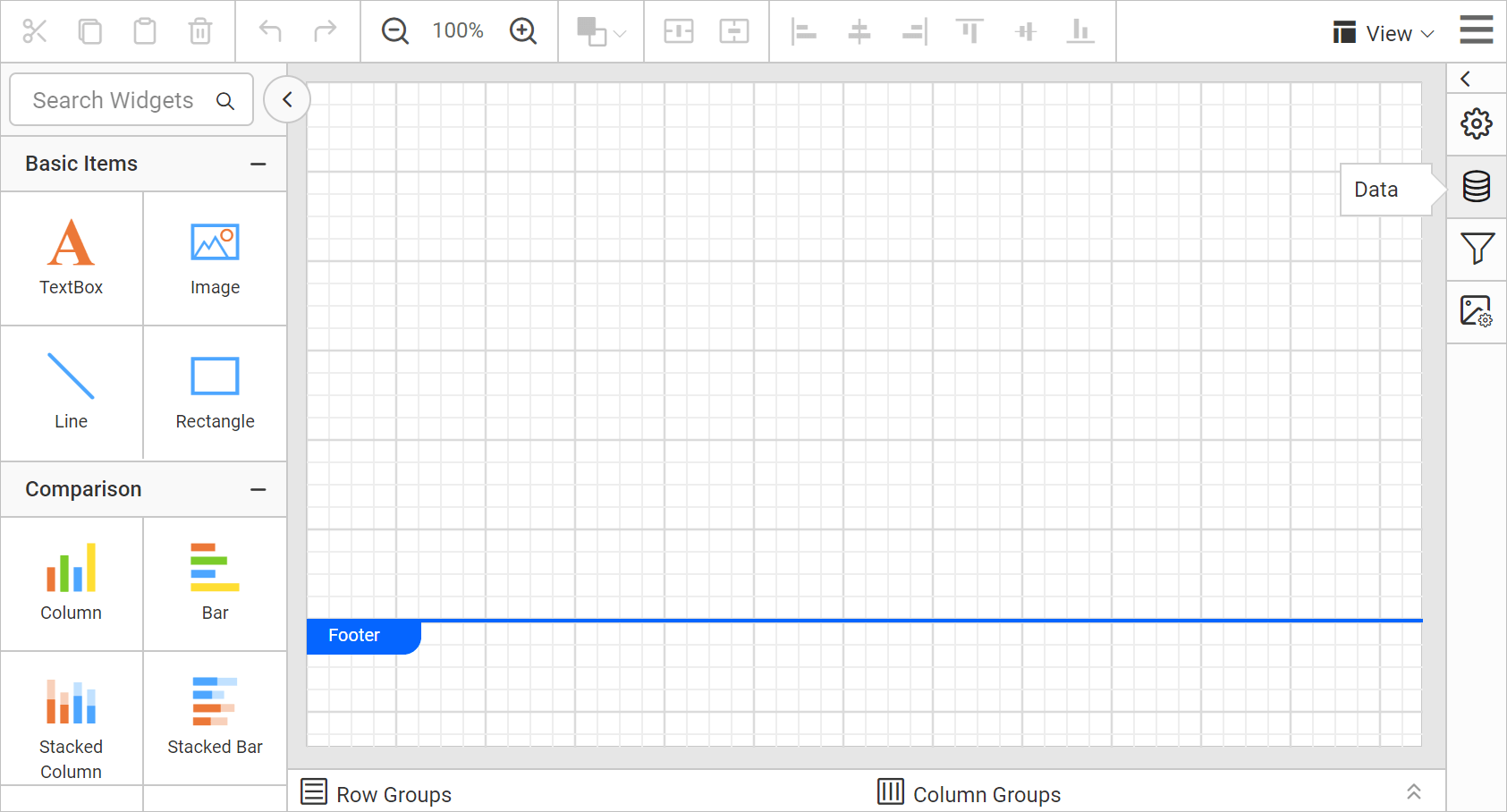
- In the
DATAconfiguration panel, click theNEW DATAbutton.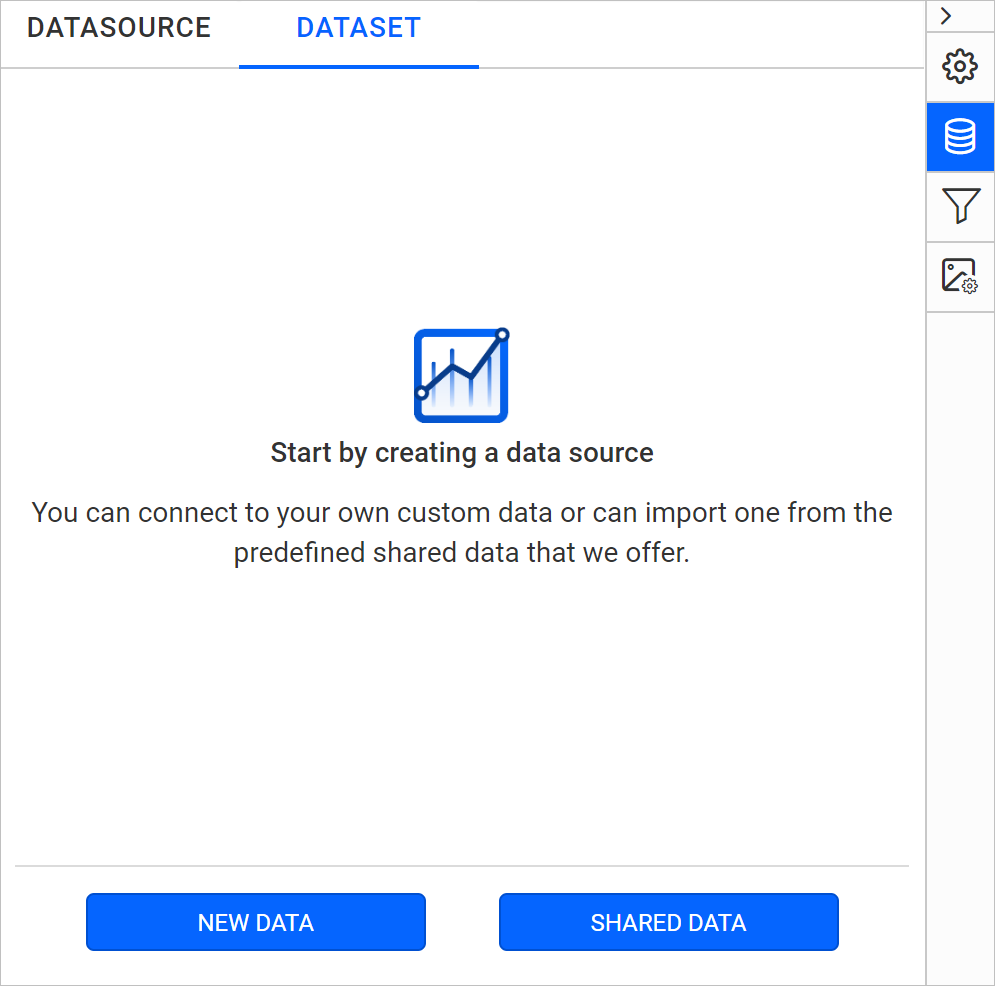
- In the connection type panel, choose the
Amazon Redshiftdata source type.
How do I configure the basic options?
When you create a new data source in the Web Report Designer, the NEW DATASOURCE panel shows the basic options.
-
Specify the data source name without special characters in the Name field.
-
Enter a valid Amazon Redshift server or host name in the Server Name field.
-
Enter a valid Amazon Redshift username in the UserName text box.
-
Enter a valid Amazon Redshift password in the Password text box.
-
Select a database that you want to query in the listed database associated with the given Amazon Redshift server in the database drop-down.

-
Click
Connectto open the query design pane. -
Enter the required query and execute it. The corresponding values appear in a grid for preview.

-
Click
Finishto save the data source with a relevant name and continue designing the report.

Frequently asked questions
What details do I need to connect to Amazon Redshift?
You need a valid Amazon Redshift server or host name, username, and password. You then select a database associated with that server.
How do I preview Amazon Redshift data?
Click Connect, enter the required query, and execute it. The corresponding values appear in a grid for preview.