Connect to Amazon Aurora data source
The Bold Reports® Designer supports connecting multiple database through Amazon Aurora using SQL Query.
How to create Amazon Aurora data source
To configure the Amazon Aurora data source, follow these steps:
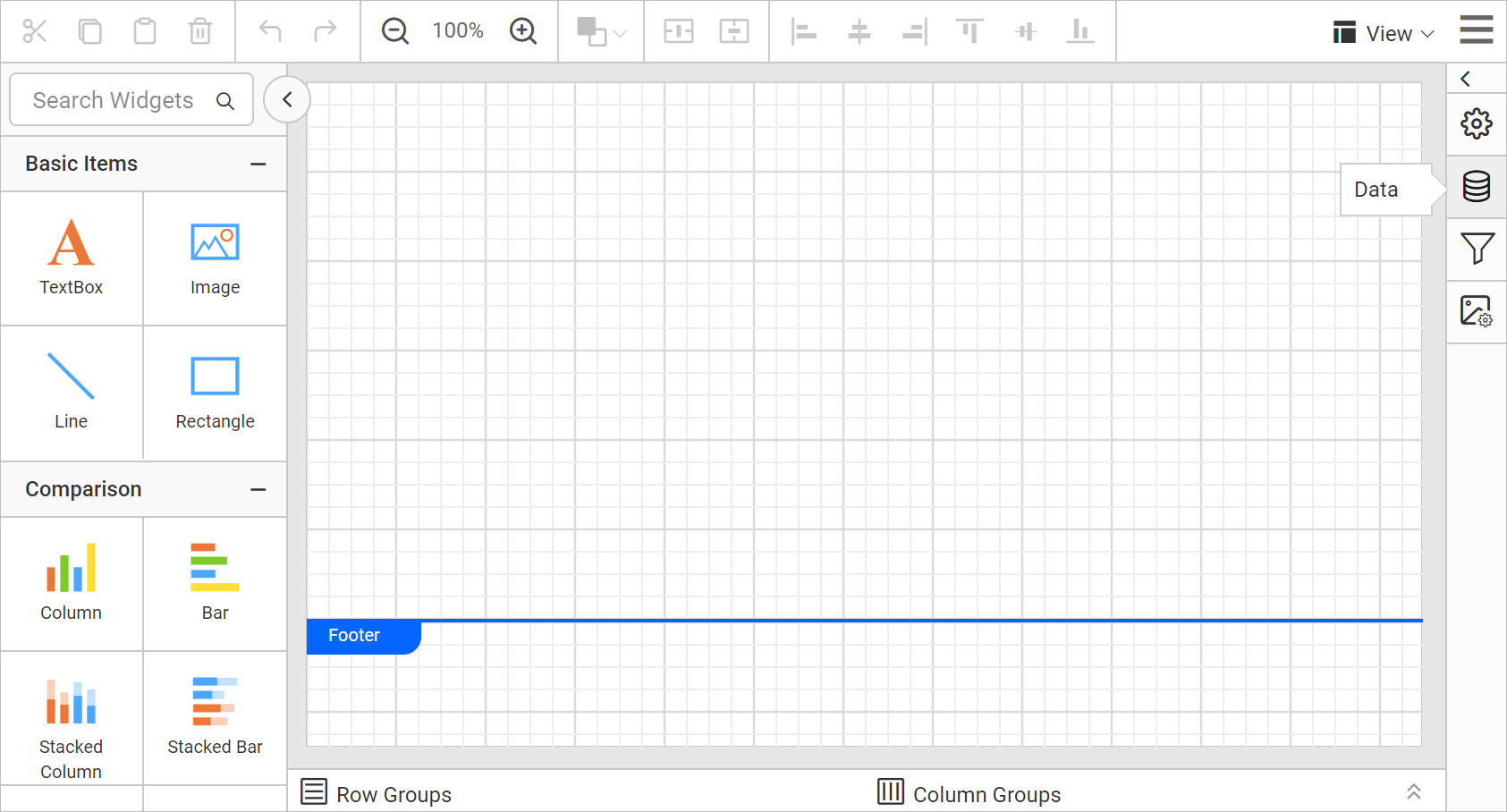
- Click on the Data icon in the configuration panel.
- In the
DATAconfiguration panel, click on theNEW DATAbutton.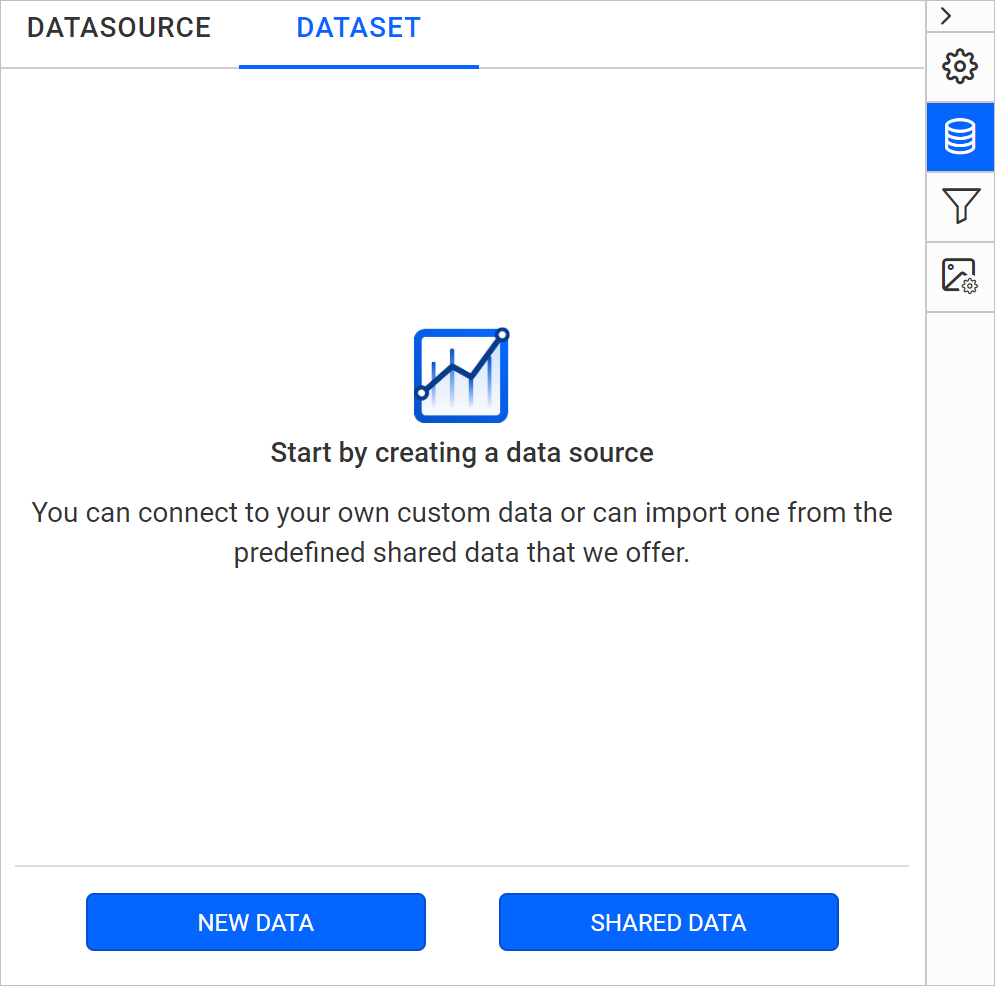
- In the connection type panel, choose the
Amazon Auroradata source type.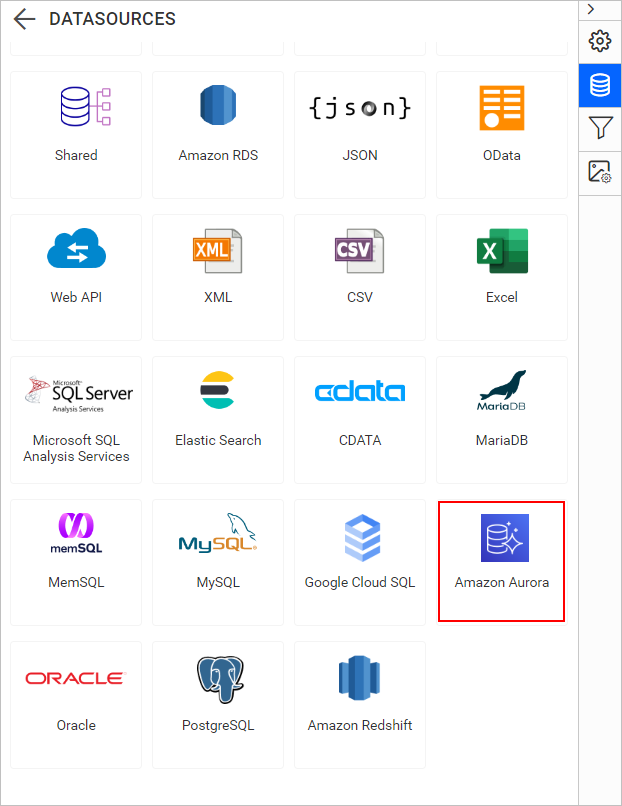
Create Amazon Aurora data source with basic options
When you create a new data, the NEW DATASOURCE panel will show up with basic options.
-
Specify the data source name without special characters in the Name field.
-
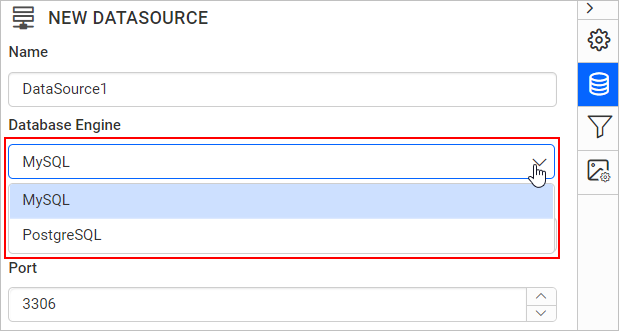
Select a database engine you want to use with the given Amazon Aurora Server from the Database Engine drop-down.
-
Enter a valid Amazon Aurora server or host name in the Server Name field.
-
Enter a valid Amazon Aurora username in the UserName text box.
-
Enter a valid Amazon Aurora password in the Password text box.
-
Select a database that you want to query in the listed database associated with the given Amazon Aurora server in the database drop-down.
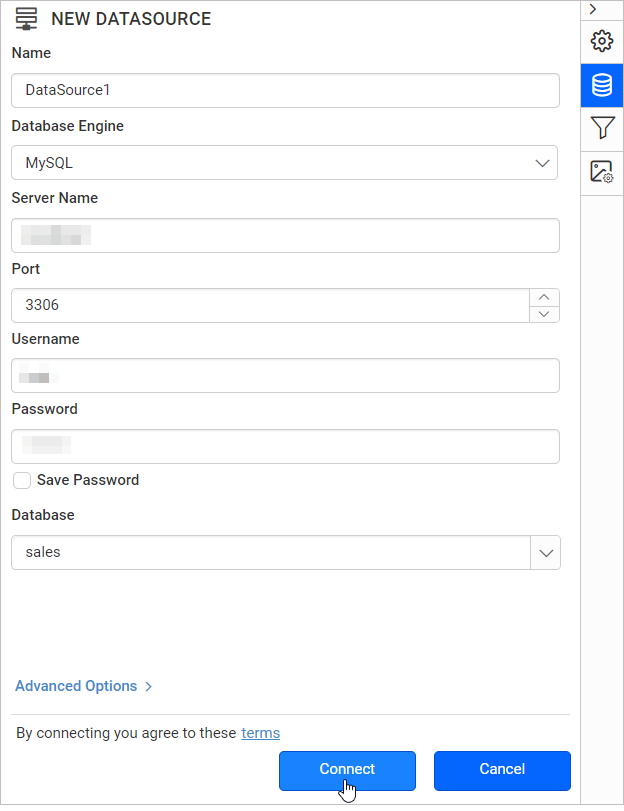
Click on the Connect to proceed with query design pane. Now, enter the required query and execute. Its corresponding values will be shown in grid for preview.
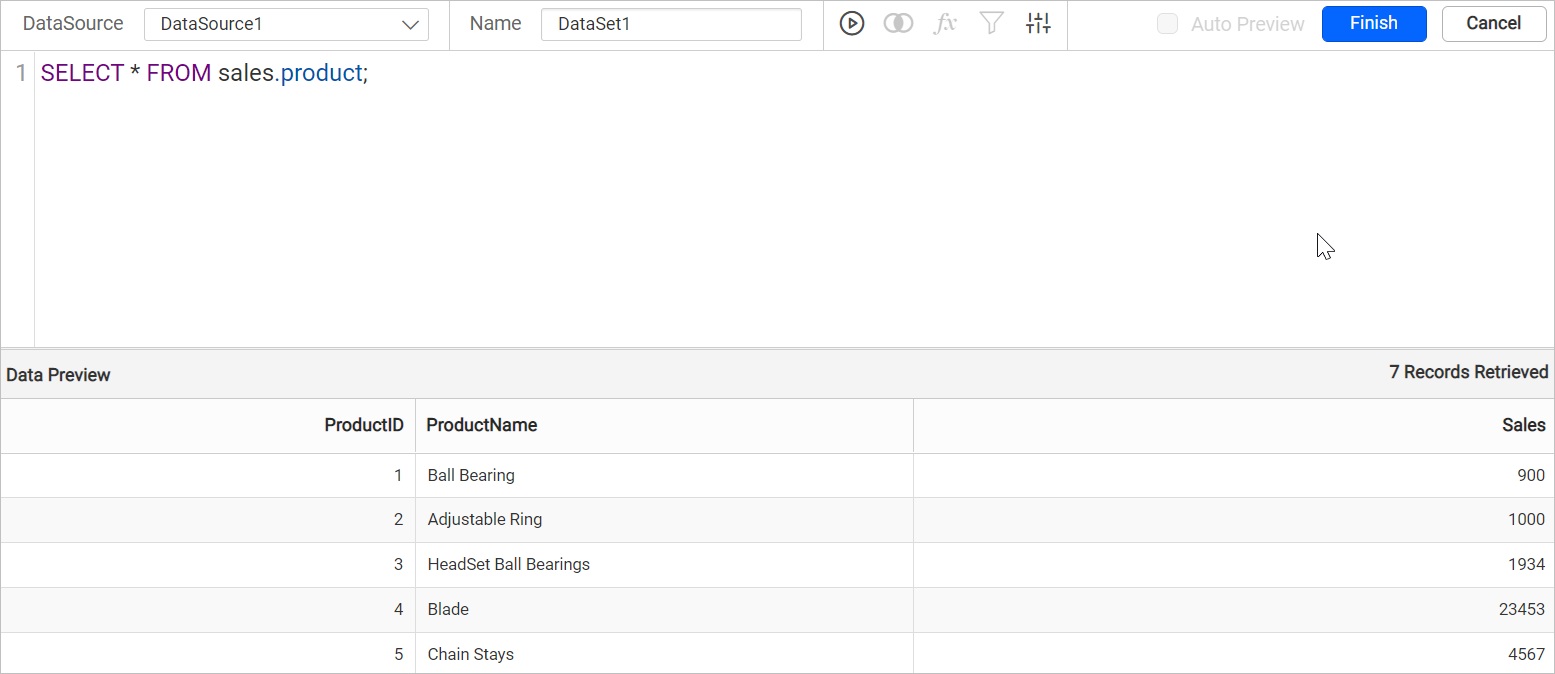
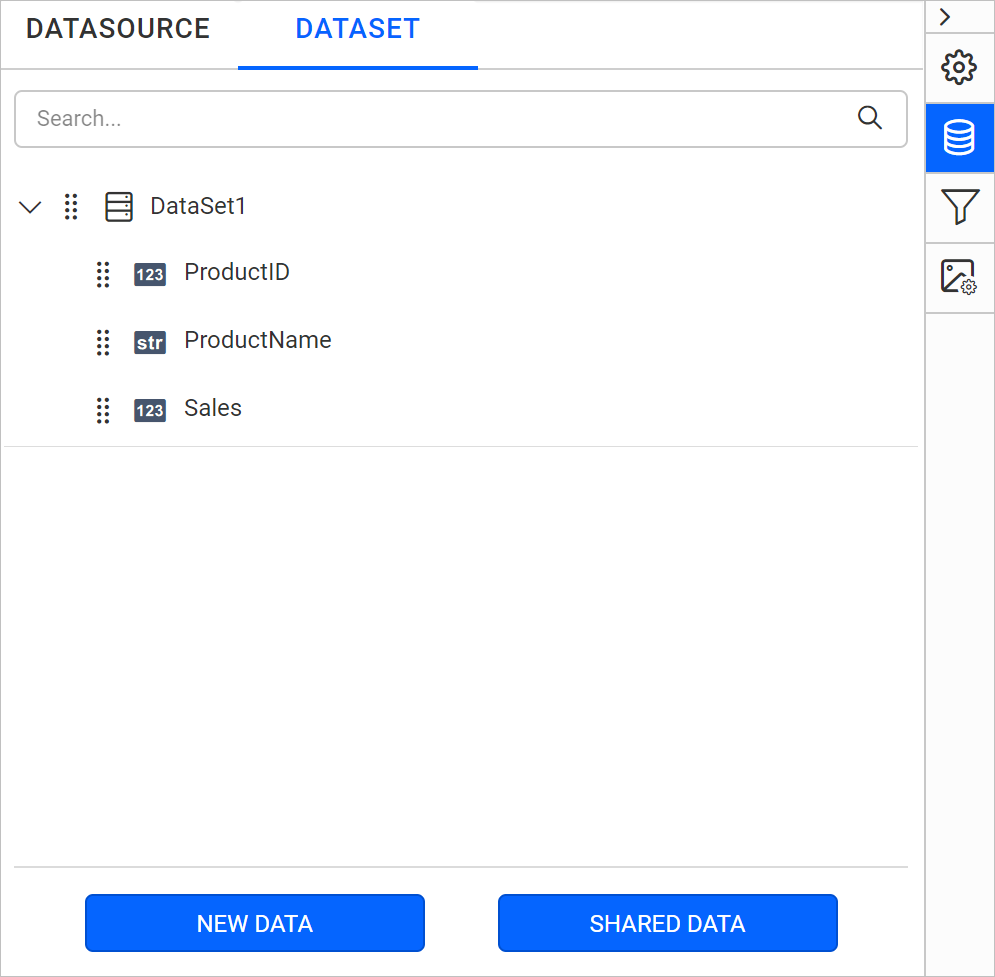
Click Finish to save the data source with a relevant name to proceed with designing report.
Amazon Aurora supported database engine in Bold Reports®
- MySQL
- PostgreSQL