How to create master detail report using subreport in Web Report Designer
Bold Reports® Web Report Designer lets you create a master-detail report that shows the detail records from a subreport. You build a detail report, build a master report, and then link the detail report into the master report as a subreport.
How do I create and customize the detail report?
You create the detail report in Web Report Designer with two hidden parameters, a dataset, and a table.
-
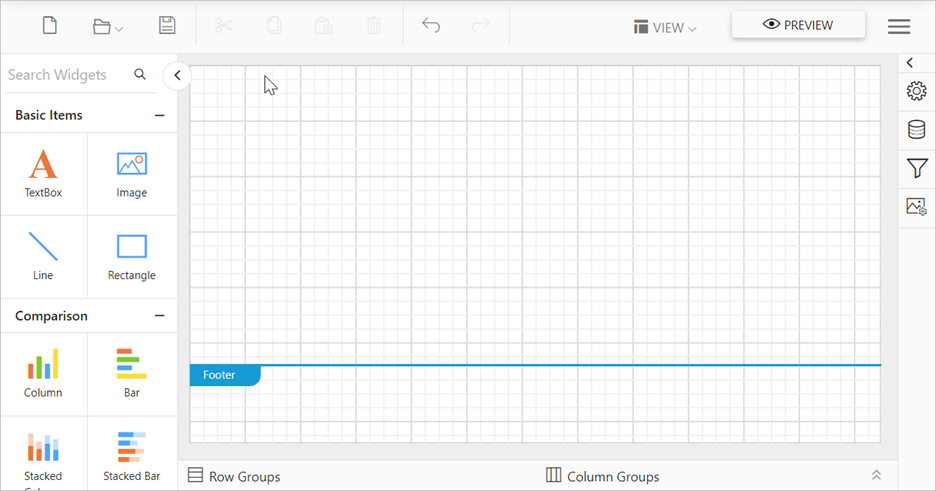
Open the Web Report Designer.
-
To add parameters to the detail report, click
Parameters. Then, clickNew parameterin the parameter panel. -
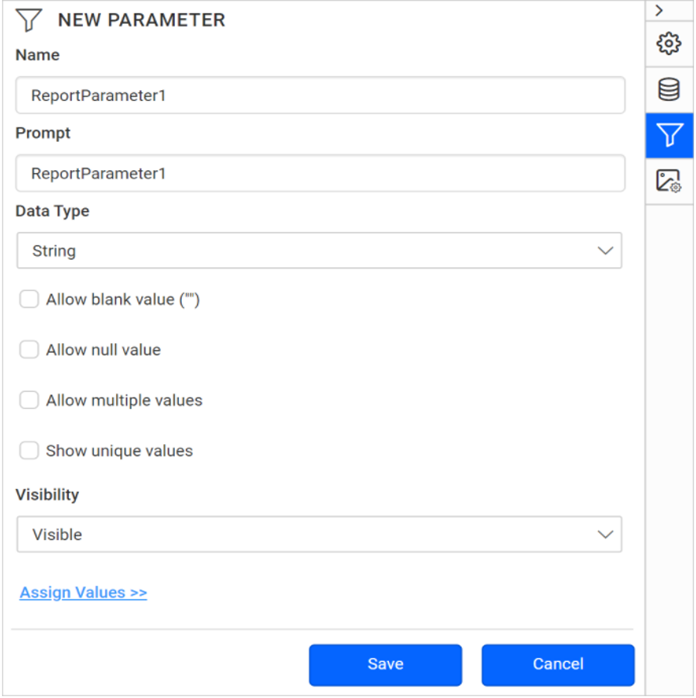
The following wizard is displayed.
-
Set the parameter name to
ProdSubCat, the prompt toProdSubCat, and the visibility tohidden. -
Click
Save. -
Repeat the same steps to add the parameter
ProdModel.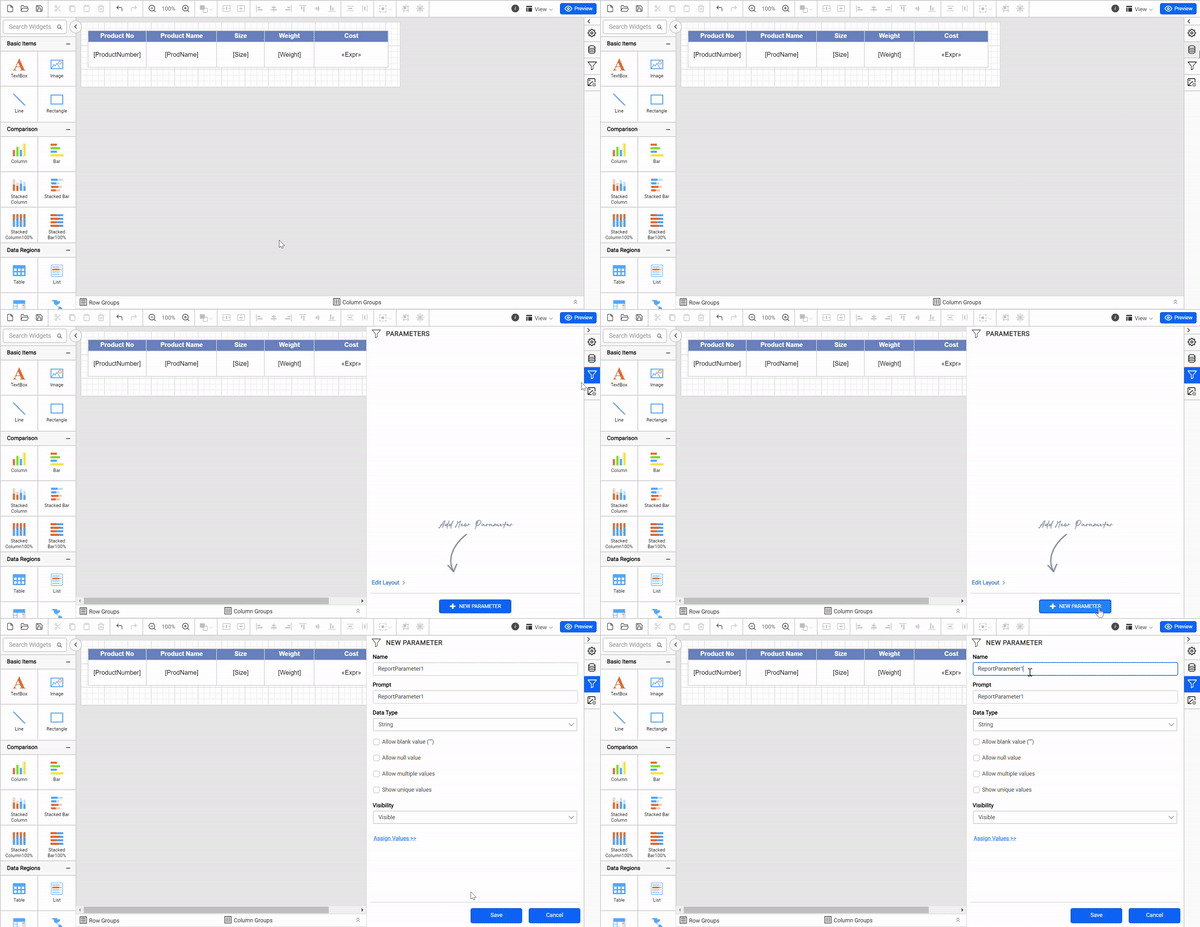
-
Connect to the data source using the data source documentation.
-
Connect to the dataset using the dataset documentation.
-
Create the
ProductCatalogdataset with the following query.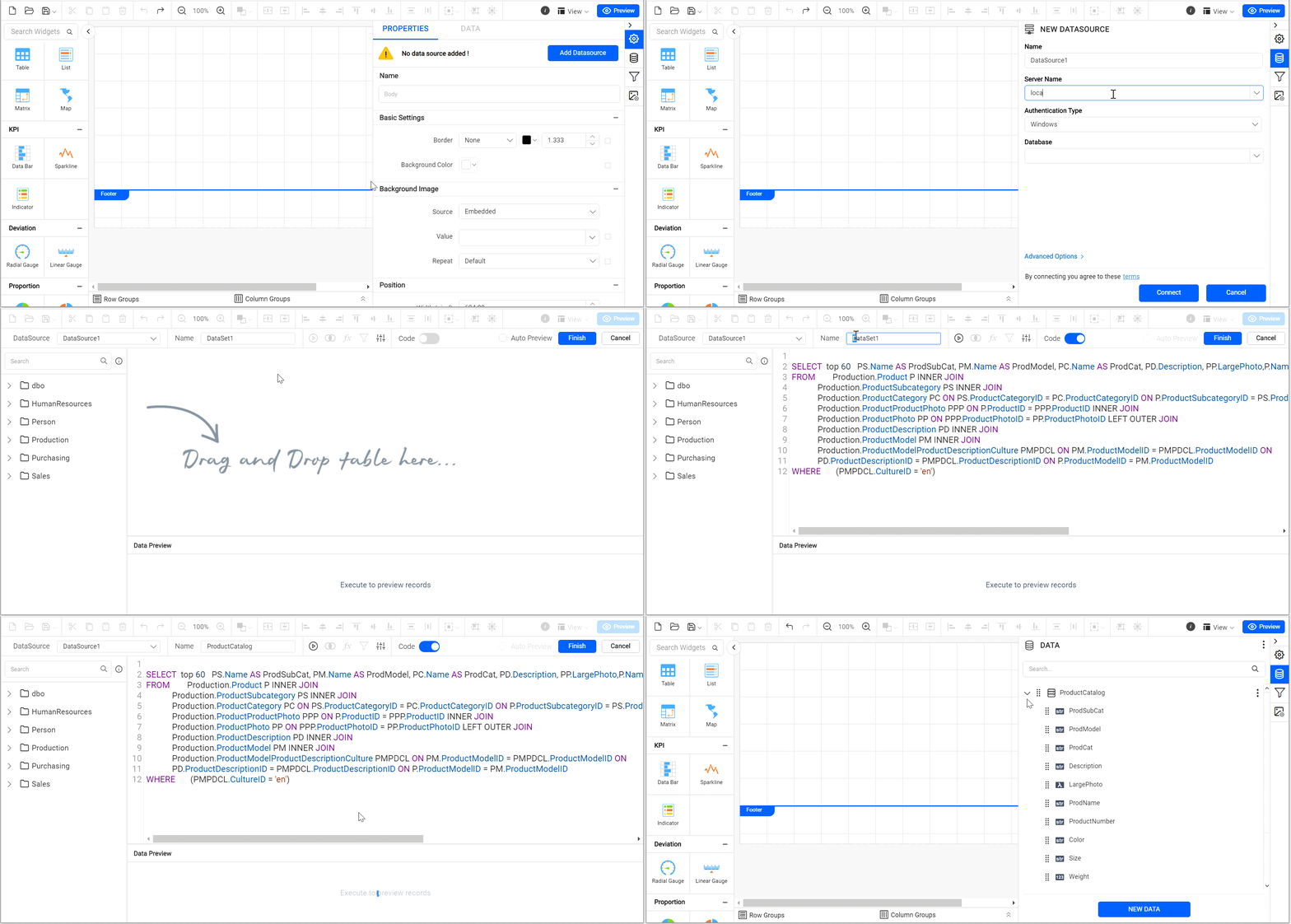
SELECT top 60 PS.Name AS ProdSubCat, PM.Name AS ProdModel, PC.Name AS ProdCat, PD.Description, PP.LargePhoto,P.Name AS ProdName,P.ProductNumber, P.Color, P.Size, P.Weight, P.StandardCost,P.Style,P.Class, P.ListPrice FROM Production.Product P INNER JOIN Production.ProductSubcategory PS INNER JOIN Production.ProductCategory PC ON PS.ProductCategoryID = PC.ProductCategoryID ON P.ProductSubcategoryID = PS.ProductSubcategoryID INNER JOIN Production.ProductProductPhoto PPP ON P.ProductID = PPP.ProductID INNER JOIN Production.ProductPhoto PP ON PPP.ProductPhotoID = PP.ProductPhotoID LEFT OUTER JOIN Production.ProductDescription PD INNER JOIN Production.ProductModel PM INNER JOIN Production.ProductModelProductDescriptionCulture PMPDCL ON PM.ProductModelID = PMPDCL.ProductModelID ON PD.ProductDescriptionID = PMPDCL.ProductDescriptionID ON P.ProductModelID = PM.ProductModelID WHERE (PMPDCL.CultureID = 'en') and PS.Name = @ProdSubCat and PM.Name = @ProdModel -
Drag the table report item and configure the fields as shown in the following image.
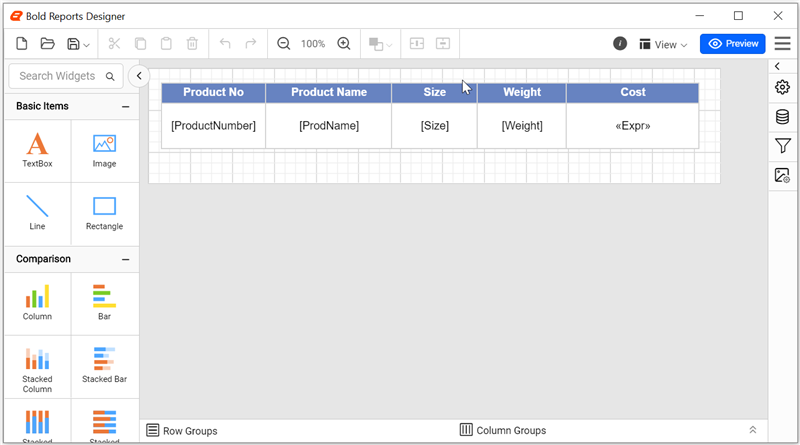
You can download the finished detail report from the Sample report.
How do I create the master report?
You create the master report in Web Report Designer with the same dataset query, without the parameter filter, and a grouped table.
-
Open the Web Report Designer.
-
Connect to the data source using the data source documentation.
-
Connect to the dataset using the dataset documentation.
-
Create the
ProductCatalogdataset with the following query.SELECT top 60 PS.Name AS ProdSubCat, PM.Name AS ProdModel, PC.Name AS ProdCat, PD.Description, PP.LargePhoto,P.Name AS ProdName,P.ProductNumber, P.Color, P.Size, P.Weight, P.StandardCost,P.Style,P.Class, P.ListPrice FROM Production.Product P INNER JOIN Production.ProductSubcategory PS INNER JOIN Production.ProductCategory PC ON PS.ProductCategoryID = PC.ProductCategoryID ON P.ProductSubcategoryID = PS.ProductSubcategoryID INNER JOIN Production.ProductProductPhoto PPP ON P.ProductID = PPP.ProductID INNER JOIN Production.ProductPhoto PP ON PPP.ProductPhotoID = PP.ProductPhotoID LEFT OUTER JOIN Production.ProductDescription PD INNER JOIN Production.ProductModel PM INNER JOIN Production.ProductModelProductDescriptionCulture PMPDCL ON PM.ProductModelID = PMPDCL.ProductModelID ON PD.ProductDescriptionID = PMPDCL.ProductDescriptionID ON P.ProductModelID = PM.ProductModelID WHERE (PMPDCL.CultureID = 'en') -
Drag the table report item and configure the fields. Then, add groups in the tablix to display the data using the details group documentation.
-
The initial design of the report is displayed as shown in the following image.
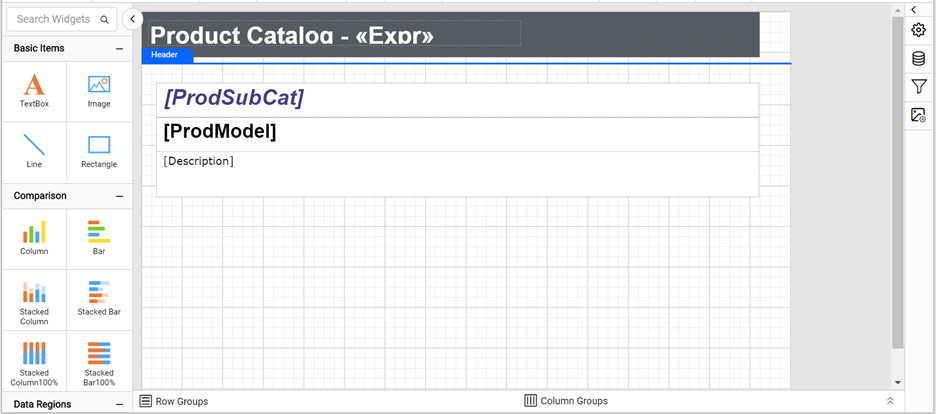
You can download the finished master report from the Sample master report.
How do I link the subreport to the master report?
You link the detail report (product category detail records) to the master report in Web Report Designer by inserting a subreport item and passing parameters to it.
-
Right-click the last row (
Description) and selectInsert Row, and then click theInside Group-Below option. -
In the newly added row, select all the cells using the
Ctrl Key + Mouse left clickcombination. -
Right-click any selected cell, and then click
Merge Cells. -
Right-click the newly added row, select Insert, and then click Subreport.
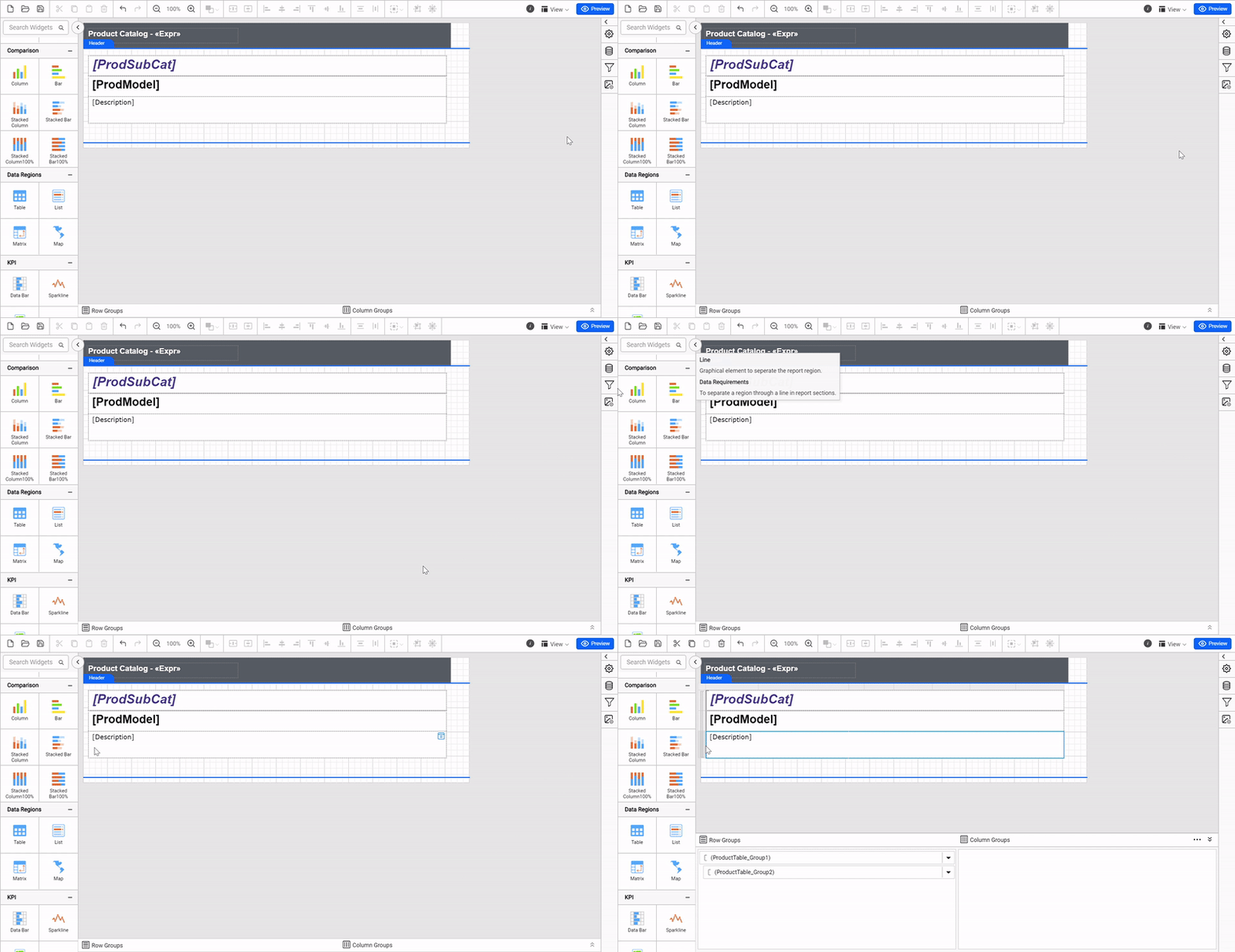
-
Select the sub-report item on the design surface and open the
properties panel. -
Under Basic Settings, copy the sub-report path and paste it in the Report field.
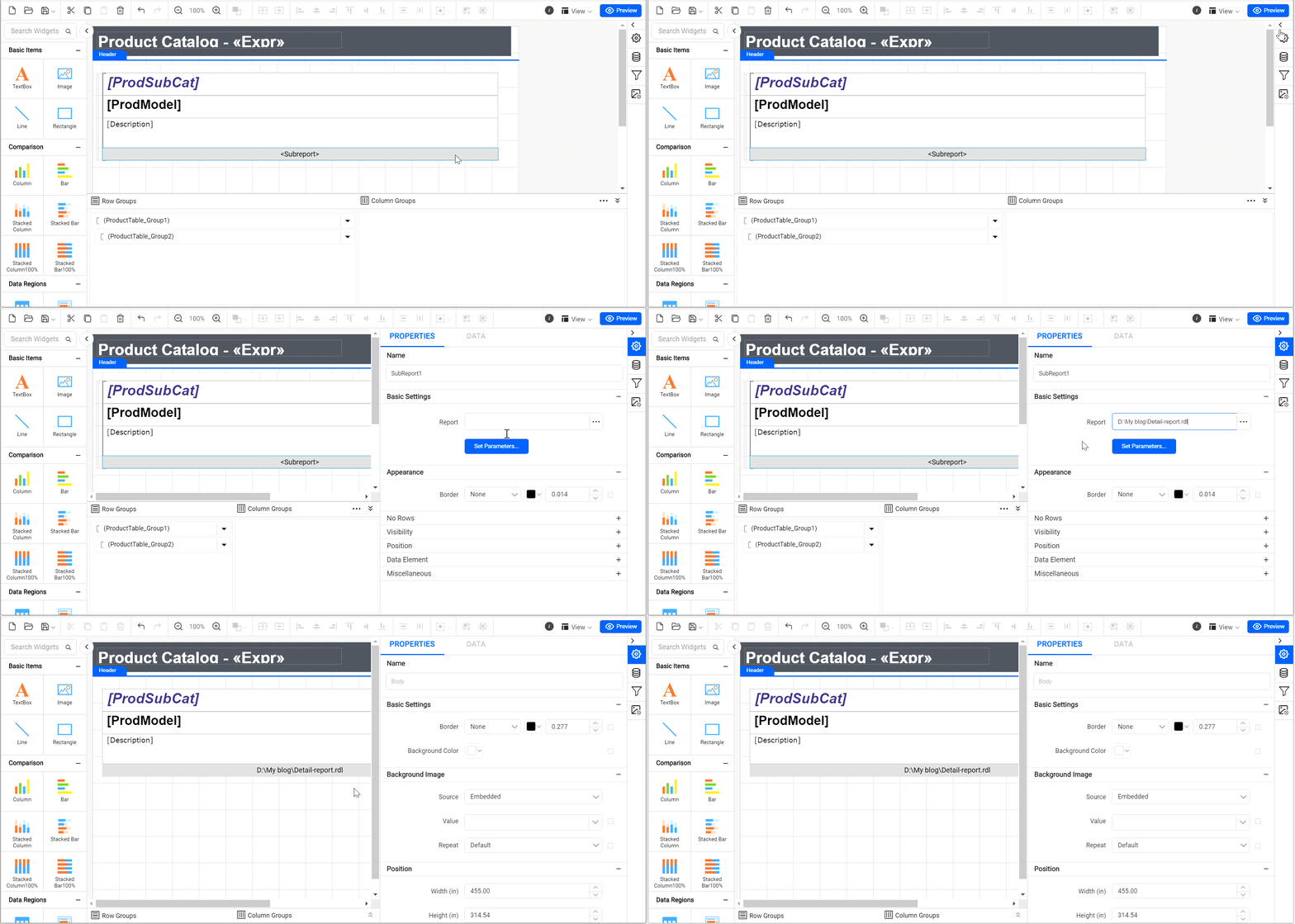
-
Click
Set Parameters, and then click theAddbutton. -
Set the Parameter Name to
ProdSubCatand the value to=Fields!ProdSubCat.Value. -
Repeat the same for the parameter
ProdModelwith the value=Fields!ProdModel.Value.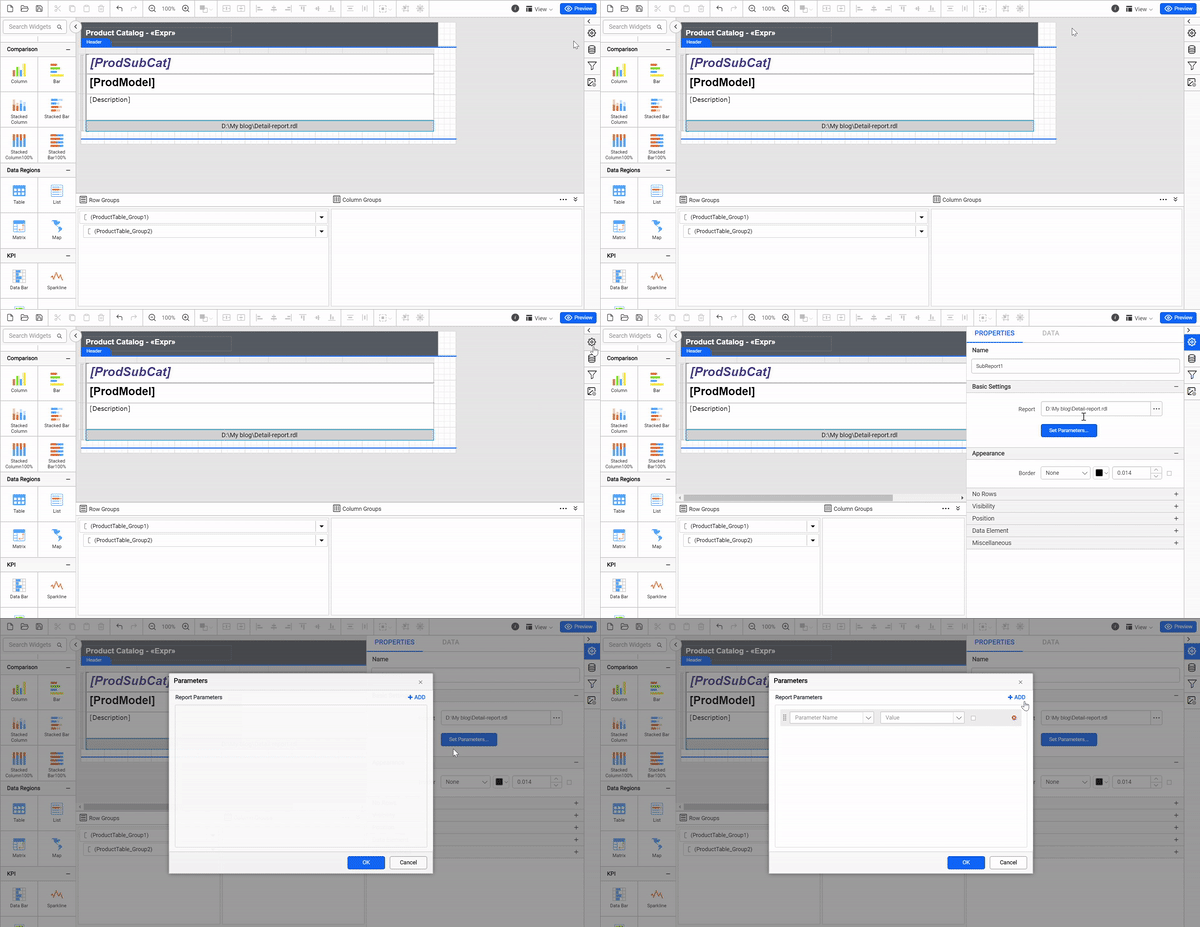
-
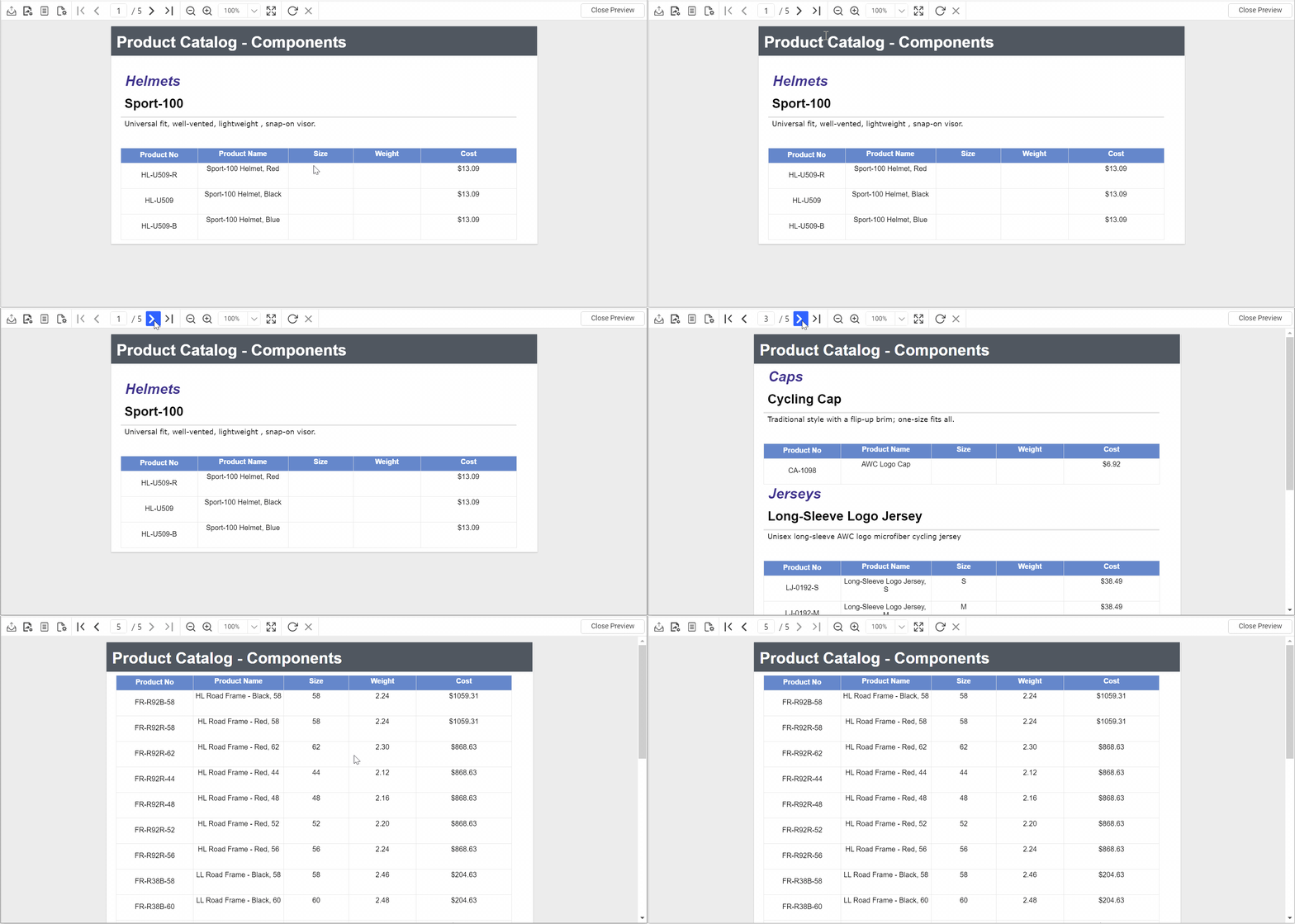
Click Preview at the top-right corner of the Web Report Designer toolbar to see the output.
Frequently asked questions
Why are the detail report parameters hidden?
The ProdSubCat and ProdModel parameters get their values from the master report through Set Parameters, so their visibility is set to hidden.
Which values does the master report pass to the subreport?
It passes =Fields!ProdSubCat.Value to ProdSubCat and =Fields!ProdModel.Value to ProdModel.