Toolbar
The Bold Reports® JavaScript Report Designer toolbar contains a set of icons or buttons that you use to perform common report design operations, such as creating, opening, saving, aligning and previewing reports.

New
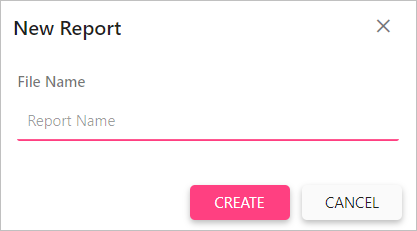
To create a new blank report, click the New icon in the toolbar. The New Report dialog opens. In the File Name field, specify the report name and click the Create button.
Open
The Open option opens an existing report from a device or server. Refer to the Open report section to open a report.
Save
The Save option saves the report to a device or server. Refer to the Save report section to save the report.
Cut
The Cut action removes the currently selected report item so that you can paste it anywhere on the designer surface.
Copy
The Copy action makes another copy of the selected report item so that you can paste it anywhere on the designer surface.
Paste
The Paste action pastes the cut or copied report item on the designer surface. Paste is enabled only after you perform a Cut or Copy operation.
Delete
The Delete option removes the currently selected report item from the designer surface.
Undo
The Undo action records the recent actions such as add, delete, insert, properties change and other designing actions done in a report.
Redo
The Redo action reverses the last undo action done in a report.
Zoom out
The Zoom out option decreases the document’s current zoom factor.
Zoom in
The Zoom in option increases the document’s current zoom factor.
Layout ordering
The Layout ordering option changes the layout order of report items on the design surface. Refer to the Layout Ordering section to learn about ordering modes.
Alignment
Alignment has a set of alignment options that you use to align the selected report items in the designer surface.
Distribute
Distribute places the selected report items on the design surface at equal intervals from each other.
Sizing
Sizing gives the selected report items on the design surface an equal size.
Align to grid
The Align to grid option snaps the top left of the selected report items to the closest gridline.
Size to grid
The Size to grid option snaps the selected report item to the closest gridline by resizing the report item on all four sides.
View
The View menu contains options to show or hide Header, Footer, Grid Lines, Snap To Shape, Full Screen in the report design.
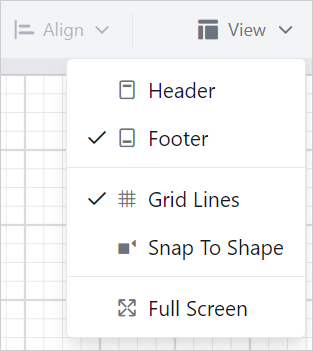
Header : Enables or disables the header area in the report. Refer to the Header section to add and remove the header on the designer surface.
Footer : Enables or disables the footer area in the report. Refer to the Footer section to add and remove the footer on the designer surface.
Grid Lines : Gridlines are the pattern of lines drawn behind the report items. Gridlines provide visual guidance while you drag or arrange objects on the designer surface. Click the Grid Lines option in the view menu to show or hide the gridlines in the report.
Snap To Shape : When you drag a report item on the design surface, snapping guidelines indicate the alignment position so you can align it with the closest report item. Click the Snap To Shape option in the view menu to enable or disable the snapping guidelines in the report design.
Full Screen : The Report Designer can expand to fill your entire screen with its Full Screen feature.
Preview
After designing a report, click the Preview button to preview the report. Refer to the Preview section to preview the designed report.