Manage Categories
This section explains how to create, open, update, delete, and manage share permissions for categories in Bold Reports® Cloud. Accessibility to categories depends on the user’s permissions.
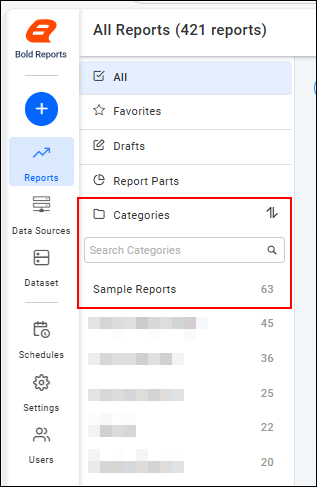
Categories are displayed on the left side of the report listing page.
Open category
To open the already created category, click any category in the left panel to view the reports grouped with it.

Create category
To add a new category, you must have the Create All Categories permission.
There are several ways to add a category, as follows:
- When publishing a designed report to the Report Server, the New Category option will be available. For instructions on creating a category through the Publish dialog, see the Create Category section.
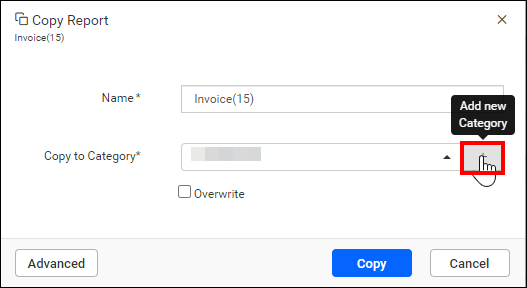
- You can add a new category while copying reports from the context menu on the report listing page.
- Click on the
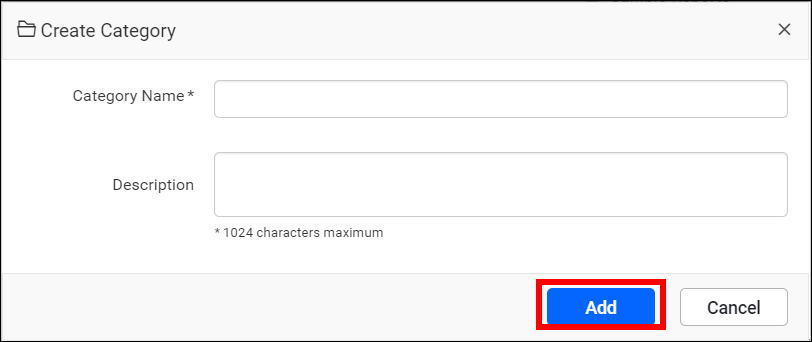
[+]icon in the toolbar, then select theCreate Categoryoption .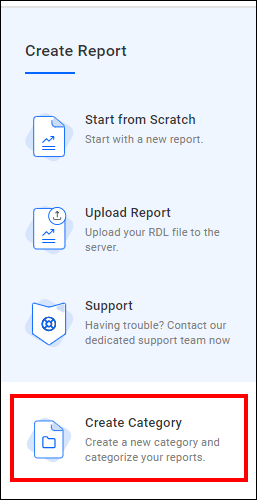 Provide a name and description (optional) for the category and click Add.
The user who created the category is provided with
Read,Write,Deletepermissions for that specific category.
Share category
In the Report Server, you have the ability to set permissions for categories, allowing you to share them with other users.
Steps to share a category
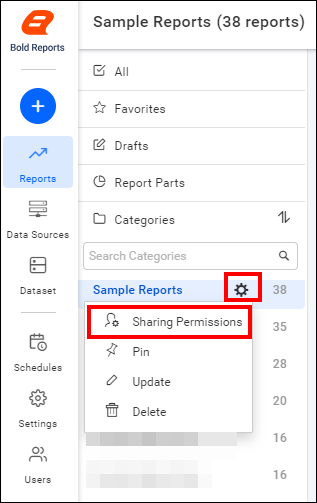
- Click Actions in the category list context menu and select Sharing Permissions.
- Click the
Manage Accessbutton.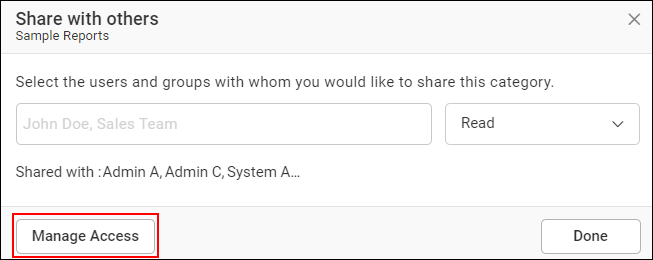
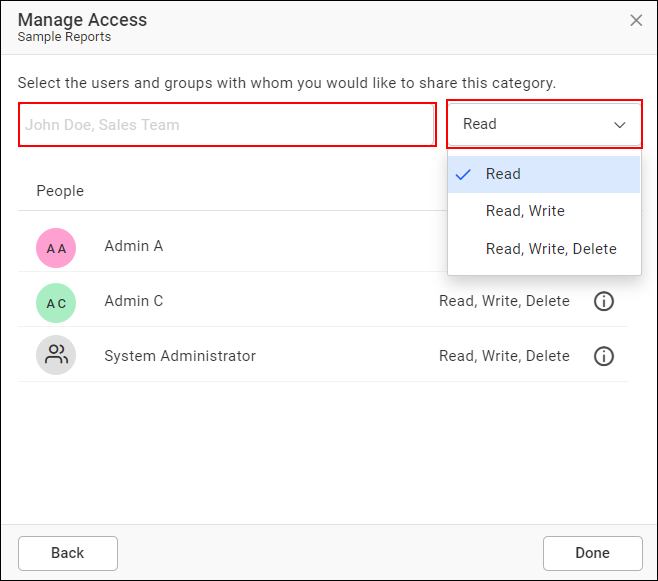
- Choose the level of permission access, and then select the users or groups with whom you want to share the Category.
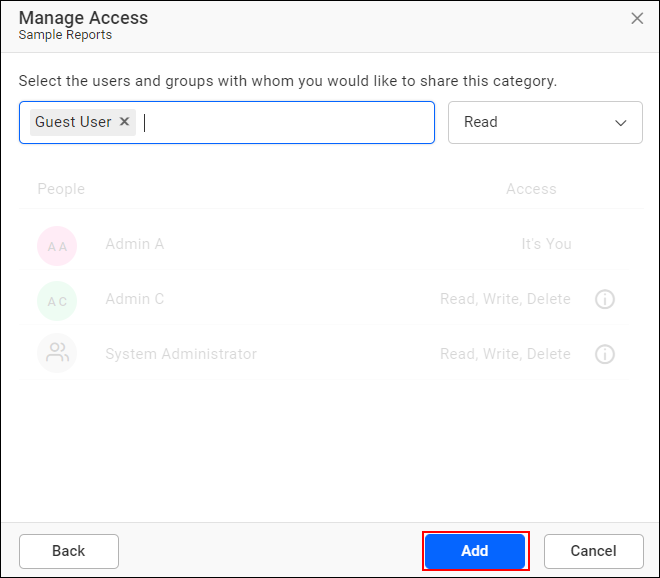
- Once you have selected the desired access level and identified the users or groups, click on the Add button to finalize the sharing settings.
Only the user who has permission can share the category with other Report Server users.
Remove Category permission
A user with the appropriate permissions can remove the shared Category permissions using the Remove option.
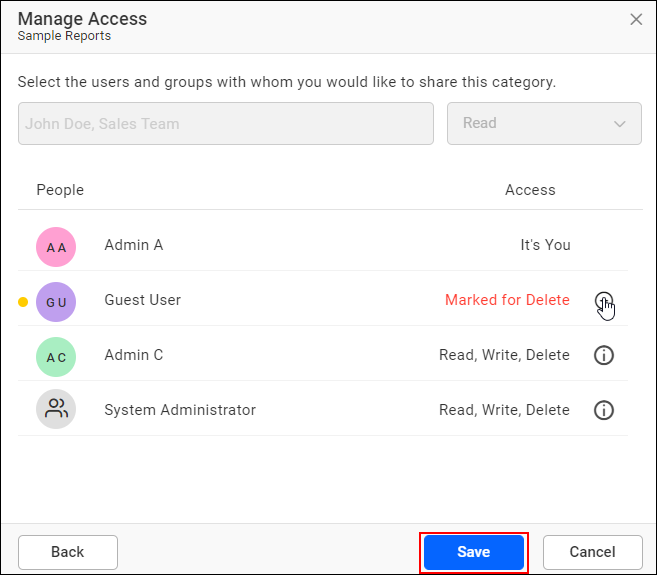
Pin category
A category that can be pinned or prioritized for quick access.
- Locate and click on the
Pinoption in the context menu of the category.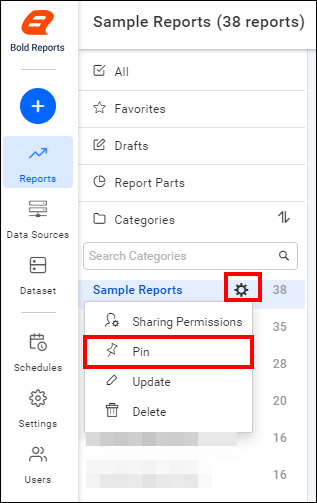
Update category
To update the name and description of a category that has already been created, please follow these steps:
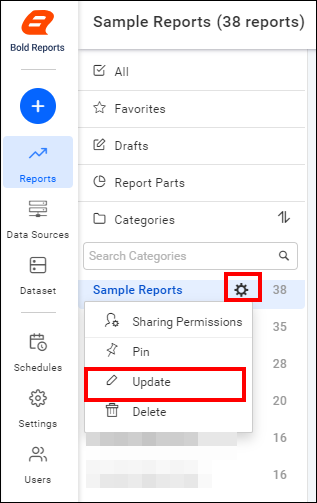
- Click the settings option available in the category.
- Select Update from the context menu.
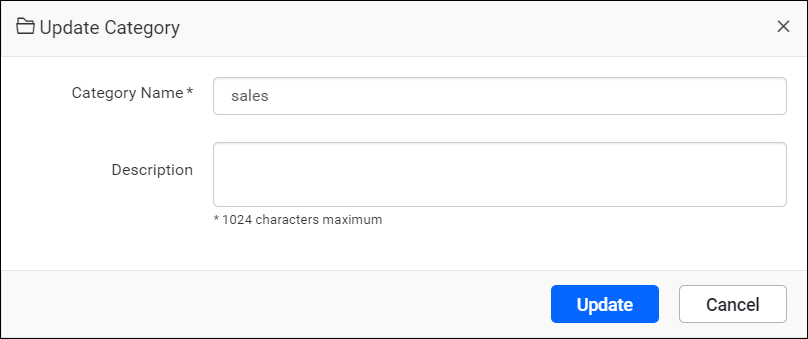
- Make the necessary changes to the name or description, then click the Update button to save your changes.
Delete category
You have the ability to delete a category from the Report Server. To do so, please follow these steps:
- Click on the settings icon in the category list.
- Select the Delete option to remove the category.
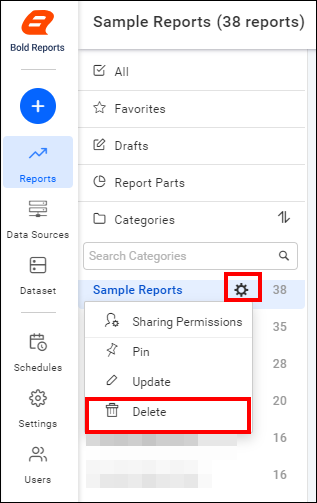
A category that contains grouped reports cannot be deleted.
REST API Reference
The following table illustrates the list of available APIs related to category in Bold Reports® On-Premise.
| Action | HTTP Method | Endpoint | Description |
|---|---|---|---|
| AddCategory | POST | /api/site/{tenant-name}/v1.0/categories | Adds a new category to the server. Category details must be passed as input. |
| UpdateCategory | PUT | /api/site/{tenant-name}/v1.0/categories | Updates the category on the server. Updated category details must be passed as input. |
| GetCategory | GET | /api/site/{tenant-name}/v1.0/items | Returns the list of categories for the current user. ItemType should be Category. |
| IsCategoryNameExists | POST | /api/site/{tenant-name}/v1.0/items/is-name-exists | Returns an item's existence, whether the given category name already exists or not on the server. Category name and ItemType as Category should be passed in the request body. |
| GetCategoryDetail | GET | /api/site/{tenant-name}/v1.0/items/{id} | Returns the specified category details from the server. Category item ID should be passed in the path parameter. |
| DeleteCategory | DELETE | /api/site/{tenant-name}/v1.0/items/{id} | Deletes the specified category from the server. Category item ID should be passed in the path parameter. |