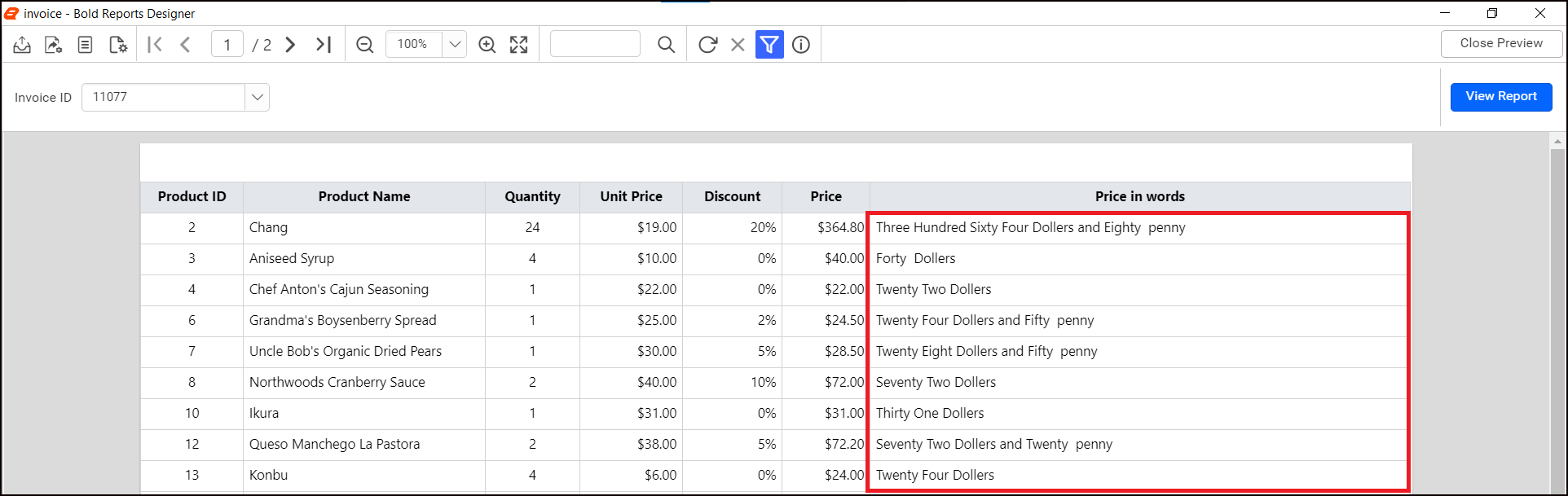
How to convert the number to text by using code modules
The code module in Bold Reports® allows you to add custom code to your report, and the provided code uses functions to convert a numeric value to its textual representation. This can be useful when you need to display numerical values as words in your report
-
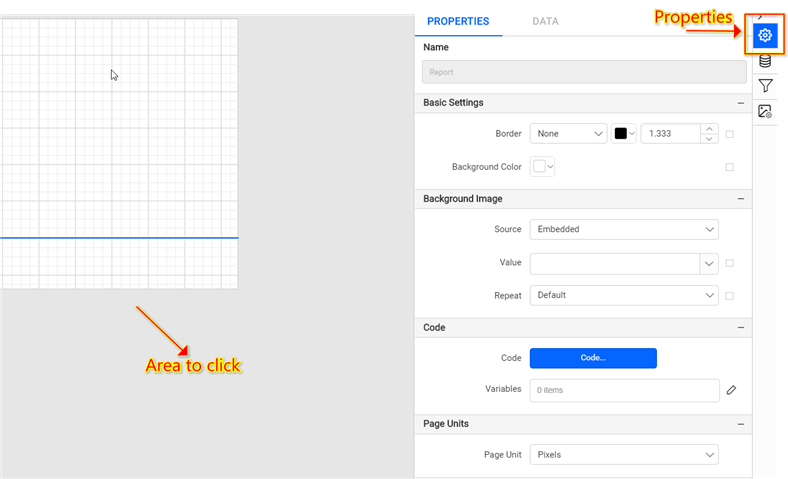
Click the outer grey surface report area and then click the Properties icon to open Report Properties.
-
The custom code option is listed under the
Codecategory, click Code… to open Code Module dialog.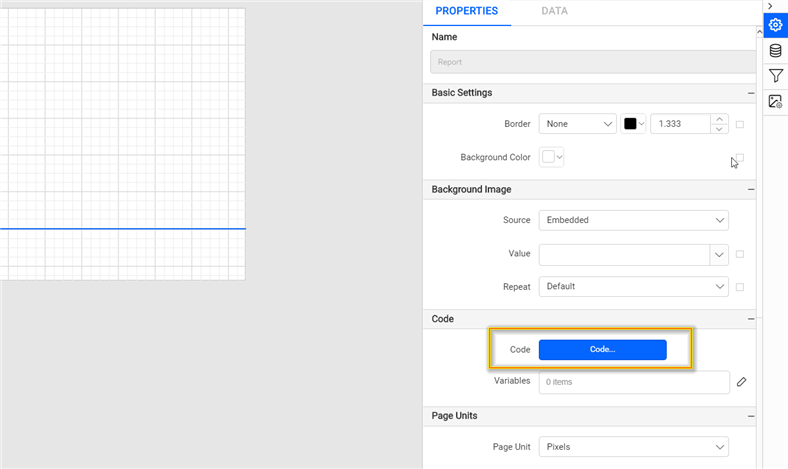
-
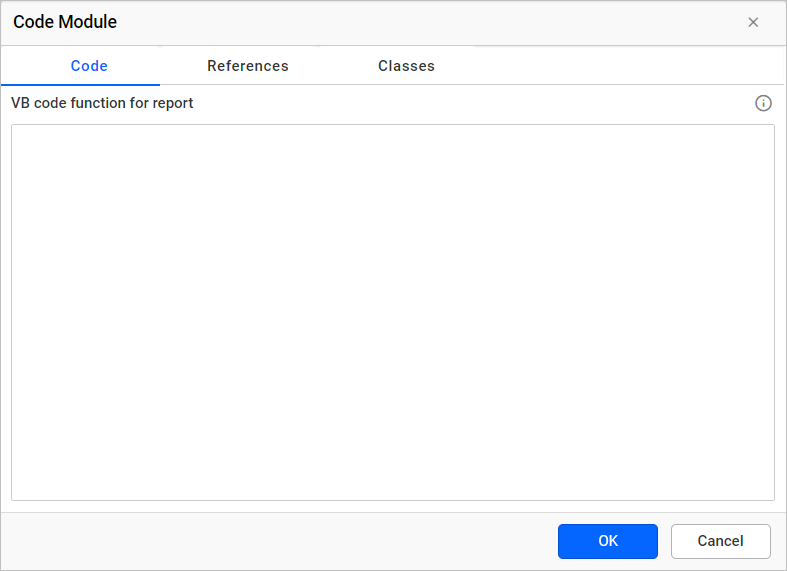
In the code tab, type the codes in Visual Basic (VB) language.
-
The following code example demonstrates the custom function that convert the given money value integer to string.
Public Function SpellNumber(ByVal MyNumber) Dim Dollers, penny, Temp Dim DecimalPlace, Count Dim Place(9) As String Place(2) = " Thousand " Place(3) = " Million " Place(4) = " Billion " Place(5) = " Trillion " ' String representation of amount. MyNumber = Trim(Str(MyNumber)) ' Position of decimal place 0 if none. DecimalPlace = InStr(MyNumber, ".") ' Convert penny and set MyNumber to Dollers amount. If DecimalPlace > 0 Then penny = GetTens(Left(Mid(MyNumber, DecimalPlace + 1) & _ "00", 2)) MyNumber = Trim(Left(MyNumber, DecimalPlace - 1)) End If Count = 1 Do While MyNumber <> "" Temp = GetHundreds(Right(MyNumber, 3)) If Temp <> "" Then Dollers = Temp & Place(Count) & Dollers If Len(MyNumber) > 3 Then MyNumber = Left(MyNumber, Len(MyNumber) - 3) Else MyNumber = "" End If Count = Count + 1 Loop Select Case Dollers Case "" Dollers = "No Dollers" Case "One" Dollers = "One Dollers" Case Else Dollers = Dollers & " Dollers" End Select Select Case penny Case "" penny = " " Case "One" penny = " and One penny" Case Else penny = " and " & penny & " penny" End Select SpellNumber = Dollers & penny End Function ' Converts a number from 100-999 into text Function GetHundreds(ByVal MyNumber) Dim Result As String If Val(MyNumber) = 0 Then Exit Function MyNumber = Right("000" & MyNumber, 3) ' Convert the hundreds place. If Mid(MyNumber, 1, 1) <> "0" Then Result = GetDigit(Mid(MyNumber, 1, 1)) & " Hundred " End If ' Convert the tens and ones place. If Mid(MyNumber, 2, 1) <> "0" Then Result = Result & GetTens(Mid(MyNumber, 2)) Else Result = Result & GetDigit(Mid(MyNumber, 3)) End If GetHundreds = Result End Function ' Converts a number from 10 to 99 into text. Function GetTens(TensText) Dim Result As String Result = "" ' Null out the temporary function value. If Val(Left(TensText, 1)) = 1 Then ' If value between 10-19... Select Case Val(TensText) Case 10: Result = "Ten" Case 11: Result = "Eleven" Case 12: Result = "Twelve" Case 13: Result = "Thirteen" Case 14: Result = "Fourteen" Case 15: Result = "Fifteen" Case 16: Result = "Sixteen" Case 17: Result = "Seventeen" Case 18: Result = "Eighteen" Case 19: Result = "Nineteen" Case Else End Select Else ' If value between 20-99... Select Case Val(Left(TensText, 1)) Case 2: Result = "Twenty " Case 3: Result = "Thirty " Case 4: Result = "Forty " Case 5: Result = "Fifty " Case 6: Result = "Sixty " Case 7: Result = "Seventy " Case 8: Result = "Eighty " Case 9: Result = "Ninety " Case Else End Select Result = Result & GetDigit _ (Right(TensText, 1)) ' Retrieve ones place. End If GetTens = Result End Function ' Converts a number from 1 to 9 into text. Function GetDigit(Digit) Select Case Val(Digit) Case 1: GetDigit = "One" Case 2: GetDigit = "Two" Case 3: GetDigit = "Three" Case 4: GetDigit = "Four" Case 5: GetDigit = "Five" Case 6: GetDigit = "Six" Case 7: GetDigit = "Seven" Case 8: GetDigit = "Eight" Case 9: GetDigit = "Nine" Case Else: GetDigit = "" End Select End Function -
Click OK.
-
Use the following expression, to call the custom code function in the report.
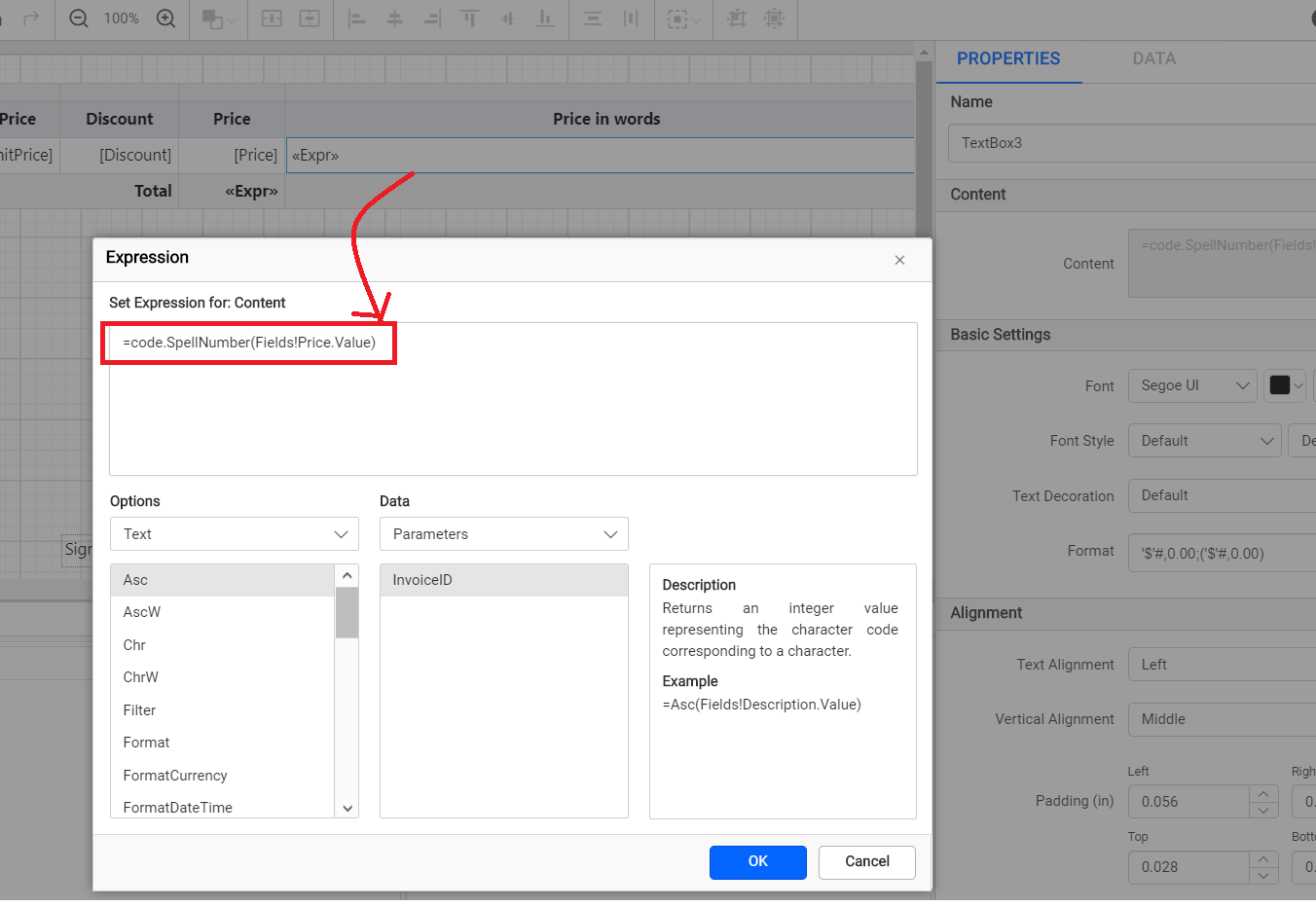
-
To view the number changes based on the price in a report, click
Preview.