Create a new theme
To create a new theme in Bold Reports® Theme Studio, choose a built-in theme, filter the controls, customize the theme properties, and download the customized theme files for your web application.
Note : The ability to generate custom themes is only available up to Bold Reports® v11.1. This feature has been removed in v12.1 and later versions due to the deprecation of the v1 components.
You can create a new theme in Theme Studio based on an existing Bold Reports® theme. The following sections cover creating a new theme, customizing colors, filtering Bold Reports® controls, downloading the customized theme, importing the customized theme for further customization, and using the customized theme in a web application. You can customize the report using the online Bold Reports® Theme Studio.
The customized theme works for web applications only. UWP and WPF platforms are not supported.
Choose an existing Bold Reports® theme
To create a new theme, choose one of the built-in themes from the theme switcher. Bold Reports® Theme Studio comes with Bootstrap, Material, High Contrast 1, High Contrast 2, and Office 365.
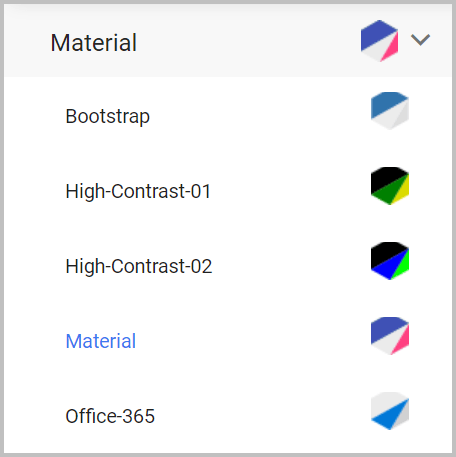
This example uses the Bootstrap theme.
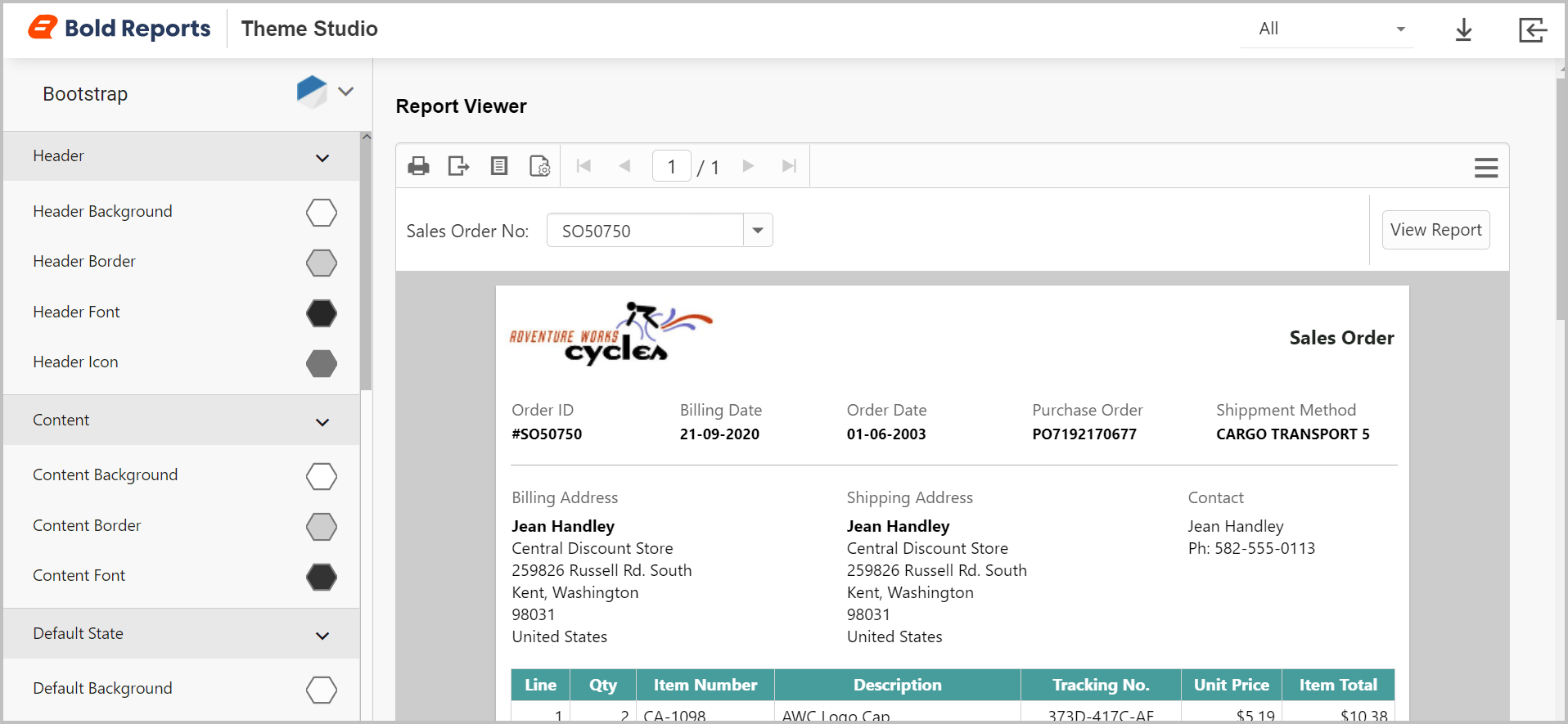
Filter Bold Reports® control
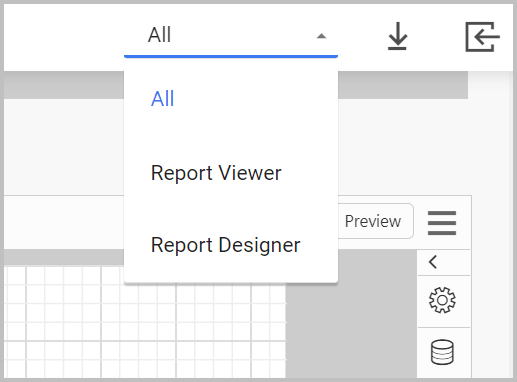
Bold Reports® Theme Studio provides a filter option to customize the theme for specific Bold Reports® controls. The filter has the following options.
-
All - Both Report Viewer and Report Designer will be customized. This is the default selected option.
-
Report Viewer - Bold Reports® Report Viewer will be customized.
-
Report Designer - Bold Reports® Report Designer will be customized.
Customize property
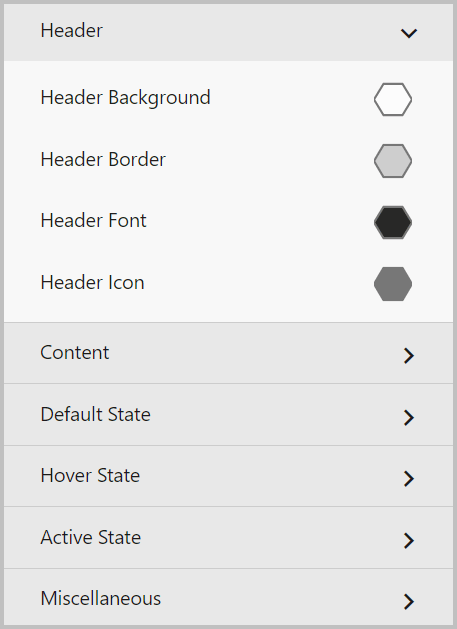
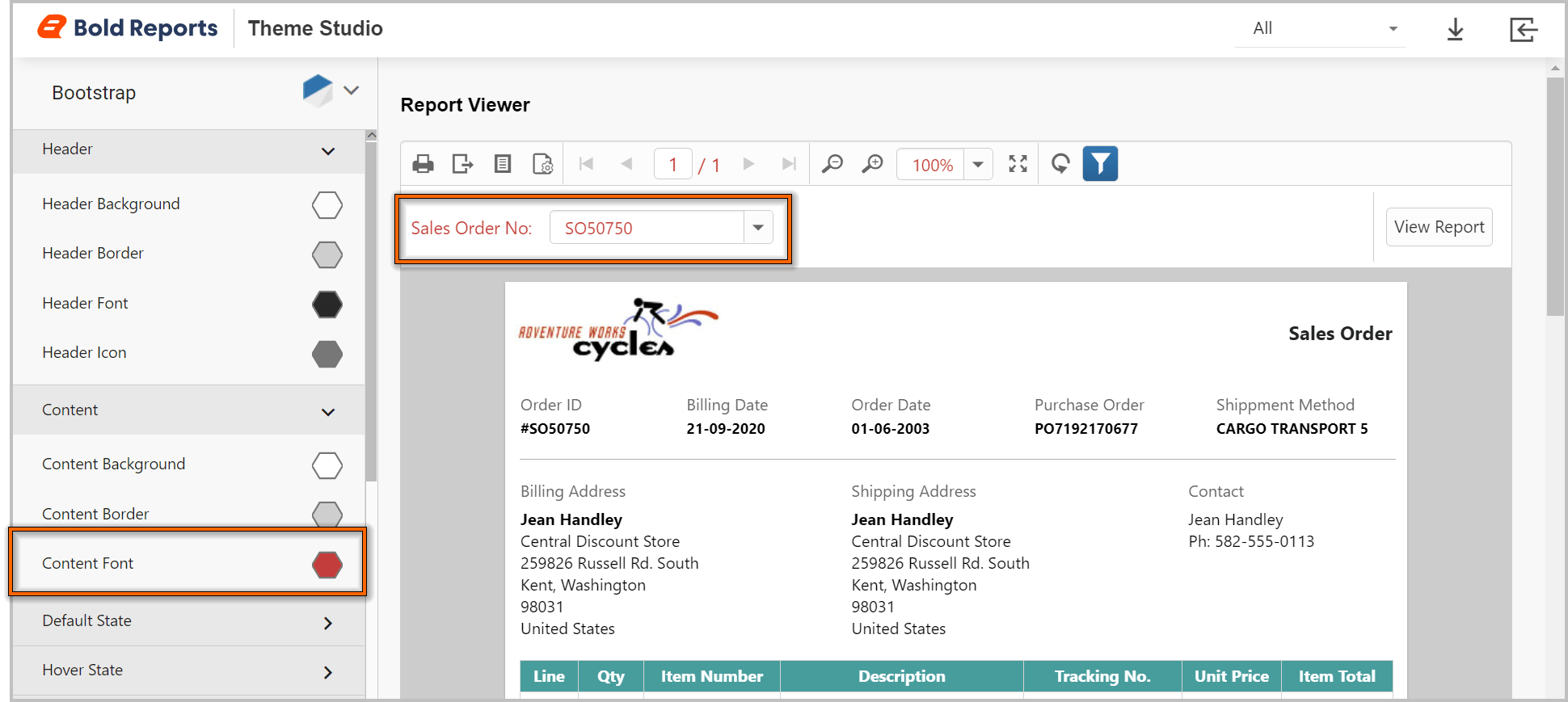
You can customize the selected theme properties from the customization property panel in Bold Reports® Theme Studio. Customization options differ for each built-in theme. The Bootstrap theme has the following options for customization.
-
Header
-
Content
-
Default State
-
Hover State
-
Active State
-
Miscellaneous
In this example, the content font color changes to red from black. Theme Studio automatically refreshes the reporting controls to preview the customized theme.
Download the customized theme
After you customize the theme for your reporting controls, download the customized theme files from Bold Reports® Theme Studio through the Download option.
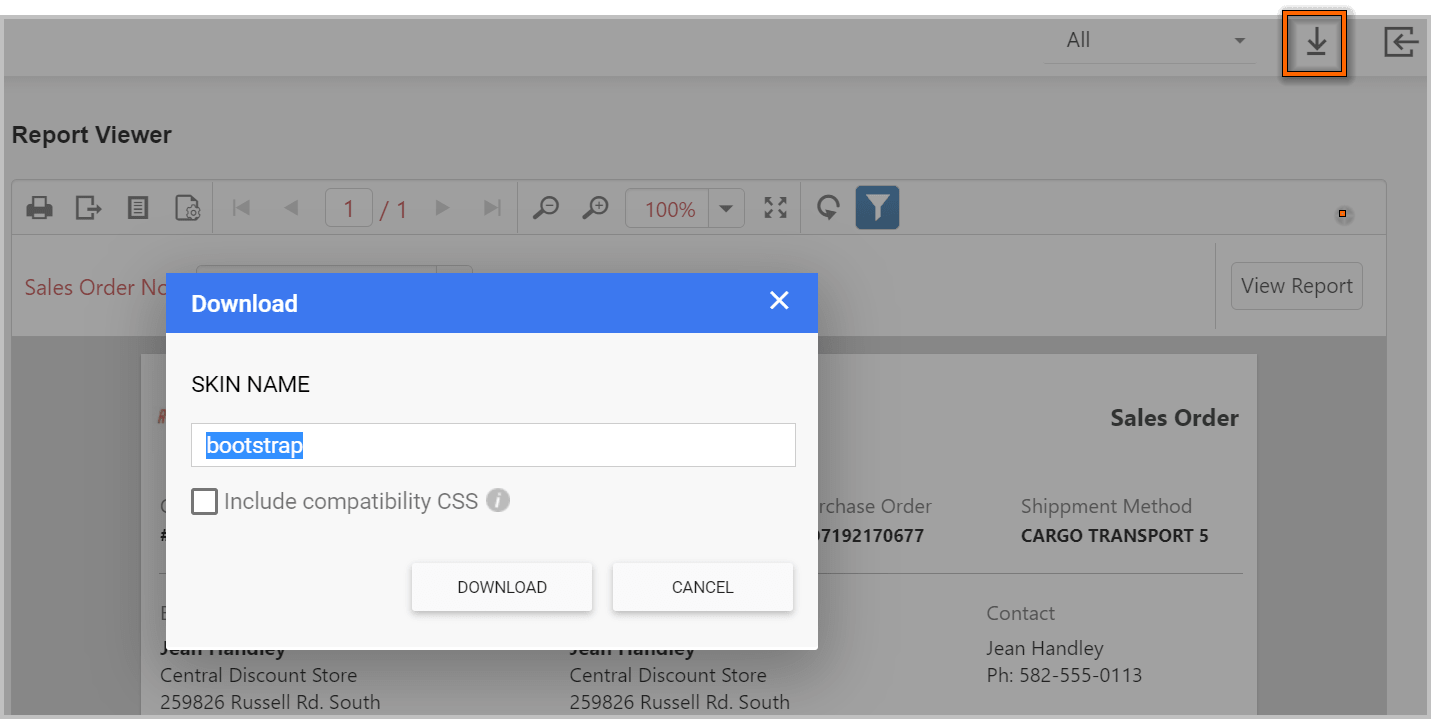
Theme Studio also provides compatibility CSS to use both
Bold ReportsandEssential JS 2controls in the same application. If you use Bold Reports® and Essential JS 2 controls in the same application, use the compatibility CSS by checkingInclude compatibility CSS.
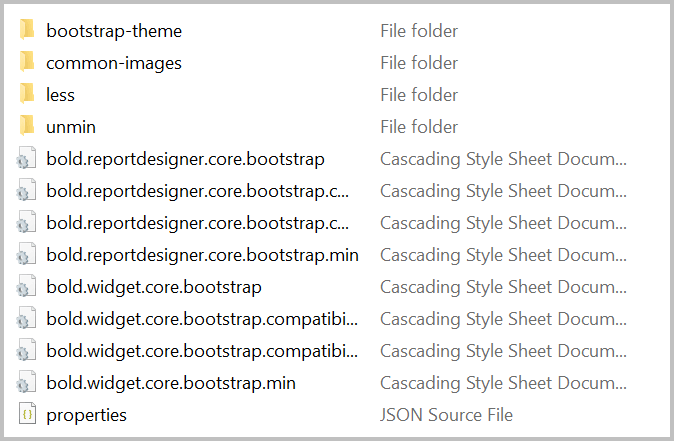
The downloaded theme consists of the following files.
| Files | Details |
|---|---|
properties.json |
Contains the configuration of the customized theme. You can reuse the customized theme by importing this file in Theme Studio and customize the theme further. |
bootstrap-theme/bold.reports.all.min.css, bootstrap-theme/bold.reportdesigner.min.css |
Minified Report Viewer and Report Designer theme files. |
bootstrap-theme/bold.reports.all.compatibility.min.css, bootstrap-theme/bold.reportdesigner.compatibility.min.css |
Minified Report Viewer and Report Designer compatibility theme files. |
unmin/bold.reports.all.css, unmin/bold.reportdesigner.css |
Unminified Report Viewer and Report Designer theme files. |
unmin/bold.reports.all.compatibility.css, unmin/bold.reportdesigner.compatibility.css |
Unminified Report Viewer and Report Designer compatibility theme files. |
less/bold.reports.all.less, less/bold.reportdesigner.less |
Report Viewer and Report Designer LESS files. You can manually change the color code in these LESS files and generate the CSS by using a LESS to CSS generator. |
less/bold.reports.all.compatibility.less, less/bold.reportdesigner.compatibility.less |
Report Viewer and Report Designer compatibility LESS files. You can manually change the color code in these LESS files and generate the CSS by using LESS to CSS. |
How do I import a customized theme into Theme Studio?
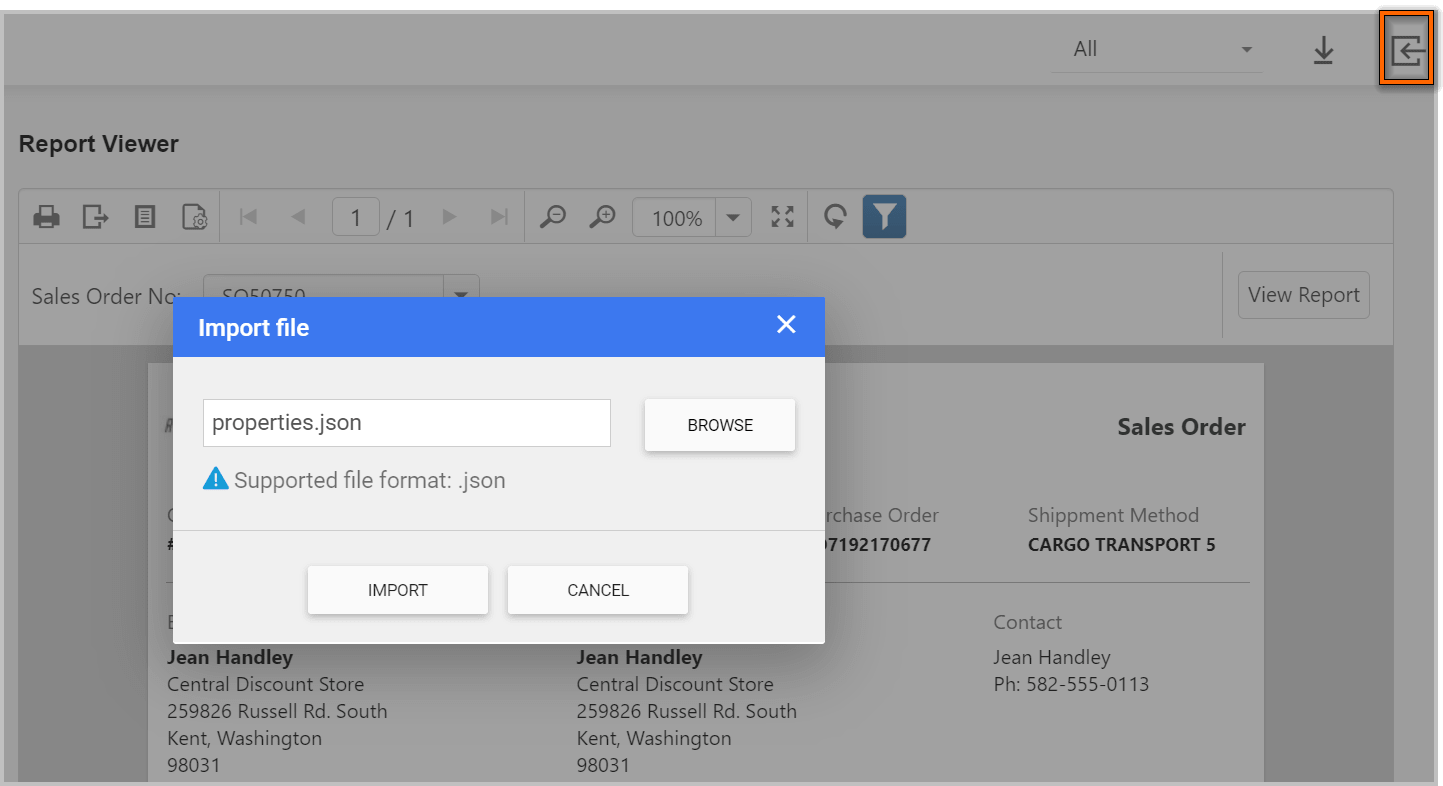
To customize a downloaded theme further, import its properties.json file into Bold Reports® Theme Studio. After customizing the theme, you can download the newly customized theme again.
How do I use the downloaded theme CSS in my application?
To use a theme downloaded from Bold Reports® Theme Studio, copy its CSS files into your application folder and reference them in your pages. The downloaded folder contains minified CSS files for production sites and unminified CSS files for development sites.
Referring minified CSS
- Create the following folders in the same structure under your application folder.
content/bold-reports/{theme specific folder}- Copy
{downloaded folder}/*.csstocontent/bold-reports/. - Copy
{downloaded folder}/{theme specific folder}/*tocontent/bold-reports/{theme specific folder}/. - Copy
{downloaded folder}/common-images/*tocontent/bold-reports/common-images/.
For example, if you downloaded the Bootstrap theme, the theme specific folder is bootstrap-theme. Refer to the following style references in the application.
    <!-- Report Viewer -->
    <link href="content/bold-reports/bootstrap-theme/bold.reports.all.min.css" rel="stylesheet" />

    <!-- Report Designer -->
    <link href="content/bold-reports/bootstrap-theme/bold.reportdesigner.min.css" rel="stylesheet" />
For compatibility, refer to the following style references instead of the preceding style references.
    <!-- Report Viewer -->
    <link href="content/bold-reports/bootstrap-theme/bold.reports.all.compatibility.min.css" rel="stylesheet" />

    <!-- Report Designer -->
    <link href="content/bold-reports/bootstrap-theme/bold.reportdesigner.compatibility.min.css" rel="stylesheet" />
Referring unminified CSS
- Create the following folders in the same structure under your application folder.
content/bold-reports/{theme specific folder}- Copy
{downloaded folder}/*.csstocontent/bold-reports/. - Copy
{downloaded folder}/unmin/*tocontent/bold-reports/{theme specific folder}/. - Copy
{downloaded folder}/common-images/*tocontent/bold-reports/common-images/.
For example, if you downloaded the Bootstrap theme, the theme specific folder is bootstrap-theme. Refer to the following style references in the application.
    <!-- Report Viewer -->
    <link href="content/bold-reports/bootstrap-theme/bold.reports.all.css" rel="stylesheet" />

    <!-- Report Designer -->
    <link href="content/bold-reports/bootstrap-theme/bold.reportdesigner.css" rel="stylesheet" />
For compatibility, refer to the following style references instead of the preceding style references.
    <!-- Report Viewer -->
    <link href="content/bold-reports/bootstrap-theme/bold.reports.all.compatibility.css" rel="stylesheet" />

    <!-- Report Designer -->
    <link href="content/bold-reports/bootstrap-theme/bold.reportdesigner.compatibility.css" rel="stylesheet" />