ASP.NET Core Report Viewer viewing best practices
To render RDL and RDLC reports with millions of records in seconds in the Bold Reports® ASP.NET Core Report Viewer, configure the PerformanceSetting properties or enable the on-demand data processing engine.
How do I view millions of records in seconds?
To view millions of records in seconds, set the PerformanceSetting class properties in the ASP.NET Core Report Viewer. The PerformanceSetting class has the following properties:
PageCreationVirtualEvaluationAutoGrowTextFetchLimit
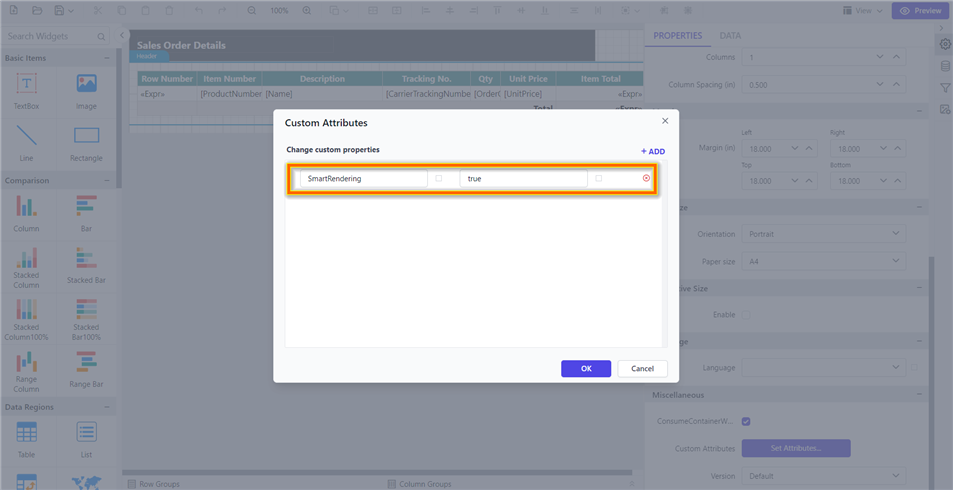
Note: For optimal rendering, set the PageCreation property to OnDemand, VirtualEvaluation to true, AutoGrowText to false, and FetchLimit to 1000. Alternatively, you can get the same optimal rendering by adding the report custom property SmartRendering as true.
How do I control page creation and processing?
To control page creation, set the PageCreation enum, which defines how the Report Viewer engine processes and creates each page.
| Property | Description |
|---|---|
Default |
Starts page creation, after all, pages created then sends first page to client side for rendering. |
OnDemand |
Creates first page then sends to the client side within seconds. Each page creation starts when user navigating to the next page. |
Background |
Creates first page then sends to the client side within seconds. Remaining pages created at the background, completion status is updated in progress bar. |
The following example shows how to configure PageCreation in the ReportViewerController.
public void OnInitReportOptions(ReportViewerOptions reportOption)
{
    reportOption.ReportModel.PerformanceSetting = new BoldReports.RDL.Data.PerformanceSetting
    {
        PageCreation = BoldReports.RDL.Data.PageCreation.OnDemand
    };
}
You can also set this property for a specific report by using the PageCreation custom property. You can set PageCreation as a custom property.
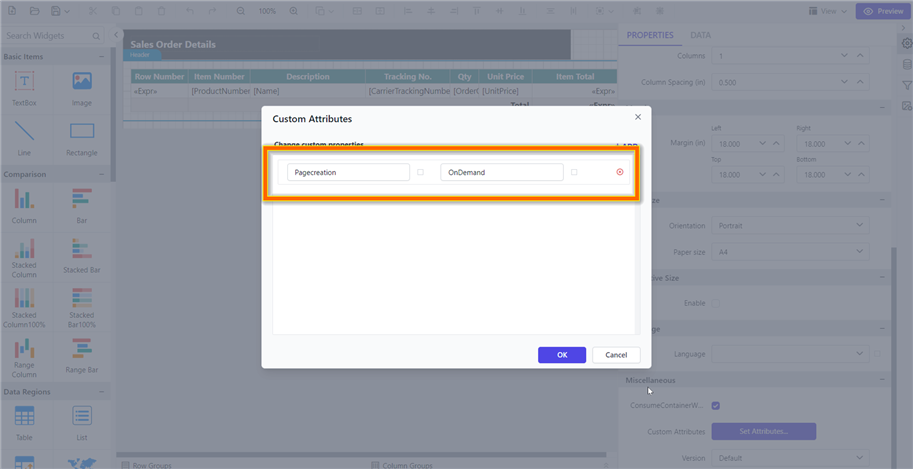
The
PageCreationproperty must be added to report properties.
How do I reduce memory use in table processing?
To reduce memory use in table processing, set VirtualEvaluation to true, which makes the Report Viewer reuse the tablix cell object.
public void OnInitReportOptions(ReportViewerOptions reportOption)
{
    reportOption.ReportModel.PerformanceSetting = new BoldReports.RDL.Data.PerformanceSetting
    {
        VirtualEvaluation = true
    };
}
You can also set this property for a specific report by using the VirtualEvaluation custom property. You can set VirtualEvaluation as a custom property.
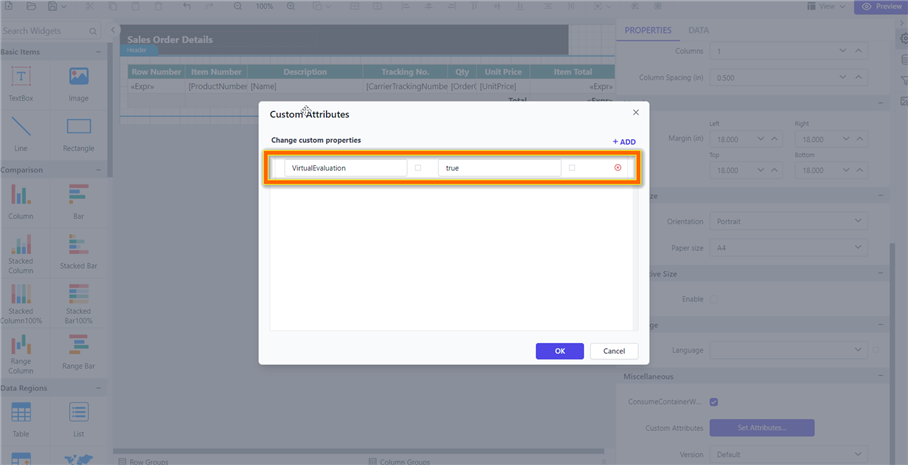
The
VirtualEvaluationproperty must be added to report properties.
How do I turn off dynamic textbox size calculation?
To turn off dynamic textbox size calculation, set the AutoGrowText property to false. The Report Viewer uses AutoGrowText to measure dynamic text height in each text box.
If you set AutoGrowText to true, the viewer takes time to measure the height of each textbox cell, depending on the amount of data.
public void OnInitReportOptions(ReportViewerOptions reportOption)
{
    reportOption.ReportModel.PerformanceSetting = new BoldReports.RDL.Data.PerformanceSetting
    {
        AutoGrowText = false
    };
}
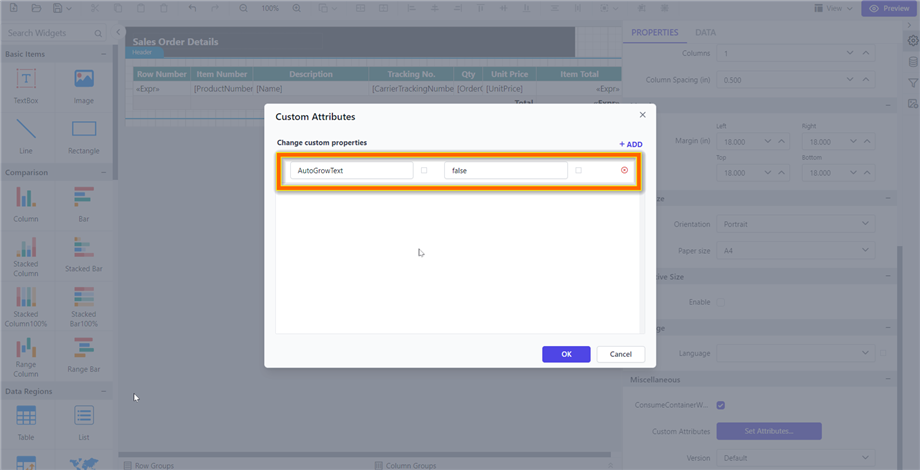
You can also set this property for a specific report by using the AutoGrowText custom property. You can set AutoGrowText as a custom property.
How do I limit the data fetched for rendering?
To limit the data for rendering, set the FetchLimit property, which limits the number of records the Report Viewer fetches in a report. For example, if a report contains a large number of records, a FetchLimit of 1000 ensures that only 1000 records are fetched from the dataset.
public void OnInitReportOptions(ReportViewerOptions reportOption)
{
    reportOption.ReportModel.PerformanceSetting = new BoldReports.RDL.Data.PerformanceSetting
    {
        FetchLimit = 1000
    };
}
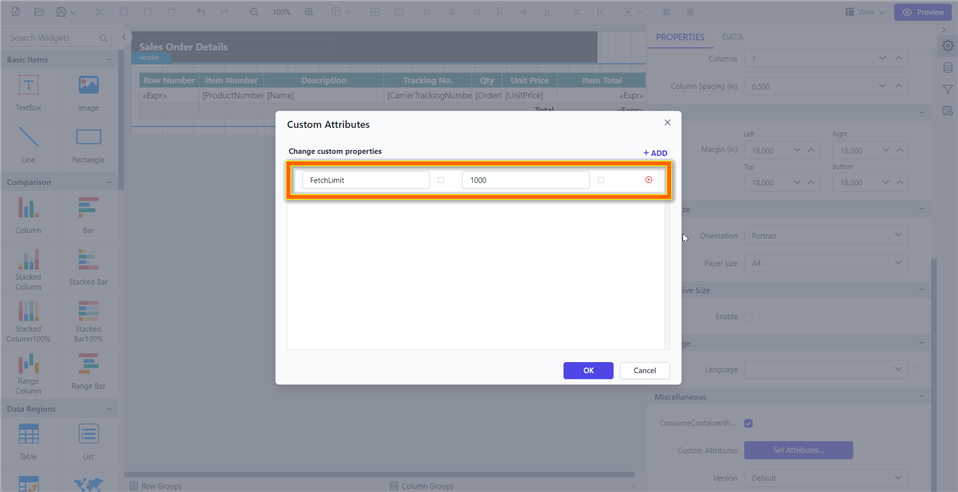
You can also set this property for a specific report by using the FetchLimit custom property. You can set FetchLimit as a custom property.
What are the limitations of the performance settings?
The Report Viewer performance settings support non-grouping Tablix-based reports only, and they have the following limitations.
- Reports featuring nested tables are not supported.
- Reports that include multiple tables are not supported.
- Cells within a Tablix must contain only text; cells with images or charts are not supported.
- Reports containing image-based content cannot be used.
- Reports containing toggle items are not supported.
- Reports that contain sub-reports are not supported.
- Reports with document mapping or bookmark labels are not supported.
- Sorting of table cells in the viewer is limited in functionality.
- Tablix structures with repeat headers are not supported.
- File storage cache settings are not supported.
- Tablix structures with column groups are not supported.
How do I view large records with the on-demand data processing engine?
To view large records with less memory, enable the beta on-demand data processing engine in the Report Viewer, which retrieves a limited number of records from the database in batches. The engine does not fetch the entire dataset at once and load it into memory, so it improves performance and renders tables with large datasets efficiently.
This feature is in
BETAstatus. Before you enable this feature, carefully review the limitations of the on-demand processing engine.
How does the on-demand data processing engine work?
The Report Viewer on-demand data retrieval engine initially fetches the top 1000 records as the first batch. As users navigate through pages, the next batch of data is fetched and processed, enhancing load times and ensuring efficient memory use. This approach allows navigation without loading the entire dataset into memory, making the system scalable and resource-efficient.
How do I enable the on-demand data processing engine?
You can enable the Report Viewer on-demand processing engine with report custom properties or programmatically with the Performance Setting API in the controller.
Enable On Demand engine using report custom properties
Set the following report custom properties to enable the on-demand engine in the Report Viewer.
| Property | Description |
|---|---|
ProcessingEngine |
Defines engine mode for on demand data retrieval and batch processing. sets to default engine by default. |
DataFetchLimitPerBatch |
Defines the number of record to be fetched from the database for each batch for report rendering. Sets to 1000 by default. |
ExportDataFetchLimitPerBatch |
Defines the number of record to be fetched from the database for each batch for report exporting. Sets to 100000 by default. |
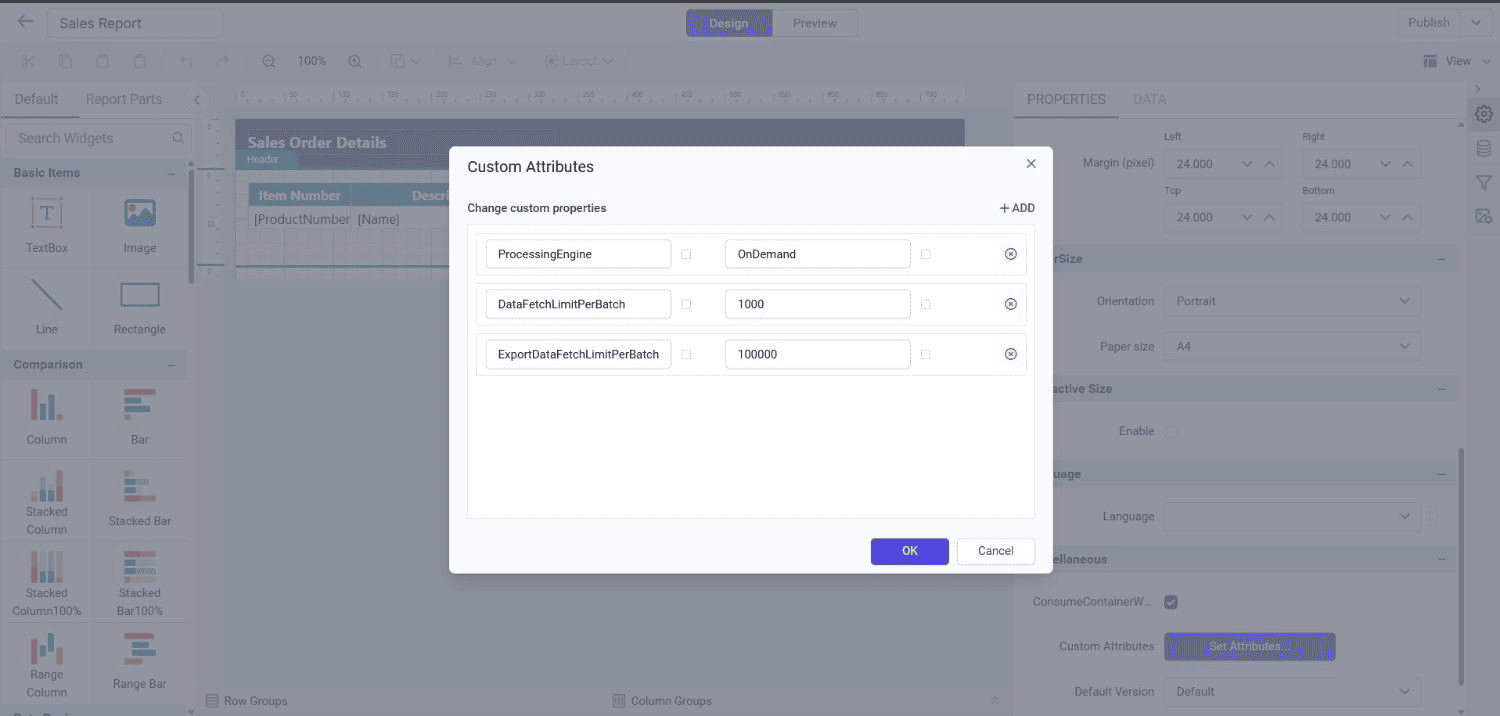
The properties in the preceding table must be added to report properties.
Enable On Demand engine using controller API
To configure OnDemand data retrieve mode in the ReportViewerController, set the PerformanceSetting properties in the Report Viewer.
The PerformanceSetting class provides the following properties to render reports with large records in the on-demand data processing engine:
ProcessingEngineDataFetchLimitPerBatchExportDataFetchLimitPerBatch
The ProcessingEngine enum defines which engine processes and creates the report pages in the Report Viewer.
| Property | Description |
|---|---|
Default |
Fetches all the records from the database at once, starts making pages, and gives the report to the client. |
OnDemand |
Fetches top 1000 records from the database and starts page creation. By navigating to next pages, next batch of records will be retrieved. |
public void OnInitReportOptions(ReportViewerOptions reportOption)
{
    reportOption.ReportModel.PerformanceSetting = new BoldReports.RDL.Data.PerformanceSetting
    {
        ProcessingEngine = ProcessingEngine.OnDemand,
        DataFetchLimitPerBatch = 1000,
        ExportDataFetchLimitPerBatch = 100000
    };
}
Note: You can use the on-demand data processing engine only if your reports do not have the following limitations.
What are the limitations of the on-demand processing engine?
The Report Viewer on-demand processing engine has the following limitations.
- Supports only a single table header. Multiple table headers are not supported.
- Supports tables that contain text boxes only. If a rectangle is placed, the report switches to the default engine.
- Supports only the SQL and PostgreSQL data connectors. Other datasets, such as Web API or Oracle, are not supported.
- Table Repeat headers not supported.
- Table groups as any Adjacent groups are not supported.
- Inside table aggregations are not supported.
- Table Keep together and keep with group are not supported.
- If a report has multiple tables, the new engine does not support it and switches to the default engine.
- A table data set bound to a SQL stored procedure (SP) is not supported. The new engine supports query mode only.