Reset Application Database for Bold Reports® version 2.4 or older
You can reset the database of the Bold Reports® application in version 2.4 or older with the admin utility dbconfig command.
How do I reset the application database in version 2.4 or older?
To reset the Bold Reports® version 2.4 or older application database, run AdminUtils.exe dbconfig and then restart the application in IIS. Follow these steps:
-
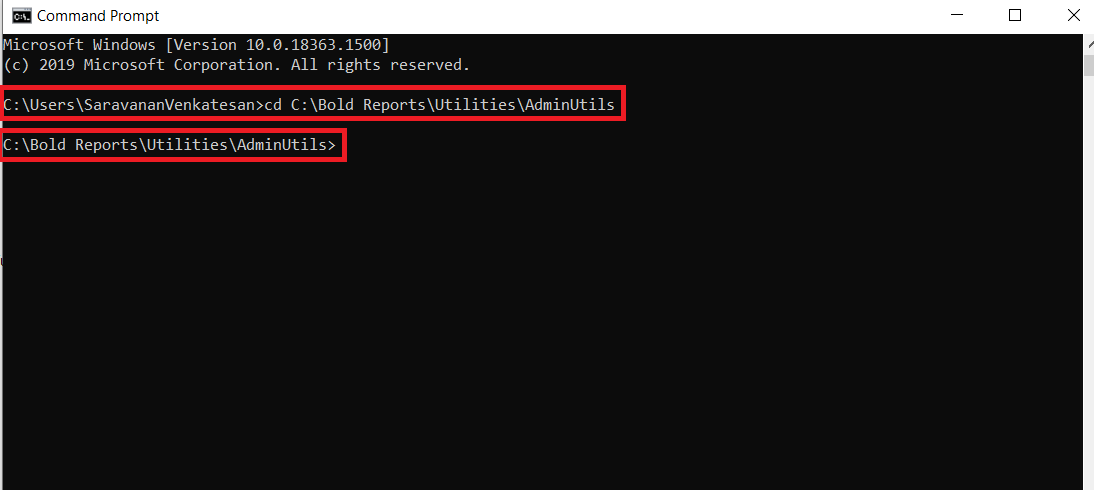
Open the command prompt and change the directory to the admin utility location.
cd C:\Bold Reports\Utilities\AdminUtilsThe following screenshot shows the command prompt in the admin utility location.
-
Run the following command to reset the database:
AdminUtils.exe dbconfig -servername "localhost" -databasename "BoldReportsMasterDatabase" -u "Admin" -p "Admin@12345" -iswindowsauthentication false -sslenabled falseIMPORTANT: command details:
servername – SQL server hostname/IP
databasename – SQL database name
u – SQL server username
p – SQL server password
port - port number of Server(Required PostgreSQL only)
iswindowsauthentication – Is windows authentication required (this is optional)
sslenabled – Is encrypted connection required (this is optional)

- After the database updates successfully, restart the application in IIS.
Frequently asked questions
Which parameters are optional in the dbconfig command?
The iswindowsauthentication and sslenabled parameters are optional. The port number is required for PostgreSQL only.