Reset Two-Factor Authentication for a Bold Reports® User
You can reset the two-factor authentication of any Bold Reports® user with the admin utility reset2fa command, using their email address or username. Follow the steps for your platform:
Windows
To reset two-factor authentication for a Bold Reports® user on Windows, run the admin utility reset2fa command from the command prompt.
-
Open the command prompt and change the directory to the admin utility location.
cd C:\BoldServices\utilities\adminutils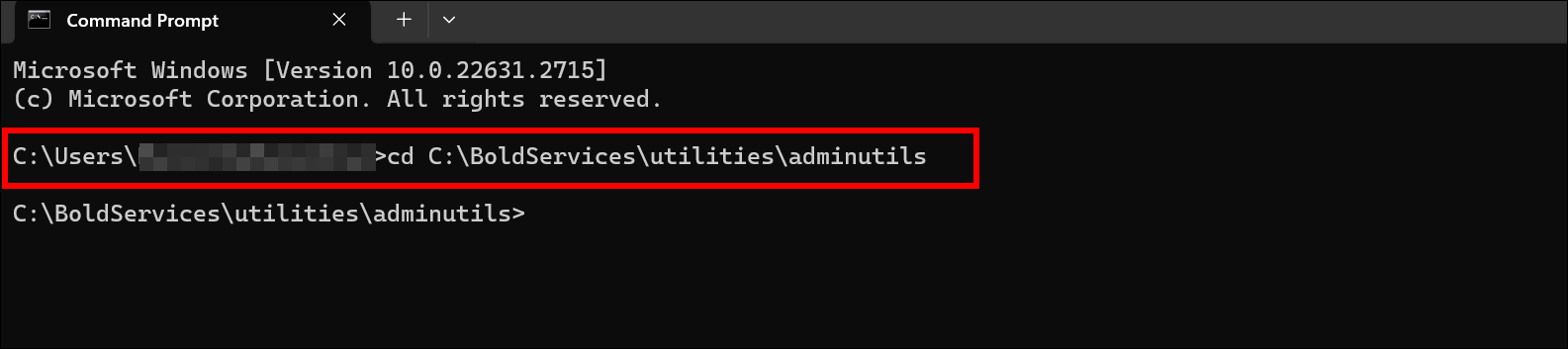
-
Run the following command to reset Two-Factor Authentication:
Syncfusion.Server.Commands.Utility.exe reset2fa -u 'user email or username here'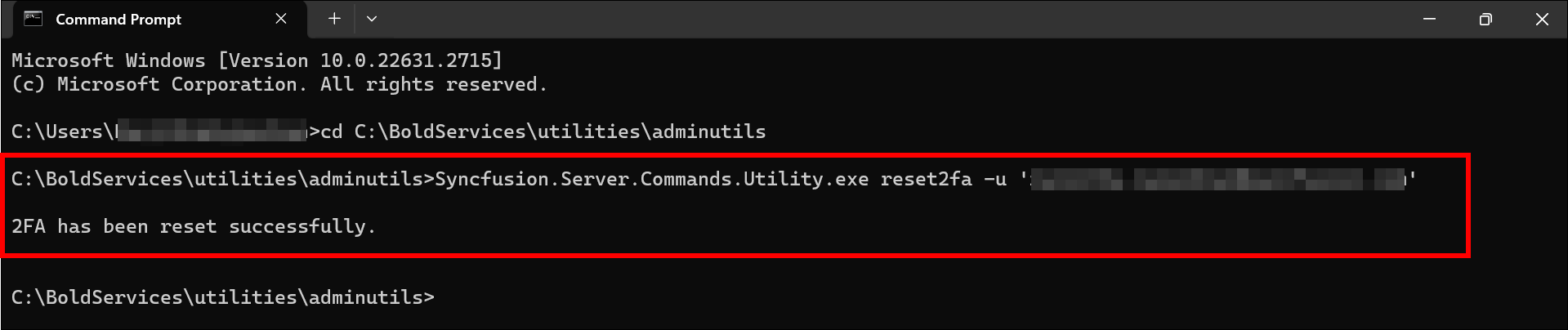
-
After Two-Factor Authentication resets successfully, the user can log in without Two-Factor Authentication.
Linux
To reset two-factor authentication for a Bold Reports® user on Linux, run the admin utility reset2fa command through dotnet.
-
Change the directory to the admin utility location.
cd /var/www/bold-services/application/utilities/adminutils/
-
Run the following command to reset Two-Factor Authentication:
../../../dotnet/dotnet Syncfusion.Server.Commands.Utility.dll reset2fa -u 'user email or username here'
-
After Two-Factor Authentication resets successfully, the user can log in without Two-Factor Authentication.
Frequently asked questions
Which command resets two-factor authentication?
The Bold Reports® admin utility reset2fa command resets two-factor authentication. Pass the user’s email address or username with the -u option.
What happens after I reset two-factor authentication?
The user can log in without Two-Factor Authentication.